
The HEX2DEC function in Excel converts a hexadecimal number into its decimal equivalent.
It can help interpret hexadecimal data from codes or file contents. Inputs are limited to ten hexadecimal characters, with signed values represented using two’s complement.
🔗Click here to download the Example file
In this article, I’ll show you how to convert hexadecimal values, split RGB color codes into numbers, and interpret negative hexadecimal values.
HEX2DEC Syntax
Here is the syntax of the HEX2DEC function:
=HEX2DEC(number)
- number – The hexadecimal number you want to convert. It can be a literal hex string in quotes (like
"FF"), a cell reference, or the result of another formula. Letters can be upper or lower case, so"ff"and"FF"both work.
The number argument is capped at 10 characters (40 bits).
The leftmost bit is the sign bit, and the remaining 39 bits hold the magnitude. Anything longer, or anything with a non-hex character in it, returns the #NUM! error.
When to Use HEX2DEC
Use HEX2DEC when you need to:
- Convert a color code from a design tool (like
FF,A0,7B) into the 0 to 255 RGB value Excel actually uses - Read a memory address or register value from a debug log into a usable number
- Decode a byte from a file header or hex dump
- Round-trip values back and forth between hex and decimal alongside DEC2HEX
Let me show you a few practical examples of how to use this function.
🔗Click here to download the Example file
Example 1: Convert a Single Hex Value
Let’s start with the simplest case.
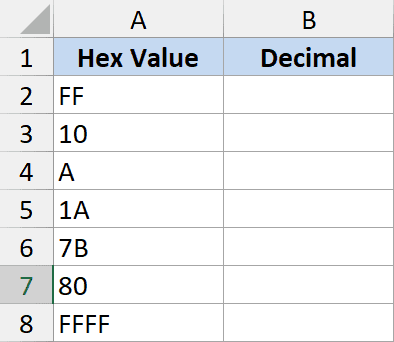
Below is a dataset with a hex value in column A. I want the decimal equivalent of each one in column B.
Here is the formula:
=HEX2DEC(A2)
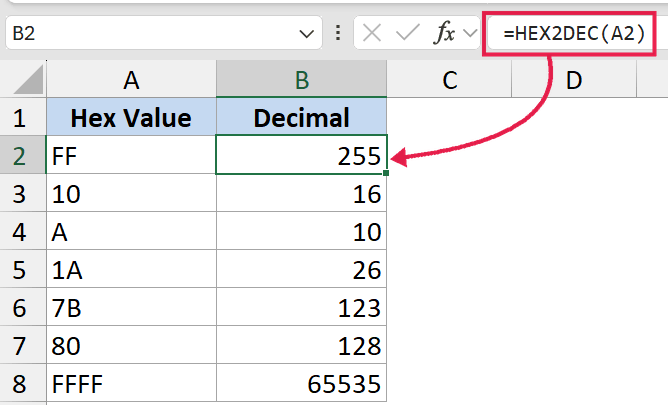
In the above formula, HEX2DEC reads the hex string in A2 and returns its decimal value. So "FF" becomes 255, "10" becomes 16, and "A" becomes 10.
If you want to test it without setting up a column of values, you can also pass the hex directly in quotes, like =HEX2DEC("FF"). Just remember that in hex, the letters A through F are digits, not text.
HEX2DEC function doesn’t work with dynamic arrays so you have to give it one single cell reference. If you give it an entire range, it will return a value error.
Example 2: Break an RGB Color Code Into R, G, B
Here’s a scenario that comes up a lot if you work with design files or brand color guides.
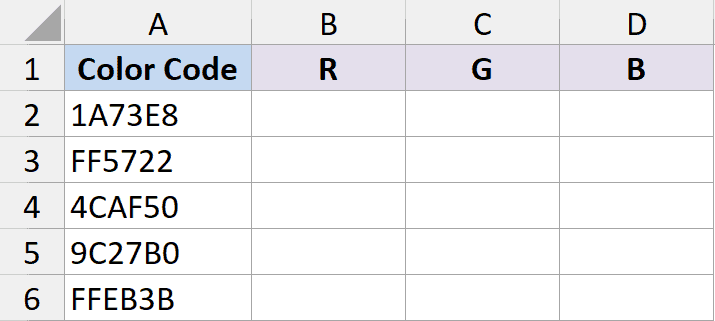
You have a color code (1A73E8 ) and you want the three RGB values that Excel’s color picker actually accepts.
The first two characters are red, the next two are green, and the last two are blue. Each pair is just a 2-digit hex number you can feed into HEX2DEC.
Here are the three formulas:
=HEX2DEC(MID(A2,1,2))
=HEX2DEC(MID(A2,3,2))
=HEX2DEC(MID(A2,5,2))
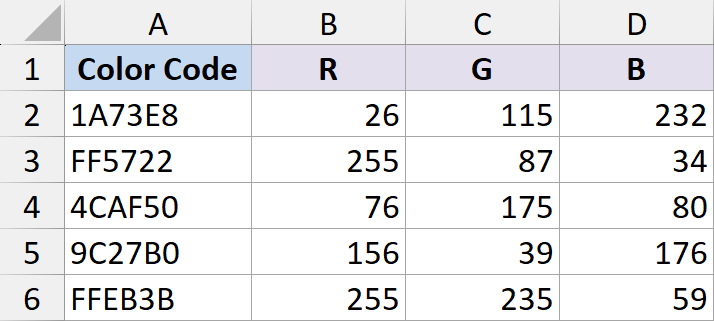
How this formula works:
MID(B2,1,2)pulls the first two characters from the hex string in B2. For1A73E8, that’s1A.- HEX2DEC then converts
1Ato its decimal value, 26. - The other two formulas grab the next two pairs (
73andE8) and convert them the same way. - For
1A73E8, you get R=26, G=115, B=232. That’s the RGB triplet you can paste into Excel’s “More Colors” dialog or use anywhere else that wants 0-255 numbers.
If your hex codes sometimes start with a # (like #1A73E8), shift the MID start positions by one, or strip the # first with SUBSTITUTE(B2,"#","").
Example 3: Larger Hex Values and the 10-Character Limit
Now let’s look at something a bit more involved.
HEX2DEC can handle big numbers, but only up to a point.
The function tops out at 10 hex characters (40 bits). The largest positive value it can return is 7FFFFFFFFF, which is 549,755,813,887.
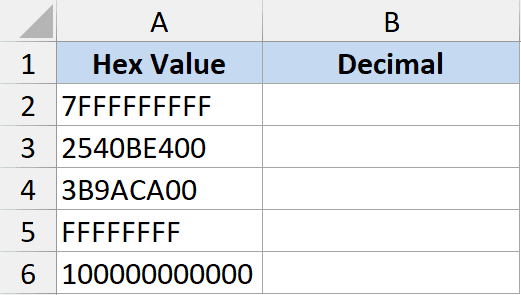
Here is the formula:
=HEX2DEC(A2)
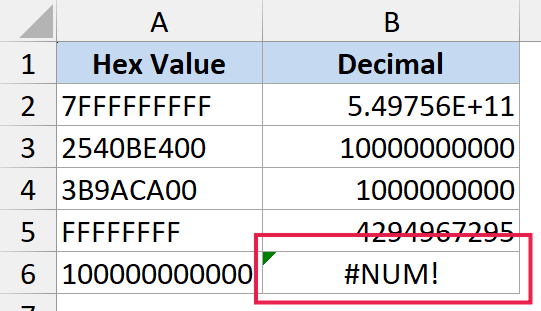
In the dataset above, 7FFFFFFFFF returns the max positive value, and 2540BE400 (9 characters) returns 10,000,000,000. Anything longer than 10 characters, like 100000000000, returns #NUM!.
If you’re dealing with hex values that exceed 10 characters (think 64-bit memory addresses), you have to split them.
Convert each half with HEX2DEC and combine with multiplication, something like =HEX2DEC(LEFT(B2,8))*16^8 + HEX2DEC(RIGHT(B2,8)). It’s not pretty, but it gets you past the limit.
Example 4: Negative Numbers and Two’s Complement
Here’s the part of HEX2DEC that trips most people up.
Once your hex value is exactly 10 characters AND the leftmost digit is 8 or higher, HEX2DEC treats it as a negative number using two’s complement notation. That’s how computers store signed integers.
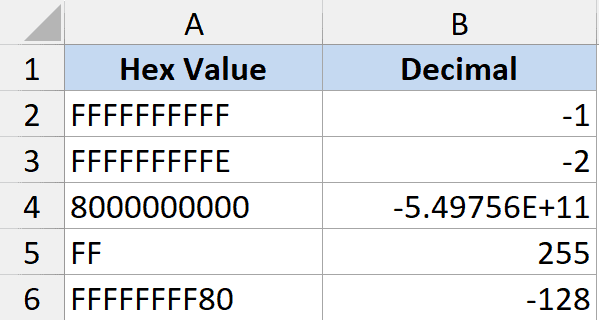
What happens is this. FFFFFFFFFF (10 F’s) returns -1, not some huge positive number. FFFFFFFFFE returns -2. 8000000000 returns the most negative value HEX2DEC can give you, -549,755,813,888.
If your hex string is fewer than 10 characters, none of this kicks in. FF is just 255, even though it starts with an F. The two’s complement behavior only triggers when you’ve used the full 10-character width.
If you have a shorter hex value that you want to interpret as signed (say, an 8-character value where 80000000 should be -2,147,483,648), you’ll need to roll your own with something like =HEX2DEC(B2) - IF(HEX2DEC(LEFT(B2,1))>=8, 16^LEN(B2), 0).
Example 5: Round Trip With DEC2HEX
This last one is more of a sanity check than an example, but it’s useful when you’re building formulas that bounce between bases.
HEX2DEC and DEC2HEX are inverses.
Convert a decimal to hex with one, feed the result into the other, and you get your original number back.
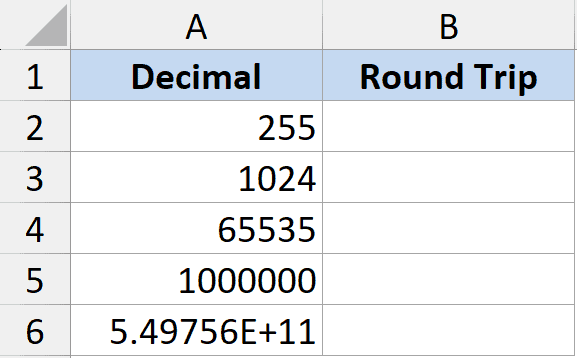
Here is the formula:
=HEX2DEC(DEC2HEX(A2))
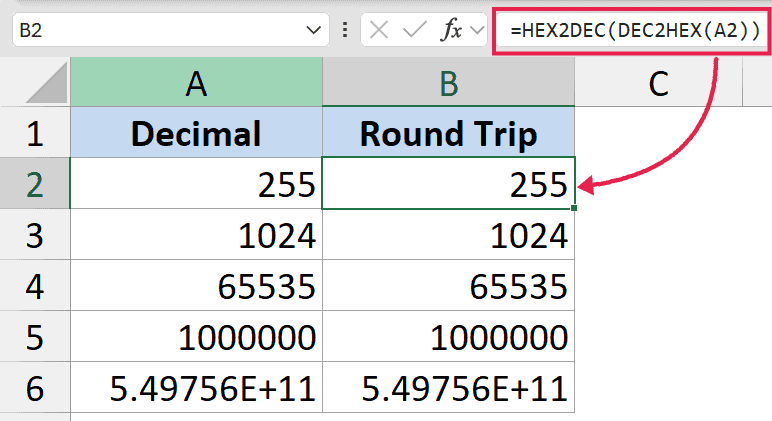
In the above formula, DEC2HEX takes a decimal value from B2 and turns it into a hex string. HEX2DEC immediately turns it back into the original decimal.
The result in C2 always equals B2, as long as the value fits in 39 bits.
This pairing is handy when you’re storing intermediate values as hex (compact) and converting back to decimal only when you need to do math.
While we’re on the family, the other conversion functions follow the exact same pattern:
- HEX2BIN converts hex to binary
- HEX2OCT converts hex to octal
- BIN2DEC converts binary to decimal
- OCT2DEC converts octal to decimal
- DEC2BIN and DEC2OCT go the other way
If you’ve already learned HEX2DEC, the rest read like the same function with different labels.
Tips & Common Mistakes
#NUM!usually means an invalid character. HEX2DEC only accepts 0-9 and A-F. A typo like the letter O instead of a zero, or a stray space, throws#NUM!. Wrap the input in TRIM if your hex values come from a copy-paste source.- Watch the 10-character limit. Hex strings longer than 10 characters error out, even if they’d be valid otherwise. If you’re seeing
#NUM!on a long value, count the characters first. - Don’t confuse a leading
0xwith hex syntax. Excel does not understand0x1A. Strip the prefix first, either withMID(B2,3,LEN(B2)-2)orSUBSTITUTE(B2,"0x",""), then pass the result to HEX2DEC. - Case doesn’t matter, but quotes do.
"ff","FF", and"Ff"all return 255. But forgetting the quotes around a literal hex value (=HEX2DEC(FF)without quotes) makes Excel look for a named range called FF, which usually fails with#NAME?. - Two’s complement only triggers at 10 characters. If your data has 8-character signed hex (common in 32-bit registers), HEX2DEC won’t interpret the sign bit for you. You have to subtract
16^LEN(B2)manually when the leading digit is 8-F.
That covers the main ways to use HEX2DEC in Excel.
The function itself is small. The two’s complement behavior and the 10-character cap are where most of the questions come from, and once you’ve hit those once or twice, the rest is just plugging hex into a cell and reading off the decimal.
Related Excel Functions / Articles:
