
If you want to turn a date value into text in Power Query, formatted exactly the way you want it, the Date.ToText function is what you reach for.
In this article, I’ll show you how to use Date.ToText to control the format, the order, and the localized names of your dates.
Syntax of Date.ToText Function
Date.ToText(date as nullable date, optional options as any, optional culture as nullable text) as nullable text
where
date(required, nullable date). Thedatevalue you want to convert to text.options(optional, any). Controls how the date is formatted. The modern form is a record like[Format="dd-MMM-yyyy", Culture="en-US"], whereFormatis a .NET format string (for example"dd-MMM-yyyy") andCulturesets the locale. The older form is a single text format string instead of a record.culture(optional, nullable text). A culture code such as"en-US"or"fr-FR". This is the legacy companion to the text format string inoptions. With the record form you set the culture insideoptionsinstead.
Returns: a text value holding the formatted date. If date is null, it returns null.
In plain terms, you hand it a date, optionally tell it how to format it, and it gives you back that date as text.
Example 1: Convert a date with no formatting
Convert a date to text using the default format, with no options passed.
let
    Source = Date.ToText(#date(2025, 3, 8))
in
    Source
Result: depends on your system locale, for example 3/8/2025 in en-US.
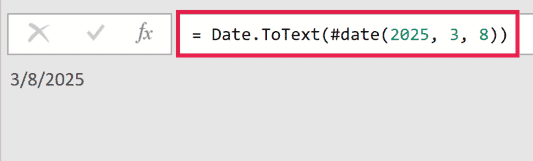
The bare call uses the machine’s locale for the format, so the same code can produce a different string on a different computer.
Example 2: Format a date with a custom pattern
Set an exact pattern with the record form, using Format for the layout and Culture for stable output.
let
    Source = Date.ToText(#date(2025,3,8),[Format="dd-MMM-yyyy",Culture="en-US"])
in
    Source
Result: 08-Mar-2025
The Format string "dd-MMM-yyyy" gives a two-digit day, a three-letter month, and a four-digit year.
Example 3: Use a standard format across two cultures
You can pass a standard .NET format specifier like "d" (short date) and let the culture decide the order.
First, the short date in en-US:
let
    Source = Date.ToText(#date(2025,3,8),[Format="d",Culture="en-US"])
in
    Source
Result: 3/8/2025
Now the same "d" format in en-GB:
let
    Source = Date.ToText(#date(2025,3,8),[Format="d",Culture="en-GB"])
in
    Source
Result: 08/03/2025
Same date, same format code. en-US puts the month first while en-GB puts the day first, which is why setting Culture matters.
Example 4: Get a localized month name
Use a month-name format with a non-English culture to get the name in that language.
let
    Source = Date.ToText(#date(2025,3,8),[Format="MMMM yyyy",Culture="fr-FR"])
in
    Source
Result: mars 2025
The "MMMM" specifier returns the full month name, and Culture="fr-FR" localizes it, so March becomes mars.
Example 5: Add a text-date column to a table
A common job is taking a real date column, such as one built when you get today’s date in Power Query, and adding a text version of it for labels or exports.
Say you have an Orders query with an OrderID and an OrderDate column.
Here is the starting data:
| OrderID | OrderDate |
|---|---|
| A-101 | 1/15/2025 |
| A-102 | 3/8/2025 |
| A-103 | 12/31/2025 |
Add a new text column with Date.ToText inside Table.AddColumn:
let
    Source = Excel.CurrentWorkbook(){[Name="Orders"]}[Content],
    Typed = Table.TransformColumnTypes(Source, {{"OrderID", type text}, {"OrderDate", type date}}),
    AddText = Table.AddColumn(Typed, "OrderDateText", each Date.ToText([OrderDate],[Format="dd-MMM-yyyy",Culture="en-US"]), type text),
    Result = Table.SelectColumns(AddText, {"OrderID", "OrderDateText"})
in
    Result
This formats each date with "dd-MMM-yyyy" and keeps only the ID and the new text column.
The result produces:
| OrderID | OrderDateText |
|---|---|
| A-101 | 15-Jan-2025 |
| A-102 | 08-Mar-2025 |
| A-103 | 31-Dec-2025 |
Every date is now a fixed-format text value you can use anywhere a string is expected, for example when you concatenate in Power Query to build a label.
Things to keep in mind with Date.ToText
Formatuses .NET format specifiers. Common ones aredd(day),MMM(short month),MMMM(full month), andyyyy(four-digit year). They are case-sensitive, soMMis the month butmmis minutes.- Pass a real
date, not adatetime. Feed it adatetimeand you getExpression.Error: We cannot convert a value of type DateTime to type Date.Wrap the value inDate.Fromfirst, or useDateTime.ToText. Date.ToTextformats, it does not calculate. To work with gaps between dates rather than display them, see how to calculate the date difference in Power Query.
Common questions about Date.ToText
What is the difference between Date.ToText, DateTime.ToText, and Text.From?
Date.ToText formats a date value, DateTime.ToText formats a datetime value (date plus time), and Text.From does a quick default conversion of any value to text with no format control.
How do I get just the month name from a date?
Use a month-only format: Date.ToText([OrderDate],[Format="MMMM",Culture="en-US"]) returns the full name, while "MMM" returns the three-letter short name.
List of All Power Query Functions
Related Power Query Functions / Articles:
