
“Compile error: User-defined type not defined” shows up when VBA hits a data type it doesn’t recognize.
It usually happens in a Dim line, like Dim dict As Scripting.Dictionary, before a single line of your macro runs.
VBA isn’t saying your logic is wrong. It’s saying it can’t find the type you named, and there are only a few reasons that happens.
In this article, I’ll show you how to fix it by checking the type name, fixing library references, using late binding, and making a custom Type public.
Note: The Scripting.Dictionary examples and the Windows VB Editor steps below are for desktop Excel on Windows. Excel for Mac does not provide the Windows Scripting Runtime, so those examples will not run there as written.
Method #1: Checking the Spelling of the Type Name
Start here, because it’s the most common cause and the fastest to rule out.
When you run the macro (or compile it), VBA stops and highlights the line with the type it can’t find.
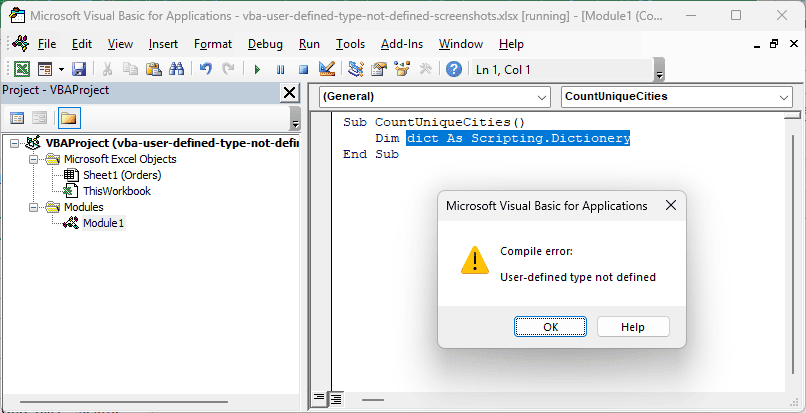
Here is an example where a single letter causes the whole problem:
Sub CountUniqueCities()
    Dim dict As Scripting.Dictionery
End SubThere is no type called Dictionery, so VBA throws the error. Changing it to Scripting.Dictionary fixes it (as long as the library reference from Method #2 is in place).
Here are the things to check on the highlighted line:
- The type name is spelled correctly.
- If it’s your own class (like
Dim emp As Employee), a class module with that exact name exists in the same project. - If it’s your own Type, the
Type ... End Typeblock exists somewhere in the project.
Note: A handy trick is to type the name in lowercase. If VBA recognizes it, it switches the name to its proper capitalization as soon as you leave the line. If it stays lowercase, VBA doesn’t know it.
Method #2: Adding the Missing Library Reference
If the spelling is fine, the next suspect is a missing reference. This is what’s going on in most cases where you copied code from a website or a colleague.
Types like Scripting.Dictionary, ADODB.Connection, or Outlook.Application don’t come with VBA. They live in separate object libraries, and your project needs a reference to each one it uses.
Below I have a list of orders with an Order ID and a City, and I want a macro that counts how many unique cities there are.
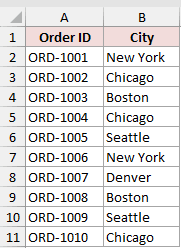
Here is the VBA code:
Sub CountUniqueCities()
    Dim dict As Scripting.Dictionary
    Dim cell As Range
    Set dict = New Scripting.Dictionary
    For Each cell In Range("B2:B11")
        If Not dict.Exists(cell.Value) Then dict.Add cell.Value, 1
    Next cell
    MsgBox dict.Count & " unique cities"
End SubOn a fresh workbook, this code stops on the Dim line with “User-defined type not defined”.
That’s because Scripting.Dictionary lives in the Microsoft Scripting Runtime library, which isn’t turned on by default.
Here are the steps to add the reference:
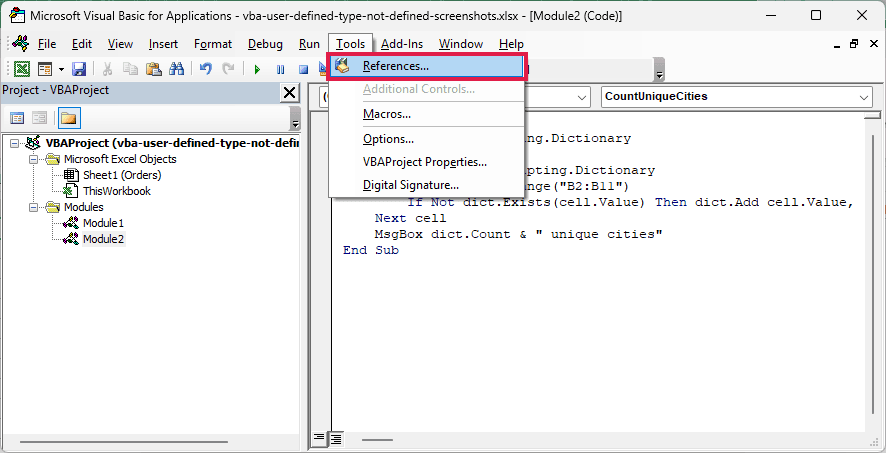
- Press Alt + F11 to open the VB Editor, then click Tools > References.
- Scroll down the list, check Microsoft Scripting Runtime, and click OK.
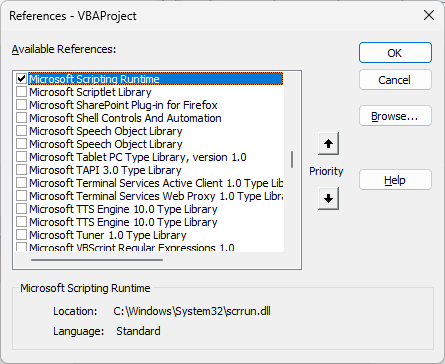
Now run the macro again. It gets past the Dim line and shows a message box that says “5 unique cities”.
If your code uses a different type, here are the libraries you’ll most often need:
| Type in your code | Library to check in Tools > References |
|---|---|
| Scripting.Dictionary, Scripting.FileSystemObject | Microsoft Scripting Runtime |
| ADODB.Connection, ADODB.Recordset | Microsoft ActiveX Data Objects x.x Library |
| Outlook.Application, Outlook.MailItem | Microsoft Outlook Object Library (installed version) |
| Word.Application, Word.Document | Microsoft Word Object Library (installed version) |
| VBScript_RegExp_55.RegExp | Microsoft VBScript Regular Expressions 5.5 |
Note: The reference is saved with the workbook, but the referenced library must also be available on each computer that opens it. If it is missing, VBA marks the reference as MISSING.
Method #3: Fixing a MISSING Reference
Sometimes the reference is already there, but it’s broken. This can happen when a file is opened on a PC that lacks a referenced library or has an incompatible version.
For example, a macro that sends emails might reference Microsoft Outlook 16.0 Object Library.
If the other PC doesn’t have that library, the reference breaks and every Outlook type in the code fails.
You can spot this in Tools > References. A broken one is checked and starts with the word MISSING.
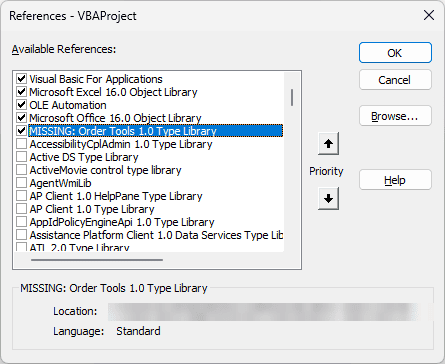
Here are the steps to fix a MISSING reference:
- In the VB Editor, click Tools > References.
- Uncheck the item that starts with MISSING and click OK.
- Open Tools > References again.
- Find the version of that library that this PC has (for example, Microsoft Outlook 16.0 Object Library), check it, and click OK.
A MISSING reference can also cause strange errors in code that has nothing to do with that library.
So it’s worth checking the References list whenever a file that used to work suddenly doesn’t compile.
Note: If the file keeps moving between PCs with different Office versions, you’ll keep hitting this. In that case, switch the code to late binding (Method #4), which doesn’t need a reference at all.
Method #4: Using Late Binding With CreateObject
If you don’t want to depend on a reference at all, you can declare the variable as a generic Object and create it with CreateObject. This is called late binding.
Below I have the same list of orders with an Order ID and a City, and I want to count the unique cities, but this time without any reference.
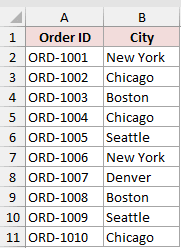
Here is the VBA code:
Sub CountUniqueCities()
    Dim dict As Object
    Dim cell As Range
    Set dict = CreateObject("Scripting.Dictionary")
    For Each cell In Range("B2:B11")
        If Not dict.Exists(cell.Value) Then dict.Add cell.Value, 1
    Next cell
    MsgBox dict.Count & " unique cities"
End Sub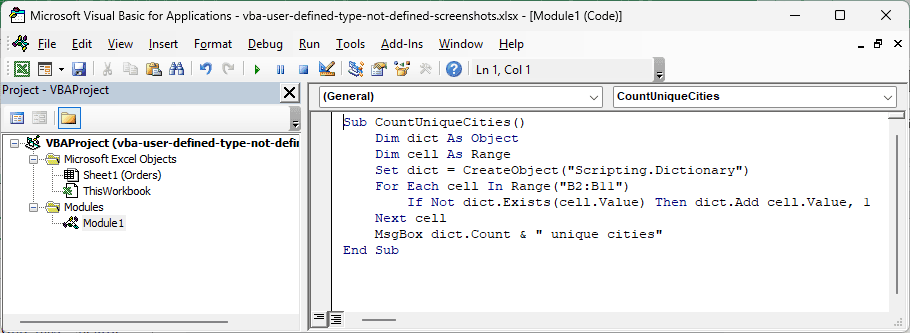
Only two lines changed. Dim dict As Object doesn’t name any library type, so VBA has nothing to complain about at compile time.
Then CreateObject("Scripting.Dictionary") creates the dictionary when the macro runs, provided the component is available on that Windows PC. The result is the same message box that says “5 unique cities”.
Late binding has two trade-offs you should know about:
- You lose IntelliSense, so typing
dict.no longer shows the list of properties and methods. - Named constants from the library don’t exist anymore. For example, Outlook’s
olMailItemhas to be written as its value,0.
Note: A common approach is to write and test the code with the reference (early binding) so you get IntelliSense, then switch to late binding before sharing the file.
Method #5: Making the Type Public in a Standard Module
This one applies when you’ve built your own data type with a Type ... End Type block.
Say you have this Type at the top of Module2:
Private Type Employee
    Name As String
    Salary As Double
End TypeAnd in Module1 you have Dim emp As Employee. VBA throws “User-defined type not defined” because a Private Type can only be used in the module where it’s declared.
To fix it, declare the Type as Public at the top of a standard module (above any Sub or Function):
Public Type Employee
    Name As String
    Salary As Double
End Type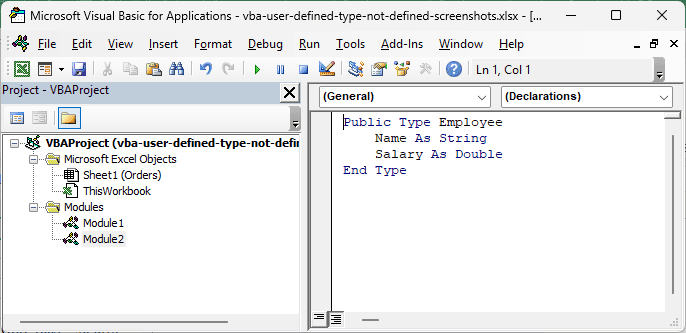
Now any module in the project can use Dim emp As Employee.
And since a Type without Public or Private is public by default in a standard module, writing just Type Employee works too.
If your Type is sitting in a class module or a sheet module, move it to a standard module.
In a class module, a Type has to be Private, so the rest of the project can’t see it.
Note: If you put the Type block inside a Sub, you get a different error (“Invalid inside procedure”). The fix is the same, though. Move the block to the top of a standard module.
Additional Notes About Fixing “User-Defined Type Not Defined” in VBA
- Click Debug > Compile VBAProject in the VB Editor to check the project before running a macro. Fix the error it shows, then compile again until no error appears.
- The error is a compile error, so nothing in the macro runs until you fix it. Even the lines above the highlighted one don’t execute.
- If you copied code from the internet, look at the Dim lines first. Any type with a library prefix (like
ADODB.orOutlook.) needs its reference turned on. - Save the file as a macro-enabled workbook (.xlsm), or you’ll lose both the code and the references when you close it.
Frequently Asked Questions
Why does my macro work on my PC but show this error on someone else’s?
Most likely the file has a reference to a library version their PC doesn’t have.
Check Tools > References on their PC for a MISSING item and fix it as shown in Method #3.
Which reference do I need for Scripting.Dictionary?
You need Microsoft Scripting Runtime. You can also skip the reference and use CreateObject("Scripting.Dictionary") with the variable declared As Object.
Why is Tools > References greyed out?
The References option is disabled while a macro is running or paused. Click the Reset button (the small blue square) or Run > Reset, and it becomes available again.
Does late binding make my code slower?
Slightly, because VBA looks up each property and method while the macro runs. For most everyday macros, you won’t notice the difference.
Conclusion
I hope these steps helped you track down the type that VBA couldn’t find and fix the compile error. I hope you found this article helpful.
Other Excel articles you may also like:
