
You can get stock prices in Excel without copying each quote from a website. The Stocks data type connects a company or ticker symbol to its market information.
Check the exchange, currency, and timestamp alongside the price, because quotes can be delayed or refer to a different listing.
In this article, I’ll show you how to build a refreshable watchlist with Stocks and import an end-of-day quote from an API using Power Query.
| Method | Best For | What to Expect |
|---|---|---|
| Stocks data type | A simple watchlist in supported Excel versions | Quotes with market-dependent delays; no separate API key |
| Power Query | Bringing a provider’s quote into a query-based workbook | More setup; the example uses a public IBM demo with end-of-day data |
Method #1: Using the Stocks Data Type
I’d start with this method. Excel handles the connection, and you can pull several details from the same stock cell.
The steps below use Excel for Microsoft 365 on Windows. Stocks also requires an eligible signed-in account, an internet connection, and a supported Office editing language.
Below, column A contains eight Nasdaq ticker symbols. I want each stock’s price beside it, followed by its currency, exchange, and last trade time.
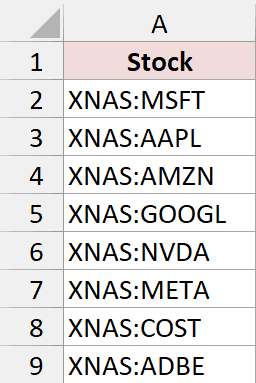
The XNAS: prefix identifies Nasdaq. For example, XNAS:MSFT specifies Microsoft’s Nasdaq listing instead of relying on the ticker alone.
The download’s Stock Watchlist sheet already contains the completed example. To build your own, enter these symbols in a blank sheet with Stock in A1.
Here are the steps to retrieve the prices:
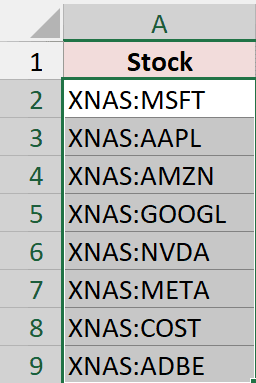
- Select the ticker symbols in A2:A9. Leave the header out of the selection.
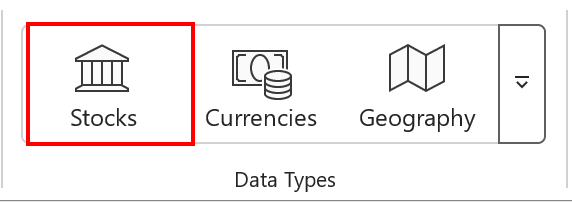
- On the Data tab, click Stocks in the Data Types group.
Excel replaces each recognized symbol with a linked stock value. The small stock icon shows that the cell now contains more than plain text.
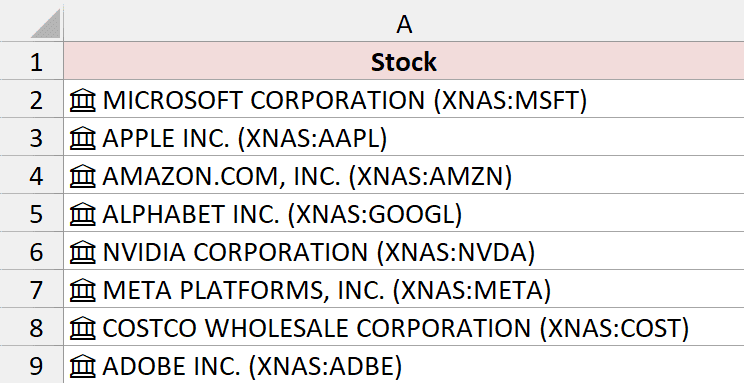
If a symbol shows a question mark, Excel needs help choosing a match. Use the selection pane to confirm the company and exchange before continuing.
- Enter Price in B1. In B2, enter the formula below, then copy it down through B9.
=A2.[Price]
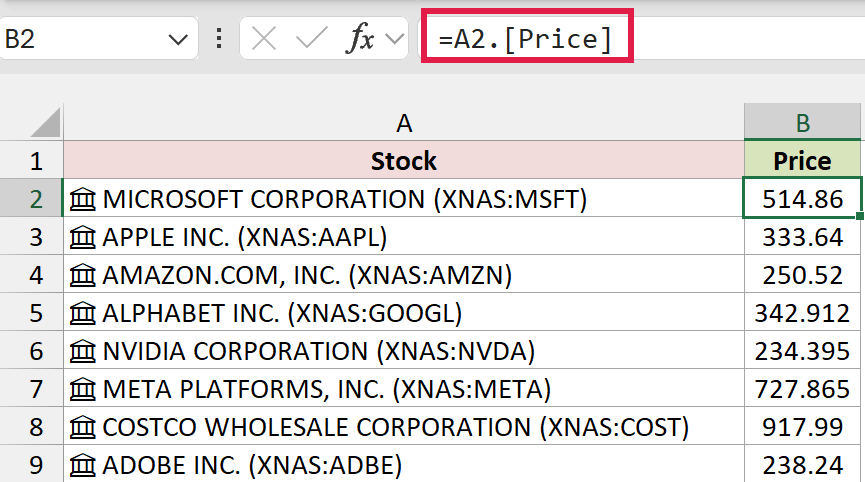
A2 refers to the linked stock, and [Price] extracts its price field. Each copied formula refers to the stock on its own row.
This example uses individual row formulas so you can inspect each company’s quote separately. These are formulas in ordinary cells, not an Excel Table.
You can also use the Add Column button that appears when you select linked stock cells. Choosing Price retrieves the same field.
Add the Currency, Exchange, and Quote Time
A price alone doesn’t tell you which market supplied it or when the last trade occurred. I’ll add those details beside the price.
Continue with these steps:
- Enter Currency in C1. Enter this formula in C2 and copy it down through C9.
=A2.[Currency]
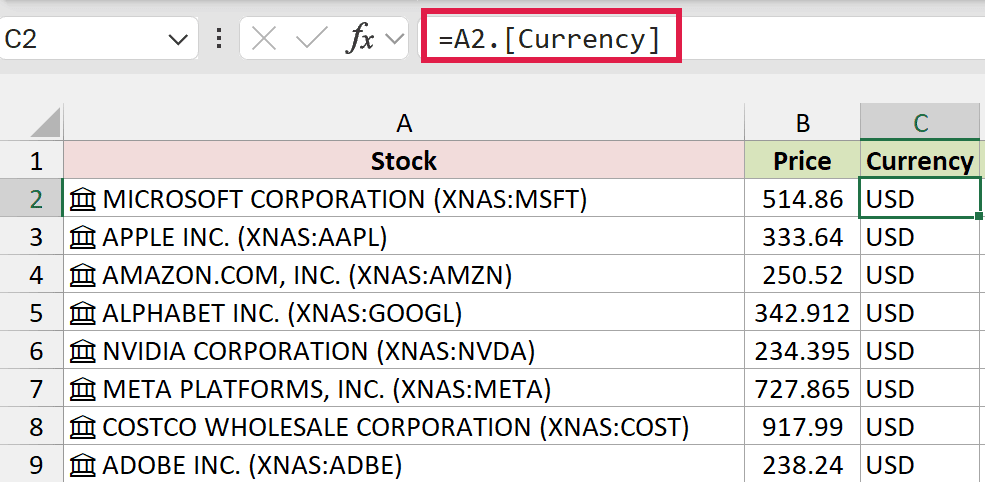
- Enter Exchange in D1. Enter this formula in D2 and copy it down through D9.
=A2.[Exchange]
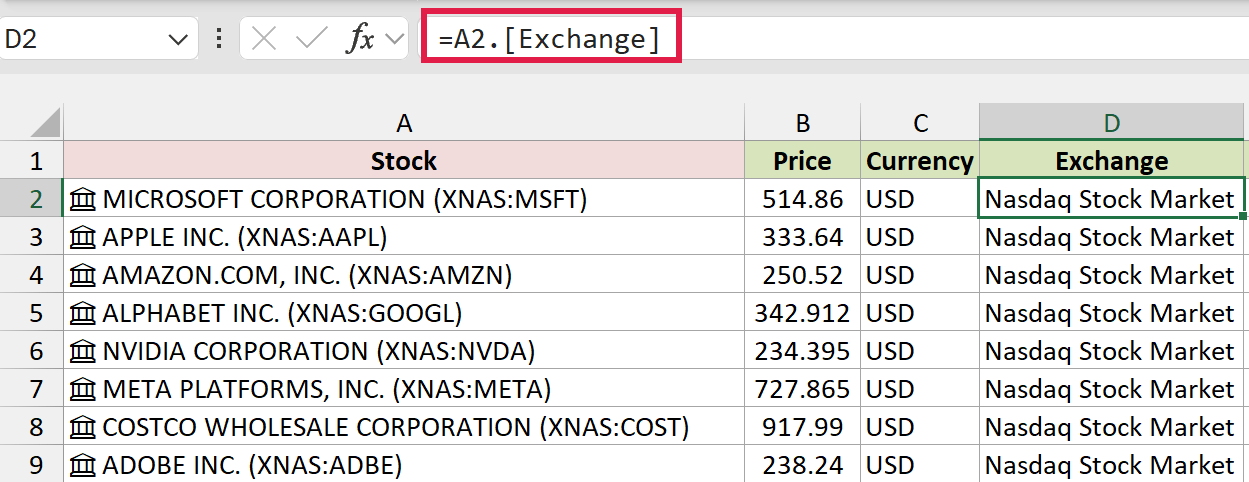
- Enter Last Trade Time in E1. Enter this formula in E2 and copy it down through E9.
=A2.[Last Trade Time]
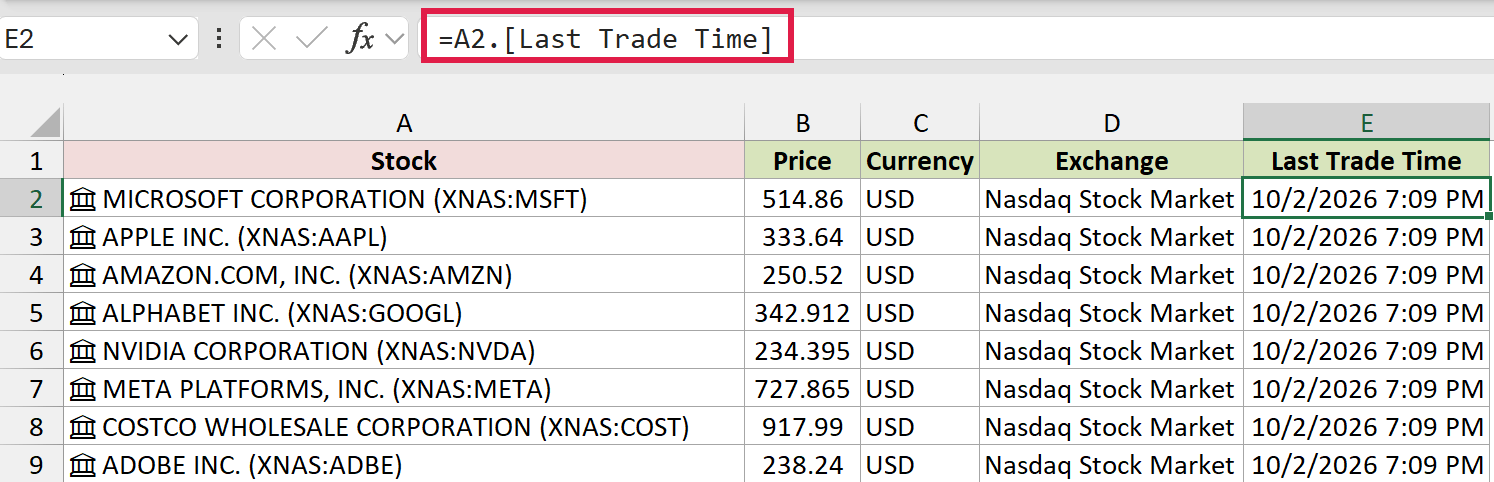
The last field describes the trade timestamp supplied by the data source. It isn’t a timestamp for when you last clicked Refresh.
The example formats column E as a date and time. If yours shows a number, apply a date-and-time format, such as m/d/yyyy h:mm AM/PM.
Prices in your workbook will differ from the screenshots as the market data changes.
- To request updated data, go to Data > Refresh All. Wait for Excel to finish retrieving the quotes.
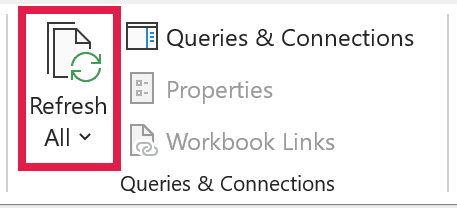
Refreshing requests the provider’s latest available data. It cannot remove a delay imposed by the data feed.
Method #2: Importing Data With Power Query
If you need a particular provider’s data, Power Query lets you bring its API response into a worksheet table.
Here, I’m using Alpha Vantage’s public IBM demo. The request supplies a stock symbol, a price, and the latest trading day reported by the endpoint.
This example retrieves an end-of-day quote. It is useful for learning the connection, but it is not a live intraday price feed.
The source is a web service, so there is no worksheet input range to convert into a table. The API Quote sheet in the download contains the completed output.
These instructions use desktop Excel for Windows with Power Query. Start in a blank workbook if you want to recreate the connection without duplicating the download’s existing query.
Here is the public demo request used in this example:
https://www.alphavantage.co/query?function=GLOBAL_QUOTE&symbol=IBM&apikey=demo
Follow these steps to connect to it:
- Go to Data > Get Data > From Other Sources > Blank Query. Excel opens the Power Query Editor.
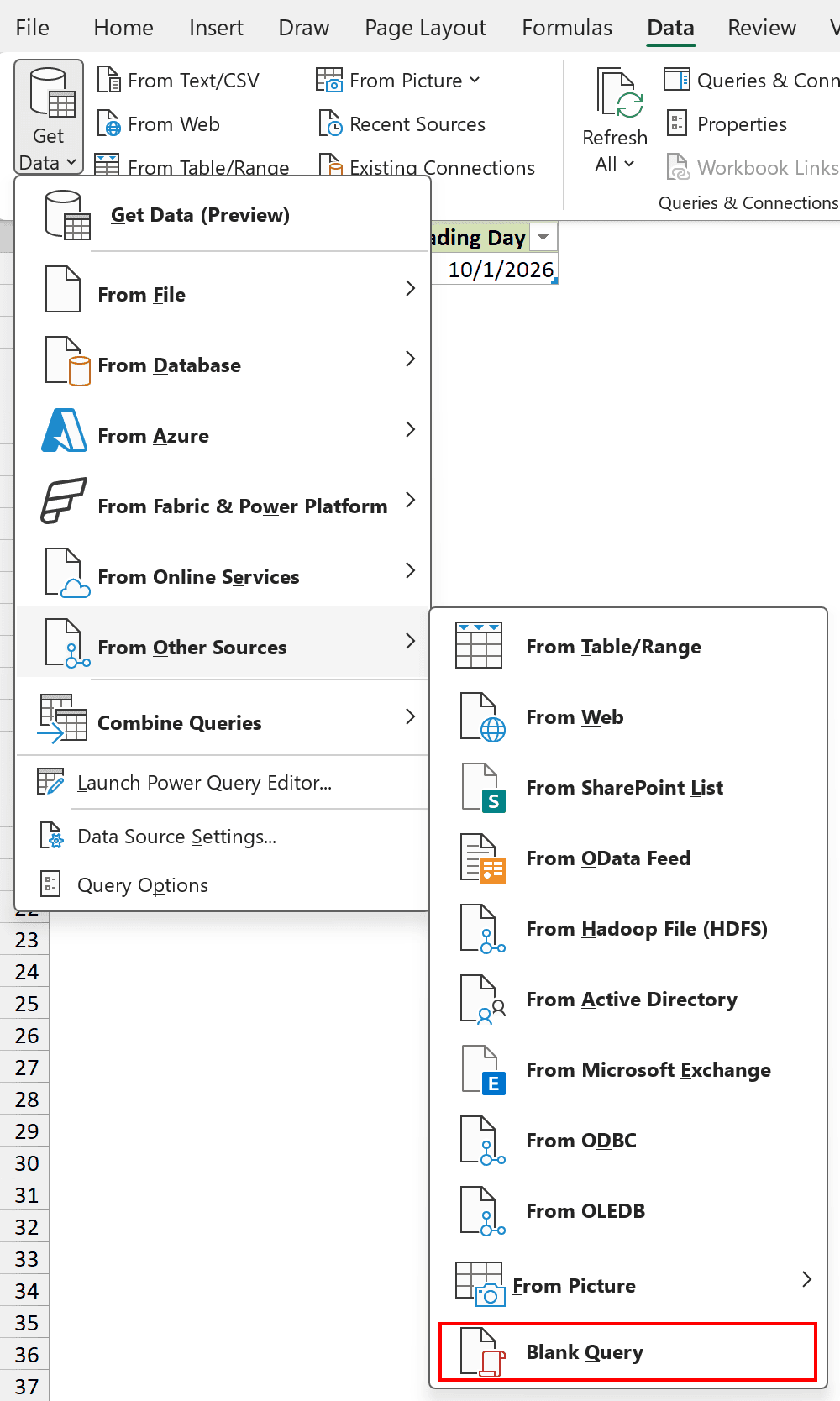
- In the Power Query Editor, select Home > Advanced Editor. Replace the starter code with the following code.
let
    Source = Json.Document(Web.Contents("https://www.alphavantage.co", [RelativePath="query", Query=[#"function"="GLOBAL_QUOTE", symbol="IBM", apikey="demo"], Timeout=#duration(0,0,0,30)])),
    Quote = Source[#"Global Quote"],
    Result = #table(type table [Symbol=text, Price=number, #"Latest Trading Day"=date], {{Quote[#"01. symbol"], Number.FromText(Quote[#"05. price"], "en-US"), Date.FromText(Quote[#"07. latest trading day"], [Format="yyyy-MM-dd", Culture="en-US"])}})
in
    Result
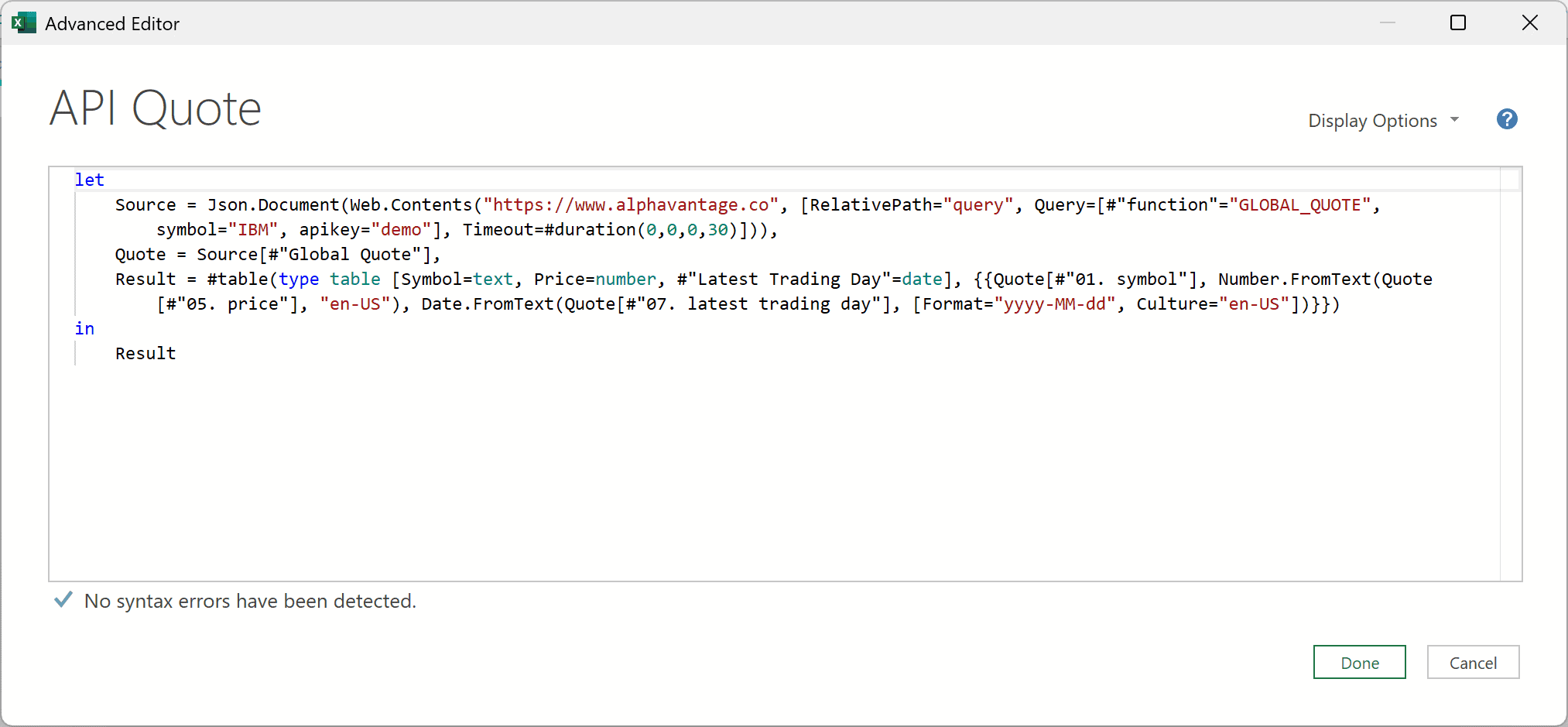
- Click Done. If Excel asks how to connect to https://www.alphavantage.co, choose Anonymous and click Connect.

The demo key is already included in the request, which is why this example uses Anonymous access in Excel’s connection prompt.
The preview should show one row with Symbol, Price, and Latest Trading Day. The date and price depend on the response available when you refresh.
- In Query Settings, change the query name to API Quote.
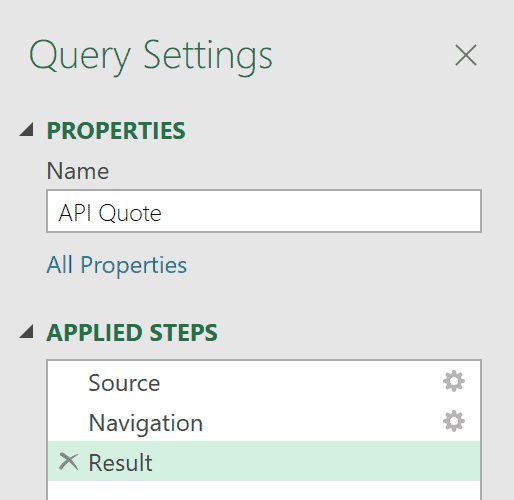
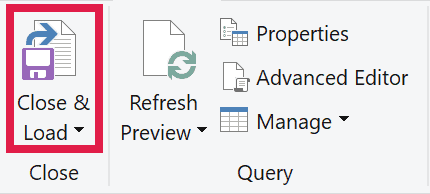
- Choose Home > Close & Load to load the result into a new worksheet.
The completed download stores the loaded table in API Quote!A1:C2, as shown below.

The output is a table maintained by Power Query. Make source or transformation changes in the query, since a refresh can replace edits made directly to its output.
How Does the Query Work?
Web.Contents sends the request, and Json.Document reads the response. The Quote step selects the record named Global Quote.
The last step creates a three-column table. Number.FromText reads the API’s price using US number conventions, and Date.FromText parses its yyyy-MM-dd trading date.
The trading date contains no time-of-day information. Your worksheet may display it differently depending on its number format and regional settings.
Refresh the API Quote or Use Another Symbol
Use Data > Refresh All to run the saved query again. It does not continuously stream prices into the worksheet.
For another symbol, edit symbol="IBM" in the query and replace apikey="demo" with your own Alpha Vantage key. The public demo is restricted.
Check the provider’s quote endpoint documentation for your access level. Real-time and 15-minute-delayed US quotes require the appropriate paid entitlement.
If you put a personal API key directly into the query, anyone receiving that workbook can read it. The downloadable example contains only the public demo key.
If the query reports that Global Quote is missing, examine the service response. An invalid symbol, access restriction, or request limit may return a message instead of quote data.
Additional Notes About Getting Stock Prices in Excel
Keep these details in mind when building or refreshing your workbook:
- Confirm the listing. Matching a company name isn’t enough when it trades on several exchanges. Check the exchange and currency before using the price.
- Check the data’s age. Stocks provides a Last Trade Time field; the API example provides only a trading date. Neither is a promise of a real-time quote.
- Expect market-specific delays. Microsoft’s financial data sources list supported exchanges and their delays. A refresh does not make a delayed feed real-time.
- Keep an internet connection available. Saved values may still be visible while offline, but fetching new data needs access to the source.
- Keep the result cells intact. The reader file contains linked Stocks formulas and a Power Query table. Replacing them with typed prices removes the update behavior.
Frequently Asked Questions
Here are a few questions that come up when getting market data into Excel.
Why Is the Stocks Data Type Missing in Excel?
Check your Excel version, signed-in account, Office editing language, and internet connection. Stocks isn’t available in every Excel installation.
Microsoft’s Stocks requirements specify an eligible Microsoft account and a supported editing language. An organization’s settings can also restrict connected features.
Are Excel Stock Prices Real-Time?
Don’t assume they are. Stocks data can be delayed, and the delay depends on the market and source. Check the quote timestamp and provider’s stated delay.
The Power Query demo in this article returns an end-of-day quote. Refreshing it during the session doesn’t turn it into an intraday feed.
Can Excel Refresh Stock Prices Automatically?
Manual refresh is available through Data > Refresh All. Some Excel builds also expose Data Type > Refresh Settings when you right-click a linked stock.
Microsoft’s automatic-refresh documentation describes options such as refreshing on opening or every five minutes, but notes that availability is limited to the Insiders program.
How Do I Get Historical Stock Prices?
The STOCKHISTORY function returns prices for dates or periods, such as daily closing prices over a month. Use it when you need a price history.
It isn’t a substitute for an intraday quote. This article’s Stocks example focuses on the available quote, while STOCKHISTORY works with historical records.
Conclusion
In this article, I showed you how to pull stock prices into Excel with the Stocks data type and a Power Query connection.
I hope you found this article helpful.
