
A value can look like a number while Excel VBA still treats it as text. That can cause trouble when you do math or compare values.
The conversion you choose matters because commas and decimal separators can change the result.
I’ll show you six ways to convert strings to numbers in VBA, from ordinary amounts to text-formatted cells and European-style prices.
Method #1: Using the CDbl Function
I reach for CDbl first when I need to convert a string to a number with decimals. VBA calls this number type a Double.
Let me start with a string variable, without reading anything from a worksheet:
Sub ConvertStringVariable()
    Dim amountText As String
    Dim amount As Double

    amountText = "1250.75"
    amount = CDbl(amountText)

    MsgBox amount * 2
End SubThe message box shows 2501.5, so you can see VBA now treats the converted value as a number.
Below I have a dataset of invoice amounts stored as text in column B, with an empty Amount (Number) column C.
Some amounts contain dollar signs or commas. Others use brackets or spaces around the number. I want the converted numbers in column C.
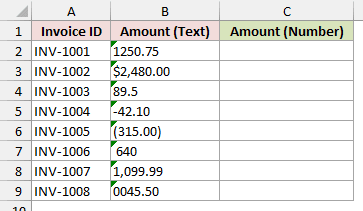
These amounts use US number settings: a period for decimals and a comma for thousands.
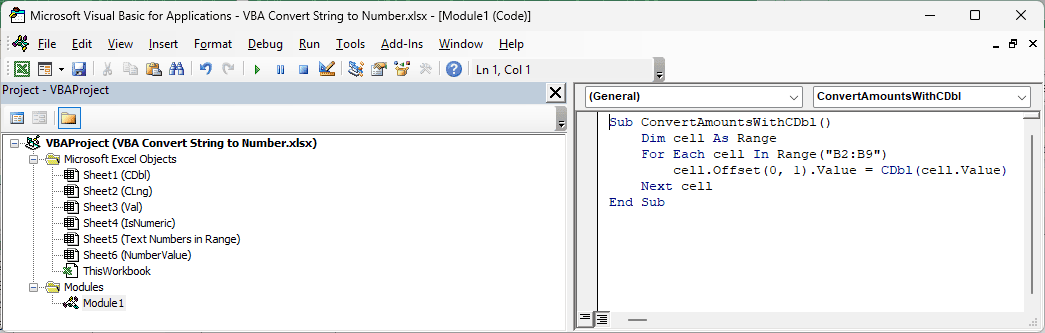
Here is the VBA code:
Sub ConvertAmountsWithCDbl()
    Dim cell As Range
    For Each cell In Range("B2:B9")
        cell.Offset(0, 1).Value = CDbl(cell.Value)
    Next cell
End SubMake the CDbl sheet active before you run the macro, because Range("B2:B9") refers to cells on the active sheet.
Here are the steps to use this macro:
- Press Alt + F11 to open the VB Editor.
- Click Insert > Module to add a module.
- Paste the code above into the module.
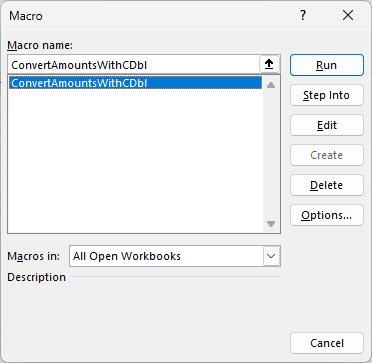
- Go back to the worksheet, press Alt + F8, select ConvertAmountsWithCDbl, and click Run.
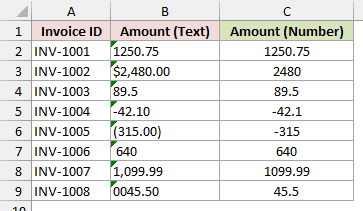
Column C now holds real numbers: 2480 for “$2,480.00”, -315 for “(315.00)”, and 45.5 for “0045.50”.
How does this code work?
The For Each loop visits every cell in B2:B9. Because those cells are formatted as Text, cell.Value returns a string to VBA.
CDbl(cell.Value) converts each string to a Double. Then cell.Offset(0, 1) writes the number one column to the right, in column C.
You don’t have to strip these amounts down to digits first. On US settings, CDbl understands the following:
- Dollar signs and thousands separators: “$2,480.00” becomes 2480, and “1,099.99” becomes 1099.99.
- Negative amounts: “-42.10” becomes -42.1, and brackets make “(315.00)” become -315.
- Spaces at either end: ” 640 ” becomes 640.
- Leading zeros: “0045.50” becomes 45.5.
It also understands numbers written with an exponent, such as “1.2E3”, which becomes 1200.
Note: CDbl stops with Type mismatch (error 13) on non-numbers, such as “N/A” or an empty string. Method #4 shows you how to check before converting.
Method #2: Using the CLng or CInt Function
If you need whole numbers rather than decimals, you can use CLng or CInt instead.
Both round the value. I normally choose CLng because it can hold larger whole numbers.
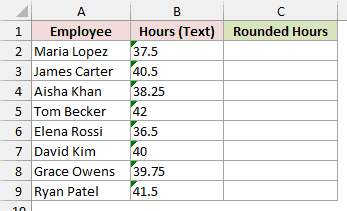
Below I have a dataset of employee hours stored as text in column B, including decimals, with an empty Rounded Hours column C.
I want the rounded whole hours in column C. For example, Maria Lopez has “37.5” hours and James Carter has “40.5”.
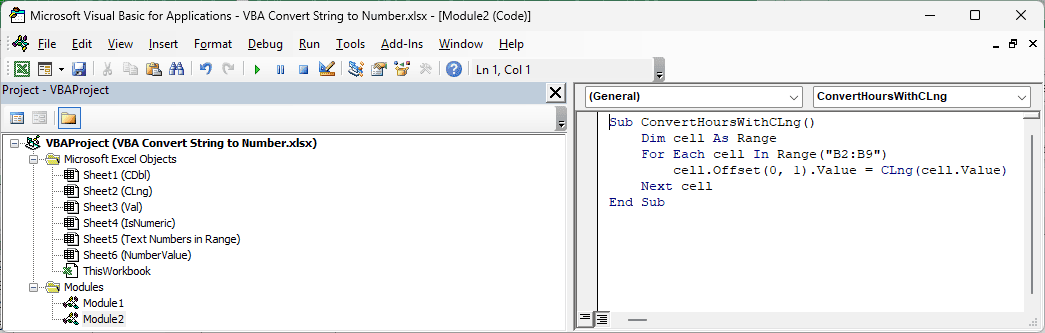
Here is the VBA code:
Sub ConvertHoursWithCLng()
    Dim cell As Range
    For Each cell In Range("B2:B9")
        cell.Offset(0, 1).Value = CLng(cell.Value)
    Next cell
End SubWith the CLng sheet active, paste this into a module and run ConvertHoursWithCLng using Alt + F8, as in Method #1.
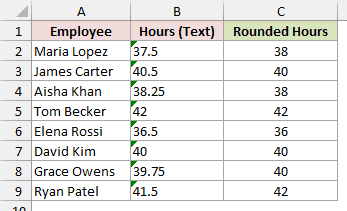
Column C shows the rounded hours. Maria’s 37.5 becomes 38, but James’s 40.5 becomes 40.
How does this code work?
As before, I loop through B2:B9 and write each result to column C. This time, CLng rounds the text value to a whole number.
For ordinary decimals, “38.25” becomes 38 and “39.75” becomes 40.
When the decimal part is exactly .5, it rounds to the nearest even number. That’s called banker’s rounding, and CInt follows the same rule.
So Elena’s “36.5” becomes 36, while Ryan’s “41.5” becomes 42. You get 2 from “2.5”, but 4 from “3.5”.
CLng returns a whole-number type called a Long, which holds values from -2,147,483,648 to 2,147,483,647.
CInt returns a smaller whole-number type called an Integer. Its range is -32,768 to 32,767.
For example, CInt("40000") stops with “Run-time error ‘6’: Overflow” because 40000 is too large. CLng("40000") works.
I’d use CLng unless you know your values fit within the smaller range. Both functions stop with Type mismatch (error 13) for nonnumeric text.
Note: Instead of rounding, cut decimals with Int or Fix: Int(CDbl("37.9")) returns 37. For negatives, Fix(CDbl("-37.9")) returns -37; Int(CDbl("-37.9")) returns -38 because Int rounds down.
Method #3: Using the Val Function
When your number has a unit attached, you may want to keep the number and leave the text behind.
I use Val when the number sits at the start of the string, such as “25 kg” or “3.5 liters”.
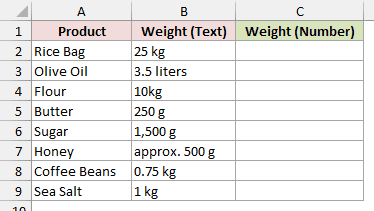
Below I have a dataset of product weights stored as text in column B, with an empty Weight (Number) column C.
The weights include units, as in “25 kg” and “3.5 liters”. I want their leading numbers in column C.
Here is the VBA code:
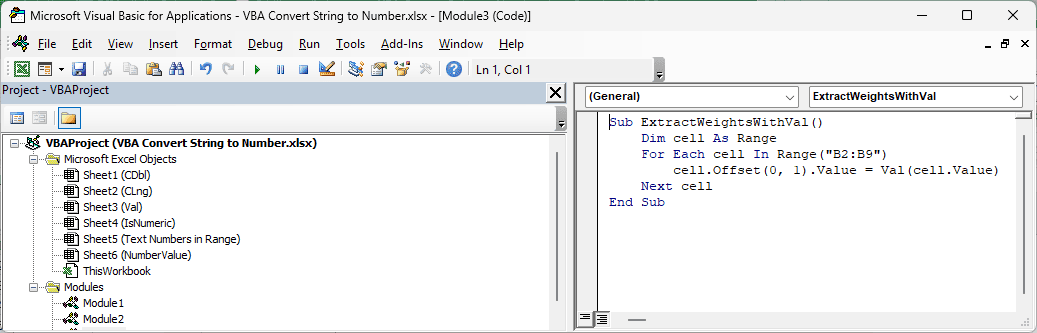
Sub ExtractWeightsWithVal()
    Dim cell As Range
    For Each cell In Range("B2:B9")
        cell.Offset(0, 1).Value = Val(cell.Value)
    Next cell
End SubWith the Val sheet active, paste this into a module and run ExtractWeightsWithVal using Alt + F8, as in Method #1.
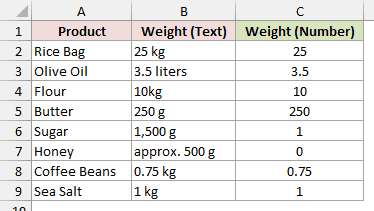
Most weights come out as you’d expect, but Sugar shows 1 and Honey shows 0 in column C.
How does this code work?
Val reads from the left and stops at the first character that can’t be part of a number. It returns a number that can contain decimals.
That’s why “25 kg” becomes 25 and “3.5 liters” becomes 3.5. The loop writes each result to column C using cell.Offset(0, 1).
Sugar’s “1,500 g” becomes 1 because Val stops at the comma, so it never reaches the 500.
Honey’s “approx. 500 g” starts with a letter, so Val returns 0. It doesn’t search farther along for the 500.
You also get 0 for ordinary text like “abc” or an empty string, rather than a Type mismatch error.
Val only recognizes a period as the decimal point. So “89,90” becomes 89, even on a computer that uses comma decimals.
It removes spaces inside the string before reading it, so “1 250” becomes 1250.
Avoid Val for percentages. Although “12%” returns 12, “50.5%” causes Type mismatch (error 13) because VBA reads the % as a data type symbol.
Note: Val ignores regional settings and doesn’t understand commas or currency signs. “$1,250.75” returns 0. Use CDbl for those amounts when they match your regional settings.
Method #4: Using IsNumeric With CDbl
Your data may mix numbers with “N/A” or “pending”. One bad value can stop CDbl with a Type mismatch error, leaving the remaining rows unconverted.
I check whether each value is numeric before converting it when the column contains this kind of mix.
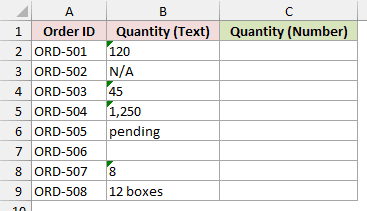
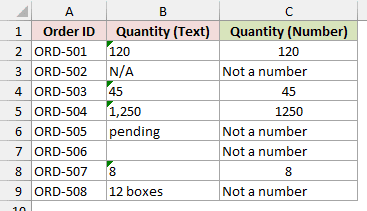
Below I have a dataset of order quantities stored as text in column B, with an empty Quantity (Number) column C.
You’ll see “N/A” and “pending”, plus a blank cell and “12 boxes”. I want column C to contain either a number or a flag.
Here is the VBA code:
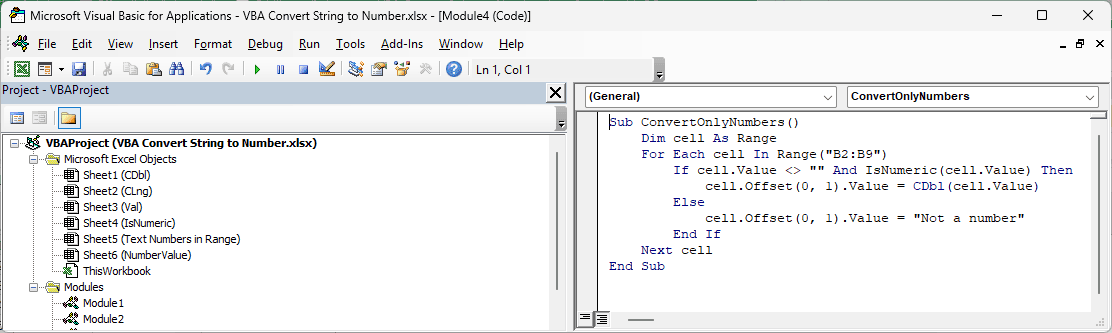
Sub ConvertOnlyNumbers()
    Dim cell As Range
    For Each cell In Range("B2:B9")
        If cell.Value <> "" And IsNumeric(cell.Value) Then
            cell.Offset(0, 1).Value = CDbl(cell.Value)
        Else
            cell.Offset(0, 1).Value = "Not a number"
        End If
    Next cell
End SubWith the IsNumeric sheet active, paste this into a module and run ConvertOnlyNumbers using Alt + F8, as in Method #1.
The numeric quantities convert, including 1250 for “1,250”. The other rows say “Not a number”, and the macro runs to the end.
How does this code work?
IsNumeric(cell.Value) returns True when VBA can convert the value to a number. I also check that the cell isn’t blank.
Only values that pass both checks reach CDbl. The loop then writes the converted number to column C.
For failed checks, the Else part writes “Not a number”. You can change that text or write an empty string to leave the cell blank.
Without the check, plain CDbl would stop at ORD-502, which contains “N/A”, with “Run-time error ’13’: Type mismatch”.
Note: IsNumeric returns True for a truly blank cell, and CDbl returns 0. The cell.Value <> "" check prevents ORD-506 from becoming 0.
Method #5: Using Range.Value on Text-Formatted Cells
Sometimes you don’t need a number in a variable. You want to fix numbers stored as text in the worksheet cells themselves.
For that, I change the cell format and write the values back into the same range.
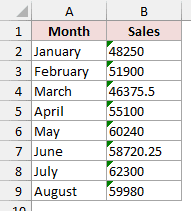
Below I have a dataset of monthly sales stored as text in column B. Each left-aligned value has a small green triangle in its cell’s top-left corner.
There’s no result column here, because I want to convert the sales in place.
Here is the VBA code:
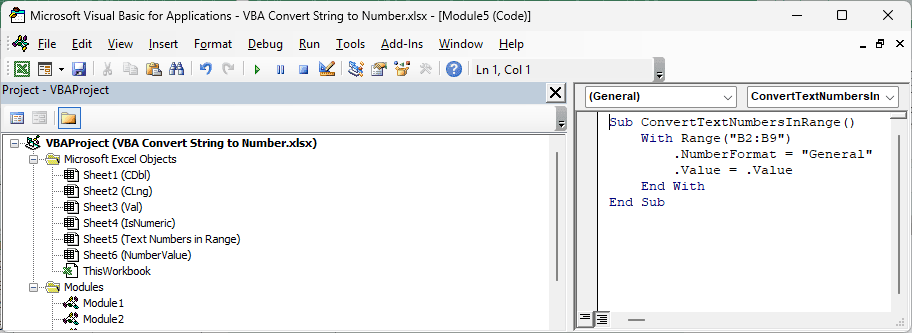
Sub ConvertTextNumbersInRange()
    With Range("B2:B9")
        .NumberFormat = "General"
        .Value = .Value
    End With
End SubWith the Text Numbers in Range sheet active, paste this into a module and run ConvertTextNumbersInRange using Alt + F8, as in Method #1.
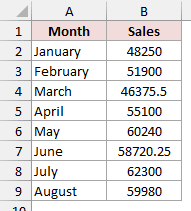
You keep the same sales values, now as real numbers. The green triangles are gone.
How does this code work?
First, .NumberFormat = "General" removes the Text format from B2:B9.
Then .Value = .Value writes the values back into those cells. Excel converts number-like text into real numbers, as if you had typed them again.
You need both lines. If the cells stay formatted as Text, writing the values back leaves them as text, so nothing changes.
I don’t need a loop because the code handles the whole range in one go. You can replace B2:B9 with your own range.
Values that aren’t numbers, such as “N/A”, stay as text. They don’t stop this macro with an error.
Note: Replace Range("B2:B9") with Selection to convert whichever cells you’ve selected. Select the cells you want to change before running the macro.
Method #6: Using WorksheetFunction.NumberValue
European-style numbers use a comma for decimals and a period for thousands. On a US-style computer, CDbl can read them incorrectly without showing an error.
I use NumberValue here so I can tell Excel which separator means what.
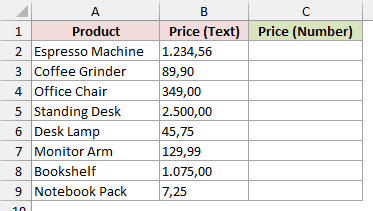
Below I have a dataset of European-style prices stored as text in column B, such as “1.234,56”, with an empty Price (Number) column C.
I want the converted prices in column C, with the comma understood as the decimal point.
Here is the VBA code:
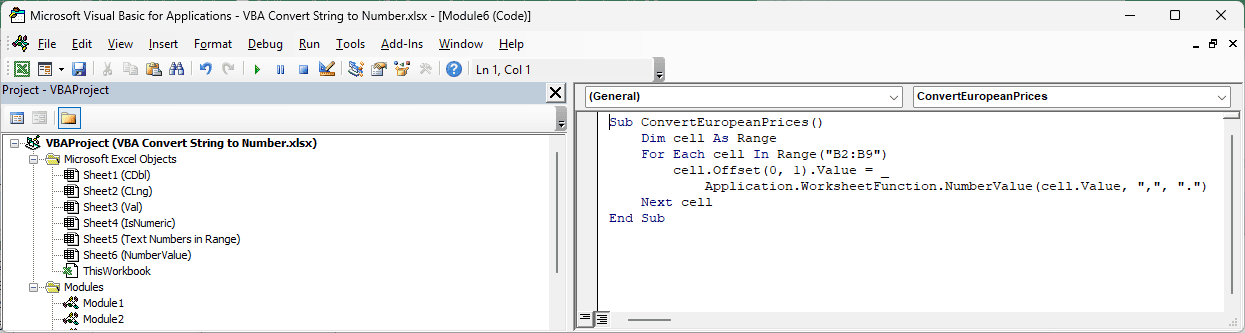
Sub ConvertEuropeanPrices()
    Dim cell As Range
    For Each cell In Range("B2:B9")
        cell.Offset(0, 1).Value = _
            Application.WorksheetFunction.NumberValue(cell.Value, ",", ".")
    Next cell
End SubWith the NumberValue sheet active, paste this into a module and run ConvertEuropeanPrices using Alt + F8, as in Method #1.
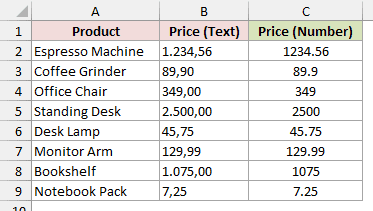
Column C now shows 1234.56 for “1.234,56” and 2500 for “2.500,00”. The Coffee Grinder’s “89,90” becomes 89.9.
How does this code work?
Application.WorksheetFunction.NumberValue calls Excel’s NUMBERVALUE worksheet function from VBA. It’s available in Excel 2013 and later.
The first argument supplies the text from column B. The second argument, “,”, tells Excel to use a comma as the decimal separator.
The third argument, “.”, tells Excel to use a period as the thousands separator. The loop writes each converted price to column C.
Because you specify the separators, the result doesn’t depend on your computer’s regional settings.
Compare that with CDbl("1.234,56") on US settings: it returns 1.23456, not 1234.56. You get the wrong amount without an error to alert you.
Note: NumberValue stops with run-time error 1004 on nonnumeric text like “N/A” or “25 kg”. Check for these values or add error handling when your data is messy.
Additional Notes About Converting Strings to Numbers in VBA
- Check your computer’s regional settings. VBA functions starting with C (
CDbl,CLng) follow your computer’s decimal and thousands separators.Valalways expects a period for decimals. - Choose another number type when needed.
CCur‘s four decimal places suit money.CDecholds up to 28 decimal places.CSnghas fewer digits than Double; I rarely use it. - Read the error number. Error 13 means Type mismatch for nonnumeric text. Error 6 means Overflow because the number is outside the chosen type’s range.
- Save your macros as .xlsm. A regular .xlsx drops the code. The example download contains data only, so save a macro-enabled copy after adding your procedures.
Frequently Asked Questions
Here are a few questions you might have when choosing a conversion or working with the result.
What is the difference between CDbl and Val in VBA?
CDbl needs the whole string to be a number, and it follows your regional settings.
Val reads the number at the start and skips the rest. It only treats a period as the decimal point.
How do I convert what someone types in an InputBox to a number?
VBA’s InputBox always returns a String, even for digits. Check with IsNumeric, then convert with CDbl (or CLng for whole numbers).
Cancel returns an empty string "", and IsNumeric("") is False, so this check catches Cancel too.
Why does my converted number still not add up in a SUM formula?
Check whether the worksheet cell is still formatted as Text. Method #5 changes the format to General and writes the values back so Excel recognizes them.
How do I convert a percentage string like “12%” to a number in VBA?
CDbl("12%") causes Type mismatch. Use Application.WorksheetFunction.NumberValue("12%") instead, without separator arguments, so it uses your computer’s separators.
It divides by 100: “12%” returns 0.12, and “50.5%” returns 0.505.
Conclusion
I’d start with CDbl for most strings, adding IsNumeric when your data is messy. Choose CLng when you need rounded whole numbers.
If you’re fixing the worksheet cells themselves, use the Range.Value method, and let NumberValue handle European-style separators.
Other Excel articles you may also like:
