
Importing an HTML table into Excel gives you usable rows and columns without retyping the web page’s data or bringing along its clutter.
From Web and a VBA web query keep a connection to the page, so you can refresh the table when its contents change.
Copying and pasting or opening a saved HTML file gives you a static copy instead.
You can use From Web, copy and paste, open a saved HTML file, or run a VBA macro to bring the table into Excel.
Method #1: Using the From Web Feature (Power Query)
You can bring web tables into Excel with its built-in data import and cleanup tool, Power Query. The From Web option lives on the Data tab.
It reads a web page, finds its tables, and loads the one you pick as an Excel table that stays connected to the page.
I recommend From Web for most imports because you get a clean table you can refresh later.
Below I have the web page at https://spreadsheetplanet.com/excel-file-extensions/, with its table of Excel file extensions.
The three columns are Extension, What it is, and When to use it.
Its nine rows cover .xlsx, .xls, .xlsm, .xlsb, .csv, .xltx, .xltm, .xlam, and .ods. I’ll import just this table into Excel.
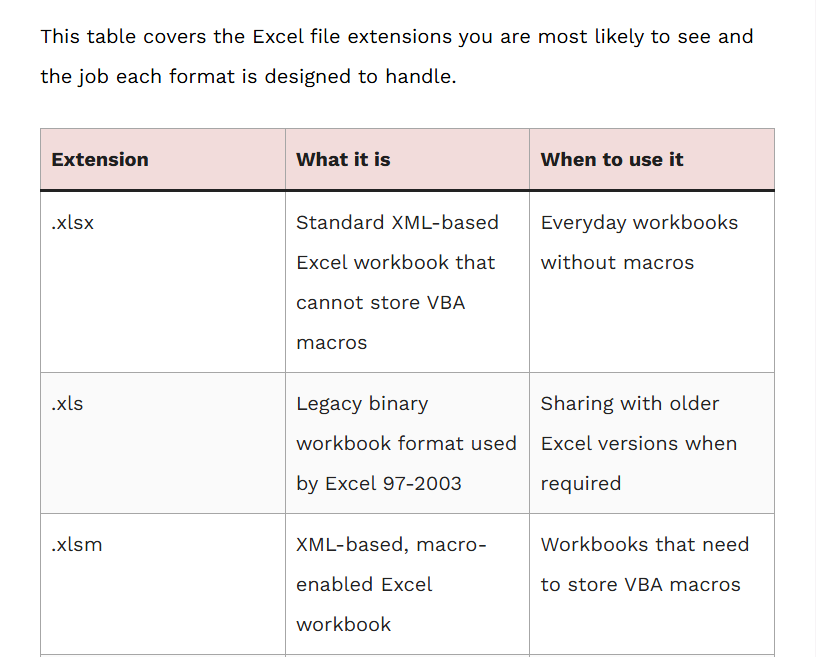
Here are the steps to import the table with From Web:
- Open a blank workbook and go to the Data tab. In the Get & Transform Data group, click From Web.
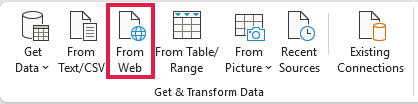
- In the From Web dialog box, paste the page address into the URL box and click OK.

- If Excel asks how to connect to the page in the Access Web content dialog box, keep Anonymous selected and click Connect.
- In the Navigator, click Table 1 under HTML Tables [1]. The preview uses Column1, Column2, and Column3, with the real headers in its first row.
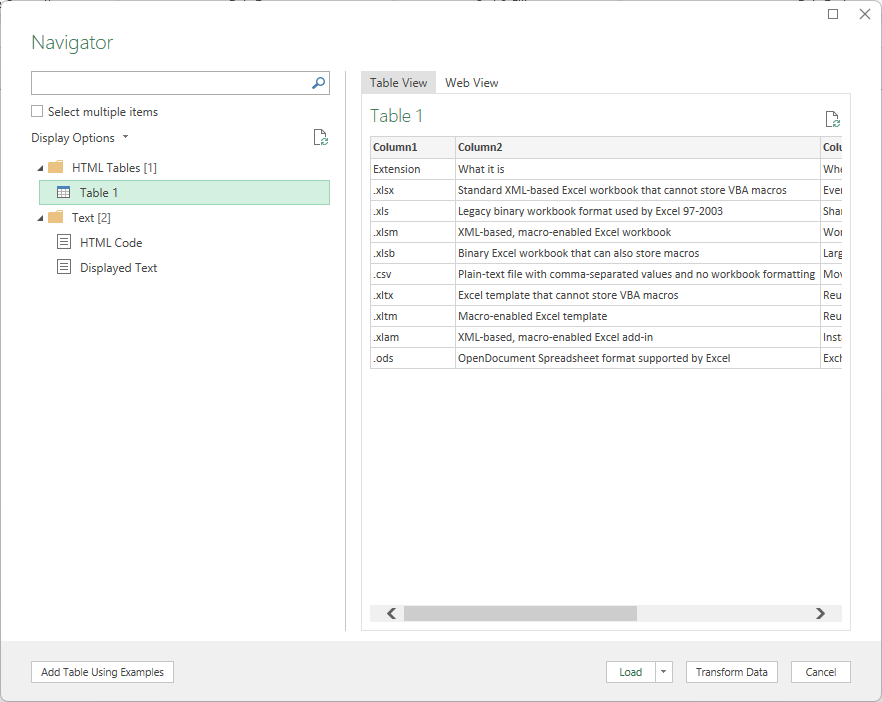
- Click Transform Data at the bottom of the Navigator to open the Power Query Editor.
- On the Home tab of the Power Query Editor, click Use First Row as Headers.
The headers become Extension, What it is, and When to use it. Promoted Headers appears in Applied Steps on the right.
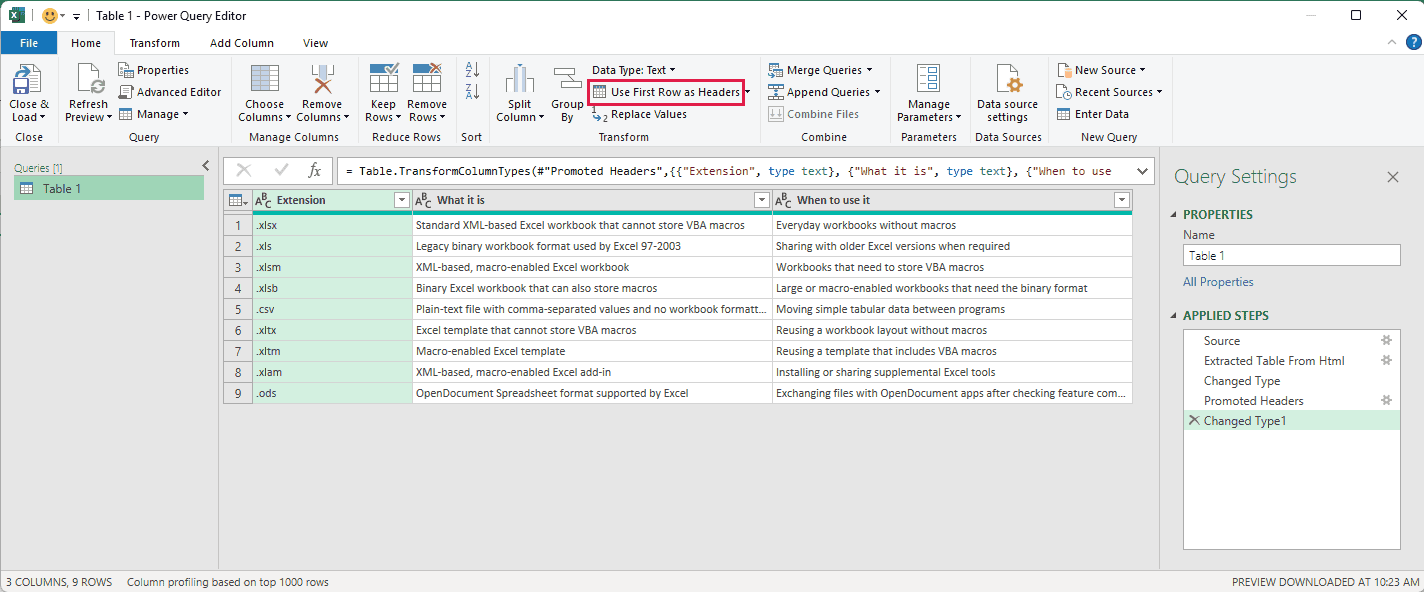
- On the Home tab, click Close & Load.

Excel adds a new worksheet named Table 1 and loads an Excel table in A1:C10, with headers and nine data rows.
On the right, Queries & Connections lists Table 1 with 9 rows loaded. Excel keeps the connection to the page.
Pages with several tables list Table 1, Table 2, and so on under HTML Tables. Click an entry to preview it.
If the preview already shows the right headers, you can click Load in the Navigator instead of Transform Data.
In the Power Query Editor, you can also remove columns or change data types. Each change is recorded in Applied Steps.
Note: By default, the imported table doesn’t update by itself. When the page changes, click Refresh All on the Data tab to pull in the latest version.
Method #2: Using Copy and Paste
You can also copy the table straight from your browser.
I use copy and paste for the quickest one-time import when I don’t need a connection or refreshed data.
I have https://spreadsheetplanet.com/excel-file-extensions/ open in my browser, with nine file extensions listed under Extension, What it is, and When to use it.
Here are the steps to copy the table from the website into Excel:
- Open the page in your browser. Click just before the first header cell, Extension, and drag to the end of the last cell in the table. With the whole table highlighted, press Ctrl + C.
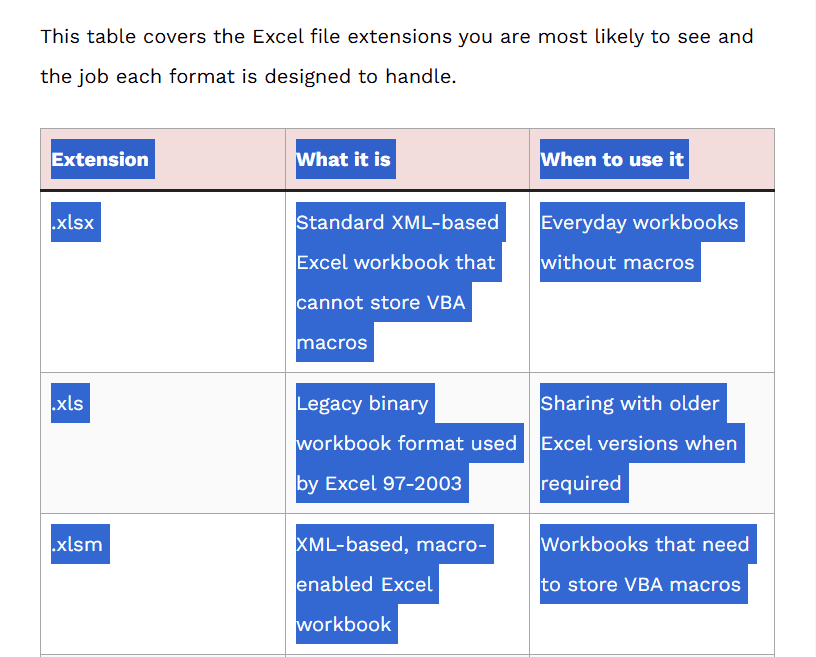
- Go to Excel, click cell A1 in a blank worksheet, and press Ctrl + V.
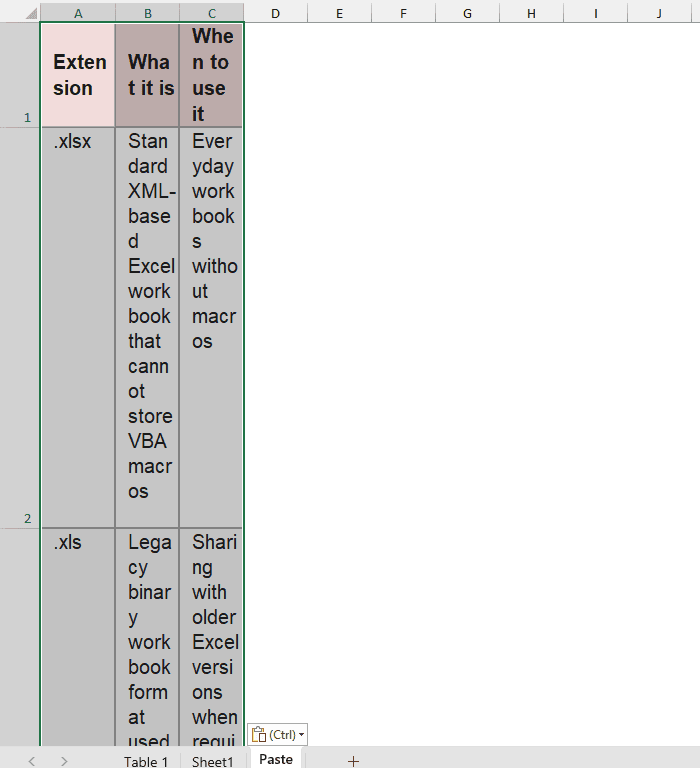
The table fills A1:C10 with larger Arial text, the page’s pink header fill, its light row fills, and borders.
The columns stay narrow, so long text wraps into very tall rows.
If you’d rather paste only the data without the website’s look, go to a blank worksheet.
- Right-click cell A1. Under Paste Options, hover over the second of the two icons to see Match Destination Formatting and a live preview, then click it.
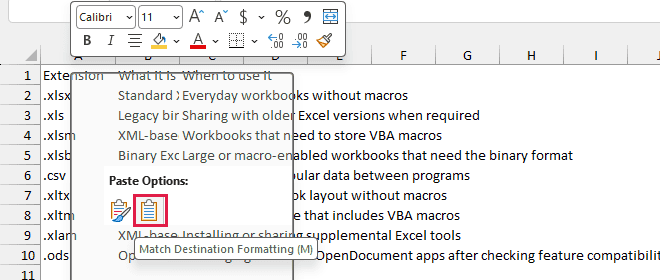
The data lands in A1:C10 in Excel’s default Calibri 11, with no fills, no borders, and no bold header.
Your pasted table is a static copy. If the web page changes, you’ll need to copy and paste the table again.
Depending on the site, numbers and dates may paste as text. Check their alignment: text sits on the left by default.
Method #3: Opening the HTML File Directly
Already have the table saved as a web page? You can open that file directly in Excel.
Excel opens a saved .html or .htm file much like a workbook, bringing every table on the page into cells.
You may also receive reports in this format because some systems export them as web pages.
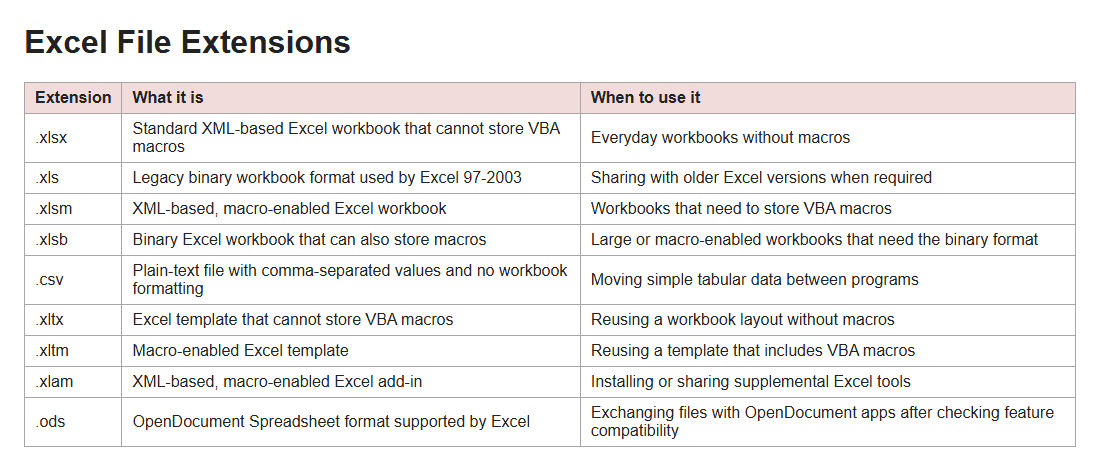
I’m opening Excel File Extensions.html, available to download above, which has the heading Excel File Extensions and a table beneath it.
The table lists nine file extensions in three columns: Extension, What it is, and When to use it.
Here are the steps to open the saved HTML file in Excel:
- In Excel, click File > Open > Browse.
- If the HTML file doesn’t show up in the folder, change the file type drop-down next to the File name box to All Files.
- Select Excel File Extensions.html and click Open.
If Excel opens the downloaded file in Protected View, click Enable Editing in the yellow bar.
You’ll see Excel File Extensions in large bold text in A1, a blank row 2, and the table in A3:C12.
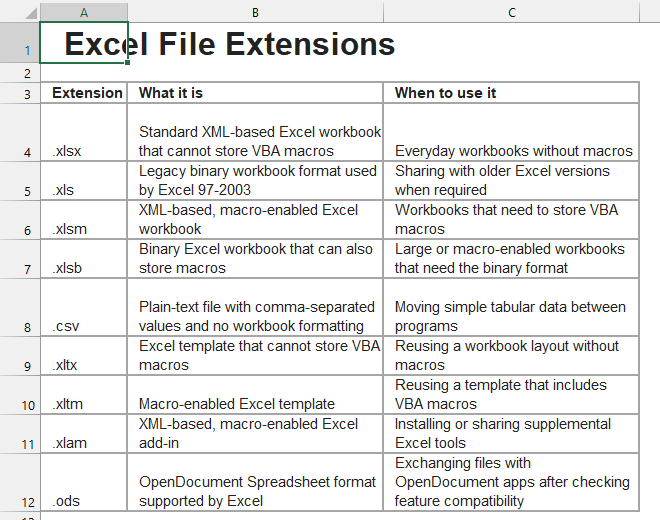
Excel brings in everything on the page, including the heading. On a full web page, you may also get menus and other text.
You can delete those extra rows if you only need the table.
The header row comes in bold, with thin gray borders around the cells and long text wrapped inside them.
The pink header fill from the page’s style sheet doesn’t come across.
The title bar still shows Excel File Extensions.html. You’re working with a web page file, so pressing Ctrl + S saves it in that format.
Note: To keep the imported data as a normal workbook, click File > Save As and choose Excel Workbook (*.xlsx) as the file type.
Method #4: Using a VBA Macro
For repeat imports, you can automate the work with a macro, a short piece of code that runs the steps for you.
I use a macro when I want to run the same import again without repeating the steps.
https://spreadsheetplanet.com/excel-file-extensions/ has the nine file extensions I’ll import with the macro, arranged in three columns: Extension, What it is, and When to use it.
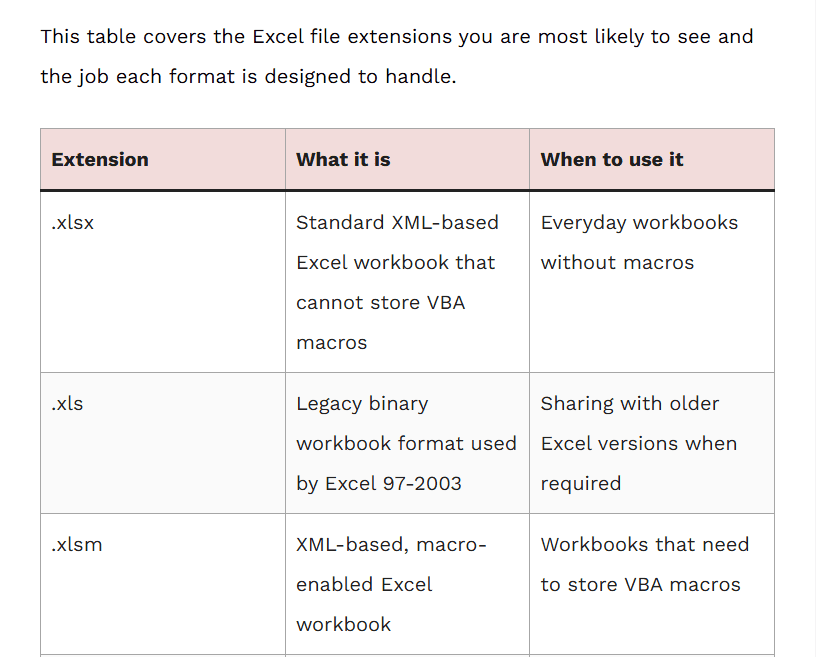
Here is the VBA code:
Sub ImportHTMLTable()
    Dim ws As Worksheet
    Set ws = Worksheets.Add
    With ws.QueryTables.Add(Connection:="URL;https://spreadsheetplanet.com/excel-file-extensions/", _
                            Destination:=ws.Range("A1"))
        .WebSelectionType = xlSpecifiedTables
        .WebTables = "1"
        .WebFormatting = xlWebFormattingNone
        .Refresh BackgroundQuery:=False
    End With
End Sub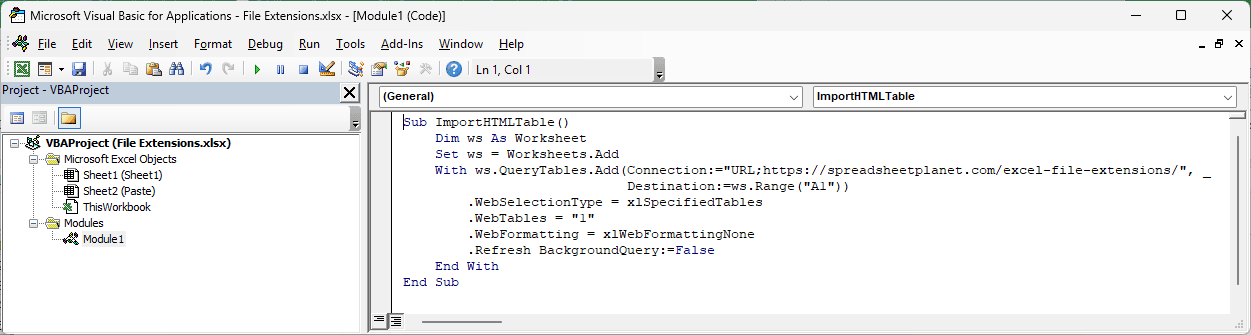
Here are the steps to use this macro:
- Press Alt + F11 to open the VBA editor.
- Click Insert > Module.
- Paste the code into the module.
- Press F5 to run the macro.
The macro creates a new worksheet with the table in A1:C10, including the headers and nine data rows.
The header row comes in bold and centered because the page uses header cells. Everything else is plain text with no colors.
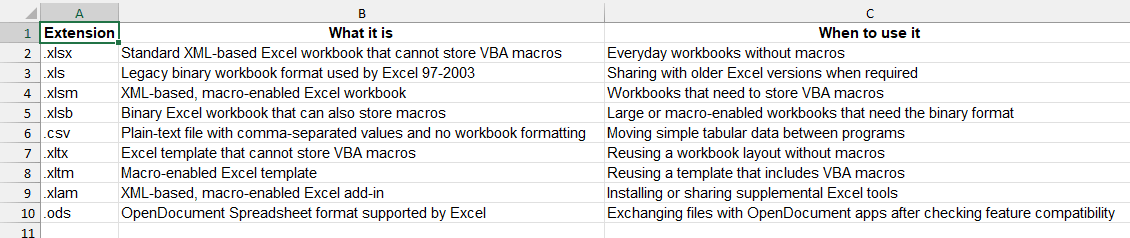
Here’s what the code does:
Worksheets.Addcreates a new sheet. Each run imports into its own sheet, so you don’t overwrite your existing data.QueryTables.Addsets up a web query, a connection that retrieves data from a page.URL;followed by the page address identifies that connection.Destinationsets the top-left cell for the imported data. Here, that’s A1 on the new sheet..WebSelectionType = xlSpecifiedTablesand.WebTables = "1"select only the first table. Change the number for another table, or list several, like"1,3"..WebFormatting = xlWebFormattingNonedrops the site’s colors and fonts. The header row still comes in bold..Refresh BackgroundQuery:=Falsestarts the import right away and waits until it finishes.- To import from another page, replace the URL inside the quotes.
The web query stays attached to the sheet. Right-click the imported table and click Refresh to pull in the latest version.
Save the workbook as .xlsm if you want to keep the macro.
The macro uses Excel’s older web query engine.
Some pages use JavaScript to add tables in your browser after the page loads, and the older engine can miss them.
For those pages, From Web in Method #1 is the more reliable choice, though some tables may still be unavailable.
Additional Notes About Importing HTML Tables into Excel
Keep these points in mind when importing tables from other websites:
- Check data types after any import. Power Query sets types in a Changed Type step, but pasted or opened data can leave numbers or dates stored as text.
- From Web is a Power Query feature of Excel for Windows. Power Query in Excel for Mac doesn’t include a web connector, so on a Mac, use copy and paste (Method #2) or open the saved HTML file (Method #3).
- Respect the website’s resources. Refreshing every minute is rarely necessary; a refresh when you open the file is usually enough.
Frequently Asked Questions
Here are answers to questions you may have about web table imports and refreshing the results.
Does Excel Have a Function Like IMPORTHTML in Google Sheets?
No. Excel has no formula that returns a web table. From Web is the closest match.
The WEBSERVICE function returns a URL’s response as raw text in one cell. It never returns a table.
If the response is longer than 32,767 characters, it returns #VALUE!.
Most web pages, including the example page, exceed that limit, so you usually get #VALUE! when requesting a normal web page.
It is available only in Excel for Windows.
How Do I Make the Imported Table Update Automatically?
Open Data > Queries & Connections, right-click the query, and click Properties.
Turn on Refresh every and set the number of minutes. You can also turn on Refresh data when opening the file.
Excel only refreshes while the workbook is open.
How Do I Import More Than One Table From the Same Web Page?
In the Navigator, check Select multiple items. Tick each table you want, then click Load.
Excel puts each table on its own worksheet.
Why Does the From Web Option Show No Tables or the Wrong Data?
The page may build its table with JavaScript. It may also require a sign-in or display data without using an HTML table.
Try opening the page in a browser and copying the table.
Conclusion
I’ve shown you four ways to import HTML tables: From Web, copy and paste, opening a saved HTML file, and running a VBA macro.
I hope you found this article helpful.
Other Excel articles you may also like:
