
You set a tax rate in one Excel VBA macro, but another macro can’t read it because you declared the variable inside the first Sub.
A variable declared with Dim inside a Sub is available only there, and its value is gone when that macro finishes.
A global variable lets your macros share that tax rate. It also remembers the value between macro runs, until something resets your VBA project.
I’ll show you how to share values with Public and Global, use Public Const for fixed values, and set a tax rate when your workbook opens.
What Is a Global Variable in VBA?
Where you declare a variable determines which parts of your code can use it. VBA calls this its scope.
You have three places to declare it:
- Inside a Sub: Declare it with
Dim, and only that Sub can use it. It’s gone when the Sub ends. This is procedure-level scope. - At the top of a module, above the first Sub: Declare it with
DimorPrivate, and every Sub in that module can use it. This is module-level scope. - At the top of a standard module: Declare it with
Publicto create a global variable. Every Sub and Function in your workbook’s modules can use it.
The top of the module, above the first procedure, is called the Declarations section. Your global and module-level variables must go there.
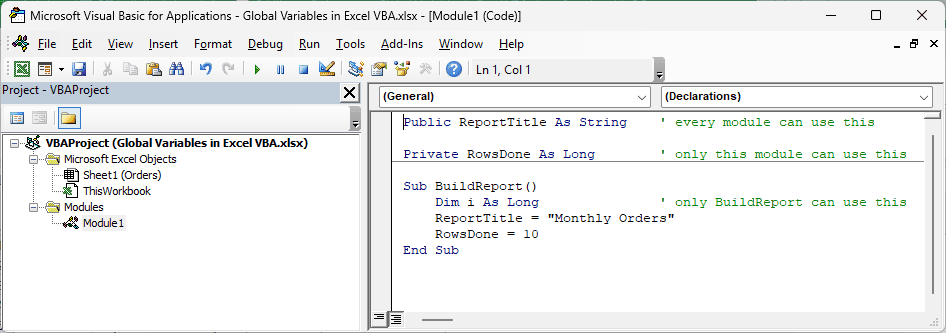
Here’s how those three choices look together:
Public ReportTitle As String    ' every module can use this

Private RowsDone As Long        ' only this module can use this

Sub BuildReport()
    Dim i As Long               ' only BuildReport can use this
    ReportTitle = "Monthly Orders"
    RowsDone = 10
End SubIn the VBA editor, you can see that ReportTitle and RowsDone sit above BuildReport, while i sits inside it.
A global variable also keeps its value after your macro finishes, so the next macro you run can still read it.
That’s the second reason you’d use one, alongside sharing a value across modules.
Method #1: Using the Public Keyword in a Standard Module
I recommend Public in a standard module for most cases. Put the declaration at the top of the module you create with Insert > Module.
Note: The .xlsx practice workbook contains only data. Press Alt + F11, choose Insert > Module, and paste the code. Save as .xlsm to keep your macros.
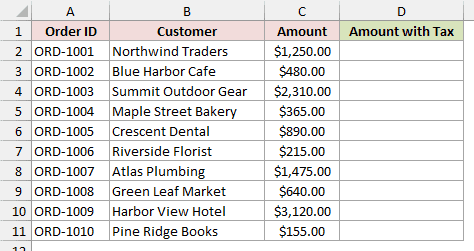
Below I have orders with an Amount column and an empty Amount with Tax column on the Orders sheet.
I want one macro to set the tax rate and another macro, in a different module, to use it.
Paste this code into Module1:
Public TaxRate As Double

Sub SetTaxRate()
    TaxRate = 0.08
End Sub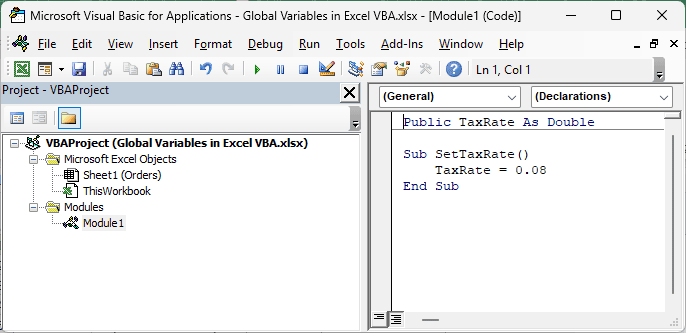
The Public line makes TaxRate available across your workbook’s modules. When you run SetTaxRate, it assigns 0.08, or 8%, to that variable.
Insert a second standard module and paste this code into Module2:
Sub AddTax()
    Dim cell As Range
    For Each cell In Range("C2:C11")
        cell.Offset(0, 1).Value = Round(cell.Value * (1 + TaxRate), 2)
    Next cell
End Sub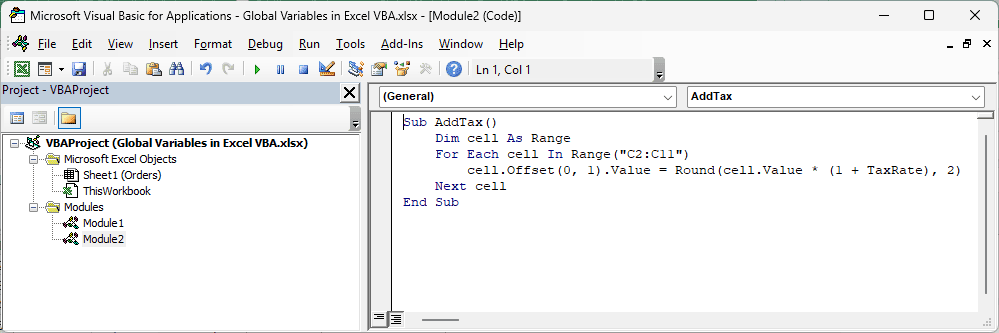
Notice that AddTax never declares TaxRate. It reads the Public variable you declared in Module1.
For each amount in C2:C11, the loop adds tax, rounds the result to two decimal places, and writes it one column to the right.
Keep the Orders sheet active when running these examples. Their unqualified Range(...) references work on whichever sheet you have active.
Here are the steps to run the two macros:
- Press Alt + F11 to return to Excel. With Orders active, press Alt + F8, select SetTaxRate, and click Run.
- Press Alt + F8 again, select AddTax, and click Run.
Column D now shows each amount with 8% tax. Northwind Traders’ $1,250.00 becomes $1,350.00, and Harbor View Hotel’s $3,120.00 becomes $3,369.60.
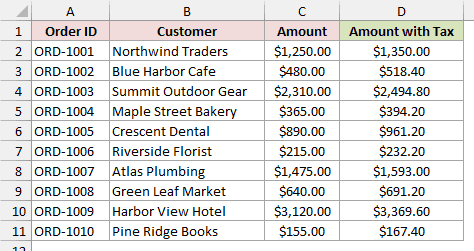
SetTaxRate finished before AddTax started, yet AddTax still read 0.08. Your Public variable kept its value between the two macro runs.
The order matters. If you run AddTax first in a fresh session, TaxRate is still 0, so column D just repeats the original amounts.
I’ll show you how to avoid that setup step in the section on setting a global variable when your workbook opens.
Method #2: Using the Global Keyword
You may also come across Global in older macros. It’s an older keyword that VBA still accepts, and it behaves like Public for variables in a standard module.
Try this in a fresh workbook with the Orders data, or delete the Method #1 modules first so your project has only one variable named TaxRate.
If you still have the module from Method #1, you’ll have two module-level TaxRate variables. VBA can’t tell which one AddTax should use.
Each tax method writes into column D, overwriting the earlier method’s results.
Below I have the Orders data, with amounts in column C and an empty column D where I want the amounts with 6% tax.
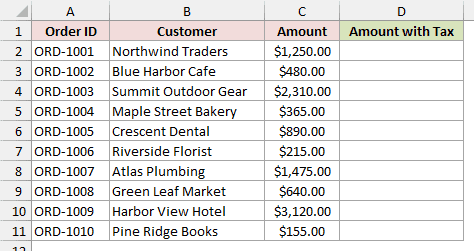
Put all of this code in one standard module:
Global TaxRate As Double
Sub SetTaxRate()
TaxRate = 0.06
End Sub
Sub AddTax()
    Dim cell As Range
    For Each cell In Range("C2:C11")
        cell.Offset(0, 1).Value = Round(cell.Value * (1 + TaxRate), 2)
    Next cell
End Sub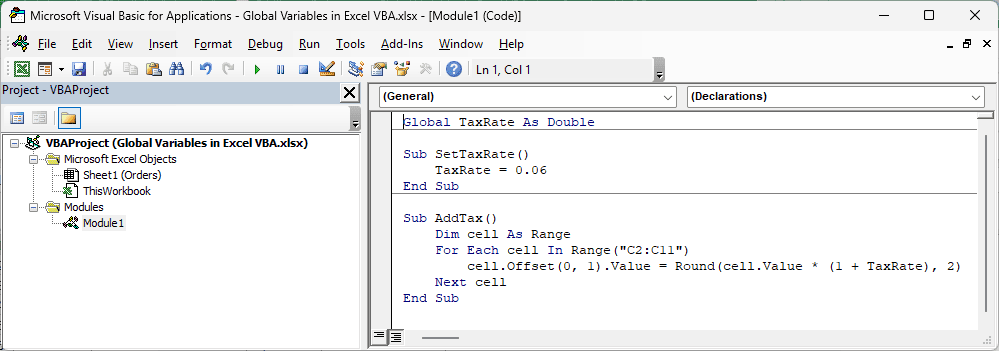
Here are the steps to apply the 6% rate:
- Press Alt + F8 and run SetTaxRate.
- Press Alt + F8 again and run AddTax.
You now get $1,325.00 for Northwind Traders and $3,307.20 for Harbor View Hotel, both including 6% tax.
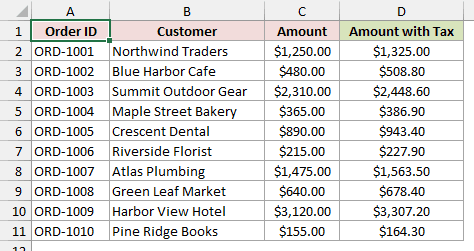
You could move AddTax to a different standard module, and it would still read the same Global variable, exactly as it does with Public.
You’ll see Global in older code, but I’d use Public in new code. It’s what current VBA code uses, and it also works for Subs and Functions.
Method #3: Using Public Const for Fixed Values
If your value never changes while the macro runs, I’d make it a constant instead of a variable.
With Public Const, you set the value right in the declaration. You don’t need a setup macro, and your code can’t change the value by accident.
Below I have the Orders data, with amounts in column C and an empty column D where I want the amounts with a fixed 7% tax.
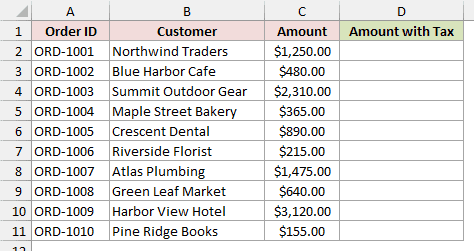
Insert a new standard module (Insert > Module) and paste this code there, with the declaration above every Sub:
Public Const TAX_RATE As Double = 0.07

Sub AddTaxWithConstant()
    Dim cell As Range
    For Each cell In Range("C2:C11")
        cell.Offset(0, 1).Value = Round(cell.Value * (1 + TAX_RATE), 2)
    Next cell
End Sub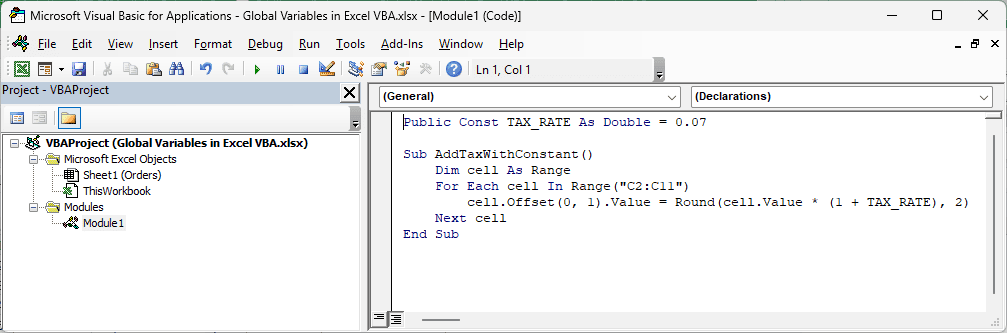
Press Alt + F8 and run AddTaxWithConstant. You don’t have to run anything to set the rate first.
With 7% tax, you get $1,337.50 for Northwind Traders, $3,338.40 for Harbor View Hotel, and $390.55 for Maple Street Bakery.
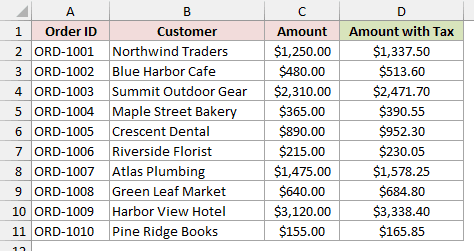
The all-caps name TAX_RATE is a common habit that makes constants stand out. VBA doesn’t require it.
To change your rate later, edit the single Const line. Every macro that uses TAX_RATE then picks up that value.
If your code tries to assign a new value to a constant, VBA refuses to compile it.
Sharing a Variable Within One Module With Private
Sometimes you only need to share a value between Subs in one module. Declare it with Private, or Dim, at the top of that module.
Other modules can’t see your variable, which keeps it from clashing with names elsewhere.
For the Orders data, I’ll use two Subs that share a count of orders worth $1,000 or more.
Insert a new standard module (Insert > Module) and paste this code there, with the declaration above every Sub:
Private LargeOrderCount As Long

Sub CountLargeOrders()
    Dim cell As Range
    LargeOrderCount = 0
    For Each cell In Range("C2:C11")
        If cell.Value >= 1000 Then LargeOrderCount = LargeOrderCount + 1
    Next cell
End Sub

Sub ShowLargeOrderCount()
    CountLargeOrders
    Range("F1").Value = "Large Orders"
    Range("F2").Value = LargeOrderCount
End SubIn the VBA editor, LargeOrderCount sits above both Subs so they can share it:
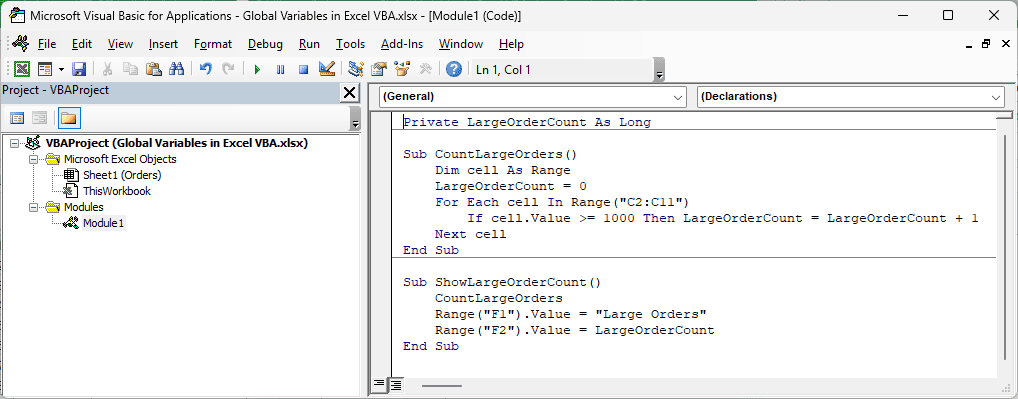
CountLargeOrders counts the amounts of $1,000 or more in column C and stores the count in LargeOrderCount.
ShowLargeOrderCount calls that Sub, reads the same variable, and writes its value to F2 with a label in F1.
Run ShowLargeOrderCount using Alt + F8.
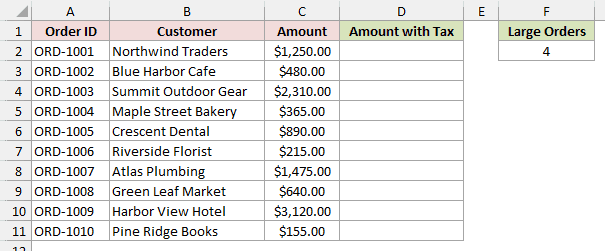
You get 4 in F2. The qualifying orders belong to Northwind Traders, Summit Outdoor Gear, Atlas Plumbing, and Harbor View Hotel.
If you use LargeOrderCount in a Sub in another module, you won’t get this count. That module can’t see the Private variable.
Without Option Explicit, VBA quietly creates a new empty variable there. Put Option Explicit at the top of every module so VBA flags names it can’t find.
Setting a Global Variable When the Workbook Opens
Your numeric Public variable TaxRate starts at 0 whenever the workbook opens. If you read it before assigning a rate, you get the problem from Method #1.
You can set the rate automatically with Workbook_Open, an event procedure that runs when you open the workbook.
Using the Method #1 setup, here’s where to put the event code:
- In the VBA editor, double-click ThisWorkbook in the Project Explorer.
- Paste the code below into its code window.
- Save the file as .xlsm, then close and reopen it.
Private Sub Workbook_Open()
    TaxRate = 0.08
End SubKeep the Public TaxRate As Double declaration in Module1. Workbook_Open only assigns the value, so you don’t declare a second TaxRate in ThisWorkbook.
After reopening, you can run AddTax right away without running SetTaxRate. You’ll get the 8% rate automatically.
You must enable macros for Workbook_Open to run.
When a Global Variable Loses Its Value
Your Public variable keeps its value between macro runs, but not forever. I’ll use a counter to show what it remembers and what resets it.
Insert a new standard module (Insert > Module) and paste this code there, with the declaration above every Sub:
Public RunCount As Long

Sub TrackRuns()
    RunCount = RunCount + 1
    Range("F1").Value = "Times Run"
    Range("F2").Value = RunCount
End Sub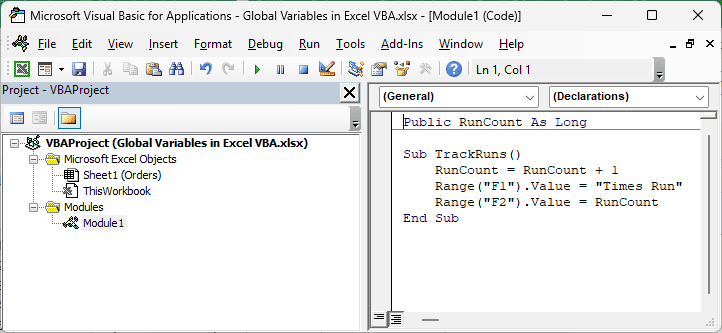
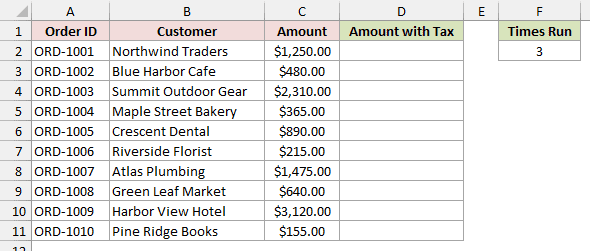
Run TrackRuns three times using Alt + F8. F2 shows 3, because RunCount remembered its value between runs.
These actions reset every global variable to its starting value, such as 0 for a number or an empty string for text:
- Clicking the Reset button in the VBA editor, or choosing Run > Reset.
- Running a line containing the
Endstatement on its own. - Adding or changing a variable declaration at the top of a module in the VBA editor.
- Closing your workbook or closing Excel.
If you need a value to survive all of these, store it in a cell or a defined name instead of only in a variable.
Using a Public Variable From ThisWorkbook or a Sheet Module
A Public variable in ThisWorkbook or a sheet module belongs to that object. To read it from another module, you must put the object’s name first.
Paste the first part at the very top of the ThisWorkbook module, above the Workbook_Open procedure you added earlier.
The variable declaration must sit above all procedures:
' In the ThisWorkbook module
Public CompanyName As String

Sub SetCompany()
    CompanyName = "Northwind"
End SubPaste the second part into a standard module:
' In a standard module
Sub ShowCompany()
    MsgBox ThisWorkbook.CompanyName
End SubRun SetCompany first. It appears as ThisWorkbook.SetCompany in the Alt + F8 list.
When you then run ShowCompany, ThisWorkbook.CompanyName returns “Northwind”, which you see in the message box.
Plain CompanyName in a standard module doesn’t find this variable. Without Option Explicit, you just get an empty value.
You use the same approach for a sheet module, such as Sheet1.CompanyName for a Public CompanyName declared in Sheet1.
Sheet1 is the sheet’s code name, shown in the Project Explorer before the tab name in parentheses.
In the practice file, you’d use Sheet1, not Orders.
If you want a global variable you can read without an object name, put your Public declaration in a standard module instead.
Additional Notes About Global Variables in Excel VBA
Here are a few habits I’d use to keep shared values easier to follow:
- Put
Option Explicitat the top of every module. A misspelled or out-of-scope name then stops your code instead of creating a new empty variable. - Don’t reuse a global name for a local variable. A
Dim TaxRateinside a Sub hides yourPublic TaxRate, so the Sub sees its local value of0. - If two modules each have a
Publicvariable with the same name, specify the module, such asModule1.TaxRate, so VBA knows which one you mean. - Use globals sparingly, since many shared values make it hard to tell which macro changed one. When only one Sub needs a value, pass it as an argument instead.
- Consider a name like
gTaxRateorg_TaxRateso you can spot globals in long code. It’s an optional naming habit, not a VBA requirement.
Frequently Asked Questions
You might also need to use your shared value in a worksheet formula, keep it between sessions, or access it from another workbook.
What Is the Difference Between Public and Global in VBA?
In a standard module, Public and Global behave the same for variables. Global is an older keyword that VBA still accepts.
I’d use Public, which is what current VBA code uses. You can also use it for Subs and Functions. Global can’t declare Subs or Functions.
Do Global Variables Keep Their Value After I Close the Workbook?
No. When you reopen the workbook, every global variable starts again at its default value, so your previous assignments are gone.
To keep a value between sessions, store it in a cell or a defined name, and read it back in Workbook_Open. A hidden settings sheet works well.
Can I Use a VBA Global Variable in a Worksheet Formula?
Not directly. Your worksheet formulas can’t see VBA variables, but you can wrap the variable in a small Public Function in a standard module:
Public Function GetTaxRate() As Double
    GetTaxRate = TaxRate
End FunctionFirst, run SetTaxRate from Method #1. Then enter =GetTaxRate() in a cell to see 0.08.
If you change the variable later, press Ctrl + Alt + F9. Plain F9 won’t refresh the result because Excel doesn’t know the variable changed.
Can Another Workbook Use My Public Variable?
Only if that workbook’s VBA project sets a reference to yours through Tools > References in the VBA editor.
Both projects default to VBAProject, and VBA refuses references between identically named projects, so rename one first through Tools > VBAProject Properties.
Without a reference, your variable is only visible inside its own project.
Put Option Private Module at the top of a module to keep its Public items inside the current project, even when a reference exists.
Why Does My Global Variable Show 0 or Nothing?
Usually, the code that assigns your variable hasn’t run yet in this session, or something reset it. Check the section on losing values for the reset triggers.
Numbers start at 0, text at an empty string, Variants at Empty, and object variables at Nothing.
Conclusion
My default for sharing a value is Public in a standard module, or Public Const when the value never changes.
Use Workbook_Open when you want the value set as your file opens.
I hope you found this article helpful.
Other Excel articles you may also like:
