
Excel’s Queries & Connections pane lets you manage the queries that bring data into your workbook, including queries whose results don’t appear on a worksheet.
That last part can be confusing. A query stores the steps for getting and shaping data. The table you see on a worksheet is its loaded result, and changing or deleting one doesn’t always do the same thing to the other.
In this tutorial, I’ll show you how to create a query, manage its load and refresh settings, and remove queries while keeping the values you need.
What Are Queries and Connections in Excel?
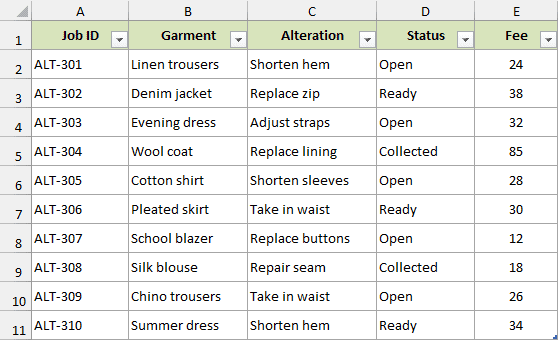
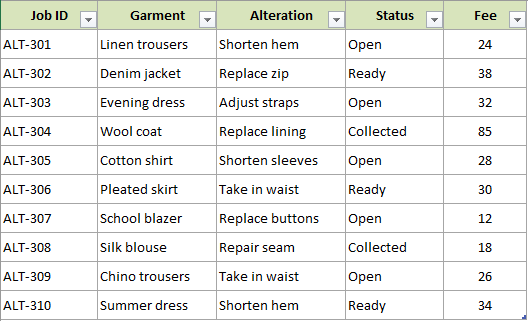
The example workbook contains 10 clothing-alteration jobs on Alteration Jobs. Its source table, tblAlterations, includes each job’s garment, alteration, status, and fee.
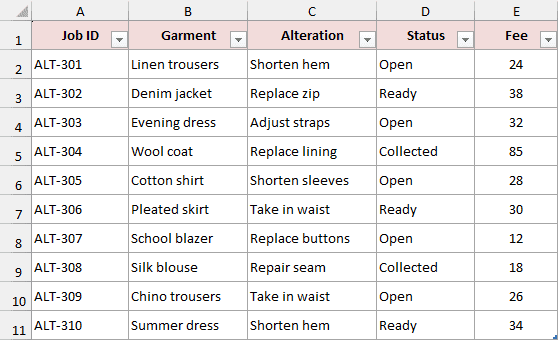
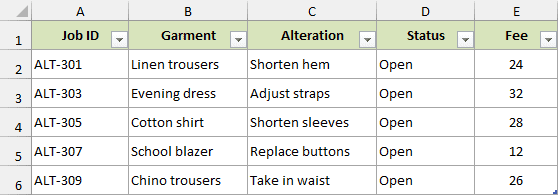
Five jobs have an Open status. A query named Open Alterations selects those jobs and loads them to the Open Jobs sheet.
These parts have different jobs:
| Part | What It Does | Example |
|---|---|---|
| Source table | Holds the records you edit | tblAlterations on Alteration Jobs |
| Query | Stores the steps that read and transform records | Open Alterations filters Status to Open |
| Connection | Holds information Excel uses to access and refresh data | The connection associated with a loaded query |
| Loaded table | Displays the result from the last load or refresh | tblOpenJobs on Open Jobs |
A query marked Connection only still exists and can be used by other queries. It doesn’t need a worksheet table of its own. In this file, All Alterations reads the source, and Open Alterations uses its result.
To see the workbook’s queries, go to Data > Queries & Connections and select the Queries tab in the pane.
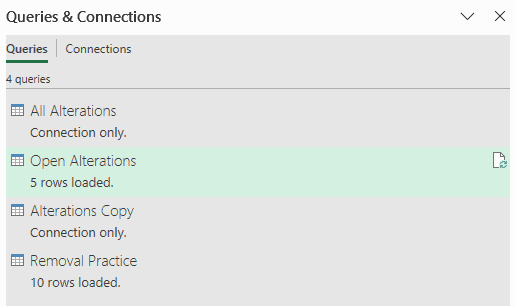
The separate Connections tab provides commands for workbook connections. Don’t use its count as a count of your Power Query queries. Look on the Queries tab for those.
How to Create Queries and Connections in Excel
I’ll first create a query for all the jobs, then use it to make a list containing only open jobs. The all-jobs query can stay connection-only because the source records are already visible on the worksheet.
Note: The download already contains the completed queries. To build them from scratch, copy Alteration Jobs!A1:E11 into a blank workbook as values. Use the original download for the management and removal examples below.
Create a Query From an Excel Table
Start with the 10 alteration jobs in A1:E11 of your practice workbook. Here are the steps to turn that data into a query:
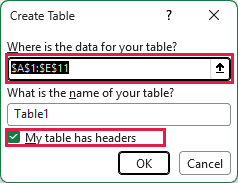
- Select A1:E11, press Ctrl+T, check My table has headers, and click OK.
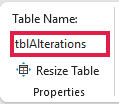
- With a cell in the table selected, go to Table Design and change Table Name to tblAlterations. Press Enter.
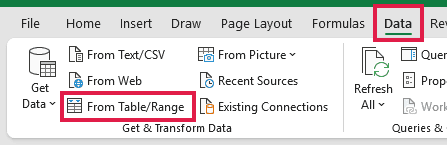
- Go to Data > From Table/Range. Excel opens the table in Power Query Editor.
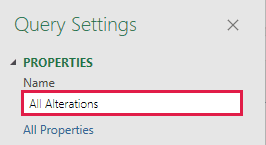
- In Query Settings, change the query’s Name to All Alterations. Check that the first four columns have the Text type and Fee has the Whole Number type.
Excel often adds a Changed Type step automatically. If a type needs correcting, click the type icon beside that column’s heading and select the appropriate type. These records contain whole-number fees.
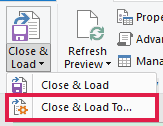
- On the editor’s Home tab, open the arrow under Close & Load and choose Close & Load To.
- In Import Data, select Only Create Connection, leave Add this data to the Data Model unchecked, and click OK.
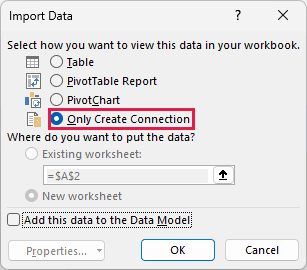
The query now appears in Queries & Connections without a new worksheet table. You don’t need to create another connection separately for this Power Query workflow.
For an external source, the starting command changes. For example, Data > Get Data > From File > From Workbook lets you select another Excel file. Choose the source in Navigator and use Transform Data when you need to edit it before loading.
Create and Load a Filtered Query
Next, create a query that uses All Alterations and keeps only the open jobs. This is a reference query: it starts from another query’s result.
Here are the steps:
- In the worksheet’s Queries & Connections pane, right-click All Alterations and choose Reference.
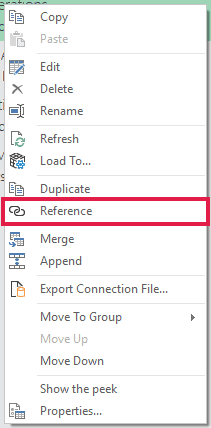
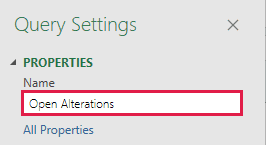
- In Power Query Editor, rename the new query Open Alterations using the Name box in Query Settings.
- Open the filter arrow on Status, clear Select All, check only Open, and click OK.
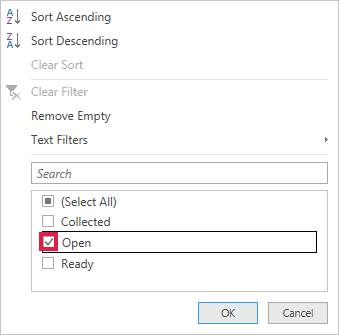
The preview contains five jobs: ALT-301, ALT-303, ALT-305, ALT-307, and ALT-309.
- Choose Home > Close & Load > Close & Load To. Select Table and New worksheet, then click OK.
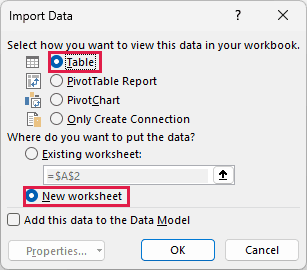
Excel puts the result in a new table. In the completed download, this worksheet is named Open Jobs and its table is tblOpenJobs.
How to Manage Queries and Connections in Excel
Use a fresh copy of the completed download for these examples. Its four queries are All Alterations, Open Alterations, Alterations Copy, and Removal Practice.
Most everyday commands are available by right-clicking a query in Data > Queries & Connections. Make changes to the source data on Alteration Jobs, rather than typing over the query output on Open Jobs.
Edit or Rename a Query
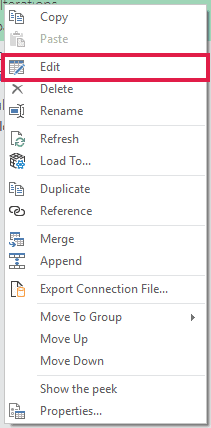
To inspect the open-jobs filter, right-click Open Alterations and choose Edit.
Power Query Editor shows the query’s Applied Steps. Select a step to inspect the result at that point. A gear icon beside a step opens its settings when that step supports them.
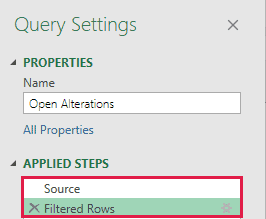
The Name box in Query Settings changes the query name. It doesn’t rename the worksheet or its Excel Table. For example, Open Alterations, Open Jobs, and tblOpenJobs are three separate names in this file.
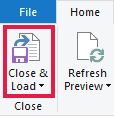
Use Home > Close & Load after editing to apply your changes and return to Excel.
Refresh After Changing the Source
The Open Jobs table initially contains five records. To see how refresh works, change one job’s status in the source:
- On Alteration Jobs, change D2 for job ALT-301 from Open to Ready.
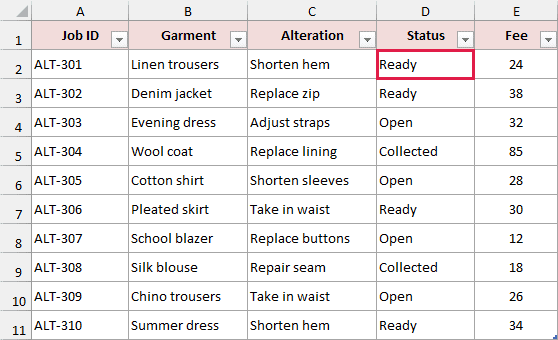
The loaded result still contains the old five rows until you refresh it.
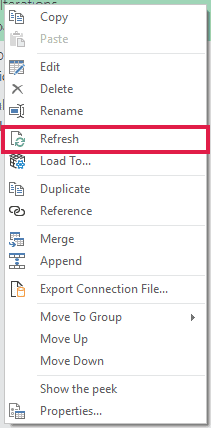
- In Queries & Connections, right-click Open Alterations and choose Refresh.
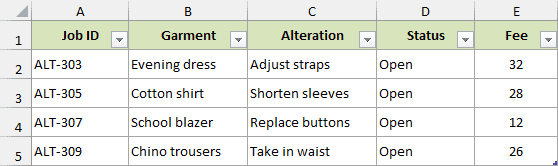
After the refresh finishes, Open Jobs contains four jobs: ALT-303, ALT-305, ALT-307, and ALT-309. ALT-301 is no longer included because its status is Ready.
Data > Refresh All refreshes the workbook’s applicable connections and queries together. A normal source-cell edit doesn’t, by itself, refresh the query result. Restore D2 to Open and refresh again if you want the original five-row example back.
Change Where a Query Loads
You can load a connection-only query to a worksheet without rebuilding it. Here I’ll load Alterations Copy, an independent query containing all 10 jobs.
Follow these steps:
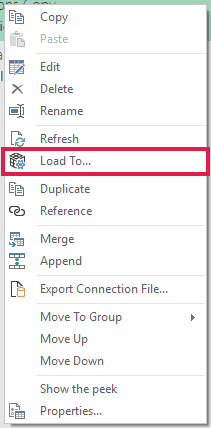
- Right-click Alterations Copy in Queries & Connections and choose Load To.
- Select Table and New worksheet in the Import Data dialog, then click OK.
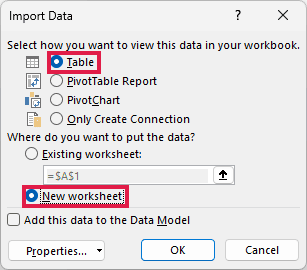
The new worksheet contains all 10 jobs. Loading the query doesn’t change its steps or filter the source records.
To keep a query but remove its worksheet output, use Load To > Only Create Connection. Read Excel’s warning before confirming because this changes the existing load. Copy any output values you want to retain somewhere else first.
Choose Duplicate or Reference
Both commands create another query, but they start it differently:
| Command | What the New Query Uses | When It Fits |
|---|---|---|
| Duplicate | A copy of the selected query’s steps | You want to develop a separate version of those steps |
| Reference | The selected query’s result | Several reports should share the same preparation steps |
Right-click All Alterations to find Duplicate and Reference.
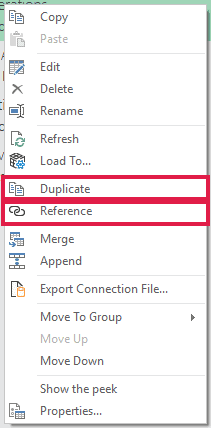
The download illustrates both arrangements. Alterations Copy has its own source and type-conversion steps. Open Alterations starts from All Alterations and then filters the rows.
Changing a step in All Alterations can therefore affect Open Alterations. That same step change doesn’t rewrite the independent steps in Alterations Copy. Changes to tblAlterations, however, can reach both when you refresh because both ultimately read that table.
A duplicate isn’t automatically independent of every other query. If you duplicate a query whose steps refer to a staging query, those copied steps still refer to that staging query.
Organize Queries and Check Dependencies
Groups help when a workbook has many queries. Right-click a query and choose Move To Group > New Group, then give the group a descriptive name such as Job Reports.
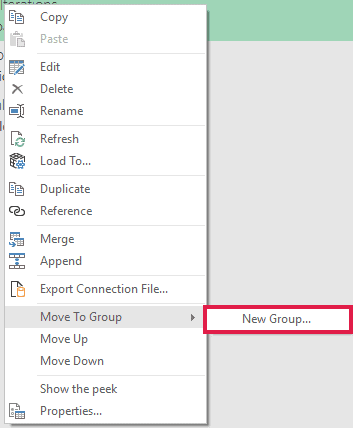
Grouping changes how queries are organized, not which data they return. To understand which queries rely on others, open Power Query Editor and choose View > Query Dependencies.
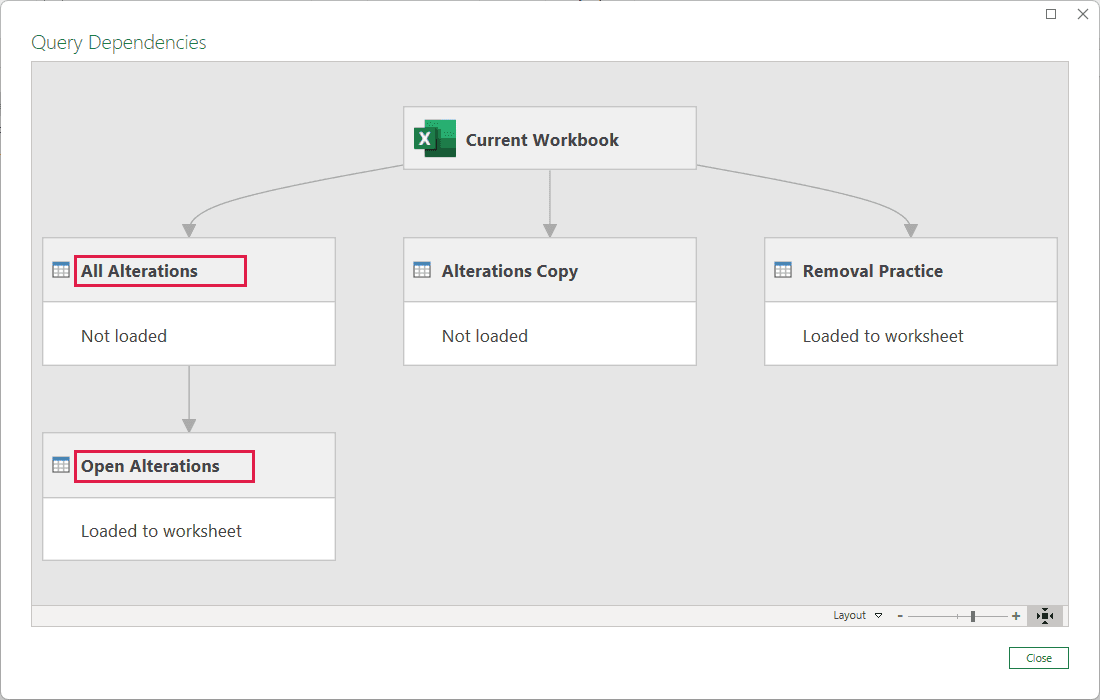
In this workbook, Open Alterations depends on All Alterations. Check that relationship before removing the base query or changing columns that the filtered query needs.
Review Refresh Properties
Right-click a query in Queries & Connections and choose Properties to inspect its refresh settings.
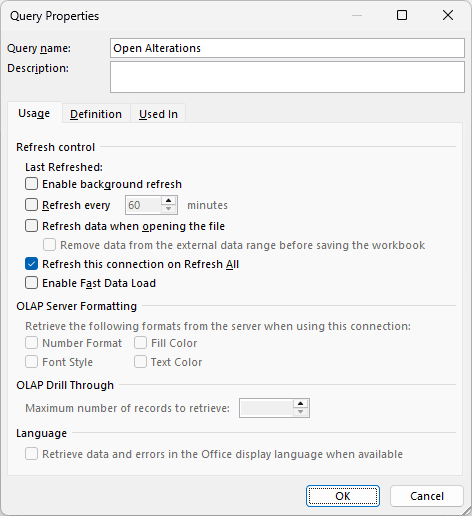
Depending on the connection, options can include refreshing when the file opens, refreshing at an interval, and background refresh. An unavailable option isn’t supported by that connection or load arrangement. Refresh-on-open also requires access to the source when the workbook opens.
How to Remove Queries and Connections in Excel
First decide what you want to remove: the query’s steps, a connection, or just the worksheet output. Save a backup before trying the removal examples.
The Removal Practice query reads all 10 alteration jobs independently. No other query in the download uses it, so it is the example to remove. Keep All Alterations, which supplies Open Alterations.
Delete a Query
Use a fresh copy of the download, then follow these steps:
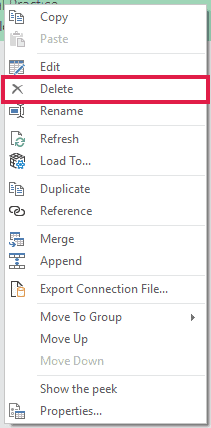
- In Data > Queries & Connections, right-click Removal Practice and choose Delete.
- Read the confirmation, check that it names Removal Practice, and confirm only when you want to remove that query.
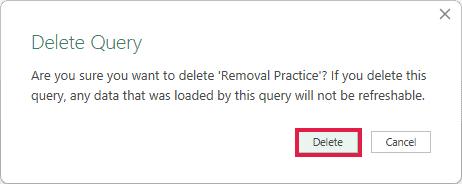
For this worksheet-loaded example, deleting the query leaves the current output values on the worksheet, but they no longer refresh from that query. The source table on Alteration Jobs remains unchanged.
Don’t extend that result to every Data Model, PivotTable, or dependent-query setup. If another query depends on the one you’re deleting, resolve that dependency first. Removing a shared source can break reports that still need it.
Keep a Separate Copy of the Values
If the saved result matters, make a static copy before removing its query or changing its load destination. Refresh first if you need the latest source values.
For Removal Practice, select A1:E11 and copy it. On a blank worksheet, select A1 and choose Home > Paste > Values.
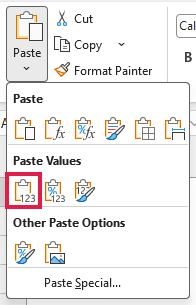
The pasted cells contain values that won’t change when the original query refreshes. Keep this copy outside the query’s loaded table.
Deleting the output worksheet isn’t a reliable way to remove the query definition. Use the Queries pane when you intend to remove the query; use its load settings when you intend to retain the query without a worksheet result.
Remove a Workbook Connection
For a connection listed on the Connections tab, select it and use the pane’s Delete command, or right-click it and choose Delete. Read the confirmation before proceeding.

Removing a connection stops Excel from using that connection to reach its source. It doesn’t mean the imported values have been erased. Microsoft explains this distinction in its guidance on managing connections to external data.
The example file uses Power Query queries. Manage those on the Queries tab rather than trying to find and delete their underlying connection records on the Connections tab.
Additional Notes About Queries and Connections in Excel
- These steps use Microsoft 365 Excel for Windows. Power Query is built into Windows Excel 2016 and later, but available sources and commands vary across versions. Mac and web features also differ.
- The example queries read a table inside this workbook. They don’t require an external file path, account, or database connection.
- For an external source, a refresh can fail if its file moves, your permissions change, or credentials expire. Inspect Data > Get Data > Data Source Settings when the source or its permissions need updating.
- If Excel reports that external data connections have been disabled, check that you trust the workbook and source before enabling access.
- Refresh can replace manual edits inside a loaded output table. Edit the source or the query’s steps when you want the change to survive a refresh.
- The download contains the completed examples. Keep an untouched copy so you can return to the original queries after practicing deletion or changing load destinations.
Frequently Asked Questions
Here are a few common points of confusion when using the pane.
Why Is the Queries Pane Empty?
Check that you’ve opened the intended workbook and selected the Queries tab. A worksheet table isn’t automatically a Power Query query. If you haven’t created or imported a query in that workbook, the pane can be empty even though the sheets contain data.
Does Connection Only Mean the Query Has No Data?
No. It means the query isn’t loaded to a worksheet table in this example. You can inspect its result in Power Query Editor, use it from another query, or change its load destination later.
Are Workbook Links the Same as Query Connections?
No. A formula referring to a cell in another workbook is a workbook link. Power Query uses queries and connection information to retrieve data. Breaking external formula links requires different steps from deleting a query.
Why Is Load To Unavailable?
Microsoft notes that Load To can be unavailable when you first create a query. Use Close & Load, then return to Data > Queries & Connections, right-click the query, and choose Load To there.
The query-loading documentation describes this workaround and the available load destinations.
Conclusion
I’ve shown you how to create a query from a table, manage its steps and loaded results, and remove queries while keeping the values you need. I hope you found this article helpful.
Other Excel articles you may also like: