
Excel’s ACOT function returns the principal arccotangent, or inverse cotangent, of a real number.
The result is an angle in radians between 0 and pi. Positive cotangents return acute angles, zero returns pi divided by 2, and negative cotangents return obtuse angles.
In this article, I’ll show you how to return radians and degrees, calculate an incline, compare ATAN, and recover angles from cotangents.
ACOT Function Syntax in Excel
The ACOT function has one required argument:
=ACOT(number)
numberis the real-number cotangent of the angle you want to return.
When to Use ACOT Function
- Return an angle when you already know its cotangent
- Convert a list of cotangent values into radians or degrees
- Calculate an incline from positive base and rise measurements
- Avoid the range and division problems in the
ATAN(1/number)shortcut - Recover a principal angle from values produced by COT
Example 1: Convert Cotangents to Angles
Let’s begin with positive, zero, and negative cotangents.
The dataset lists cotangents in column A. Columns B and C are ready to hold the corresponding angles in radians and degrees.
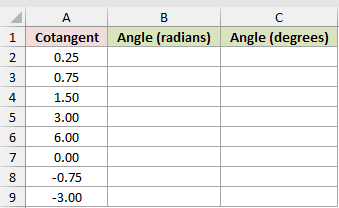
I want to calculate the principal angle for every cotangent in A2:A9.
First, return the angles in radians:
=ACOT(A2:A9)
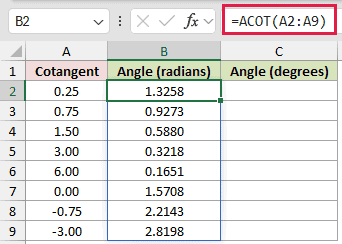
The formula starts in B2 and spills through B9. A cotangent of 0 returns approximately 1.5708 radians, which is pi divided by 2.
Now convert the same results to degrees:
=DEGREES(ACOT(A2:A9))
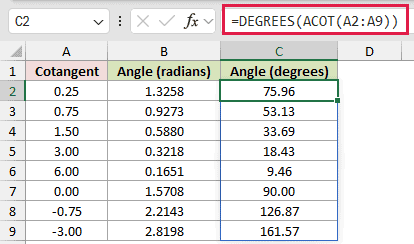
DEGREES makes the results easier to interpret. The cotangent 0.75 returns about 53.13 degrees, while -0.75 returns about 126.87 degrees.
In Excel 2021, Excel 2024, Microsoft 365, and Excel for the web, each formula spills down automatically.
Pro Tip: Keep the destination cells empty before entering a range formula. A value blocking the output range causes a #SPILL! error.
Example 2: Calculate a Display Stand Incline
Here is a practical use for positive measurements.
The dataset lists display stands, their horizontal bases, and their rises. Column D is ready for each incline angle in degrees.
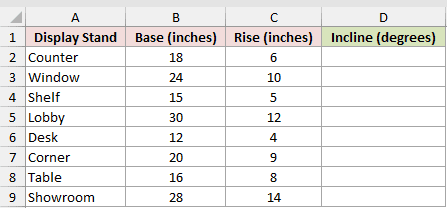
I want the incline from the horizontal for each positive base-and-rise pair.
Here is the formula:
=DEGREES(ACOT(B2:B9/C2:C9))
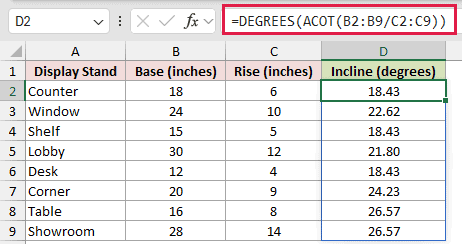
Dividing base by rise produces the cotangent of each incline. ACOT returns the angle in radians, and DEGREES converts it for easier reading.
For the Counter stand, 18 divided by 6 gives a cotangent of 3. The formula returns approximately 18.43 degrees.
With positive lengths, =DEGREES(ATAN(C2:C9/B2:B9)) gives the same incline. ACOT is direct when your calculation already produces base divided by rise.
Example 3: Compare ACOT With ATAN
The common reciprocal shortcut needs careful handling.
The dataset includes positive 4, negative 4, and zero. Columns B and C compare ACOT with ATAN applied to the reciprocal.
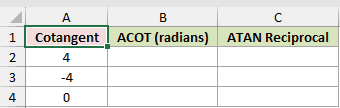
I want to see where ATAN(1/x) agrees with ACOT and where it breaks down.
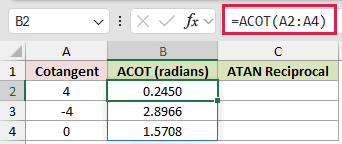
First, calculate the ACOT results:
=ACOT(A2:A4)
Now calculate the reciprocal shortcut:
=ATAN(1/A2:A4)
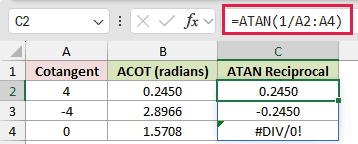
For positive 4, both formulas return approximately 0.244979 radians. For negative 4, ACOT returns 2.896614, while ATAN returns -0.244979.
At zero, ACOT returns pi divided by 2. The reciprocal formula attempts to divide by zero and returns #DIV/0!.
Pro Tip: Use ACOT when negative or zero cotangents are possible. It preserves Excel’s documented principal range without a quadrant adjustment or division error.
Example 4: Recover Principal Angles From COT
This final example shows ACOT’s principal-range behavior.
The dataset lists source angles in degrees. Column B holds their cotangents, and column C is ready for the angles recovered with ACOT.
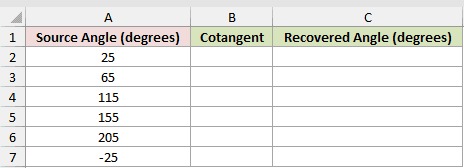
I want to calculate each cotangent, then convert it back to ACOT’s principal angle.
First, calculate cotangents from the source angles:
=COT(RADIANS(A2:A7))
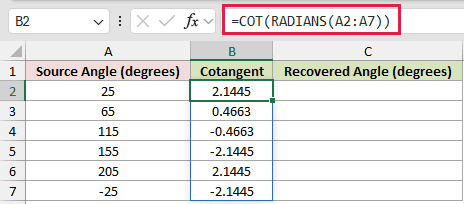
RADIANS converts each source angle before COT calculates its cotangent.
Now recover the principal angles:
=DEGREES(ACOT(B2:B7))
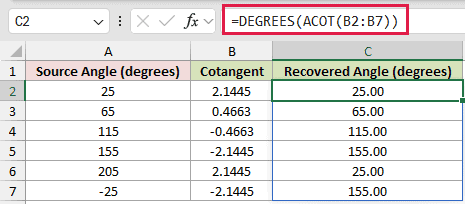
The source angles strictly between 0 and 180 degrees are recovered as expected. A source angle of 205 degrees returns 25 degrees, and -25 degrees returns 155 degrees.
COT repeats every 180 degrees, while ACOT always returns its principal value between 0 and 180 degrees after conversion.
Tips & Common Mistakes
- ACOT returns radians. Wrap it in DEGREES when you need an angle in degrees.
- ACOT’s principal result lies between 0 and pi radians. It does not reproduce source angles outside that interval.
- A nonnumeric argument returns
#VALUE!. - ACOT was introduced in Excel 2013. Earlier Excel versions do not include it.
- Range formulas spill in Excel 2021, Excel 2024, Microsoft 365, and Excel for the web. Older versions need per-row formulas or legacy array entry.
- Do not substitute
ATAN(1/number)unless you have handled negative values, zero, and the different principal ranges.
I covered ACOT results in radians and degrees, incline calculations, the ATAN shortcut, and principal-angle recovery from COT values.
I hope you found this article helpful.
Other Excel articles you may also like:
