
The IMSUB function in Excel returns the difference between two complex numbers.
It subtracts the real and imaginary parts and returns a complex-number text result. Use consistent i or j notation when entering the two numbers.
In this article, I’ll show you how to subtract complex numbers, work with voltage phasors, and calculate the magnitude of the resulting difference.
IMSUB Function Syntax in Excel
The IMSUB function returns the difference between two complex numbers.
=IMSUB(inumber1, inumber2)
- inumber1 – the complex number you want to subtract from.
- inumber2 – the complex number you want to subtract.
The result is inumber1 minus inumber2. Both arguments are required, and each complex number is supplied as text in the x+yi or x+yj format (for example, “6+4i”).
When to Use IMSUB Function
Here are a few situations where IMSUB comes in handy:
- Subtracting two complex numbers in math, physics, or engineering problems.
- Finding the difference between two AC voltage or current phasors in electrical engineering.
- Calculating the change between two readings that have both a real and an imaginary part.
- Getting the gap between two points on the complex plane, often paired with IMABS to get the distance.
Example 1: Subtract Two Complex Numbers
Let’s start with the most common use of IMSUB.
Below is the dataset. Column A has the first complex number, column B has the second one, and column C is where we want the difference.
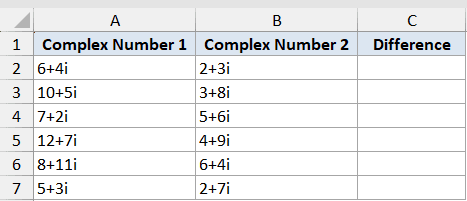
We want to subtract the value in column B from the value in column A for each row.
Here is the formula:
=IMSUB(A2, B2)
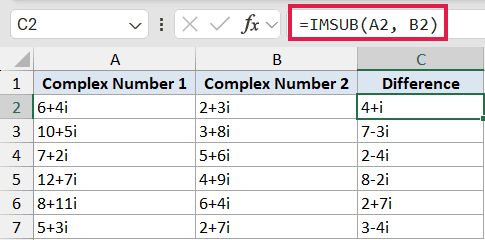
IMSUB subtracts the real parts and the imaginary parts separately, then puts them back together. For “6+4i” minus “2+3i”, you get (6 minus 2) and (4 minus 3), which is “4+i”.
Since IMSUB does not spill, the formula in C2 only handles the first row. To get the rest, copy C2 down through C7 and each row gets its own difference.
Example 2: Build the Complex Numbers With COMPLEX
Sometimes your real and imaginary parts live in separate columns instead of being typed as one complex string. In that case, you can build each complex number on the fly with the COMPLEX function and feed it straight into IMSUB.
Below is the dataset. Columns A and B hold the real and imaginary parts of the first number, columns C and D hold the real and imaginary parts of the second number, and column E is for the difference.
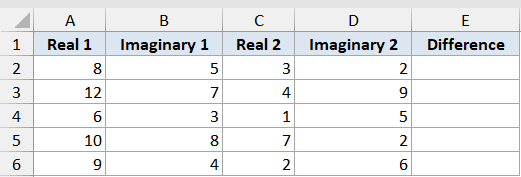
We want to combine each pair into a complex number and then subtract the second from the first.
Here is the formula:
=IMSUB(COMPLEX(A2,B2), COMPLEX(C2,D2))
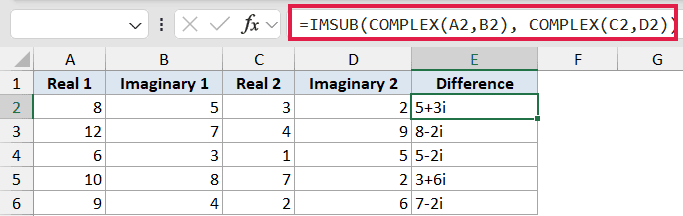
Here’s how this formula works:
COMPLEX(A2,B2)turns 8 and 5 into the complex number “8+5i”.COMPLEX(C2,D2)turns 3 and 2 into “3+2i”.- IMSUB then subtracts the second from the first to give “5+3i”.
This saves you from having to manually join the parts into a text string first. Copy the formula down to handle the rest of the rows.
Example 3: Subtract a Real Number From a Complex Number
You don’t always have two full complex numbers. Sometimes you just want to subtract a plain number from a complex one.
Below is the dataset. Column A has a complex number, column B has a regular number, and column C is for the result.
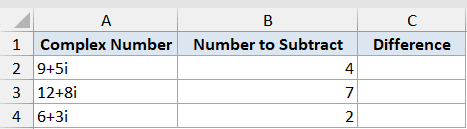
We want to subtract the plain number in column B from the complex number in column A.
Here is the formula:
=IMSUB(A2, B2)
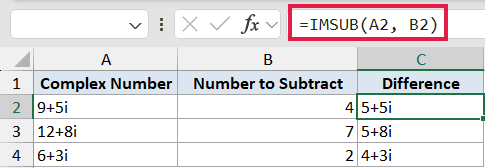
A plain number like 4 is treated as the complex number “4+0i”. So subtracting it from “9+5i” only affects the real part, which leaves the imaginary part untouched and gives “5+5i”.
This is handy when you want to shift the real part of a complex number up or down without changing the imaginary side.
Example 4: Subtract Voltage Phasors in j Notation
In electrical engineering, complex numbers are usually written with j instead of i, since i is already used for current. IMSUB handles j notation the same way.
Below is the dataset. Column A has the measured voltage as a phasor, column B has the reference voltage, and column C is for the difference.
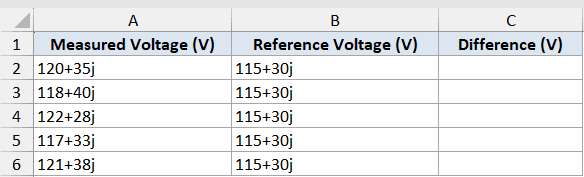
We want to find how far each measured voltage is from the reference voltage.
Here is the formula:
=IMSUB(A2, B2)
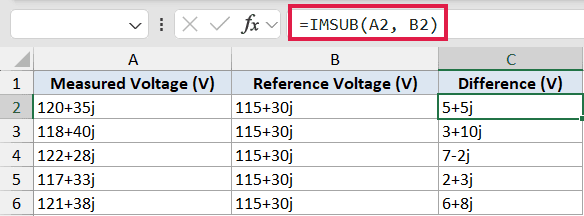
For “120+35j” minus “115+30j”, IMSUB returns “5+5j”. Notice that the result keeps the j suffix because both inputs used j.
The one rule to remember is consistency. You cannot mix i and j in the same formula, or Excel returns a #VALUE! error.
Example 5: Get the Magnitude of the Difference With IMABS
The difference between two complex numbers is itself a complex number. If you want a single number telling you how far apart they are, wrap IMSUB inside IMABS.
Below is the dataset. Columns A and B hold two points written as complex numbers, and column C is where we want the distance between them.
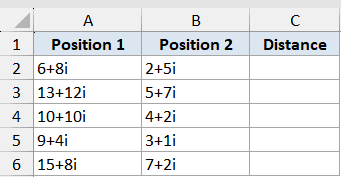
We want the straight-line distance between the two points in each row.
Here is the formula:
=IMABS(IMSUB(A2, B2))
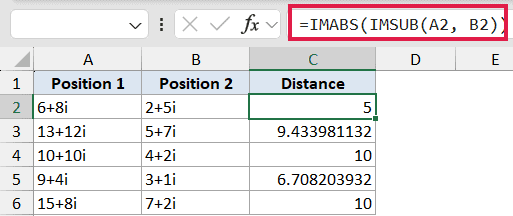
Here’s how this formula works:
IMSUB(A2, B2)subtracts “2+5i” from “6+8i” and returns “4+3i”.IMABSthen takes the magnitude of “4+3i”, which is the square root of (4 squared plus 3 squared), so 5.
This is the complex-plane version of finding the distance between two points, and it’s a common reason people reach for IMSUB in the first place.
Tips & Common Mistakes
- Keep the imaginary unit consistent. Both numbers must use the same suffix, either
iorj. Mixing them, like “3+4i” minus “1+2j”, gives a #VALUE! error. - IMSUB only takes two numbers at a time. Unlike IMSUM, which can add several complex numbers at once, IMSUB always works with exactly two. To subtract more than one value, chain or nest the formula.
- The result is text, not a number. IMSUB returns a complex number as a text string, so you can’t do regular math on it directly. To pull out parts, use IMREAL and IMAGINARY, and use IMABS for the magnitude.
- Plain numbers are fine as inputs. A regular number is treated as a complex number with a zero imaginary part, so you can subtract it from a complex number without converting it first.
- It doesn’t spill. IMSUB returns an error if you feed it a whole range, so apply it one cell at a time and copy it down the column.
IMSUB is a simple, focused function. You give it two complex numbers and it hands back the difference in the same format. Once you pair it with COMPLEX for building inputs and IMABS for measuring the gap, it covers most of the complex-number subtraction you’ll run into.
Other Excel articles you may also like:
