
“Compile error: Argument not optional” stops your Excel macro when you call a procedure or function without a value it requires. That value is called an argument.
Usually, VBA catches the missing argument before the macro starts, so nothing runs.
If you run a macro by name with Application.Run, the same problem shows up while the code is running instead.
In this article, I’ll show you how to find missing arguments, correct calls to Subs and functions, and use an optional parameter when a default makes sense.
How to Find the Missing Argument
Start with the name VBA highlights. Press Alt + F11 to open the VB Editor, where you can check what that call needs.
Here’s a macro in Module1 that should highlight sales at or above a minimum value:
Sub RunSalesCheck()
    HighlightTopSales
End Sub

Sub HighlightTopSales(minSales As Double)
    Dim cell As Range
    For Each cell In Range("D2:D9")
        If cell.Value >= minSales Then cell.Interior.Color = vbYellow
    Next cell
End SubWhen you try to run RunSalesCheck, VBA shows “Compile error: Argument not optional” and highlights HighlightTopSales.
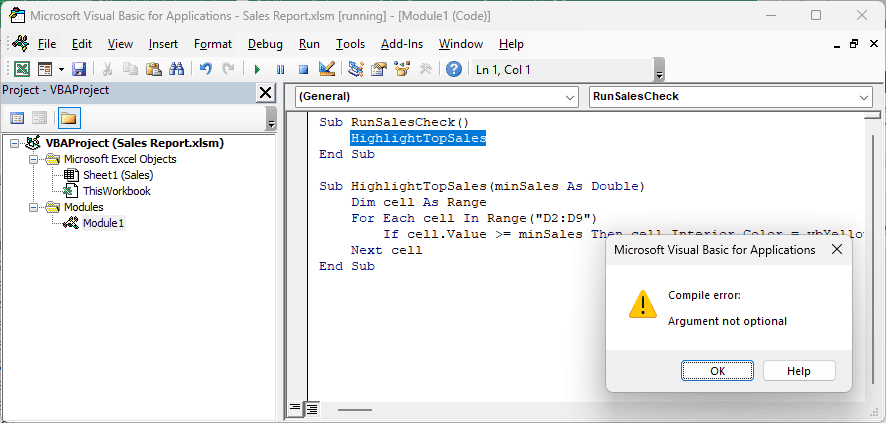
Click OK. VBA has paused the macro (break mode). The Sub RunSalesCheck() line is highlighted in yellow, and [break] shows in the title bar.
Click Run > Reset, or the square Reset button on the toolbar, before running again.
Put the cursor on HighlightTopSales and press Ctrl + I. This opens Quick Info, a tooltip showing the procedure’s parameter list.
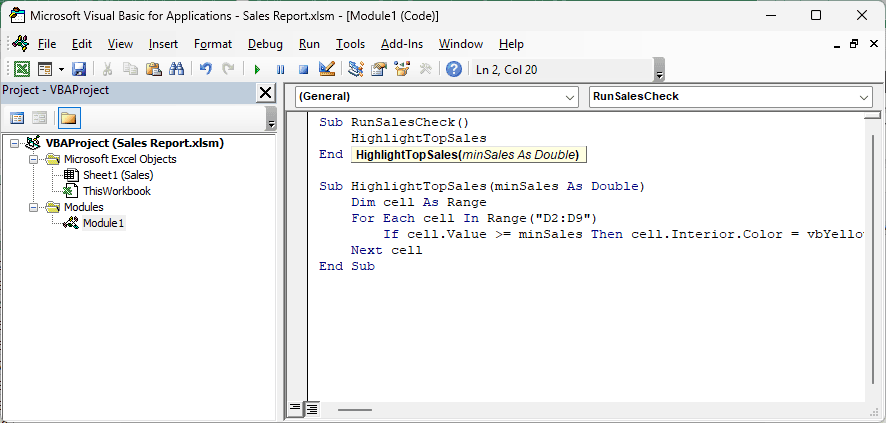
The tooltip shows HighlightTopSales(minSales As Double). Here, minSales is the parameter that receives your argument, but the call hasn’t supplied one.
Optional parameters appear in square brackets in Quick Info. Anything outside those brackets needs an argument.
You can also click Debug > Compile VBAProject to find the same missing argument without running anything. VBA stops at the first problem it finds.
Method #1: Passing the Missing Argument
If the procedure needs a value, I’d start by supplying it in the call.
Below I have a dataset of sales reps, regions, and sales on the Sales sheet. I want to highlight reps with sales of 6000 or more.
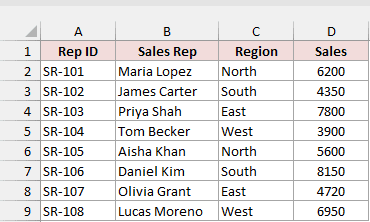
The table is in A1:D9, with Rep ID, Sales Rep, Region, and Sales headers. The sales values are in D2:D9.
HighlightTopSales needs a minimum sales value. Here’s the corrected code in Module1, with 6000 added to the call:
Sub RunSalesCheck()
    HighlightTopSales 6000
End Sub

Sub HighlightTopSales(minSales As Double)
    Dim cell As Range
    For Each cell In Range("D2:D9")
        If cell.Value >= minSales Then cell.Interior.Color = vbYellow
    Next cell
End SubHere are the steps to run the corrected macro:
- Keep the Sales sheet active, since the code uses
Rangewithout naming a sheet. - Press Alt + F11 and replace the original call with
HighlightTopSales 6000. - Place the cursor inside
RunSalesCheckand press F5.
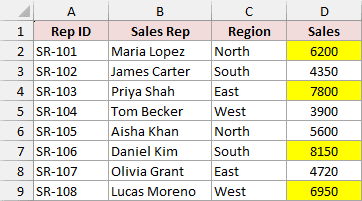
The argument 6000 goes into minSales. The macro checks each sales value and colors it yellow if it’s at least that amount.
You’ll see 6200, 7800, 8150, and 6950 highlighted in D2, D4, D7, and D9.
You can also use Call HighlightTopSales(6000) or HighlightTopSales minSales:=6000. With the Call keyword, you must put the argument in parentheses.
Method #2: Passing Every Argument to a Function
A function can need more than one value. Check the whole parameter list, even if you’ve already supplied the first argument.
Here I want to calculate commission on the Sales sheet’s D2 value, 6200. The function multiplies sales by a commission rate:
Sub ShowCommission()
    MsgBox "Commission: " & GetCommission(Range("D2").Value)
End Sub

Function GetCommission(sales As Double, rate As Double) As Double
    GetCommission = sales * rate
End FunctionThe call supplies sales, but leaves out rate. VBA highlights GetCommission and shows the compile error.
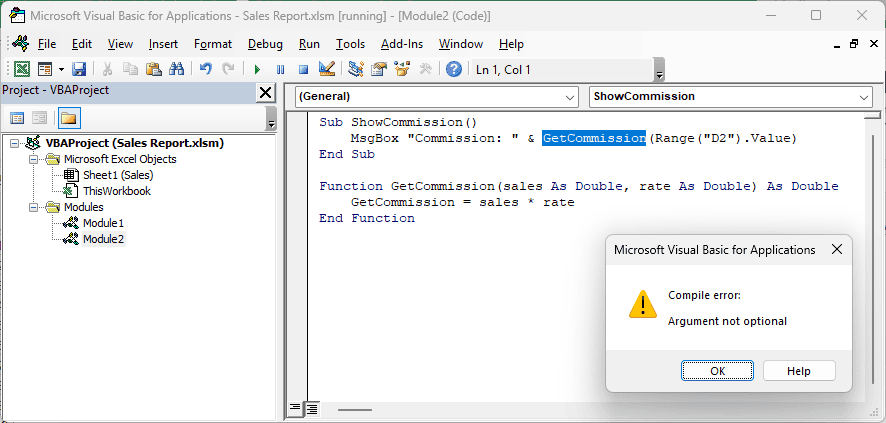
Pass 0.05 as the second argument to calculate a 5% commission:
Sub ShowCommission()
    MsgBox "Commission: " & GetCommission(Range("D2").Value, 0.05)
End Sub

Function GetCommission(sales As Double, rate As Double) As Double
    GetCommission = sales * rate
End FunctionHere are the steps to check the fix:
- Add
, 0.05afterRange("D2").Valuein the function call. - Keep the Sales sheet active.
- Run
ShowCommissionfrom the VB Editor.
The function returns 310, so the message box shows “Commission: 310”.
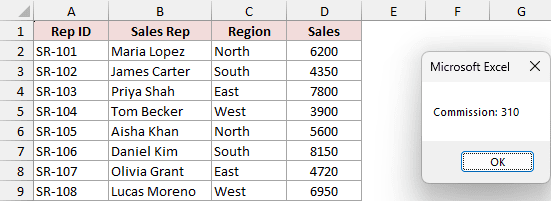
You can name the arguments to make the call easier to read.
Named arguments use := and can appear in any order. Replace the original MsgBox line in ShowCommission with this:
MsgBox "Commission: " & GetCommission(rate:=0.05, sales:=Range("D2").Value)Method #3: Making the Parameter Optional
If you usually use the same commission rate, you can let the function supply that value when you leave it out.
For sales of 6200 in D2 on the Sales sheet, I want the function to use a 5% rate unless I pass another one.
Add Optional and a default value to the rate parameter:
Sub ShowCommission()
    MsgBox "Commission: " & GetCommission(Range("D2").Value)
End Sub

Function GetCommission(sales As Double, Optional rate As Double = 0.05) As Double
    GetCommission = sales * rate
End FunctionHere are the steps to use the default rate:
- Replace the original
GetCommissionfunction with this version. - Leave the one-argument call in
ShowCommissionas shown. - Run
ShowCommissionwith the Sales sheet active.
The original call now works and shows “Commission: 310”. You can still pass a second argument when you need a different rate.
Keep these two rules in mind when editing the declaration:
- Once you mark a parameter
Optional, every parameter after it must also be optional. - The default must be a constant, such as
0.05, rather than a variable or a function call.
Another option is to use a Variant parameter and check whether you received an argument with IsMissing:
Function GetCommission(sales As Double, Optional rate As Variant) As Double
    If IsMissing(rate) Then rate = 0.05
    GetCommission = sales * rate
End FunctionThis version also returns 310 for the one-argument call using D2.
Note: IsMissing only works with Variant parameters. For a fixed numeric default, I’d use Optional rate As Double = 0.05.
Method #4: Adding the Required Argument to Built-in Functions
If VBA highlights a built-in function, check its arguments too. You can’t change its declaration, so you need to correct the call.
On the Sales sheet, C2 contains North. I want the first letter as a region code, but this call leaves out the length:
Sub ShowRegionCode()
    MsgBox "Region code: " & Left(Range("C2").Value)
End SubVBA highlights Left and shows “Argument not optional” because it needs to know how many characters you want.
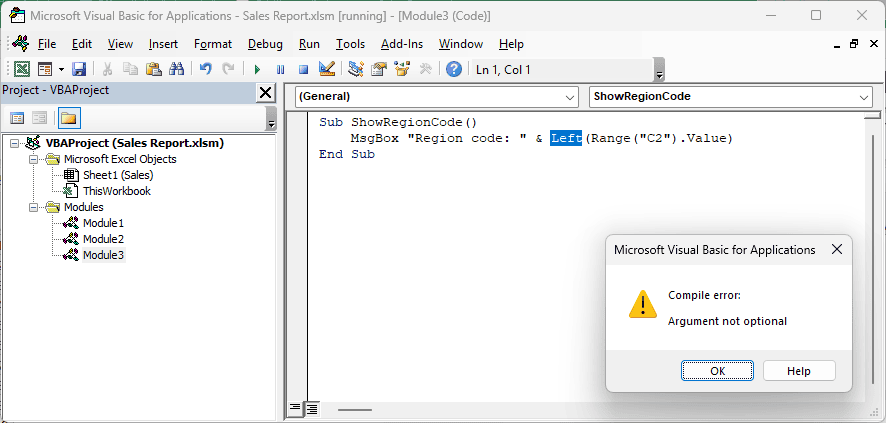
Add 1 as the second argument to return the first character:
Sub ShowRegionCode()
    MsgBox "Region code: " & Left(Range("C2").Value, 1)
End SubHere are the steps to correct this call:
- Add
, 1afterRange("C2").ValueinsideLeft. - Keep the Sales sheet active and run
ShowRegionCode.
The message box now shows “Region code: N”.
You can get the same error with these calls:
- A bare
MsgBoxneeds a message argument. Add the text you want it to show. Replace(Range("C2").Value, "th")needs a third argument for the replacement text. UseReplace(Range("C2").Value, "th", "")to remove “th”.WorksheetFunction.VLookup("SR-103", Range("A2:D9"))leaves out the column number. VBA highlights.VLookup. For the Sales table, useWorksheetFunction.VLookup("SR-103", Range("A2:D9"), 4, False). This looks up the Rep ID and returns 7800 from column 4.
When typing a call, enter the function name and an opening parenthesis. VBA’s Auto Quick Info shows the arguments as you type.
Method #5: Adding Arguments to Application.Run
With Application.Run, you can have code that compiles but still fails when it reaches the call.
Here I want to highlight sales of 6000 or more in D2:D9 on the Sales sheet. This call names the macro but supplies no minimum:
Sub RunSalesCheck()
    Application.Run "HighlightTopSales"
End SubReplace the existing RunSalesCheck Sub in Module1 with this version, keeping HighlightTopSales(minSales As Double) below it.
If you don’t have HighlightTopSales yet, copy that Sub from the first section.
When you run RunSalesCheck, you get “Run-time error ‘449’: Argument not optional”, rather than the compile-time message.
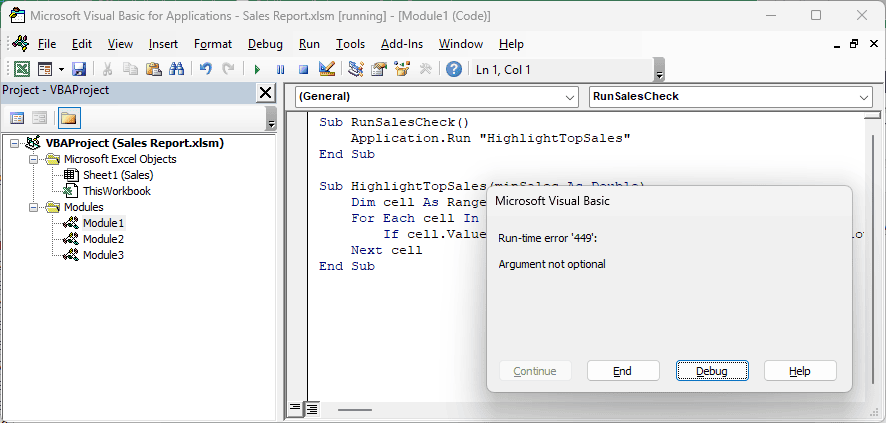
Application.Run looks up the macro named in the string when the line runs. The missing argument is caught at that point.
Pass the minimum sales value after the macro name:
Sub RunSalesCheck()
    Application.Run "HighlightTopSales", 6000
End SubHere are the steps to fix the run-time error:
- Click End in the error box.
- Add
, 6000after"HighlightTopSales"in the call. - On the Sales sheet, select D2:D9 and choose Home > Fill Color > No Fill so you can see the result.
- Run
RunSalesCheckagain with the Sales sheet active.
The macro highlights D2, D4, D7, and D9 in yellow.
Application.Run passes arguments by position only, so you can’t use named arguments with it.
Method #6: Passing a Range to Event Procedures
You can also get this error by manually calling an event procedure, which runs in response to an Excel action.
Worksheet_Change receives the changed cells through a Range parameter named Target. Excel supplies Target when the event fires; you must supply it when calling the procedure yourself.
Here I want to color D2:D9 on the Sales sheet yellow. This code belongs in the sheet’s module, shown as Sheet1 (Sales) in Project Explorer:
Private Sub Worksheet_Change(ByVal Target As Range)
    Target.Interior.Color = vbYellow
End Sub

Sub MarkSalesColumn()
    Worksheet_Change
End SubWhen you run MarkSalesColumn, VBA highlights Worksheet_Change because your manual call hasn’t supplied Target.
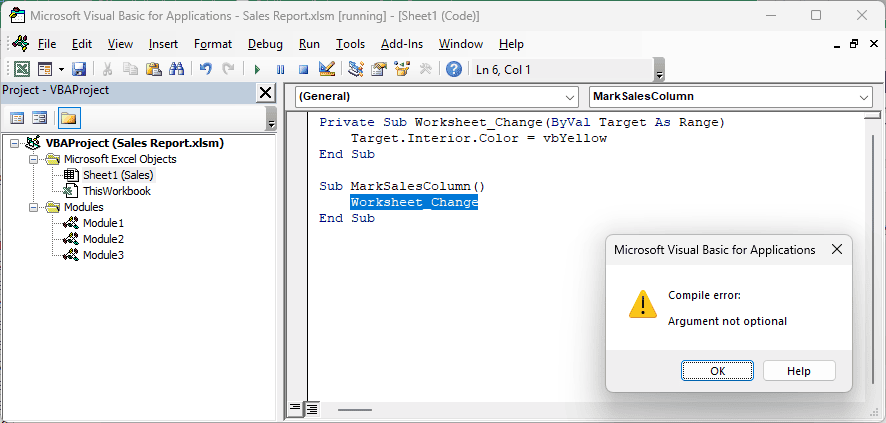
Pass the range you want to color:
Private Sub Worksheet_Change(ByVal Target As Range)
    Target.Interior.Color = vbYellow
End Sub

Sub MarkSalesColumn()
    Worksheet_Change Me.Range("D2:D9")
End SubHere are the steps to correct the event call:
- On the Sales sheet, select D2:D9 and choose Home > Fill Color > No Fill so you can see the result.
- Open Sheet1 (Sales) in the VB Editor’s Project Explorer.
- Replace the bare call with
Worksheet_Change Me.Range("D2:D9"). - Run
MarkSalesColumnfrom that sheet module.
Me refers to the sheet containing the code. Its D2:D9 range becomes Target, so all eight sales cells turn yellow.
For shared code, I’d move the coloring line into its own Sub that takes a Range. Then both the event and your other macro can call it.
Note: This is a real event procedure, so every cell you edit on the Sales sheet will now turn yellow. Delete the test code when you’re done.
Additional Notes About Fixing “Argument Not Optional” in VBA
Keep these in mind as you work through the project:
- Compile after each correction until the whole project passes. Fixing the first missing argument can reveal another call that needs attention.
- Before editing a shared procedure, use Ctrl + I on its calls to check which arguments the other macros already supply.
- When you add a required parameter to an existing procedure, update every call to it. Use Ctrl + F with Current Project to find them.
- Save the workbook as .xlsm to keep your macros. Saving as .xlsx drops the VBA code.
Frequently Asked Questions
Here are a few questions you might have while fixing this error.
Why does my macro with arguments not show in the Macros list?
Subs that take arguments don’t appear in the Alt + F8 Macro dialog. Call that Sub from another Sub that takes no arguments.
Can I skip an argument in the middle of a VBA call?
Only if that parameter is declared Optional. To supply later values, use named arguments in the form name:=value.
Can On Error Resume Next fix “Argument not optional”?
It can’t bypass the compile error because the macro hasn’t started. You need to supply the required argument or change your own procedure’s declaration.
For run-time error 449, skipping the failed call doesn’t supply the missing argument or make the called macro run.
What’s the difference between “Argument not optional” and “Wrong number of arguments”?
“Argument not optional” means you omitted a required argument.
Passing too many arguments, such as HighlightTopSales 6000, 2, produces the compile error “Wrong number of arguments or invalid property assignment”.
VBA highlights HighlightTopSales in the VB Editor.
Why does my custom function return #VALUE! instead of showing a VBA error?
When you call a VBA function from a worksheet, Excel can return #VALUE! instead of showing a VBA error.
For the two-argument GetCommission from Method #2, =GetCommission(D2) returns #VALUE! because the required rate argument is missing.
With D2 containing 6200, =GetCommission(D2,0.05) supplies both required arguments and returns 310.
Conclusion
I’d start by pressing Ctrl + I on the highlighted name and comparing the required parameters with your call.
Supply the missing value, or make your own parameter optional when a default makes sense. Then compile and run the corrected macro.
Now you can get back to what you wanted your macro to do.
Other Excel articles you may also like:
- How to Fix “User-Defined Type Not Defined” in VBA
- VBA Type Mismatch Error (Error 13)
- VBA Runtime Error 91 – How to Fix?
- Excel VBA Runtime Error 1004
- VBA ByRef Argument Type Mismatch – How to Fix?
- Subscript Out of Range Error in VBA – How to Fix!
- Run Macro In Another Workbook Using VBA
- Call a Sub with parameters in VBA
