
Copying to the clipboard with VBA lets your macro grab an email address or order number, ready for you to paste into another program.
You can also copy a block of cells without pressing Ctrl + C yourself, then paste it into an email or a web form.
VBA has no single built-in command for copying arbitrary text. Your route depends on whether you want Excel’s full copy of the cells or just plain text.
I’ll show you how to copy cells, copy a single value without an extra line break, and keep the dollar formatting when copying displayed text.
Method #1: Using the Range.Copy Method
Use Range.Copy with nothing after it when you want the same result as selecting cells and pressing Ctrl + C.
The macro puts the cells on the clipboard with their values, formulas, and formatting. What you get when you paste depends on the program you’re pasting into.
Below, I have customer contacts in A1:E9 on the Customer Contacts sheet. You’ll copy the whole list, including its headers.
You can see the Customer ID, Customer Name, Email, Phone, and Order Total columns, with the totals displayed as dollars.
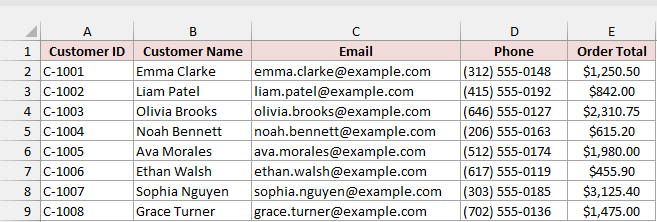
Here is the macro to copy that range:
Sub CopyCustomerList()
    Range("A1:E9").Copy
End SubHere are the steps to run it:
- Press Alt + F11 to open the VBA editor.
- Click Insert > Module.
- Paste the code into the module.
- Click anywhere inside
CopyCustomerListand press F5.
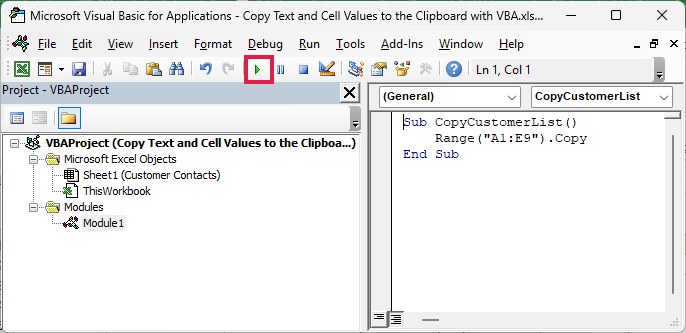
Here is CopyCustomerList in a module, with the Run button highlighted as another way to run it.
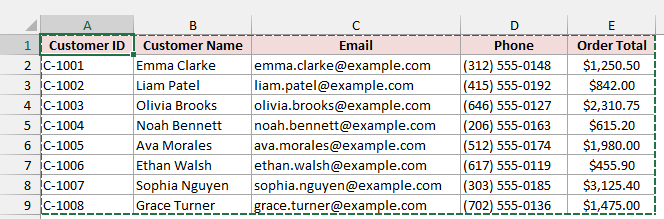
After you run the macro, Excel puts a moving dotted border around A1:E9, just as it does when you press Ctrl + C.
Press Ctrl + V wherever you want the data. When you paste into another Excel sheet, you get the formulas and formatting too.
In Notepad, you get plain text with tabs between the columns. Most email programs paste it as a table.
To remove the moving border from a macro, you can use the code below.
Paste your data first. Setting Application.CutCopyMode to False after Range.Copy also empties the clipboard, so you won’t be able to paste that copy afterward.
Sub ClearCopyMode()
    Application.CutCopyMode = False
End SubNote: The practice .xlsx file contains data only. Save your file as .xlsm to keep your macros.
Method #2: Using the DataObject
When you only want a cell’s text, you can use a small object that holds plain text and hands it to the clipboard.
That’s the DataObject from the Microsoft Forms library that comes with Office. It’s the quickest way to copy plain text or a single value.
For occasional use, this is my pick. Use Method #1 when you want Excel’s full cell copy, including formulas and formatting when you paste back into Excel.
For macros other people will run, I’d use Method #3. It talks to Windows directly and also avoids the two-question-mark problem you may encounter with this method.
In the Customer Contacts list, you’ll copy Liam Patel’s email. Below, C3 is selected and contains liam.patel@example.com.
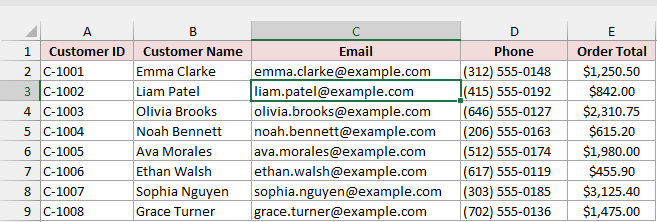
Here is the code to copy the selected cell’s value:
Sub CopyCellValue()
    Dim clip As Object
    Set clip = CreateObject("New:{1C3B4210-F441-11CE-B9EA-00AA006B1A69}")
    clip.SetText ActiveCell.Value
    clip.PutInClipboard
End SubThe VBA editor below shows the CopyCellValue macro.
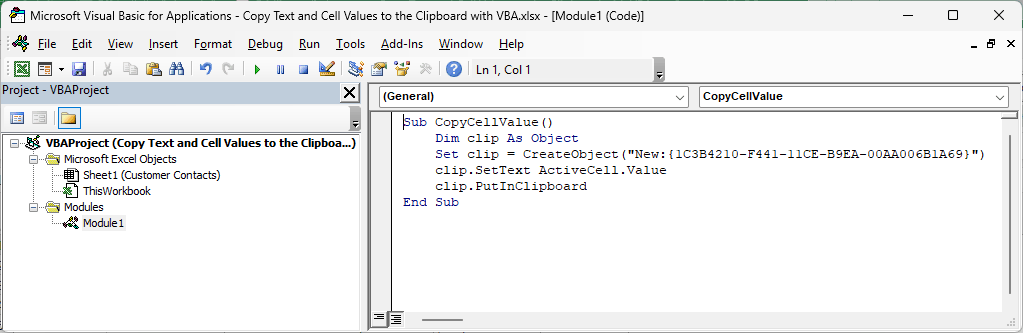
Here’s what each part does:
Dim clip As Objectcreates a variable to hold the object.- The long ID inside
CreateObjecttells Windows to create a DataObject. You don’t need to set up a library reference first. SetTextloads your active cell’s value into the object.PutInClipboardsends that text to the clipboard, replacing whatever was there.
Select C3 on the Customer Contacts sheet, run CopyCellValue, then press Ctrl + V in a blank Word document.
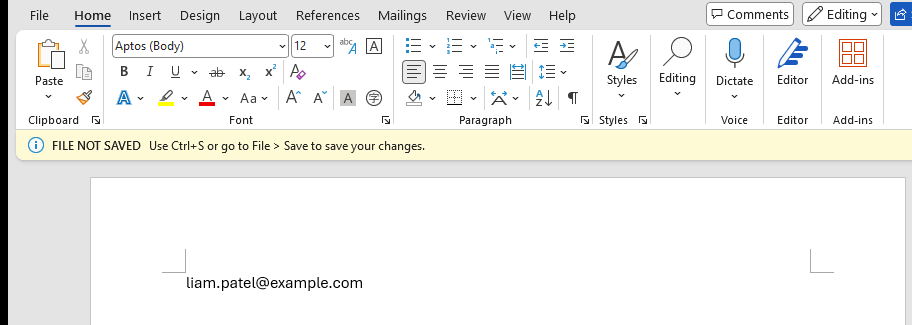
You paste only liam.patel@example.com, with no formatting or extra line break. The image below shows the email pasted into Word.
You can also set up the library reference yourself. In the VBA editor, go to Tools > References and check “Microsoft Forms 2.0 Object Library”.
Then replace Dim clip As Object with Dim clip As New MSForms.DataObject and remove the CreateObject line.
If you don’t see the library in the list, insert a UserForm (Insert > UserForm) and Excel turns the reference on for you.
I use CreateObject here so you can skip that setup.
Method #3: Using the Windows API
You can also skip the Forms library and write text to the clipboard through Windows itself, although you’ll need more code.
You do this by calling functions built into Windows.
These functions are part of the Windows API. VBA can call them once you declare them in a module.
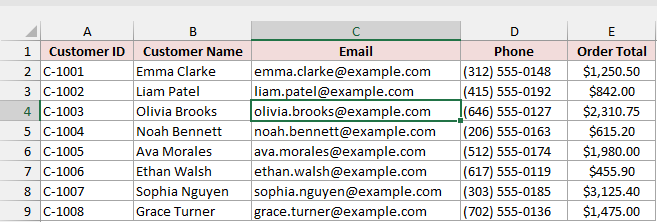
For this example, you’ll copy Olivia Brooks’s email from the Customer Contacts list. Below, C4 is selected and contains olivia.brooks@example.com.
Paste these declarations and the reusable function into your module.
Put the Declare lines at the top, below Option Explicit if you have it, and above every Sub and Function.
Private Declare PtrSafe Function OpenClipboard Lib "user32" (ByVal hWnd As LongPtr) As Long
Private Declare PtrSafe Function EmptyClipboard Lib "user32" () As Long
Private Declare PtrSafe Function CloseClipboard Lib "user32" () As Long
Private Declare PtrSafe Function SetClipboardData Lib "user32" (ByVal wFormat As Long, ByVal hMem As LongPtr) As LongPtr
Private Declare PtrSafe Function GlobalAlloc Lib "kernel32" (ByVal wFlags As Long, ByVal dwBytes As LongPtr) As LongPtr
Private Declare PtrSafe Function GlobalLock Lib "kernel32" (ByVal hMem As LongPtr) As LongPtr
Private Declare PtrSafe Function GlobalUnlock Lib "kernel32" (ByVal hMem As LongPtr) As Long
Private Declare PtrSafe Function GlobalFree Lib "kernel32" (ByVal hMem As LongPtr) As LongPtr
Private Declare PtrSafe Sub CopyMemory Lib "kernel32" Alias "RtlMoveMemory" (ByVal Destination As LongPtr, ByVal Source As LongPtr, ByVal Length As LongPtr)
Private Declare PtrSafe Sub Sleep Lib "kernel32" (ByVal dwMilliseconds As Long)

Private Const GHND As Long = &H42
Private Const CF_UNICODETEXT As Long = 13

Function CopyTextToClipboard(ByVal TextToCopy As String) As Boolean
    Dim hMem As LongPtr
    Dim pMem As LongPtr
    Dim attempt As Long

    hMem = GlobalAlloc(GHND, LenB(TextToCopy) + 2)
    If hMem = 0 Then Exit Function
    pMem = GlobalLock(hMem)
    CopyMemory pMem, StrPtr(TextToCopy), LenB(TextToCopy)
    GlobalUnlock hMem

    Do Until OpenClipboard(0) <> 0
        attempt = attempt + 1
        If attempt > 10 Then
            GlobalFree hMem
            Exit Function
        End If
        Sleep 50
    Loop

    EmptyClipboard
    If SetClipboardData(CF_UNICODETEXT, hMem) = 0 Then
        GlobalFree hMem
    Else
        CopyTextToClipboard = True
    End If
    CloseClipboard
End FunctionNext, place this macro below the function in the same module. This is the macro you’ll actually run:
Sub CopyCellValueAPI()
    CopyTextToClipboard ActiveCell.Value
End SubThis module contains the Windows declarations, CopyTextToClipboard, and CopyCellValueAPI.
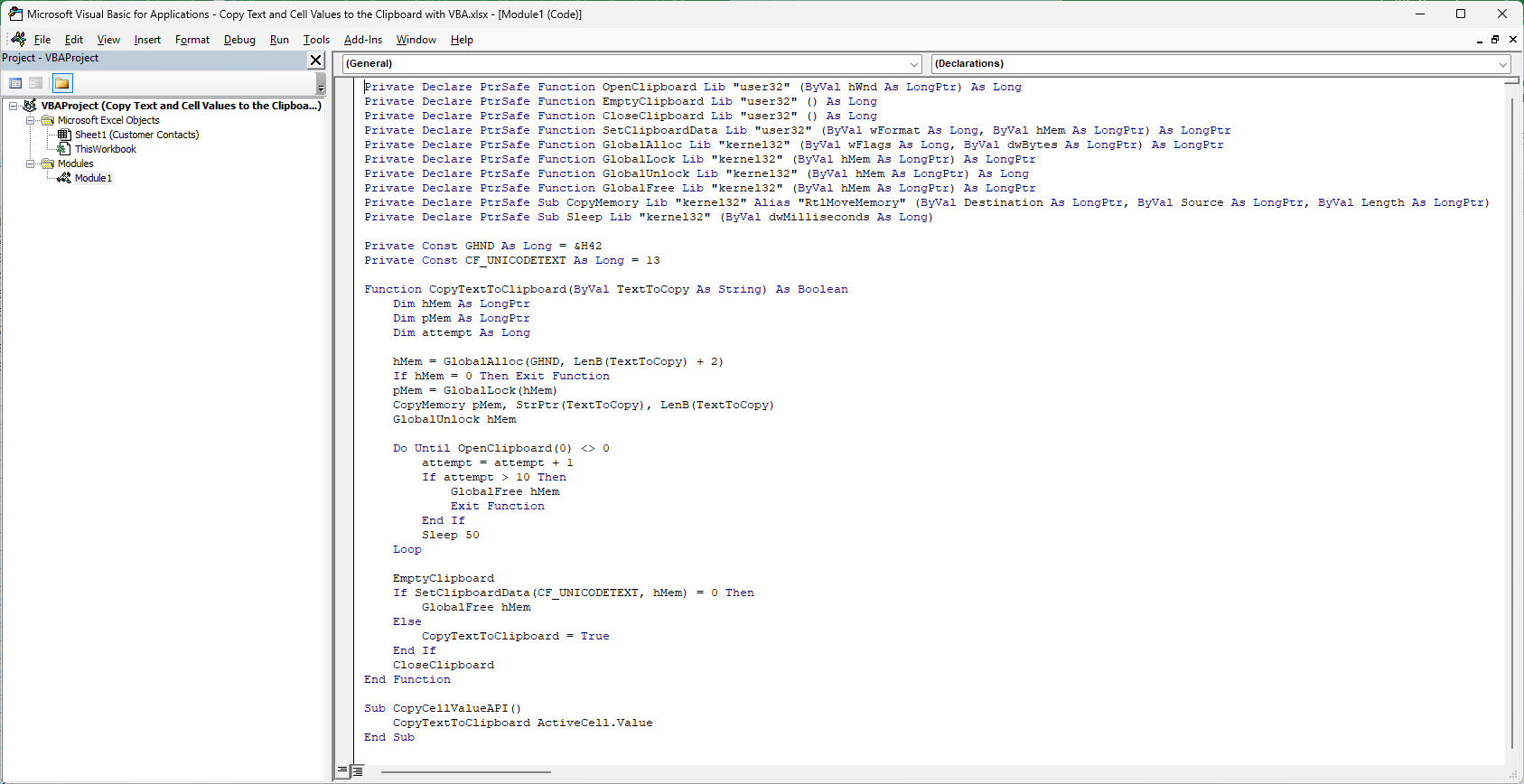
Here’s how the function handles your text:
- It reserves a small block of memory sized for your text and copies the text into it.
- It opens the clipboard and empties the previous contents.
- It hands the memory block to the clipboard as Unicode text, so accented names such as José come through correctly.
- It closes the clipboard.
If another program has the clipboard open briefly, the function waits 50 milliseconds and tries again, up to 10 times.
The function returns True when your text was copied successfully. You can check that result in another macro with If CopyTextToClipboard(...) Then.
The PtrSafe and LongPtr declarations let you use this code in both 32-bit and 64-bit Office, with Excel 2010 or later.
You can run this Windows API code only in Excel for Windows.
Select C4, run CopyCellValueAPI, and press Ctrl + V in a blank Word document. Below, you can see the pasted email, olivia.brooks@example.com.
Once you’ve added CopyTextToClipboard to your module, you can call it from any macro with any text, such as CopyTextToClipboard "Order shipped".
Copying What a Cell Displays Instead of Its Value
When you copy a number, .Value returns the number Excel stores. Use .Text when you want what the cell displays, including its number formatting.
In the Customer Contacts list, E3 stores Liam Patel’s order total as 842.
Below, E3 is selected. You can see $842.00 in the cell, while the formula bar shows 842.
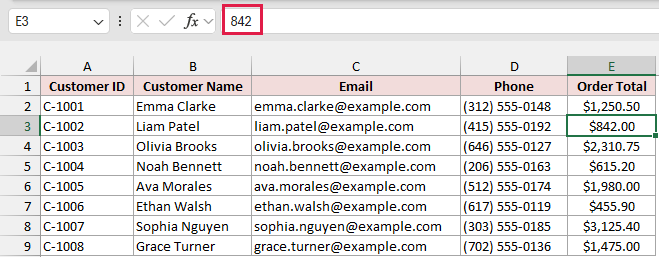
Copying ActiveCell.Value from E3 puts 842 on the clipboard. To keep $842.00, use ActiveCell.Text instead.
This macro calls the CopyTextToClipboard function from Method #3, so keep it in the same module:
Sub CopyDisplayedText()
    CopyTextToClipboard ActiveCell.Text
End SubWith E3 selected, run CopyDisplayedText and paste into a blank Word document. Below, you can see $842.00, including the dollar sign and two decimal places.
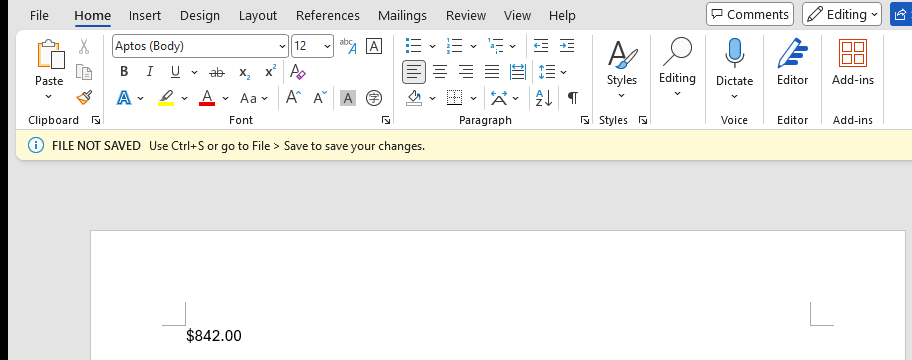
With .Text, you get exactly what the cell shows.
If a narrow column makes the cell show ####, you’ll copy that instead, so widen the column first.
You can make the same swap in Method #2 by using clip.SetText ActiveCell.Text.
Copying Several Cells as Plain Text
You may want the whole contact list as plain text to paste into an email or a ticket without Excel’s formatting.
I use the function below to build one string from the range, with a tab between columns and a line break between rows.
Put this code in the same module as CopyTextToClipboard from Method #3:
Function RangeToText(ByVal Source As Range) As String
    Dim r As Long
    Dim c As Long
    Dim result As String

    For r = 1 To Source.Rows.Count
        For c = 1 To Source.Columns.Count
            result = result & Source.Cells(r, c).Text
            If c < Source.Columns.Count Then result = result & vbTab
        Next c
        If r < Source.Rows.Count Then result = result & vbCrLf
    Next r

    RangeToText = result
End Function

Sub CopyRangeAsText()
    CopyTextToClipboard RangeToText(Range("A1:E9"))
End SubHere are RangeToText and the CopyRangeAsText macro in the VBA editor.
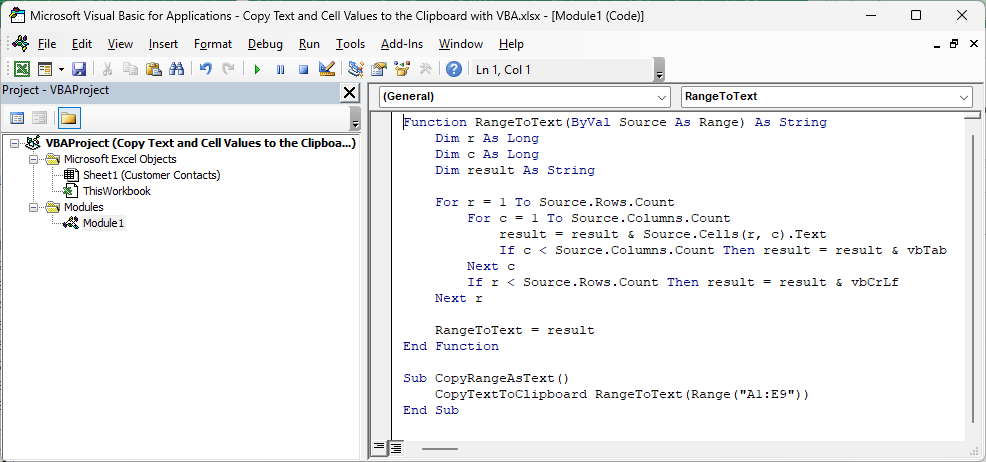
The function walks through your range row by row. It uses .Text for each cell, so you keep the dollar format on the order totals.
You don’t get an extra line break after the last row, unlike with Range.Copy.
Run CopyRangeAsText with the Customer Contacts sheet active, then paste into a blank Word document.
Below, you can see all nine rows of A1:E9, including the headers, as plain text with tabs between the columns.
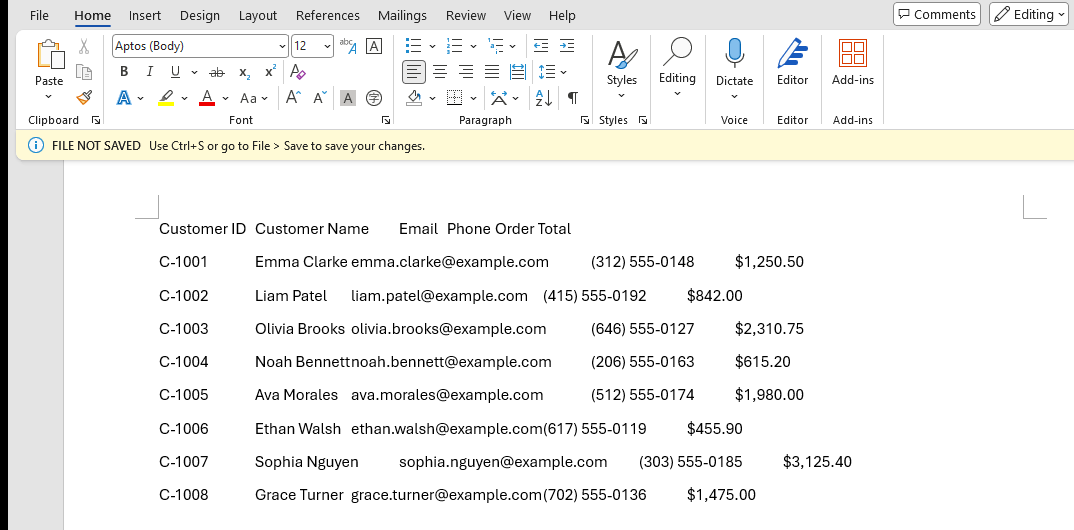
If you paste that text into Excel, the tabs split it back into separate columns.
Getting Text Back From the Clipboard
You can also use the DataObject to read text from the clipboard, then put that text in a cell for your macro to use.
I’ll put the copied text in G2, beneath the Clipboard Text header.
The Customer Contacts list below has G2 still empty.
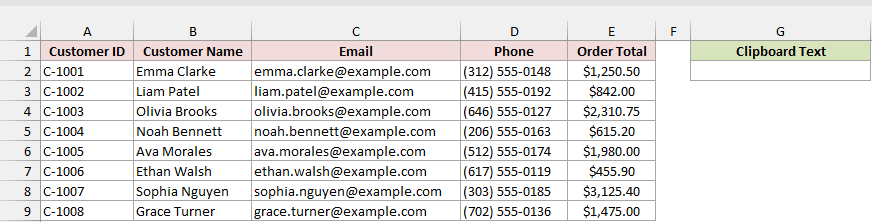
Here is the macro to read the clipboard and fill G2:
Sub PasteClipboardText()
    Dim clip As Object
    Set clip = CreateObject("New:{1C3B4210-F441-11CE-B9EA-00AA006B1A69}")
    clip.GetFromClipboard
    If clip.GetFormat(1) Then
        Range("G2").Value = clip.GetText
    Else
        MsgBox "The clipboard doesn't have any text."
    End If
End SubGetFromClipboard loads the clipboard’s contents into the DataObject.
The GetFormat(1) check tells you whether plain text is available. Here, 1 means the plain-text format, and GetText returns that text.
Without the check, calling GetText when there’s no text stops your macro with a “DataObject:GetText Invalid FORMATETC structure” error.
Copy Liam Patel’s email with CopyCellValue from Method #2, then run PasteClipboardText.
Below, G2 now contains liam.patel@example.com under the Clipboard Text header.
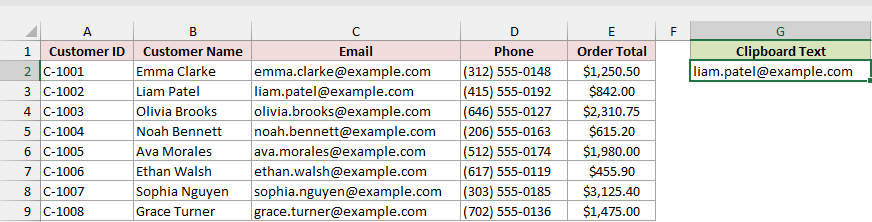
Additional Notes About Copying to the Clipboard with VBA
Keep these points in mind when you add clipboard actions to your macros:
- Copying with any of these methods replaces what’s on the clipboard. Whatever you copied before is gone.
- A macro that changes your sheet, like
PasteClipboardText, clears Excel’s undo history, so Ctrl + Z can’t undo what you did before it ran. Range("A1:E9")andActiveCellwork on your active sheet. UseWorksheets("Customer Contacts").Range("A1:E9")if your macro might run from another sheet.- The DataObject and Windows API methods put only text on the clipboard. Use
Range.Copywhen you want to paste formulas or formatting back into Excel. - The DataObject and Windows API code in this article is written for Excel on Windows.
Range.Copyalso works in Excel for Mac.
Frequently Asked Questions
Here are answers to a few clipboard problems you may run into while using VBA.
How Do I Clear the Clipboard in VBA?
Application.CutCopyMode = False empties the clipboard after Range.Copy. It doesn’t clear text you put there with a DataObject or the Windows API.
To empty the clipboard regardless of its contents, add this macro to the same module as Method #3. It reuses the Windows declarations you’ve already added.
Sub ClearClipboard()
    If OpenClipboard(0) <> 0 Then
        EmptyClipboard
        CloseClipboard
    End If
End SubWhy Does My Paste Show Two Question Marks Instead of the Text?
This can happen with the DataObject’s PutInClipboard on some Windows setups, often when a File Explorer window is open. Your code isn’t wrong.
Switch to the Windows API function from Method #3. You’ll write the text straight to the clipboard without using the DataObject.
Why Does Pasting a Cell Copied with Range.Copy Add an Extra Blank Line?
When you copy cells with Range.Copy, Excel’s plain-text version on the clipboard ends with a line break, even if you copied just one cell.
You can see that line break when you paste into Notepad, an email, or a chat box.
Copy the value with Method #2 or Method #3 instead. You’ll put only the text itself on the clipboard.
Can I Copy a Cell’s Formula Instead of Its Value?
Yes. Pass ActiveCell.Formula instead of ActiveCell.Value, using CopyTextToClipboard ActiveCell.Formula.
You’ll get the formula as text, starting with the equals sign.
In Microsoft 365, use ActiveCell.Formula2 for formulas that spill, because it returns the formula exactly as the formula bar shows it.
Conclusion
I’ve shown you how to copy cells and plain text with VBA.
I’d use Range.Copy for cells; otherwise, I’d keep Method #3’s CopyTextToClipboard in my toolbox because it works even when the DataObject doesn’t.
I hope you found this article helpful.
Other Excel articles you may also like:
