
With the InStrRev function in Excel VBA, you can find the last occurrence of text, such as the backslash before a file name.
When you extract a file name from a full path, you need that final backslash because the earlier ones separate the folders.
InStrRev returns the match’s position, counted from the left. You can then use that number to keep the text before or after it.
I’ll start with the syntax, then show you how to extract file names, folder paths, and extensions.
You’ll also see how I use the start argument, ignore case, and build a custom worksheet function.
InStrRev Syntax in VBA
InStrRev searches backward through some text to find the last match. Here’s the syntax:
InStrRev(stringcheck, stringmatch, [start], [compare])You can supply these arguments:
- stringcheck: Required. The text you want to search in.
- stringmatch: Required. The text you want to find.
- start: Optional. The position you want to search backward from. If you omit it, VBA uses -1, which starts at the last character.
- compare: Optional. Use vbBinaryCompare (0) for a case-sensitive search, the default when omitted (unless the module uses Option Compare Text), or vbTextCompare (1) to ignore case.
Although you search from the right, you still count the returned position from the left, the same way you do with InStr.
For example, you can find the last hyphen in “Budget-2025-Final.xlsx” with this macro:
Sub InStrRevDemo()
    MsgBox InStrRev("Budget-2025-Final.xlsx", "-")
End SubThe message box shows 12 because the last hyphen is the 12th character. With InStr("Budget-2025-Final.xlsx", "-"), you’d get 7, the first hyphen.
InStrRev returns 0 when the text isn’t there.
The argument order differs from InStr’s. In InStr(start, string1, string2, compare), start comes first; in InStrRev, it comes third.
Example #1: Find the Last Backslash Position
I want to find the position of the last backslash in each file path.
Below I have a dataset with eight files, a File ID in column A, and a Full Path in column B.
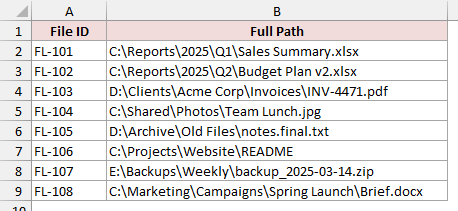
On the File Paths sheet, I’ll write the header in C1 and the positions in C2:C9.
Here is the VBA code:
Sub FindLastBackslash()
    Dim cell As Range
    Range("C1").Value = "Last Backslash Position"
    For Each cell In Range("B2:B9")
        cell.Offset(0, 1).Value = InStrRev(cell.Value, "\")
    Next cell
End Sub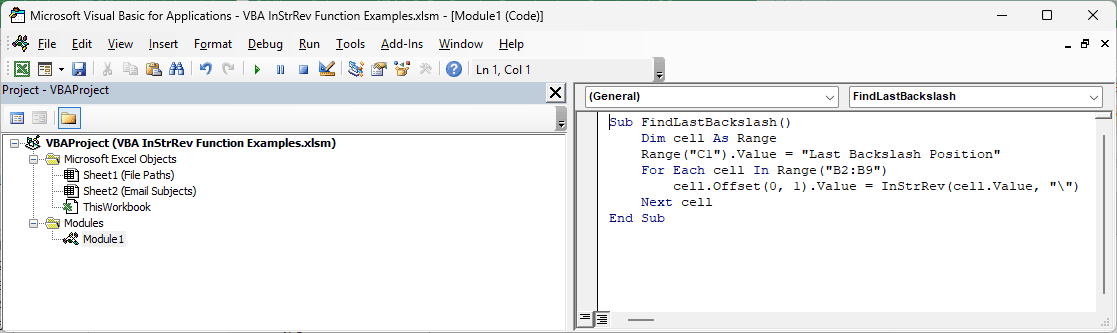
With the File Paths worksheet active, here are the steps to use this macro:
- Press Alt + F11 to open the VB Editor.
- Click Insert > Module.
- Paste the code into the module.
- Go back to the worksheet, press Alt + F8, select FindLastBackslash, and click Run.
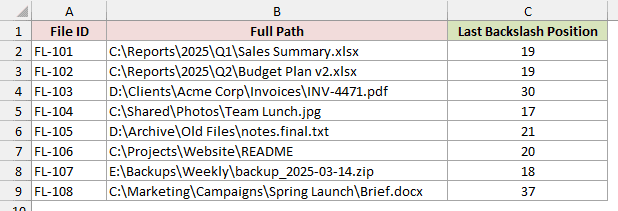
You get the header “Last Backslash Position” in C1 and 19, 19, 30, 17, 21, 20, 18, and 37 in C2:C9.
How does this code work?
For FL-101, InStrRev returns 19 because the last backslash is the 19th character, right before “Sales Summary.xlsx”.
I use For Each to go through B2:B9. With cell.Offset(0, 1), I write each position one column to the right, in column C.
Note: Save your file as an Excel Macro-Enabled Workbook (.xlsm) if you want to keep the macro.
Example #2: Extract the File Name
Now I’ll keep everything after the last backslash to extract each file name from its full path.
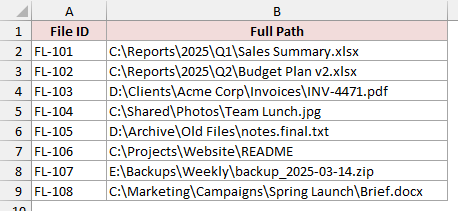
Below I have a dataset with eight files, a File ID in column A, and a Full Path in column B.
Here is the VBA code:
Sub GetFileName()
    Dim cell As Range
    Dim pos As Long
    Range("C1").Value = "File Name"
    For Each cell In Range("B2:B9")
        pos = InStrRev(cell.Value, "\")
        cell.Offset(0, 1).Value = Mid(cell.Value, pos + 1)
    Next cell
End SubRun GetFileName on the File Paths sheet the same way as Example #1. You get the “File Name” header and file names in C2:C9.
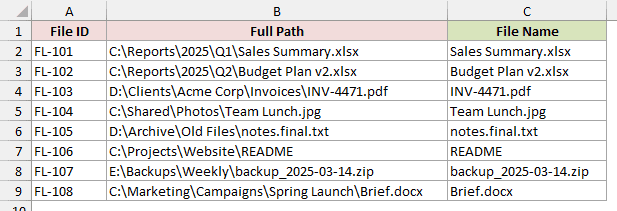
How does this code work?
I store the last backslash position in pos, then use Mid(cell.Value, pos + 1) to start one character after it.
I leave out Mid’s length argument, so it returns everything from that point to the end of the path.
For FL-101, the result is “Sales Summary.xlsx”. The full names “notes.final.txt” for FL-105 and “README” for FL-106 stay intact too.
Example #3: Get the Folder Path
To keep the folder path instead, I’ll take everything before the final backslash and leave out the file name.
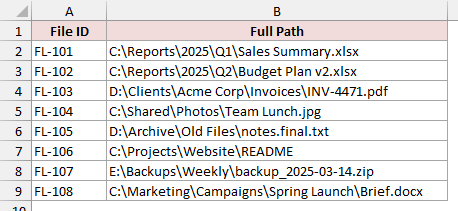
Below I have a dataset with eight files, a File ID in column A, and a Full Path in column B.
Here is the VBA code:
Sub GetFolderPath()
    Dim cell As Range
    Dim pos As Long
    Range("C1").Value = "Folder Path"
    For Each cell In Range("B2:B9")
        pos = InStrRev(cell.Value, "\")
        cell.Offset(0, 1).Value = Left(cell.Value, pos - 1)
    Next cell
End SubRun GetFolderPath on the File Paths sheet the same way as Example #1. You get the “Folder Path” header and folder paths in C2:C9.
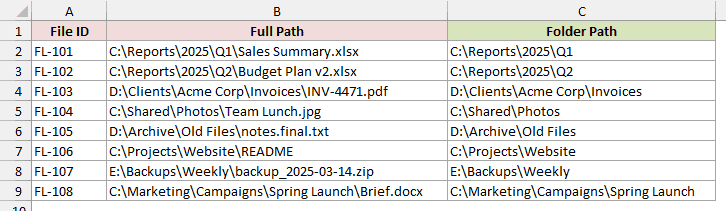
How does this code work?
For FL-101, the result is C:\Reports\2025\Q1. I use Left(cell.Value, pos - 1) to keep the characters before the last backslash.
I subtract 1 from the backslash’s position to leave it out. If you want a trailing backslash, use Left(cell.Value, pos) instead.
Example #4: Get the File Extension
For an extension, I’ll search for the final dot in the file name and keep what follows it.
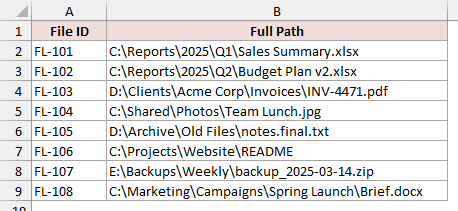
Below I have a dataset with eight files, a File ID in column A, and a Full Path in column B.
Here is the VBA code:
Sub GetFileExtension()
    Dim cell As Range
    Dim fileName As String
    Dim pos As Long
    Range("C1").Value = "Extension"
    For Each cell In Range("B2:B9")
        fileName = Mid(cell.Value, InStrRev(cell.Value, "\") + 1)
        pos = InStrRev(fileName, ".")
        If pos > 0 Then
            cell.Offset(0, 1).Value = Mid(fileName, pos + 1)
        Else
            cell.Offset(0, 1).Value = "(none)"
        End If
    Next cell
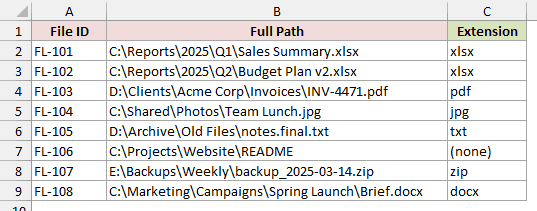
End SubRun GetFileExtension on the File Paths sheet the same way as Example #1. You get the “Extension” header and extensions in C2:C9.
How does this code work?
I extract the file name first so a dot in a folder name can’t be mistaken for the file extension.
For “notes.final.txt”, InStrRev finds the last dot, so the extension is “txt”. Starting after the first dot would return “final.txt”.
For “README”, InStrRev returns 0 because there’s no dot. I check pos > 0 and return “(none)” when there’s no match.
If you used Mid(cell.Value, InStrRev(cell.Value, ".") + 1) without that check, you’d get the whole path C:\Projects\Website\README on that row.
Mid would start at character 1 because InStrRev returns 0 for the missing dot, and 0 + 1 is 1.
Example #5: Get the Parent Folder Name
Next, I’ll use the start argument to find the previous backslash and extract the folder directly containing each file.
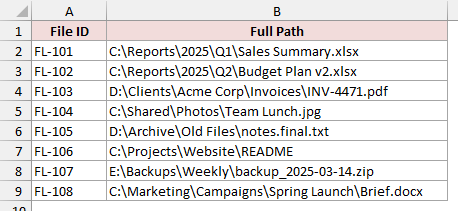
Below I have a dataset with eight files, a File ID in column A, and a Full Path in column B.
Here is the VBA code:
Sub GetParentFolder()
    Dim cell As Range
    Dim lastPos As Long
    Dim prevPos As Long
    Range("C1").Value = "Parent Folder"
    For Each cell In Range("B2:B9")
        lastPos = InStrRev(cell.Value, "\")
        prevPos = InStrRev(cell.Value, "\", lastPos - 1)
        cell.Offset(0, 1).Value = Mid(cell.Value, prevPos + 1, lastPos - prevPos - 1)
    Next cell
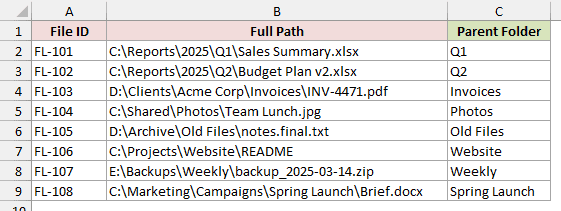
End SubRun GetParentFolder on the File Paths sheet the same way as Example #1. You get the “Parent Folder” header and folder names in C2:C9.
How does this code work?
For FL-101, I first find the final backslash at position 19 and store that number in lastPos.
I then start the second search at 18, one character earlier. Searching backward from there, I find the previous backslash at position 16.
Mid(cell.Value, 17, 2) keeps the two characters between those backslashes, returning “Q1”. The remaining rows return “Q2”, “Invoices”, and the other parent folders.
The start argument sets where the backward search begins. A match only counts if its final character is at or before that position.
With InStrRev("abcabc", "bc", 5), the last “bc” starts at 5 but ends at 6, past the start position of 5.
InStrRev skips it and returns the earlier “bc” at 2. With start set to 6, the last “bc” fits, so you get 5.
Passing 0 or a number below -1 as start causes run-time error 5. The default -1 is valid.
Use this macro with paths containing a backslash. Without one, lastPos is 0. The second search starts at -1 and also returns 0.
Mid then gets a length of -1, causing run-time error 5, “Invalid procedure call or argument”.
Example #6: Remove Reply Prefixes (Case-Insensitive)
I’ll remove repeated reply prefixes by finding the last “re:” in any case and keeping the subject after it.
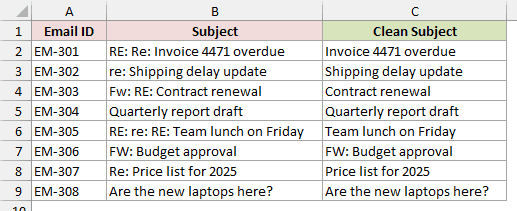
Below I have a dataset with eight emails, an Email ID in column A, and a Subject in column B.
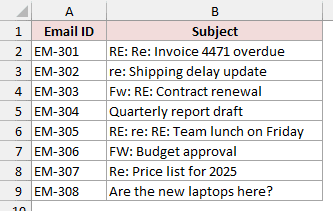
The subjects are in B2:B9 on the Email Subjects sheet. Here is the VBA code:
Sub CleanEmailSubjects()
    Dim cell As Range
    Dim pos As Long
    Range("C1").Value = "Clean Subject"
    For Each cell In Range("B2:B9")
        pos = InStrRev(cell.Value, "re:", , vbTextCompare)
        If pos > 0 Then
            cell.Offset(0, 1).Value = Trim(Mid(cell.Value, pos + 3))
        Else
            cell.Offset(0, 1).Value = cell.Value
        End If
    Next cell
End SubRun CleanEmailSubjects on the Email Subjects sheet the same way as Example #1. You get the “Clean Subject” header and cleaned subjects in C2:C9.
How does this code work?
I pass vbTextCompare as the fourth argument so InStrRev matches “RE:”, “Re:”, and “re:”.
For EM-305, the result is “Team lunch on Friday”. I use pos + 3 to skip the final “re:” and Trim to remove the leading space.
Without vbTextCompare, InStrRev only matches EM-302 at position 1 and EM-305 at position 5, where “re:” is lowercase.
That would leave “RE: Team lunch on Friday” in EM-305 and miss every “RE:” and “Re:” prefix.
I leave start empty between the two commas so vbTextCompare goes into compare. You can also write InStrRev(cell.Value, "re:", Compare:=vbTextCompare) or pass -1 as start.
By including the colon in “re:”, I leave EM-308, “Are the new laptops here?”, untouched, even though “Are” and “here” contain “re”.
EM-306 keeps “FW: Budget approval” because it has no “re:”. I’m only searching for reply prefixes here.
For EM-303, I drop everything before and including the last “re:”, turning “Fw: RE: Contract renewal” into “Contract renewal”.
Note: Don’t use InStrRev(cell.Value, “re:”, vbTextCompare). You get no error, but vbTextCompare equals 1 and lands in start. You only search the first character, so you get 0 here.
Example #7: Create a Custom Worksheet Function
I’ll wrap InStrRev in a custom worksheet function so you can extract file names in your cells.
Below I have a dataset with eight files, a File ID in column A, and a Full Path in column B.
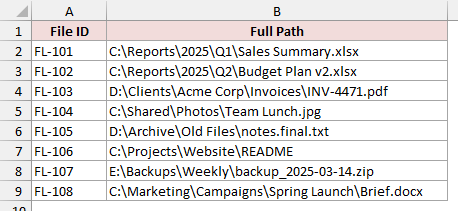
InStrRev isn’t an Excel worksheet function, so you can’t call it directly in a cell. Here is the VBA code for my custom function:
Function TextAfterLast(ByVal Text As String, ByVal Delimiter As String) As String
    Dim pos As Long
    pos = InStrRev(Text, Delimiter, , vbTextCompare)
    If pos = 0 Then
        TextAfterLast = Text
    Else
        TextAfterLast = Mid(Text, pos + Len(Delimiter))
    End If
End Function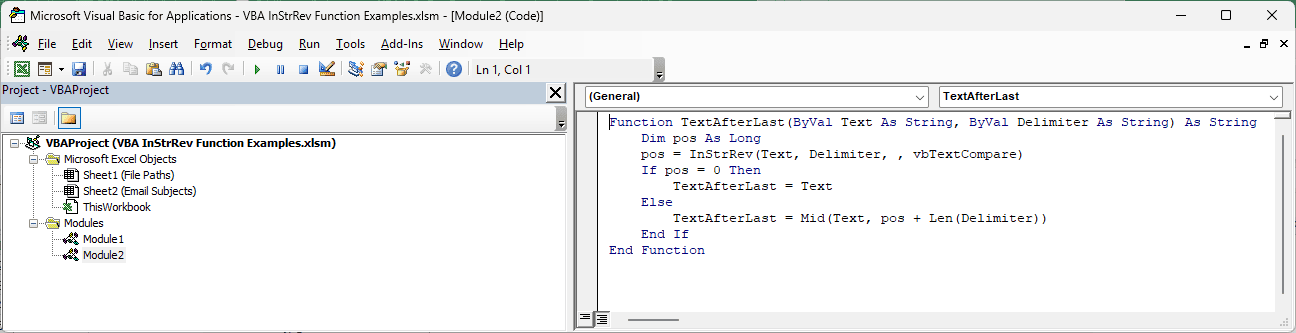
Paste the function into a regular module using Insert > Module in the VB Editor. You don’t run it as a macro.
On File Paths, type “File Name” in C1. Enter this formula in C2 and copy it down to C9:
=TextAfterLast(B2,"\")
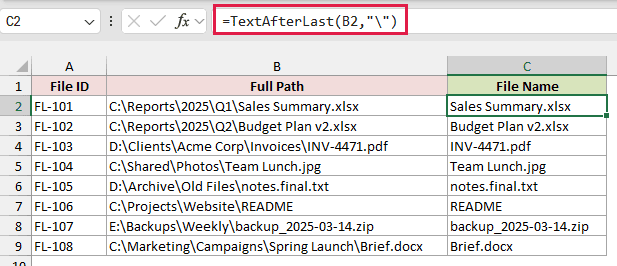
The formula returns the same file names as Example #2, starting with “Sales Summary.xlsx” and ending with “Brief.docx”.
How does this code work?
I find the final delimiter, ignoring case with vbTextCompare, then return everything after it.
I use pos + Len(Delimiter) to skip the delimiter’s full length, so you can use more than one character, such as ” – “.
Other delimiters work too, including “.”, ” “, and “-“. For example, =TextAfterLast(B2,".") returns “xlsx” for the first path.
When InStrRev finds no delimiter, my function returns the whole text. On the README row, =TextAfterLast(B7,".") returns C:\Projects\Website\README.
Note: Your custom function only exists in the workbook that holds its code. Save it as .xlsm. In an .xlsx file, Excel removes the code and the formulas return #NAME?.
Additional Notes About Using InStrRev in VBA
- Count positions from the left. InStrRev searches from the right, but you use its returned position as a left-counted character number when extracting text.
- Decide how to handle 0. InStrRev returns 0 when there’s no match, so check what that means before passing the position to Mid or Left.
- Check for a blank search value.
InStrRev("abc", "")returns 3 because an empty search string returns the start position, and when you omit start, InStrRev starts at the last character. - Check your module’s comparison setting. With Option Compare Text at the top of a module, you get case-insensitive searches there even when you omit compare.
Frequently Asked Questions
I’ll show you how to get the last word, extract text without VBA, and adapt the path examples for a Mac.
How do I get the last word of a sentence in VBA?
You can use Mid(s, InStrRev(s, " ") + 1), where s holds your text, to keep everything after the last space.
For a one-word value, InStrRev returns 0 and Mid starts at 1, so you keep the whole word.
You can also extract the last word in Excel with a formula, no VBA needed.
Can I extract text after the last delimiter without VBA?
In Excel 365 and Excel 2024, the TEXTAFTER function does this.
=TEXTAFTER(B2,"\",-1) returns “Sales Summary.xlsx” from B2. With -1 as the instance number, it searches from the end.
Does InStrRev work in Excel VBA on Mac?
Yes, InStrRev is part of VBA on both Windows and Mac.
Mac file paths use a forward slash (/) instead of a backslash, so you would search for “/” in the path examples.
You can also use Application.PathSeparator, which returns the right separator for your system: “\” on Windows and “/” on Mac.
Conclusion
I’d reach for InStrRev with Mid when you need text after the last delimiter, such as a file name, extension, or last word.
When you need the occurrence before it, use the start argument to move the search back one character.
Other Excel articles you may also like:
