
Table.NestedJoin joins two tables on one or more matching columns and puts the matched rows from the second table into a new column of nested tables. Available in Excel (Power Query), Power BI Desktop, and Power BI Service.
If you want to pull related rows from a second table into your first table, this is the function that does it.
Syntax of Table.NestedJoin Function
Table.NestedJoin(table1 as table, key1 as any, table2 as any, key2 as any, newColumnName as text, optional joinKind as nullable number, optional keyEqualityComparers as nullable list) as table
where
table1(required, table). The first (left) table.key1(required, any). The column name or list of column names intable1to match on, for example{"SKU"}.table2(required, any). The second (right) table you are matching against.key2(required, any). The column name or list of column names intable2to match on. The count must matchkey1.newColumnName(required, text). The name of the new column that will hold the nested matched rows.joinKind(optional, nullable number). How rows are matched. One ofJoinKind.Inner,JoinKind.LeftOuter(the default when omitted),JoinKind.RightOuter,JoinKind.FullOuter,JoinKind.LeftAnti, orJoinKind.RightAnti.keyEqualityComparers(optional, nullable list). Documented by Microsoft as for internal use only. You can leave it out.
Returns: a table. It is table1 with one extra column (named by newColumnName) where each cell holds a table of the rows from table2 that matched that row.
In plain terms, it lines up two tables on a shared key and stuffs the matches into a new column you then expand.
Example 1: Run a basic nested join
You have an Orders table with a SKU column, and a Products table with details for each SKU.
You want to attach the matching product rows to each order.
Here is the orders table:
| OrderID | SKU |
|---|---|
| O1 | A100 |
| O2 | B200 |
| O3 | C300 |
| O4 | Z999 |
And here is the products table:
| SKU | Product | Price |
|---|---|---|
| A100 | Keyboard | 25 |
| B200 | Mouse | 15 |
| C300 | Monitor | 200 |
Join them on SKU and store the matches in a new ProductData column:
let
    Orders = Excel.CurrentWorkbook(){[Name="Orders1"]}[Content],
    Products = Excel.CurrentWorkbook(){[Name="Products1"]}[Content],
    Joined = Table.NestedJoin(Orders, {"SKU"}, Products, {"SKU"}, "ProductData", JoinKind.LeftOuter)
in
    Joined
The new ProductData column holds a nested table per row, so each cell shows [Table]:
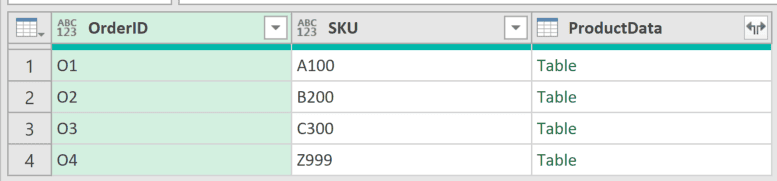
Each [Table] is the set of matching Products rows for that SKU. The next example expands them into real columns.
Example 2: Expand the nested column
A raw nested join is rarely the end goal. You almost always expand the new column to bring the matched fields out flat.
Start with the same two tables. Here is the orders table:
| OrderID | SKU |
|---|---|
| O1 | A100 |
| O2 | B200 |
| O3 | C300 |
| O4 | Z999 |
And the products table:
| SKU | Product | Price |
|---|---|---|
| A100 | Keyboard | 25 |
| B200 | Mouse | 15 |
| C300 | Monitor | 200 |
Join on SKU, then expand Product and Price out of the nested column with Table.ExpandTableColumn:
let
    Orders = Excel.CurrentWorkbook(){[Name="Orders2"]}[Content],
    Products = Excel.CurrentWorkbook(){[Name="Products2"]}[Content],
    Joined = Table.NestedJoin(Orders, {"SKU"}, Products, {"SKU"}, "ProductData", JoinKind.LeftOuter),
    Expanded = Table.ExpandTableColumn(Joined, "ProductData", {"Product", "Price"}, {"Product", "Price"})
in
    Expanded
This is the same flow the merge queries in Power Query UI runs behind the scenes.
The result keeps every order and pulls in the matching product fields:
| OrderID | SKU | Product | Price |
|---|---|---|---|
| O1 | A100 | Keyboard | 25 |
| O2 | B200 | Mouse | 15 |
| O3 | C300 | Monitor | 200 |
| O4 | Z999 | null | null |
Order O4 has no matching product, so its Product and Price come back blank. That is the left join behavior of JoinKind.LeftOuter: keep all left rows, fill blanks where there is no match.
Example 3: Keep only matching rows with an Inner join
When you only want the orders that actually have a product, switch the join kind to JoinKind.Inner.
Here is the orders table:
| OrderID | SKU |
|---|---|
| O1 | A100 |
| O2 | B200 |
| O3 | C300 |
| O4 | Z999 |
And the products table:
| SKU | Product | Price |
|---|---|---|
| A100 | Keyboard | 25 |
| B200 | Mouse | 15 |
| C300 | Monitor | 200 |
Join with JoinKind.Inner, then expand:
let
    Orders = Excel.CurrentWorkbook(){[Name="Orders3"]}[Content],
    Products = Excel.CurrentWorkbook(){[Name="Products3"]}[Content],
    Joined = Table.NestedJoin(Orders, {"SKU"}, Products, {"SKU"}, "ProductData", JoinKind.Inner),
    Expanded = Table.ExpandTableColumn(Joined, "ProductData", {"Product", "Price"}, {"Product", "Price"})
in
    Expanded
The unmatched order is dropped entirely:
| OrderID | SKU | Product | Price |
|---|---|---|---|
| O1 | A100 | Keyboard | 25 |
| O2 | B200 | Mouse | 15 |
| O3 | C300 | Monitor | 200 |
Order O4 is gone because an inner join only keeps rows that exist in both tables.
Example 4: Find unmatched rows with a LeftAnti join
A JoinKind.LeftAnti join keeps only the left rows that have no match. It is the quick way to find orders pointing at a SKU that does not exist in Products.
Here is the orders table:
| OrderID | SKU |
|---|---|
| O1 | A100 |
| O2 | B200 |
| O3 | C300 |
| O4 | Z999 |
And the products table:
| SKU | Product | Price |
|---|---|---|
| A100 | Keyboard | 25 |
| B200 | Mouse | 15 |
| C300 | Monitor | 200 |
A LeftAnti join produces an empty nested column, so just remove it with Table.RemoveColumns:
let
    Orders = Excel.CurrentWorkbook(){[Name="Orders4"]}[Content],
    Products = Excel.CurrentWorkbook(){[Name="Products4"]}[Content],
    Joined = Table.NestedJoin(Orders, {"SKU"}, Products, {"SKU"}, "ProductData", JoinKind.LeftAnti),
    Cleaned = Table.RemoveColumns(Joined, {"ProductData"})
in
    Cleaned
Only the unmatched order is left:
| OrderID | SKU |
|---|---|
| O4 | Z999 |
Z999 is not in Products, so it is the only order returned.
Example 5: Join on multiple keys
To match on more than one column, pass a list of column names to both key1 and key2. A row matches only when every key column agrees.
Here is a Sales table with Rep and Region:
| Rep | Region | Units |
|---|---|---|
| Amy | East | 10 |
| Amy | West | 5 |
| Ben | East | 8 |
And a Targets table keyed the same way:
| Rep | Region | Target |
|---|---|---|
| Amy | East | 12 |
| Ben | East | 6 |
| Amy | South | 20 |
Join on both Rep and Region, then expand the Target:
let
    Sales = Excel.CurrentWorkbook(){[Name="Sales5"]}[Content],
    Targets = Excel.CurrentWorkbook(){[Name="Targets5"]}[Content],
    Joined = Table.NestedJoin(Sales, {"Rep", "Region"}, Targets, {"Rep", "Region"}, "TargetData", JoinKind.Inner),
    Expanded = Table.ExpandTableColumn(Joined, "TargetData", {"Target"}, {"Target"})
in
    Expanded
Only the rows where both Rep and Region line up are returned:
| Rep | Region | Units | Target |
|---|---|---|---|
| Amy | East | 10 | 12 |
| Ben | East | 8 | 6 |
Amy/West and Amy/South drop out because that exact pair is not in both tables.
Things to keep in mind with Table.NestedJoin
- The key column count must match.
key1andkey2need the same number of columns. Passing{"SKU"}against{"SKU","Region"}throws an error. - It never errors on duplicate column names. Because the matches sit inside one nested column,
Table.NestedJoinis safe even when both tables share column names.Table.Join, which merges columns inline, would throw instead. - Key matching is case-sensitive.
A100anda100are treated as different keys, so rows that look like a match on screen can quietly fail to join. Normalize the case first if your keys are inconsistent.
Performance and query folding
Against a foldable source like SQL Server, a Table.NestedJoin can fold to a native JOIN, so the database does the work. On local sources like Excel, CSV, or a folder, it runs in memory, which is fine for the row counts you usually deal with there.
Common questions about Table.NestedJoin
Why is my new column full of [Table], and how do I expand it?
That [Table] is the nested table of matched rows, which is exactly what Table.NestedJoin produces. Add a Table.ExpandTableColumn step (or click the expand arrow on the column header) and pick the fields you want flattened out, as in Example 2.
What is the difference between Table.NestedJoin and Table.Join?
Table.NestedJoin puts the matches into a nested column you expand afterward, which keeps it safe even when column names collide. Table.Join merges the matched columns inline in one step, but it errors on duplicate column names and gives you less control.
Is this like a VLOOKUP?
It does a similar job of pulling matched values from another table, and you can also run a VLOOKUP in Power Query with the Merge Queries UI. A join brings back every matching row, while a lookup returns a single match.
List of All Power Query Functions
Related Power Query Functions / Articles:
- Text.Contains Function
- Table.TransformColumnTypes Function
- Json.Document Function
- List.Accumulate Function
- Concatenate in Power Query (Columns, Text, Numbers)
- Remove Duplicates
- Remove Null Values
- Table.ExpandTableColumn Function
- Table.Combine Function
- List.Combine Function
- Table.ExpandListColumn Function
- Table.FromRows Function
