
If you want to move between cells with the arrow keys and Excel refuses to budge, the problem is almost never your keyboard.
And this is because Excel has a few modes and settings that quietly take the arrow keys over.
But nothing to worry about. Each one leaves a visible clue on screen, and in this article I’ll show you how to read that clue and fix the right thing.
First, Find Out Why the Arrow Keys Are Not Moving Cells in Excel
Six different things can stop the arrow keys from moving your cell cursor. Trying all six fixes in order is a waste of an afternoon.
You don’t have to. Excel tells you which one is yours if you know where to look.
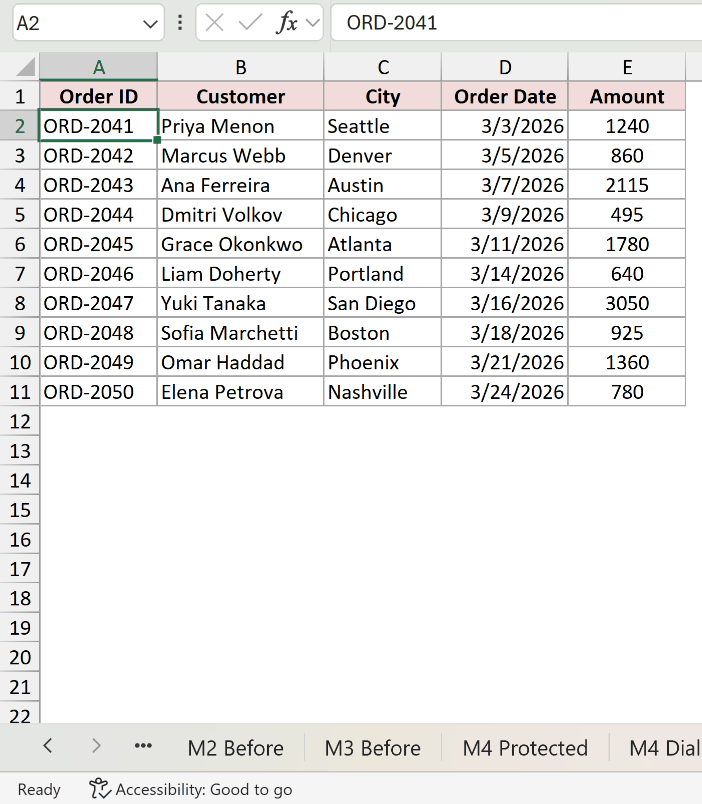
Below I have an orders dataset in cells A1:E11. The active cell is A2, and pressing the Down arrow should walk me down the Order ID column to A3.
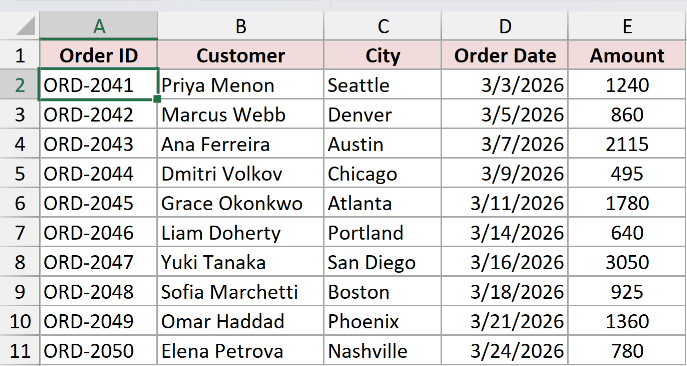
Three things on screen do almost all the diagnostic work.
1. The Name Box. This is the little box at the top left, just above column A. It always shows the address of the active cell.
Press an arrow key and watch it. If the address changes from A2 to A3, Excel is moving your cursor and nothing is broken. If the address stays on A2 no matter how many times you press, the cursor isn’t moving at all.
Watch the Name Box, not the cell cursor. With Scroll Lock on, the cursor slides across the screen along with the sheet and can scroll out of view completely, even though it never left A2.
2. The mode indicator on the status bar. Look at the bottom left corner of the Excel window. It normally says Ready.

If it says anything else, that word is your answer. Edit and Point mean you’re typing inside a cell. Extend Selection means the arrow keys are growing a selection instead of moving.
3. The mouse. Click a cell with the mouse. If the mouse can’t select a cell either, this was never a keyboard problem. The sheet is protected.
Here it is as a lookup table.
| What happens when you press an arrow key | What’s going on | Go to |
|---|---|---|
| The sheet scrolls, but the Name Box still shows the same cell | Scroll Lock is on | Method #1 |
| The cursor moves through the text inside the cell, or a cell reference lands in your formula. Status bar says Edit or Point | You’re stuck in Edit or Point mode | Method #2 |
| The selection grows by one cell each press. Status bar says Extend Selection | Extend Selection is on, or Shift is stuck down | Method #3 |
| Nothing happens, and the mouse can’t select a cell either | The sheet is protected with cell selection turned off | Method #4 |
| An arrow press nudges a picture, chart, or shape around the sheet | An object is selected instead of a cell | Method #5 |
| Nothing happens, the mouse works fine, and the status bar says Ready | An add-in is eating the keystrokes | Method #6 |
The methods below run in the order you should try them. The first three are instant checks, and between them they cover the large majority of real cases.
Note: If the arrow keys stop working only inside one particular range of the sheet, as though there’s an invisible wall, that’s a different setting called ScrollArea. I cover it in the Additional Notes section near the end.
Method #1: Turn Off Scroll Lock to Fix Arrow Keys Not Moving Cells in Excel
Scroll Lock is the reason most of the time, and it isn’t close. It’s also the only cause with a signature you can’t mistake for anything else.
Below I have the same orders dataset in A1:E11, with A2 as the active cell. I want the Down arrow to take me to A3.
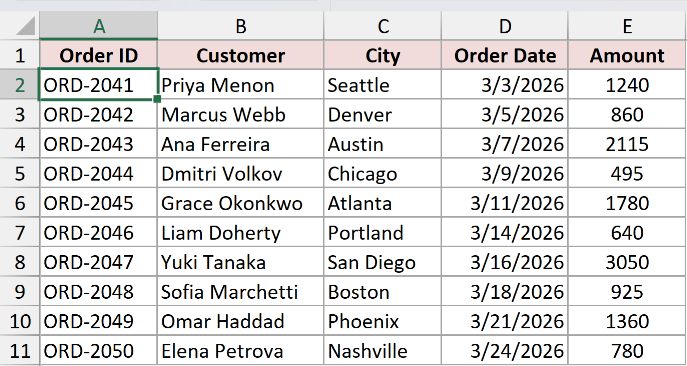
With Scroll Lock on, pressing Down slides the entire sheet up by a row. It looks like something moved, so it’s easy to miss what actually happened.
The Name Box gives it away. It still says A2. Excel scrolled the view and left your cursor exactly where it was.
Here are the steps to turn off Scroll Lock:
- Press the ScrLk key on your keyboard. It’s a plain toggle, so a single press turns it off. There’s no Shift or Ctrl involved.
If your keyboard doesn’t have a ScrLk key, use the On-Screen Keyboard instead. It works on every machine, which is why I’d reach for it before hunting for a laptop key combo.
- Press Win + R, type osk, and press Enter. On the On-Screen Keyboard that appears, click the ScrLk key. It’s highlighted in blue while Scroll Lock is on, and the blue clears when you click it.
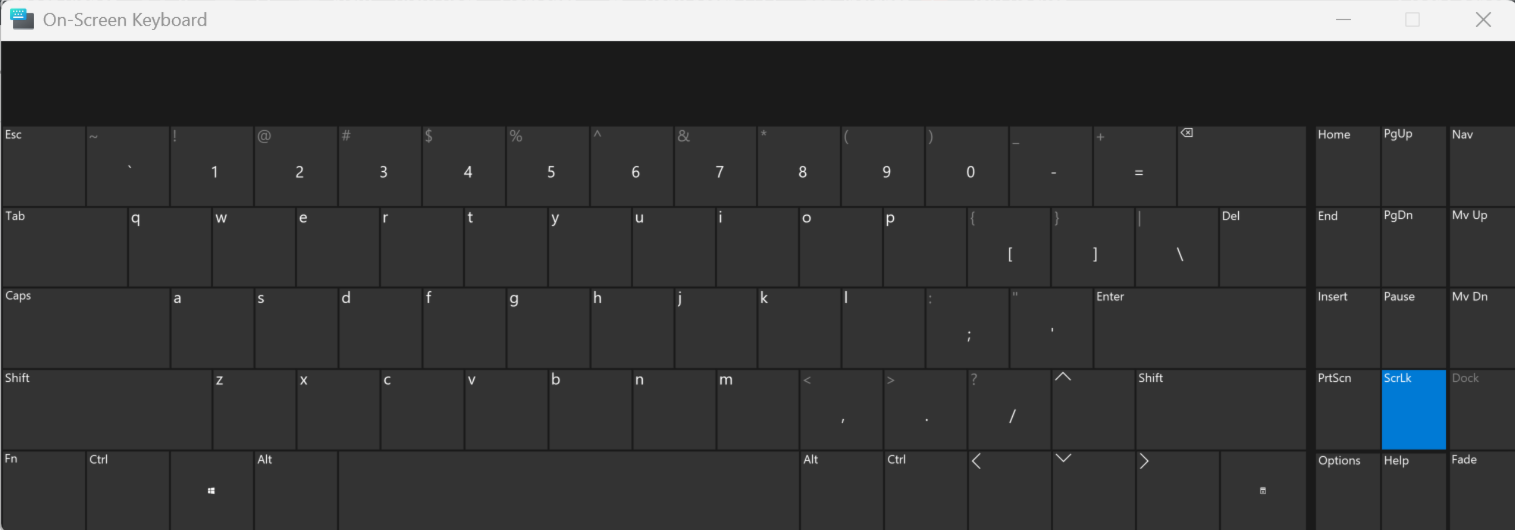
Go back to Excel and press an arrow key. The Name Box should move now.
Note: Laptops without a ScrLk key have no universal shortcut for it. The combo depends on the manufacturer. On many Dell laptops it’s Fn + S, on HP and Lenovo laptops it’s usually Fn + C, and some models use Fn + K. If none of those do anything, don’t keep guessing. Use the On-Screen Keyboard in step 2.
Excel also shows the words Scroll Lock on the status bar while it’s on, and it does that by default.
If Scroll Lock is clearly on but you don’t see those words, someone has customized the status bar to hide it. Right-click the status bar and check Scroll Lock to bring the indicator back.
If pressing ScrLk didn’t sort it out, here’s the full walkthrough on how to turn off Scroll Lock in Excel.
Method #2: Press Esc to Exit Edit Mode and Fix Arrow Keys Not Moving Cells in Excel
Here’s the one people feel silly about afterwards, and it’s the second most common cause by a distance.
If Excel thinks you’re still typing inside a cell, the arrow keys belong to that cell, not to the grid. They move the text cursor instead.
Below I have the same orders dataset in A1:E11. I double-clicked cell B2 to read the customer name, and now the arrow keys just crawl through the letters of “Priya Menon”.
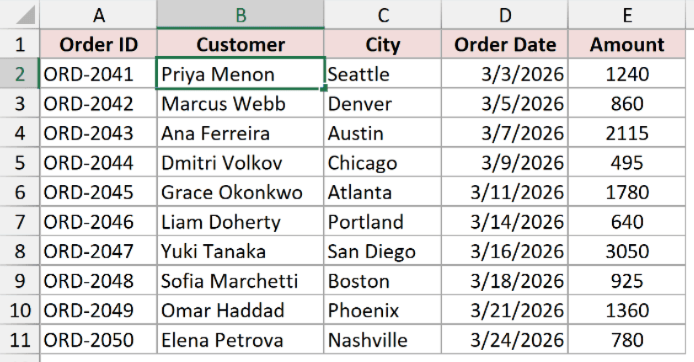
Check the bottom left of the status bar. It says Edit, not Ready. That single word is the whole diagnosis.
You get here by double-clicking a cell, by pressing F2, or by just starting to type and then getting distracted.
There’s a second version of this that catches people mid-formula. If you’ve typed =SUM( and then press an arrow key, Excel doesn’t move you anywhere.
It drops a cell reference into the formula, because that’s exactly what arrow keys are for while you’re building one. The status bar says Point during this.
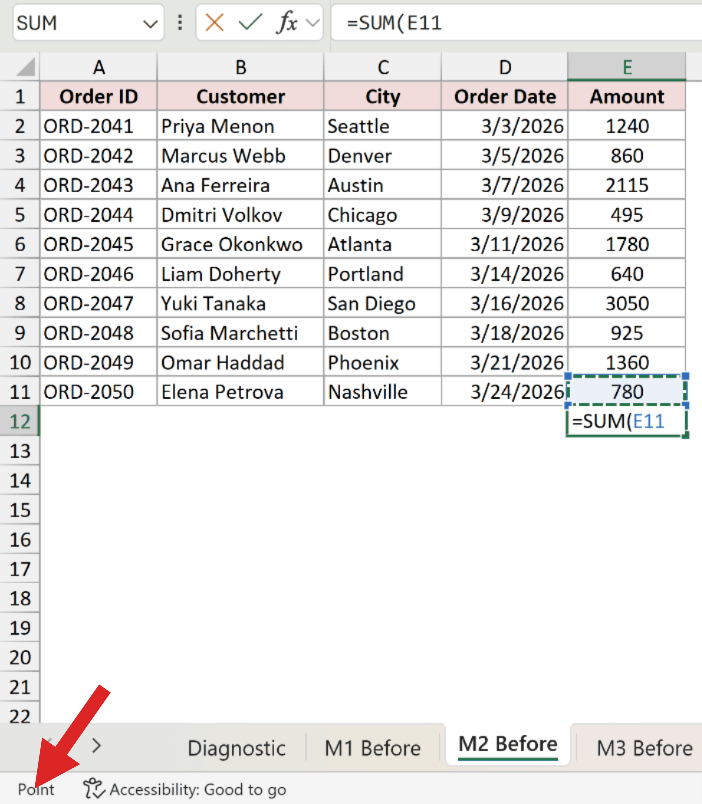
Both versions have the same fix.
Here are the steps to get out of Edit or Point mode:
- Press Esc. The status bar goes back to Ready and the arrow keys move between cells again.

Note: Esc throws away whatever you were typing in that cell. If you want to keep the edit instead, press Enter or Tab to commit it. Either one also returns you to Ready mode.
Method #3: Turn Off Extend Selection Mode to Fix Arrow Keys Not Moving Cells in Excel
Here’s another one you can spot from the status bar in a second.
Excel has a mode where the arrow keys stretch your selection instead of moving it. You switch it on with F8, and F8 sits close enough to F5 and the volume keys that people hit it without noticing.
Below I have the same orders dataset in A1:E11 with A2 selected. Every time I press Down, the highlighted block grows by one more row instead of the cursor stepping along.
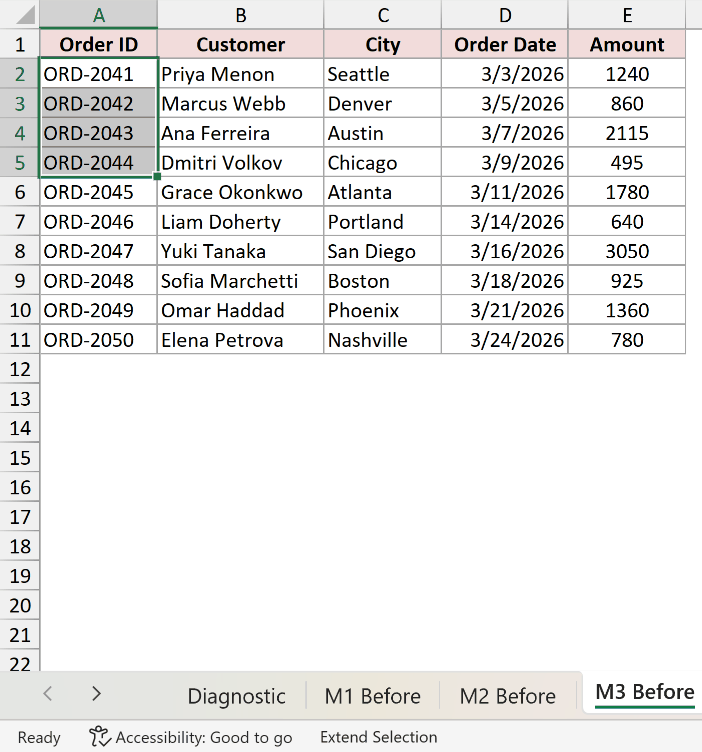
The status bar says Extend Selection. That’s F8 talking.
Here are the steps to turn off Extend Selection:
- Press F8 again to toggle it off, or press Esc. The status bar returns to Ready and the arrow keys go back to moving a single cell at a time.
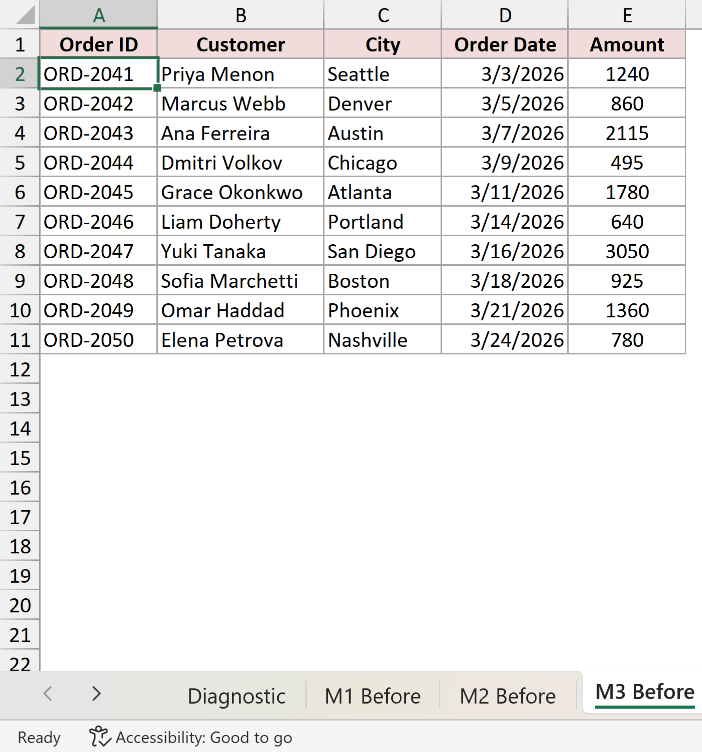
Note: If the selection keeps growing even after you’ve pressed F8 and Esc, you probably have a Shift key stuck down. Holding Shift while pressing an arrow does the same thing as Extend Selection. Tap both Shift keys firmly once each, then try again.
Method #4: Unprotect the Sheet to Fix Arrow Keys Not Moving Cells in Excel
If you’ve checked the Name Box and the status bar and both look completely normal, try the mouse.
Click a cell. If the mouse can’t select one either, stop looking at the keyboard. The sheet is protected and whoever protected it switched cell selection off.
This is the cleanest tell there is, because it rules out Scroll Lock instantly. Scroll Lock never touches the mouse.
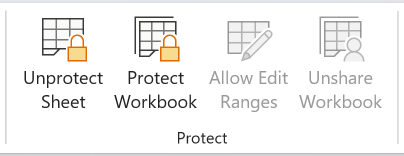
Below I have the same orders dataset in A1:E11. Nothing selects, by keyboard or by mouse, and the Review tab now reads Unprotect Sheet instead of Protect Sheet.
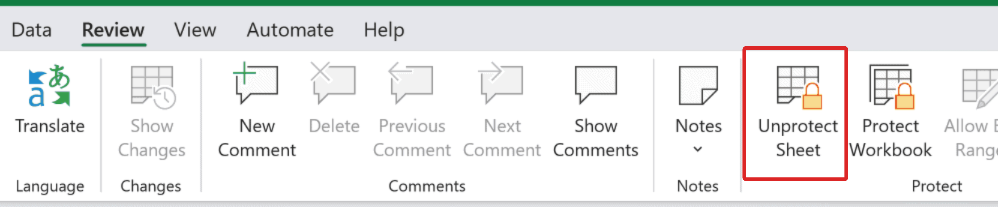
Here are the steps to unprotect the sheet:
- On the Review tab, click Unprotect Sheet. It sits where the Protect Sheet button normally is, because Excel swaps the label while the sheet is protected.
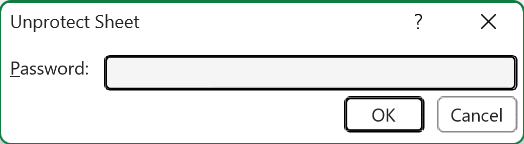
- If the sheet was protected with a password, type it in the box that appears and click OK.
The arrow keys work again straight away.
Now the part that most articles get wrong, and it matters if you’re trying to work out whether this is even your problem.
Protecting a sheet with the default settings does not break the arrow keys. Excel checks Select locked cells and Select unlocked cells for you in the Protect Sheet dialog, and with those checked you can still select and navigate everywhere. You just can’t change anything.
The arrow keys only die when both of those boxes are unchecked. You can see them yourself by clicking Review, then Protect Sheet on an unprotected sheet. They’re the top two entries in the list.
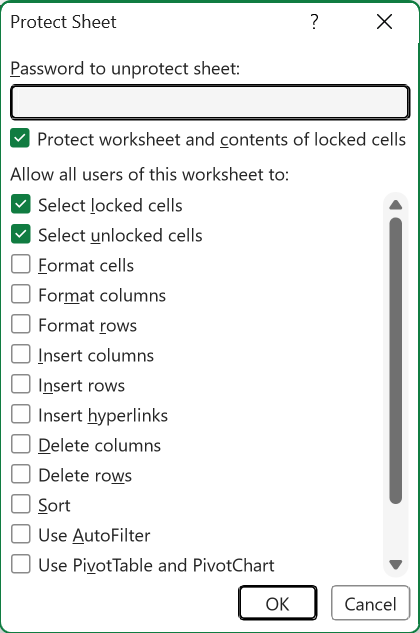
Note: If only Select locked cells is unchecked, the arrows still work, they just skip past the locked cells and land only on the unlocked ones. That’s a deliberate design people use for data-entry forms, not a fault. If you don’t have the password, here’s how to unprotect an Excel sheet without a password.
Method #5: Click a Cell to Deselect an Object and Fix Arrow Keys Not Moving Cells in Excel
This one catches anyone who keeps pictures, charts, or shapes on a sheet, and it doesn’t look like an arrow key problem at all.
Click an object and Excel hands the arrow keys over to it. They stop being navigation keys and start being nudge keys, shifting the object a hair at a time while your cursor stays exactly where you left it.
Below I have the same orders dataset in A1:E11, with a shape sitting next to it. I clicked the shape, and now every arrow press moves it a fraction instead of walking me down the column.
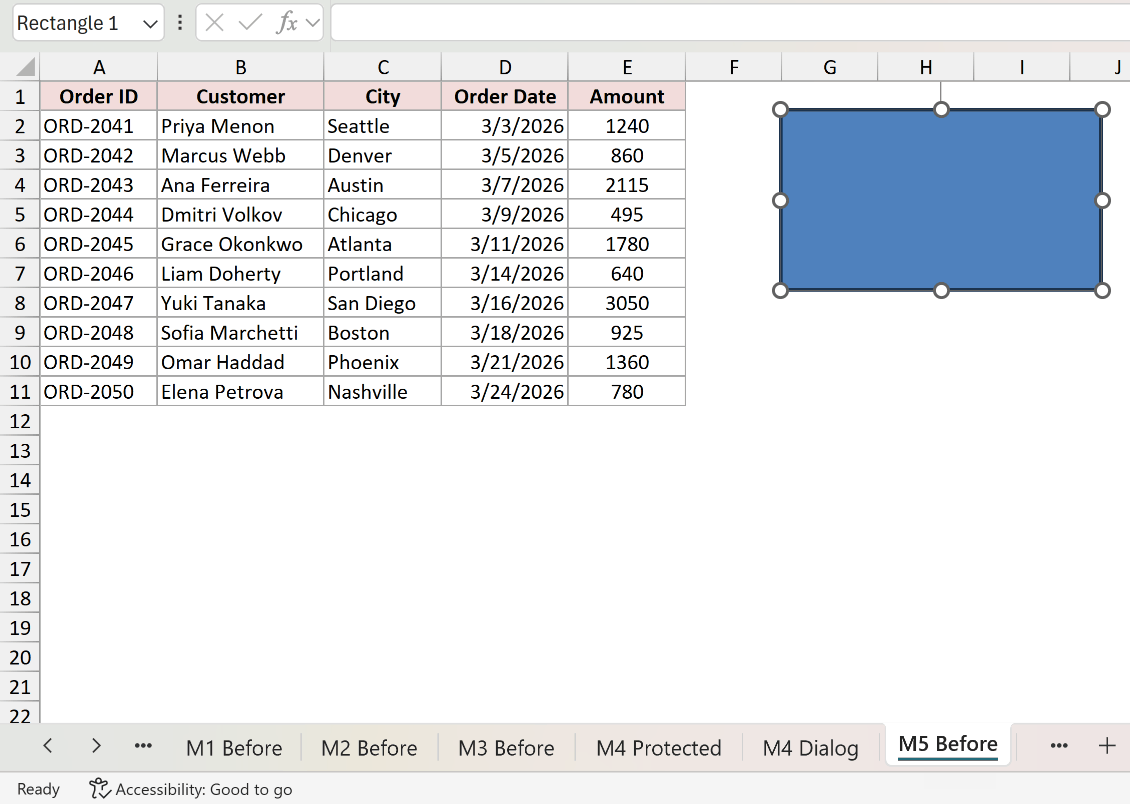
Two things give it away. The object has handles around its edge, the little circles you drag to resize it. And the Name Box, top left, shows the object’s name (here Rectangle 1) instead of a cell address.
The status bar still says Ready, which is what makes this one easy to misread. You’re not stuck in a mode. Excel just isn’t pointing at the grid.
Here are the steps to get the arrow keys back:
- Press Esc, or click any cell in the sheet. The object is deselected and the arrow keys go straight back to moving between cells.
Note: If you pressed the arrows a few times before you spotted what was happening, you’ve nudged the object out of place. Press Ctrl + Z until it’s back where it started, then click a cell and carry on.
Method #6: Disable Add-ins to Fix Arrow Keys Not Moving Cells in Excel
If you’ve worked through everything above and the arrow keys are still dead, an add-in is the last realistic suspect. Some of them listen for keystrokes, and a badly behaved one can swallow the arrow keys before Excel ever sees them.
Test this before you go changing settings. Excel has a Safe Mode that starts up with every add-in switched off.
Below I have the same orders dataset in A1:E11. The Name Box won’t move, the status bar says Ready, and the mouse selects cells perfectly well.
Here are the steps to test for a misbehaving add-in and switch it off:
- Close Excel. Press Win + R, type excel /safe, and press Enter. This opens Excel in the safe mode.
Open your workbook and try the arrow keys. If they work in Safe Mode but not normally, you’ve found your culprit. If they’re still dead in Safe Mode, an add-in isn’t the problem and you should go back through the earlier methods.
- Close Safe Mode, start Excel normally, and go to File, then Options, then Add-ins.
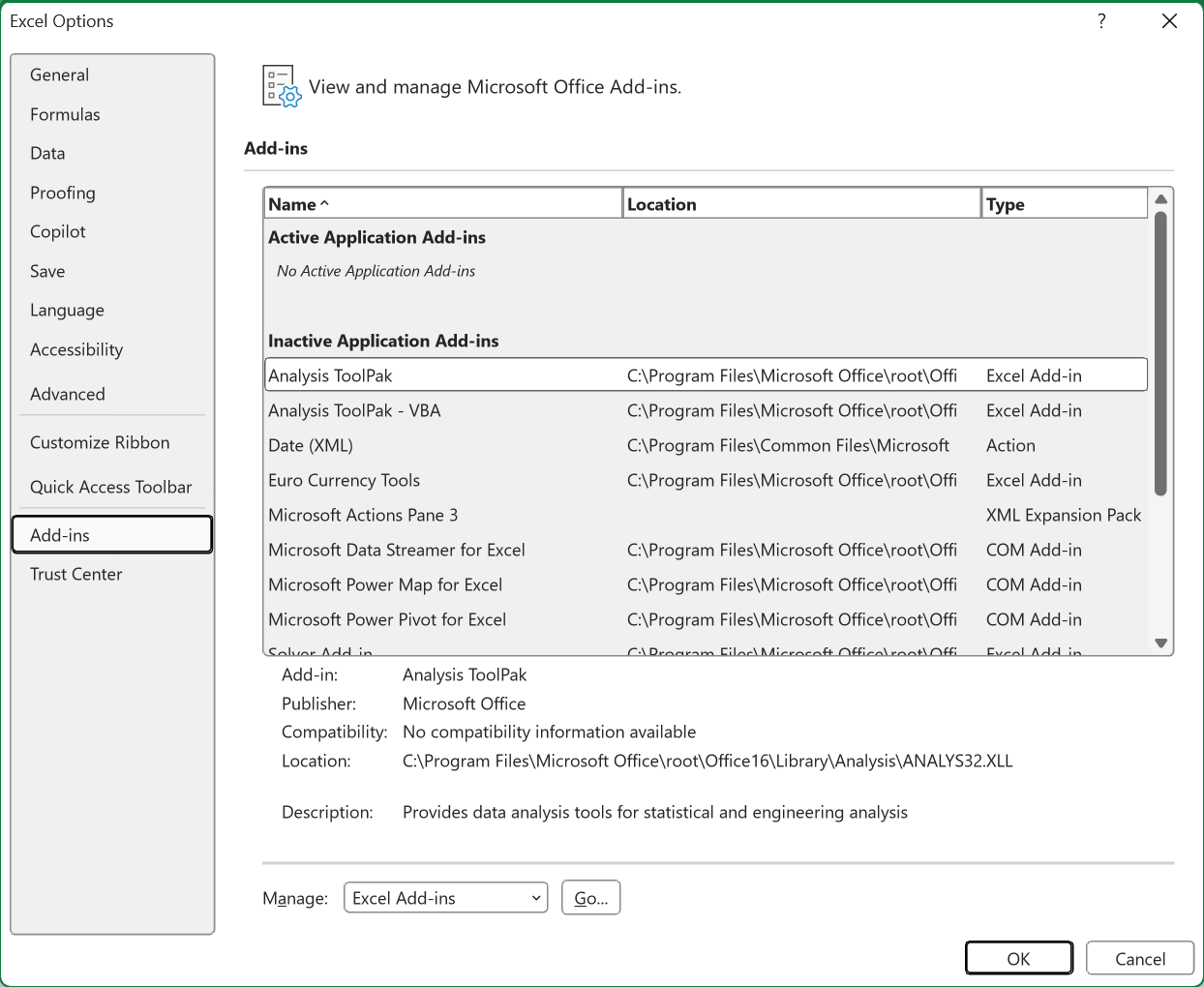
- At the bottom, set Manage to Excel Add-ins and click Go. Uncheck everything in the box that appears and click OK.
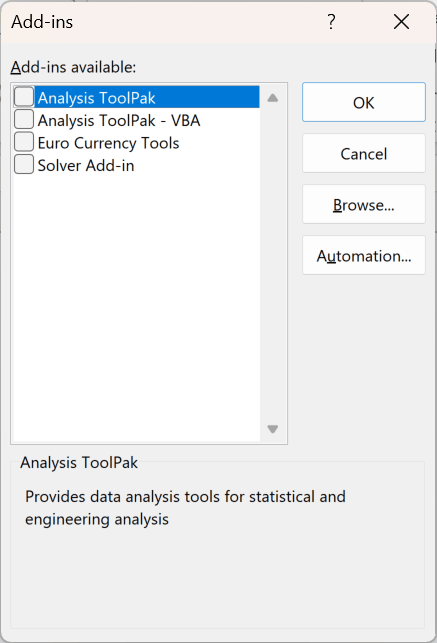
With the arrow keys working, turn the add-ins back on one at a time, testing after each one. The one that kills the arrows again is the one to leave off.
- If unchecking every Excel add-in changed nothing, go back to the same screen, set Manage to COM Add-ins, click Go, and uncheck those too. COM add-ins are the ones third-party tools install, and they’re the usual offenders.
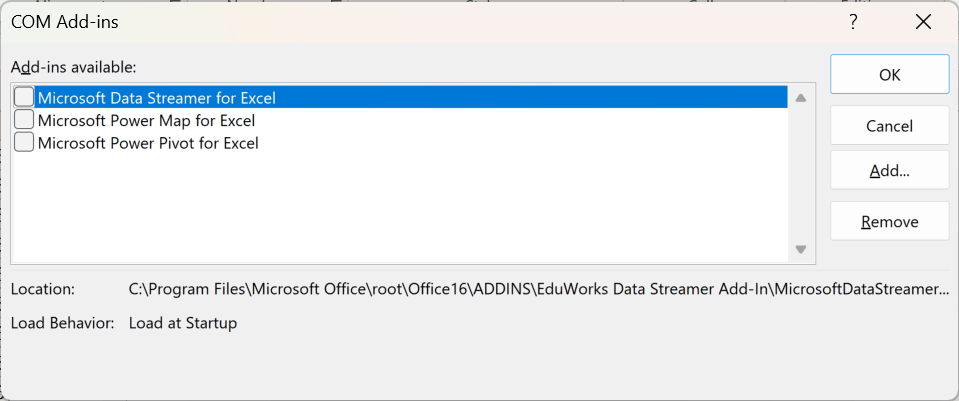
Once you know which add-in it was, you can decide whether to keep it switched off or remove the add-in from Excel entirely.
Additional Notes About Arrow Keys Not Moving Cells in Excel
- Arrows work, but only inside a small box. If the cursor moves freely within one range and then hits an invisible wall, the sheet’s ScrollArea property has been set to that range. It’s a VBA property rather than a normal Excel setting, which is why it isn’t in Options. The fix is in the ScrollArea section of the Scroll Lock walkthrough I linked in Method #1.
- Nothing on the keyboard responds, not just the arrows. If Ctrl + C and Ctrl + S are dead too, this isn’t an arrow key problem. Start with Excel shortcuts not working instead. And if the keys work but nothing lands in the cells, see can’t type in Excel.
- The whole window is frozen. If Excel isn’t repainting and the mouse pointer spins, nothing in this article applies. Excel is busy or hung. Work through Excel not responding first, then come back if the arrows are still stuck afterwards.
- Check it in a second workbook before you dig. Open a blank workbook and press an arrow key. If it moves there, the cause lives inside your file (protection, ScrollArea, a selected object). If it’s dead there too, the cause is Excel-wide or keyboard-wide (Scroll Lock, a stuck key, an add-in). One test cuts your search in half.
- Scroll Lock survives closing Excel. It’s a system-wide toggle, not an Excel setting, so restarting Excel won’t clear it. Plenty of people restart three times and conclude Excel is broken.
- Transition navigation keys gets blamed for this, and it shouldn’t. Plenty of articles list this old Lotus 1-2-3 compatibility setting as a cause of dead arrow keys. I tested it, and with it switched on the arrow keys move between cells exactly as they normally do. What it actually changes is the Home key, which jumps to A1 instead of the start of the current row. It isn’t your problem, so don’t go hunting through Excel Options for it.
Frequently Asked Questions
Why do my arrow keys jump to the end of the data instead of moving one cell?
A Ctrl key is being held down. Ctrl + Arrow is Excel’s shortcut for jumping to the edge of the current data region, so if a Ctrl key is stuck, every arrow press flies to the end of your data.
Nothing shows in the status bar for this one, because Excel thinks you’re doing it on purpose. Tap both Ctrl keys firmly once each and try again. If it continues, check for a remapping tool or a stuck key on the physical keyboard.
Do frozen panes or filters stop the arrow keys from working?
No. This comes up constantly and it’s wrong on both counts.
Frozen panes only pins certain rows or columns in place while the rest scrolls. Your cell cursor still moves through every cell, frozen ones included. A filter hides rows, and the arrow keys skip the hidden ones, but they still move you down the column.
If your arrow keys are genuinely dead, unfreezing panes or clearing filters will do nothing. Check the Name Box and the status bar instead.
Why do the arrow keys work in one workbook but not another?
Because some of these causes are saved inside the file and some aren’t.
Sheet protection, the ScrollArea property, and transition navigation keys all travel with the workbook, so they follow it to whatever machine opens it. Scroll Lock, Extend Selection, and add-ins are Excel-wide or keyboard-wide, so they’d break every workbook at once.
If it’s one file only, go straight to Method #4 and Method #5.
How do I check Scroll Lock on a Mac when the status bar doesn’t show it?
Excel for Mac has no Scroll Lock indicator at all, so watch the Name Box instead. Press an arrow key and see whether the address changes. If the sheet scrolls but the address stays put, Scroll Lock is on.
To toggle it, press Shift + F14. On a MacBook you’ll need fn + Shift + F14, since F14 shares its key with a media control. Depending on your keyboard settings, Control, Option, or Command may take the place of Shift.
Does Scroll Lock affect anything besides the arrow keys?
Yes, one more thing in Excel. With Scroll Lock on, the Home key takes you to the cell in the top left corner of the window rather than to column A of your current row.
Outside Excel, Scroll Lock does almost nothing on a modern machine. It’s a leftover from DOS-era terminals, and most programs ignore it, which is exactly why it can sit switched on for weeks without you noticing.
Conclusion
Most of the time this is Scroll Lock, and the Name Box will tell you in about a second. If the address won’t change while the sheet moves around it, press ScrLk and get on with your day.
When it isn’t Scroll Lock, glance at the bottom left of the status bar before you change a single setting.
Edit, Point, or Extend Selection sitting where Ready should be will point you straight at the right method. You’ll never have to touch the Options dialog at all.
Other Excel articles you may also like:
