
If you want to keep certain columns in your spreadsheet safe from accidental edits, locking them is the way to do it.
The catch is that Excel treats every cell as locked by default, so nothing actually happens until you protect the worksheet.
Once you know that one detail, the rest is easy. In this guide I’ll show you three ways to lock columns in Excel, from a simple menu route to a quick VBA macro.
Method #1: Using Format Cells and Protect Sheet
This is the method I reach for most of the time. You tell Excel which cells should stay editable, mark the rest as locked, and then protect the sheet so the lock kicks in.
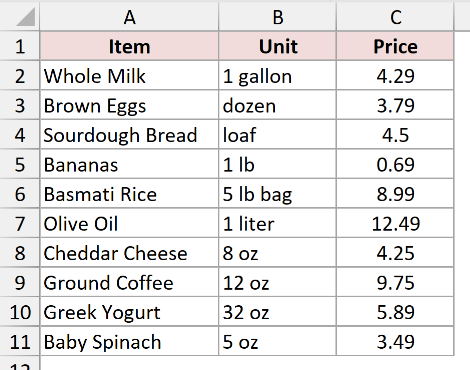
Below I have a grocery price list with the item name, the unit it’s sold by, and the price. I want people to be able to update items and units, but I want the Price column locked so nobody changes it by accident.
The important thing to know is that every cell starts out set to Locked, but that lock does nothing on its own.
So the trick is to unlock all the cells first, then lock just the Price column, and finally turn on sheet protection.
Here are the steps to lock the Price column using Format Cells and Protect Sheet:
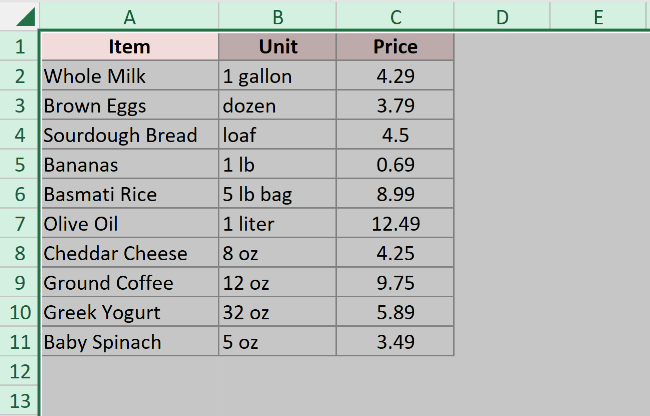
- Select the whole sheet by clicking the small triangle where the row and column headers meet (the Select All button).
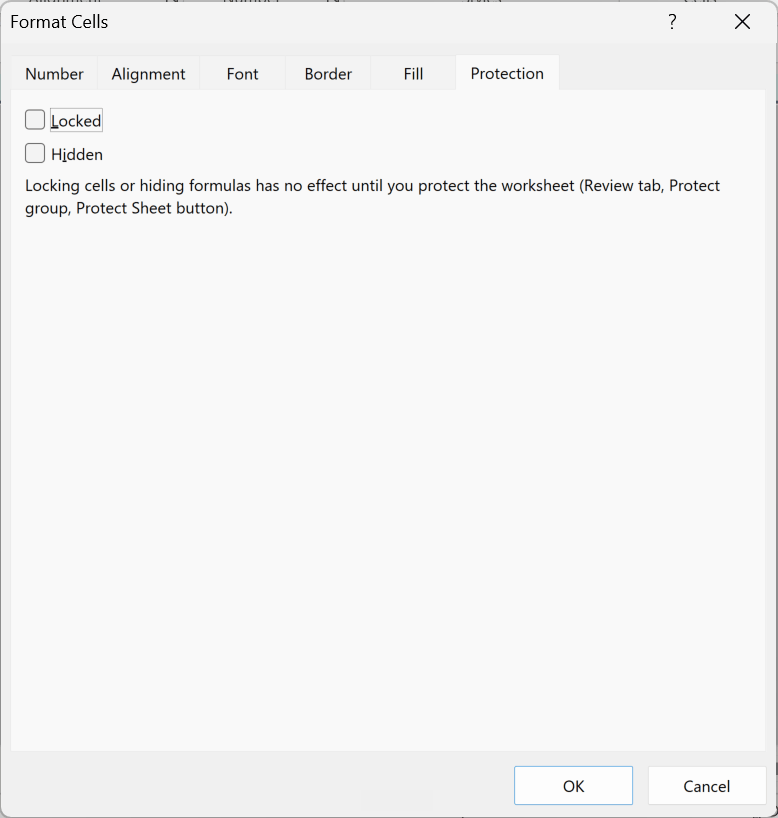
- Press Ctrl + 1 to open the Format Cells dialog box, go to the Protection tab, uncheck the Locked box, and click OK. This unlocks every cell on the sheet.
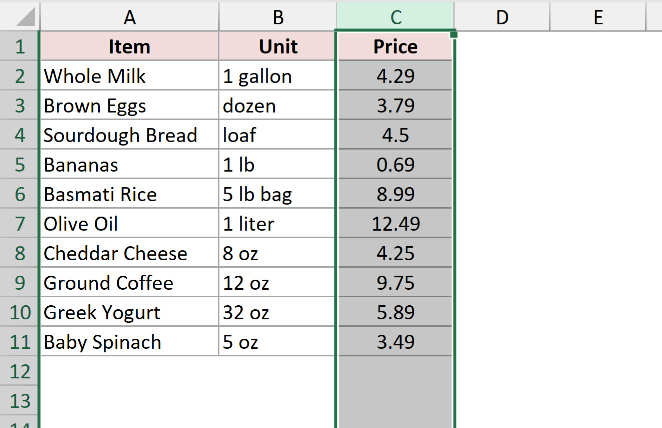
- Select the Price column (column C) by clicking its column header.
- Press Ctrl + 1 again, go to the Protection tab, check the Locked box, and click OK. Now only the Price column is locked.
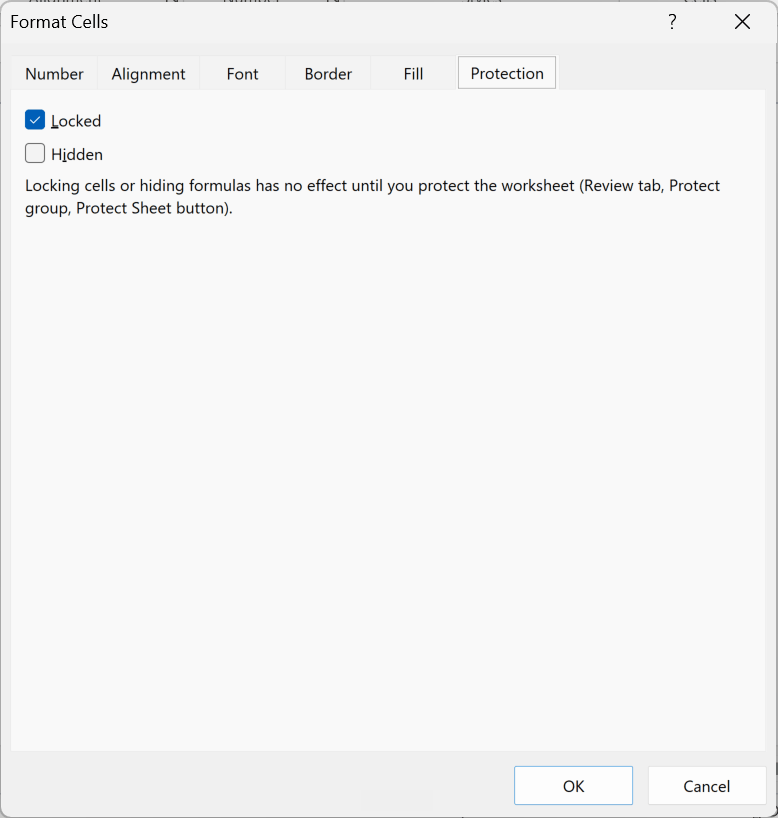
- On the Review tab, click Protect Sheet. In the dialog box that opens, optionally set a password, leave the default checkboxes as they are, and click OK.
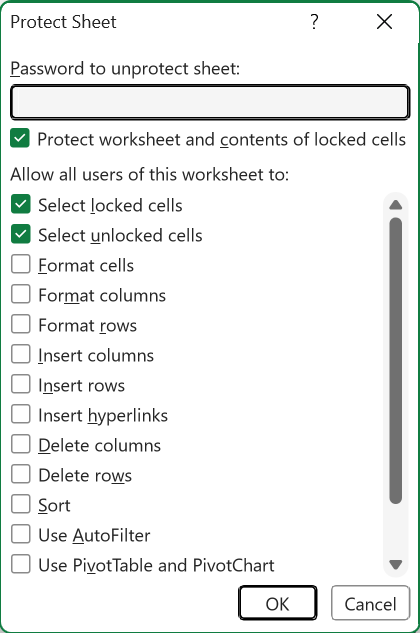
That’s it.
Try typing in the Price column now and Excel shows a warning instead of letting you edit. The item and unit columns still accept changes as normal.
Note: If you set a password when protecting the sheet, keep it somewhere safe. There is no easy way to recover a lost sheet-protection password, so a forgotten one can leave you stuck.
Method #2: Using Allow Edit Ranges
If you’d rather spell out exactly which cells stay open and lock everything else, this method is for you.
Allow Edit Ranges lets you carve out editable areas, and you can even put a separate password on each one.
I’m using the same grocery price list. This time I want the item and unit columns to stay editable while the Price column stays locked once the sheet is protected.
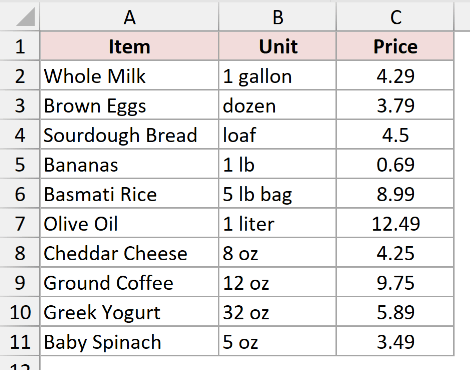
Here are the steps to lock the Price column using Allow Edit Ranges:
- On the Review tab, click Allow Edit Ranges (it’s called Allow Users to Edit Ranges in older versions of Excel).
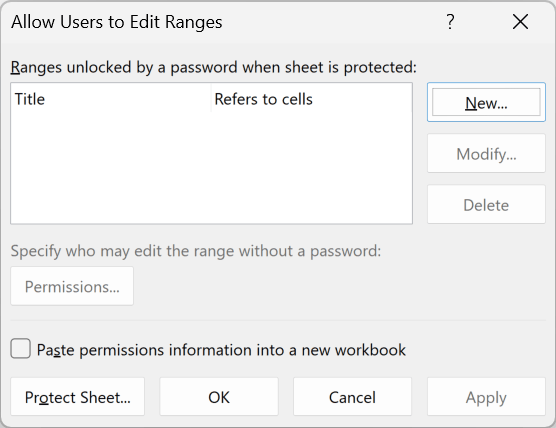
- In the Allow Users to Edit Ranges dialog box, click New.
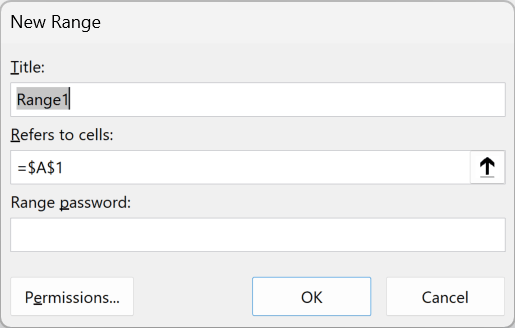
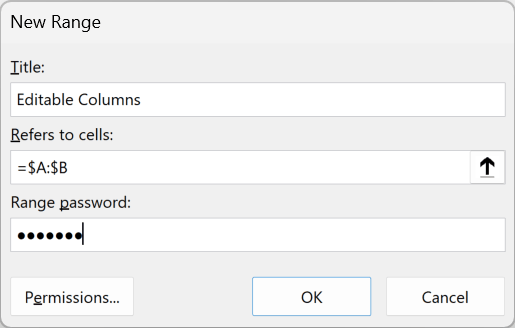
- In the New Range box, give the range a title, set Refers to cells to the columns that stay editable (here that’s $A:$B, the item and unit columns), add a range password if you want one, and click OK.
- Back in the main dialog box, click Protect Sheet, set a sheet-protection password, and click OK.
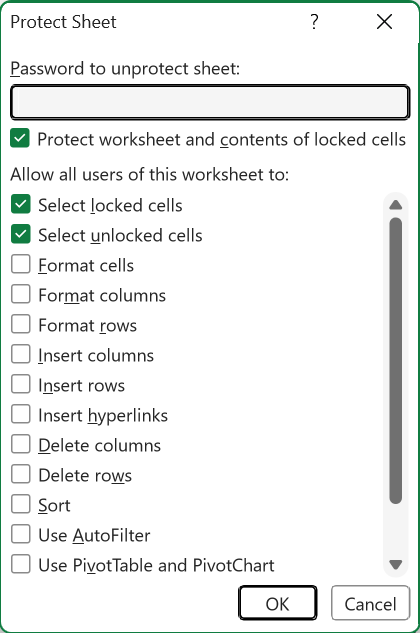
Now the item and unit columns stay open for editing, and the Price column is locked because it sits outside the range you allowed.
If you set a range password, only people who know it can edit the item and unit columns.
Note: To let specific people edit a range without a password, click Permissions inside the New Range box and add their accounts. This works on a company network where everyone signs in with a Windows account.
Method #3: Using a VBA Macro
If you lock the same columns again and again, a short macro can do the whole thing in one click.
This is handy when you rebuild a report every week and want the Price column locked each time.
Here’s the same grocery price list I want to protect.
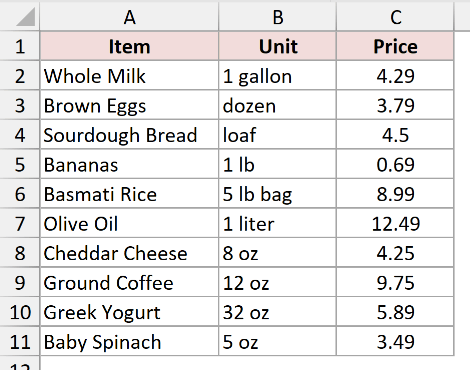
Here is the VBA code:
Sub LockPriceColumn()
    Dim ws As Worksheet
    Set ws = ActiveSheet

    ws.Unprotect Password:="grocery"
    ws.Cells.Locked = False
    ws.Columns("C").Locked = True
    ws.Protect Password:="grocery"
End SubHere are the steps to run this macro:
- Press Alt + F11 to open the Visual Basic Editor.
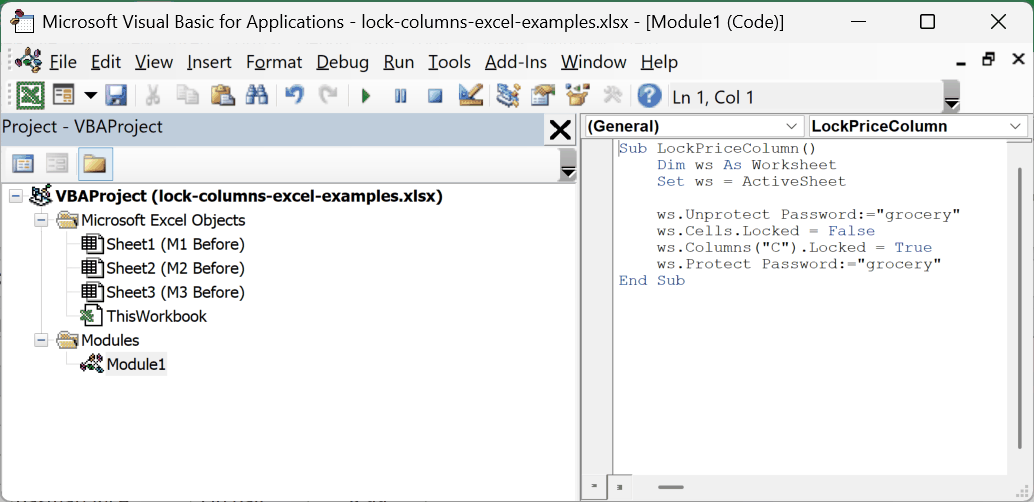
- Click Insert, then Module, and paste the code above into the module window.
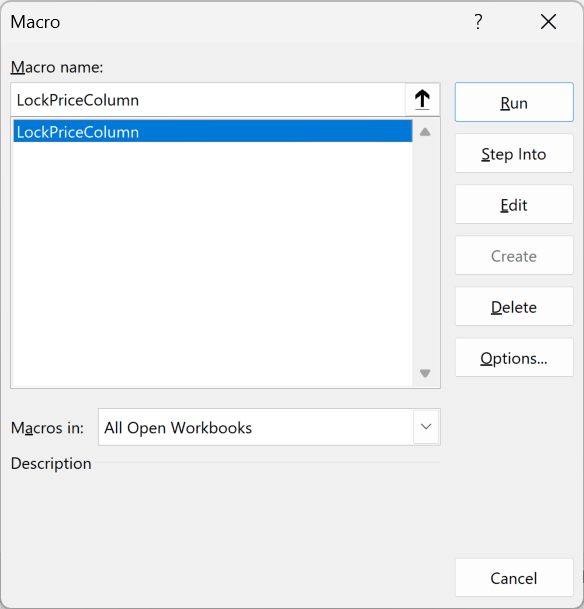
- With your cursor inside the code, press F5 to run it, then switch back to the worksheet.
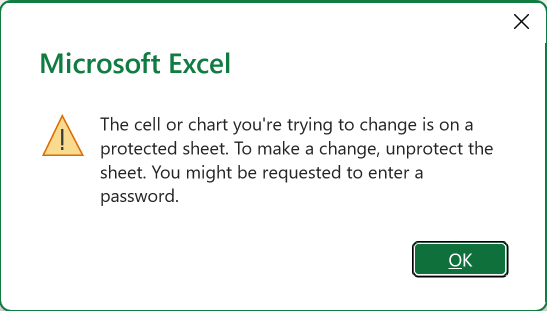
Here’s what the code does. It unlocks every cell first, then locks only column C, and finally protects the sheet with the password “grocery”. Because everything else was unlocked, the Price column ends up being the only column you can’t edit.
Change "C" to whatever column you need. If you use your own password, set it in both the Unprotect and Protect lines so the macro still works the next time you run it.
Note: A workbook with a macro has to be saved in the .xlsm format (Excel Macro-Enabled Workbook). If you save it as a regular .xlsx file, the macro is stripped out and won’t be there next time.
Additional Notes About Locking Columns in Excel
- Locking works per worksheet. Protecting one sheet does nothing to the others, so you have to repeat the steps on every sheet that needs it.
- A sheet protected without a password can be turned off by anyone through Review then Unprotect Sheet. Set a password if you actually want to stop edits.
- Locking a column doesn’t hide its values. If you also want the numbers out of sight, hide the column before you protect the sheet.
- Sheet protection is a guardrail against accidental changes, not real security. Don’t rely on it to protect sensitive data from someone determined to get in.
Frequently Asked Questions
How is locking columns different from freezing columns?
They sound similar but do opposite jobs. Locking stops people from editing a column and needs sheet protection turned on. Freezing (View tab then Freeze Panes) just keeps a column visible while you scroll, and has nothing to do with editing.
Can I lock columns for some users but not others?
Yes. Use Allow Edit Ranges, click Permissions on the range, and add the users who are allowed to edit it. It relies on Windows user accounts, so it’s mostly used on a shared company network rather than a home PC.
Why can I still edit a column after I locked it?
Almost always because the sheet isn’t protected yet. Marking a cell as Locked in Format Cells does nothing until you go to Review then Protect Sheet. Also double-check the column isn’t sitting inside an Allow Edit Range.
Conclusion
Locking columns in Excel comes down to two ideas. Mark the cells you want protected as Locked, then protect the sheet so the lock actually takes effect.
For most jobs, Method #1 with Format Cells and Protect Sheet is the quickest route. Reach for Allow Edit Ranges when different people need different access, and keep the VBA macro for tasks you repeat all the time.
Other Excel articles you may also like:
