
The POWER function in Excel returns a number raised to a specified power.
Use it for squares, compound growth, or fractional powers. It performs the same exponent calculation as the ^ operator, with the base and exponent in separate arguments.
In this article, I’ll show you how to calculate roots, project compound growth, and find a compound annual growth rate.
POWER Function Syntax in Excel
The POWER function uses a base number and an exponent to calculate the result.
=POWER(number, power)
- number (required) is the base number you want to raise to a power.
- power (required) is the exponent applied to the base number. It can be a number, decimal, fraction, or cell reference.
When to Use POWER Function
- Calculate squares, cubes, and other powers without repeatedly multiplying a number.
- Find square roots, cube roots, and other nth roots by using a fractional exponent.
- Project values that grow at a compound rate over several periods.
- Calculate compound annual growth rates between starting and ending values.
- Discount future amounts to their present value with a negative exponent.
Example 1: Cube a Column of Values
Let’s start by calculating the volume of several cube-shaped containers.
Below is the dataset. Column A lists each crate, column B contains its side length, and columns C and D will show the calculated volume.
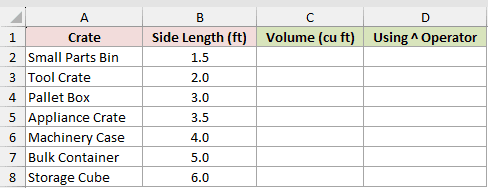
We want to cube every side length with one spilling POWER formula.
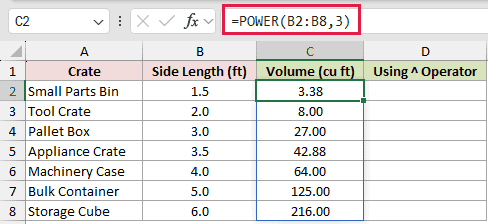
Here is the formula:
=POWER(B2:B8,3)
And here is the equivalent formula using the caret operator:
=B2:B8^3
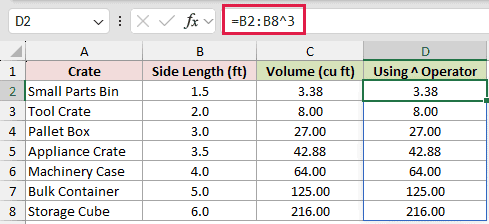
Both formulas raise each side length to the third power. A 1.5-foot side produces 3.38 cubic feet, while a 6-foot side produces 216 cubic feet.
The caret operator is shorter for simple powers. The POWER form still works and can be easier to read when the exponent comes from another cell.
Pro Tip: Make sure the cells below each formula are empty. Otherwise, Excel returns a #SPILL! error because it cannot place all seven results.
Example 2: Find Square, Cube, and Nth Roots
Now let’s use fractional exponents to calculate several kinds of roots.
Below is the dataset. Column A contains each value, column B specifies the root, and column C will return the nth root.
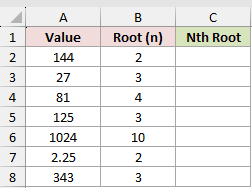
We want one formula to calculate the root specified on every row.
Here is the formula:
=POWER(A2:A8,1/B2:B8)
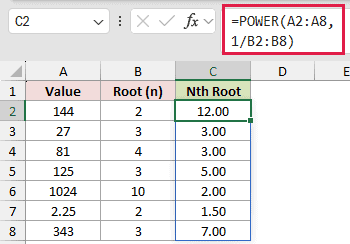
The exponent 1/B2:B8 converts each root number into a fraction. For example, 144 raised to 1/2 returns 12, and 27 raised to 1/3 returns 3.
If you only need square roots, =SQRT(A2:A8) is more direct. POWER still works and also handles cube roots, fourth roots, and any other nth root.
Pro Tip: A negative base with a fractional exponent can return #NUM!. For example, =POWER(-8,0.5) returns #NUM!, while =POWER(-8,1/3) returns -2.
Example 3: Project Compound Growth
Here’s how to project different growth rates over different periods.
Below is the dataset. It lists each city, current subscribers, annual growth rate, years, and a column for the projected subscriber count.
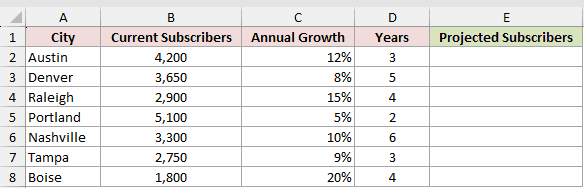
We want to project every city’s subscriber count using its own growth rate and time period.
Here is the formula:
=B2:B8*POWER(1+C2:C8,D2:D8)
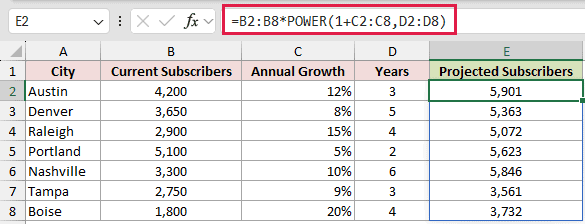
1+C2:C8 creates each city’s growth factor. POWER compounds that factor for the years in column D, then the formula multiplies it by current subscribers.
For continuous growth based on the constant e, use the EXP function instead.
Austin grows from 4,200 to 5,901 subscribers after three years at 12%. Boise grows from 1,800 to 3,732 after four years at 20%.
Example 4: Calculate CAGR Between Two Years
Next, we’ll turn starting and ending revenue into an annual growth rate.
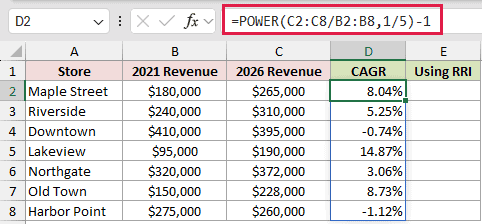
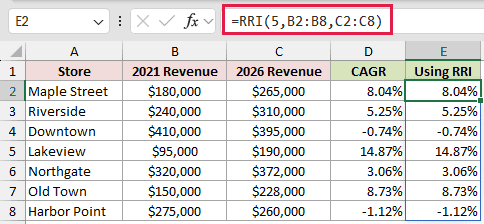
Below is the dataset. Columns B and C contain 2021 and 2026 revenue, while columns D and E will calculate CAGR with two methods.
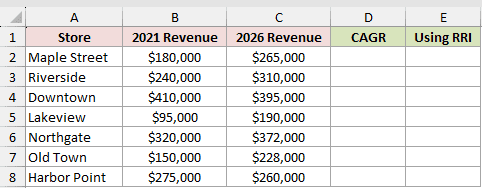
We want the yearly rate that connects each store’s 2021 revenue to its 2026 revenue.
Here is the POWER formula:
=POWER(C2:C8/B2:B8,1/5)-1
And here is the equivalent RRI formula:
=RRI(5,B2:B8,C2:C8)
The POWER formula divides ending revenue by starting revenue, finds the fifth root for the five-year period, then subtracts 1 to return a rate.
Maple Street’s CAGR is 8.04%, while Lakeview’s is 14.87%. Downtown and Harbor Point return -0.74% and -1.12% because their revenue fell.
RRI is more direct when CAGR is the only result you need. The POWER version still works and clearly shows the calculation behind the rate.
Pro Tip: The exponent must match the number of compounding periods. This example uses 1/5 because 2021 to 2026 covers five annual periods.
Example 5: Discount Future Payouts With a Negative Exponent
Finally, let’s use a negative exponent to bring future payouts back to today’s value.
Below is the dataset. Column A contains future payouts, column B shows years away, column C will return present values, and E2 holds the 6% discount rate.
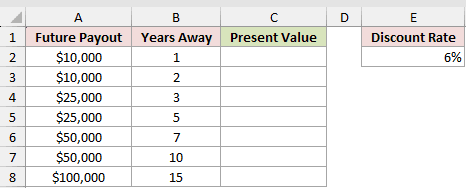
We want to discount every payout using the fixed rate in E2 and its corresponding number of years.
Here is the formula:
=A2:A8*POWER(1+$E$2,-B2:B8)
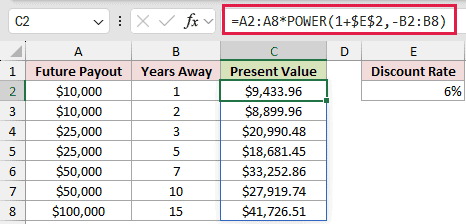
The negative exponent turns the growth factor into a divisor. The absolute reference $E$2 keeps the 6% rate fixed for every spilled result.
A $10,000 payout one year away is worth $9,433.96 today. A $100,000 payout 15 years away has a present value of $41,726.51.
Tips & Common Mistakes
- Excel evaluates
=-3^2as 9 because the unary minus is applied before the exponent. Use=-(A2^2)or=-POWER(A2,2)when you need the negative of a square. - POWER returns #NUM! for
=POWER(0,0). Check for zero bases and zero exponents before calculating when your data may contain both. - Decimal exponents and cell references are valid. For example, an exponent of 0.5 calculates a square root.
- In Excel 365, a range-based POWER formula spills automatically. Blocked output cells cause #SPILL!, while adding
@forces a single result instead. - Use parentheses around calculated bases and exponents. This makes the intended order clear and reduces mistakes in longer formulas.
POWER covers much more than squares and cubes. You can use it for roots, compound growth, CAGR, and present-value calculations.
Revisit Example 2 for fractional exponents or Example 5 for negative exponents.
Related Excel Functions / Articles:
