
Excel’s DROP function returns an array with a specified number of rows or columns removed from the beginning or end.
You can exclude a report’s heading rows or trailing totals while keeping the source data intact. The remaining values spill into a separate output range.
In this article, I’ll show you how to remove rows from either end, discard the first column, and trim a sorted list.
DROP Function Syntax in Excel
The DROP function uses this syntax:
=DROP(array, rows, [columns])
arrayis the range or array you want to reduce.rowsis the number of rows to remove. A positive number removes rows from the top, while a negative number removes them from the bottom.columnsis optional. A positive number removes columns from the left, while a negative number removes them from the right.
DROP is available in Microsoft 365 and Excel 2024.
When to Use DROP Function
- Remove preliminary or header rows before using a dataset.
- Exclude footer or total rows from the bottom of a report.
- Remove an identifying column while keeping the measured values.
- Discard a fixed number of highest or lowest records after sorting.
Example 1: Drop Rows from the Top
We’ll start by removing two preliminary supply records.
Below is the dataset with the supply record, lab area, and units used.
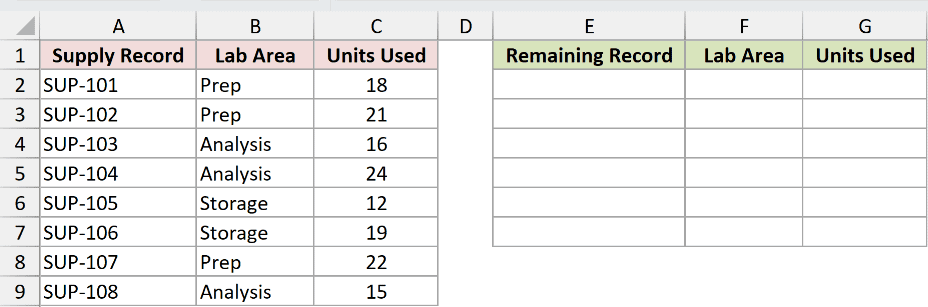
I want to remove the first two rows from A2:C9 and return the six records that remain.
Here is the formula:
=DROP(A2:C9,2)
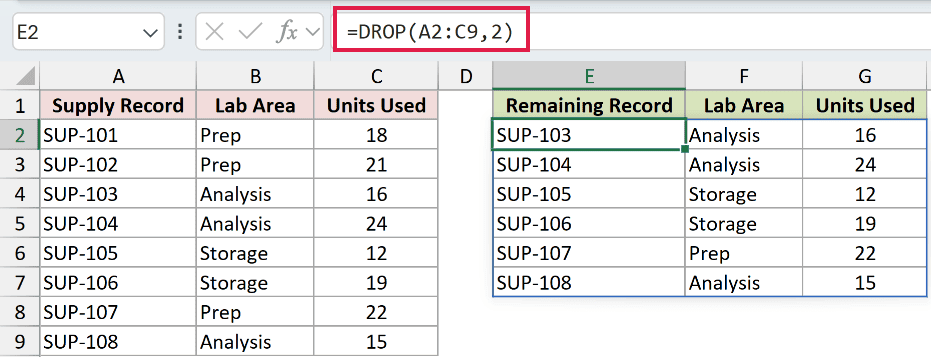
The positive 2 tells DROP to remove two rows from the top. The result starts with SUP-103 and spills across E2:G7.
Pro Tip: Keep the spill area empty. If another value blocks any output cell, Excel returns a #SPILL! error.
Example 2: Drop Rows from the Bottom
A negative row number works from the other end of the array.
Below is a shipping manifest with nine records.
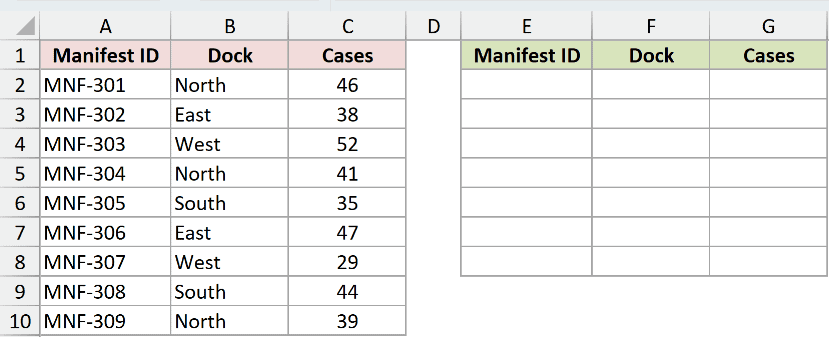
I want to remove the final two manifests and keep the first seven.
Here is the formula:
=DROP(A2:C10,-2)
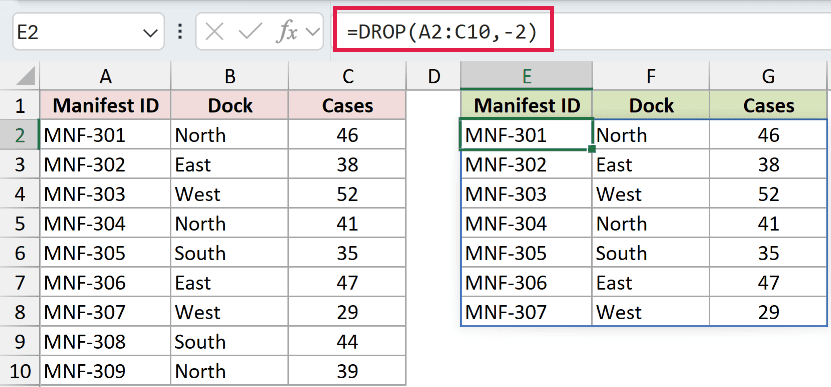
The -2 removes two rows from the bottom. MNF-308 and MNF-309 are excluded, so the spilled result ends with MNF-307.
Pro Tip: Positive counts work from the top or left. Negative counts work from the bottom or right.
Example 3: Remove the First Column
You can leave the rows argument blank when you only need to remove columns.
Below are eight field survey records with a point ID and three measurements.
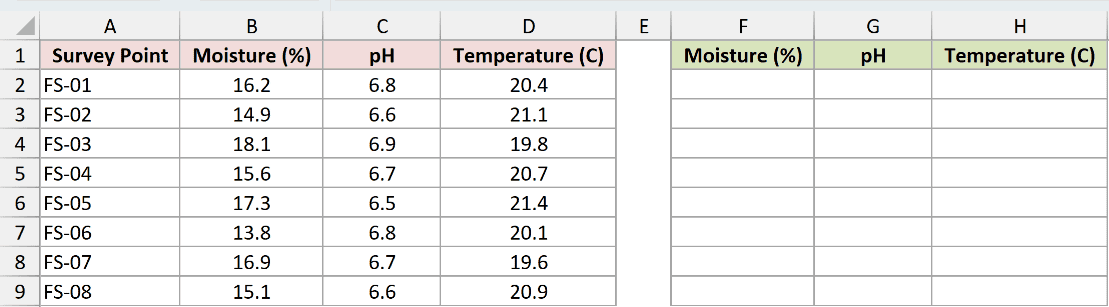
I want to remove the Survey Point column and return the three measurement columns.
Here is the formula:
=DROP(A2:D9,,1)
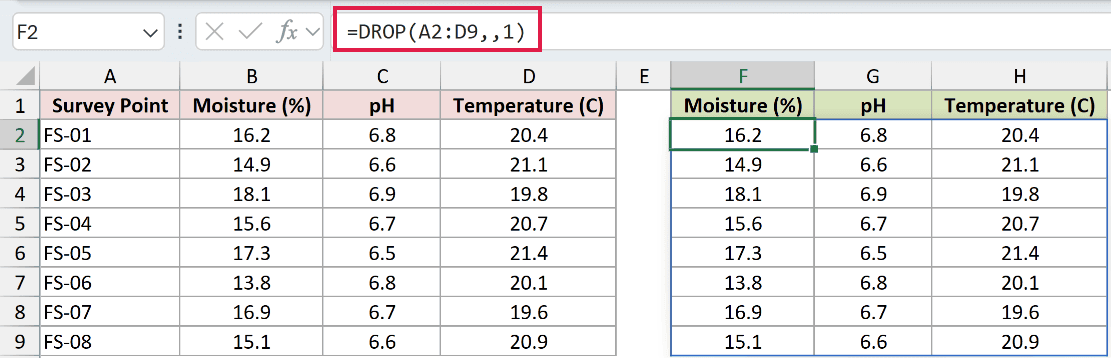
The two commas leave the rows argument blank. The 1 in the columns argument removes the leftmost column.
The values from columns B:D spill into F2:H9, with all eight survey records intact.
Example 4: Combine DROP with SORT
DROP becomes especially useful after another function has arranged an array.
Below are 10 supplier quotes with units and total costs.
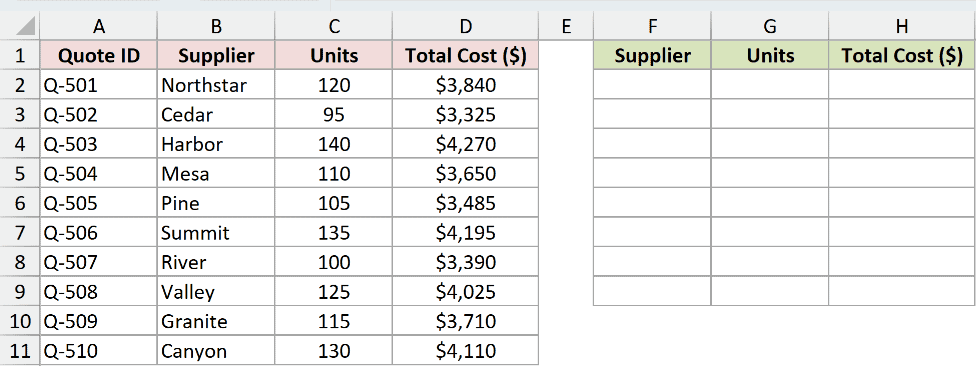
I want to sort the quotes by cost, remove the two highest, and omit the Quote ID column.
Here is the formula:
=DROP(SORT(A2:D11,4,-1),2,1)
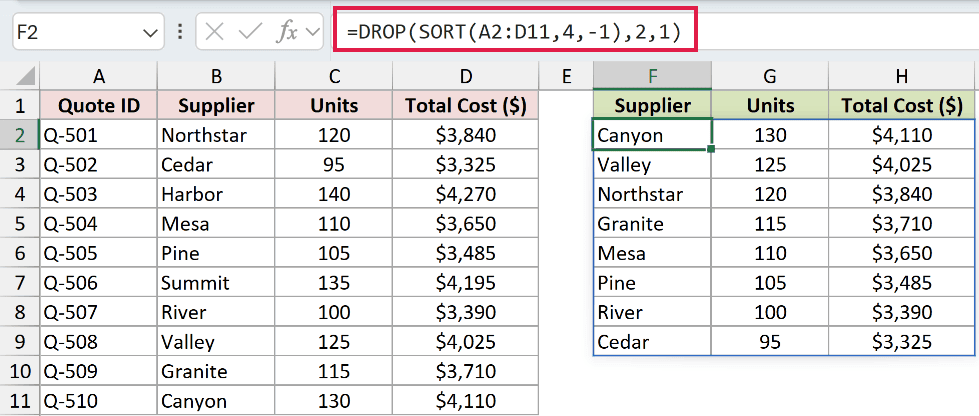
SORT arranges the rows by the fourth column in descending order. DROP then removes the first two rows and the first column.
The result contains eight quotes, beginning with Canyon at $4,110 and ending with Cedar at $3,325.
Pro Tip: Use TAKE when you want to keep a fixed number of rows or columns from an edge. Use DROP when you want to remove them.
Tips & Common Mistakes
- Use positive numbers for the top or left and negative numbers for the bottom or right.
- Leave
rowsblank in a columns-only formula. Entering zero forrowsorcolumnsreturns a#CALC!error. - Clear enough cells for the full result before entering the formula.
- Expect a
#NUM!error if the requested array is too large for Excel to return. - Use FILTER when records should be removed by a condition instead of their position.
I covered removing rows from both ends, dropping a column, and using DROP after SORT.
I hope you found this article helpful.
Other Excel articles you may also like:
