
Excel’s DEGREES function converts an angle from radians to degrees.
It is useful when a trigonometry formula returns radians but a drawing or report needs degrees. The conversion changes the unit, while preserving the angle and its sign.
In this article, I’ll show you how to convert radians into degrees, calculate a bracket’s tilt, and normalize an angle for display.
DEGREES Function Syntax in Excel
DEGREES converts an angle from radians to degrees.
=DEGREES(angle)
angleis the angle in radians that you want to convert.
When to Use DEGREES Function
- Convert radian values exported from technical software.
- Make a result from ATAN easier to read.
- Turn an ATAN2 direction into degrees.
- Display a negative radian angle on a 0 to 360 scale.
Example 1: Convert Radians to Degrees
Let’s begin with direct radian-to-degree conversion.
Below are drawing IDs and their stored angle values in radians.
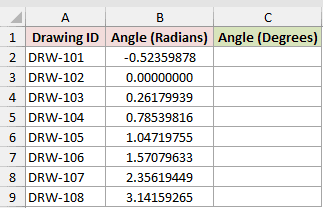
I want to return the degree value for every drawing.
Here is the formula:
=DEGREES(B2:B9)
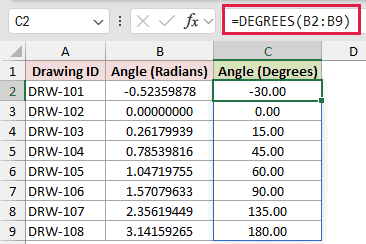
The formula spills into C2:C9. The first radian value converts to -30.00, and 3.14159265 converts to 180.00.
DEGREES does not round the stored result. The two-decimal display format is applied by the worksheet.
Example 2: Calculate a Bracket Tilt Angle
DEGREES is often the final step after an inverse-trigonometry calculation.
Below are bracket measurements with a vertical rise and horizontal run.
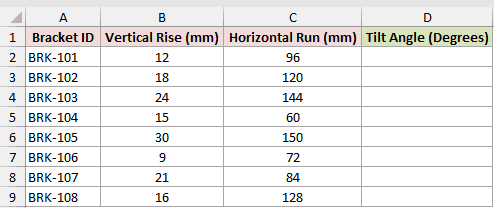
I want to calculate the tilt angle of each bracket in degrees.
Here is the formula:
=DEGREES(ATAN(B2:B9/C2:C9))
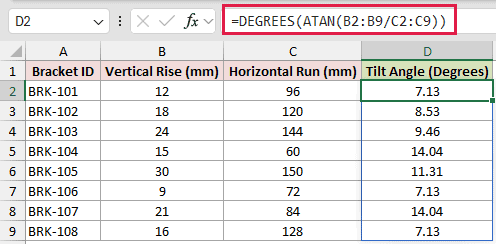
B2:B9/C2:C9 calculates rise divided by run. ATAN converts that ratio to radians, and DEGREES makes the answer readable.
The first bracket has a 12 mm rise and 96 mm run, so its tilt angle is 7.13 degrees.
Example 3: Convert ATAN2 Directions
ATAN2 helps when your coordinates can fall in any quadrant.
Below are layout points with east and north offsets from an origin.
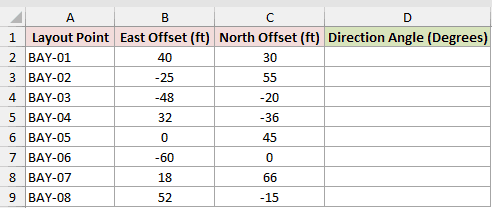
I want to calculate a degree direction for each layout point.
Here is the formula:
=DEGREES(ATAN2(B2:B9,C2:C9))
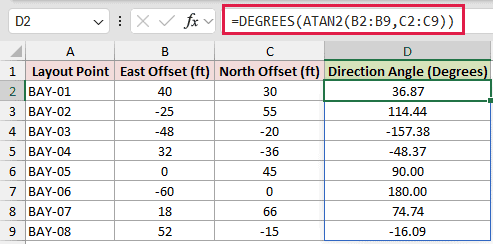
ATAN2 uses the east offset first and the north offset second in this worksheet. It returns an angle in radians that preserves the quadrant.
DEGREES converts that result. The first point returns 36.87 degrees, while the third returns -157.38 degrees.
Example 4: Normalize a Display Angle
Negative angles can be correct, but they are not always the reporting format you need.
Below are camera pan values stored in radians, including negative and values greater than one full rotation.
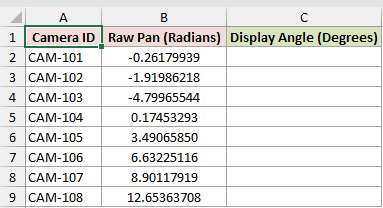
I want to show every angle from 0 through 360 degrees.
Here is the formula:
=MOD(DEGREES(B2:B9),360)
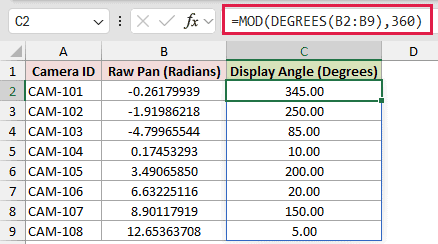
DEGREES performs the conversion first. MOD then returns the remainder after division by 360.
The first raw value is negative 15 degrees, but the normalized result is 345.00 degrees.
Tips & Common Mistakes
- DEGREES expects radians. Use RADIANS when you need the reverse conversion.
PI()equals 180 degrees after conversion:=DEGREES(PI())returns 180.- Use ATAN for a rise/run angle and ATAN2 when the sign of two coordinates matters.
- MOD is useful when a report needs 0 to 360 degrees instead of negative degree values.
DEGREES turns radian results into values that are easier to communicate. I hope you found this article helpful.
