
The MOD function in Excel returns the remainder after dividing a number by a divisor.
You can use it to flag even or odd numbers, repeat a sequence, or shade alternating rows. When negative numbers are involved, the remainder follows the divisor’s sign.
In this article, I’ll show you how to identify odd and even numbers, create repeating patterns, and calculate shift times that cross midnight.
MOD Function Syntax in Excel
The MOD function divides one number by another and returns the remainder.
=MOD(number, divisor)
- number – the value you want to divide.
- divisor – the number you want to divide by.
The sign of the result follows the divisor, not the number. And if the divisor is 0, MOD returns a #DIV/0! error.
When to Use MOD Function
MOD comes in handy in more situations than you might expect. Here are a few common ones:
- Finding the leftover after splitting items into equal groups or boxes.
- Flagging numbers as even or odd.
- Highlighting or marking every Nth row in a list.
- Creating a repeating sequence (like 1, 2, 3, 1, 2, 3).
- Working out elapsed time when a shift crosses midnight.
Example 1: Find the Remainder Across a Range
Let’s start with the most basic use of MOD: finding the leftover after a division.
Below is the dataset. Column A has the total number of items, and column B has how many fit in one box.
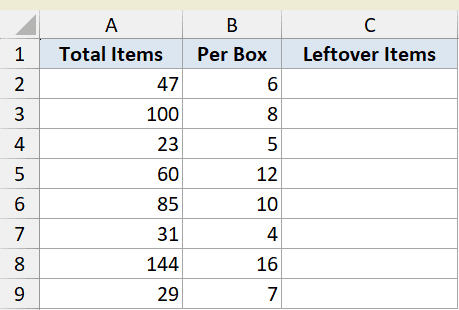
We want to know how many items are left over after filling as many full boxes as possible.
Here is the formula:
=MOD(A2:A9,B2:B9)
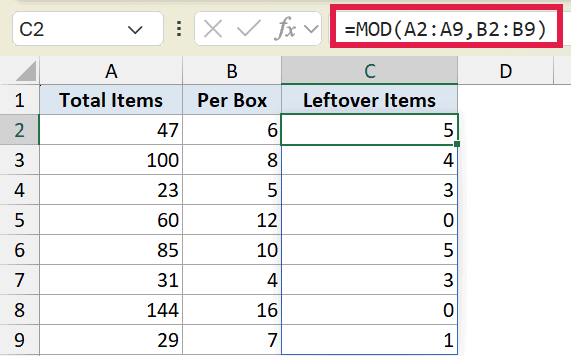
Because this is Excel 365, feeding MOD the whole range A2:A9 and B2:B9 makes the result spill down all eight rows from a single formula. No need to copy it down.
For 47 items at 6 per box, you fill 7 boxes and 5 are left over, so MOD returns 5.
Pro Tip: If you are on an older version of Excel, write =MOD(A2,B2) in the first cell and copy it down instead. The single-range version only spills in Excel 365 and Excel for the web.
Example 2: Flag Even or Odd Numbers
Here’s a classic use of MOD: telling even numbers apart from odd ones.
Below is the dataset. Column A has ticket numbers and column B has a number tied to each ticket.
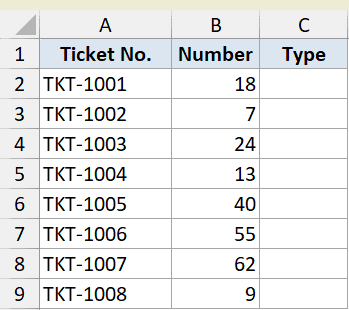
We want column C to say “Even” or “Odd” based on the number in column B.
Here is the formula:
=IF(MOD(B2,2)=0,"Even","Odd")
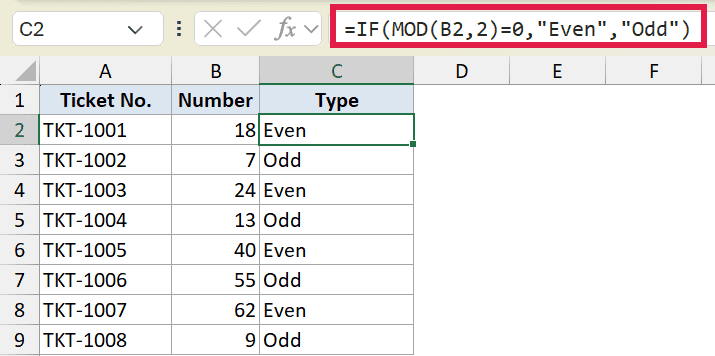
The idea is simple. Any even number divided by 2 leaves no remainder, so MOD returns 0.
So when MOD(B2,2) equals 0, the IF returns “Even”. Otherwise it returns “Odd”. Copy the formula down for the rest of the rows.
If you need to test for an odd number of true conditions rather than a single odd value, the XOR function handles that case.
Pro Tip: Excel also has ISEVEN and ISODD that do this directly, like =IF(ISEVEN(B2),”Even”,”Odd”). The MOD version is good to know because it works in any version and reads clearly.
Example 3: Highlight Every Nth Row
MOD is great for marking a row at a regular interval, like every 3rd one.
Below is the dataset. Column A has sensor labels and column B has their readings.
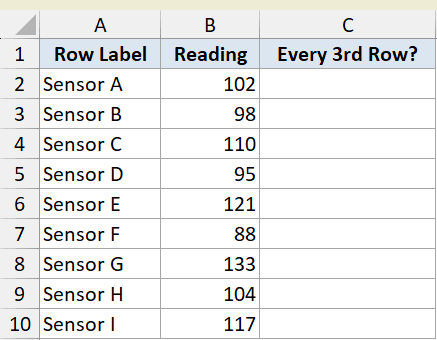
We want to put a “Yes” in column C on every 3rd row, starting from the first data row.
Here is the formula:
=IF(MOD(ROW()-1,3)=0,"Yes","")
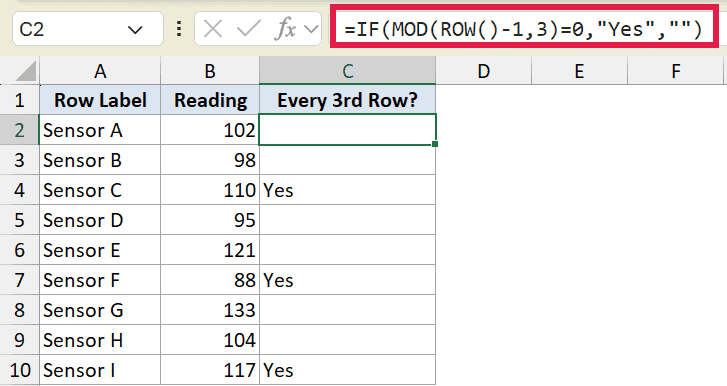
ROW() gives the current row number. Subtracting 1 lines it up so the first data row counts as row 1, the next as 2, and so on.
When MOD of that count by 3 equals 0, you’ve hit a 3rd row, so the formula returns “Yes”. Every other row gets a blank. Copy it down the column.
Example 4: Build a Repeating Sequence
MOD is a neat way to cycle through a fixed set of numbers over and over.
Below is the dataset. Column A has order numbers and column B has the item on each order.
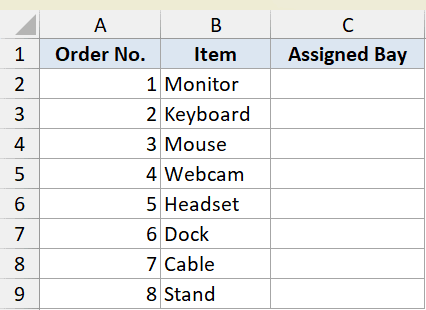
We want to assign each order to a bay numbered 1, 2, 3, then back to 1 again, so the work is spread evenly.
Here is the formula:
=MOD(A2-1,3)+1
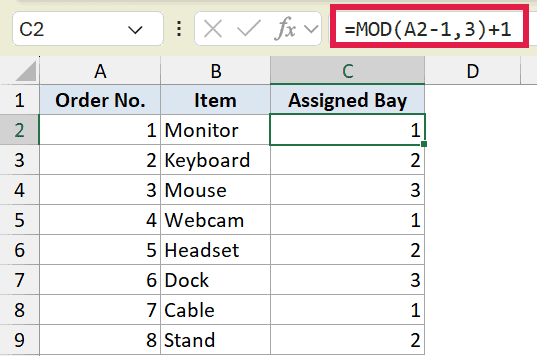
MOD on its own cycles through 0, 1, 2, 0, 1, 2. Subtracting 1 from the order number before the MOD, then adding 1 after, shifts that range to 1, 2, 3, 1, 2, 3.
To repeat across a different number of bays, just change the 3 to however many you need. Copy the formula down for the rest.
Example 5: Handle Shift Times That Cross Midnight
This one solves a problem plain subtraction can’t: time that runs past midnight.
Below is the dataset. Column B has the shift start time and column C has the end time, with several shifts starting late at night and ending the next morning.
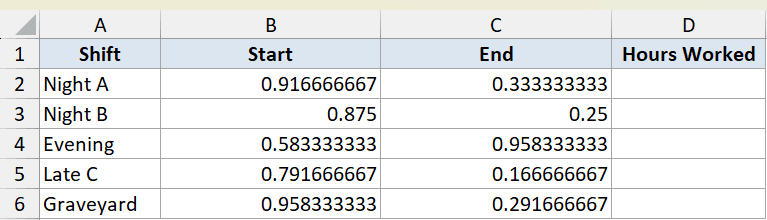
We want the hours worked for each shift, even when the end time is on the next day.
Here is the formula:
=MOD(C2-B2,1)*24
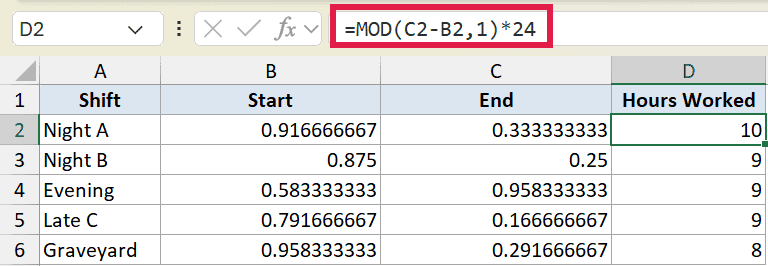
When the end time is earlier in the day than the start, C2-B2 is negative. MOD with a divisor of 1 wraps that negative value back into a positive fraction of a day.
Multiplying by 24 turns that fraction into hours. So a shift from 11:00 PM to 8:00 AM correctly comes out as 9 hours instead of a negative number. Copy the formula down the column.
Example 6: Shade Alternate Rows With MOD
For the last example, let’s use MOD inside a conditional formatting rule to highlight every other row.
Below is the dataset. Column A has regions and column B has their sales figures.
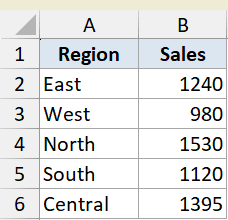
We want every other row shaded so the table is easier to scan.
There’s no helper column here. Instead, MOD goes into a conditional formatting rule that Excel applies to each row automatically. Here’s the click path:
- Select the range A2:B6.
- Go to Home > Conditional Formatting > New Rule.
- Choose “Use a formula to determine which cells to format”.
In the rule box, enter this formula:
=MOD(ROW(),2)=0
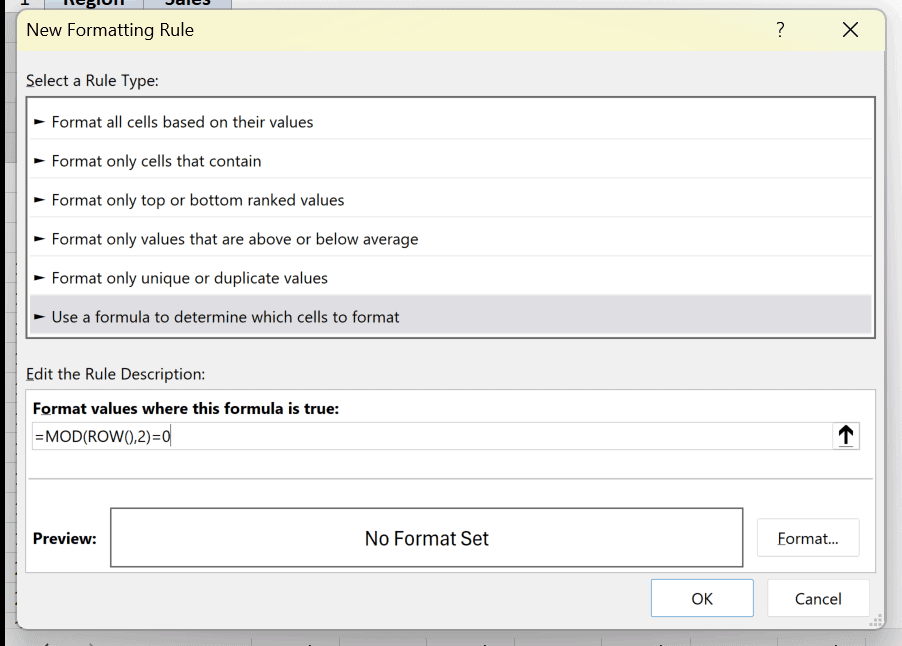
Then finish the rule:
- Click Format, pick a fill color, and click OK.
- Click OK again to apply the rule.
Here is the result, with the even rows shaded:
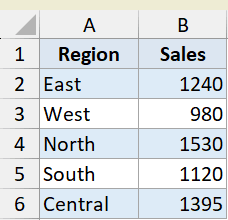
MOD(ROW(),2)=0 is TRUE on even-numbered rows, so those rows get the fill and the rest stay plain. To shade the odd rows instead, just change the 0 to a 1.
Pro Tip: If you want a full banded-table look, converting your range to an Excel Table (Ctrl+T) with banded rows turned on is even quicker than a formula rule.
Tips & Common Mistakes
- The sign of the result follows the divisor, not the number. So =MOD(-5,3) returns 1, while =MOD(5,-3) returns -1. Keep this in mind when working with negative values.
- A divisor of 0 returns a #DIV/0! error, since you can’t divide by zero. Check your divisor cells if you see this error.
- MOD(number,1) returns just the decimal (fractional) part of a number. It’s a handy way to strip the whole-number portion away.
- In Excel 365, you can feed MOD a whole range and the result spills automatically, so you often don’t need to copy the formula down anymore.
- For even/odd checks, ISEVEN and ISODD are more direct than MOD, but the MOD approach works in every version of Excel.
- MOD is also available in VBA. If you’re writing macros, see how the MOD operator works in VBA.
- MOD pairs nicely with date and time functions. For row-by-day logic, the WEEKDAY function is a common companion.
MOD is a small function that does a lot once you get comfortable with the remainder. We covered even/odd checks, repeating sequences, row highlighting, and time math that runs past midnight.
Try a couple of these on your own data and you’ll quickly see where MOD fits into your work.
Related Excel Functions / Articles:
