
Excel’s AREAS function returns the number of separate areas in a reference. One area can be a single cell or one contiguous range of cells.
It counts reference geometry, not filled cells. A range containing blanks is still one area, while a union of separate references can contain several areas.
In this article, I’ll show you how to distinguish areas from values, count disjoint references, test intersections, and select the final area with INDEX.
AREAS Function Syntax in Excel
The AREAS function uses this syntax:
=AREAS(reference)
referenceis required. It can refer to one cell, one range, or several reference areas.- Several comma-separated references need an extra pair of parentheses so Excel treats them as one argument.
When to Use AREAS Function
- Check whether a reference contains one contiguous block or several separate blocks.
- Count the parts of a union reference.
- Test whether an intersection produces a valid reference area.
- Supply the area number used by the reference form of INDEX.
Example 1: Count Areas, Not Filled Cells
Let’s start by separating the idea of an area from the number of populated cells.
Below is a checklist status column with two blanks, plus three result rows for comparing reference and value counts.
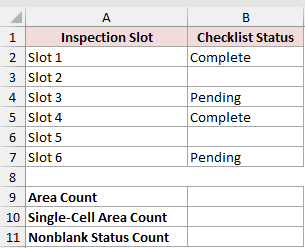
I first want to count the areas in the entire status range B2:B7.
Here is the formula:
=AREAS(B2:B7)
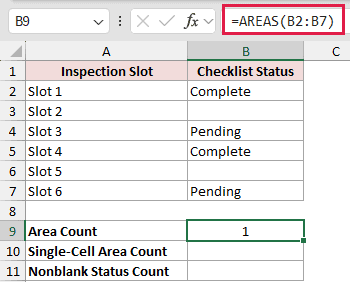
The result is 1 because B2:B7 is one contiguous range. Its blank cells do not split it into separate areas.
Now I want to confirm how AREAS treats one cell.
Here is the formula:
=AREAS(B2)
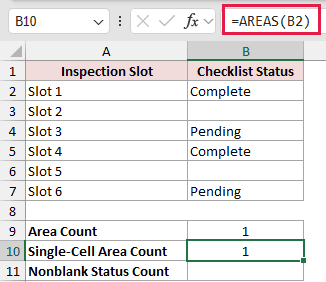
A single cell is also one area, so this formula returns 1.
For comparison, I can count the cells that contain a status.
Here is the formula:
=COUNTA(B2:B7)
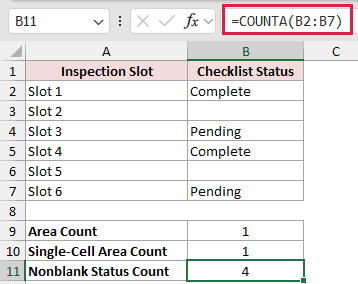
COUNTA returns 4 because four cells contain text. This is a value count, while AREAS returns a reference count.
Example 2: Count Disjoint Reference Blocks
A union reference lets one formula refer to ranges that are not beside each other.
Below are separate morning and evening check columns, one extra check in A7, and two result rows.
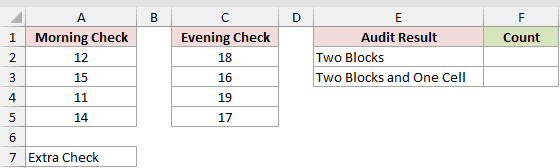
I want to count the morning and evening blocks as two areas.
Here is the formula:
=AREAS((A2:A5,C2:C5))
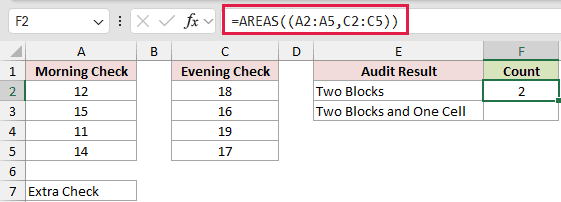
The formula returns 2. The comma creates a union of A2:A5 and C2:C5, while the extra parentheses pass that union as one argument.
Next, I want to include the separate cell A7.
Here is the formula:
=AREAS((A2:A5,C2:C5,A7))
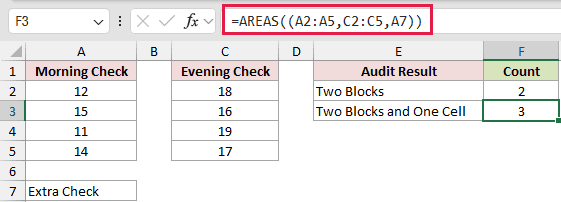
The added reference creates a third area, so the result is 3.
Pro Tip: Keep the extra parentheses around a union reference. Without them, Excel can interpret the commas as separators between function arguments.
Example 3: Test Reference Intersections
Excel’s space operator returns the cells shared by two references.
Below is a room schedule for three weekdays, followed by one overlapping test and one deliberately disjoint test.
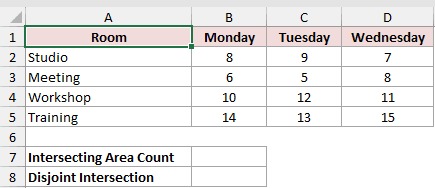
I want to count the overlap between B2:D5 and C3:C4.
Here is the formula:
=AREAS(B2:D5 C3:C4)
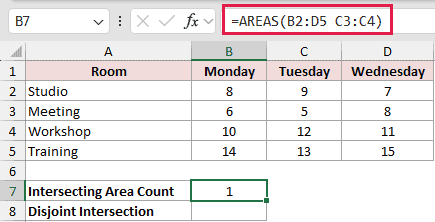
The shared cells are C3:C4. That intersection is one contiguous reference, so AREAS returns 1.
Now I will test two ranges with no cells in common.
Here is the formula:
=AREAS(B2:B5 D2:D5)
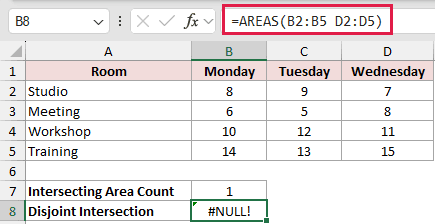
This formula intentionally returns #NULL!. B2:B5 and D2:D5 do not intersect, so the space operator cannot produce a reference for AREAS to count.
Example 4: Select the Final INDEX Area
The reference form of INDEX can choose from several listed reference areas.
Below are three check rounds. Each row contains a first and second reading, followed by two result rows.
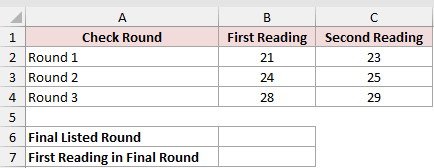
I first want to calculate the number of listed row references.
Here is the formula:
=AREAS((B2:C2,B3:C3,B4:C4))
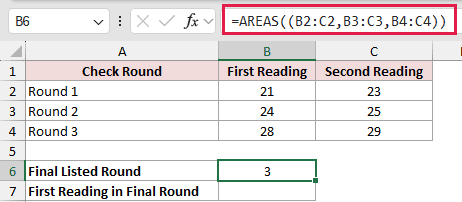
The union contains three listed areas, so AREAS returns 3.
I can use that result logic as INDEX’s area number and return the first reading from the final listed round.
Here is the formula:
=INDEX((B2:C2,B3:C3,B4:C4),1,1,AREAS((B2:C2,B3:C3,B4:C4)))
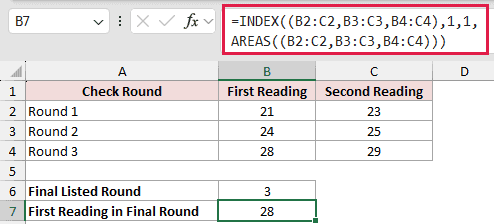
AREAS returns 3, so INDEX uses the third reference, B4:C4. Row 1 and column 1 within that area point to B4, which contains 28.
Tips & Common Mistakes
- AREAS counts reference areas. Use COUNTA to count nonblank cells, or ROWS and COLUMNS to measure a range’s dimensions.
- A single cell, a full column, and any other contiguous range each count as one area.
- Put an extra pair of parentheses around a comma union used as the reference argument.
- A space between two references is the intersection operator. If the references do not overlap, Excel returns
#NULL!before AREAS can count anything. - AREAS returns one count. It does not spill one result for each cell in a dynamic array.
- A defined name can represent a multi-area reference and make a long formula easier to read.
I covered contiguous ranges, union references, valid and disjoint intersections, and using an area count inside the reference form of INDEX.
I hope you found this article helpful.
Other Excel articles you may also like:
