
Excel’s “Cannot insert object” error can appear when you embed a file or add an ActiveX control. The fix depends on which object you’re inserting.
On current Microsoft 365 builds, ActiveX controls are disabled by default. Check that setting when you cannot insert a control.
Before changing anything, note what you were trying to insert. Use the table below to find the relevant checks.
Note: These steps are for desktop Excel on Windows. Method #6 covers an older Office issue; it isn’t a general Microsoft 365 fix.
| What you were inserting | What to check | Start here |
|---|---|---|
| A file, often a PDF | The other program that handles that file type | Method #4, then try Method #5 if Package is available |
| An ActiveX control | Office security policy | Method #2 |
| Several object types | Sheet protection, cache, an add-in, or Office | Methods #1 and #7; Method #6 for the older cache issue |
| One old control, such as Microsoft Web Browser | A control-specific Office block | Method #3 |
In this article, I’ll walk through sheet protection, ActiveX settings, file-embedding checks, and Office troubleshooting, with a separate method for the older control-cache issue.
Method #1: Unprotecting the Sheet
Sheet protection takes only a few seconds to rule out, so start here before changing security settings or repairing Office.
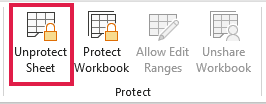
- Open the Review tab. If you see Unprotect Sheet, click it and enter the password if Excel asks for one.
- Try inserting the object again.
- After inserting the object, go to Review > Protect Sheet. Select Edit objects only if users should be allowed to change objects, then click OK.
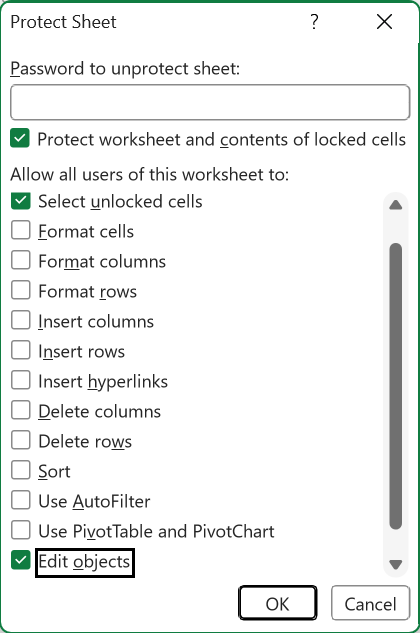
Protection usually greys out the command instead of showing the error dialog. Treat this as a quick check, not the most likely diagnosis.
Method #2: Turning ActiveX Back On
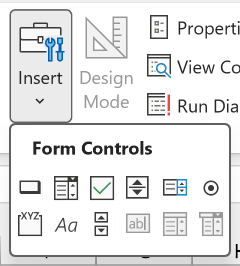
If ActiveX controls fail but Form Controls still work, check the ActiveX setting. A Form Control is Excel’s built-in alternative for simple buttons and similar controls.
Microsoft began changing the Microsoft 365 default in April 2025. The new default, Disable all controls without notification, blocks ActiveX in Excel, Word, PowerPoint, and Visio.
On the build shown below, the Developer tab’s Insert gallery displays only Form Controls while ActiveX is disabled. The available commands can differ between builds.
Leave ActiveX disabled unless you need a trusted control. If you do, here are the steps to change the setting:
- Go to File > Options > Trust Center > Trust Center Settings > ActiveX Settings. Select Prompt me before enabling all controls with minimal restrictions.
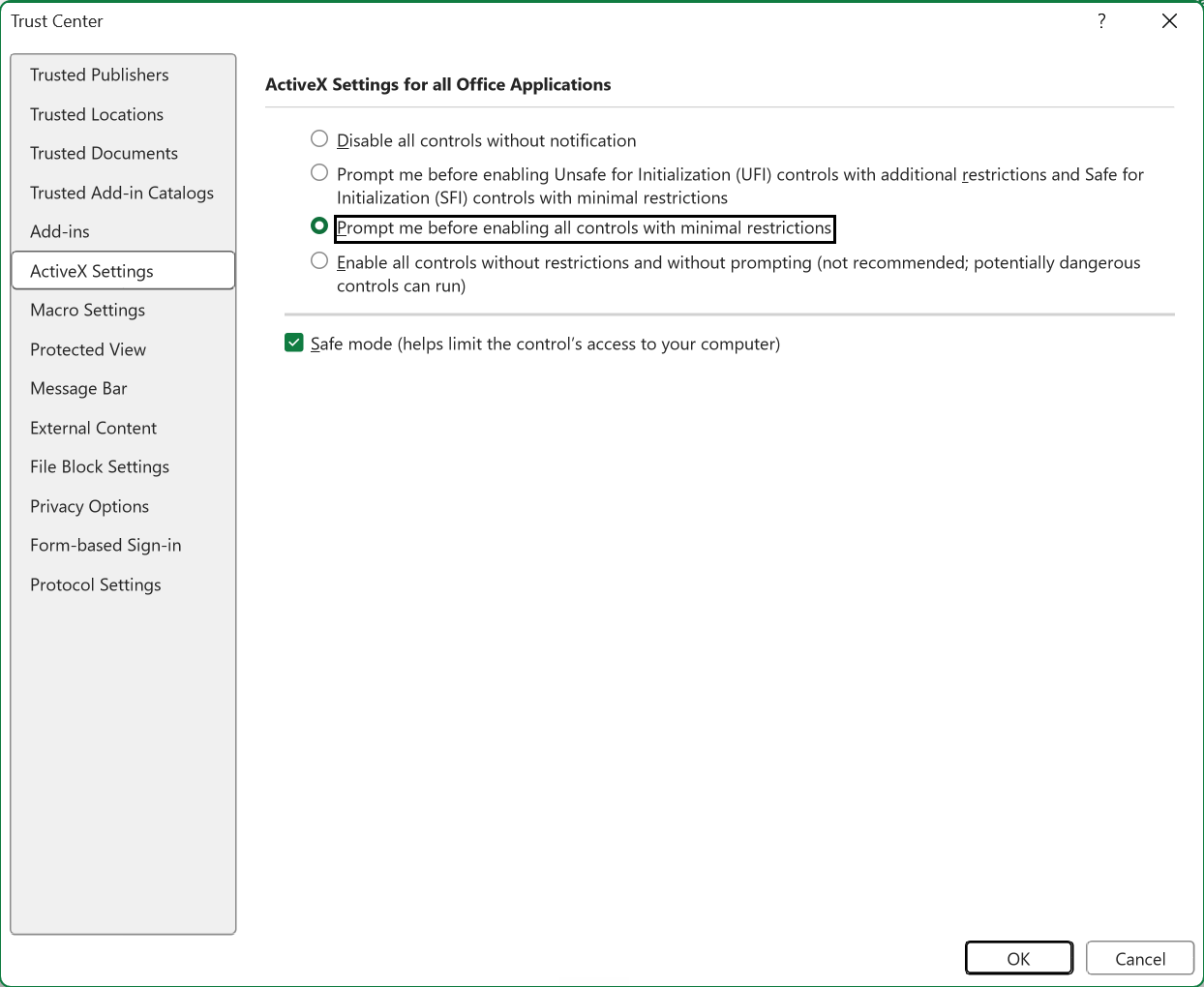
Click OK twice to save the setting. Close and reopen Excel, then test the trusted control again.
This changes the setting across Office files and applications. It does not guarantee a prompt for every control.
Choose the prompt option rather than enabling every control without restrictions. Only enable ActiveX content in files you trust.
Note: Macro Settings and ActiveX Settings are not the same thing. Macro Settings govern VBA code. Changing them does not turn ActiveX controls back on.
If the ActiveX choices are greyed out, your organization probably manages them.
An administrator can check User Configuration > Administrative Templates > Microsoft Office 2016 > Security Settings > Disable All ActiveX.
Method #3: Replacing a Blocked Control
Some controls have a separate Office security block. Changing the general ActiveX setting does not remove that block.
Microsoft lists Shell.Explorer.2, the old Microsoft Web Browser control, among the objects blocked from linking or embedding by default.
Moving a blocked control to a UserForm or wrapping it in another component is not a general fix. Some Office blocks prevent activation throughout the application.
If you only need to open a web page or video, use a normal hyperlink. Here are the steps:
- Select a cell and press Ctrl + K. Choose Existing File or Web Page, enter the URL in Address, and add a descriptive Text to display.
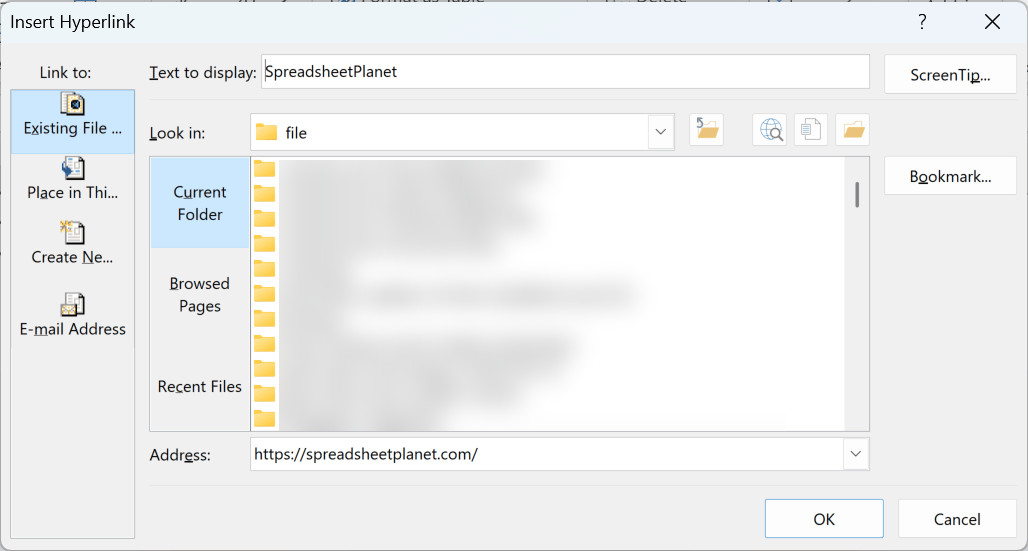
Click OK. The link opens the page in your browser; it does not display a browser inside the worksheet.
If your workbook needs the control itself, ask its developer for a supported replacement. Avoid registry instructions that remove an Office security block.
Microsoft advises against removing a COM kill bit because it can create security vulnerabilities.
Method #4: Checking the Source Program
If inserting a PDF or another file fails, check the program that creates the embedded object. Excel needs an installed application that supports OLE embedding.
OLE, short for Object Linking and Embedding, lets Excel host an object supplied by another program. Being able to open a file doesn’t prove embedding support.
Here is where to check the object types registered on your computer:
- Go to Insert > Text > Object and open the Create New tab. Look through the Object type list for the relevant application or document type.
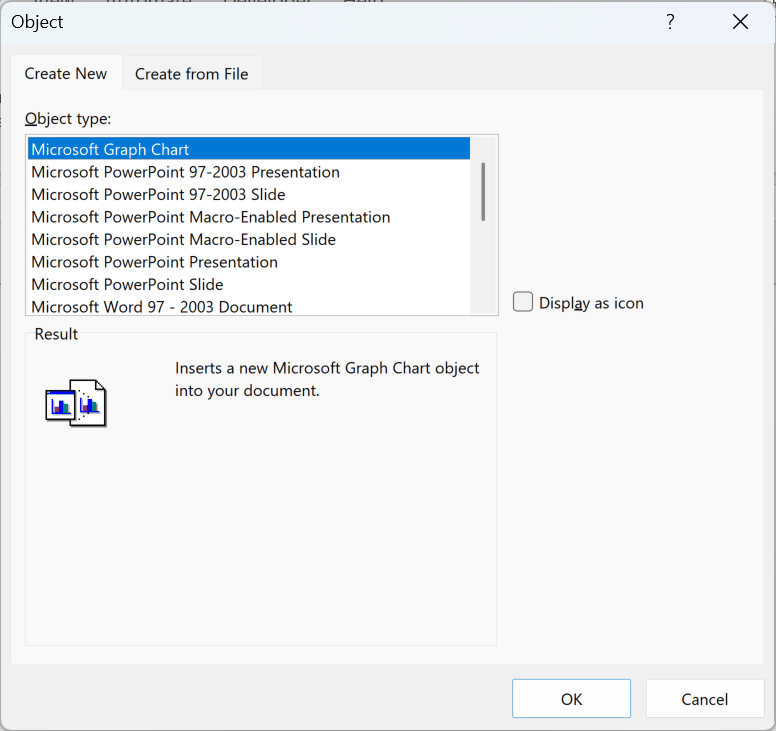
Click Cancel after checking the list. If the required type is missing, confirm with the software vendor that your installed edition supports OLE embedding.
Open the source file in its own application and resolve any error there. If embedding stopped after an application update, check the vendor’s update or repair guidance.
A listed object type can still fail to load. Its presence is a useful check, not proof that the application is working correctly.
For Acrobat users, Adobe documents temporary Protected Mode troubleshooting. It is not a confirmed diagnosis for every Excel PDF-insertion error.
Keep Protected Mode enabled normally. If Adobe support asks you to disable it for a test, re-enable it afterward and restart Acrobat.
You can also try the Package route below if it is available. It uses a different embedding mechanism.
Method #5: Inserting the File as a Package
If Package appears in your Object type list, you can try embedding the file through Windows Object Packager. This avoids the file’s usual OLE server.
Here are the steps to insert a file as a Package:
- Go to Insert > Text > Object. On the Create New tab, select Package, then click OK.
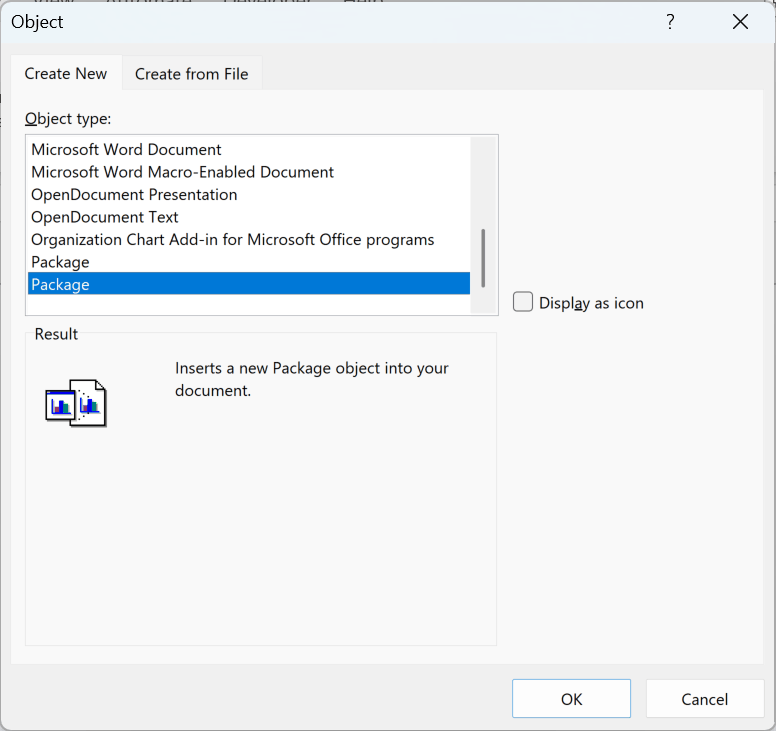
- In Create Package, click Browse and select your file, or enter its path in Filename. Click Next.
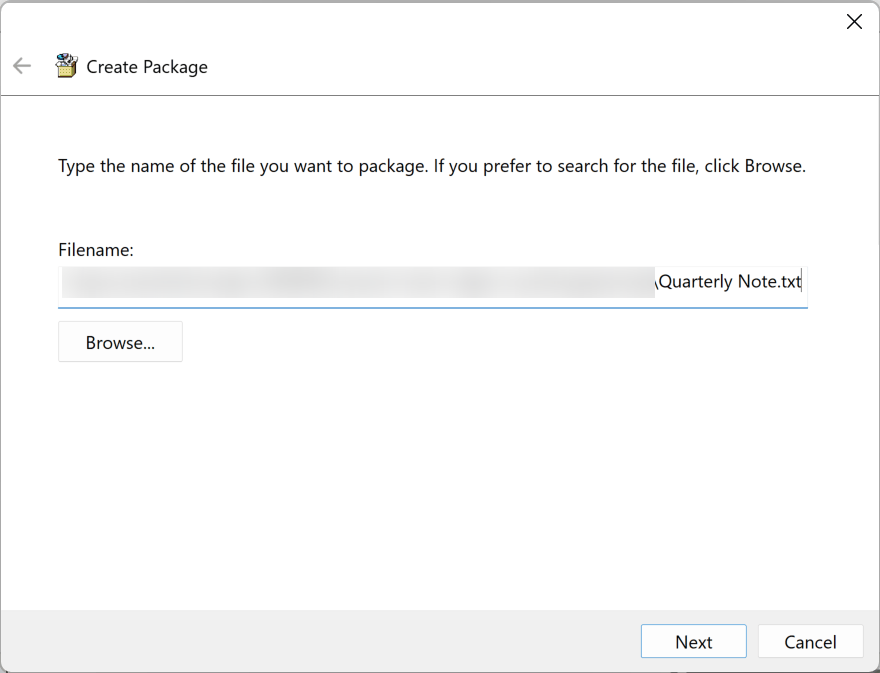
- Change the Label if needed, then click Finish to insert the package.
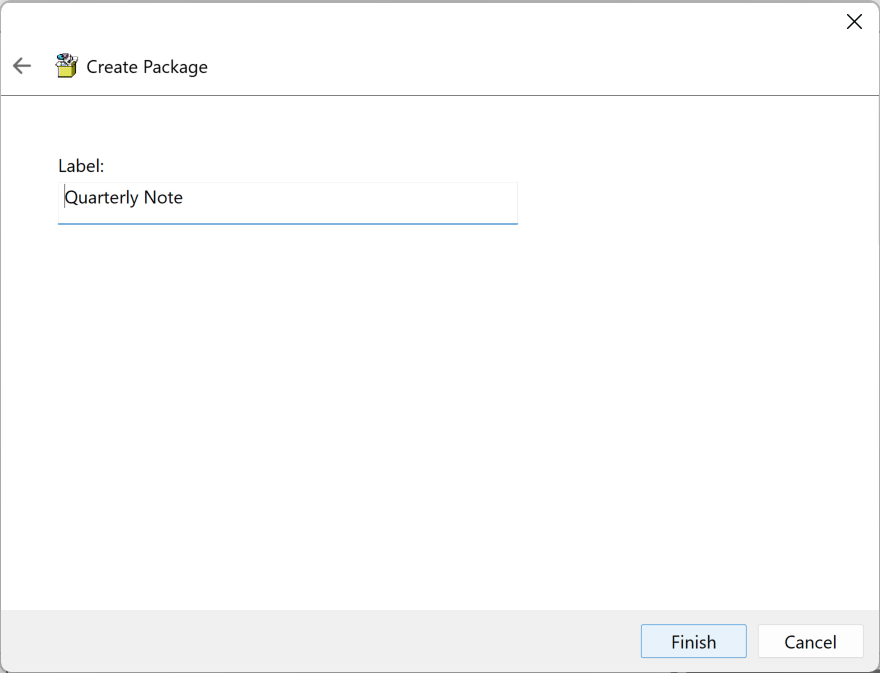
Save the workbook, reopen it, and test the embedded file. You still need an application that can open that file type.
If Package is missing or blocked by your organization’s policy, use a normal hyperlink to the file. Packaging is a workaround, not a repair of the source application.
Method #6: Clearing the Legacy Control Cache
This method addresses a documented Office 2010/2013 problem involving cached ActiveX control information after the MS14-082 security update.
For that issue, Microsoft recommends the corrective Office updates. Its cache-cleanup procedure can also remove outdated .exd files.
On current Microsoft 365, check ActiveX policy first. Deleting a cache file does not override a security block. For the older cache issue, follow these steps:
- Close Excel and every other Office program.
- Open %TEMP% in File Explorer and search that folder and its subfolders for *.exd. Also check %appdata%\Microsoft\Forms.
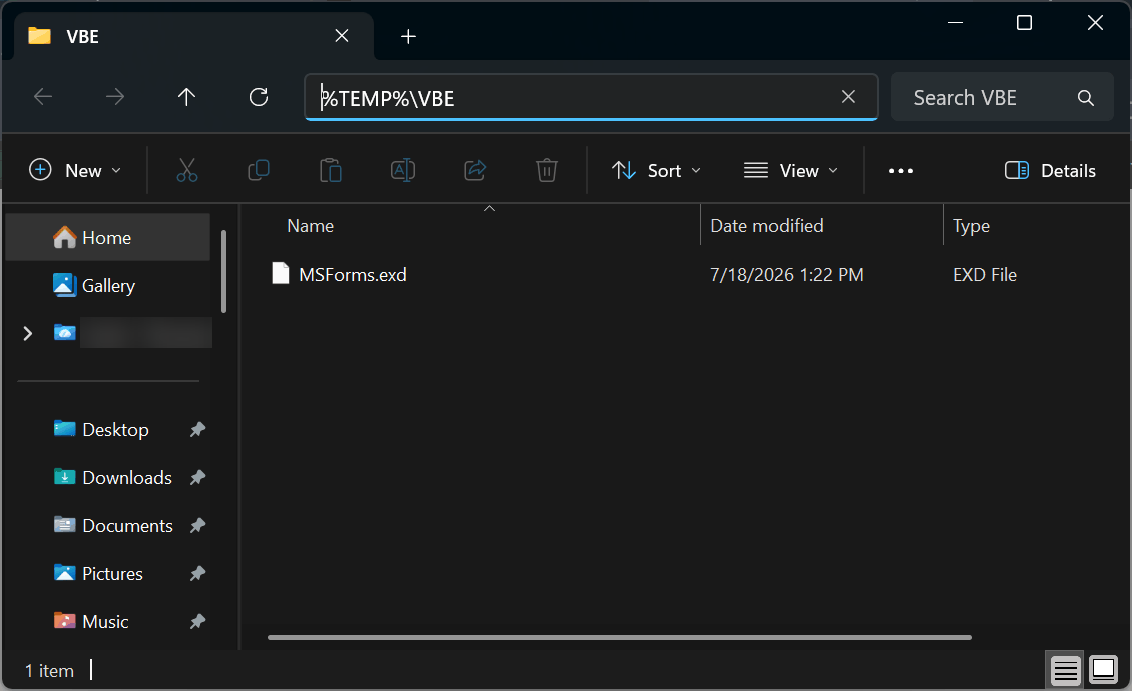
- Delete only the
.exdfiles, reopen Excel, and test the control again.
Office recreates these cache files when the controls are next used. If there are no matching files, skip this method; do not delete unrelated files.
Method #7: Testing Add-ins and Repairing Office
Use this method when the earlier checks do not explain the problem. Safe Mode bypasses add-ins and some startup settings; it does not diagnose the cause by itself.
Here are the steps to narrow down an add-in conflict:
- Save your work and close Excel. Press Windows + R, type excel.exe /safe, and press Enter.
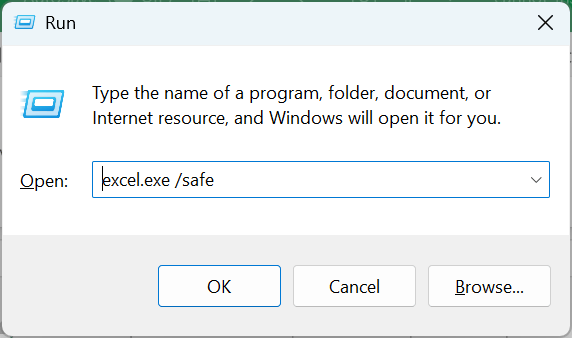
Try the same insertion in Safe Mode. If it works there, test add-ins in normal mode as described below.
- Restart Excel normally. Go to File > Options > Add-ins, choose COM Add-ins in Manage, and click Go.
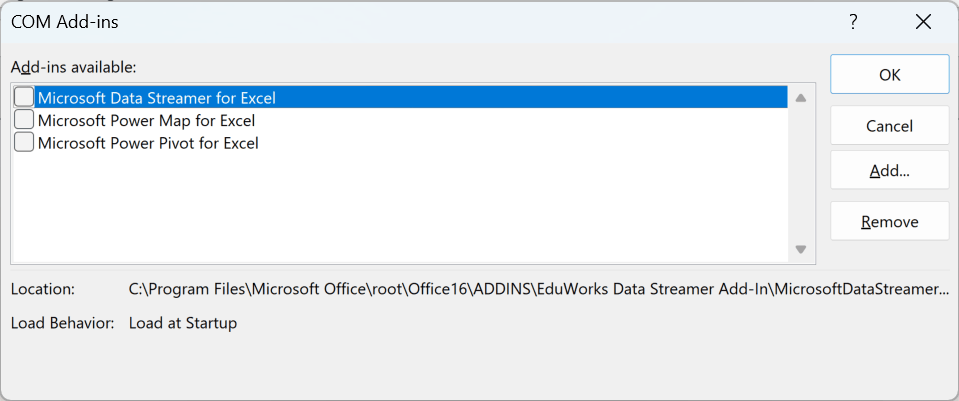
Note which add-ins are enabled, clear their checkboxes, and click OK. Restart Excel normally and test again.
If the error disappears, re-enable those add-ins one at a time. Restart Excel and test after each change to identify the add-in involved.
- If COM add-ins do not explain the difference, return to File > Options > Add-ins. Choose Excel Add-ins in Manage and click Go.
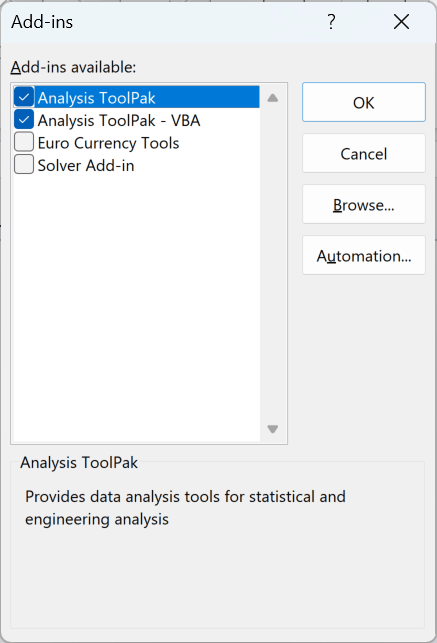
Repeat the test with the enabled Excel add-ins. Restore any add-ins that are not responsible.
Safe Mode also bypasses startup files and customizations. If the difference remains, follow Microsoft’s startup troubleshooting or ask your administrator to investigate.
If add-ins and the earlier checks do not resolve the error, try an Office repair. Save your work and close all Office applications first.
- In Windows 11, open Settings > Apps > Installed apps. Find Microsoft 365 and open its three-dot menu.
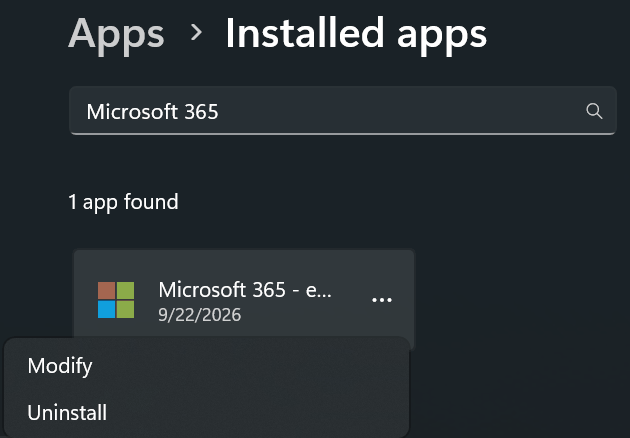
Click Modify. In the repair dialog, select Quick Repair, then click Repair to start.
If Quick Repair does not help, return to the same dialog and choose Online Repair. It requires an internet connection.
These choices apply to Click-to-Run installations. An MSI-based Office installation may show a single Repair option instead.
Repair can fix installation problems, but it will not make an unsupported or deliberately blocked control work.
Additional Notes About the “Cannot Insert Object” Error in Excel
- If only one source file fails, close it in its source application and test a local copy. Compare it with another file of the same type.
- If the workbook opened in Protected View and you trust its source and contents, click Enable Editing. Protected View normally makes the Insert commands unavailable before you can reach this error.
- Do not run Excel as administrator when testing drag and drop. A privilege mismatch can make dragging fail silently, but it is not a verified cause of this dialog.
- Try the same insertion in a new blank workbook. If it works there but fails in the original, investigate the original workbook; otherwise, check the application and control.
Frequently Asked Questions
Can I use ActiveX controls in Excel for Mac or Excel for the web?
No. Office ActiveX controls require Windows desktop applications. For a workbook shared across platforms, use features supported by each version.
Why is there no Date Picker control in my 64-bit Excel?
The old MSCOMCT2.OCX Date Picker is a 32-bit control, and Microsoft does not provide a 64-bit Office version. Reinstalling 64-bit Office will not add it.
Use a VBA UserForm calendar built without the old 32-bit control, or a worksheet-based date picker.
Why does AutoSave switch off after I embed a file in my workbook?
Inserting an OLE object disables AutoSave in Excel. For shared workbooks, Microsoft recommends links instead of embedded objects.
If you need live co-authoring, use a normal hyperlink to the file instead of inserting an OLE object.
Conclusion
In this article, I covered the checks for file-embedding errors, blocked ActiveX controls, and Office problems that can trigger “Cannot insert object.”
I hope you found this article helpful.
Other Excel articles you may also like:
