
The Dialog Box Launcher in Excel is the tiny diagonal arrow at the bottom-right corner of some ribbon groups.
Something like this:
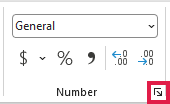
It opens the full set of related options that Excel cannot fit on the ribbon. Depending on the group, those options appear in a dialog box or task pane.
In this article, I will show you where each launcher appears, what it opens, how to use its KeyTips, and why one might be missing.
What Is the Dialog Box Launcher in Excel?
Microsoft calls this small corner icon the Dialog Box Launcher. You will find it only in ribbon groups that have more related options to show.
The arrow points diagonally down and to the right, which makes it easy to overlook beside the larger ribbon commands.
Hover over a launcher and Excel displays a tooltip naming what it opens. Clicking it reveals the dialog box or task pane connected to that group.
Where to Find Dialog Box Launchers in Excel
The current Microsoft 365 ribbon for Windows has launchers in the following groups. The keyboard sequences are KeyTips, so press each key in order.
| Tab | Group | What It Opens | Keyboard Shortcut |
|---|---|---|---|
| Home | Clipboard | Office Clipboard pane (launcher label: Office Clipboard) | Alt, H, F, O |
| Home | Font | Format Cells dialog, Font tab (launcher label: Format Cell Font) | Alt, H, F, N |
| Home | Alignment | Format Cells dialog, Alignment tab (launcher label: Format Cell Alignment) | Alt, H, F, A |
| Home | Number | Format Cells dialog, Number tab (launcher label: Format Cell Number) | Alt, H, F, M |
| Insert | Charts | Insert Chart dialog with every chart type | Alt, N, K |
| Page Layout | Page Setup | Page Setup dialog (launcher label: Page Setup) | Alt, P, S, P |
| Page Layout | Scale to Fit | Page Setup dialog (launcher label: Page Setup) | Alt, P, S, P |
| Page Layout | Sheet Options | Page Setup dialog, Sheet tab (launcher label: Sheet Options) | Alt, P, S, O |
| Data | Outline | Outline settings dialog (launcher label: Group and Outline Settings) | Alt, A, L |
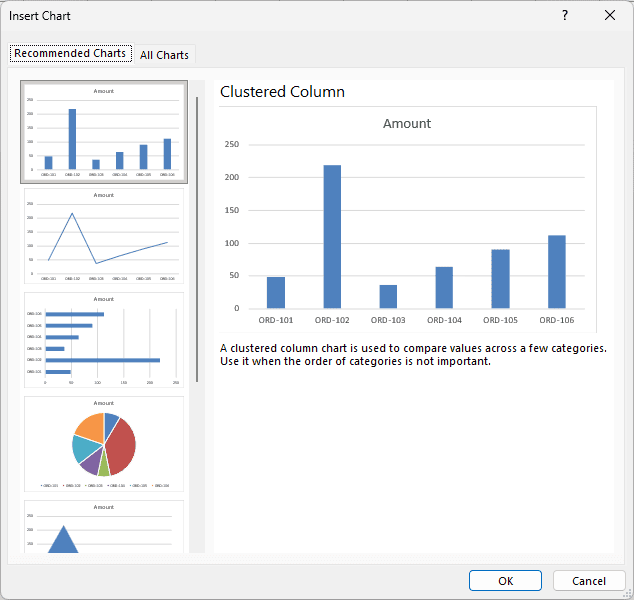
On the Insert tab, the Charts launcher opens the Insert Chart dialog with every available chart type.
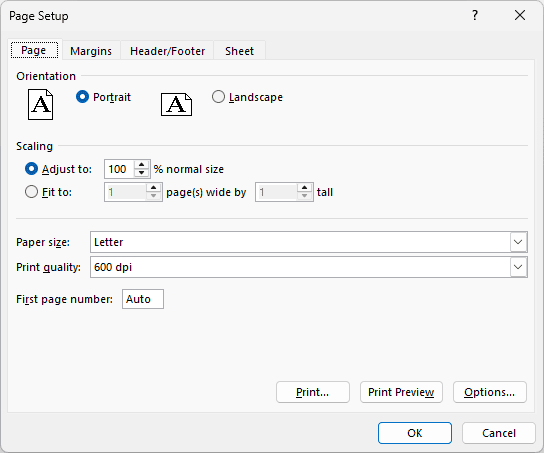
Page Setup and Scale to Fit have separate launchers, but both open the same Page Setup dialog.
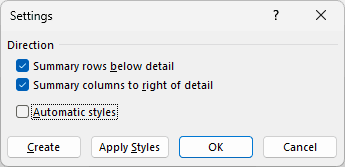
The launcher in the Outline group opens settings for how grouped rows and columns behave.
The Formulas, Review, View, Draw, Automate, and Help tabs have no Dialog Box Launchers in this Microsoft 365 build.
Note: This list reflects the current Microsoft 365 ribbon for Windows. Older Excel versions may show launchers in other groups, such as Styles.
How to Use a Dialog Box Launcher
You use a launcher when the ribbon does not show the setting you need. Here is a quick example using the Number group.
Suppose you want to change selected cells to a custom number format that is not available in the Number Format list.
Here are the steps to open the full number-formatting options:
- Select the cells you want to format.
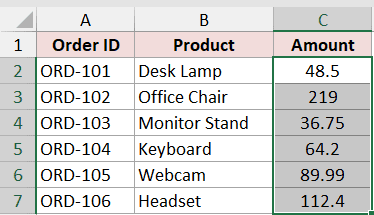
- Open the Home tab and locate the Number group.
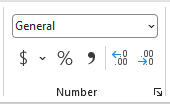
- Click the small launcher in the bottom-right corner of the Number group.

The Format Cells dialog opens on the Number tab. You can now choose any built-in category or create a custom format.
Open Dialog Boxes With the Keyboard
KeyTips let you activate a Dialog Box Launcher without the mouse. Press Alt once, and Excel places letter badges over the available ribbon commands.

Press the displayed letters one after another. For example, Alt, H, F, M opens the launcher in the Home tab’s Number group.

The table above gives the complete KeyTip sequence for every current launcher. You do not need to hold all the keys down together.
For Format Cells, Ctrl+1 is even faster. It opens the dialog directly and is the most useful shortcut connected to these launchers.
Why You Can’t See the Dialog Box Launcher
A missing launcher does not always mean something is wrong. Its visibility depends on the group, the Excel version, and the available ribbon space.
The Ribbon Group Has No Launcher
Only certain groups include one. If the group has no small arrow in its bottom-right corner, use its visible commands or menus instead.
The Excel Window Is Too Narrow
When the Excel window becomes narrow, groups such as Font, Alignment, and Number collapse into single drop-down buttons. Their separate launchers disappear from the ribbon.

Maximize Excel or drag the window wider. The expanded groups and their launchers will appear again.

You Are Using Excel for Mac
Excel for Mac has no Dialog Box Launchers. You can reach the same settings through the menus, such as Format > Cells.
Frequently Asked Questions
What Is the Difference Between a Dialog Box and a Task Pane?
A dialog box opens as a separate settings window. A task pane stays attached to the side of Excel, so you can keep working while it remains open.
The Clipboard launcher is the exception in this list because it opens the Office Clipboard task pane, not a dialog box.
Can I Add a Dialog Box Command to the Quick Access Toolbar?
Yes. Right-click a ribbon command, such as a button, and choose Add to Quick Access Toolbar when that option appears.
This gives you one-click access even when the original ribbon group is collapsed or on another tab.
Is the Dialog Box Launcher the Same in Word and PowerPoint?
Yes. It is a shared Microsoft Office ribbon element, although the groups that include it and the options it opens differ by application.
Conclusion
The Dialog Box Launcher is a small arrow that opens the more detailed options behind certain ribbon groups. The table above shows every launcher in the current Windows ribbon.
For everyday formatting, I recommend remembering Ctrl+1. It takes you straight to Format Cells without hunting for the Font, Alignment, or Number launcher.
Other Excel articles you may also like:
