
VBA doesn’t have a built-in Contains function. To check if a string contains some text, you look for that text inside the string and see whether VBA finds it.
The catch is upper and lower case. By default, VBA treats “Refund” and “refund” as different text, so a check can quietly miss matches you expected.
In this article, I’ll show you how to do this check with InStr, make it ignore case, use the Like operator, and build a Contains function for your cells.
Method #1: Using the InStr Function
InStr is the standard way to do this in VBA. It looks for one string inside another and returns the position where it finds it.
If the text isn’t there, InStr returns 0. So “contains” means InStr returned something greater than 0.
For example, this returns 9, because “refund” starts at the 9th character:
Sub InStrDemo()
    MsgBox InStr("Partial refund still not received", "refund")
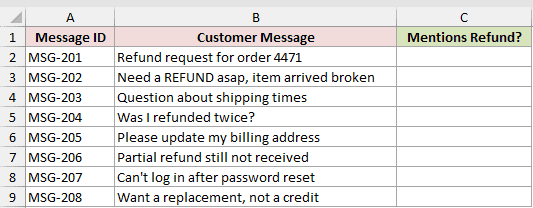
End SubBelow I have a dataset of customer messages with a Message ID and the message text.
I want to check which messages contain the word “refund” and show TRUE or FALSE in column C.
Here is the VBA code:
Sub CheckForRefund()
    Dim cell As Range
    For Each cell In Range("B2:B9")
        cell.Offset(0, 1).Value = InStr(cell.Value, "refund") > 0
    Next cell
End Sub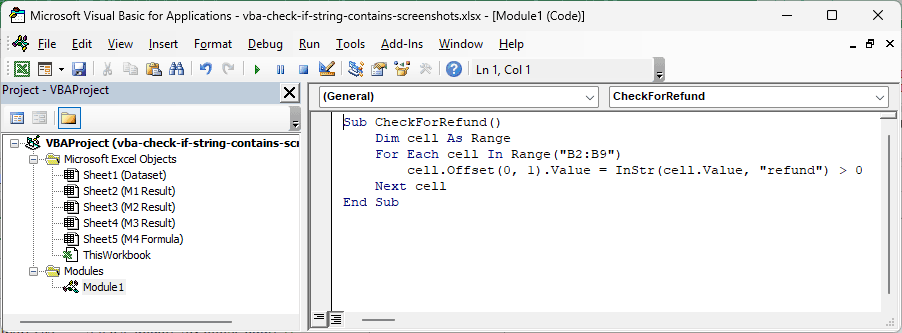
Here are the steps to use this macro:
- Press Alt + F11 to open the VB Editor.
- Click Insert > Module.
- Paste the code above into the module.
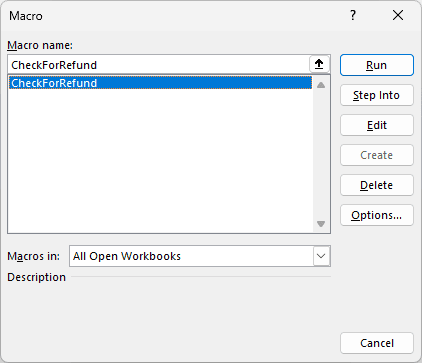
- Go back to the worksheet, press Alt + F8, select CheckForRefund, and click Run.
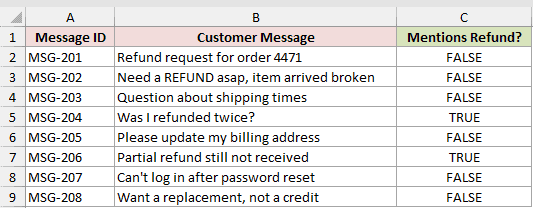
The macro fills column C with TRUE or FALSE for each message.
How does this code work?
The loop goes through every cell in B2:B9. For each one, InStr looks for “refund” in the message.
InStr(...) > 0 turns the position into TRUE or FALSE, and cell.Offset(0, 1) writes that answer one column to the right, in column C.
Now look at the results. MSG-201 (“Refund request…”) and MSG-202 (“Need a REFUND…”) both show FALSE, even though they clearly mention a refund.
That’s because InStr is case-sensitive by default. “Refund” and “REFUND” are not the same as “refund”, so only MSG-204 and MSG-206 come back TRUE.
Note: If you want to keep the macro in your file, save it as an Excel Macro-Enabled Workbook (.xlsm). A regular .xlsx file drops all the code when you save it.
Method #2: Using InStr With vbTextCompare (Case-Insensitive)
In most cases, you want the check to ignore case. InStr has an optional compare argument that does exactly that.
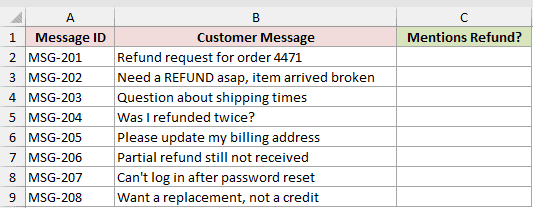
Below I have the same customer messages, and I want column C to show TRUE for every message that mentions a refund, whatever the case.
Here is the VBA code:
Sub CheckForRefundAnyCase()
    Dim cell As Range
    For Each cell In Range("B2:B9")
        cell.Offset(0, 1).Value = InStr(1, cell.Value, "refund", vbTextCompare) > 0
    Next cell
End Sub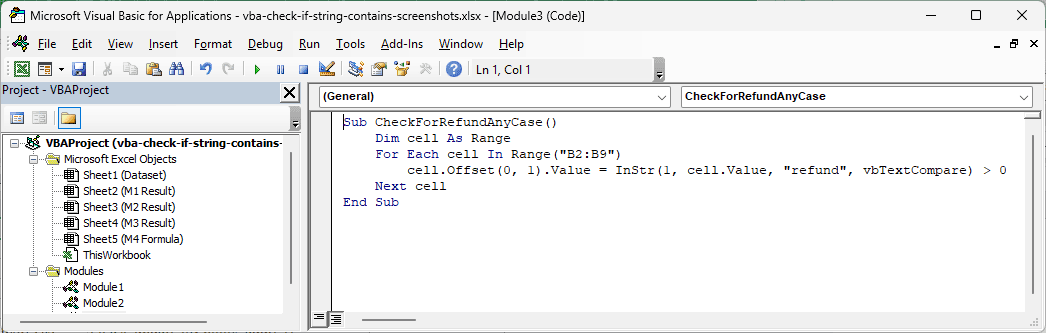
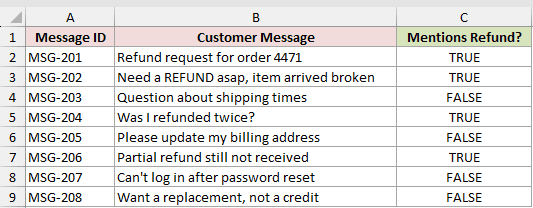
Paste this into a module and run it the same way as in Method #1. This time, MSG-201 and MSG-202 also show TRUE.
How does this code work?
The only change is inside InStr. The first argument, 1, tells InStr to start looking from the first character.
The last argument, vbTextCompare, tells it to compare text without caring about case. So “Refund”, “REFUND”, and “refund” all count as a match.
Note: When you use the compare argument, the start argument becomes required. If you leave it out, as in InStr(cell.Value, “refund”, vbTextCompare), VBA stops with a Type mismatch error. So always put the 1 in front.
Method #3: Using the Like Operator
The Like operator compares a string against a pattern. With the * wildcard on both sides, it works as a “contains” check.
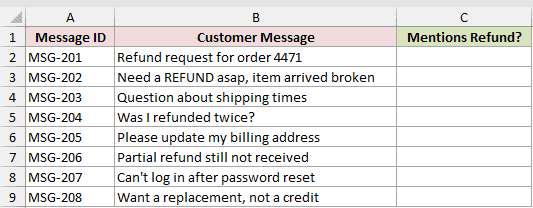
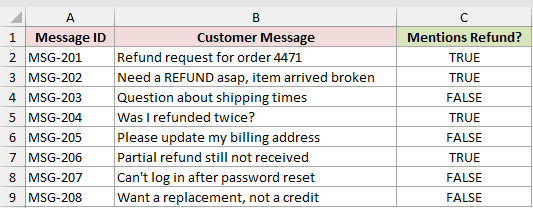
Below I have the same customer messages, and I want to flag the ones that mention a refund.
Here is the VBA code:
Sub CheckForRefundLike()
    Dim cell As Range
    For Each cell In Range("B2:B9")
        cell.Offset(0, 1).Value = LCase(cell.Value) Like "*refund*"
    Next cell
End Sub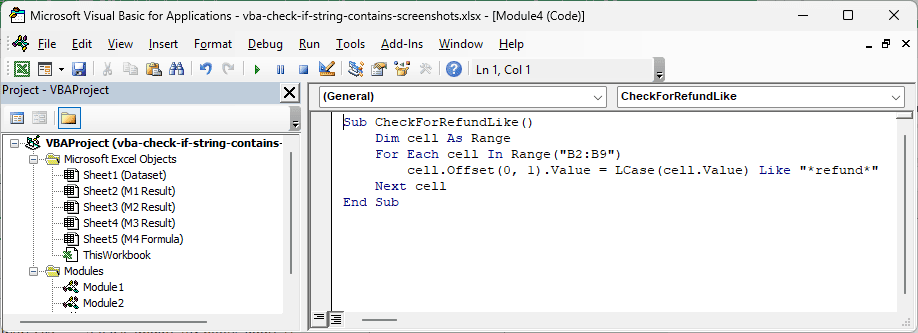
Run it the same way as the earlier macros. You get the same TRUE and FALSE results as in Method #2.
How does this code work?
The * wildcard means zero or more characters. The pattern *refund* matches text with “refund” anywhere in it.
Like is also case-sensitive by default. That’s why the code wraps the message in LCase, which turns it into lowercase before the comparison.
Like can also match patterns, not just fixed text. For example, # stands for any single digit, so this checks if a message contains four digits in a row:
cell.Offset(0, 1).Value = cell.Value Like "*####*"In our dataset, only MSG-201 (“Refund request for order 4471”) would return TRUE with this pattern.
Note: In a Like pattern, *, ?, #, and [ have special meanings. If the text you’re looking for has one of these, put it in square brackets. For example, “*[*]*” checks if a string contains an asterisk.
Method #4: Using a Custom Contains Function
If you want the check right in your worksheet, you can wrap InStr in your own function. Then you use it in a cell like any Excel formula.
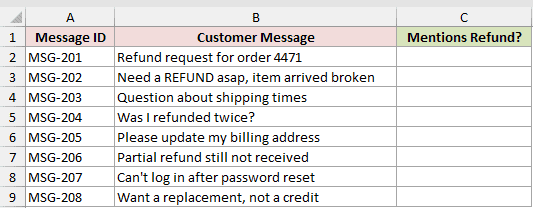
Below I have the same customer messages, and I want a formula in column C that shows TRUE when the message contains “refund”.
Here is the VBA code for the function:
Function Contains(ByVal Text As String, ByVal FindText As String, Optional ByVal MatchCase As Boolean = False) As Boolean
    If MatchCase Then
        Contains = InStr(1, Text, FindText, vbBinaryCompare) > 0
    Else
        Contains = InStr(1, Text, FindText, vbTextCompare) > 0
    End If
End Function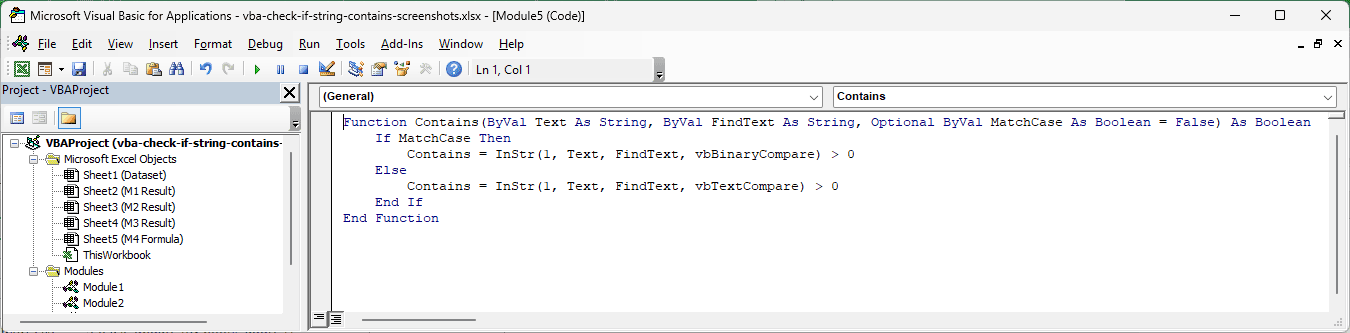
Paste this into a regular module (Insert > Module). You don’t run it. Once it’s in the module, you can use Contains in any cell of that workbook.
Now enter this formula in cell C2 and copy it down to C9:
=Contains(B2,"refund")
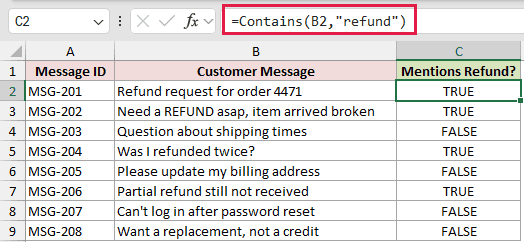
It returns TRUE for MSG-201, MSG-202, MSG-204, and MSG-206, and FALSE for the rest. By default, the function ignores case.
A function like this takes one cell at a time, so you copy it down the column instead of pointing it at the whole range.
If you want a case-sensitive check, set the third argument to TRUE:
=Contains(B2,"refund",TRUE)
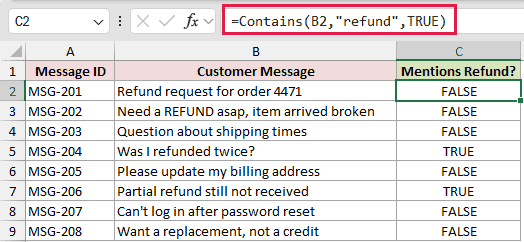
Now only MSG-204 and MSG-206 return TRUE, the same as the macro in Method #1.
How does this code work?
The function takes the text to check, the text to look for, and an optional MatchCase flag that is FALSE unless you say otherwise.
When MatchCase is TRUE, it uses vbBinaryCompare, which is case-sensitive. Otherwise it uses vbTextCompare. Either way, it returns TRUE when InStr finds the text.
Note: The function only exists in the workbook that holds the code. If you send the file to someone, save it as .xlsm, or the formulas will show #NAME? when they open it.
Additional Notes About Checking If a String Contains Text in VBA
- All of these checks match partial words. “refund” also matches “refunded”, which is why MSG-204 (“Was I refunded twice?”) returns TRUE. If you need the whole word only, look for it with spaces around it, like ” refund “, and keep in mind that misses the word at the very start or end, or next to punctuation.
- Searching for an empty string gives misleading results. InStr returns 1 for a nonempty message and 0 for an empty one. Check that the search text isn’t empty first.
- Option Compare Text changes the default. If a module has Option Compare Text at the top, InStr and Like in that module ignore case even without vbTextCompare or LCase.
Frequently Asked Questions
How do I check if a string does NOT contain some text in VBA?
Flip the check. Use InStr(1, s, "refund", vbTextCompare) = 0, or Not (LCase(s) Like "*refund*"). Both return TRUE when the text isn’t there, regardless of case.
How do I check if a string contains one of several words?
Combine checks with Or. For example, InStr(1, s, "refund", vbTextCompare) > 0 Or InStr(1, s, "credit", vbTextCompare) > 0 returns TRUE if either word is in the string.
Can I find where the text appears, not just whether it’s there?
Yes. InStr already gives you that. It returns the position of the first match, so InStr(“Partial refund still not received”, “refund”) returns 9.
Can I check if a cell contains text without VBA?
Yes. You can check if a cell contains text in Excel with a formula like =ISNUMBER(SEARCH("refund",B2)), right in the sheet.
The SEARCH function ignores case and returns the position, and ISNUMBER turns that into TRUE or FALSE. Swap SEARCH for FIND if you need a case-sensitive check.
Does InStr work on Mac?
Yes. InStr, vbTextCompare, and the Like operator all work the same in Excel VBA on Windows and Mac.
Conclusion
I use InStr to check whether a VBA string contains text, and vbTextCompare when case should not matter.
I hope you found this article helpful.
Other Excel articles you may also like:
- VBA to Find Value in Range in Excel
- VBA to Hide Rows Based On Cell Values
- VBA to Delete Rows Based On Cell Value
- How to Select Rows with Specific Text in Excel
- Count How Many Times a Word Appears in Excel (Easy Formulas)
- How to Compare Two Cells in Excel? (Exact/Partial Match)
- SEARCH vs FIND Function in Excel
- Text.Contains Function (Power Query M)
