
Passing values to a Sub in Excel VBA lets you reuse one macro with different ranges or numbers, instead of copying code with hard-coded values.
You hand the Sub a value when you call it. For example, you can give the same discount macro a different percentage each time.
The name in the Sub declaration is a parameter. The value you pass when calling it is an argument.
I’ll show you four ways to pass those values, including named arguments and Application.Run, then how to use defaults and get a count back.
Creating a Sub That Accepts Parameters
First, I’ll set up one discount Sub you can call with different price ranges and percentages.
You declare parameters inside the parentheses after the Sub’s name, separating them with commas.
Give each one a name and, if you like, a data type such as As Range.
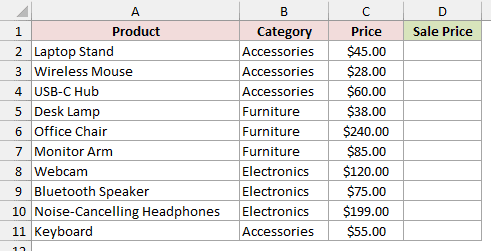
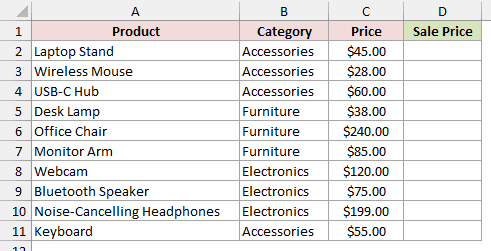
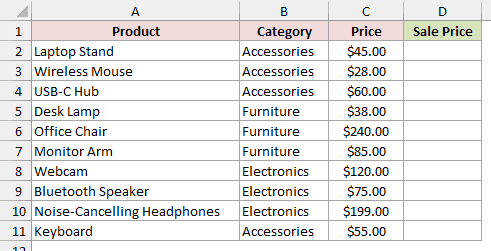
On the Price List sheet, I have Product, Category, Price, and Sale Price in A1:D11. You’ll fill the empty Sale Price column with discounted prices.
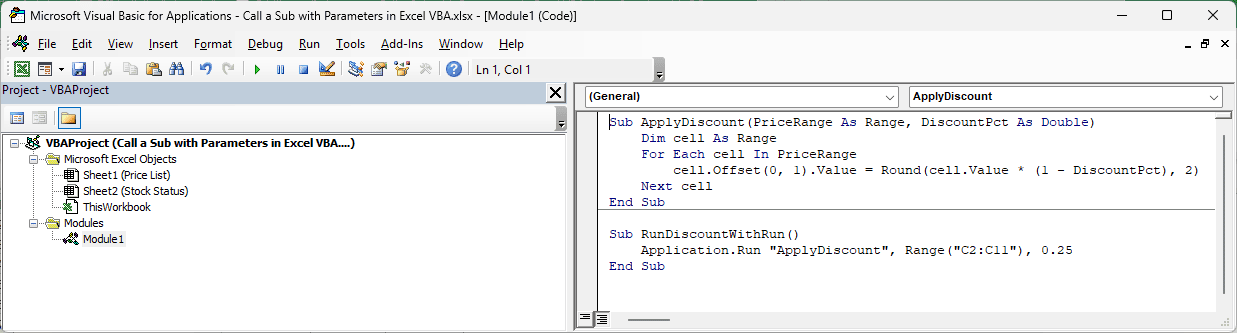
Here is the Sub you’ll use:
Sub ApplyDiscount(PriceRange As Range, DiscountPct As Double)
    Dim cell As Range
    For Each cell In PriceRange
        cell.Offset(0, 1).Value = Round(cell.Value * (1 - DiscountPct), 2)
    Next cell
End SubYou pass your price cells to PriceRange and your discount to DiscountPct. Use a decimal for the discount, so 0.1 means 10%.
For each price, the code writes the discounted amount into the cell to its right, rounded to two decimal places. Here, that’s column D.
Keep Price List active for the discount and count examples. You’ll switch to Stock Status for the ParamArray example because unqualified Range(...) uses your active sheet.
You can’t run ApplyDiscount on its own because it needs arguments. Another Sub must call it and supply those values.
It won’t appear in the Macro dialog (Alt + F8). Pressing F5 with your cursor inside it opens the Macros dialog instead of running it.
Note: Your practice workbook is an .xlsx with data only. Press Alt + F11, choose Insert > Module, and paste the code into that standard module. Save as .xlsm to keep the macros.
Method #1: Calling the Sub by Its Name
I recommend this way for most calls. It’s the shortest form and the one you’ll see in most VBA code.
Type the Sub’s name, a space, and the arguments separated by commas. You don’t put parentheses around the arguments.
On Price List, your original prices are in C2:C11 and Sale Price is empty in column D. You’ll apply a 10% discount.
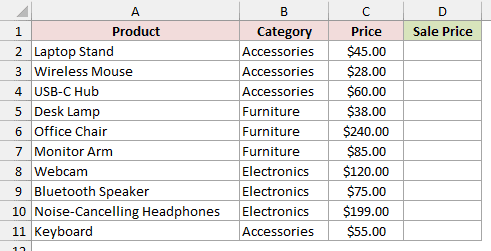
Here is the caller Sub:
Sub RunDiscount()
    ApplyDiscount Range("C2:C11"), 0.1
End SubHere are the steps to run it:
- Paste
RunDiscountinto the same module, belowApplyDiscount. - Click anywhere inside
RunDiscount. - Press F5, or click the Run button.
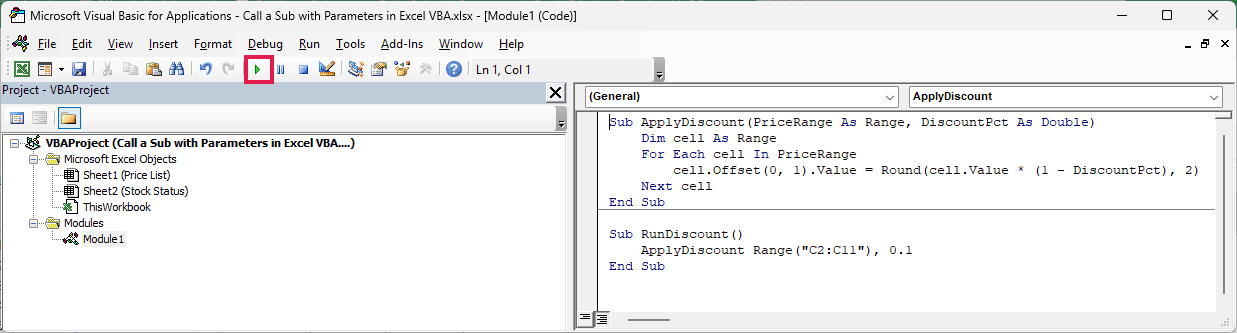
Column D now shows each price with 10% off. Your Laptop Stand drops from $45.00 to $40.50, and the Office Chair drops from $240.00 to $216.00.
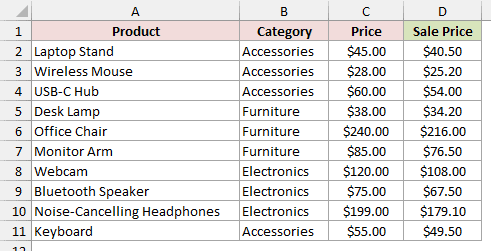
Your argument order matters here. The first value, Range("C2:C11"), goes to PriceRange. The second value, 0.1, goes to DiscountPct.
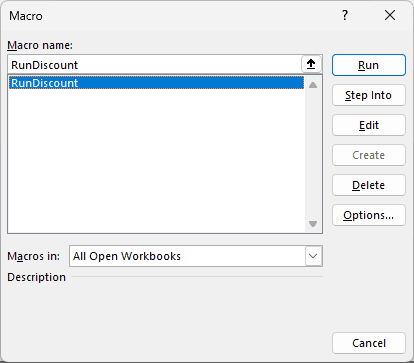
Now that you’ve added RunDiscount, pressing Alt + F8 shows it in the Macro dialog.
ApplyDiscount still doesn’t appear because it needs arguments.
Method #2: Using the Call Keyword
You can also put Call before the Sub’s name. With this form, you must enclose the arguments in parentheses.
So use both Call and parentheses, or neither.
On Price List, you’ll use the prices in C2:C11 to write sale prices into column D, this time with 15% off.
Each run overwrites whatever is already in column D.
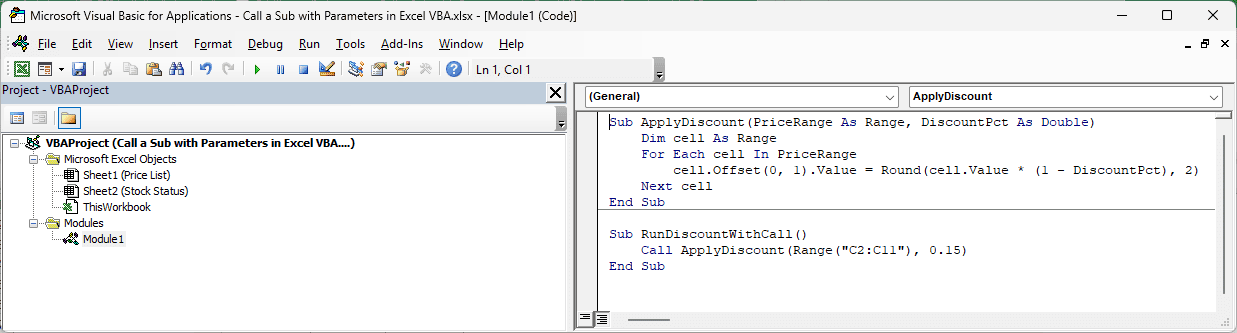
Add this caller below ApplyDiscount:
Sub RunDiscountWithCall()
    Call ApplyDiscount(Range("C2:C11"), 0.15)
End SubTo run it, click inside RunDiscountWithCall and press F5, just as you did with the first caller.
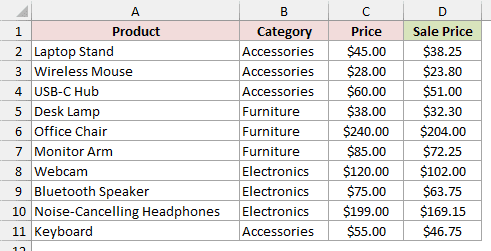
You now get 15% off in column D. The Laptop Stand’s sale price is $38.25, and the Office Chair’s is $204.00.
You might prefer Call because it makes a call to another procedure easy to spot. It works the same way as Method #1.
You might keep the parentheses but remove Call by mistake. VBA treats this line as invalid and turns it red.
With Auto Syntax Check on (the default), VBA also pops up “Compile error: Expected: =” when you leave the line.
Sub RunDiscountWrong()
    ApplyDiscount(Range("C2:C11"), 0.15)
End Sub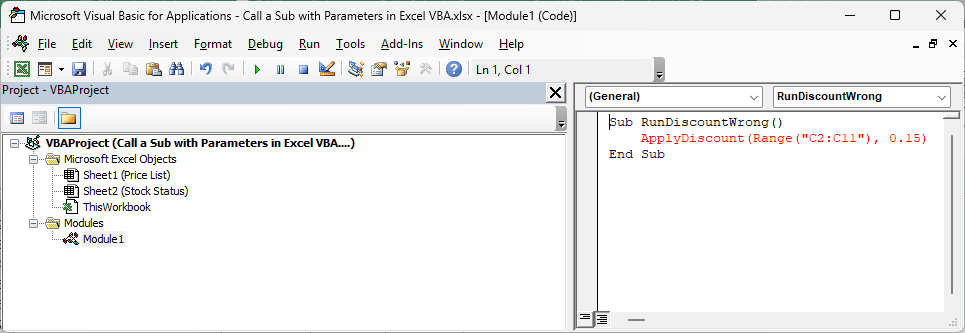
To fix it, remove the parentheses around the argument list or add Call back. Correct this example before running your other macros.
Method #3: Using Named Arguments
Instead of relying on argument order, you can label each value with name:=value. This makes calls with several parameters easier to read.
You can then put the arguments in any order because each name tells VBA where its value belongs.
On Price List, you’ll discount C2:C11 by 20% and write the results into the Sale Price column.
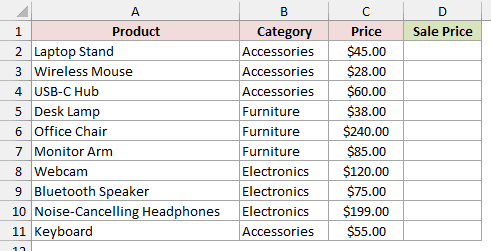
Here, I’ll put the discount before the range:
Sub RunDiscountNamedArgs()
    ApplyDiscount DiscountPct:=0.2, PriceRange:=Range("C2:C11")
End SubPaste this below ApplyDiscount, click inside RunDiscountNamedArgs, and press F5.
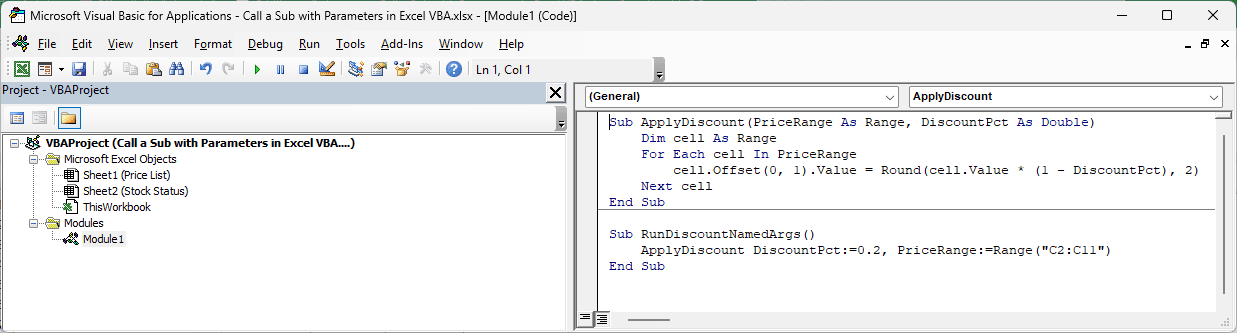
You still get 20% off, even though DiscountPct came first. The Laptop Stand becomes $36.00, and the Office Chair becomes $192.00.
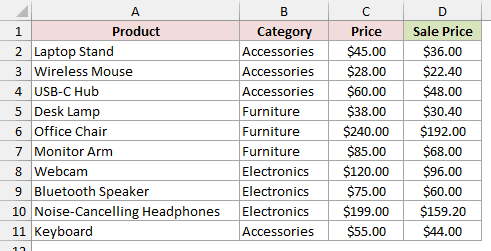
Use the exact parameter name from the Sub declaration before :=. For this example, your names are DiscountPct and PriceRange.
Method #4: Using Application.Run
You can also call the macro using its name as text. Application.Run takes that name first, followed by the arguments you want to pass.
I use this form when the macro name comes from a variable or cell, or when the macro is in another open workbook.
On Price List, you’ll apply 25% off to the prices in C2:C11 and write the results into the Sale Price column.
Here is the caller:
Sub RunDiscountWithRun()
    Application.Run "ApplyDiscount", Range("C2:C11"), 0.25
End SubKeep ApplyDiscount in the module, add this caller below it, then click inside RunDiscountWithRun and press F5.
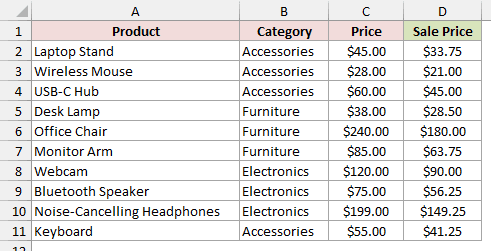
Your sale prices now include 25% off. The Laptop Stand becomes $33.75, and the Office Chair becomes $180.00.
With Application.Run, you must pass arguments by position. You can’t use named arguments, and you can pass at most 30 arguments after the macro name.
Don’t use this form to get changes back through a ByRef variable. Your caller’s variable keeps its original value, unlike a direct ByRef call.
If you omit a required argument, you’ll get run-time error 449, “Argument not optional.”
To call the Sub in another open workbook, include its workbook name in the macro string, like "'Pricing Tools.xlsm'!ApplyDiscount".
Making a Parameter Optional
When you usually pass the same discount, you can give that parameter a default value and leave it out of the call.
Add Optional before the parameter name and = default after its type. Every parameter after an Optional one must also be Optional.
Keep Price List active. I’ll use a 5% default for the prices in C2:C11:
Sub ApplyStoreDiscount(PriceRange As Range, Optional DiscountPct As Double = 0.05)
    Dim cell As Range
    For Each cell In PriceRange
        cell.Offset(0, 1).Value = Round(cell.Value * (1 - DiscountPct), 2)
    Next cell
End Sub

Sub RunStoreDiscount()
    ApplyStoreDiscount Range("C2:C11")
End SubPaste both Subs into your module, click inside RunStoreDiscount, and press F5.
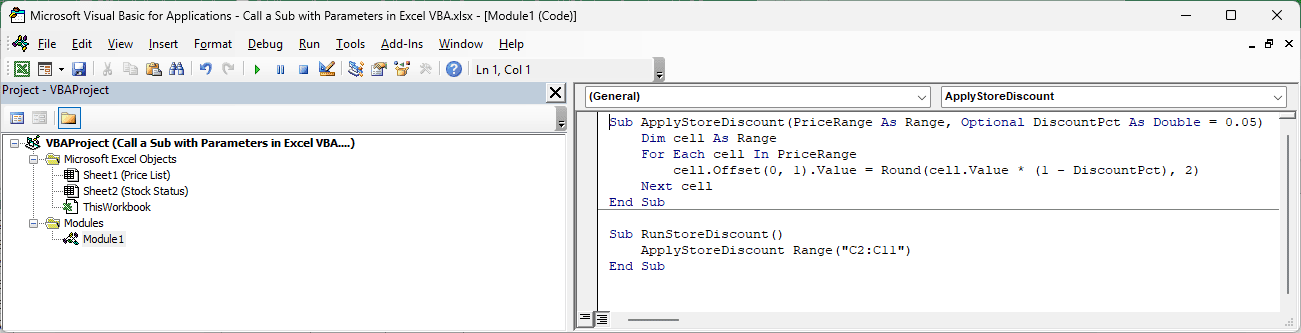
You pass only the range, so the default 5% discount applies. The Laptop Stand becomes $42.75, and the Office Chair becomes $228.00.
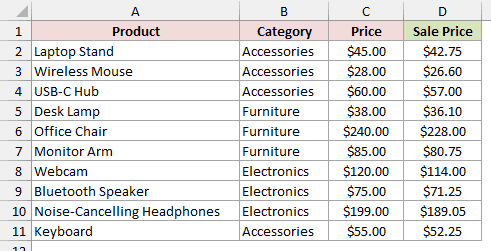
You can still supply another discount. For 30% off, use ApplyStoreDiscount Range("C2:C11"), 0.3.
VBA’s IsMissing function checks whether you passed an Optional argument.
It only works with Variant parameters that have no default, so for a typed parameter like DiscountPct, use a default value instead.
Getting a Value Back With ByRef
You can’t return a value from a Sub the way you can from a Function, but you can let it change a variable you pass in.
VBA passes arguments ByRef, or by reference, by default. The Sub works on your actual variable. With ByVal, it gets a copy instead.
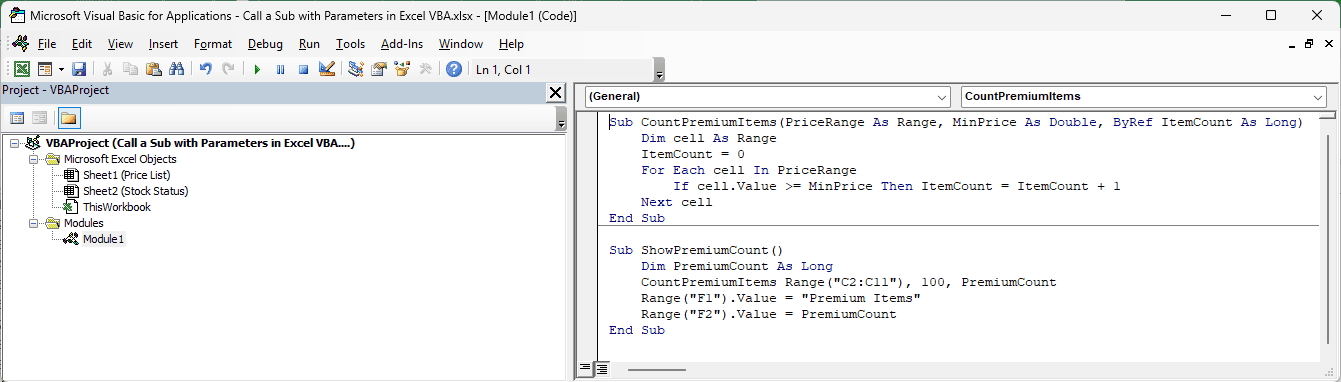
I’ll count the prices of $100 or more in C2:C11. Keep Price List active and add these two Subs:
Sub CountPremiumItems(PriceRange As Range, MinPrice As Double, ByRef ItemCount As Long)
    Dim cell As Range
    ItemCount = 0
    For Each cell In PriceRange
        If cell.Value >= MinPrice Then ItemCount = ItemCount + 1
    Next cell
End Sub

Sub ShowPremiumCount()
    Dim PremiumCount As Long
    CountPremiumItems Range("C2:C11"), 100, PremiumCount
    Range("F1").Value = "Premium Items"
    Range("F2").Value = PremiumCount
End SubYou start with PremiumCount, a Long variable holding 0. ShowPremiumCount passes it to CountPremiumItems, along with your price range and the $100 threshold.
The counting Sub stores the count in ItemCount. Because you passed the variable ByRef, PremiumCount now holds that count too.
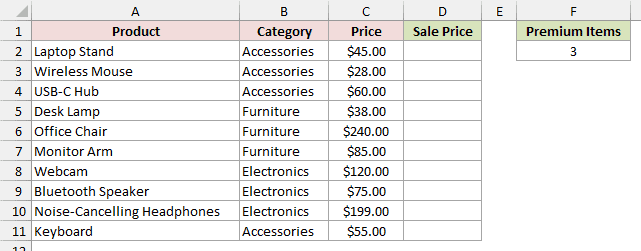
Your caller then writes “Premium Items” in F1 and the count in F2. Click inside ShowPremiumCount and press F5.
You’ll see 3 in F2: the Office Chair ($240), Webcam ($120), and Noise-Cancelling Headphones ($199) meet the threshold.
If you change ByRef to ByVal, the Sub changes only its copy. PremiumCount stays 0, so your caller writes 0 into F2.
Your ByRef variable must match the declared type, a Long here, or VBA stops with a “ByRef argument type mismatch” compile error.
Passing Any Number of Values With ParamArray
When you don’t know how many values you’ll pass, you can collect the remaining arguments into an array of Variants using ParamArray.
Put it last in the parameter list. You can’t combine it with Optional, ByVal, or ByRef.
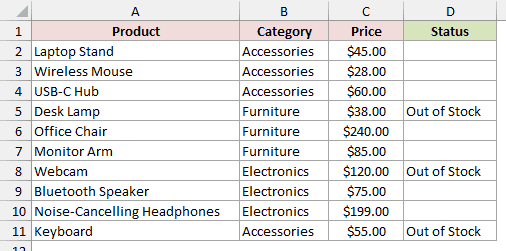
Switch to Stock Status. You have Product, Category, Price, and an empty Status column in A1:D11. I’ll mark three products as out of stock.
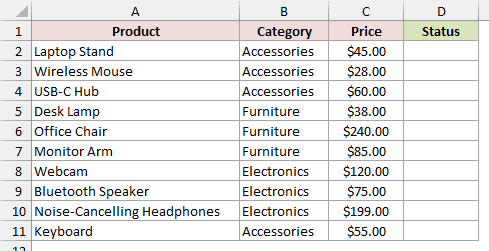
Add these Subs to your module:
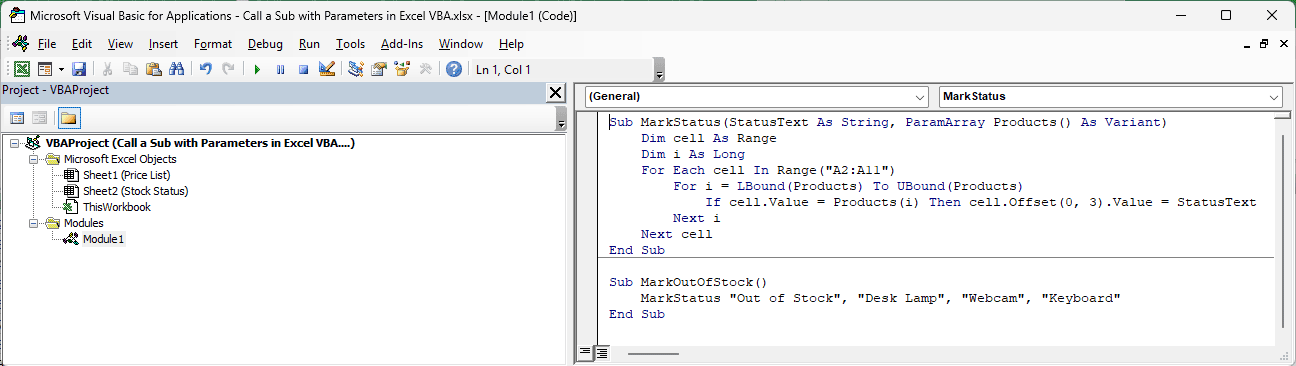
Sub MarkStatus(StatusText As String, ParamArray Products() As Variant)
    Dim cell As Range
    Dim i As Long
    For Each cell In Range("A2:A11")
        For i = LBound(Products) To UBound(Products)
            If cell.Value = Products(i) Then cell.Offset(0, 3).Value = StatusText
        Next i
    Next cell
End Sub

Sub MarkOutOfStock()
    MarkStatus "Out of Stock", "Desk Lamp", "Webcam", "Keyboard"
End SubYour first argument supplies StatusText. Every argument after it goes into the Products array, so you can pass one product or ten without changing MarkStatus.
The loop checks each product name in A2:A11 against your list. For each match, it writes the status three columns to the right, in column D.
Click inside MarkOutOfStock and press F5 to run the caller.
Desk Lamp, Webcam, and Keyboard now show “Out of Stock” in column D. Remember to run this caller with Stock Status as your active sheet.
Calling a Sub From Another Module
You don’t have to keep the caller and the Sub it calls in the same module.
A Sub is Public by default. If you put ApplyDiscount in Module2, you can call it from Module1 by its name.
If two modules contain Subs with the same name, add the module name so VBA knows which one you mean:
Sub RunDiscountFromModule2()
    Module2.ApplyDiscount Range("C2:C11"), 0.1
End SubHere, you call ApplyDiscount in Module2 and pass the range and discount as usual. Keep Price List active for this example.
If you declare the Sub Private, other modules can’t call it directly, and it won’t show in the Macro dialog.
You can still reach it through Application.Run.
Additional Notes About Calling a Sub with Parameters in VBA
Keep these details in mind when you adapt the calls to your own macros:
- Watch parentheses around a single argument. With a Sub like
Sub HighlightCell(Target As Range), callingHighlightCell (Range("A1"))evaluates the range to its value first. You’ll get run-time error 424, “Object required.” Drop the parentheses and useHighlightCell Range("A1")instead. - Match the data types. Pass a Range where the Sub expects a Range and a number where it expects a Double, so VBA can use your values correctly.
- Specify the sheet when needed. Unqualified
Range(...)uses your active sheet. UseWorksheets("Price List").Range("C2:C11")when you might run the macro from another sheet. - Supply every required argument. If you leave one out of a direct call, VBA stops with the compile error “Argument not optional.”
Frequently Asked Questions
Here are a few questions you might have when you use these Subs in your own workbook.
Can I Run a Sub With Parameters From a Button or Shape?
Yes, by assigning a no-argument wrapper Sub to the button or shape. For this example, assign RunDiscount, which supplies the range and discount to ApplyDiscount.
Right-click your button or shape, choose Assign Macro, and select RunDiscount. Clicking it runs the wrapper, which calls the discount Sub with your values.
What Is the Difference Between a Sub and a Function When Passing Parameters?
You can pass values to either, but a Function returns a value you can use in a formula or expression. You can’t use a Sub in an expression.
For a reusable calculation, I’d use a Function. For actions such as writing sale prices into cells, use a Sub, with ByRef when you need a value back.
How Many Parameters Can a Sub Have?
Your Sub can take up to 60 parameters. You’ll rarely get close to that limit in everyday macros.
If you call through Application.Run, you can pass at most 30 arguments after the macro name.
Conclusion
I’d use Method #1 for most calls: the Sub’s name followed by its arguments is quick to write and easy to read.
For longer parameter lists, I’d use named arguments so you can see what each value means.
Use Application.Run when your macro name is text or you need to call a macro in another open workbook.
Other Excel articles you may also like:
