
A parameter in Excel Power Query stores one value, such as a region, rate, or file path, in one place for your queries to use.
You change that value once, and every query step that uses it follows. You don’t have to hunt through steps with values typed directly into them.
I’ll show you a region filter, a commission rate in a Custom Column, a file path parameter, and how to read the value from a worksheet cell.
How to Create a Parameter in Power Query
Your parameter needs a query to live in, so start by bringing your data into Power Query.
Below I have a dataset of ten sales orders in an Excel Table named Sales, in A1:E11 on the Sales Data sheet.
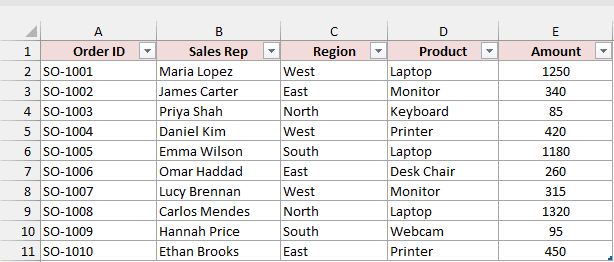
You have an Order ID, Sales Rep, Region, Product, and Amount for each order. The regions are East, West, North, and South.
The parameter itself is a small query that returns a single value, which your Sales query can use by name.
You create it through Manage Parameters in the Power Query Editor.
Here are the steps to create a region parameter:
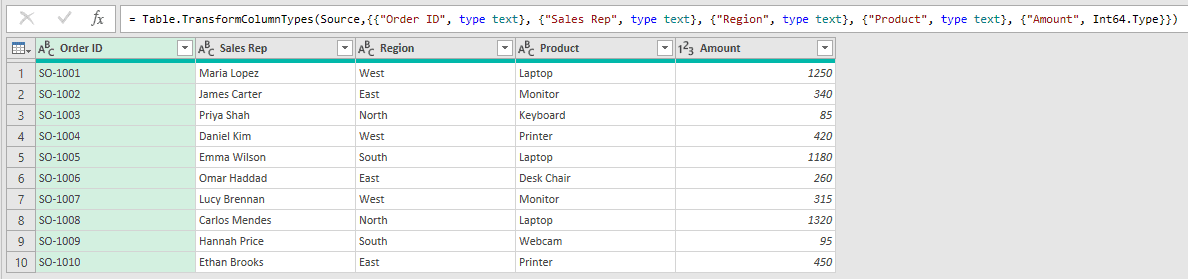
- Select any cell in the Sales table, then go to Data > From Table/Range. The Power Query Editor opens with a query named Sales.
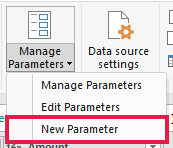
- On the Home tab, click the arrow under Manage Parameters, then click New Parameter.
- In the Manage Parameters dialog box, fill in the fields below.
- Name: SelectedRegion
- Required: Leave it checked.
- Type: Text
- Suggested Values: List of values. Type East, North, South, and West in the grid, one per row.
- Default Value: West
- Current Value: West
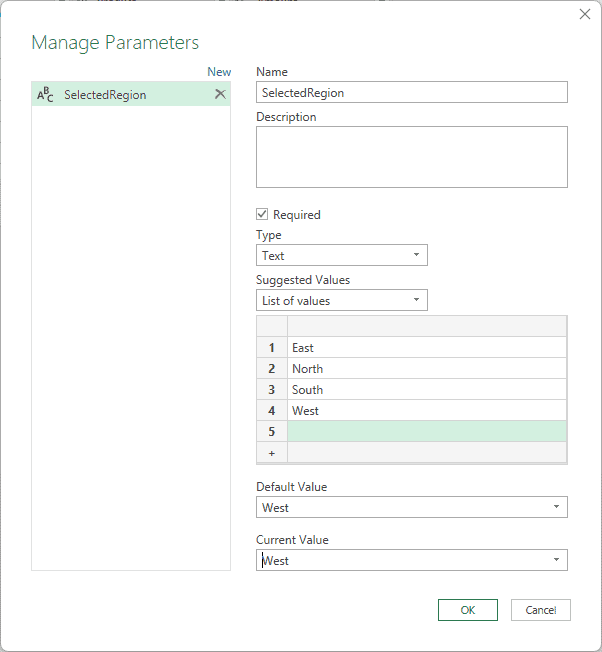
Here’s what the other settings in this dialog do:
You can also add a Description and choose whether the parameter is Required.
Choose a Type that matches the column you’ll use it with. Options include:
- Text
- Decimal Number
- Date
- Date/Time
- True/False
- Any
For Suggested Values, you have three options:
- Any value: Type the value yourself.
- List of values: Enter suggestions in a grid. Both Default Value and Current Value become dropdowns.
- Query: Take suggestions from a query that returns a list.
Your queries use Current Value. Default Value is a separate setting available only with List of values.
- Click OK.
You now have SelectedRegion in the Queries pane on the left. Click it to see West as its current value in the main area.

The sales data hasn’t changed yet because no step uses SelectedRegion. In the first example, I’ll use it to filter your orders.
Example #1: Using a Parameter to Filter Rows
You have the Sales query open in the Power Query Editor, with ten orders. Your SelectedRegion parameter holds West.
I’ll use that parameter to keep only the orders for the region you’ve selected.
Here are the steps to apply the filter:
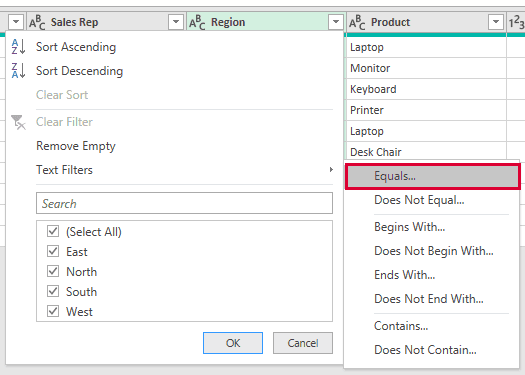
- Select the Sales query in the Queries pane. Click the filter arrow in the Region column header and choose Text Filters > Equals.
- In the Filter Rows dialog box, leave the operator as equals. Click the small data type button just left of the value box and choose Parameter. Make sure SelectedRegion shows in the value box, then click OK.
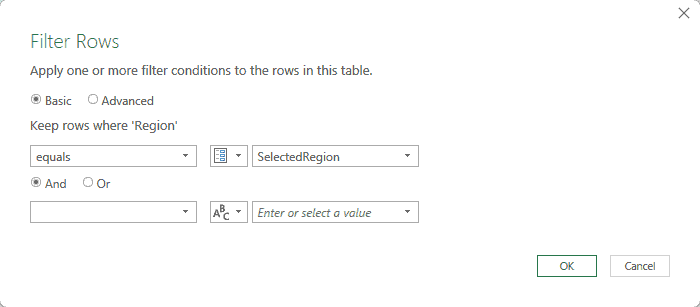
You can select SelectedRegion here because both the parameter and your Region column have the Text type.
You now see only the three West orders: SO-1001, SO-1004, and SO-1007.
In the new Filtered Rows step, your formula bar shows the parameter name instead of the text “West”:
= Table.SelectRows(#"Changed Type", each [Region] = SelectedRegion)

- On the Home tab, click Close & Load. Power Query loads your result to a new worksheet as a table.

You can now switch regions by changing SelectedRegion instead of editing the filter step.
Changing the Parameter Value
The loaded table shows the West orders. To get the East orders, you only need to change the parameter’s Current Value.
Here are the steps to switch regions:
- Go to Data > Get Data > Launch Power Query Editor. In the Queries pane, click SelectedRegion, then pick East from the Current Value dropdown.

- Click Home > Close & Load. Your loaded table now shows the three East orders: SO-1002, SO-1006, and SO-1010.

You never changed the filter step. It still reads SelectedRegion, which now holds East.
Example #2: Using a Parameter in a Custom Column
You can also use a parameter in a calculation. For this example, your Sales query is filtered to the West orders, with SelectedRegion set to West.
If you followed the East example, open the editor and set SelectedRegion back to West before continuing.
I’ll add a Commission column at a 5% rate. Keeping the rate in its own parameter means you can change it once for every order.
Here are the steps to add the commission calculation:
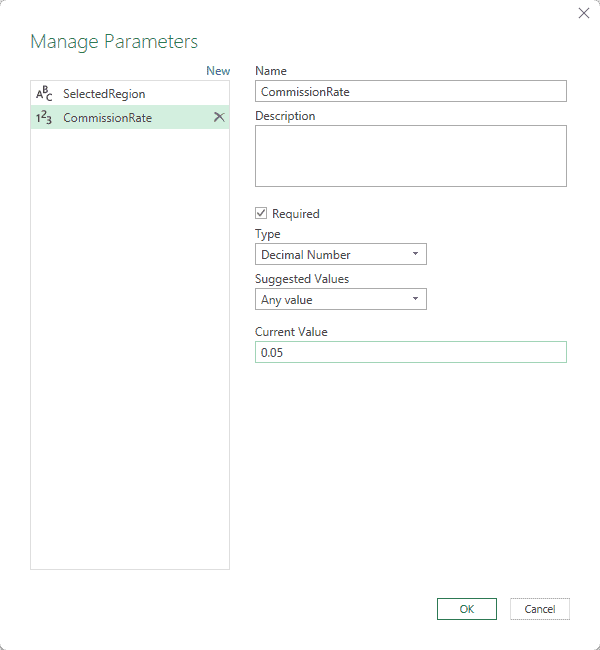
- In the Power Query Editor, click the arrow under Home > Manage Parameters, then New Parameter. Enter the settings below, then click OK.
- Name: CommissionRate
- Type: Decimal Number
- Suggested Values: Any value
- Current Value: 0.05
- Select the Sales query, then go to Add Column > Custom Column. Type Commission as the New column name, enter the formula below, then click OK.
=[Amount] * CommissionRate
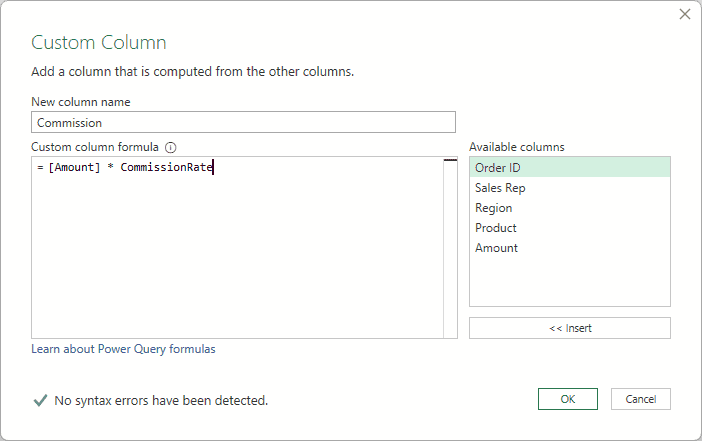
You get commissions of 62.5, 21, and 15.75 for the three West orders, whose amounts are 1250, 420, and 315.

- Click Home > Close & Load to update your loaded table with the Commission column.

You type the parameter name directly into the formula. Power Query uses its current value, 0.05, when it calculates each commission.
Change CommissionRate to 0.07 later, and every commission uses the new rate after a refresh.
Example #3: Using a Parameter for the Source File Path
For a monthly report, you can put the source file path in a parameter. Say you have Sales January.xlsx and Sales February.xlsx in C:\Reports.
Below I have the January file’s Sales sheet, with six orders and three columns: Order ID, Region, and Amount.
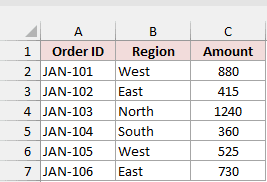
The February file has the same layout. That lets you reuse the query’s steps when you switch files.
When you import January’s file, the Source step stores its full path. Next month, you’d have to open that step and edit the path.
A FilePath parameter puts that path in one place where you can see and change it.
Start with January already imported through Data > Get Data > From File > From Excel Workbook, choosing Sales January.xlsx.
In the Navigator, select the Sales sheet and click Transform Data. Because you already have a Sales query, the new query arrives as Sales (2).
In the Query Settings pane, rename that new query MonthlySales.
Here are the steps to replace the fixed path with a parameter:
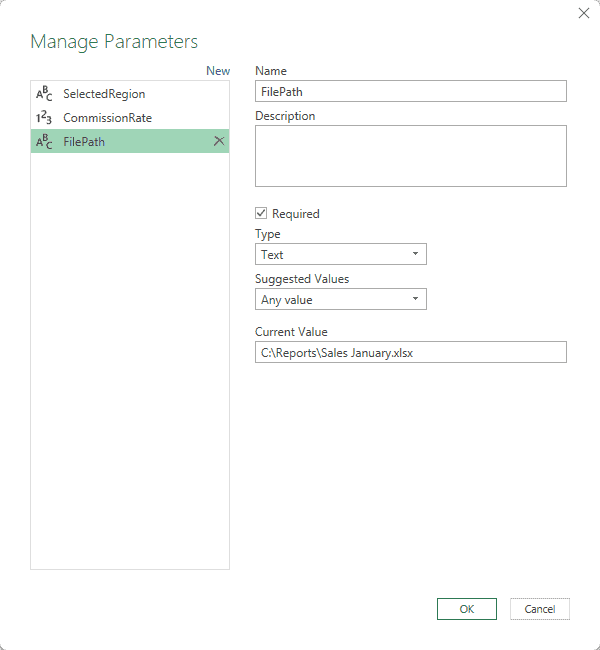
- In the Power Query Editor, click the arrow under Home > Manage Parameters, then New Parameter. Enter the settings below, then click OK.
- Name: FilePath
- Type: Text
- Suggested Values: Any value
- Current Value: C:\Reports\Sales January.xlsx
- Select the MonthlySales query and click its Source step in the Applied Steps list. Your formula bar shows the January file path.
The original Source formula contains the full path:
= Excel.Workbook(File.Contents("C:\Reports\Sales January.xlsx"), null, true)
- Replace the path, including its quotation marks, with FilePath, and press Enter.
After the replacement, your formula should read:
= Excel.Workbook(File.Contents(FilePath), null, true)

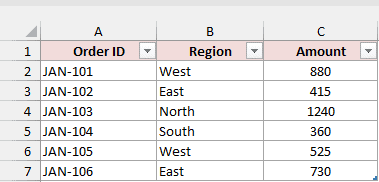
- Click Home > Close & Load. Your loaded table shows January’s six orders, JAN-101 to JAN-106.
To switch to February, continue with these steps:
- Open the editor again through Data > Get Data > Launch Power Query Editor. Click FilePath and change its Current Value to C:\Reports\Sales February.xlsx.
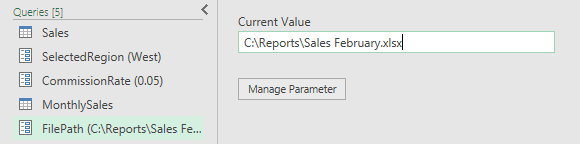
- Click Home > Close & Load. Your table now shows February’s six orders, FEB-201 to FEB-206.
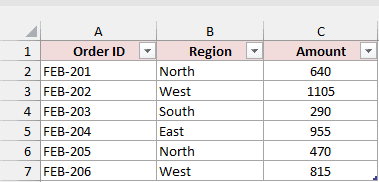
You changed the file path without editing the Source step again. Your remaining steps still work because both files have the same layout.
Note: A typo in FilePath gives you a DataSource.NotFound error on refresh. In File Explorer, Shift + right-click the file and choose Copy as path. Remove the quotation marks it adds before entering the path.
Example #4: Using an Excel Cell as a Parameter
Use Manage Parameters for values you set while building your query. To let someone change the region without opening the Power Query Editor, read the value from a worksheet cell.
Excel can’t connect a parameter you create in Manage Parameters directly to a cell. Instead, you turn a one-cell table into a query that returns one value.
For this example, your Sales query already has the region filter and Commission column from the earlier examples. Keep CommissionRate at 0.05 for the results below.
On the Cell Parameter sheet, I have an Excel Table named RegionPicker in A1:A2. Its header is Region, and A2 contains North.
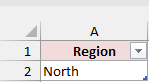
Here are the steps to use that cell value in your filter:
- Select cell A2 in RegionPicker, then go to Data > From Table/Range. The Power Query Editor opens with a one-row query.

- Right-click the North cell in the preview and choose Drill Down.
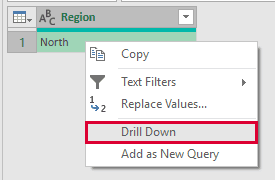
Your query now returns just the text North instead of a table. In the new step, {0} picks the first row and [Region] picks the column:
= #"Changed Type"{0}[Region]

- In the Query Settings pane, change your query’s Name to PickedRegion.
- Click the arrow under Home > Close & Load, choose Close & Load To, select Only Create Connection, and click OK.
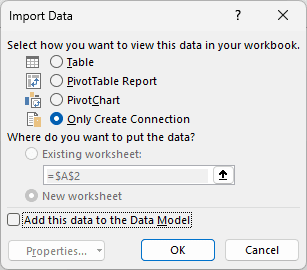
You only need PickedRegion’s value, so you don’t need another table on a worksheet.
- Open the editor again through Data > Get Data > Launch Power Query Editor. Right-click the Sales query in the Queries pane, choose Duplicate, and rename the copy CellSales.
- Select its Filtered Rows step. In the formula bar, replace SelectedRegion with PickedRegion, then press Enter.
The filter formula now reads the value from PickedRegion:
= Table.SelectRows(#"Changed Type", each [Region] = PickedRegion)

You now see the two North orders, SO-1003 and SO-1008.
CellSales kept the Commission step it copied from Sales, so you still get the Commission column.
- Click the arrow under Home > Close & Load, choose Close & Load To, and select Table. Choose Existing worksheet, set the destination to cell C1 on the Cell Parameter sheet, then click OK.
You have the North orders in C1:H3, beside your region picker. Their commissions are 4.25 and 66.

- Change A2 to South and go to Data > Refresh All. Your table now shows SO-1005 and SO-1009, with commissions of 59 and 4.75.

The table updates only when you refresh. The downloadable file has a data validation dropdown in A2 listing the four regions, which helps keep typos out.
Additional Notes About Using Parameters in Power Query
Keep these points in mind when you use parameters across your queries:
- Match your parameter and column types. A Text parameter won’t appear in the Filter Rows list for a number column.
- Pick a type other than Any. Microsoft recommends always setting a type. A typed parameter appears in the Filter Rows list only for columns of that same type.
- Refresh your worksheet results. Changing a parameter updates the editor preview right away. Use Close & Load when leaving the editor, or Data > Refresh All later, to update your table.
- Watch for Formula.Firewall when combining sources. If you store a file path in a one-cell table and drill down to it the same way as PickedRegion, passing that value to
File.Contentscan stop the refresh with an error that startsFormula.Firewall: Query 'MonthlySales' (step 'Source') references other queries or steps, so it may not directly access a data source.Parameters you create in Manage Parameters don’t cause it. - Fix the cell-based file path error. Read the cell inside the same query that opens the file, so no other query is referenced. Or go to Data > Get Data > Query Options > Current Workbook > Privacy and select Ignore the Privacy Levels and potentially improve performance, only if you’re comfortable switching that check off for the workbook.
- Check your Excel version. Manage Parameters is in Excel 2016 (after its October 2016 update), 2019, 2021, 2024, and Microsoft 365 for Windows.
- Set your own file path in the download. MonthlySales is a connection-only query that points to
C:\Reports. To try it, set FilePath to a workbook on your computer with a Sales sheet, then load the query.
Frequently Asked Questions
You may also need to remove a parameter, allow an empty value, or reuse your query as a function.
How Do I Delete a Parameter in Power Query?
Right-click the parameter in the Queries pane and choose Delete.
First, replace its name in any steps that still use it. Otherwise, those queries stop with an error when you delete the parameter.
What’s the Difference Between Required and Not Required?
With Required checked, you can’t leave Current Value blank.
Uncheck it to allow a blank value. A blank parameter usually makes a filter return no rows, so only leave it empty when your query can handle that.
Does List of Values Stop Me From Entering Other Values?
No. It fills your Current Value dropdown with suggestions, but you can still type a value that isn’t listed.
Can I Turn a Parameterized Query Into a Reusable Function?
Yes. Right-click the query that uses your parameter and choose Create Function. Type a name for the function and click OK.
Power Query creates a function you can call with a different value each time. Enter the value and click Invoke to run it.
Conclusion
I’ve shown you how to use a parameter in a filter, a custom column, and a file path, plus how to read a worksheet cell’s value.
I’d use a parameter from Manage Parameters for most queries. Use the cell method for people who never open Power Query.
I hope you found this article helpful.
Other Power Query articles you may also like:
