
Closing a VBA UserForm means deciding what happens to the values you entered. Hide makes it disappear but keeps it in memory; Unload removes it completely.
With Hide, you can reopen the form with your entries still there. With Unload, you get a fresh form next time.
Pick the wrong one, and your form either reopens with old values or loses the entries before your macro can read them.
I’ll show you how to add a Close button, control the title-bar X button, and make Esc close your form.
Hide vs Unload: What’s the Difference?
You can make the form disappear with either statement. Here’s what happens to the form and your entries afterwards:
| What Happens | Me.Hide | Unload Me |
|---|---|---|
| The form | Disappears but stays loaded in memory | Is removed from memory |
| Values typed into the form | Kept | Gone; the form opens fresh next time |
| UserForm_Initialize the next time you show it | Doesn’t run again | Runs again |
| QueryClose and Terminate events | Don’t run | Run |
| Use it when | You still need the form’s values, or want it to reopen as it was | You’re done with the form |
By default, .Show opens the form as modal, so you can’t click the worksheet until it closes.
The macro that showed it waits at the .Show line and continues when you hide or unload the form.
Both statements close the form from your point of view. The difference is what your code can still access afterwards.
The Example UserForm
On the Employees sheet, you have employee names in column A and departments in column B. A1:B9 contains the headers and eight employees.
You’ll use an Add Employee form to add new employees below the last row.
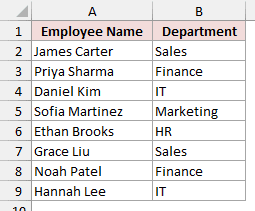
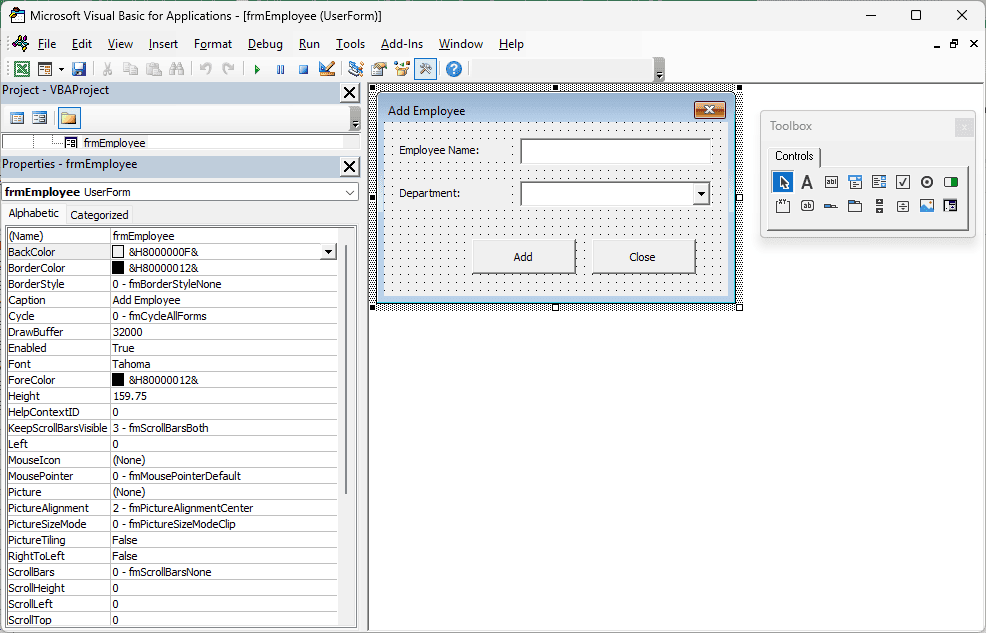
The UserForm is named frmEmployee, and its Caption is Add Employee. You’ll need these controls:
- txtName: a text box beside the “Employee Name:” label.
- cboDept: a drop-down, also called a combo box, beside the “Department:” label.
- cmdAdd: the Add button.
- cmdClose: the Close button.
Your department drop-down will offer these choices:
- Sales
- Marketing
- Finance
- HR
- IT
The download file already has the form ready, so you can skip building it. To create it yourself, follow these steps:
- Press Alt + F11 to open the Visual Basic Editor.
- Click Insert > UserForm.
- Draw two labels, a text box, a combo box, and two command buttons using the Toolbox.
- Select the text box, the combo box, and each button in turn. Set its (Name) in the Properties window to match the list above. Press F4 if the window isn’t showing.
- Set the labels’ Caption values to “Employee Name:” and “Department:”, and the buttons’ Caption values to Add and Close.
- Select cboDept and set Style to 2 – fmStyleDropDownList.
- Select the form itself. Set (Name) to frmEmployee and Caption to Add Employee.
You’ll have a form with two input controls and the Add and Close buttons:
Right-click the form and choose View Code (or press F7), then paste this starting code:
Private Sub UserForm_Initialize()
    Me.cboDept.List = Array("Sales", "Marketing", "Finance", "HR", "IT")
End Sub

Private Sub cmdAdd_Click()
    Dim nextRow As Long
    With Worksheets("Employees")
        nextRow = .Cells(.Rows.Count, "A").End(xlUp).Row + 1
        .Cells(nextRow, "A").Value = Me.txtName.Value
        .Cells(nextRow, "B").Value = Me.cboDept.Value
    End With
    Me.txtName.Value = ""
    Me.cboDept.ListIndex = -1
    Me.txtName.SetFocus
End Sub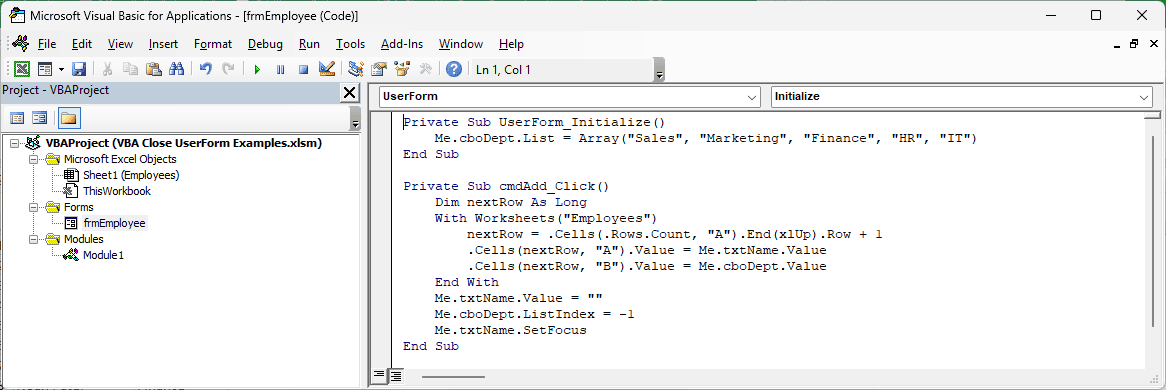
When you load the form, UserForm_Initialize fills the Department list.
When you click Add, the code finds the last row in column A and adds one. It writes your name and department into that next row.
After you add the employee, both boxes are cleared. SetFocus puts the cursor back in the name box so you can enter another employee.
To open the form, you need a short macro in a regular module.
In the Visual Basic Editor, click Insert > Module and paste this into the new module, Module1:
Sub ShowEmployeeForm()
    frmEmployee.Show
End Sub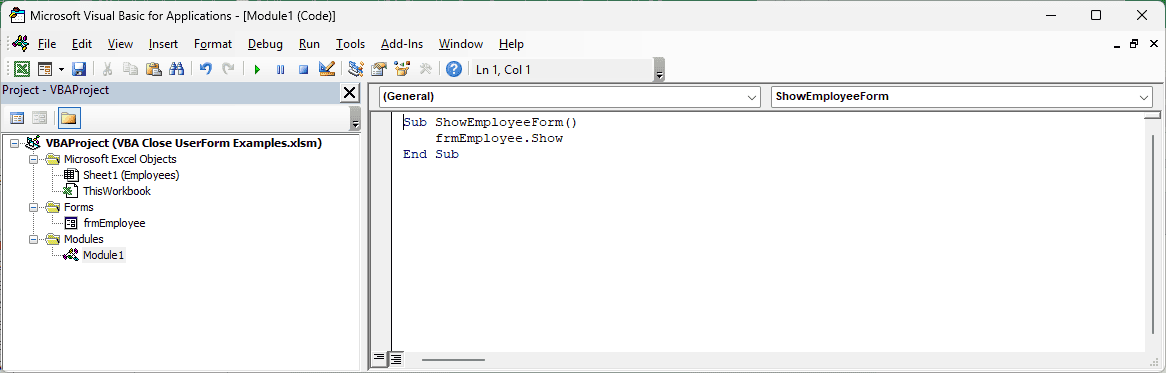
To run it, click inside ShowEmployeeForm and press F5. You can also press Alt + F8 in Excel, select ShowEmployeeForm, and click Run.
You’ll see the Add Employee form over the worksheet:
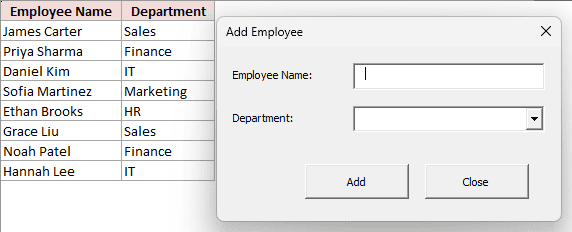
Right now, your Close button does nothing because it has no code. The methods below give it something to run.
Method #1: Using Unload Me
Unload Me closes the Add Employee form and removes it from memory, so it opens fresh next time.
It’s what I use for a normal Close button.
You put it in the form’s own code. Me means “this form,” so the statement still works if you rename the form.
In the Visual Basic Editor, double-click the form’s Close button. You’ll get an empty cmdClose_Click procedure. Make it match this:
Private Sub cmdClose_Click()
    Unload Me
End Sub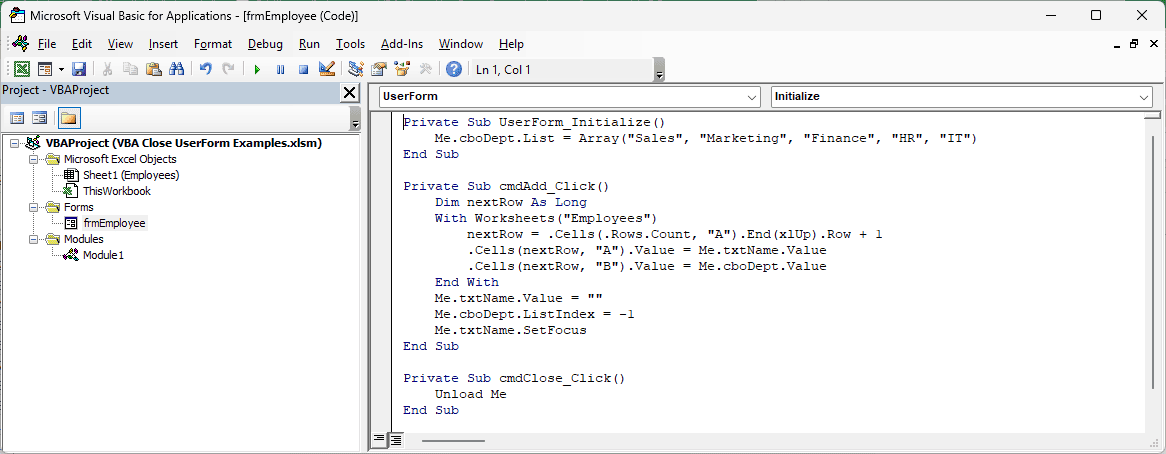
Run ShowEmployeeForm, then click Close to close the form and remove it from memory:
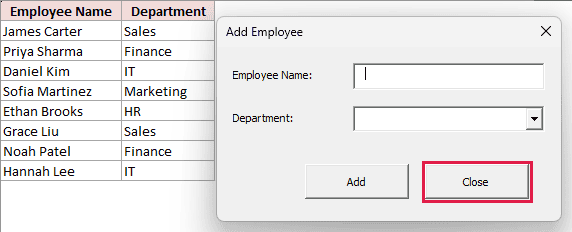
With Unload, you lose anything still typed into the form.
Run ShowEmployeeForm again, and you get an empty form. UserForm_Initialize runs again to refill the Department list.
Unload Me also runs the form’s QueryClose event, followed by Terminate. Any cleanup code you put in those events runs when you unload it.
Use Me.Hide instead when you still need the entries or want to reopen the form as it was. Then unload it afterwards, as in Method #3.
Method #2: Using Me.Hide
Me.Hide makes the Add Employee form disappear but keeps it loaded, along with everything you typed into it.
Show it again, and you pick up where you left off.
Replace the Close button’s existing procedure with this code:
Private Sub cmdClose_Click()
Me.Hide
End Sub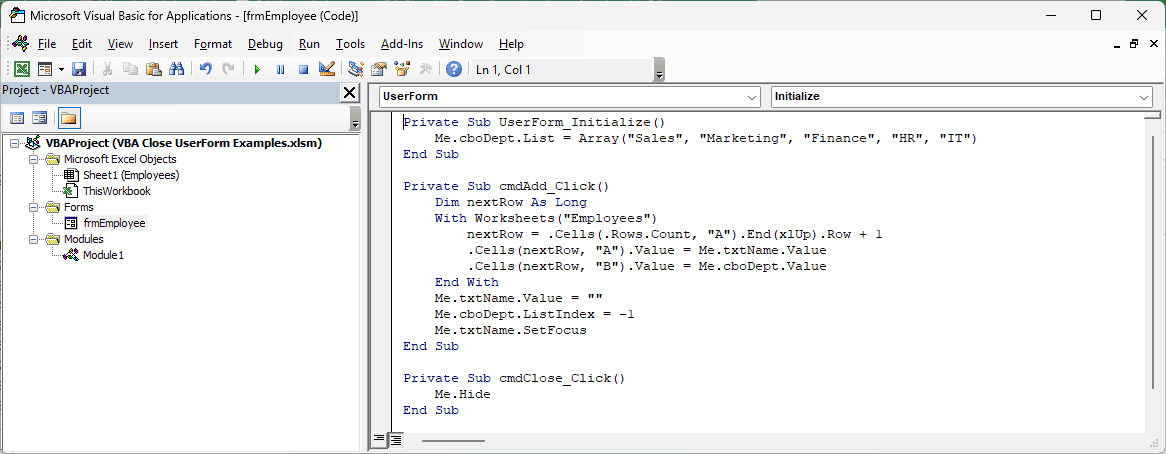
Run ShowEmployeeForm and type Olivia Brown in the name box. Pick Finance, then click Close without clicking Add.
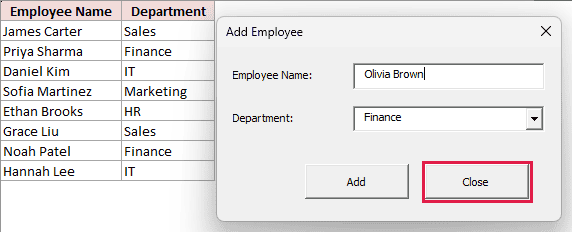
Run ShowEmployeeForm again. You’ll see Olivia Brown and Finance still filled in:
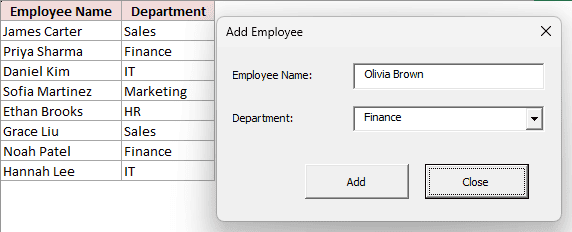
UserForm_Initialize doesn’t run on this second opening because you never removed the form from memory. That’s why a hidden form “remembers” your entries.
It stays loaded until you unload it, close the workbook, or your code runs an End statement.
In Method #3, I’ll show you how to read those entries and then unload it.
Method #3: Using Unload From the Calling Macro
For Add Employee, I keep the worksheet-writing code in the macro that opens the form (the calling macro). The Add button only hides the form.
The calling macro then reads your entries, unloads the form, and writes the new employee to the Employees sheet.
In frmEmployee’s code window, replace cmdAdd_Click and cmdClose_Click with the following procedures. Leave UserForm_Initialize as it is:
Private Sub cmdAdd_Click()
Me.Hide
End Sub
Private Sub cmdClose_Click()
    Unload Me
End Sub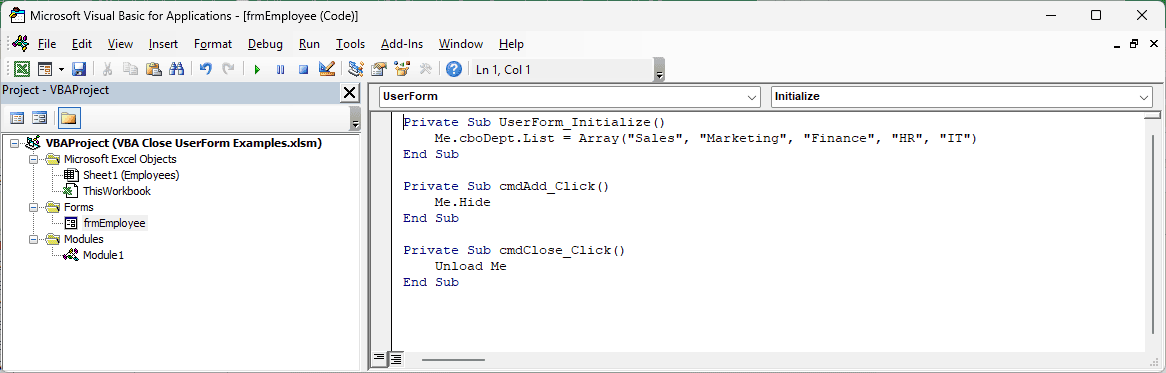
Paste the following code into Module1, below ShowEmployeeForm:
Sub AddEmployeeFromForm()
    Dim empName As String
    Dim dept As String
    Dim nextRow As Long

    frmEmployee.Show

    'This runs after the form is hidden or closed
    empName = frmEmployee.txtName.Value
    dept = frmEmployee.cboDept.Value
    Unload frmEmployee

    If empName = "" Then Exit Sub

    With Worksheets("Employees")
        nextRow = .Cells(.Rows.Count, "A").End(xlUp).Row + 1
        .Cells(nextRow, "A").Value = empName
        .Cells(nextRow, "B").Value = dept
    End With
End Sub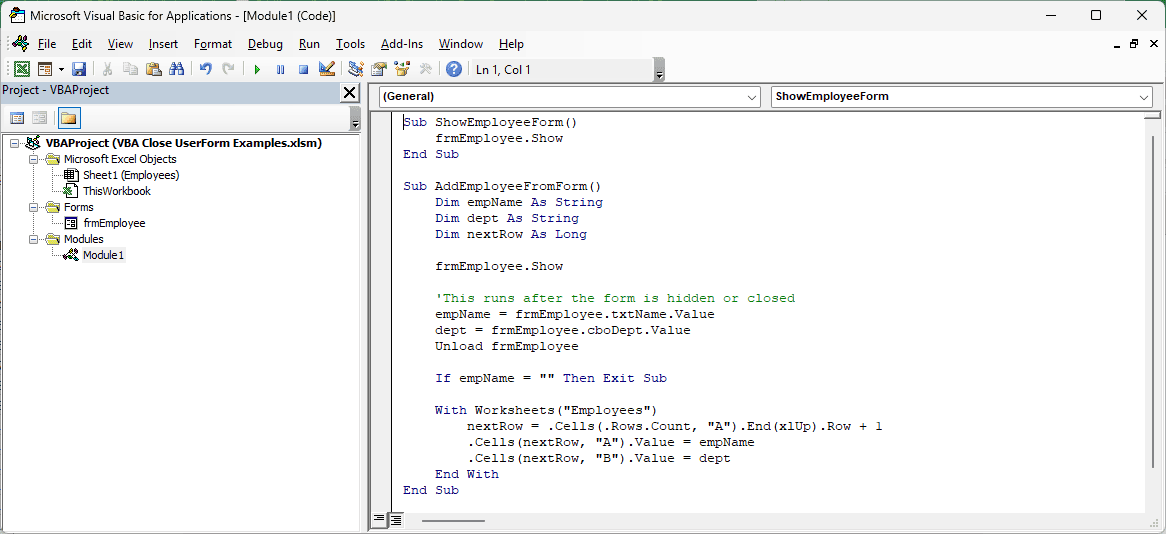
Run AddEmployeeFromForm. Enter Olivia Brown, pick Finance, and click Add:
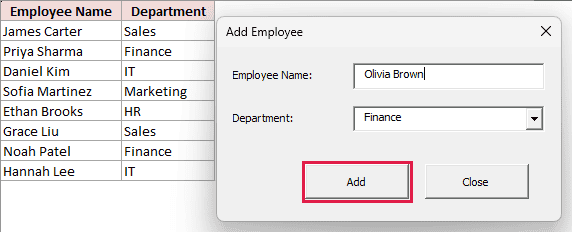
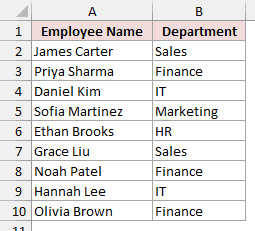
You’ll get Olivia Brown in A10 and Finance in B10, directly below the last employee. The macro also unloads the form.
How Does This Code Work?
Here’s what happens when you run AddEmployeeFromForm:
- frmEmployee.Show opens the form. Your macro waits on that line while you enter the employee details.
- Clicking Add runs Me.Hide. Your form disappears but stays in memory, and the macro continues immediately after .Show.
- The macro reads txtName and cboDept into the empName and dept variables. Unload frmEmployee then removes the form from memory.
- The final part finds the last row in column A, adds one, and writes the values into that next row.
If you click Close or the title-bar X instead, you unload the form before the macro reads it.
Reading frmEmployee.txtName then loads a fresh copy, whose name box is empty. After unloading that copy, If empName = “” Then Exit Sub stops the macro.
Use Unload frmEmployee when you’re outside the form, such as in Module1. Inside the form’s own code, Unload Me closes that same form.
Method #4: Using the QueryClose Event (X Button)
The X in the Add Employee form’s title bar doesn’t run your Close button’s code.
By default, it unloads the form, even when Close uses Me.Hide.
To change what X does, use the UserForm_QueryClose event. It runs just before the form closes.
You get two arguments in this event:
- Cancel: set it to True to stop the form from closing.
- CloseMode: tells you why the form is closing.
For these examples, you’ll use two CloseMode values:
- vbFormControlMenu (0): you clicked the title-bar X.
- vbFormCode (1): your code ran an Unload statement.
Option 1: Keeping the Form Open
To stop X from closing the form, paste this procedure into frmEmployee’s code window alongside the existing code:
Private Sub UserForm_QueryClose(Cancel As Integer, CloseMode As Integer)
    If CloseMode = vbFormControlMenu Then
        Cancel = True
        MsgBox "Please use the Close button to close this form.", vbInformation
    End If
End Sub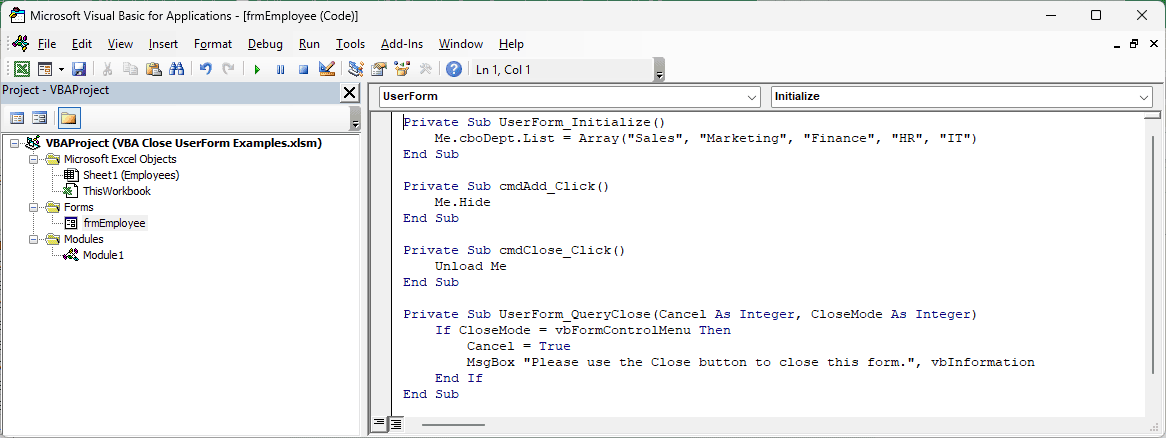
Run ShowEmployeeForm and click X. You’ll see this message: “Please use the Close button to close this form.”
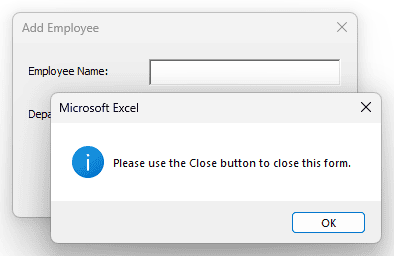
Click OK to return to the form, which stays open.
Your Close button still works with Unload Me because it sends CloseMode 1. You only cancel closing when CloseMode is 0.
Option 2: Hiding the Form
To make X keep your entries in memory, replace that QueryClose procedure with this version:
Private Sub UserForm_QueryClose(Cancel As Integer, CloseMode As Integer)
    If CloseMode = vbFormControlMenu Then
        Cancel = True
        Me.Hide
    End If
End Sub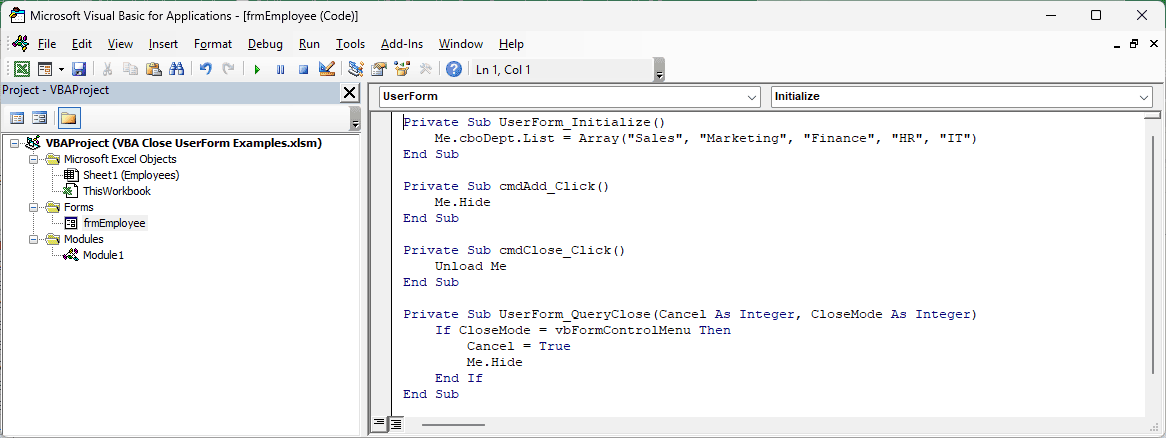
Be careful with Method #3’s AddEmployeeFromForm. Clicking X now hides the form, so the macro reads your entries and adds the employee, just like Add.
Use this version only when that’s what you want. Unload the form after you’ve read the values.
Note: Use only one UserForm_QueryClose procedure in your form. Pick the version that matches what you want the X button to do.
Method #5: Using the Cancel Property (Esc Key)
By default, pressing Esc does nothing on a UserForm.
To make Esc close the Add Employee form, set the Close button’s Cancel property to True. Esc then runs that button’s code.
Here’s how:
- In the Project Explorer, double-click frmEmployee to open it in the form designer.
- Click the Close button, cmdClose, to select it.
- In the Properties window, set Cancel to True.
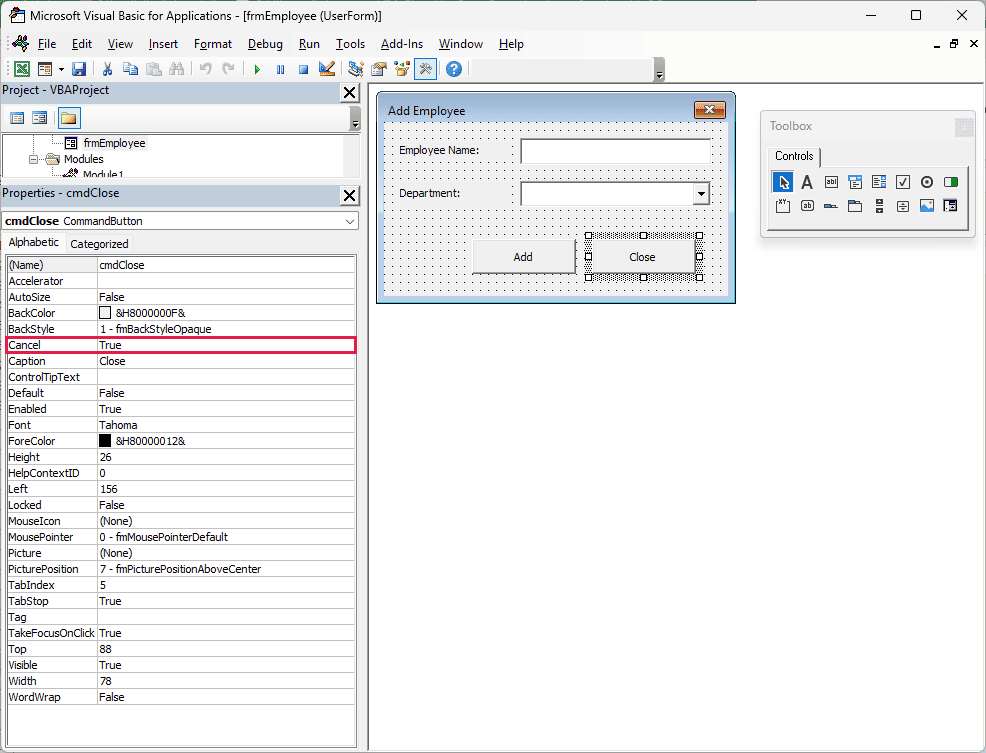
With Unload Me in your Close button, as in Method #1, pressing Esc closes and unloads the form.
Only one button on your form can have Cancel set to True. If that button uses Me.Hide, pressing Esc hides your form instead.
Method #6: Using a Loop to Close All Open UserForms
If you have several forms loaded, including a hidden Add Employee form, you can unload them all with one loop.
You loop through the UserForms collection, which holds every loaded form, visible or hidden.
Click Insert > Module in the Visual Basic Editor, or open your existing Module1, and paste this macro:
Sub CloseAllForms()
    Dim i As Long
    For i = UserForms.Count - 1 To 0 Step -1
        Unload UserForms(i)
    Next i
End Sub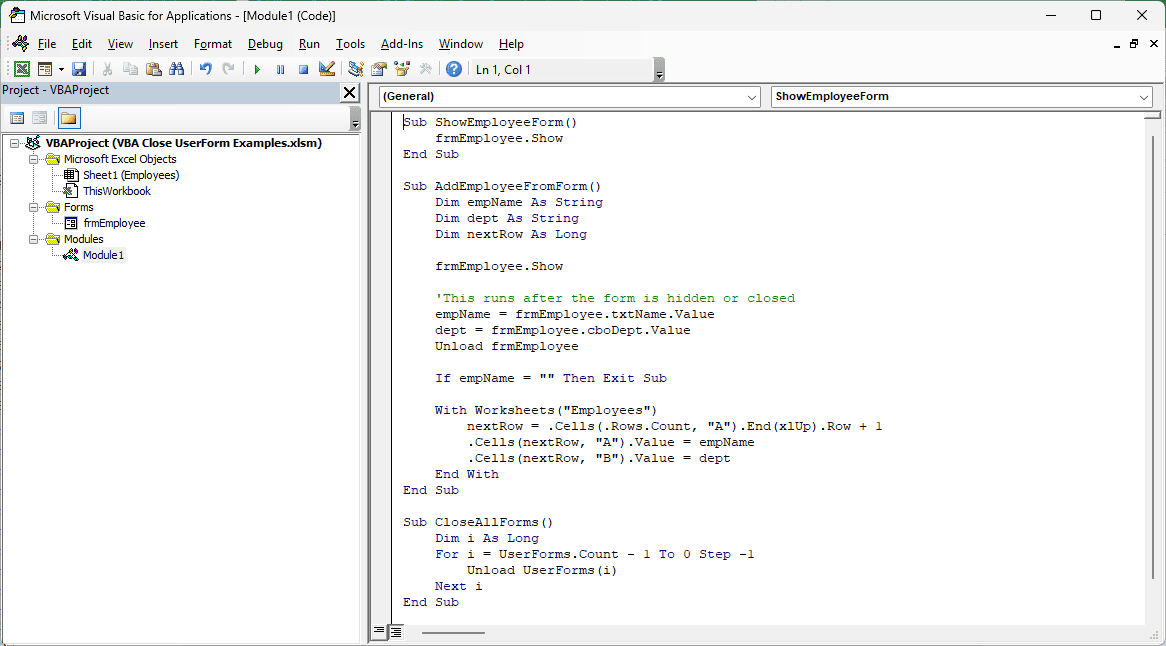
Run CloseAllForms to unload every loaded form.
It’s most useful for forms you’ve hidden or opened modeless with .Show vbModeless, which lets you keep working in Excel while the form is open.
UserForms.Count tells you how many forms are loaded. Because the collection starts at 0, your last form’s index is Count minus one.
I count backwards because unloading a form removes it from the collection and shifts the forms after it. That’s a safe habit whenever you remove items from a collection.
Additional Notes About Closing a UserForm in VBA
Keep these points in mind when you add closing code to your workbook:
- Don’t use End to close your form. It stops all running code, skips QueryClose and Terminate, and clears public and module-level variables.
- Put Unload Me last in its procedure. Any lines after it still run, so unloading doesn’t stop that procedure.
- Save your file as a macro-enabled workbook (.xlsm). Otherwise, you won’t keep the UserForm and its VBA code.
Frequently Asked Questions
You may also need to close a form on a timer or close a separate copy you’ve created in code.
How Do I Close a UserForm Automatically After a Few Seconds?
You can schedule a closing macro before showing your form. Paste these two procedures into a regular module:
Sub ShowFormForFiveSeconds()
    Application.OnTime Now + TimeValue("00:00:05"), "CloseEmployeeForm"
    frmEmployee.Show
End Sub

Sub CloseEmployeeForm()
    Unload frmEmployee
End SubRun ShowFormForFiveSeconds. Application.OnTime schedules CloseEmployeeForm for five seconds later, then you see the form.
When the time is up, CloseEmployeeForm unloads it, even though the form is modal. Change “00:00:05” for a different delay.
If you close the form before the time is up, the scheduled macro still runs. It just has nothing on screen to close.
How Do I Close a UserForm Created With New?
If you create a separate copy, declare f with Dim f As frmEmployee, then use Set f = New frmEmployee. Use Unload f to close that copy.
Unload frmEmployee only closes the default copy, so it won’t touch the one in f.
Inside the form’s own code, Unload Me closes whichever copy is running it.
Does Unload Me Close the Workbook or Stop the Macro?
No. You only remove the UserForm from memory. Your workbook and Excel stay open.
The macro that showed your form continues after its .Show line.
Conclusion
I’ve shown you Unload Me in a Close button, Me.Hide, unloading from the calling macro, QueryClose for X, Cancel for Esc, and a loop for all forms.
For most forms, I’d use Unload Me. When you need the entries, hide the form and unload it from the calling macro, as in Method #3.
I hope you found this article helpful.
Other Excel articles you may also like:
