
If you want to know what .xlsx, .xls, or .xlsm means, look at the file extension at the end of the name.
It tells Excel and Windows what kind of file it is and which features it can store.
Most everyday workbooks use .xlsx. Other Excel file extensions identify macro-enabled workbooks, older workbooks, binary files, templates, add-ins, or plain-text data.
Below, I will explain the common formats first. Then I will show you how to view, change, rename, or convert Excel file extensions safely.
Common Excel File Extensions
This table covers the Excel file extensions you are most likely to see and the job each format is designed to handle.
| Extension | What it is | When to use it |
|---|---|---|
| .xlsx | Standard XML-based Excel workbook that cannot store VBA macros | Everyday workbooks without macros |
| .xls | Legacy binary workbook format used by Excel 97-2003 | Sharing with older Excel versions when required |
| .xlsm | XML-based, macro-enabled Excel workbook | Workbooks that need to store VBA macros |
| .xlsb | Binary Excel workbook that can also store macros | Large or macro-enabled workbooks that need the binary format |
| .csv | Plain-text file with comma-separated values and no workbook formatting | Moving simple tabular data between programs |
| .xltx | Excel template that cannot store VBA macros | Reusing a workbook layout without macros |
| .xltm | Macro-enabled Excel template | Reusing a template that includes VBA macros |
| .xlam | XML-based, macro-enabled Excel add-in | Installing or sharing supplemental Excel tools |
| .ods | OpenDocument Spreadsheet format supported by Excel | Exchanging files with OpenDocument apps after checking feature compatibility |
Method #1: Viewing File Name Extensions in File Explorer
Before you can change an extension, you need to actually see it.
Windows hides extensions out of the box, so a file called TeamRoster.xlsx just shows up as TeamRoster.
Turning them on is a one-time toggle.
Here is our sample file, a small team roster with each player’s position and points. It is saved in a folder, but right now the extension is hidden.

The file name does not show the extension yet. Let me switch extensions on so the .xlsx tag appears.
Here are the steps to turn on file name extensions (Windows 11):
- Open File Explorer and go to the folder that has your Excel file.
- Click the View menu in the toolbar, hover over Show, and click File name extensions.
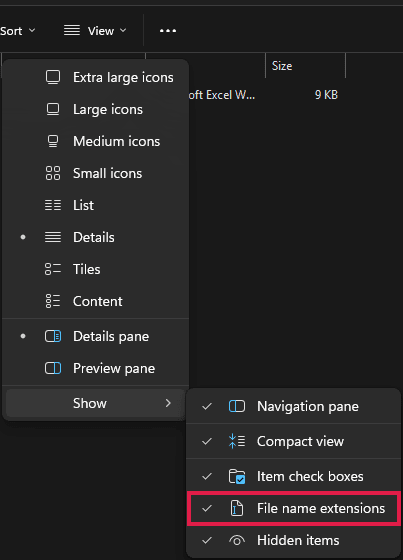
The extension now shows up right after the name, so our file reads as TeamRoster.xlsx.

This setting applies to every file on your PC, not just Excel files, so you only have to do it once.
Note: On Windows 10 the path is slightly different. Click the View tab on the File Explorer ribbon, then tick the File name extensions checkbox in the Show/hide group.
Method #2: Using the Save As Dialog
This is the method you will reach for most of the time.
Saving the file in a new format is the clean, safe way to change its extension, because Excel actually rewrites the file in that format instead of just relabeling it.
With our TeamRoster workbook open in Excel, let me save it as a .csv file so it can be imported into another tool.
Here are the steps to change the extension using Save As:
- Click the File tab, then click Save As, and pick a location (or click Browse).
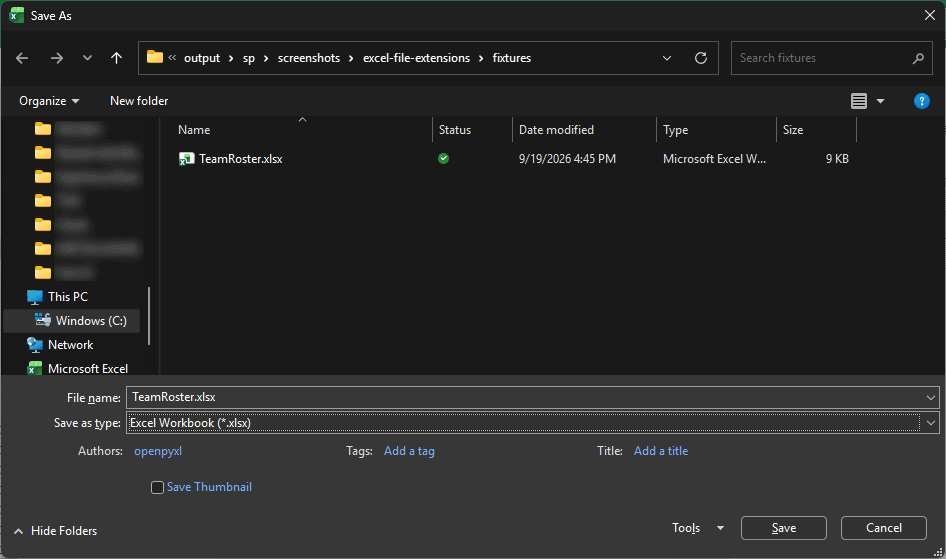
- Click the “Save as type” dropdown, just below the file name box, to see the available formats.
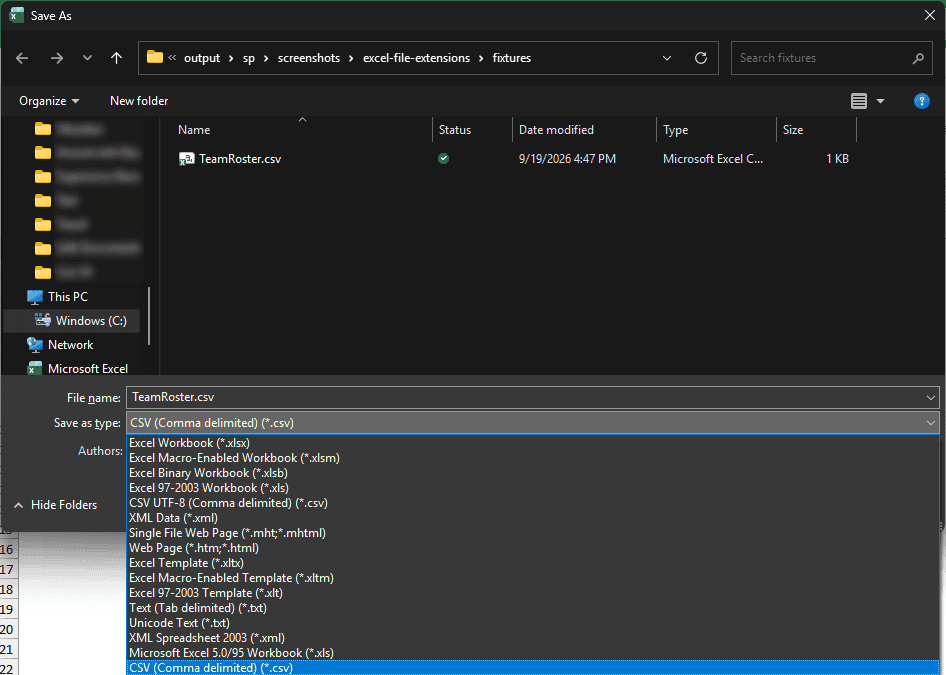
- Pick the format you want, such as CSV (Comma delimited) (*.csv), then click Save.
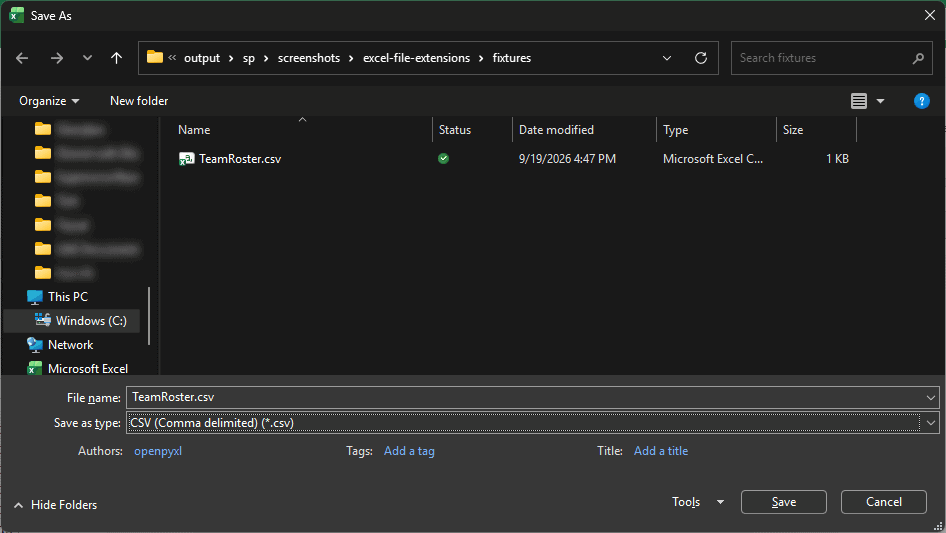
Excel writes a brand new file with the new extension and leaves your original where it was.
So you end up with both TeamRoster.xlsx and TeamRoster.csv, and Excel switches to editing the new one.

Note: Some formats drop features: CSV saves only the active sheet as plain values, no formatting or formulas, and saving to old .xls triggers the Compatibility Checker. If your file is on OneDrive with AutoSave on, File shows “Save a Copy” instead of “Save As”.
Method #3: Renaming the File in File Explorer
You can also change an extension by renaming the file directly in File Explorer.
This is fast, but renaming only changes the file name.
It does not convert the file to another format.
Note: Only use renaming to correct an extension you know is wrong. If the file came from an untrusted source, do not open it just because the extension looks familiar. For a true format change, use Save As (Method #2).
A good use for this is fixing a wrong label.
Say the roster was exported as TeamRoster.txt but the data inside is actually comma separated.
Renaming it to .csv lets Excel recognize it as a CSV file.
How Excel separates the columns depends on your regional settings.
Here are the steps to rename the extension in File Explorer:
- Make sure extensions are visible first (see Method #1). If they are hidden, renaming only edits the name and leaves the extension untouched.
- Click the file once and press F2 (or right-click and choose Rename). Windows selects just the name and leaves the extension out.

- Change the text after the dot to the new extension, like .csv, and press Enter.

- Windows warns that the file might become unusable. Click Yes to confirm the change.
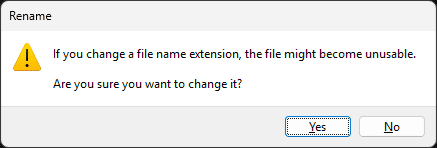
The file now carries the new extension. If its real format does not match that extension, Excel may show a format warning or refuse to open it.
Method #4: Using the Convert Command
If someone sends you an old .xls file, Excel may open it in Compatibility Mode.
For a macro-free Excel 97-2003 workbook, the Convert command changes it to .xlsx so newer workbook features are available.
Here our roster arrived as TeamRoster.xls. You can spot Compatibility Mode in the title bar next to the file name.

Here are the steps to convert a macro-free .xls workbook to the current format:
- Click the File tab, click Info, then click Convert.

- Follow the on-screen prompts to complete the conversion to .xlsx.

After the conversion, the workbook uses the current .xlsx format and is no longer limited by the old .xls format.
Note: Microsoft documents this Convert path for Excel 97-2003 workbooks. If the old .xls contains VBA, save a backup and use Save As to choose .xlsm so the macro code can be retained.
Additional Notes About File Extensions in Excel
A few extra things worth keeping in mind:
- Macros are not exclusive to .xlsm. The old .xls and the binary .xlsb can run macros too, while a plain .xlsx cannot. That is why a workbook may refuse to keep your code when you save it as .xlsx.
- The dropdown also lists “CSV UTF-8 (Comma delimited) (*.csv)”. Pick that one when your data has accents or non-English characters, so they do not turn into garbled text.
- Renaming and converting are not the same thing. Renaming swaps the label, Save As and Convert actually rewrite the file. When in doubt, let Excel do the writing.
Frequently Asked Questions
Can I open a .csv file in Excel and save it as .xlsx?
Yes.
Double-click the .csv to open it in Excel, then use File > Save As and choose Excel Workbook (*.xlsx).
The upgrade lets you add formatting, formulas, and multiple sheets that a CSV cannot hold.
Is it safe to change a file’s extension by renaming it?
It is safe only when the file is genuinely already in the target format, like a comma-separated .txt file you relabel as .csv.
Renaming a true .xlsx does not convert it and may trigger a mismatch warning or fail to open.
How do I stop Excel from always saving in the same format?
Go to File > Options > Save, and set “Save files in this format” to the extension you prefer.
New workbooks will then default to that format when you save them.
Why do I see a warning about the file format not matching the extension?
That message means the file’s real contents do not match its extension.
The file may have been renamed or mislabeled, but corruption is another possible cause.
Only open a mismatched file if you trust its source.
Conclusion
In this article, I explained what common Excel file extensions mean and how to view or change them.
In most cases, Save As is the safest way to change formats because Excel rewrites the file properly.
I hope you found this article helpful.
Other Excel articles you may also like:
