
When a number looks wrong or you’re about to change a cell, it helps to see how that cell connects to your formulas.
Precedents are the cells a formula uses. Dependents are the formulas that use a cell.
Excel can draw arrows for both, so you can see those connections right on the sheet.
I’ll show you how to follow those arrows, select related cells with shortcuts, and draw a whole-sheet map with VBA.
What Are Precedents and Dependents in Excel?
Say you have an invoice where the Subtotal in D9 is =SUM(D2:D7). That formula adds up the Line Total cells in D2:D7.
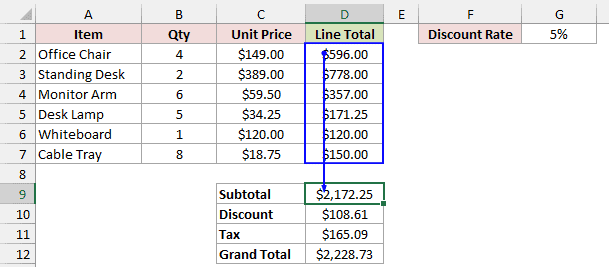
D2:D7 are D9’s precedents. Looking in the other direction, D9 is a dependent of each cell in that range.
These are direct precedents because D9 refers to them in its formula.
The Qty and Unit Price cells in B2:C7 feed those Line Total formulas. They’re indirect precedents of D9, one step further back.
Method #1: Using the Trace Precedents Button
This is the method I’d recommend for most people. The arrows let you follow a formula’s references without moving away from it.
Below I have an invoice with D9 selected. I want to see which cells its Subtotal formula uses.
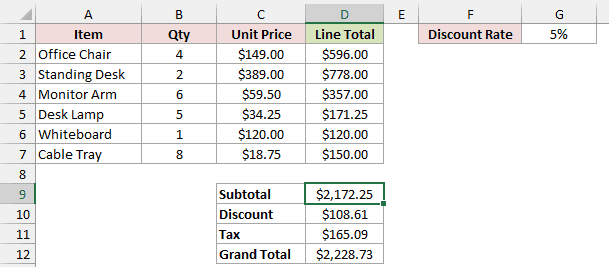
Here are the steps to trace the Subtotal’s precedents:
- Select cell D9.
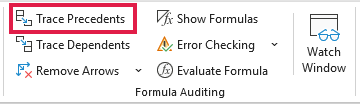
- Go to Formulas > Trace Precedents in the Formula Auditing group.
Excel draws a blue box around D2:D7 and a blue arrow pointing to D9. Those six Line Total cells feed the Subtotal.
Click Trace Precedents again to go one level further back. Excel adds arrows from the Qty and Unit Price cells into each Line Total cell.
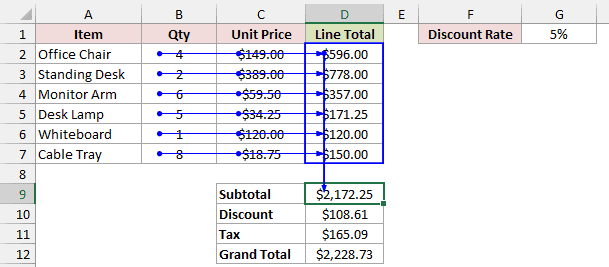
Note: Each click adds one more level. When there’s nothing left to trace, Excel beeps without showing a message.
Method #2: Using the Trace Dependents Button
To check what a change will affect, follow the connections in the other direction with Trace Dependents.
Below I have the same invoice with G1 selected. Before changing its 5% Discount Rate, I want to see which formulas use it.
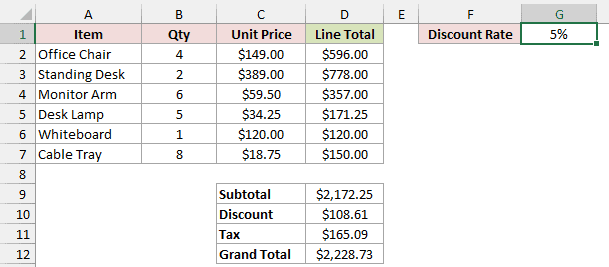
Here are the steps to trace the Discount Rate’s dependents:
- Select cell G1.
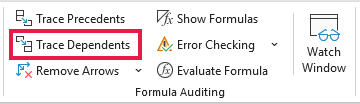
- Go to Formulas > Trace Dependents in the Formula Auditing group.
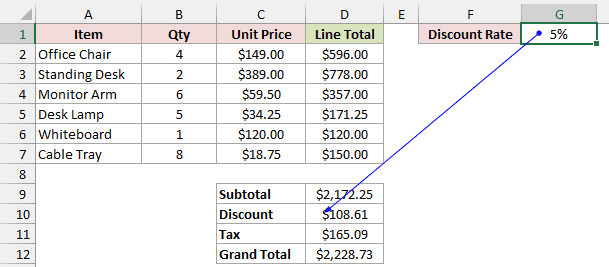
A blue arrow runs from G1 to D10. The Discount formula, =D9*G1, uses the rate directly.
Click Trace Dependents again. Excel adds arrows from D10 to Tax in D11 and Grand Total in D12, which both use the Discount.
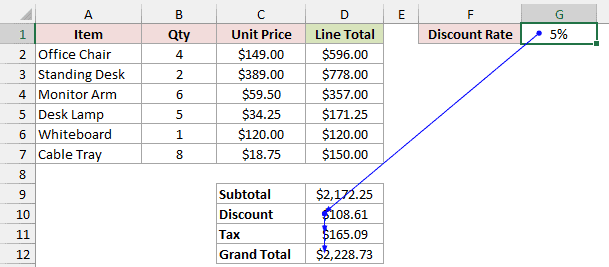
Changing the Discount Rate therefore changes all three: Discount, Tax, and Grand Total.
How to Trace Precedents on Another Sheet
When a formula uses a cell on a different sheet, the arrow looks different.
In the same invoice, the Tax formula in D11 is =(D9-D10)*Rates!B2. It uses the Subtotal, the Discount, and a tax rate on the Rates sheet.
Select D11, then go to Formulas > Trace Precedents.
Excel draws blue arrows from D9 and D10, plus a black dashed arrow from a worksheet icon.
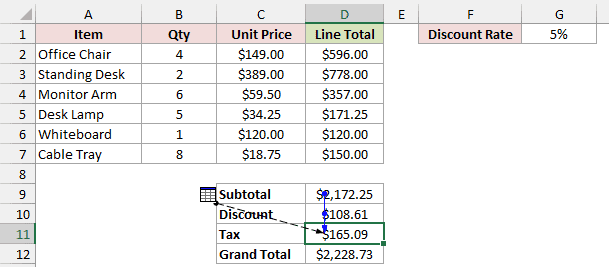
That small icon means a precedent is on another sheet or in another workbook.
Double-click the black dashed arrow. The Go To dialog opens with the reference to cell B2 on the Rates sheet listed.
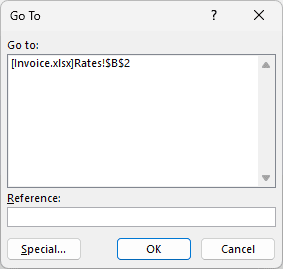
Select the reference and click OK to jump straight to it.
If the reference is in another workbook, that workbook must be open for Excel to take you there.
How to Remove Trace Arrows
Once you’ve checked the connections, you can clear the arrows from the sheet.
Go to Formulas > Remove Arrows to clear every arrow on the active sheet.
Click the small drop-down arrow next to Remove Arrows to choose Remove Precedent Arrows or Remove Dependent Arrows instead.
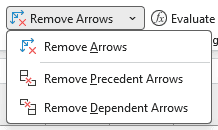
Those two options remove one level of arrows at a time.
Arrows also disappear when you edit the formula they point to, insert or delete rows or columns, or move cells.
They aren’t saved with the workbook, either. When you reopen the file, you’ll need to trace the connections again.
Method #3: Using Keyboard Shortcuts
Keyboard shortcuts select related cells instead of drawing arrows. On a big sheet, press Enter to move through the selected cells one at a time.
Here are the shortcuts for selecting precedents and dependents:
| Shortcut | What It Selects |
|---|---|
| Ctrl + [ | Direct precedents of the active cell |
| Ctrl + Shift + { | All precedents (direct and indirect) |
| Ctrl + ] | Direct dependents of the active cell |
| Ctrl + Shift + } | All dependents (direct and indirect) |
These shortcuts are for Excel on Windows. On a Mac, the Trace Precedents and Trace Dependents buttons work the same way, but the shortcut keys differ.
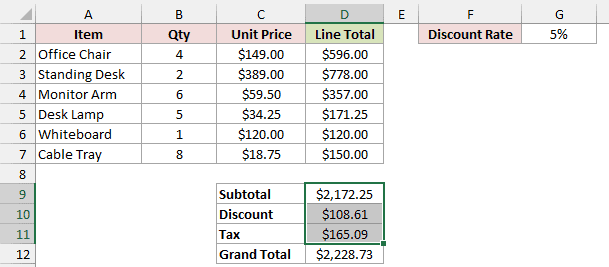
Below I have the invoice with Grand Total in D12 selected. I’ll use the shortcuts to select the cells feeding that formula.
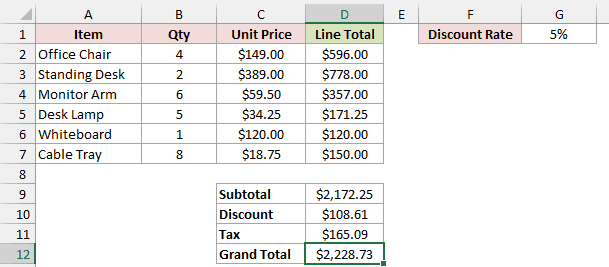
Press Ctrl + [. Excel selects D9:D11, the three cells that the Grand Total formula, =D9-D10+D11, uses directly.
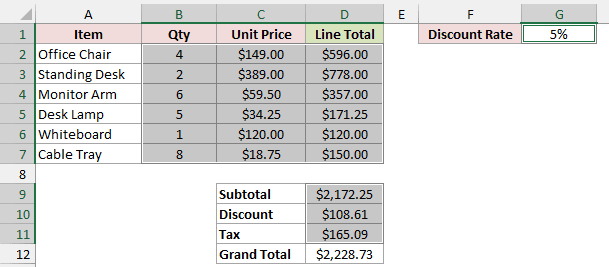
Select D12 again, then press Ctrl + Shift + {. Excel selects all its precedents on the Invoice sheet: D9:D11, G1, and B2:D7.
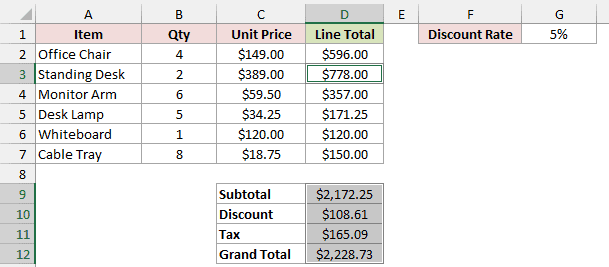
Dependents work the same way. Select C3, the Standing Desk unit price, and press Ctrl + Shift + }.
Excel selects D3 and D9:D12. That’s every formula on the sheet that changes if that unit price changes.
Method #4: Using Go To Special
Go To Special makes the same selection through a dialog. I’d use it if the bracket keys are awkward on your keyboard layout.
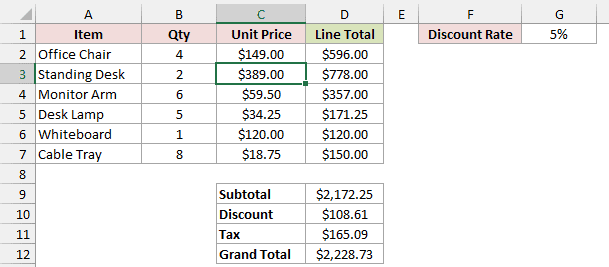
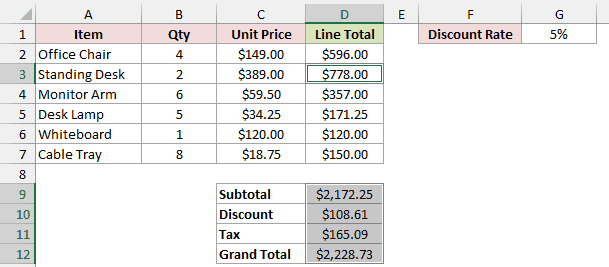
Below I have the invoice with C3 selected, the Standing Desk unit price. I want to select every formula that depends on that price.
Here are the steps to select all its dependents:
- Select cell C3.
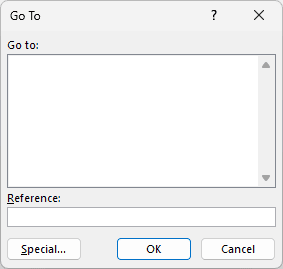
- Press F5 or Ctrl + G to open the Go To dialog, then click Special.
- Choose Dependents, then All levels.
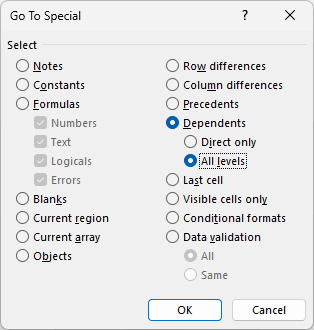
- Click OK.
Excel selects D3 and D9:D12, just as the shortcut did.
Choose Direct only for one level. With a formula cell selected, choose Precedents to select the cells that formula uses.
Note: For D11, Go To Special and shortcuts select only D9:D10, skipping Rates!B2 because D11 also references the active sheet. Use Trace Precedents to see that connection.
Method #5: Using VBA to Show All Arrows at Once
The buttons trace one cell at a time. A short macro draws precedent arrows for every formula, giving you a quick map of the sheet’s connections.
Below I have the same invoice with 10 formula cells. I’ll draw their precedent arrows together instead of tracing each cell separately.
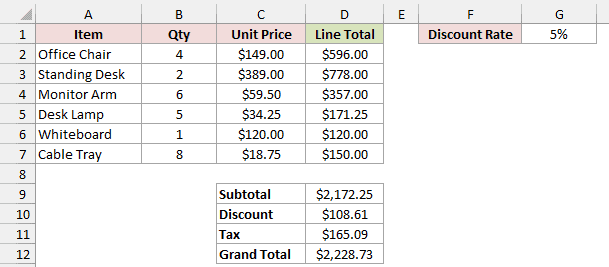
Here is the VBA code:
Sub ShowAllPrecedentArrows()
    Dim formulaCells As Range
    Dim cell As Range

    On Error Resume Next
    Set formulaCells = ActiveSheet.UsedRange.SpecialCells(xlCellTypeFormulas)
    On Error GoTo 0

    If formulaCells Is Nothing Then Exit Sub

    For Each cell In formulaCells
        cell.ShowPrecedents
    Next cell
End SubHere are the steps to run the macro:
- Press Alt + F11 to open the VB Editor.
- Go to Insert > Module.
- Paste the code into the module.
- Place the cursor in the code and press F5, or close the editor and run the macro from Alt + F8.
Every formula on the active sheet now shows its precedent arrows.
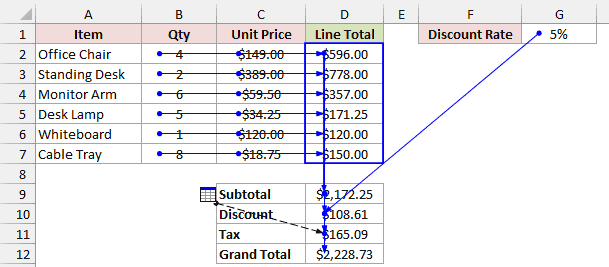
SpecialCells(xlCellTypeFormulas) finds every formula cell in the active sheet’s used range. On Error handles a sheet with no formulas so the macro can exit.
The loop calls ShowPrecedents for each formula cell. Each call draws one level of arrows, the same as clicking Trace Precedents once for that cell.
To clear all the arrows, use this second macro:
Sub RemoveAllArrows()
    ActiveSheet.ClearArrows
End SubSave the file as .xlsm if you want to keep the macros.
Additional Notes About Tracing Precedents and Dependents in Excel
Keep these details in mind when you’re following connections through a workbook:
- Blue arrows show normal connections. Red arrows come from cells with errors. A black dashed arrow with a worksheet icon indicates another sheet or workbook.
- References built from text with INDIRECT aren’t traced. For example,
=INDIRECT("A1")reads A1 but shows no precedent arrow. - Excel can’t trace references to text boxes, charts, or pictures. It also can’t trace PivotTables, named constants, or formulas in a closed workbook that refer to the active cell.
- For a quick look without arrows, select a formula cell and press F2. Excel colors each reference and outlines the matching cells in the same color.
Frequently Asked Questions
Here are answers to a few questions you might have while tracing formulas.
Why is Trace Precedents not showing any arrows?
The selected cell must contain a formula with cell references. Otherwise, Excel beeps without drawing any arrows.
If your formula uses INDIRECT to build a reference from text, Excel cannot trace that reference with an arrow.
Arrows can disappear after you edit a formula, insert or delete rows or columns, or reopen the file. Excel does not save tracing arrows.
What is the shortcut for Trace Precedents in Excel?
Press Alt, M, P in sequence to use Trace Precedents. Alt, M, D uses Trace Dependents, and Alt, M, A, A removes the arrows.
Ctrl + [ selects the direct precedents instead of drawing arrows.
Can I trace precedents to another workbook?
Yes. Excel shows a black dashed arrow with a worksheet icon for a reference to another workbook.
Double-click the arrow to open Go To, then select the reference and click OK. The other workbook must be open for Excel to jump there.
Do trace arrows stay when I save and reopen the file?
No, trace arrows aren’t saved with the workbook. Use the buttons or run the macro again after reopening it.
They do appear if you print the sheet while the arrows are visible.
Conclusion
I’d start with Trace Precedents and Trace Dependents for most checks because the arrows make the connections easy to follow.
Use keyboard shortcuts or Go To Special when you want a selection, and the macro when you want a map of the whole sheet.
Other Excel articles you may also like:
