
You can hide notes in Excel without deleting them. Hiding a note box usually leaves its red corner indicator visible, and hovering over the cell can display the note again.
Excel also has a display option that hides note boxes, indicators, and hover previews together.
I’ll show you how to hide one note, hide all displayed notes, and turn off note indicators.
These steps use Excel for Windows. Notes are the yellow, older-style annotations. Threaded comments have a Reply box and use different controls.
Method #1: Using the Show/Hide Note Command
Use this method when you want to hide the note box attached to one cell.
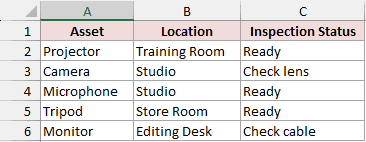
Our Equipment worksheet contains the following equipment inspection list. The Spare Equipment worksheet contains the same example data and notes.
| Asset | Location | Inspection Status |
|---|---|---|
| Projector | Training Room | Ready |
| Camera | Studio | Check lens |
| Microphone | Studio | Ready |
| Tripod | Store Room | Ready |
| Monitor | Editing Desk | Check cable |
Cells C2, C3, and C6 contain notes authored by Steve Scott. In the example below, only C3’s note is pinned open.
C3 contains the inspection status Check lens. Its separate note says Clean the lens before use.
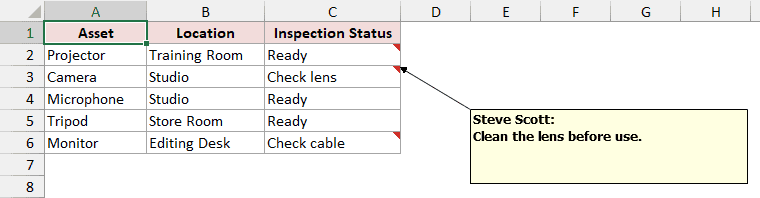
Start by selecting the cell with the displayed note:
- Select cell C3.
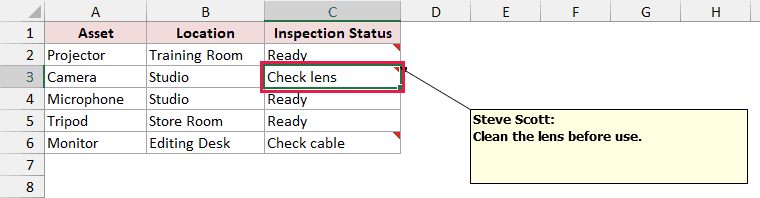
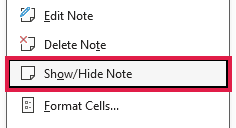
Open that cell’s shortcut menu:
- Right-click cell C3 and choose Show/Hide Note.
The note box disappears. The cell still contains Check lens, and its note remains attached.
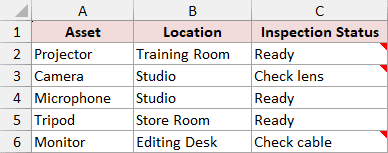
With indicators and hover enabled, the red corner indicator remains visible. Hovering over C3 displays its note temporarily.
You can also access the same command from the ribbon. With C3 selected, use this alternative:
- Go to Review > Notes > Show/Hide Note.
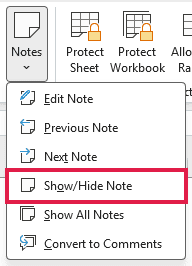
This command toggles the selected note’s visibility. Using it again can pin the note box open.
If Excel is set to display all notes, use Method #2 to turn off that global display state first.
Method #2: Toggling Show All Notes
Use Show All Notes when several note boxes are cluttering your worksheet.
For this example, the note boxes attached to C2, C3, and C6 are all displayed.
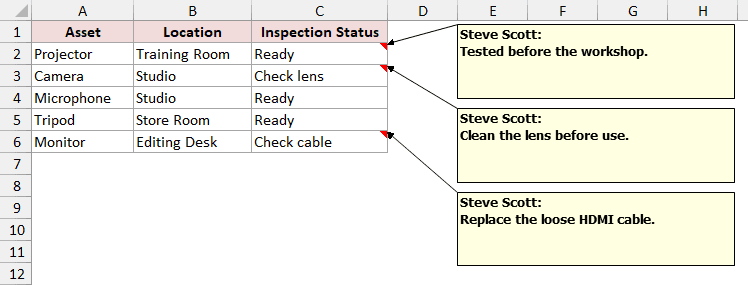
Open the notes menu on the ribbon:
- Go to Review > Notes > Show All Notes.
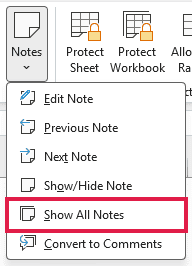
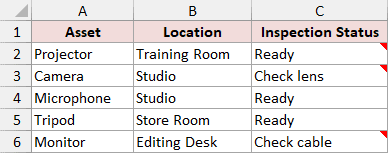
With Show All Notes switched off, the boxes disappear. The three notes and all cell contents remain unchanged.
If the first click shows more notes: Some boxes may have been individually pinned open while Show All Notes was already off.
Click Show All Notes again to switch the global display off and hide the boxes.
This toggle uses an application-level display setting. It can affect other open workbooks, so check their note display if needed.
Red corner indicators remain visible, and hovering over a cell still displays its note. Use the next method to hide those indicators and hover previews too.
Method #3: Changing the Display Options
Use this method when you want to hide note boxes, red corner indicators, and hover previews together.
Start with the note boxes hidden and their red corner indicators still visible, as shown at the end of Method #2.
Open Excel’s options:
- Click File > Options.
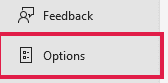
Find the annotation display settings:
- Select Advanced, then scroll to the Display section.
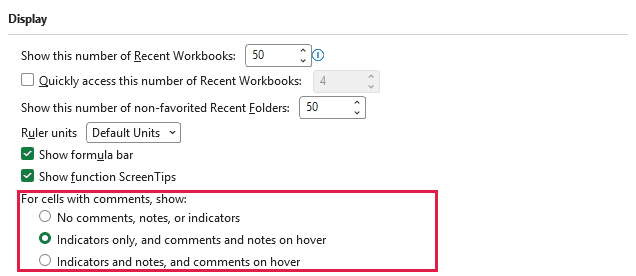
Choose the option that suppresses the indicators and hover display:
- Under For cells with comments, show, select No comments, notes, or indicators, then click OK.
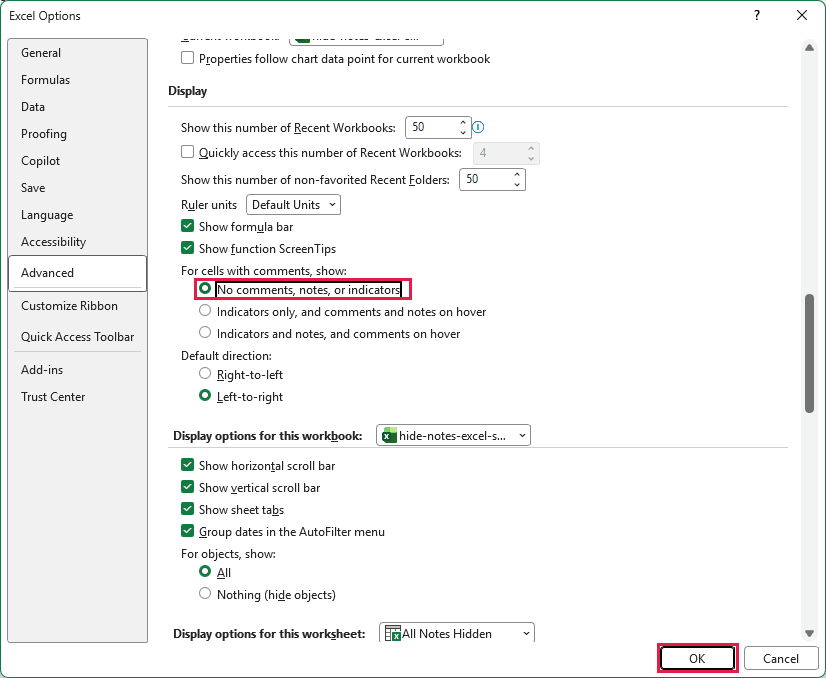
The red corner indicators disappear. Hovering over C2, C3, or C6 no longer displays a note, but all three notes remain in the file.
This is an application-level setting that can affect other open workbooks. It is not limited to the active worksheet.
To restore indicators and hover previews, use the same display settings:
- Go to File > Options > Advanced > Display. Select Indicators only, and comments and notes on hover, then click OK.
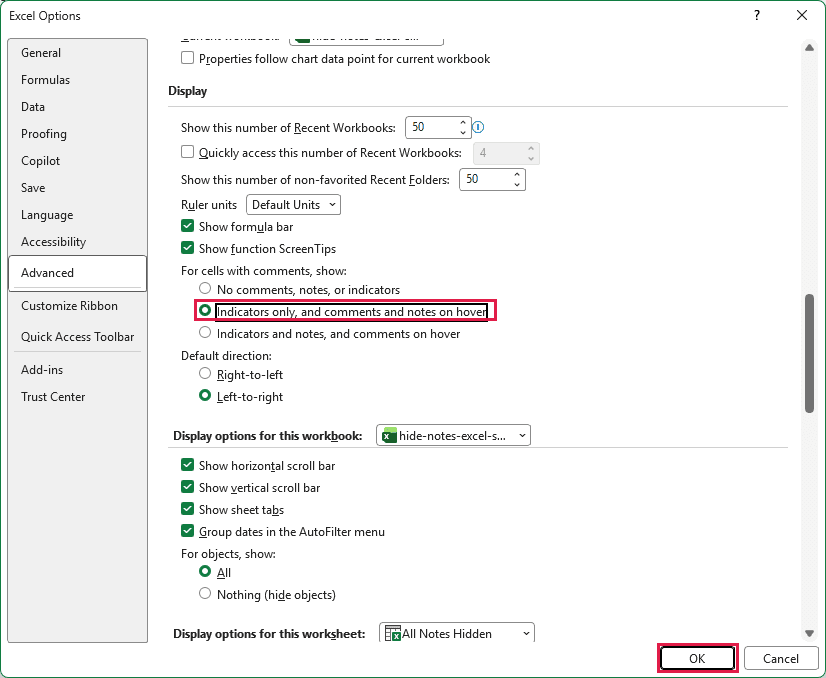
The red indicators return, and hovering over a cell displays its note again.
Mac note: Go to Excel > Preferences > View, under Authoring. Under For cells with comments, show, choose No comments or indicators.
The screenshots above show Windows Excel. The Mac settings interface looks different.
Additional Notes About Hiding Notes in Excel
- Hiding is not privacy protection. Notes remain in the file, and recipients can display them. Your Excel display preference does not guarantee their display settings.
- Older Excel versions use different names. Notes may be called Comments, with commands named Show/Hide Comment and Show All Comments.
- Check print settings separately. Notes can still print at the end of a sheet. The As displayed on sheet (legacy) option depends on displayed note boxes.
Frequently Asked Questions
Here are answers to a few questions that can come up while hiding notes.
Why Can’t I See the Show/Hide Note Command?
Check that the selected cell actually contains a note. A cell without one will not offer the command.
You may also be selecting a threaded comment. Closing the Comments pane does not hide legacy note boxes.
Does Escape Hide a Note?
Escape can exit note editing, but it does not reliably hide a pinned note box. Use Show/Hide Note to change its visibility.
Can I Hide Notes in Excel for the Web?
Excel for the web supports notes, but it does not have the Windows File > Options > Advanced route.
Use Open in Desktop App to follow the display-options steps in this article.
Conclusion
I’ve covered hiding a single note box, hiding all displayed notes, and switching off note indicators. I hope you found this article helpful.
Other Excel articles you may also like:
