
Power Query’s “Token Eof expected” error can stop a calculation even when the mistake is just one missing character.
Eof means “end of file.” Here, Power Query has read an expression that could end, but finds more code it can’t fit into that expression.
That extra code might belong in the calculation. For example, a missing multiplication sign leaves a number stranded after a column reference.
I’ll show you how to fix missing operators, extra parentheses, uppercase conditional keywords, and two complete queries accidentally pasted together.
What Causes the Token Eof Expected Error?
Start with the exact message and the expression you last edited. These four mistakes produce this error in the examples below.
| What You Find | What to Change |
|---|---|
A column reference followed by a number, such as [Pages] 1.5 | Add the missing operator. |
| A closing parenthesis after an already complete expression | Remove the unmatched parenthesis. |
IF ... then ... else ... | Use the lowercase if keyword. |
A complete let/in query followed by another complete query | Combine the required steps or keep the queries separate. |
An unfinished expression can produce a different message. A missing else, missing step comma, or unfinished multiplication isn’t automatically an EOF error.
The steps below use Excel for Windows. The download holds the finished Print Charges query, and Methods #1 and #3 build separate practice queries from its source table.
If Excel opens the file in Protected View, click Enable Editing first. The queries won’t open for editing until you do.
Method #1: Adding the Missing Multiplication Operator
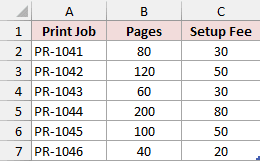
Below I have six print jobs with their page counts and setup fees. I want to calculate a Page Charge of 1.5 per page.
The source is the PrintJobs Excel table on the Print Jobs sheet, in A1:C7. The first job, PR-1041, has 80 pages.
- Create a practice query from the source table. Select a cell in Print Jobs!A1:C7, then choose Data > From Table/Range.
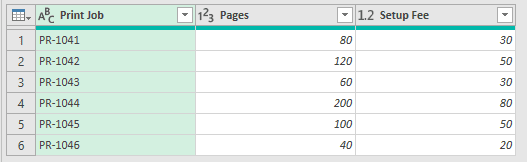
Power Query Editor opens with the source columns. Use this separate query to practice adding Page Charge; the download’s finished Print Charges query is already complete.
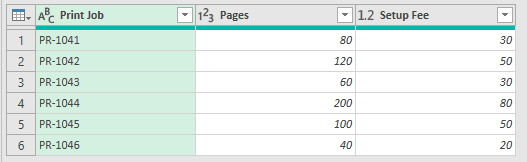
- Choose Add Column > Custom Column. Enter Page Charge in the New column name box.
Type this broken formula into the formula box:
[Pages] 1.5
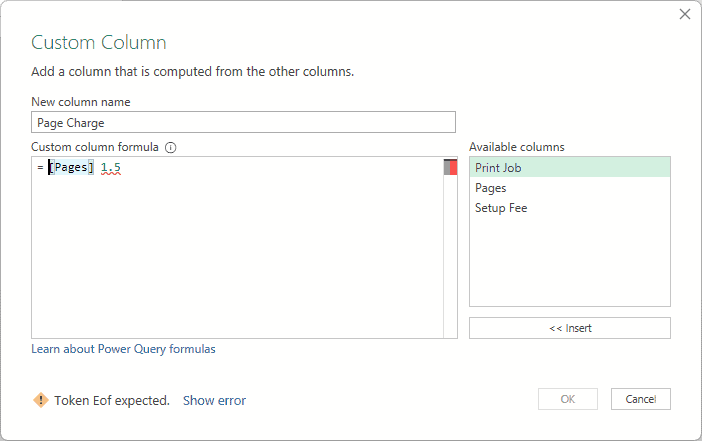
Power Query can read [Pages] as an expression, but the following 1.5 has no operator connecting it. The missing character is before the number.
- Insert the multiplication sign. Keep the column name Page Charge and replace the formula body with:
[Pages] * 1.5
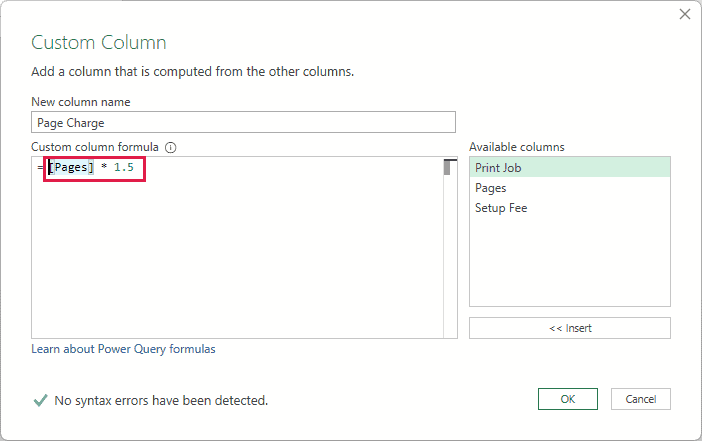
The * multiplies each row’s Pages value by 1.5. For PR-1041, that calculation is 80 × 1.5, which returns 120.
- Click OK, then choose Home > Close & Load. The corrected Page Charge appears in the query’s output table.
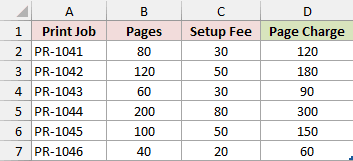
In the download’s Print Charges sheet, Page Charge occupies D2:D7. The first result is in D2.
Note: If you open the Page Charge step in the download, Excel may show a simplified Multiply dialog. Use Advanced Editor to see its full M code.
Don’t apply this diagnosis to every pair of adjacent expressions. For example, 5(2) is parsed as an attempted function call and produces a different error.
Method #2: Removing an Extra Closing Parenthesis
Below I have print jobs with Pages and Setup Fee columns. I want Total Charge to include the page charge plus the setup fee.
PR-1041 has 80 pages and a setup fee of 30, so its total should be 150.
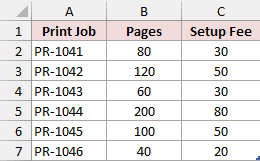
- Choose Data > Queries & Connections and edit the affected query. In the download’s Print Charges query, select Added Total Charge in Applied Steps.

- Open that step’s gear icon. To see the error yourself, type one extra ) at the end of the formula so it matches this broken version:
([Pages] * 1.5) + [Setup Fee])
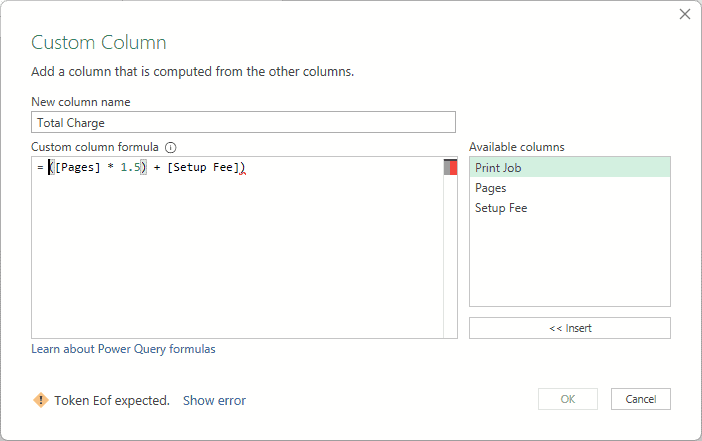
The parentheses around [Pages] * 1.5 already form a pair. The final ) has no matching opening parenthesis.
- Remove only the unmatched final parenthesis. Keep the column name Total Charge and use:
([Pages] * 1.5) + [Setup Fee]
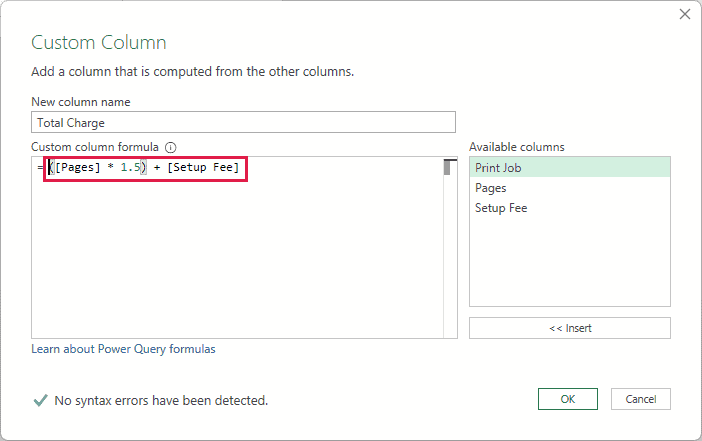
The calculation multiplies 80 by 1.5, then adds 30. That returns 150 for the first job.
- Click OK, then choose Home > Close & Load. Check the Total Charge results in the output table.
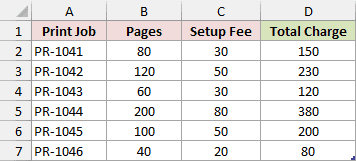
In the download’s combined Print Charges output, Total Charge is in E2:E7. PR-1041’s total is in E2.
This mistake can also occur after the final result in Advanced Editor. Check the closing characters of the whole query as well as the calculation.
Don’t remove parentheses simply because they’re at the end. A function call still needs its own closing parenthesis.
Method #3: Using the Lowercase if Keyword
Below I have print jobs with page counts. I want jobs with at least 100 pages labeled Bulk, and smaller jobs labeled Standard.
The 80-page job should return Standard. The job with exactly 100 pages should return Bulk.
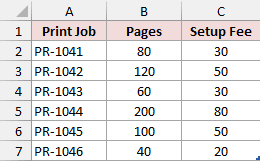
- Create another practice query from the source table. Select a cell in Print Jobs!A1:C7, then choose Data > From Table/Range.
- Choose Add Column > Custom Column. Enter Print Band in the New column name box, then type this uppercase version into the formula box:
IF [Pages] >= 100 then "Bulk" else "Standard"
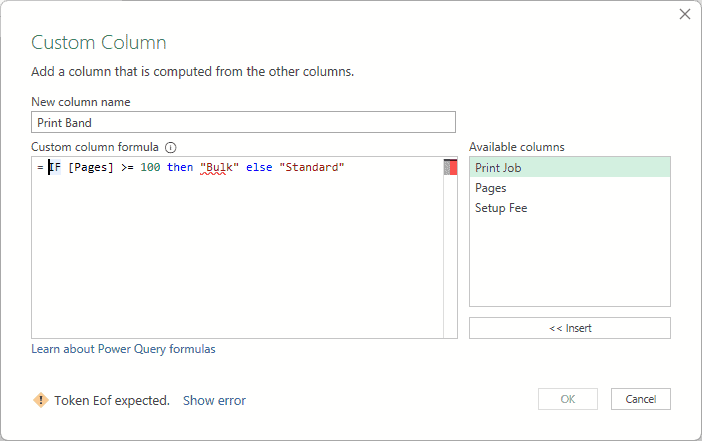
M is case-sensitive. Its conditional expression uses the lowercase keywords if, then, and else.
- Change IF to lowercase if. Keep the column name Print Band and use:
if [Pages] >= 100 then "Bulk" else "Standard"
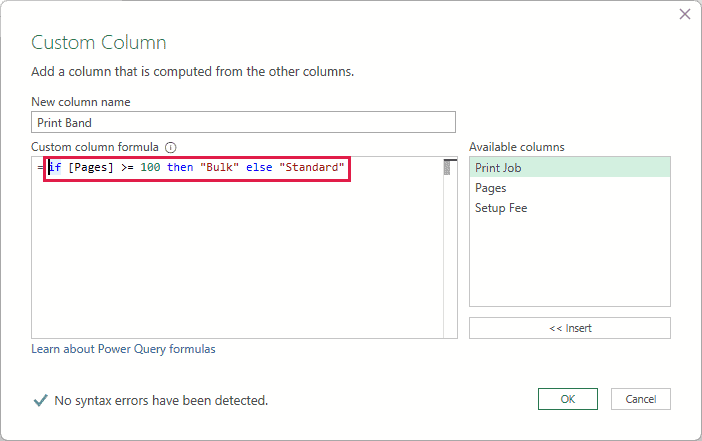
The >= comparison includes 100. That makes PR-1045, the 100-page job, Bulk.
- Click OK, then choose Home > Close & Load. Check the Print Band results in the output table.
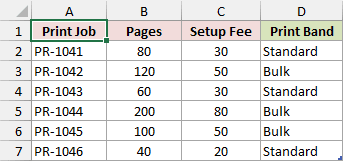
In the download, Print Band is in Print Charges!F2:F7. F2 is Standard, and F6 is Bulk.
An Excel-style IF(...) call is a different mistake. With no function named IF defined, M reports that the name doesn’t exist in the current context.
If you omit else, the message instead asks for the else token. Read the whole message before changing keyword capitalization.
Method #4: Combining Two Pasted Query Blocks
Below I have the PrintJobs table with print-job IDs, pages, and setup fees. I want one query that returns both Page Charge and Total Charge.
For PR-1041, those two results should be 120 and 150.
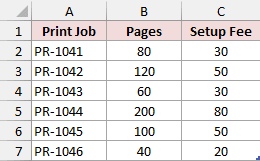
- Edit the query, then choose Home > Advanced Editor. To see the error yourself, paste the whole document a second time below the first one.
That gives you two complete queries, one after the other:
let
    Source = Excel.CurrentWorkbook(){[Name="PrintJobs"]}[Content],
    #"Changed Type" = Table.TransformColumnTypes(Source, {{"Print Job", type text}, {"Pages", Int64.Type}, {"Setup Fee", type number}}),
    #"Added Page Charge" = Table.AddColumn(#"Changed Type", "Page Charge", each [Pages] * 1.5, type number)
in
    #"Added Page Charge"
let
    Source = Excel.CurrentWorkbook(){[Name="PrintJobs"]}[Content],
    #"Changed Type" = Table.TransformColumnTypes(Source, {{"Print Job", type text}, {"Pages", Int64.Type}, {"Setup Fee", type number}}),
    #"Added Total Charge" = Table.AddColumn(#"Changed Type", "Total Charge", each ([Pages] * 1.5) + [Setup Fee], type number)
in
    #"Added Total Charge"
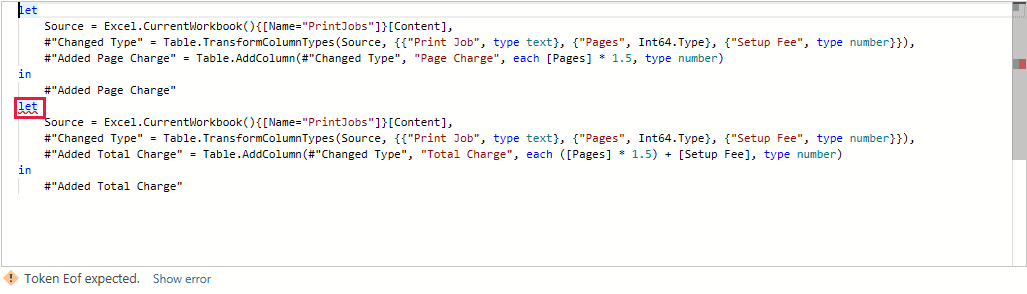
The first in already returns its result. The following top-level let starts another expression where the first query should have ended.
- Keep one outer let block and connect the steps. For this two-calculation example, replace the duplicated document with:
let
    Source = Excel.CurrentWorkbook(){[Name="PrintJobs"]}[Content],
    #"Changed Type" = Table.TransformColumnTypes(Source, {{"Print Job", type text}, {"Pages", Int64.Type}, {"Setup Fee", type number}}),
    #"Added Page Charge" = Table.AddColumn(#"Changed Type", "Page Charge", each [Pages] * 1.5, type number),
    #"Added Total Charge" = Table.AddColumn(#"Added Page Charge", "Total Charge", each ([Pages] * 1.5) + [Setup Fee], type number)
in
    #"Added Total Charge"
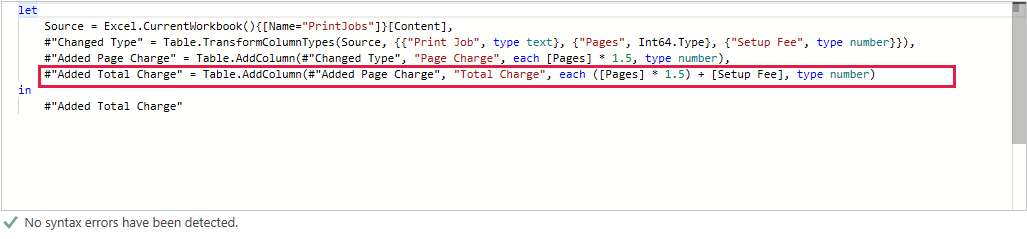
The comma separates the two added-column steps. Added Total Charge now uses Added Page Charge as its input, so both columns remain in the result.
Table.AddColumn calculates a new column from each input row. Here, each supplies the row context for [Pages] and [Setup Fee].
- Click Done, then choose Home > Close & Load. The repaired example returns five columns: the three source columns, Page Charge, and Total Charge.

This shorter example doesn’t add Print Band. The download’s finished Print Charges query includes that additional step and returns six columns.
If you’re repairing a longer query, preserve its other required steps. The code above replaces this specific duplicated example, rather than every query with an EOF error.
If the two queries serve separate purposes, keep each in its own query instead. You don’t need to combine unrelated outputs.
Additional Notes About the Token Eof Expected Error in Power Query
These checks help you narrow down the faulty expression without disturbing the rest of the query.
- Save a copy of your query code before changing a full document. That makes it easier to compare a working step with the edited version.
- Fix one syntax mistake at a time. Another message may appear after the first problem is corrected.
- Keep the source and output separate. The download reads Print Jobs!A1:C7 and loads its combined result to Print Charges!A1:F7.
- After changing source values, use Data > Refresh All to update the query output. Editing source cells doesn’t itself refresh the results.
Some similar-looking mistakes produce different errors. In the tested examples, [Pages] * requests a literal, and a missing comma between let steps requests a comma.
Likewise, [Pages] [Setup Fee] attempts field access on a number. It isn’t the same syntax problem as [Pages] 1.5.
Frequently Asked Questions
These questions cover the error position and the two places where you may be editing M code.
Why Does the Error Point After the Mistake?
Power Query reports where it can no longer accept the code. A missing operator can therefore make the following number the reported problem location.
Check the characters just before that location, too. Avoid deleting the reported token until you’ve checked whether a missing operator should connect it.
Is Custom Column Syntax Different From Advanced Editor Syntax?
Both use M, but you’re editing different amounts of code. Custom Column takes an expression for the new column; Advanced Editor shows the whole query.
A full query commonly wraps a row calculation in Table.AddColumn with each. Pasting a bare [Pages] calculation into a whole query doesn’t supply that row context.
Can a Valid Query Contain More Than One let?
Yes. A let expression can sit inside another expression, including a Custom Column calculation.
Method #4 fixes two separate top-level query documents pasted together. It doesn’t mean you should delete every second let you find.
Will Refreshing or Clearing the Cache Fix This Error?
Refreshing reruns the existing query code. It won’t insert a missing operator, remove an extra parenthesis, or correct a keyword.
Correct the syntax first, then refresh the output. Cache settings don’t repair the expressions shown in this article.
Conclusion
I covered four syntax mistakes that produce Power Query’s Token Eof expected error and showed the corrected calculations.
I hope you found this article helpful.
Related Power Query Functions / Articles:
