
When an Excel VBA For Each loop reaches a row you don’t want to process, you need to skip that row and keep checking the rest.
VBA doesn’t have a Continue For statement. You can get the same effect by wrapping the work in an If block or jumping to a label before Next.
I’ll show you both approaches using a quantity and status check, including how to skip blanks and worksheet errors without stopping the loop.
Method #1: Using an If Guard (Recommended)
I recommend an If guard for this example because you can see exactly which statements run for an eligible row.
The Skip Orders sheet lists pick batches in A2:A13, quantities in B2:B13, and statuses in C2:C13.
We want to copy a quantity into If Guard Output only when it’s a positive number and the status is Ready. Everything else should show Skipped.
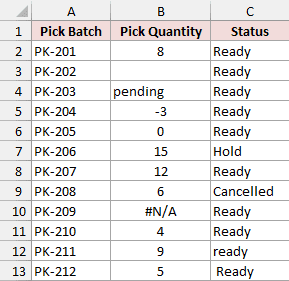
The blank, pending, negative quantity, zero, and #N/A deliberately test the skip rules. Hold and Cancelled rows should also be excluded.
Here are the steps in Excel for Windows:
- Open the example workbook. If you see the yellow bar, click Enable Editing.
- Choose File > Save As and save a copy as Excel Macro-Enabled Workbook (
*.xlsm). - On Skip Orders, select D2:D13 and press Delete. That clears the finished results so you can watch the macro fill them in.
- Press Alt + F11 to open the Visual Basic Editor.
- Select the saved workbook’s project, choose Insert > Module, and paste the complete code below into the new standard module.
- Place the cursor inside
SPShipWithIfGuard, then press F5 to run it. Return to Skip Orders to check column D.
Option Explicit

Public Sub SPShipWithIfGuard()
    Dim ws As Worksheet
    Dim cell As Range
    Set ws = ThisWorkbook.Worksheets("Skip Orders")

    For Each cell In ws.Range("B2:B13")
        ws.Cells(cell.Row, "D").Value2 = "Skipped"
        If IsEligiblePick(cell) Then
            ws.Cells(cell.Row, "D").Value2 = CDbl(cell.Value2)
        End If
    Next cell
End Sub

Private Function IsEligiblePick(ByVal quantityCell As Range) As Boolean
    Dim quantityValue As Variant
    Dim statusValue As Variant
    quantityValue = quantityCell.Value2

    ' Separate guards keep errors and blanks out of numeric comparisons.
    If IsError(quantityValue) Then Exit Function
    If IsEmpty(quantityValue) Then Exit Function
    If VarType(quantityValue) = vbBoolean Then Exit Function
    If VarType(quantityValue) = vbString Then Exit Function
    If Not IsNumeric(quantityValue) Then Exit Function
    If CDbl(quantityValue) <= 0 Then Exit Function

    statusValue = quantityCell.Offset(0, 1).Value2
    If IsError(statusValue) Then Exit Function
    If IsEmpty(statusValue) Then Exit Function
    If StrComp(Trim$(CStr(statusValue)), "Ready", vbTextCompare) <> 0 Then Exit Function
    IsEligiblePick = True
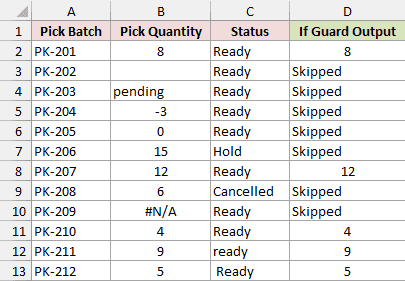
End FunctionThe macro writes the eligible quantities to D2:D13 and marks the other rows Skipped.
How does the code work?
For Each cell visits every quantity in B2:B13. Each iteration starts by writing Skipped to that row’s output cell.
IsEligiblePick returns True only when the quantity passes its checks and the neighboring status matches Ready. The If block then replaces Skipped with that quantity.
When the helper returns False, VBA passes over the processing assignment and reaches Next cell. The following row still gets checked.
This follows the normal behavior of VBA’s If…Then…Else statement. You don’t need a special continuation command.
The helper checks for errors and blanks before it compares numbers. It also rejects Boolean values and all strings, including numbers stored as text.
For statuses, Trim$ removes outer spaces and StrComp uses vbTextCompare, so Ready, ready, and Ready all qualify.
The five processed batches are PK-201, PK-207, PK-210, PK-211, and PK-212. Their quantities are 8, 12, 4, 9, and 5, totaling 38.
The other seven batches show Skipped. The source quantities and statuses stay in place, including the intentional error in B10.
Method #2: Using GoTo and a Label
If your loop has a longer processing section, you may prefer to jump past it as soon as a row fails a check.
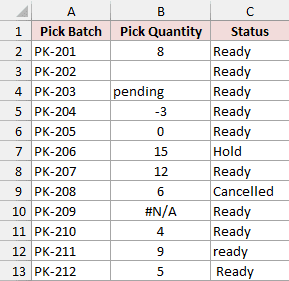
On Skip Orders, A2:C13 contains pick batches, quantities, and statuses. This version writes to GoTo Output in column E.
The rule is the same: process positive numeric quantities with Ready status, and mark every other row Skipped.
Here are the steps to run the label version in Excel for Windows:
- Open the example workbook and save a copy as Excel Macro-Enabled Workbook (
*.xlsm) if you haven’t already. - On Skip Orders, select E2:E13 and press Delete so you can watch the macro fill the column.
- Press Alt + F11, select that workbook’s project, and choose Insert > Module to create a new standard module.
- Paste the complete code below into that new module, separate from the first example. Each example includes its own private helper.
- Place the cursor inside
SPShipWithGoTo, press F5, and return to Skip Orders to check column E.
Option Explicit

Public Sub SPShipWithGoTo()
    Dim ws As Worksheet
    Dim cell As Range
    Set ws = ThisWorkbook.Worksheets("Skip Orders")

    For Each cell In ws.Range("B2:B13")
        ws.Cells(cell.Row, "E").Value2 = "Skipped"
        If Not IsEligiblePick(cell) Then GoTo NextPick
        ws.Cells(cell.Row, "E").Value2 = CDbl(cell.Value2)
NextPick:
    Next cell
End Sub

Private Function IsEligiblePick(ByVal quantityCell As Range) As Boolean
    Dim quantityValue As Variant
    Dim statusValue As Variant
    quantityValue = quantityCell.Value2

    ' Separate guards keep errors and blanks out of numeric comparisons.
    If IsError(quantityValue) Then Exit Function
    If IsEmpty(quantityValue) Then Exit Function
    If VarType(quantityValue) = vbBoolean Then Exit Function
    If VarType(quantityValue) = vbString Then Exit Function
    If Not IsNumeric(quantityValue) Then Exit Function
    If CDbl(quantityValue) <= 0 Then Exit Function

    statusValue = quantityCell.Offset(0, 1).Value2
    If IsError(statusValue) Then Exit Function
    If IsEmpty(statusValue) Then Exit Function
    If StrComp(Trim$(CStr(statusValue)), "Ready", vbTextCompare) <> 0 Then Exit Function
    IsEligiblePick = True
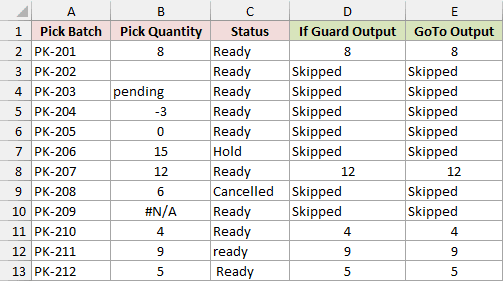
End FunctionColumn E now shows the five eligible quantities and seven Skipped labels. Its results match the If Guard Output column.
If Not IsEligiblePick(cell) Then GoTo NextPick sends an excluded row directly to the NextPick: label.
Because that label sits immediately before Next cell, the loop advances to the next quantity. It passes over the assignment that would copy the current quantity.
An eligible row copies its quantity before it reaches the label and moves to the next row.
VBA’s GoTo statement can jump to a label within the same procedure. Keep the jump local so the loop stays easy to follow.
Note: Put the label before Next, not after it. A label after Next would jump out of the loop instead of advancing it.
Additional Notes About Skipping Iterations in Excel VBA
A few details matter when you adapt either example to your own workbook:
- Keep the processing statements inside the guarded block or before the skip label. Statements outside those boundaries can still run for excluded rows.
- Change Skip Orders, B2:B13, and the output column for your own data. The status check assumes the status is one column to the right of the quantity.
ThisWorkbookmeans the workbook that contains the VBA code. Paste the code into your saved example workbook, not your Personal Macro Workbook.- The download is an
.xlsxfile, so it has no macros in it. Paste the code from this article, then save the workbook as.xlsmto keep it.
Frequently Asked Questions
These are a few related points that can cause confusion when you change the loop.
Can I Use Continue For in Excel VBA?
No. Continue For belongs to Visual Basic .NET, not Office VBA. Use the If guard or label approach shown above.
Can I Use Exit For to Skip One Row?
No. Exit For ends the current loop. In nested loops, it exits the innermost loop containing that statement.
Can I Use a Range Variable With For Each?
Yes. These examples declare cell As Range because each item is a worksheet cell. A For Each loop over an array requires a Variant loop variable, as the For Each…Next syntax explains.
Conclusion
I’ve shown you how to skip a pick batch while keeping the loop running.
I hope you found this article helpful.
Other Excel articles you may also like: