
The DoEvents function in Excel VBA gives a long-running macro opportunities to process queued events, such as a request to cancel the work.
It passes control to the operating system, then your macro continues. Your loop still needs a stopping condition and a safe way to handle interruptions.
In this tutorial, I’ll show you periodic yielding, a cancellation flag, a guard against a second start, and cleanup that restores Excel’s settings.
What Does VBA DoEvents Do?
You can call DoEvents on its own line:
DoEventsExecution yields while queued events are processed. This gives Excel opportunities to respond during a loop. Microsoft’s DoEvents documentation describes this behavior.
DoEvents creates no background thread. It also doesn’t pause for a specified number of seconds, so you can’t use it as a timer.
I recommend calling it periodically inside a bounded loop, with cancellation and cleanup in place. A call on every iteration can add unnecessary overhead.
Yielding During a Long Loop
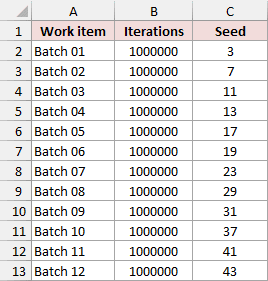
Below I have 12 work items on the Work Queue sheet. Each has an iteration count and a seed in A1:C13.
The goal is to process this queue while giving Excel regular opportunities to handle queued work.
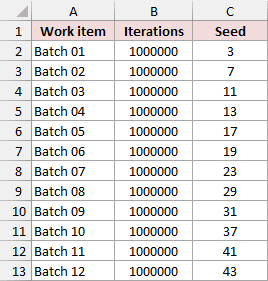
Each item runs 1,000,000 arithmetic iterations. In each iteration, the code adds (unit + seed) Mod 97 to a checksum.
There are 12,000,000 work units altogether. This is a demonstration workload. It doesn’t open, scan, or modify files.
Set Up the Runnable Example
The example file holds the finished results from every run. To run the code yourself, paste it into a copy of the file. It takes about a minute.
Here are the steps to set it up in Windows desktop Excel:
- Open the example file. If Excel shows a yellow Protected View bar, click Enable Editing. Then save a copy as Excel Macro-Enabled Workbook (
.xlsm). - Press Alt + F11 to open the VBA Editor.
- Click Insert > Module. An empty code window opens.
- Copy the complete code below and paste it into that window.
- Return to Excel, press Alt + F8, select RunBatch, and click Run.
Here is the complete code:
Option Explicit

Private mRunning As Boolean
Private mCancelRequested As Boolean
Private mBlockedCalls As Long
Private mNextLogRow As Long
Private Const YIELD_EVERY As Long = 100000
Private Const LOG_EVERY As Long = 3000000

' Paste into a standard module in an .xlsm copy of the example file.
' DoEvents yields to queued events. This work still runs on the VBA thread.
Public Sub RunBatch()
    If mRunning Then
        mBlockedCalls = mBlockedCalls + 1
        Exit Sub
    End If
    mNextLogRow = 2
    ThisWorkbook.Worksheets("Progress Log").Range("A2:E11").ClearContents
    ExecuteBatch "Completed", 2, 4, ""
End Sub

Public Sub RequestCancel()
    If mRunning Then mCancelRequested = True
End Sub

' Optional controls for a live .xlsm copy. The .xlsx download has no controls.
Public Sub InstallControls()
    Dim ws As Worksheet, startButton As Shape, cancelButton As Shape
    Set ws = ThisWorkbook.Worksheets("Work Queue")
    On Error Resume Next
    ws.Shapes("SPStartBatch").Delete
    ws.Shapes("SPCancelBatch").Delete
    On Error GoTo 0
    Set startButton = ws.Shapes.AddShape(5, ws.Range("I2").Left, ws.Range("I2").Top, 130, 28)
    startButton.Name = "SPStartBatch"
    startButton.TextFrame.Characters.Text = "Run batch"
    startButton.OnAction = "'" & ThisWorkbook.Name & "'!RunBatch"
    Set cancelButton = ws.Shapes.AddShape(5, ws.Range("I5").Left, ws.Range("I5").Top, 130, 28)
    cancelButton.Name = "SPCancelBatch"
    cancelButton.TextFrame.Characters.Text = "Cancel batch"
    cancelButton.OnAction = "'" & ThisWorkbook.Name & "'!RequestCancel"
End Sub

' This reproduces every result snapshot. The test hooks are deterministic:
' they exercise cancellation/reentry paths, not a human click during a yield.
Public Sub ReplaySampleRuns()
    Dim savedEvents As Boolean, savedDisplay As Boolean, savedStatus As Variant
    Dim savedCancelKey As XlEnableCancelKey, replayError As Long
    savedEvents = Application.EnableEvents
    savedDisplay = Application.DisplayStatusBar
    savedStatus = Application.StatusBar
    savedCancelKey = Application.EnableCancelKey
    On Error GoTo ReplayFailed
    mNextLogRow = 2
    ThisWorkbook.Worksheets("Progress Log").Range("A2:E11").ClearContents
    ThisWorkbook.Worksheets("Run Results").Range("A2:I5").ClearContents
    ThisWorkbook.Worksheets("Cleanup").Range("A2:E21").ClearContents
    ConfigureTestState True, True, False
    ExecuteBatch "Completed", 2, 4, ""
    ConfigureTestState False, False, "Existing status"
    ExecuteBatch "Cancelled", 3, 5, "cancel"
    ConfigureTestState True, False, "Existing status"
    ExecuteBatch "Guarded", 4, 6, "guard"
    ConfigureTestState False, True, False
    ExecuteBatch "Error cleanup", 5, 7, "error"
ReplayCleanup:
    Application.EnableEvents = savedEvents
    Application.DisplayStatusBar = savedDisplay
    Application.StatusBar = savedStatus
    Application.EnableCancelKey = savedCancelKey
    On Error GoTo 0
    If replayError <> 0 Then Err.Raise replayError, "ReplaySampleRuns", "Replay failed."
    Exit Sub
ReplayFailed:
    replayError = Err.Number
    Resume ReplayCleanup
End Sub

Private Sub ConfigureTestState(ByVal eventsOn As Boolean, ByVal displayOn As Boolean, ByVal statusText As Variant)
    Application.EnableEvents = eventsOn
    Application.DisplayStatusBar = displayOn
    Application.StatusBar = statusText
    Application.EnableCancelKey = xlInterrupt
End Sub

Private Sub ExecuteBatch(ByVal scenario As String, ByVal resultRow As Long, ByVal outputColumn As Long, ByVal testMode As String)
    Dim ws As Worksheet, row As Long, unit As Long, iterations As Long, seed As Long
    Dim completed As Long, target As Long, yields As Long, errorNumber As Long
    Dim itemChecksum As Double, totalChecksum As Double, outcome As String
    Dim oldEvents As Boolean, oldDisplay As Boolean, oldStatus As Variant
    Dim oldCancelKey As XlEnableCancelKey, restored As Boolean
    If mRunning Then
        mBlockedCalls = mBlockedCalls + 1
        Exit Sub
    End If
    oldEvents = Application.EnableEvents
    oldDisplay = Application.DisplayStatusBar
    oldStatus = Application.StatusBar
    oldCancelKey = Application.EnableCancelKey
    mRunning = True
    mCancelRequested = False
    mBlockedCalls = 0
    On Error GoTo RunFailed
    Application.EnableEvents = False
    Application.DisplayStatusBar = True
    Application.EnableCancelKey = xlErrorHandler
    Set ws = ThisWorkbook.Worksheets("Work Queue")
    ws.Range(ws.Cells(2, outputColumn), ws.Cells(13, outputColumn)).Value = "Not run"
    For row = 2 To 13
        iterations = CLng(ws.Cells(row, 2).Value)
        If iterations < 1 Then Err.Raise 5, "ExecuteBatch", "Iterations must be positive."
        target = target + iterations
    Next row
    outcome = "Completed"
    For row = 2 To 13
        iterations = CLng(ws.Cells(row, 2).Value)
        seed = CLng(ws.Cells(row, 3).Value)
        itemChecksum = 0
        For unit = 1 To iterations
            itemChecksum = itemChecksum + ((unit + seed) Mod 97)
            totalChecksum = totalChecksum + ((unit + seed) Mod 97)
            completed = completed + 1
            If unit = iterations Then ws.Cells(row, outputColumn).Value = itemChecksum
            If completed Mod YIELD_EVERY = 0 Then
                yields = yields + 1
                Application.StatusBar = scenario & ": " & Format$(completed / target, "0%") & " complete"
                DoEvents
                If completed = LOG_EVERY Then
                    If testMode = "cancel" Then RequestCancel
                    If testMode = "guard" Then RunBatch
                    If testMode = "error" Then Err.Raise 5, "ExecuteBatch", "Deliberate validation error."
                End If
                If mCancelRequested Then
                    outcome = "Cancelled"
                    AppendProgress scenario, completed, target, totalChecksum, outcome
                    GoTo CleanUp
                End If
                If completed Mod LOG_EVERY = 0 Or completed = target Then
                    AppendProgress scenario, completed, target, totalChecksum, IIf(completed = target, "Completed", "Running")
                End If
            End If
        Next unit
    Next row
CleanUp:
    On Error GoTo 0
    Application.EnableEvents = oldEvents
    Application.StatusBar = oldStatus
    Application.DisplayStatusBar = oldDisplay
    Application.EnableCancelKey = oldCancelKey
    mCancelRequested = False
    mRunning = False
    restored = (Application.EnableEvents = oldEvents) And (Application.StatusBar = oldStatus) And (Application.DisplayStatusBar = oldDisplay) And (Application.EnableCancelKey = oldCancelKey) And Not mRunning
    WriteSummary resultRow, Array(scenario, outcome, completed, target, yields, totalChecksum, mBlockedCalls, errorNumber, restored)
    WriteCleanup resultRow, scenario, "EnableEvents", oldEvents, Application.EnableEvents, 0
    WriteCleanup resultRow, scenario, "StatusBar", oldStatus, Application.StatusBar, 1
    WriteCleanup resultRow, scenario, "DisplayStatusBar", oldDisplay, Application.DisplayStatusBar, 2
    WriteCleanup resultRow, scenario, "EnableCancelKey", oldCancelKey, Application.EnableCancelKey, 3
    WriteCleanup resultRow, scenario, "Running guard", False, mRunning, 4
    Exit Sub
RunFailed:
    errorNumber = Err.Number
    If errorNumber = 18 Then
        outcome = "Cancelled"
    Else
        outcome = "Error"
    End If
    If target > 0 Then AppendProgress scenario, completed, target, totalChecksum, IIf(errorNumber = 18, "Cancelled", "Error " & errorNumber)
    Resume CleanUp
End Sub

Private Sub WriteSummary(ByVal row As Long, ByVal values As Variant)
    Dim column As Long
    For column = 0 To UBound(values)
        ThisWorkbook.Worksheets("Run Results").Cells(row, column + 1).Value = values(column)
    Next column
End Sub

Private Sub AppendProgress(ByVal scenario As String, ByVal done As Long, ByVal target As Long, ByVal checksum As Double, ByVal state As String)
    Dim values As Variant, column As Long
    values = Array(scenario, done, done / target, checksum, state)
    For column = 0 To UBound(values)
        ThisWorkbook.Worksheets("Progress Log").Cells(mNextLogRow, column + 1).Value = values(column)
    Next column
    mNextLogRow = mNextLogRow + 1
End Sub

Private Sub WriteCleanup(ByVal summaryRow As Long, ByVal scenario As String, ByVal setting As String, ByVal before As Variant, ByVal after As Variant, ByVal offset As Long)
    Dim row As Long, values As Variant, column As Long
    row = 2 + (summaryRow - 2) * 5 + offset
    values = Array(scenario, setting, before, after, before = after)
    For column = 0 To UBound(values)
        ThisWorkbook.Worksheets("Cleanup").Cells(row, column + 1).Value = values(column)
    Next column
End SubKeep the four worksheet names unchanged: Work Queue, Run Results, Progress Log, and Cleanup. The code refers to those names directly.
To recreate all four saved scenarios, run ReplaySampleRuns the same way. It runs the worker four times and triggers the cancel, second start, and error cases for you.
If Excel says macros are disabled, click Enable Content. Only do this for files you trust.
Note: The .xlsx file has no macros. Excel only runs the code after you paste it into an .xlsm copy, so save it as .xlsm first.
How the Yield Checkpoint Works
The code defines these two intervals:
Private Const YIELD_EVERY As Long = 100000
Private Const LOG_EVERY As Long = 3000000It calls DoEvents every 100,000 completed units. A separate interval records progress every 3,000,000 units.
This excerpt is the start of the yield checkpoint in the complete worker:
If completed Mod YIELD_EVERY = 0 Then
    yields = yields + 1
    Application.StatusBar = scenario & ": " & Format$(completed / target, "0%") & " complete"
DoEventsThe status message uses completed work divided by total work. For example, 3,000,000 divided by 12,000,000 displays as 25% complete.
This excerpt stops at DoEvents. The complete code above continues with cancellation checks, progress logging, and the closing End If.
After the default queue completes, Work Queue!D2:D13 contains each item’s checksum.
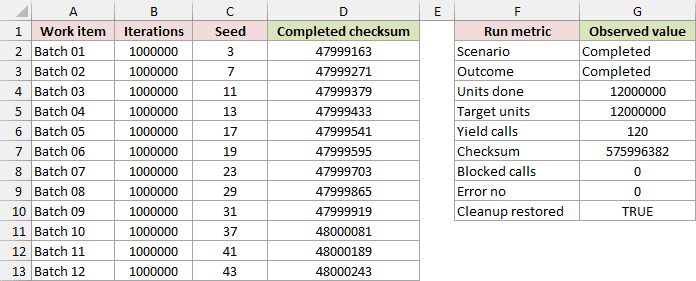
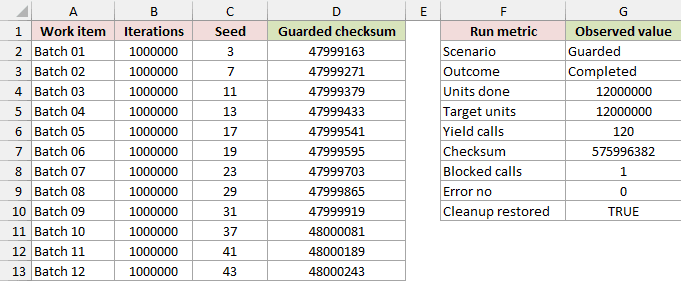
The Run Results sheet records 12,000,000 units, 120 yield calls, and a total checksum of 575,996,382 for the completed example.
The Progress Log sheet shows checkpoints at 25%, 50%, 75%, and 100%. These percentages describe completed work, rather than elapsed time.
The 100,000-unit interval suits this example’s arithmetic. It doesn’t guarantee a particular response time for a different workload.
Adding Cooperative Cancellation
For this example, the Work Queue sheet has the same 12 items, each with 1,000,000 iterations. The goal is to stop before processing the whole queue.
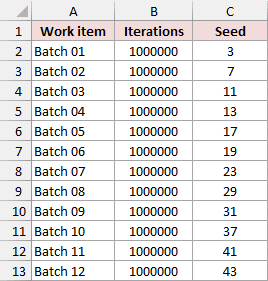
The module has a separate public procedure for requesting cancellation:
Public Sub RequestCancel()
    If mRunning Then mCancelRequested = True
End SubIt sets a module-level flag. The running worker checks that flag after the yield checkpoint and takes the cleanup path when cancellation is requested.
Here is that check from the worker:
If mCancelRequested Then
    outcome = "Cancelled"
    AppendProgress scenario, completed, target, totalChecksum, outcome
    GoTo CleanUp
End IfCancellation is cooperative. RequestCancel asks the worker to stop; the worker decides where it can leave safely.
Add Run and Cancel Buttons
The code above includes InstallControls, which creates two worksheet shapes and assigns their macros. You don’t need to build a UserForm.
Here are the steps to add and use the controls:
- In your
.xlsmcopy, press Alt + F8, select InstallControls, and click Run. - On Work Queue, find Run batch near cell I2 and Cancel batch near I5.
- Click Run batch to start. While it is running, click Cancel batch to request a stop.
The buttons call RunBatch and RequestCancel. A run may finish before you can request cancellation, depending on your computer and workload.
The saved cancellation example shows a stop at 3,000,000 units. The first three items have checksums; the remaining nine show Not run.
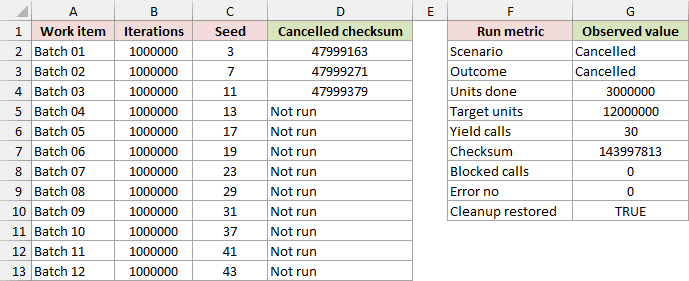
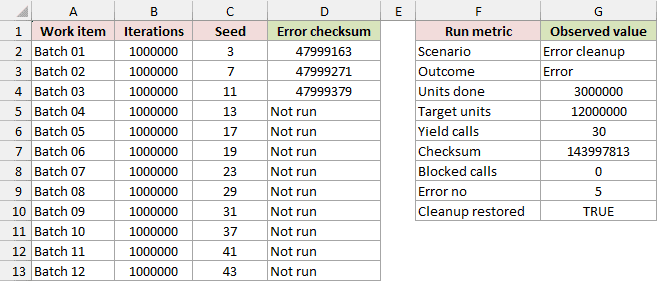
Its total checksum is 143,997,813, with 30 yield calls. A cancellation you request yourself can occur at a different checkpoint.
RunBatch writes its latest outcome to row 2 of Run Results and column D of Work Queue, even if you cancel it.
The saved Cancelled row and column E are reference examples. They aren’t the destinations used by the Run batch button.
Preventing a Second Start
The Work Queue sheet contains 12 items with iteration counts and seeds. Here, the goal is to finish the original run while rejecting another start.
A callback can reach your procedure while control has been yielded. Without protection, a second call could overwrite the first run’s shared module state (the cancel flag and log row) and its results.
The module declares its guard outside the procedures:
Private mRunning As BooleanAt the start of RunBatch, this check rejects a call while work is already running:
If mRunning Then
    mBlockedCalls = mBlockedCalls + 1
    Exit Sub
End IfThe worker sets mRunning = True before doing its work. Cleanup resets it to False so a later run can start normally.
The saved Guarded example shows one blocked call. The original run still completes all 12,000,000 units and returns 575,996,382.
This guard protects this entry point. It doesn’t protect every other macro or stop you from editing the workbook while execution yields.
Keep the queue and workbook structure unchanged during a run. Don’t close the workbook or let other code replace its sheets halfway through.
Restoring Excel State After a Stop or Error
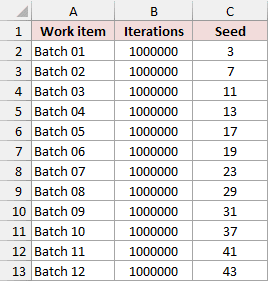
This example uses the 12-item Work Queue to show an early error. The goal is to restore Excel’s prior settings even when work stops.
The worker saves the existing settings before changing them:
oldEvents = Application.EnableEvents
oldDisplay = Application.DisplayStatusBar
oldStatus = Application.StatusBar
oldCancelKey = Application.EnableCancelKeyDuring execution, it disables Excel object events, shows the status bar, and sets the interruption mode to xlErrorHandler.
Normal completion, a cancellation request, and a handled error all reach the same cleanup code:
CleanUp:
    On Error GoTo 0
    Application.EnableEvents = oldEvents
    Application.StatusBar = oldStatus
    Application.DisplayStatusBar = oldDisplay
    Application.EnableCancelKey = oldCancelKey
    mCancelRequested = False
mRunning = FalseRestore what was there before. For example, setting EnableEvents = True unconditionally would be wrong if events were already disabled when the macro started.
The saved Error cleanup example stops after 3,000,000 units with error 5. It retains the first three checksums and leaves later items as Not run.
The Cleanup sheet compares before and after values for four application properties and the running guard. All five checks show TRUE for each saved scenario.
StatusBar needs a Variant when you save it. Excel returns False when it controls the status bar; another macro may have left a text message. Microsoft documents both states.
Handling Esc Separately
With EnableCancelKey = xlErrorHandler, Excel sends an interruption such as Esc to an error handler as error 18. Microsoft’s EnableCancelKey reference explains this setting.
The code handles error 18 as cancellation, then uses the cleanup path. The saved error example uses error 5, so it illustrates a different failure.
Excel also resets EnableCancelKey to xlInterrupt when it returns to idle. Set the intended interruption mode each time your procedure starts.
Additional Notes About VBA DoEvents in Excel
The saved examples show four outcomes of the same worker. They help you compare what should remain after each kind of stop.
| Saved Scenario | Units Done | Yield Calls | Outcome |
|---|---|---|---|
| Completed | 12,000,000 | 120 | All items processed |
| Cancelled | 3,000,000 | 30 | Cancellation flag stops the worker |
| Guarded | 12,000,000 | 120 | One additional start blocked |
| Error cleanup | 3,000,000 | 30 | Error 5 handled, settings restored |
EnableEvents and DoEvents have different jobs. EnableEvents controls Excel object events, such as worksheet change events. Microsoft’s EnableEvents reference describes that switch.
Disabling those events doesn’t replace a running guard. Other entry points, including assigned macros, still need protection.
The download is a snapshot of finished results. Paste the code into an .xlsm copy if you want to execute the worker. Keep the worksheet names and input layout.
Use desktop Excel for the VBA example. Excel for the web can’t run VBA macros. The supplied execution example uses Windows shortcuts.
Choose yield intervals for your own work. Expensive operations can make 100,000 iterations a long interval. A single blocking operation also can’t yield halfway through itself.
A forced stop can bypass cleanup. Avoid using the VBA Editor’s Reset button or an End statement as your normal cancellation mechanism.
Frequently Asked Questions
These details matter when you adapt the queue example to your own macro.
Can I Resume a Cancelled Run?
This module doesn’t implement resume. RunBatch starts the queue again and replaces its live output. A resumable job needs a saved checkpoint and rules for unfinished items.
Why Does a Partly Processed Item Say Not Run?
The worker writes an item’s checksum only after that item’s final iteration. If cancellation occurs earlier, the item keeps its initial Not run label.
The summary still counts the work already performed. Treat Not run here as no completed item result, rather than proof of zero iterations.
What Value Does DoEvents Return in Excel?
In Excel, DoEvents returns 0. Its open-form count applies only when the host is stand-alone Visual Basic.
Call DoEvents on its own line to yield control; you don’t need to store its return value.
Can I Change the Number of Queue Rows?
The supplied worker uses rows 2 through 13 explicitly. Adding rows below the queue won’t include them automatically.
To expand it, update the row limits, output initialization, and any reporting ranges together. Keep the workload bounded and review the code before running it.
Conclusion
I’ve shown how the queue yields periodically, checks a cancellation request, blocks a second start, and restores Excel’s prior settings after a stop.
I hope you found this article helpful.
Other Excel articles you may also like: