
Excel VBA’s Do While and Do Until loops repeat work until a condition tells them to stop, such as reaching a target or finishing a queue.
Do While keeps going while its condition is true. Do Until keeps going while its condition is false. You can often express the same stopping rule either way.
The position of that condition matters too. Checking it before the work can skip the loop entirely. Checking it afterward means the work runs at least once.
In this tutorial, I’ll compare the four syntax forms, show when a loop runs zero times, and use capacity limits and blank rows to control processing.
Do While and Do Until Syntax
Choose While when the condition describes when to continue. Choose Until when it describes when to stop.
These are the four condition placements supported by VBA’s Do…Loop statement:
| Form | Condition Checked | Keep Running When |
|---|---|---|
Do While condition ... Loop | Before the body | Condition is True |
Do Until condition ... Loop | Before the body | Condition is False |
Do ... Loop While condition | After the body | Condition is True |
Do ... Loop Until condition | After the body | Condition is False |
The dots in this table stand for the statements you repeat. They aren’t VBA code to paste into the editor.
These are four forms of the same control structure. The examples below show when their results match and when they differ.
Running the Workbook Examples
The downloadable workbook contains completed results on four sheets: Queue totals, Condition timing, Capacity stop, and Blank rows.
The download is a regular .xlsx file with the saved results. It holds no code, so paste the code from this article into a module.
Follow these steps in Windows desktop Excel:
- Open
VBA Do While and Do Until - SpreadsheetPlanet.xlsx. If you see the yellow bar, click Enable Editing. - Save a copy as an Excel Macro-Enabled Workbook (
.xlsm). - Press Alt + F11, then choose Insert > Module.
- Paste all four code blocks below into that one module, in order.
- Return to Excel, press Alt + F8, select RunAllExamples, and click Run.
RunAllExamples refreshes every example’s output. You can also run RunQueueTotals, RunConditionTiming, RunCapacityStop, or RunBlankRows individually.
The code uses ThisWorkbook, meaning the workbook containing the module. Keep the four worksheet names exactly as supplied.
The first block includes RunAllExamples, which calls procedures from the other three blocks. Paste all four before you run it.
If the new module already starts with Option Explicit, skip that line in the first block.
Example 1: Comparing While and Until Conditions
On Queue totals, cells A2:B7 list six archive boxes with 18, 25, 12, 30, 15, and 20 pages. I’ll total them using each form.
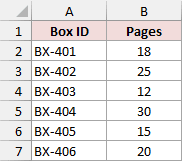
The first form starts at row 2 and continues while rowNum <= lastRow. The second stops when rowNum > lastRow becomes true.
Those conditions are opposites. Once the row counter passes the last source row, both forms stop.
Here is the complete queue procedure, plus RunAllExamples, which runs all four examples.
Option Explicit

Public Sub RunAllExamples()
    RunQueueTotals
    RunConditionTiming
    RunCapacityStop
    RunBlankRows
End Sub

Public Sub RunQueueTotals()
    Dim ws As Worksheet
    Dim lastRow As Long, rowNum As Long, pages As Long, boxes As Long
    Set ws = ThisWorkbook.Worksheets("Queue totals")
    lastRow = ws.Cells(ws.Rows.Count, "A").End(xlUp).Row

    rowNum = 2: pages = 0: boxes = 0
    Do While rowNum <= lastRow
        pages = pages + ws.Cells(rowNum, "B").Value2
        boxes = boxes + 1
        rowNum = rowNum + 1
    Loop
    ws.Range("E2").Value2 = pages
    ws.Range("F2").Value2 = boxes

    rowNum = 2: pages = 0: boxes = 0
    Do Until rowNum > lastRow
        pages = pages + ws.Cells(rowNum, "B").Value2
        boxes = boxes + 1
        rowNum = rowNum + 1
    Loop
    ws.Range("E3").Value2 = pages
    ws.Range("F3").Value2 = boxes

    rowNum = 2: pages = 0: boxes = 0
    'Bottom-tested forms need this guard when there are no data rows.
    If lastRow >= 2 Then
        Do
            pages = pages + ws.Cells(rowNum, "B").Value2
            boxes = boxes + 1
            rowNum = rowNum + 1
        Loop While rowNum <= lastRow
    End If
    ws.Range("E4").Value2 = pages
    ws.Range("F4").Value2 = boxes

    rowNum = 2: pages = 0: boxes = 0
    If lastRow >= 2 Then
        Do
            pages = pages + ws.Cells(rowNum, "B").Value2
            boxes = boxes + 1
            rowNum = rowNum + 1
        Loop Until rowNum > lastRow
    End If
    ws.Range("E5").Value2 = pages
    ws.Range("F5").Value2 = boxes
End SubRun RunQueueTotals to fill E2:F5. Each form returns 120 pages and 6 boxes.
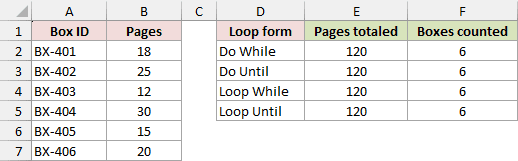
lastRow finds the last used cell in column A. The loop reads each page count from column B, adds it to pages, and increments boxes.
rowNum = rowNum + 1 advances to the next row. Without that update, the condition would keep testing the same row.
The variables reset before each form. Otherwise, the second form would start with the first form’s accumulated totals.
After processing row 7, rowNum becomes 8. The While condition is now false, and the Until condition is true.
The two bottom-tested forms put the condition after the body. An outer If lastRow >= 2 Then prevents them from entering when the queue has no data.
That guard doesn’t change bottom-tested loop behavior. If execution reaches Do, the body still runs before its first condition check.
I usually start with a top-tested loop for worksheet processing. It naturally handles a task that has no rows to process.
Example 2: Checking Before or After the Body
On Condition timing, A1:D3 contains two cases. Both target 100 pages in batches of 10. One starts at 70; the other starts at 100.
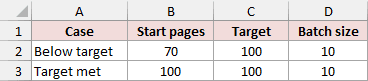
Starting at 70, every form adds three batches to reach 100. Starting at 100 exposes the difference between checking before and checking after.
These procedures include the input check, all four timing functions, and the procedure that writes their results:
Private Sub ValidateBatchInputs(ByVal startPages As Long, ByVal targetPages As Long, ByVal batchSize As Long)
    If startPages < 0 Or targetPages < 0 Or batchSize <= 0 Then
        Err.Raise vbObjectError + 1000, "DoLoopExamples", _
                  "Start and target must be nonnegative; batch size must be positive."
    End If
End Sub

Public Function BatchTopWhile(ByVal startPages As Long, ByVal targetPages As Long, ByVal batchSize As Long) As Variant
    Dim pages As Long, runs As Long
    ValidateBatchInputs startPages, targetPages, batchSize
    pages = startPages: runs = 0
    Do While pages < targetPages
        pages = pages + batchSize
        runs = runs + 1
    Loop
    BatchTopWhile = Array(runs, pages)
End Function

Public Function BatchTopUntil(ByVal startPages As Long, ByVal targetPages As Long, ByVal batchSize As Long) As Variant
    Dim pages As Long, runs As Long
    ValidateBatchInputs startPages, targetPages, batchSize
    pages = startPages: runs = 0
    Do Until pages >= targetPages
        pages = pages + batchSize
        runs = runs + 1
    Loop
    BatchTopUntil = Array(runs, pages)
End Function

Public Function BatchBottomWhile(ByVal startPages As Long, ByVal targetPages As Long, ByVal batchSize As Long) As Variant
    Dim pages As Long, runs As Long
    ValidateBatchInputs startPages, targetPages, batchSize
    pages = startPages: runs = 0
    Do
        pages = pages + batchSize
        runs = runs + 1
    Loop While pages < targetPages
    BatchBottomWhile = Array(runs, pages)
End Function

Public Function BatchBottomUntil(ByVal startPages As Long, ByVal targetPages As Long, ByVal batchSize As Long) As Variant
    Dim pages As Long, runs As Long
    ValidateBatchInputs startPages, targetPages, batchSize
    pages = startPages: runs = 0
    Do
        pages = pages + batchSize
        runs = runs + 1
    Loop Until pages >= targetPages
    BatchBottomUntil = Array(runs, pages)
End Function

Public Sub RunConditionTiming()
    Dim ws As Worksheet, sourceRow As Long, formIndex As Long, outputRow As Long
    Dim startPages As Long, targetPages As Long, batchSize As Long, answer As Variant
    Set ws = ThisWorkbook.Worksheets("Condition timing")
    outputRow = 2
    For formIndex = 1 To 4
        For sourceRow = 2 To 3
            startPages = ws.Cells(sourceRow, "B").Value2
            targetPages = ws.Cells(sourceRow, "C").Value2
            batchSize = ws.Cells(sourceRow, "D").Value2
            Select Case formIndex
                Case 1: answer = BatchTopWhile(startPages, targetPages, batchSize)
                Case 2: answer = BatchTopUntil(startPages, targetPages, batchSize)
                Case 3: answer = BatchBottomWhile(startPages, targetPages, batchSize)
                Case 4: answer = BatchBottomUntil(startPages, targetPages, batchSize)
            End Select
            ws.Cells(outputRow, "H").Value2 = answer(0)
            ws.Cells(outputRow, "I").Value2 = answer(1)
            outputRow = outputRow + 1
        Next sourceRow
    Next formIndex
End SubRun RunConditionTiming. The results appear in H2:I9, beside the loop and case labels in columns F:G.
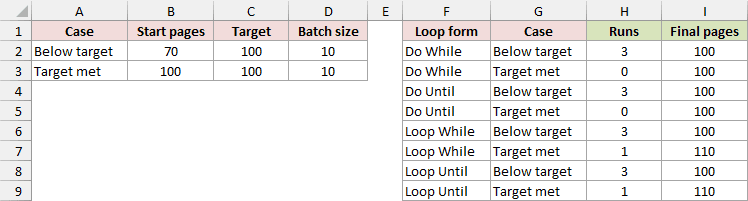
For the Below target case, the running page counts are 80, 90, and 100. All four forms record three runs and 100 final pages.
For Target met, the two top-tested forms record zero runs and leave the total at 100.
The bottom-tested forms add 10 before checking. They record one run and finish at 110, even though the starting value already met the target.
Use a bottom-tested form when that first run is intentional.
Each timing function returns Array(runs, pages). RunConditionTiming reads answer(0) for the run count and answer(1) for the final page total.
The While versions use pages < targetPages. The Until versions use its opposite, pages >= targetPages.
Using >= also allows a batch to pass the target. An equality-only stop can miss the target when the batch size doesn’t divide the remaining amount.
For these examples, start and target must be nonnegative whole numbers. Batch size must be a positive whole number.
ValidateBatchInputs rejects negative starts or targets and nonpositive batch sizes. It doesn’t check every possible worksheet input before VBA converts it to Long.
Keep text, error values, decimals, and very large numbers out of these sample inputs. The procedures aren’t a general input-validation system.
Example 3: Leaving Early with Exit Do
On Capacity stop, A2:B7 contains the same six boxes. Cell E1 sets a 70-page capacity. I’ll accept boxes in queue order without exceeding it.
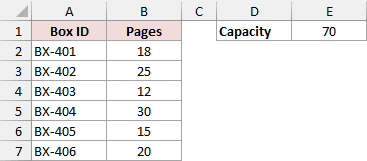
The first three boxes total 55 pages. Adding BX-404’s 30 pages would make 85, so the code stops before adding that box.
Here is the complete procedure:
Public Sub RunCapacityStop()
    Dim ws As Worksheet
    Dim rowNum As Long, lastRow As Long, pages As Long, boxes As Long
    Dim capacity As Long, nextPages As Long, deferredBox As String, exitReason As String
    Set ws = ThisWorkbook.Worksheets("Capacity stop")
    capacity = ws.Range("E1").Value2
    If capacity < 0 Then Err.Raise vbObjectError + 1001, "DoLoopExamples", "Capacity must be nonnegative."
    lastRow = ws.Cells(ws.Rows.Count, "A").End(xlUp).Row
    rowNum = 2: pages = 0: boxes = 0
    deferredBox = "-": exitReason = "All boxes fit"
    Do While rowNum <= lastRow
        nextPages = ws.Cells(rowNum, "B").Value2
        If pages + nextPages > capacity Then
            deferredBox = CStr(ws.Cells(rowNum, "A").Value2)
            exitReason = "Next box exceeds capacity"
            Exit Do
        End If
        pages = pages + nextPages
        boxes = boxes + 1
        rowNum = rowNum + 1
    Loop
    ws.Range("E4").Value2 = pages
    ws.Range("E5").Value2 = boxes
    ws.Range("E6").Value2 = deferredBox
    ws.Range("E7").Value2 = exitReason
End SubRun RunCapacityStop. Cells E4:E7 show 55 pages, 3 boxes, BX-404, and Next box exceeds capacity.
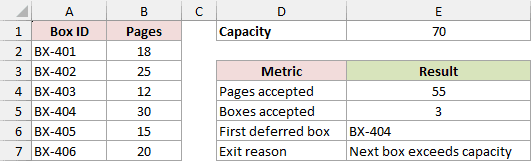
The row-bound condition controls the normal loop. Inside it, the capacity check supplies another reason to stop.
Exit Do leaves the loop immediately. Execution continues with the output assignments after Loop, rather than ending the entire procedure.
The position of that check matters. It runs before pages and boxes increase, so the deferred box never enters the accepted totals.
This example preserves queue order. It doesn’t skip BX-404 to find a later box that fits, and it doesn’t delete or change source rows.
Capacity must be a nonnegative whole number. The procedure rejects a negative capacity. As with the timing example, arbitrary input validation needs additional code.
Example 4: Handling Blank Rows Deliberately
On Blank rows, A2:B8 contains the six boxes with an intentional gap at row 4. I’ll compare stopping at that gap with skipping it.
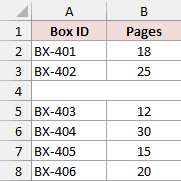
A blank row can mean the queue has ended. It can also be a gap between valid records. Your code needs to choose which meaning applies.
This procedure runs both policies:
Public Sub RunBlankRows()
    Dim ws As Worksheet
    Dim rowNum As Long, lastRow As Long, pages As Long, boxes As Long, lastDataRow As Long
    Set ws = ThisWorkbook.Worksheets("Blank rows")
    lastRow = ws.Cells(ws.Rows.Count, "A").End(xlUp).Row

    rowNum = 2: pages = 0: boxes = 0: lastDataRow = 0
    Do While rowNum <= lastRow
        If Len(Trim$(CStr(ws.Cells(rowNum, "A").Value2))) = 0 Then Exit Do
        pages = pages + ws.Cells(rowNum, "B").Value2
        boxes = boxes + 1
        lastDataRow = rowNum
        rowNum = rowNum + 1
    Loop
    ws.Range("E2").Value2 = pages
    ws.Range("F2").Value2 = boxes
    ws.Range("G2").Value2 = lastDataRow

    rowNum = 2: pages = 0: boxes = 0: lastDataRow = 0
    Do Until rowNum > lastRow
        If Len(Trim$(CStr(ws.Cells(rowNum, "A").Value2))) > 0 Then
            pages = pages + ws.Cells(rowNum, "B").Value2
            boxes = boxes + 1
            lastDataRow = rowNum
        End If
        'Advance for every row, including rows deliberately skipped.
        rowNum = rowNum + 1
    Loop
    ws.Range("E3").Value2 = pages
    ws.Range("F3").Value2 = boxes
    ws.Range("G3").Value2 = lastDataRow
End SubRun RunBlankRows. The first policy returns 43 pages, 2 boxes, and last data row 3 in E2:G2.
The bounded policy returns 120 pages, 6 boxes, and last data row 8 in E3:G3.
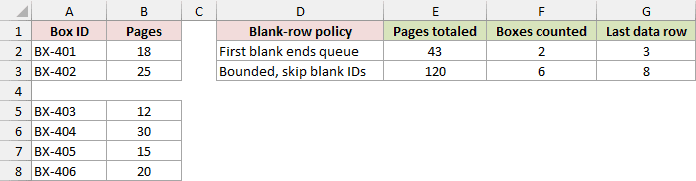
The first loop treats an empty box ID as an end marker, also called a sentinel. It exits at row 4 before reaching the remaining boxes.
The second loop uses the last source row as its boundary. It adds a row only when the box ID has characters after trimming spaces.
That policy skips empty IDs, IDs containing only ordinary spaces, and formulas returning empty text. It doesn’t try to clean every possible kind of whitespace.
Notice that rowNum increases outside the If block. A skipped row must still advance the counter, or the loop will keep revisiting it.
These totals differ because the blank-row policies differ. Either While or Until can implement either policy with the appropriate condition.
Note: The gap is intentional on the Blank rows sheet. Keep Queue totals and Capacity stop contiguous because their procedures count every row through the last box ID.
Additional Notes About Do Loops in Excel VBA
When adapting these examples, check the assumptions behind the stopping condition:
- Update a value that affects the condition on every relevant pass. A condition that never changes can leave the loop running indefinitely.
- Keep page counts as nonnegative whole numbers and box IDs as text. The sample uses Long arithmetic and doesn’t handle unlimited totals or arbitrary data types.
- The code uses
ThisWorkbook, so it runs against the workbook that holds the module. If you paste it into another file, keep the four sheet names exactly as supplied. - The saved results are snapshots. Changing an input doesn’t update them, so run the matching macro again to refresh the results.
Frequently Asked Questions
These questions cover a few other choices you may face when adapting a Do loop.
Can I Put a Condition After Both Do and Loop?
Use one condition, either at the top or at the bottom. If you need another stopping rule inside the body, check it with If and use Exit Do.
Which Loop Does Exit Do Leave When Loops Are Nested?
It leaves the innermost enclosing Do loop. The outer loop continues from the statement after that inner loop, subject to its own stopping logic.
How Can I Interrupt a Loop That Won’t Stop?
Microsoft lists Esc or Ctrl + Break for interrupting an endless loop. After stopping, fix the condition or missing state update before running it again.
Can I Run These Macros in Excel for the Web?
No. Excel for the web can’t create, run, or edit VBA macros. Open the macro-enabled copy in desktop Excel to run them.
Conclusion
I’ve shown how Do While and Do Until differ in condition logic and timing, and used them for queue totals, batch processing, early exits, and blank rows.
I hope you found this article helpful.
Other Excel articles you may also like: