
When horizontal scrolling stops working in Excel, you can get stuck looking at the same columns even though the worksheet extends to the right.
The cause depends on what still works. A hidden scroll bar needs a different fix from frozen columns, and a mouse wheel that scrolls vertically may need a different gesture.
I’ll show you how to check the scrolling controls, restore the horizontal bar, and remove pane restrictions. We’ll also cover mouse problems and the troubleshooting steps to try when scrolling fails across your workbooks.
Check What Happens When You Try to Scroll
Start by dragging the horizontal scroll bar at the bottom of the worksheet. If the columns move, Excel can scroll sideways. The problem is more likely to involve the mouse gesture or device settings.
If the bar is missing or dragging it doesn’t help, find your symptom below. These steps are for Excel on Windows; the desktop settings and repair tools won’t match Excel for the web.
| What You See | What to Try First |
|---|---|
| The wheel moves the sheet up and down | Use the horizontal controls in Method #1 |
| There is no horizontal scroll bar | Restore it with Method #2 |
| Some columns stay fixed | Check Freeze Panes in Method #3 |
| Only one part of the window moves | Check Split in Method #4 |
| The bar works, but the mouse or touchpad doesn’t | Check the device in Method #5 |
| One sheet stops at a particular range | Inspect ScrollArea in Method #6 |
| Scrolling fails in new blank workbooks too | Try the application checks in Methods #7 to #9 |
Before changing application settings, save your work and restart Excel normally. Also test a new blank workbook. A problem limited to one sheet gives you a reason to check that sheet before repairing Office.
Method #1: Using the Horizontal Scroll Controls
I’d start here if your mouse wheel still scrolls up and down. An ordinary wheel movement normally scrolls vertically; it doesn’t switch direction because your worksheet has more columns off-screen.
To move sideways using the worksheet’s own control, follow this step:
- Drag the scroll box on the horizontal scroll bar to the right or left. It sits near the bottom of the Excel window, to the right of the sheet tabs.

You can also hold Ctrl + Shift while rotating the mouse wheel in supported Windows versions of Excel. Microsoft documents this gesture for horizontal scrolling.
Keep the pointer over the worksheet while you try it. Holding Ctrl alone zooms instead, so check that you’re holding both keys.
If the bar works but the gesture doesn’t, use the bar while checking your mouse settings in Method #5. If neither works, continue with the worksheet checks below.
Note: Shift + mouse wheel by itself is not a universal Excel shortcut. A mouse utility may support it, but you should not assume every Excel installation does.
Method #2: Restoring the Horizontal Scroll Bar
If you can’t find the bar, check Excel’s display setting. The horizontal bar can be hidden for a workbook even while the vertical bar remains visible.
Here are the steps to show it again:
- Select File > Options to open Excel Options.

- Select Advanced, then scroll to Display options for this workbook. Check that the workbook shown in that section is the one you want to fix.
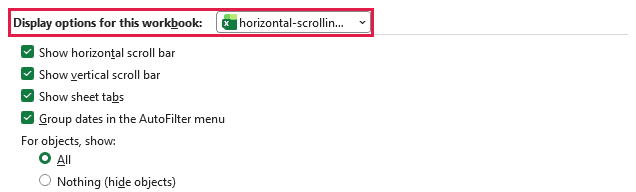
- Select Show horizontal scroll bar, then click OK.
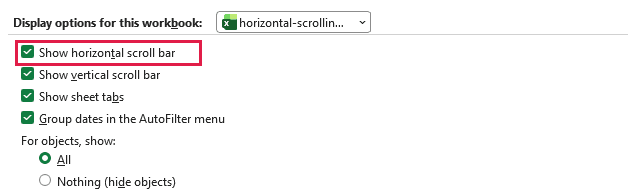
The bar should now be available at the bottom of that workbook window.
If the setting was already selected, try maximizing the Excel window, then restoring it. Microsoft recommends resizing the application window when enabled scroll bars still aren’t visible.
On a Mac, the equivalent Excel setting is under Excel > Preferences > View. The Windows File > Options path doesn’t apply.
Method #3: Unfreezing the Panes
If the bar is visible but some columns won’t move, check Freeze Panes. Frozen columns are supposed to stay in place while the rest of the sheet scrolls.
When the frozen area takes up most of the window, that can make horizontal scrolling appear stuck. This can be especially confusing after opening a workbook on a smaller screen.
To release the frozen area, follow this step:
- On the affected worksheet, select View > Freeze Panes > Unfreeze Panes.
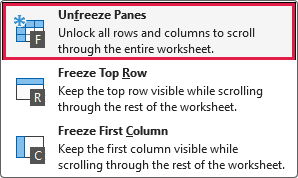
Try the horizontal scroll bar again. Removing the freeze lets the previously fixed columns move with the sheet.
If the menu says Freeze Panes instead of Unfreeze Panes, no frozen panes are active in that window. Move on to the next check.
Unfreezing also releases any frozen rows. Once scrolling works, you can freeze a smaller area if you still need to keep headings visible.
Method #4: Removing the Split Panes
If you see a thick divider through the worksheet, check whether the window is split into panes. A vertical split gives the left and right sections their own horizontal scroll controls.
You might be moving one section while watching the other. Removing the split returns the sheet to one view.
Here is how to remove it:
- On the View tab, click Split if it is active.
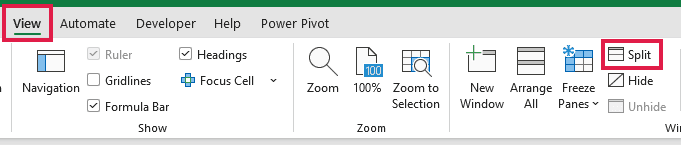
The divider disappears, and you can try scrolling the full worksheet again.
Only click Split when a split is already present. Clicking it in an unsplit window creates a split instead of fixing the problem.
Method #5: Checking the Mouse and Touchpad
If dragging the bar works but your device won’t scroll sideways, focus on the device. A thumb wheel, tilting wheel, and touchpad can each have different controls.
On a supported Windows touchpad, place two fingers on the pad and slide them horizontally. Microsoft lists this in its touchpad gestures.
Try the same gesture in another application with content wider than its window. If it fails there too, reconnect the mouse or test another device before changing Excel settings.
For a configurable mouse, check the manufacturer’s utility. Confirm that the thumb wheel or tilt action is assigned to horizontal scrolling rather than an application-specific action.
To inspect a Windows 11 touchpad’s scrolling setting, follow this step:
- Open Settings > Bluetooth & devices > Touchpad > Scroll & zoom. If available, enable Drag two fingers to scroll.
If the touchpad still fails across applications, check for driver updates through Windows Update. Microsoft recommends this route for touchpad driver problems.
Don’t install a driver from an unrelated download site. Use Windows Update or the device manufacturer’s support page.
Note: Touchpad options depend on the hardware and installed driver. A desktop without a touchpad may not show the Touchpad page at all.
Method #6: Clearing the ScrollArea Restriction
If only one worksheet stops at a specific boundary, it may have a ScrollArea restriction. This worksheet property limits where scrolling and cell selection are allowed.
It is different from Scroll Lock. Use this method only when the sheet has a restriction you intend to remove, such as one left in a workbook you maintain. Check with the owner before changing a deliberately restricted template.
You can inspect the property in the VBA Editor without writing or running a macro. Here are the steps:
- Press Alt + F11 to open the Visual Basic Editor. Choose View > Project Explorer if the project list is hidden.
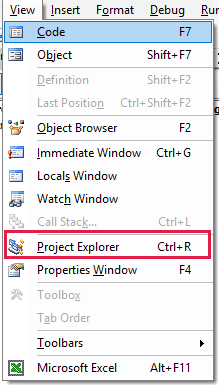
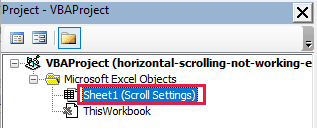
- Expand the project for the affected workbook, then expand Microsoft Excel Objects. Select the worksheet that has the problem.
- Press F4 to show the Properties window. On the Alphabetic tab, find ScrollArea.
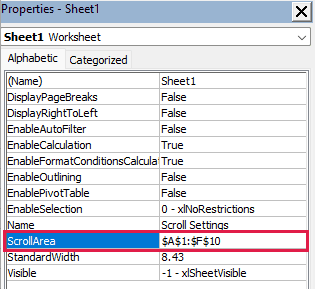
- If ScrollArea contains a range, select its value, delete it, and press Enter. Leave the value empty.
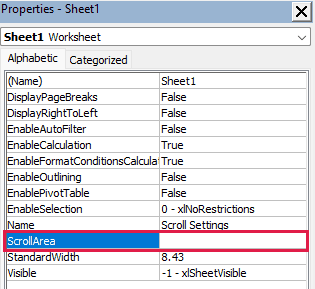
Return to Excel with Alt + F11 and test the sheet. If ScrollArea was already empty, this restriction wasn’t the cause.
Microsoft’s ScrollArea reference confirms that an empty value allows selection throughout the sheet. You don’t need to add a VBA module or save a macro just to inspect and clear this property.
If a restriction comes back, workbook or add-in code may be setting it again. Ask the workbook maintainer to check that code rather than repeatedly clearing the setting.
Note: If the VBA project is locked or your organization blocks access, contact the workbook owner or IT team. This method is not a way to bypass their controls.
Method #7: Isolating the Add-In Conflict
If scrolling fails in several workbooks, try Excel’s Safe Mode. It bypasses Excel add-ins, most COM add-ins, and some startup settings, which helps narrow down an application-level problem.
Save your work and close Excel before the test. Then follow these steps:
- Press Windows + R, type excel /safe in the Run box, and click OK.
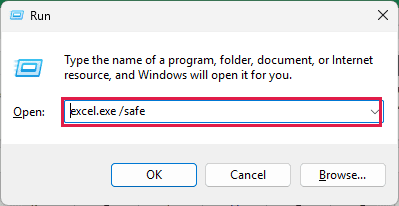
- In the Safe Mode instance, select File > New > Blank workbook and test the horizontal scroll bar.
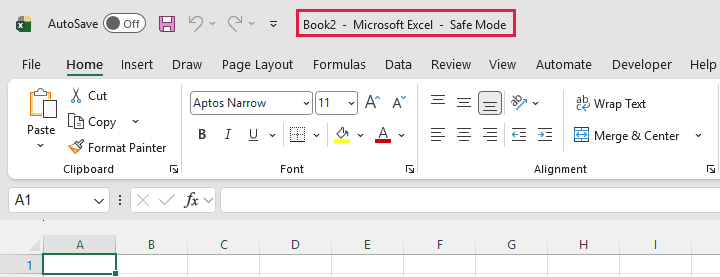
If scrolling works there, an add-in or startup customization could be involved. Safe Mode alone doesn’t identify the culprit.
To check COM add-ins, record which ones are currently enabled, then use these steps:
- Select File > Options > Add-ins. In the Manage list, choose COM Add-ins, then click Go.

- Clear the checkboxes for the enabled COM add-ins, then click OK. Close Excel and reopen it normally to test scrolling.
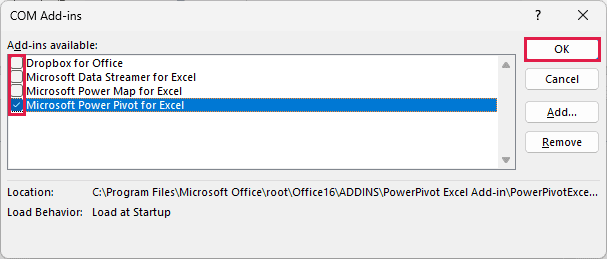
If that fixes it, enable the add-ins one at a time, restarting Excel and testing after each one. When the problem returns, you’ve identified an add-in to investigate.
If COM add-ins make no difference, check Excel Add-ins from the same Manage list. Restore settings that didn’t affect the problem. Startup files and other customizations can also explain a difference between normal and Safe Mode.
Microsoft includes these checks in its Excel troubleshooting steps. If scrolling still fails with add-ins disabled, continue with the next method.
Method #8: Updating Microsoft Office
If scrolling also fails in a new blank workbook and the device checks haven’t helped, check for Office updates.
Save your files first, because the update process may ask you to close Office applications. Here is where to check:
- In Excel, select File > Account. Under Product Information, select Update Options > Update Now.
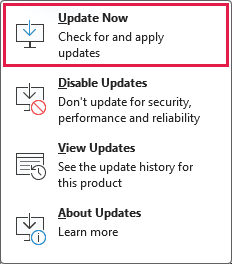
Allow the update to finish, then reopen Excel and test horizontal scrolling.
If Update Options is missing, your organization may manage updates, or your installation may use another update method. Follow your IT team’s process instead of trying to override it.
Updating is a general troubleshooting step. It doesn’t mean your particular problem is a known bug or that an update will necessarily fix it.
Method #9: Repairing Microsoft Office
If horizontal scrolling still fails across workbooks, Office repair is a later option. I’d leave it until after the worksheet, device, and add-in checks because it affects the installation rather than one sheet.
Save your work and close your Office applications before starting. Repair normally applies to the whole Office suite, even when Excel is the only app with a problem.
On Windows 11, follow these steps:
- Open Settings > Apps > Installed apps. Find your Microsoft 365 or Microsoft Office installation.

- Open the three-dot menu beside the installation and select Modify. Approve the Windows permission prompt if requested.

- For a Click-to-Run installation, try Quick Repair first. Select it and click Repair, then follow the prompts.
When repair finishes, reopen Excel and test. If Quick Repair doesn’t resolve the problem, Online Repair is the more thorough option and requires an internet connection.
The choices vary by installation type. An MSI installation may show a single Repair option instead. Follow Microsoft’s Office repair instructions for the options on your computer.
Additional Notes About Horizontal Scrolling in Excel
A few other symptoms can help you avoid chasing the wrong setting:
- If column letters jump from C to H, check for hidden columns. Scrolling won’t make hidden columns visible.
- A tiny scroll box that jumps far beyond your data can indicate an oversized used range. Don’t delete distant cells until you’ve checked whether they contain needed content.
- If Excel is busy calculating or running a task, allow it to finish before testing the scroll controls. Excel not responding needs a different diagnosis from fixed columns.
Frequently Asked Questions
These questions cover keyboard behavior and differences between desktop Excel and the browser version.
Does Scroll Lock Disable the Horizontal Scroll Bar?
No. Scroll Lock changes what the arrow keys do. With it on, they scroll the sheet rather than move the active cell. If that is your problem, turn off Scroll Lock. It isn’t a general fix for a horizontal bar that won’t respond.
How Can I Move One Screen Sideways Without a Mouse?
In Excel for Windows, press Alt + Page Down to move one screen right or Alt + Page Up to move one screen left. Some laptop keyboards require the Fn key to access Page Up and Page Down.
Why Does Sideways Scrolling Behave Differently in Excel for the Web?
Excel for the web runs inside a browser, which can handle keyboard shortcuts differently. Desktop-only tools such as File > Options, the VBA Editor, and Office repair aren’t available there. Test the worksheet’s own scroll bar before applying desktop troubleshooting steps.
Conclusion
I’ve covered the scrolling controls, worksheet restrictions, and application checks that can help when Excel won’t move sideways. I’d start by testing the horizontal bar, then use the symptom table to choose the relevant fix. I hope you found this article helpful.
Other Excel articles you may also like:
