
If your data is already sitting in the workbook you’re working in, you don’t need to connect to an outside file to get it into Power Query. You can point Power Query at a table or named range in the same file.
The catch is that the obvious-looking route, Get Data > From File > From Excel Workbook, treats your file like any other file on disk.
It reads the last saved copy and stores the full path, so unsaved edits get missed and the query breaks if the file moves.
In this article, I’ll show you three ways to do it: the From Table/Range button, the Excel.CurrentWorkbook function in a blank query (which also works with named ranges), and the From Excel Workbook route, with its limits spelled out.
Method #1: Using From Table/Range
From Table/Range is the quickest way in. You click a cell in your data, click one button, and Power Query opens with that data already loaded. This is the method I recommend for most people.
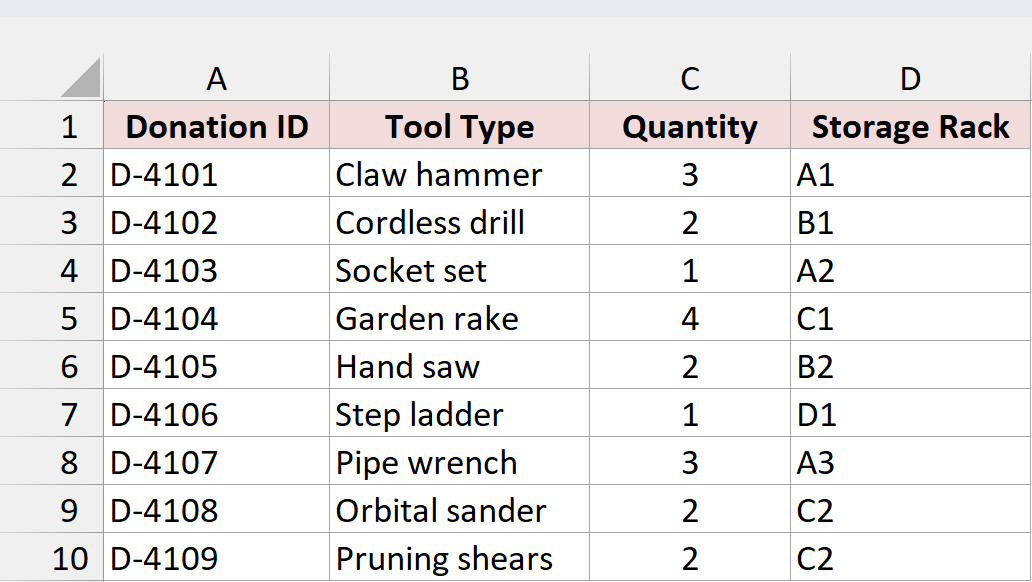
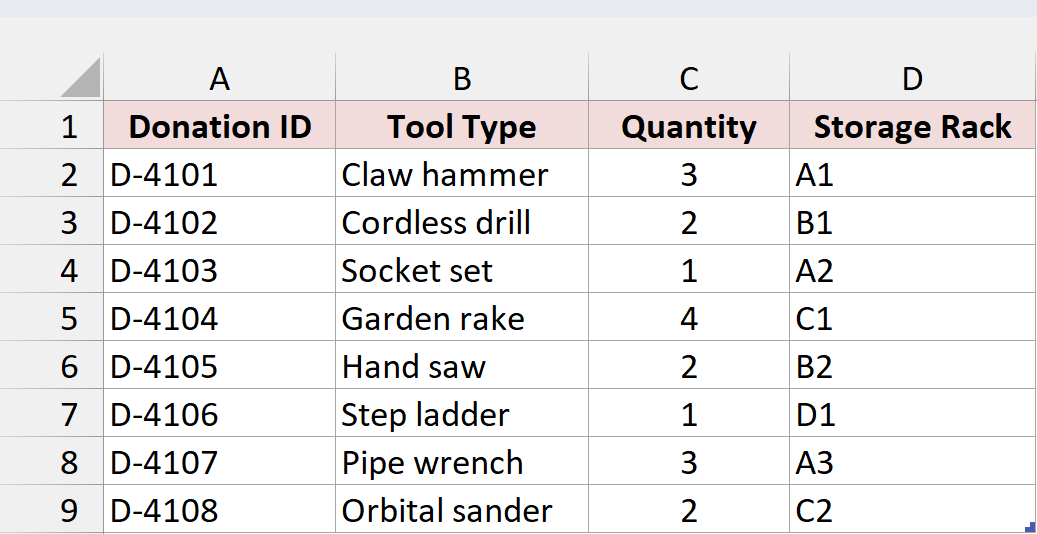
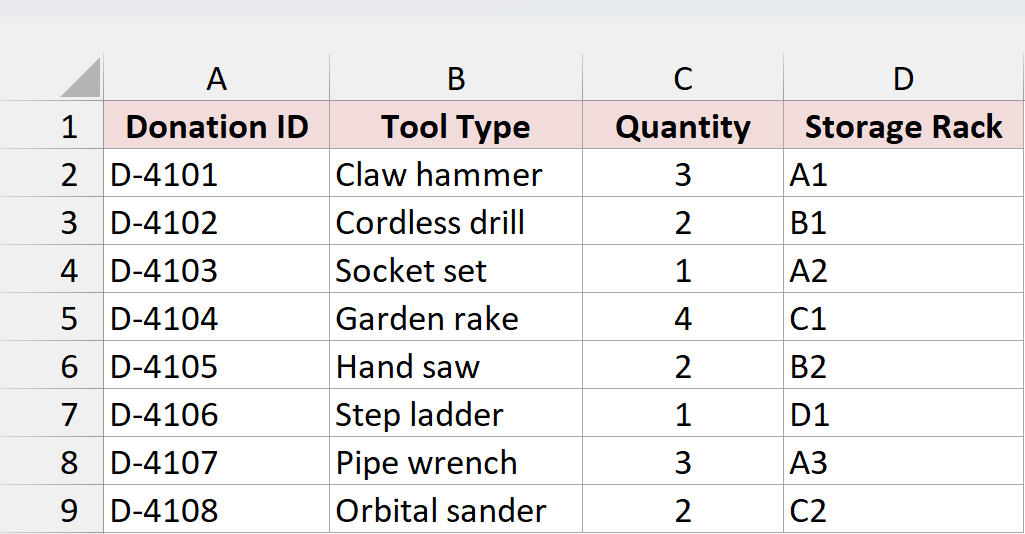
Below I have a dataset of tool donations on the Donation Log sheet, with a Donation ID, Tool Type, Quantity, and Storage Rack for each one.
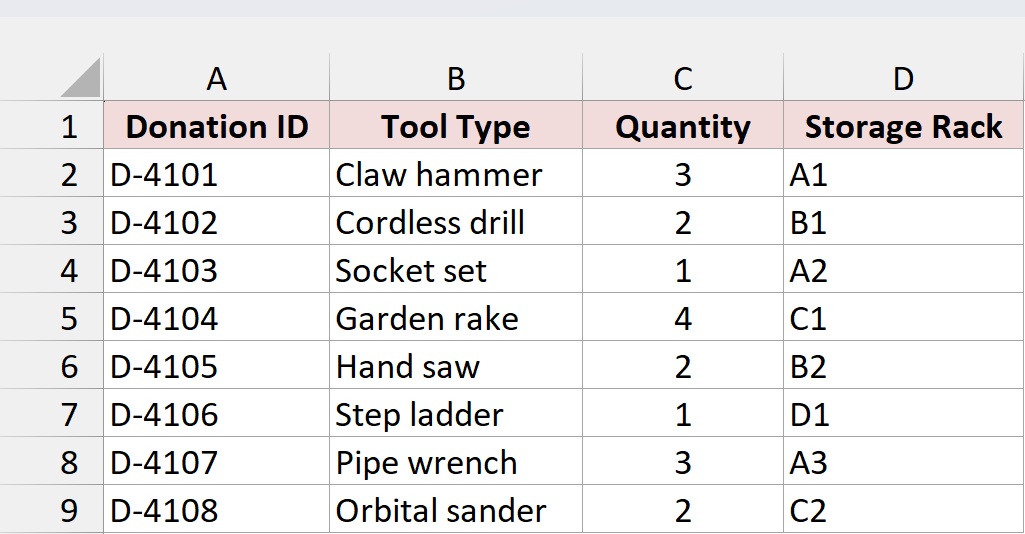
I want to bring these eight donations into Power Query and load them to a new sheet.
Power Query reads this data through an Excel Table, so the first job is to turn the range into one and give it a name you’ll recognize.
Here are the steps:
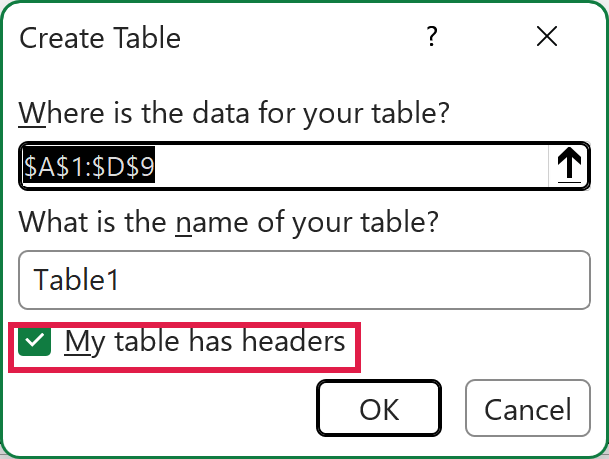
- Select any cell in the data and press Ctrl + T. In the Create Table dialog box, make sure My table has headers is checked, then click OK.
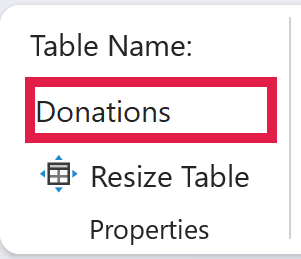
- With a cell in the table selected, go to the Table Design tab, type Donations in the Table Name box, and press Enter.
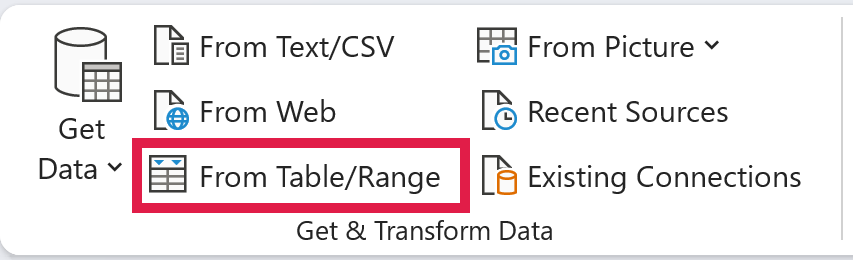
- Go to the Data tab and click From Table/Range in the Get & Transform Data group.
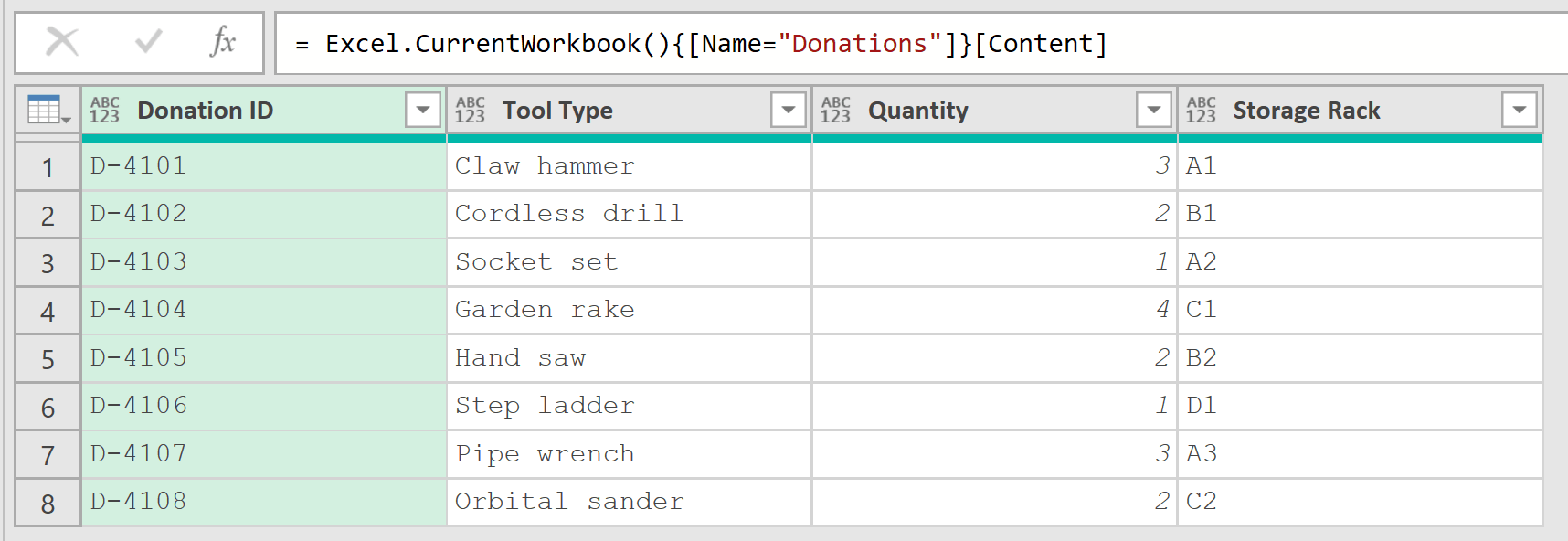
The Power Query Editor opens with a query named Donations and your eight rows. The formula bar shows its source, Excel.CurrentWorkbook(){[Name=”Donations”]}[Content], which is exactly what Method #2 has you type by hand.
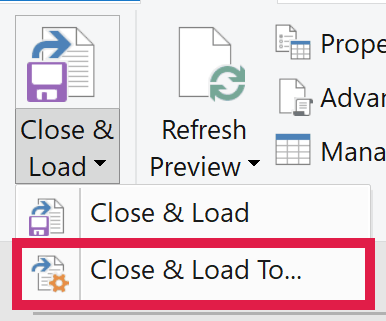
- On the Home tab, click the arrow under Close & Load and choose Close & Load To.
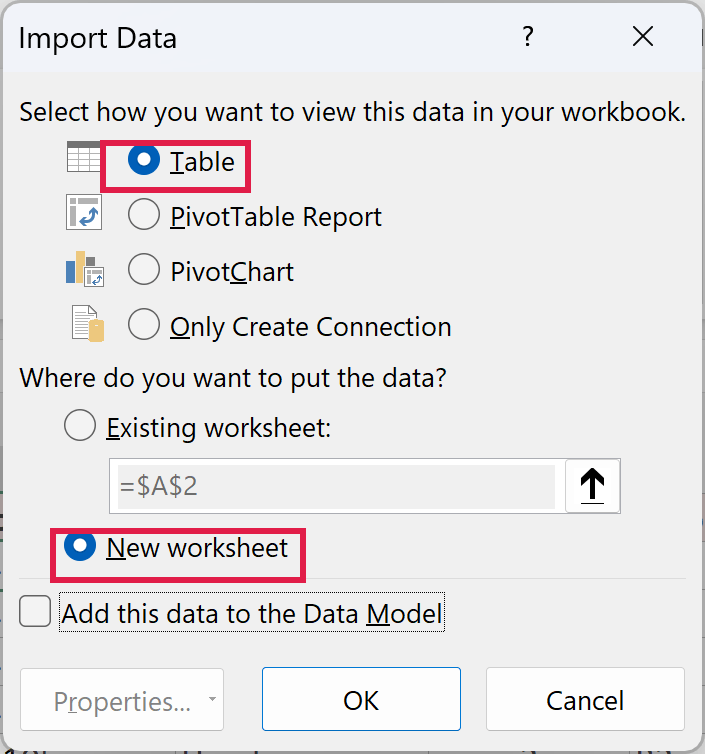
- In the Import Data dialog box, select Table and New worksheet, then click OK.
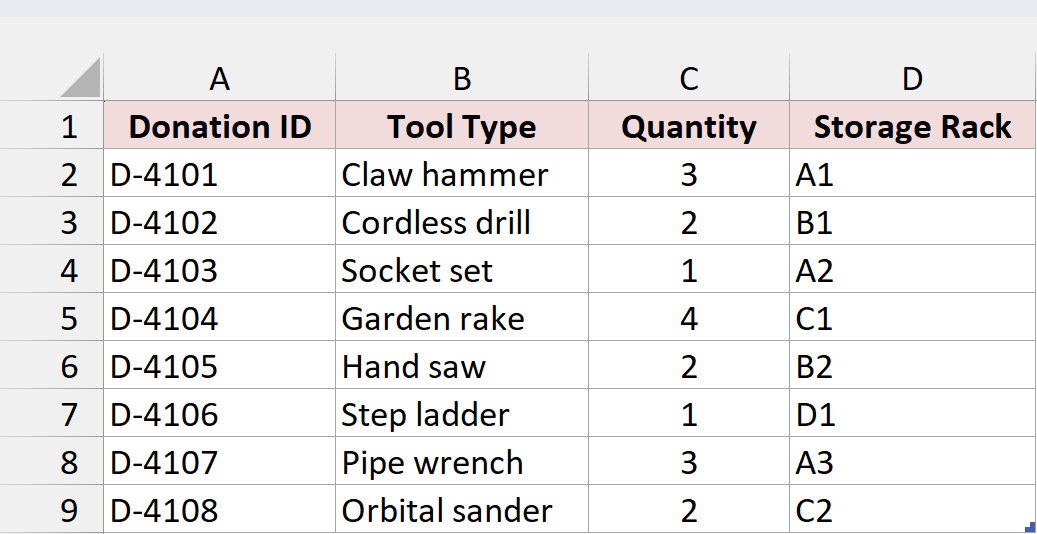
Excel adds a new sheet with the eight donations loaded as a separate table. Your original table stays exactly where it was.
Note: If you skip the table step and click From Table/Range on a plain range, Excel shows the Create Table dialog anyway. The table then gets a default name like Table1, which is harder to recognize later.
The loaded table doesn’t update on its own when the source changes. Say you add a ninth donation, D-4109 for Pruning shears, right below the table. The table grows to include it.
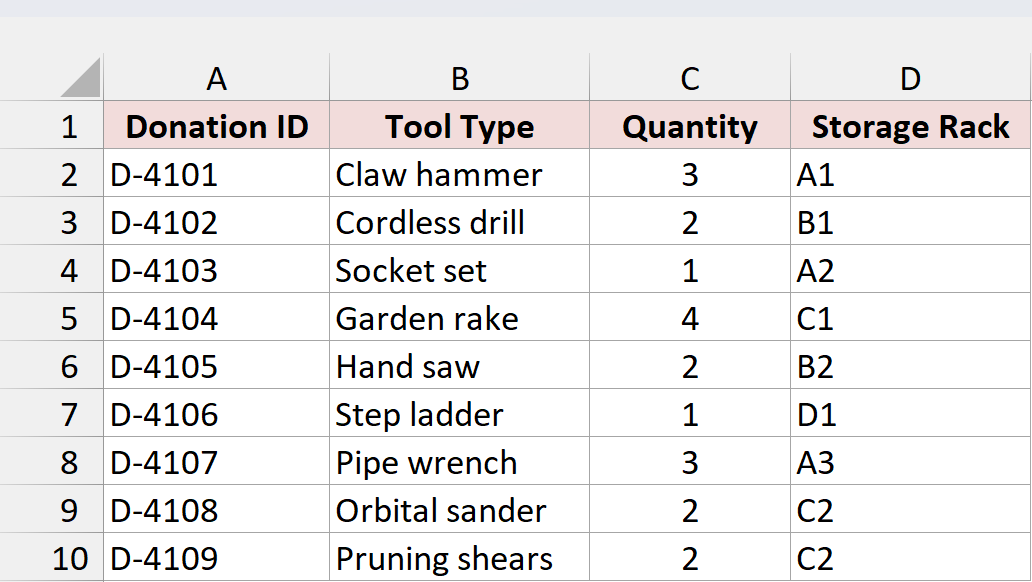
To pull the new row into your query, go to the Data tab and click Refresh All (or press Ctrl + Alt + F5).

The loaded table now shows all nine donations. Refresh again and you still get nine, because the query reads the Donations table as it is right now.
Method #2: Using Excel.CurrentWorkbook in a Blank Query
If you’d rather type the source than click for it, this one is for you. Excel.CurrentWorkbook is a Power Query function that returns the tables, named ranges, and dynamic arrays in the workbook the query lives in.
It’s the same source From Table/Range uses behind the scenes. The difference is that you write it yourself, so you can see everything the workbook offers and pick exactly the object you want.
Below I have the same donations data, already in an Excel Table named Donations on the Donation Log sheet.
Before you start, make sure the formula bar is turned on in the Power Query Editor (View tab > Formula Bar). You’ll type into it.
Here are the steps:
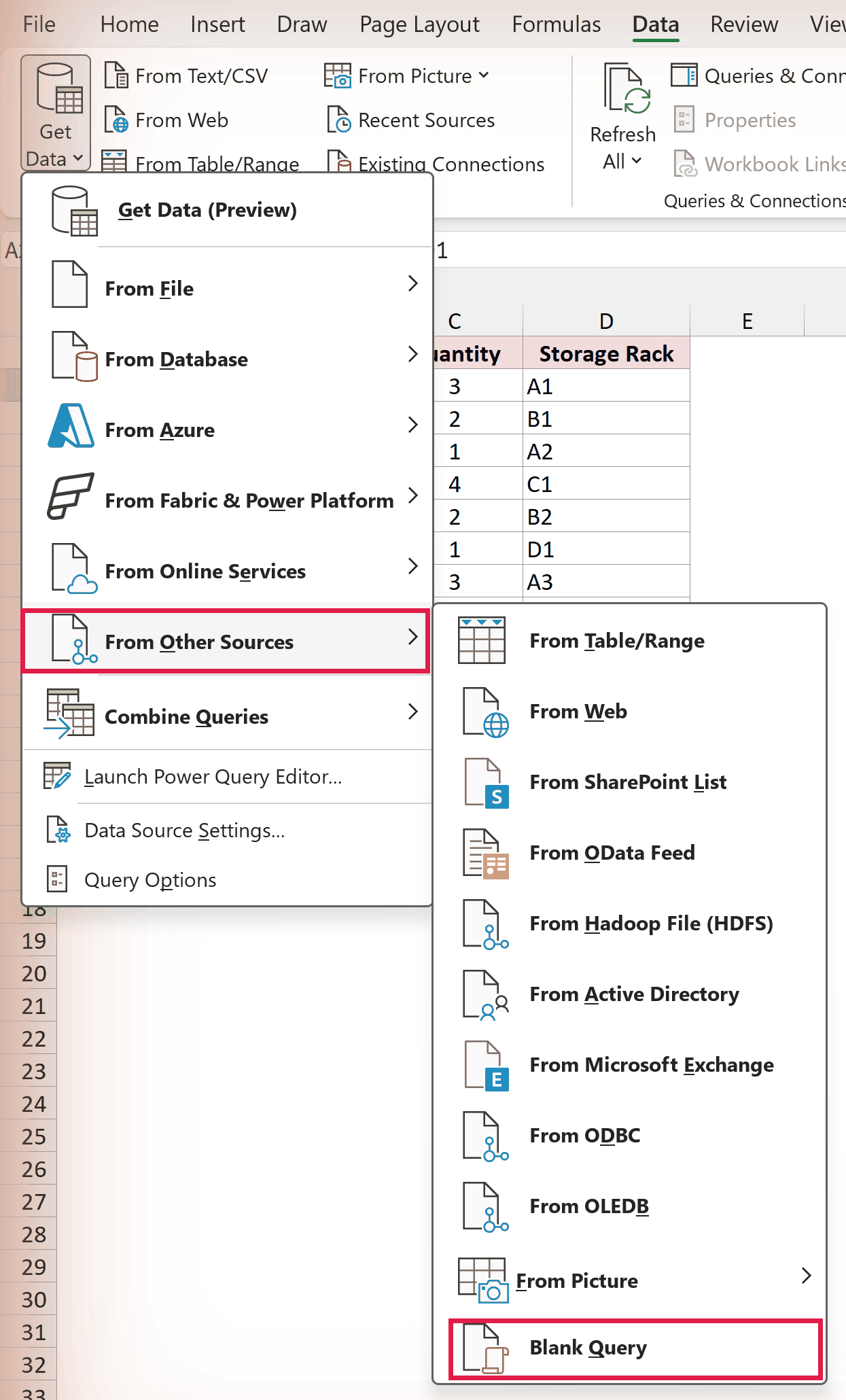
- Go to Data > Get Data > From Other Sources > Blank Query. The Power Query Editor opens with a new query named Query1.
- Click in the formula bar, type the formula below, and press Enter.
= Excel.CurrentWorkbook()
You get a small table with two columns, Content and Name. Each row is one table or named range in the file (dynamic arrays show up here too in Microsoft 365).
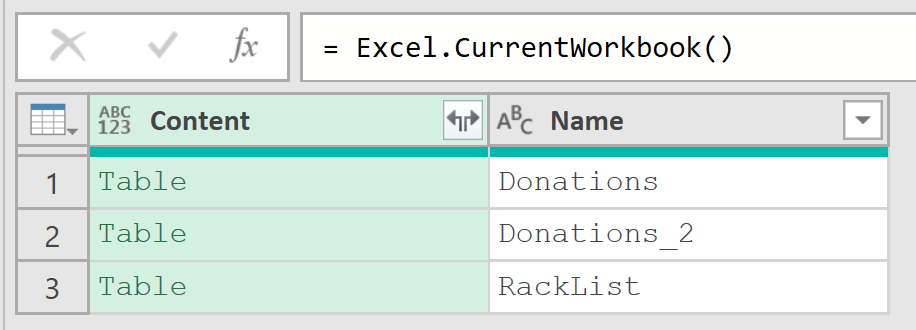
Here you can see Donations, the RackList named range, and Donations_2. That last one is the table Method #1 loaded to a new sheet. Power Query output tables show up in this list too, which is why you should always pick your source by name.
Worksheets don’t appear here at all. Excel.CurrentWorkbook doesn’t return sheets, so data sitting on a plain sheet has to become a table or named range first.
- Replace the formula with the one below to keep only the Donations table, then press Enter.
= Excel.CurrentWorkbook(){[Name="Donations"]}[Content]
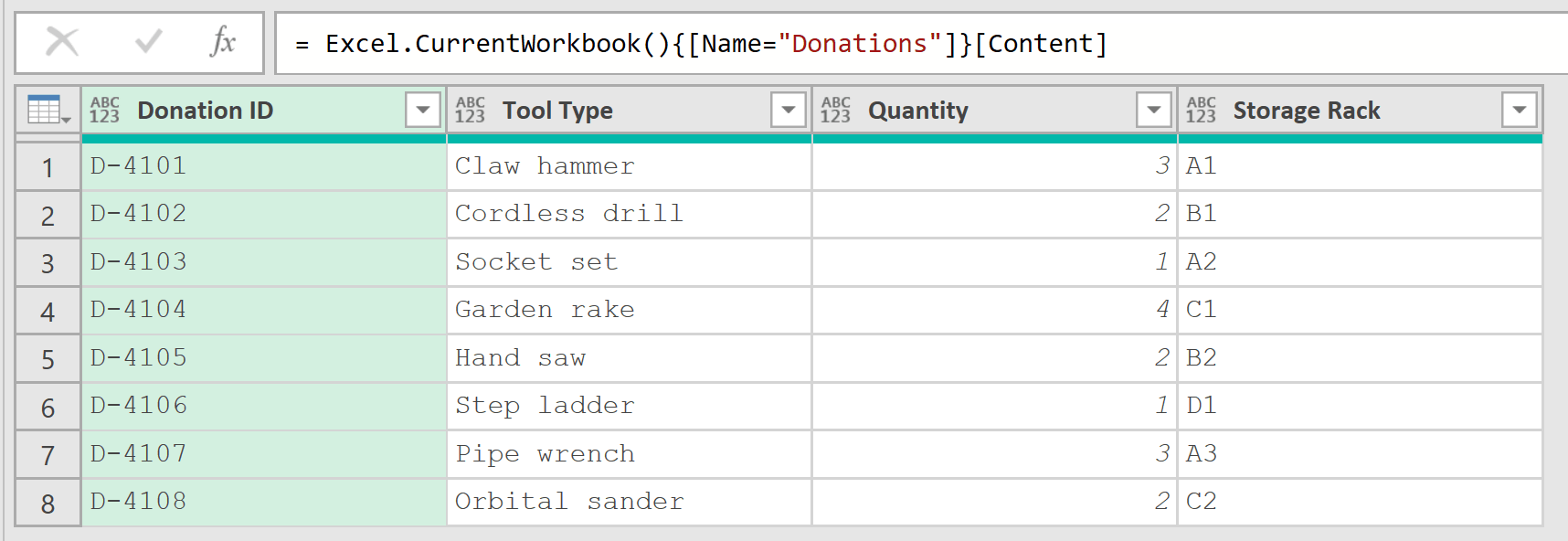
How does this formula work?
Excel.CurrentWorkbook() returns the list of objects you saw in the previous step.
The {[Name="Donations"]} part picks the one row whose Name is Donations. The table name goes in double quotes.
Then [Content] opens the table stored in that row’s Content column, so you get the eight donations instead of the list.
You can also click the Table link next to Donations in the list. Power Query adds the navigation step for you.
- In the Query Settings pane, change the query Name from Query1 to Donation List. Then go to Home > Close & Load.
Excel loads the donations to a new sheet as a table named Donation_List.
Note: Columns from Excel.CurrentWorkbook come in without data types. If you plan to sort, filter, or do math on a column, select it and set its type on the Transform tab (Data Type) before you load.
Importing a Named Range With Excel.CurrentWorkbook
The same function works on a named range, so you don’t have to turn the data into a table first.
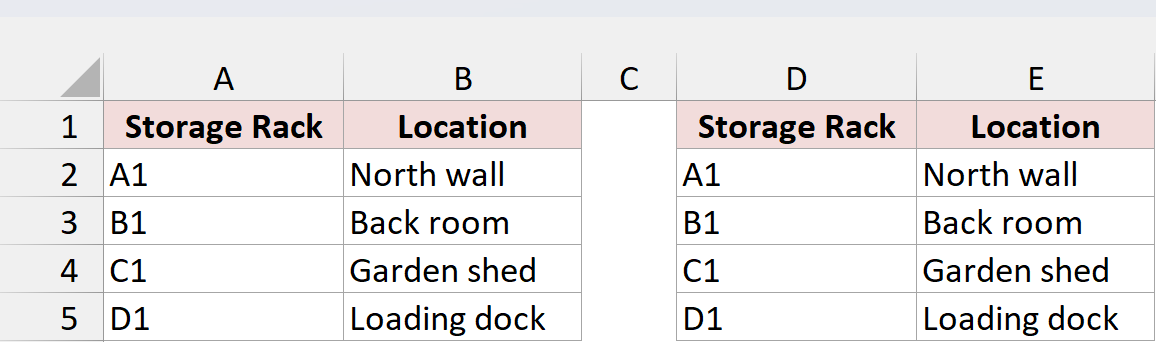
Below I have a small list of storage racks and their locations on the Rack Locations sheet. The range A1:B5 is named RackList.
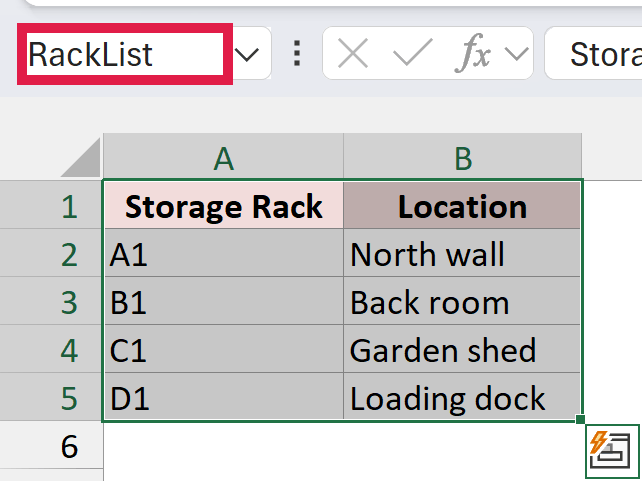
Create another blank query and use this formula:
= Excel.CurrentWorkbook(){[Name="RackList"]}[Content]
A named range comes in with generic headers, Column1 and Column2. Your real headers land in the first row of data.
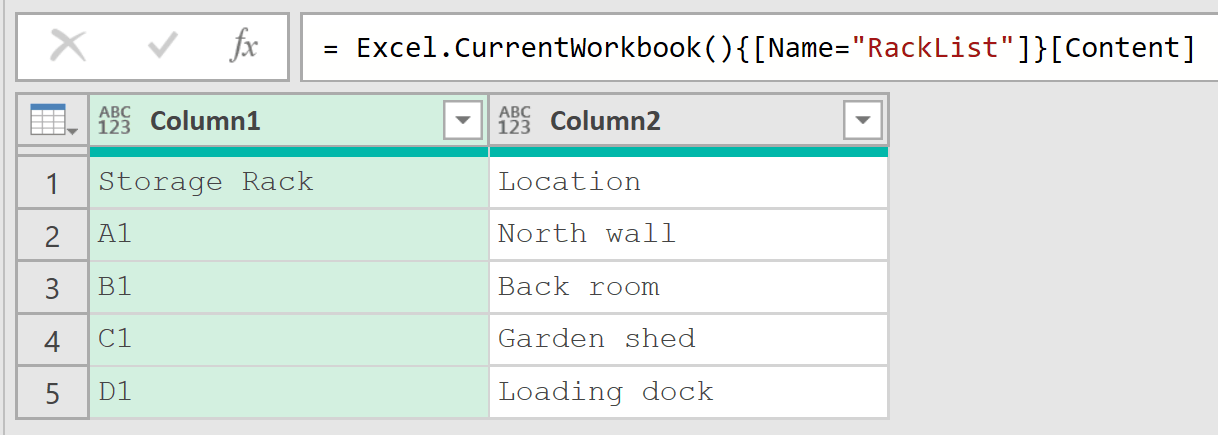
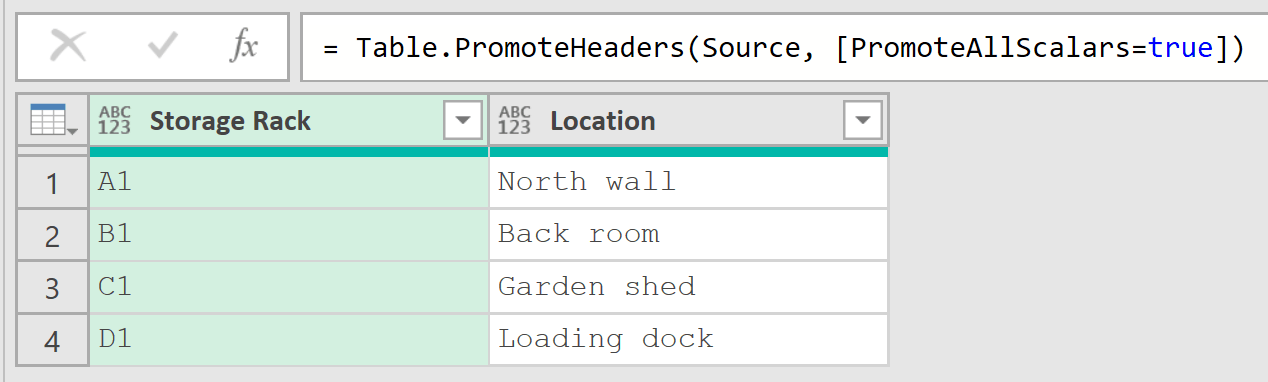
To fix that, go to Home > Use First Row as Headers. Power Query promotes Storage Rack and Location to headers and adds a Changed Type step after it.
Rename the query to Rack List and click Close & Load To to load it wherever you want it. In the example file, I loaded it right next to the named range.
Method #3: Using From Excel Workbook (Saved Copy Only)
This route looks like the natural choice, because it’s how you’d import any other workbook. You point Get Data at the file you have open, and it does work.
I’d only use it when the data sits on a plain sheet that you can’t turn into a table or a named range. It’s the one method here that can read a worksheet directly.
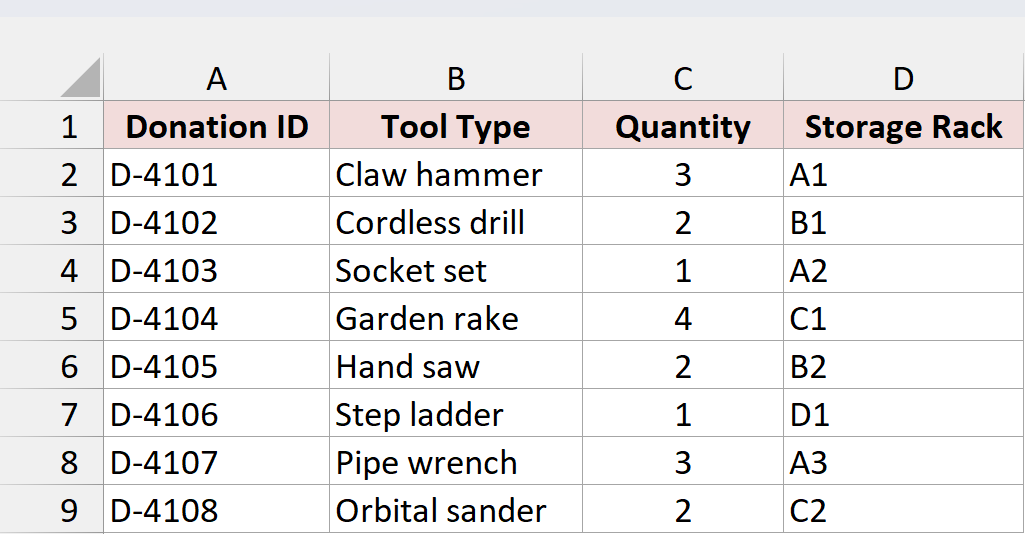
Below I have the donations data on the Donation Log sheet.
Here are the steps:
- Save the workbook with Ctrl + S. This route reads the copy on disk, so anything you haven’t saved won’t come through.
- Go to Data > Get Data > From File > From Excel Workbook.
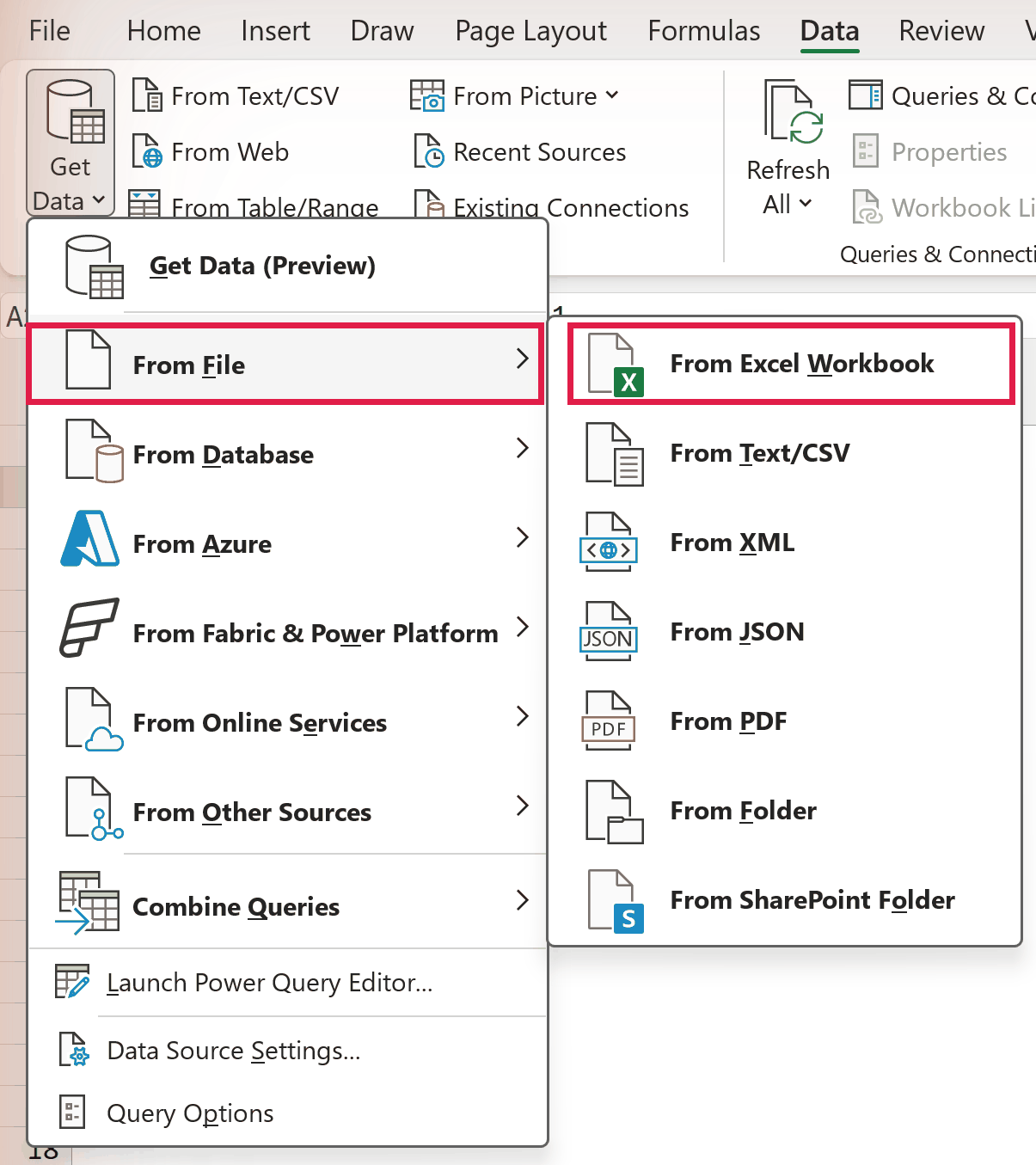
- In the file dialog box, browse to the workbook you have open, select it, and click Open.
- In the Navigator, select the Donation Log sheet and click Transform Data.
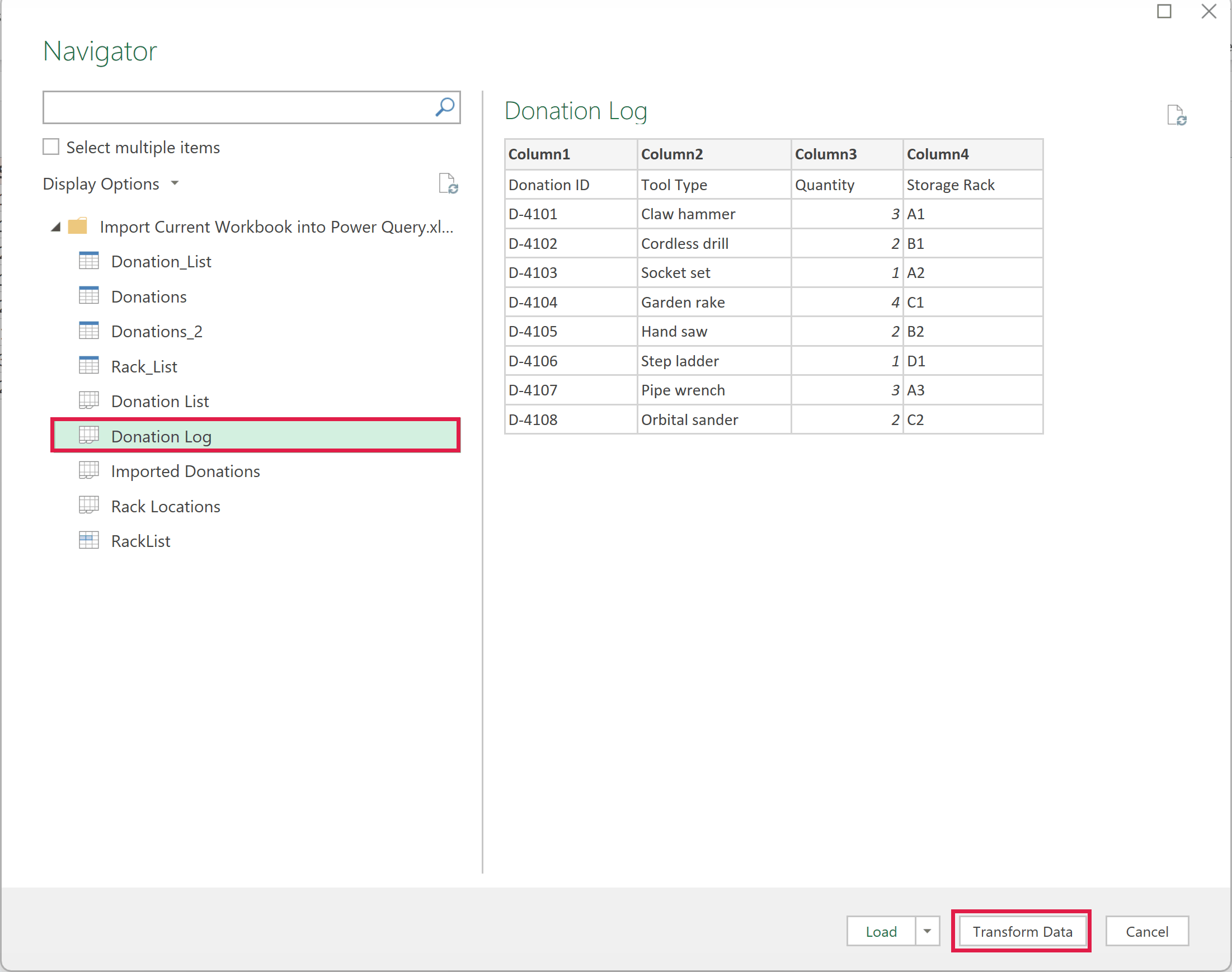
The Navigator lists every sheet in the file as well as its tables and named ranges. Picking the sheet reads whatever is in its used range.
The Power Query Editor opens with your eight donations in the preview. Because you picked a sheet, Power Query (with its default type detection setting) adds a Promoted Headers step that turns the first row into column headers.
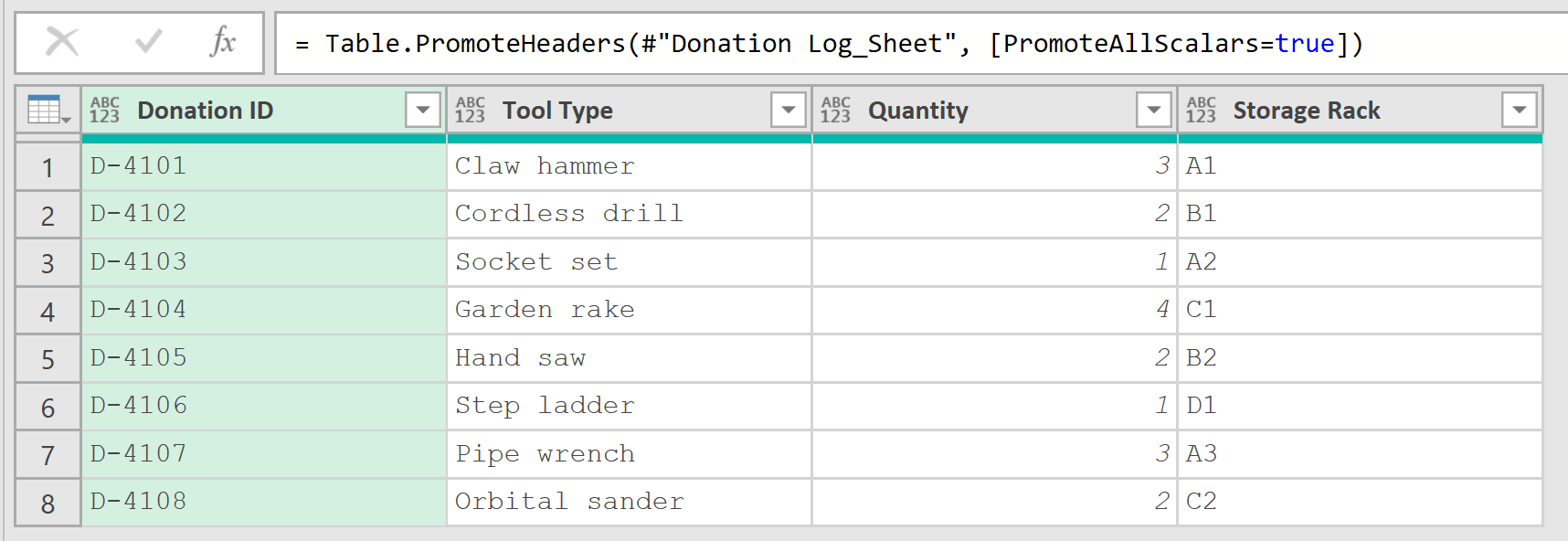
- Click Close & Load to load the data to a new sheet.
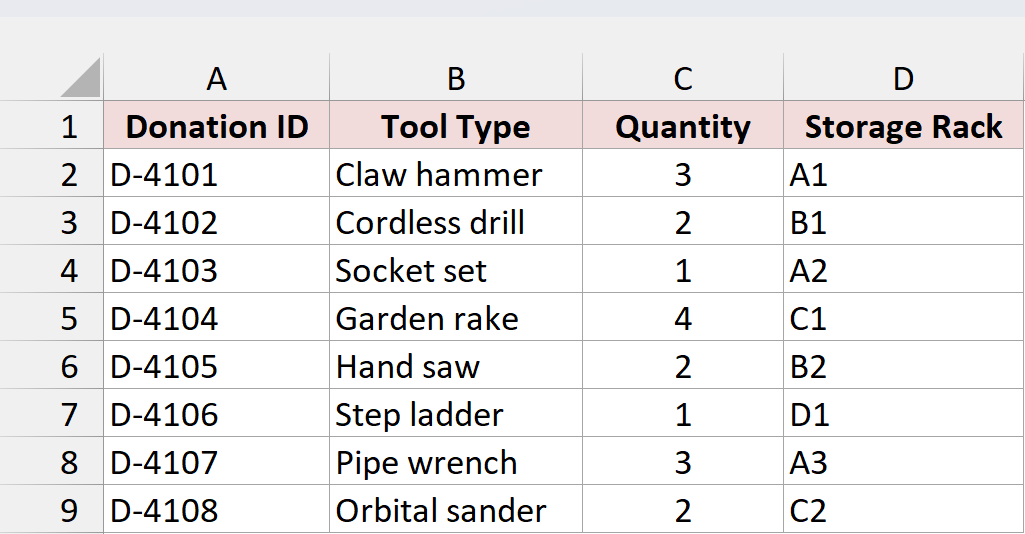
Note: This query reads the saved file, not the open one. If you change a Quantity from 3 to 30 and click Refresh All without saving, the loaded table still shows 3. The query also stores the full file path, so it fails with a DataSource.NotFound error if you move, rename, or email the file.
That’s why I’d switch to Method #1 or #2 whenever the data can be a table or named range. Both read the open workbook directly and don’t care where the file lives.
Additional Notes About Importing the Current Workbook into Power Query
Here are a few things that apply whichever method you pick:
- Name your tables before you build queries. The table name is what the query looks for. Rename the table later and the refresh fails with “We couldn’t find an Excel table named ‘Donations'” until you update the name in the Source step.
- Keep the output away from the source. Load the query to a new sheet or an empty spot, so the loaded table never sits on top of the data it reads.
- Refresh is manual. A loaded query doesn’t change when you edit the source. Use Data > Refresh All, or right-click the loaded table and choose Refresh.
- These steps are for Excel for Windows. From Table/Range, Blank Query, and From Excel Workbook are built into Microsoft 365 and Excel 2016 and later.
Frequently Asked Questions
Here are a few questions that come up once the first query is working.
Can Power Query import data from the same workbook it’s in?
Yes. Both From Table/Range and Excel.CurrentWorkbook read tables and named ranges from the workbook that holds the query. You don’t need a file path, and the query keeps working if you move or rename the file.
Why doesn’t Excel.CurrentWorkbook show my worksheet?
Because it returns tables, named ranges, and dynamic arrays, never worksheets. Turn the data into a table with Ctrl + T, or give the range a name in the Name Box, and it will show up the next time the query runs.
Why does my query show rows twice after I refresh?
This happens when a query takes every object from Excel.CurrentWorkbook() and expands them all. Its own loaded output becomes one of those objects, so the next refresh reads its earlier result again.
To avoid it, pick your source by name, as in Method #2, or filter the Name column first.
Does the query update when I change the source data?
Not on its own. Edit the source table, then use Data > Refresh All. With From Table/Range or Excel.CurrentWorkbook, the refresh picks up unsaved changes too. With From Excel Workbook, you have to save first.
What’s the difference between Excel.CurrentWorkbook and Excel.Workbook?
Excel.CurrentWorkbook reads the workbook the query lives in and takes no arguments. Excel.Workbook reads the contents of a file, usually through File.Contents and a full path. That’s the function behind From Excel Workbook, and it can also read sheets.
Conclusion
I’ve shown you three ways to get data from the current workbook into Power Query: From Table/Range, Excel.CurrentWorkbook in a blank query (including named ranges), and From Excel Workbook.
For most cases, I’d go with From Table/Range.
I hope you found this article helpful.
Other Excel articles you may also like: