
If you’ve built a Power Query in Excel, you’ve probably noticed that its loaded table doesn’t change when the source data does. It only updates when the query refreshes.
By default, that refresh is manual. You click Refresh All, or right-click the table and click Refresh. That’s easy to forget on a report you open every morning or a dashboard that sits on a shared screen.
Excel can do the refreshing for you. You can set a query to refresh on a timer or every time the file opens, and a few lines of VBA cover the cases those settings can’t.
In this article, I’ll show you five ways to do it, using the Refresh every N minutes setting, the refresh-on-open setting, and three short VBA macros (including one that refreshes the moment you edit the source table).
Method #1: Using the Refresh Every N Minutes Option
This is the method I’d pick for most people. It’s a checkbox in the query’s properties, so there’s no code, and the file stays a normal .xlsx.
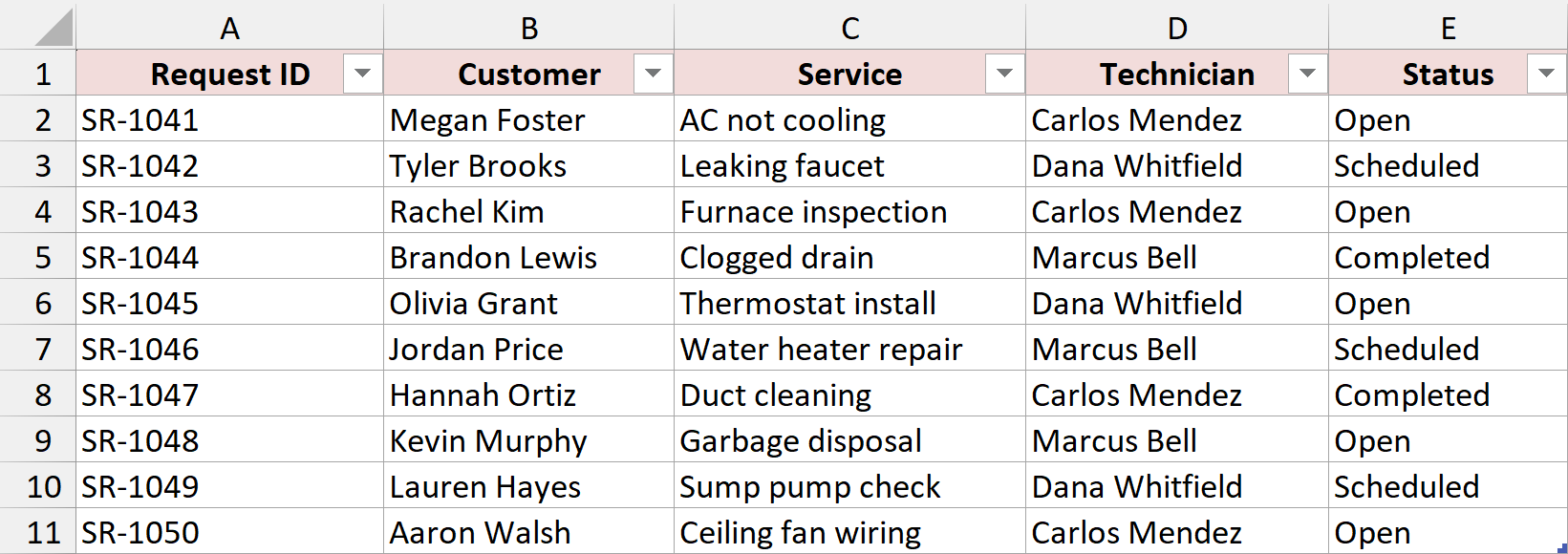
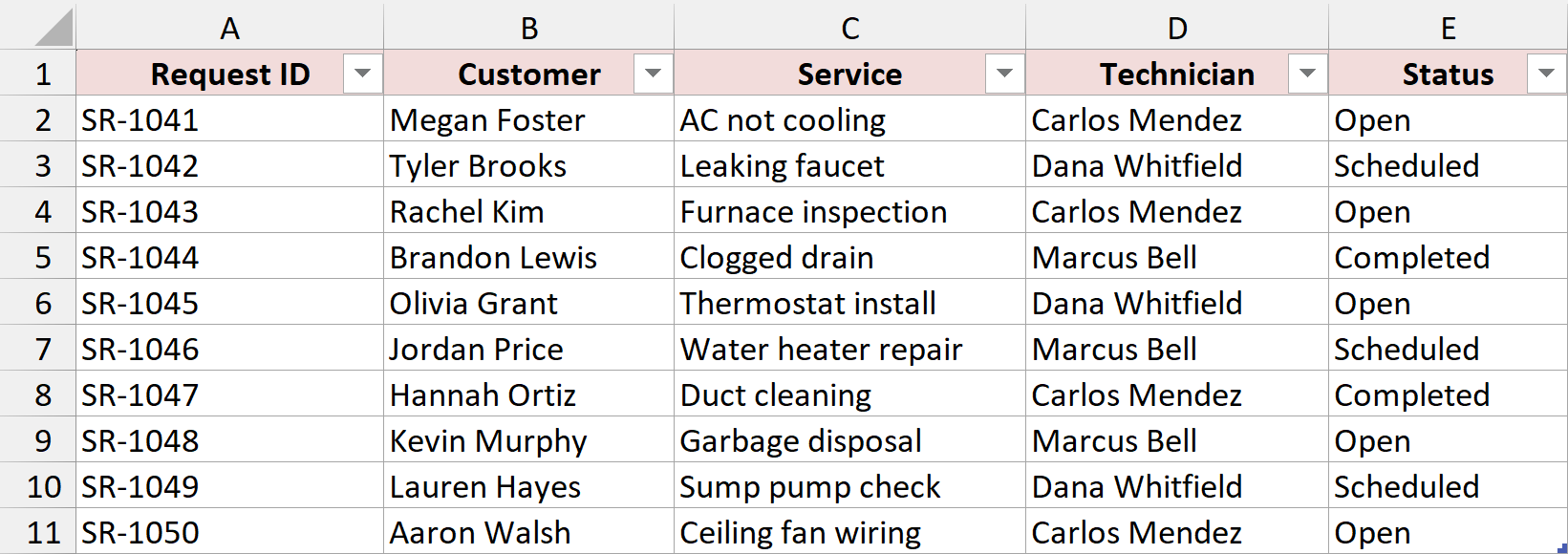
Below I have a table of service requests for a home repair company on the Service Requests sheet. The table is named tblRequests, and each request has a status of Open, Scheduled, or Completed.
A query named Open Requests filters this table down to the open requests and loads them to the Open Requests sheet. Right now it shows five requests.
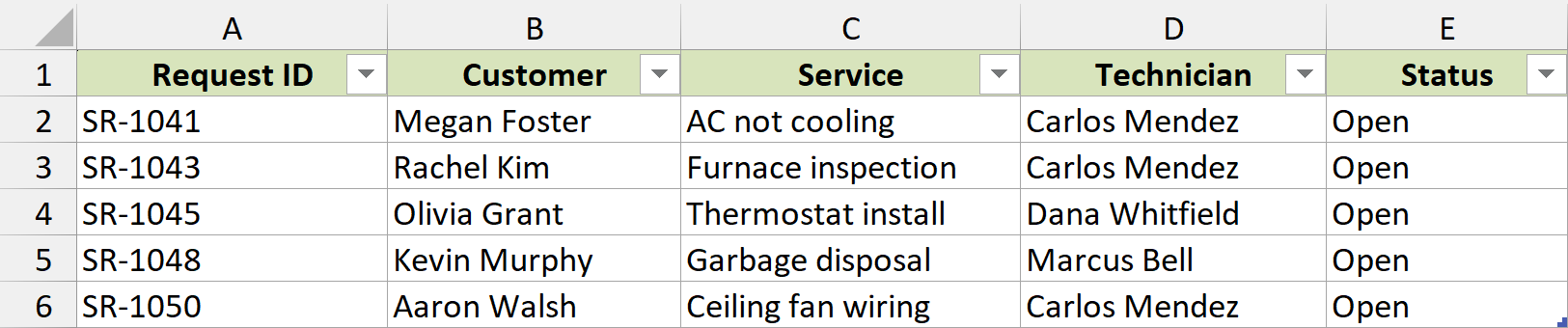
I want the Open Requests sheet to keep itself up to date while the file is open, without anyone clicking Refresh.
Here are the steps to make the query refresh every minute:
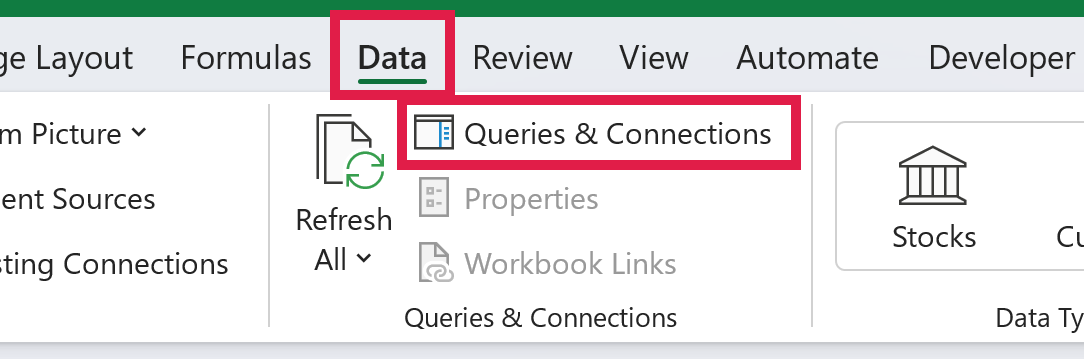
- Click the Data tab, then click Queries & Connections. The Queries & Connections pane opens on the right.
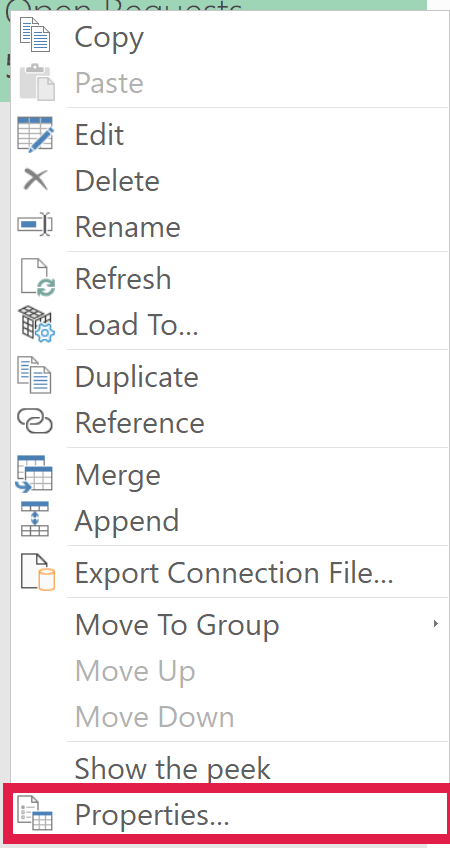
- In the pane, right-click the Open Requests query and click Properties.
- In the Query Properties dialog, on the Usage tab, check Refresh every and set the box next to it to 1 minute. Then click OK.
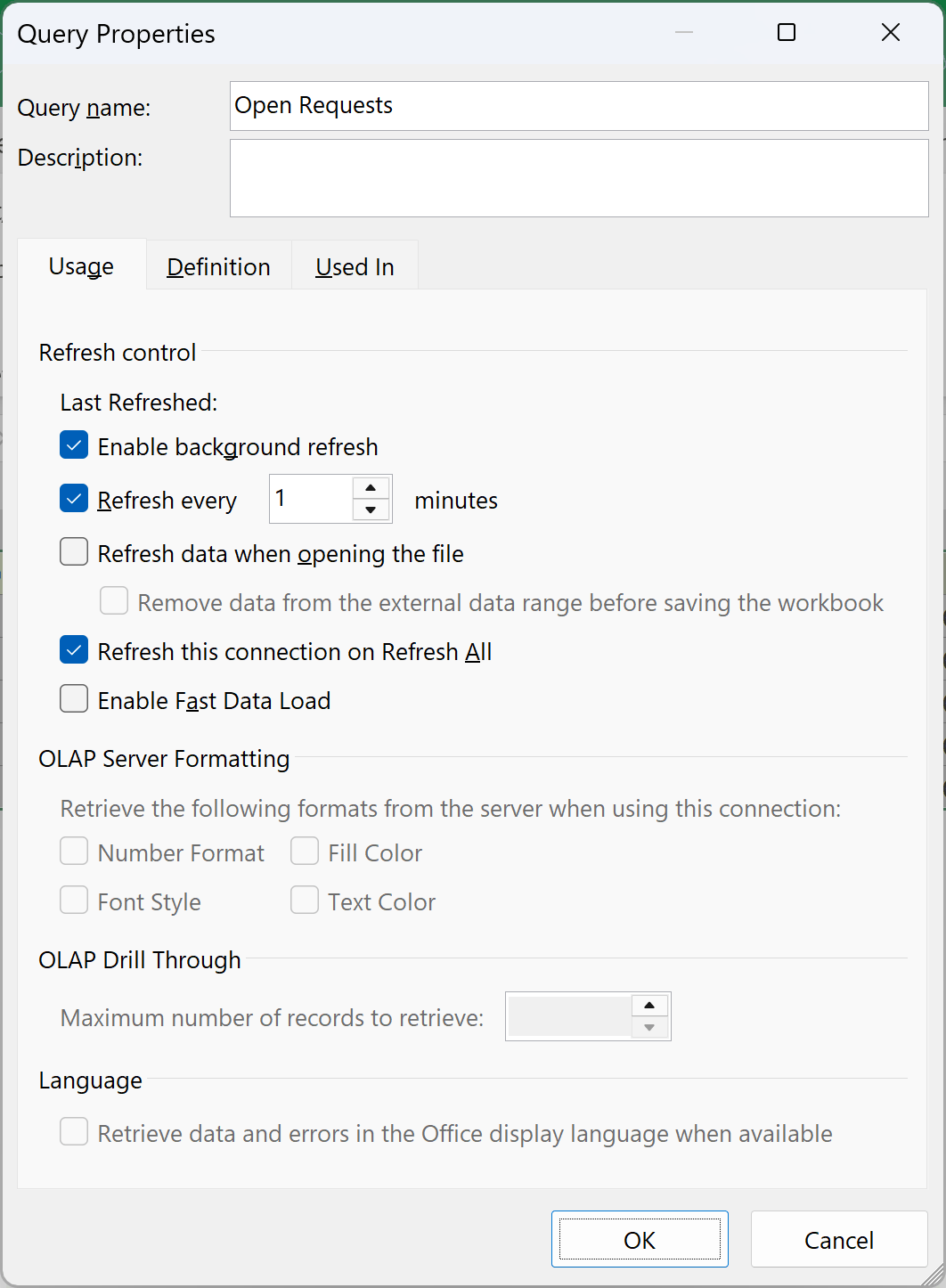
That’s it. Excel now refreshes the query once a minute for as long as the workbook is open.
To test it, go to the Service Requests sheet and change the status of SR-1043 in cell E4 from Open to Completed.
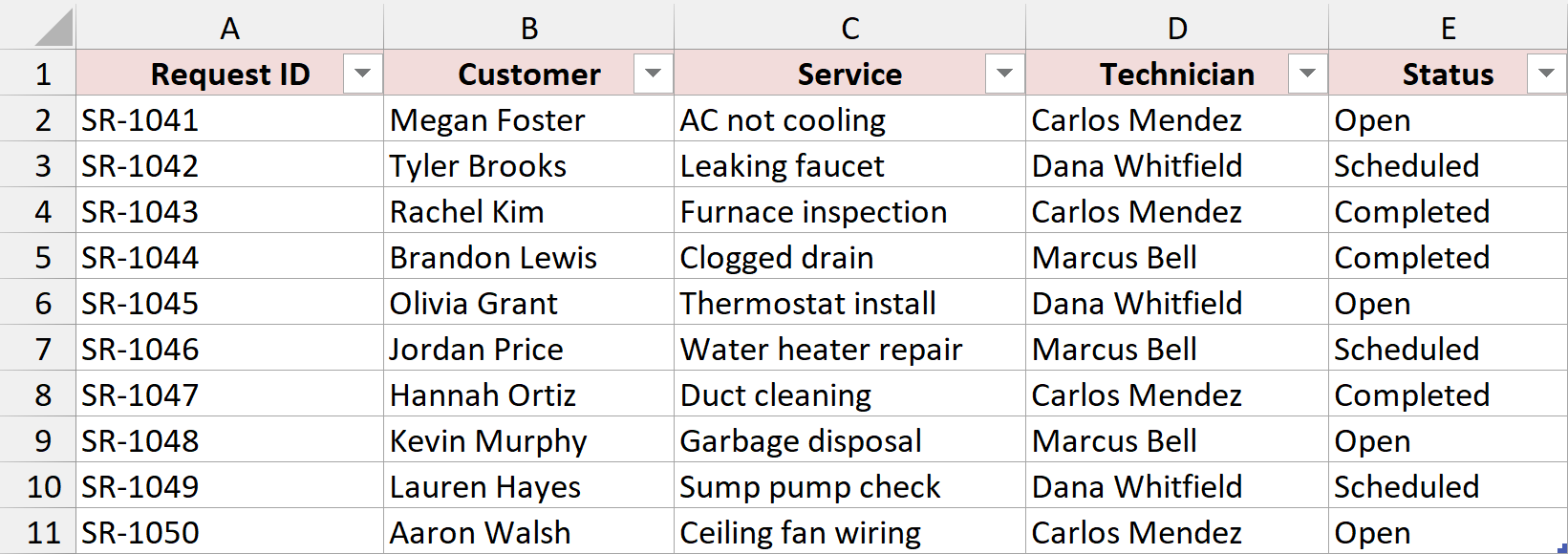
Nothing happens on the Open Requests sheet right away. Within about a minute, the next scheduled refresh runs and SR-1043 drops off the list, leaving four open requests.

The timer only runs while the workbook is open. Close the file and nothing refreshes until you open it again.
Note: The interval is in whole minutes, so 1 minute is the shortest you can set here. A query that pulls from a slow source (a big database or a web page) can take a while to refresh, so pick an interval longer than one refresh takes. Leave “Enable background refresh” checked if you want to keep working while it runs.
Method #2: Using the Refresh Data When Opening the File Option
If you don’t need the data updated every few minutes, but you do want it fresh every time you open the file, this setting is all you need.
Below is the same setup. The Open Requests query reads the tblRequests table on the Service Requests sheet and loads the open requests to the Open Requests sheet.
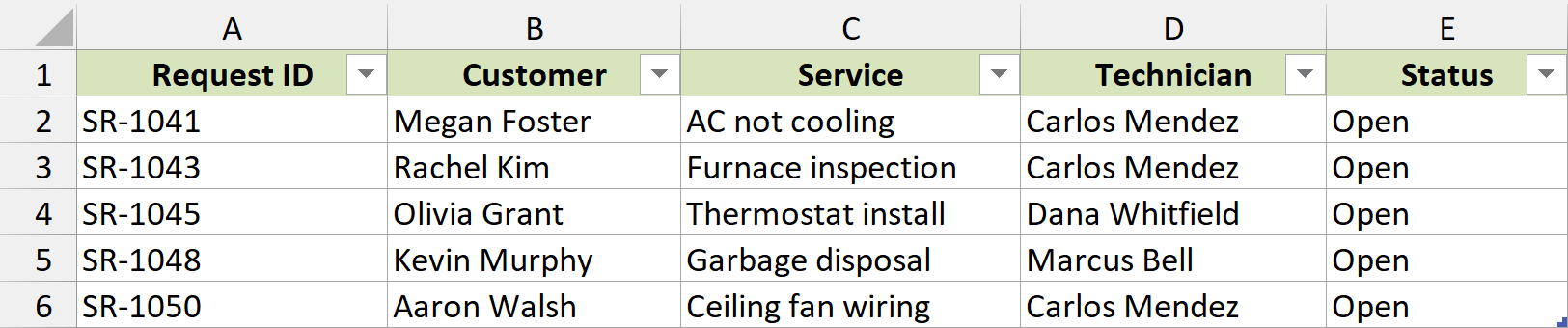
Here are the steps to refresh the query every time the file opens:
- Go to Data > Queries & Connections. In the pane, right-click the Open Requests query and click Properties.
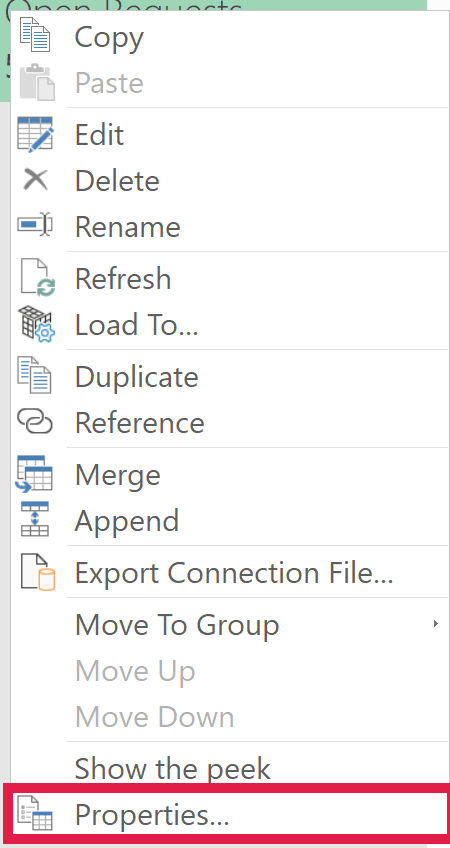
- On the Usage tab, check Refresh data when opening the file and click OK.
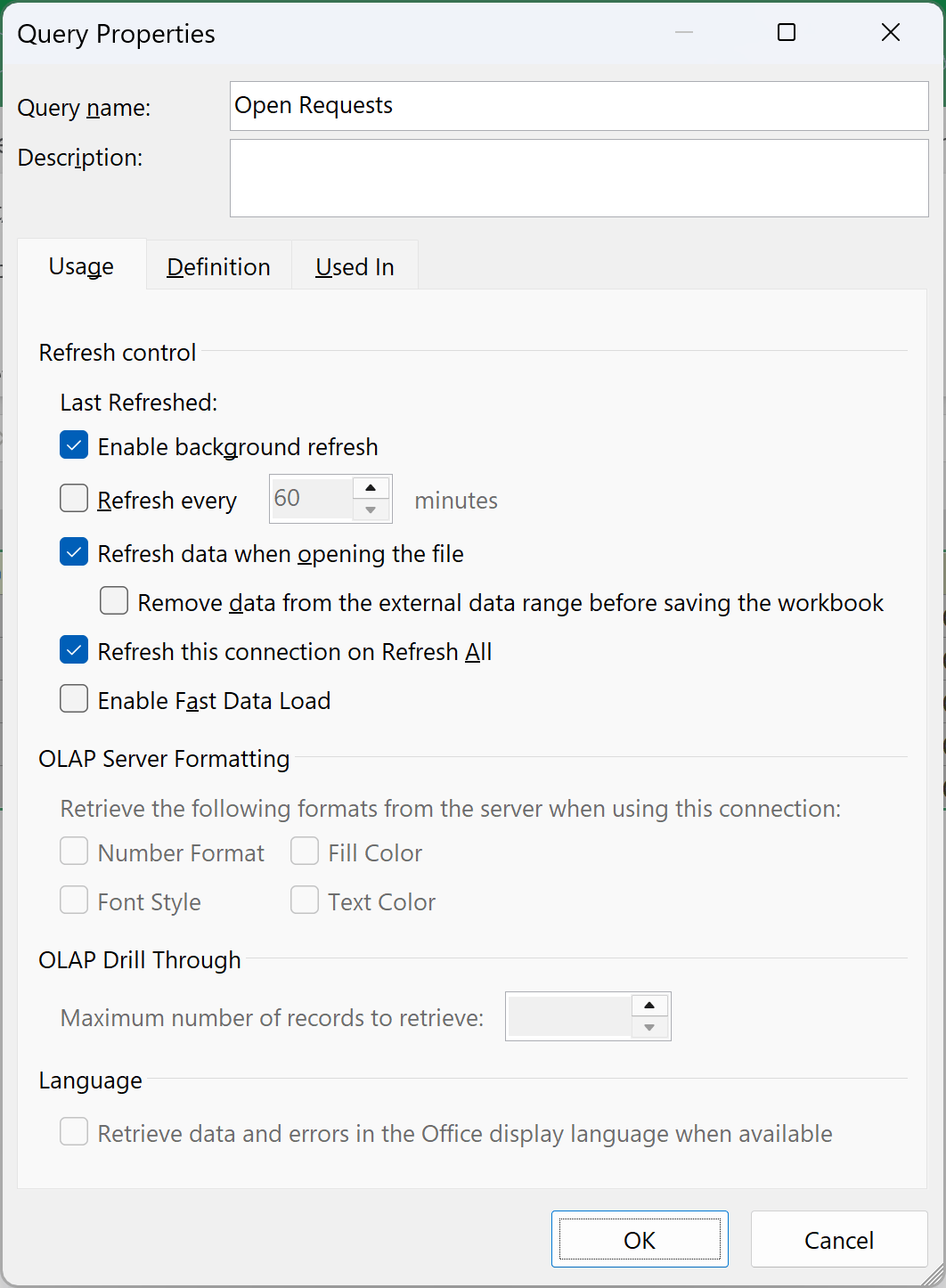
- Save the workbook. The setting is stored in the file, so it applies the next time anyone opens it.
From now on, Excel refreshes the query as soon as the workbook opens.
Excel treats the query’s connection as external data, so this only works once the file’s data connections are enabled.
Note: If a yellow Security Warning bar appears when the file opens, click Enable Content so the refresh can run. You can also save the workbook in a trusted location, which skips the warning.
You can turn on this option and Refresh every together. The query then refreshes once when the file opens and again on the timer after that.
Method #3: Using a Workbook_Open Macro
The two settings above work one query at a time. If your workbook has several queries, plus pivot tables built on top of them, a one-line macro can refresh all of it whenever the file opens.
Below is the dataset. The Open Requests query reads the tblRequests table on the Service Requests sheet and loads the open requests to the Open Requests sheet.
Here is the VBA code:
Private Sub Workbook_Open()
    ThisWorkbook.RefreshAll
End SubThis code has to go in the ThisWorkbook module, not a regular module. Workbook_Open is an event, and Excel only runs it from ThisWorkbook.
Here are the steps to add it:
- Open the downloaded file (click Enable Editing if Protected View shows) and save a copy as an Excel Macro-Enabled Workbook (*.xlsm).
- Press Alt + F11 to open the Visual Basic Editor.
- In the Project Explorer on the left, double-click ThisWorkbook.
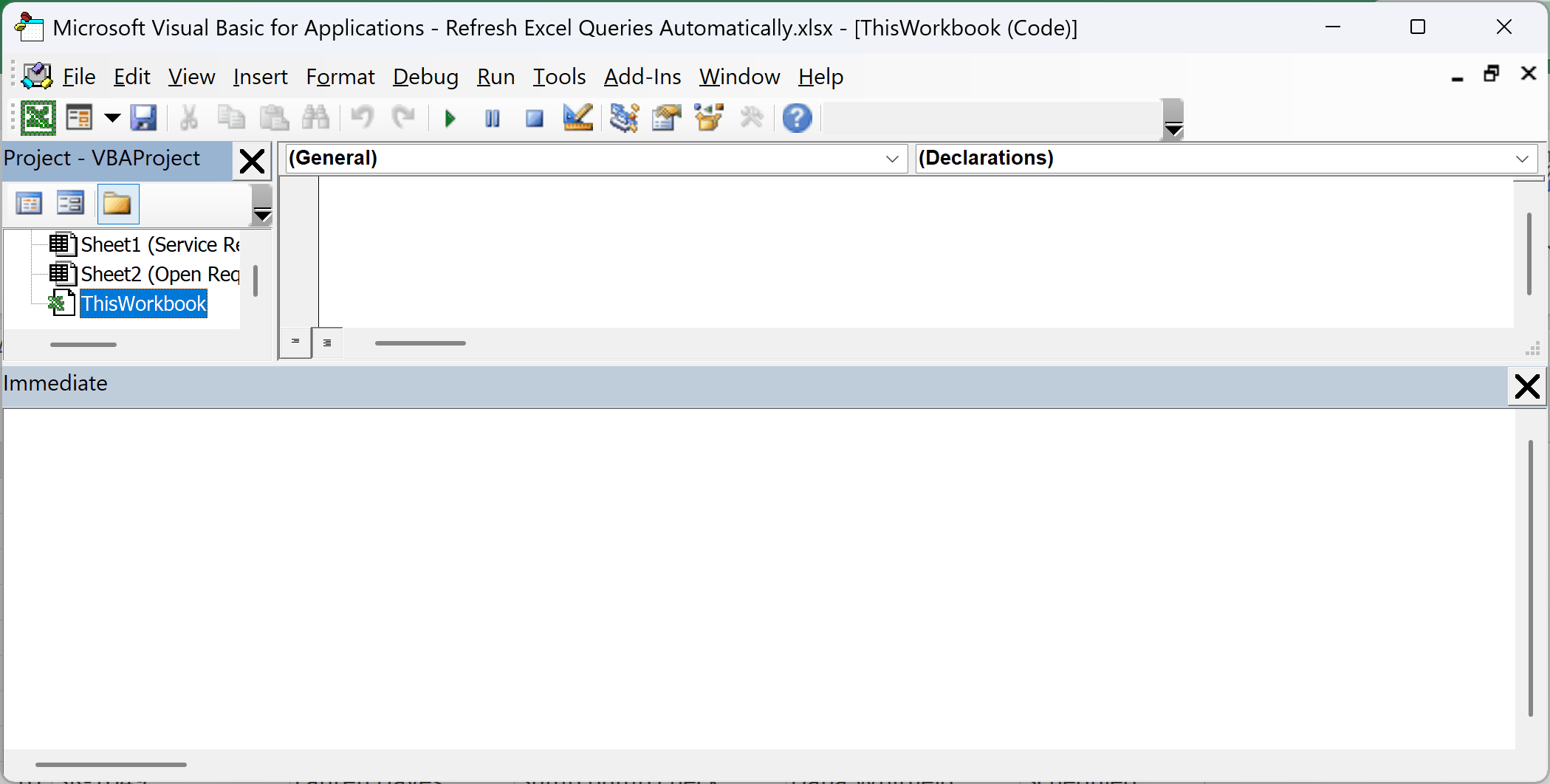
- Paste the code above into the code window that opens.
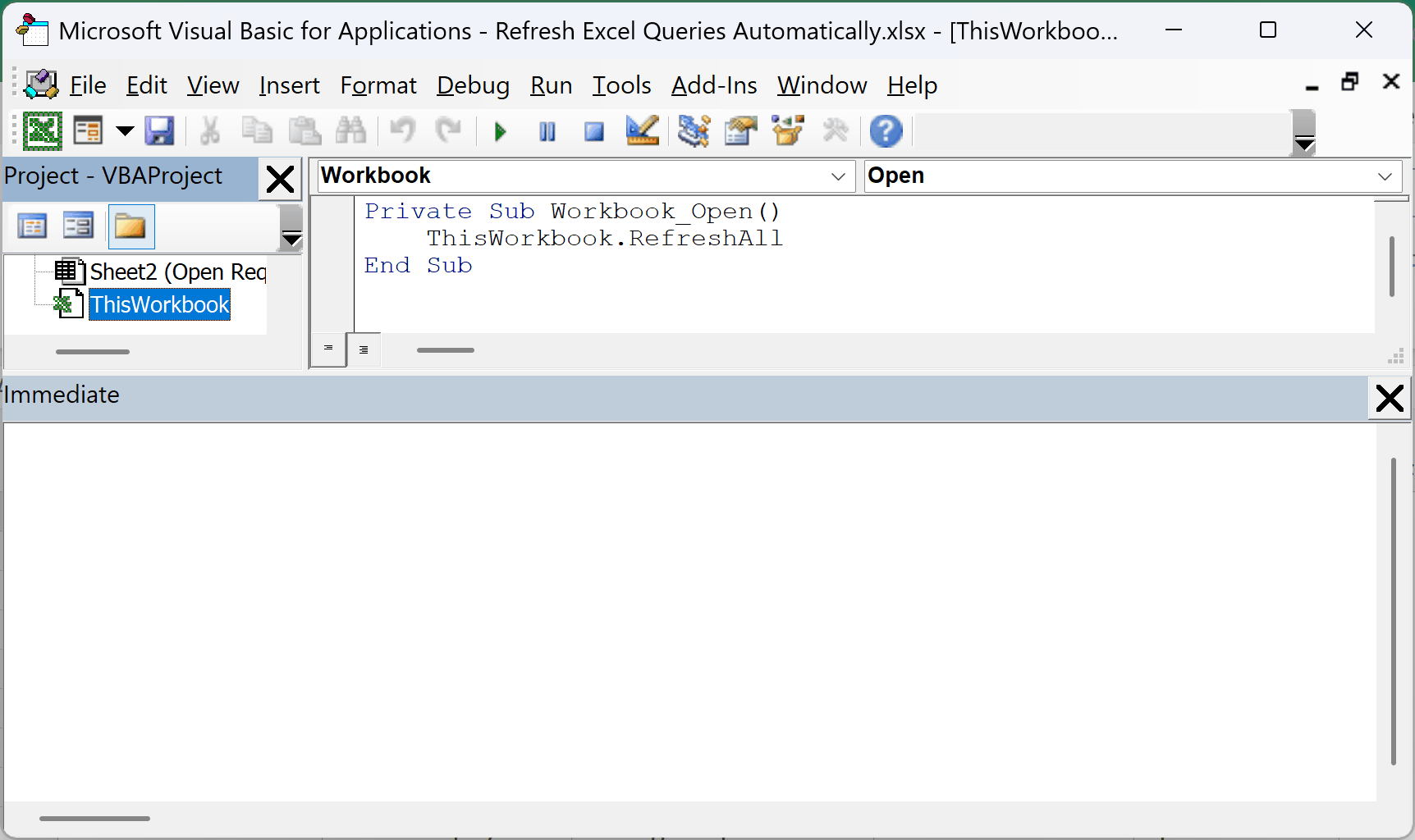
- Save the workbook, then close it and open it again. Click Enable Content if Excel shows a macro security warning.
Every time the workbook opens, the macro runs ThisWorkbook.RefreshAll, which is the same as clicking Refresh All on the Data tab. It refreshes PivotTables and the queries and connections included in Refresh All.
Note: With background refresh on (the default for a query), RefreshAll can refresh a pivot table before the query feeding it has finished, so the pivot shows the old numbers. To fix this, uncheck “Enable background refresh” in the query’s Properties. Excel then waits for the query to finish before it moves on.
Method #4: Using a Worksheet_Change Macro
When a query reads a table in the same workbook, editing that table doesn’t refresh the query. A timed refresh helps, but you can still wait up to a minute.
This macro refreshes the query the moment you change a cell in the source table.
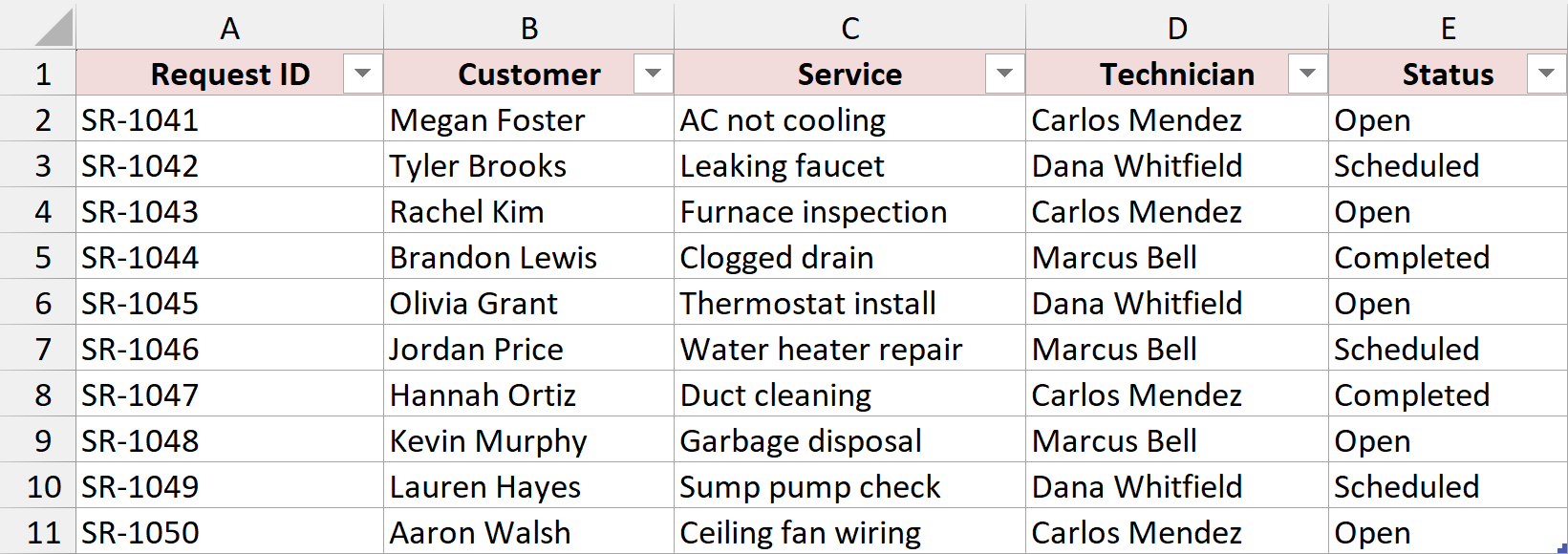
Below is the dataset. The tblRequests table on the Service Requests sheet feeds the Open Requests query, which loads the open requests to the Open Requests sheet.
Here is the VBA code:
Private Sub Worksheet_Change(ByVal Target As Range)
    If Intersect(Target, Me.ListObjects("tblRequests").Range) Is Nothing Then Exit Sub
    ThisWorkbook.Connections("Query - Open Requests").Refresh
End SubThis code goes in the module of the sheet that holds the source table, which here is the Service Requests sheet.
Here are the steps to add it:
- Open the downloaded file (click Enable Editing if Protected View shows) and save a copy as an Excel Macro-Enabled Workbook (*.xlsm).
- Press Alt + F11 to open the Visual Basic Editor.
- In the Project Explorer, double-click the sheet named Service Requests.
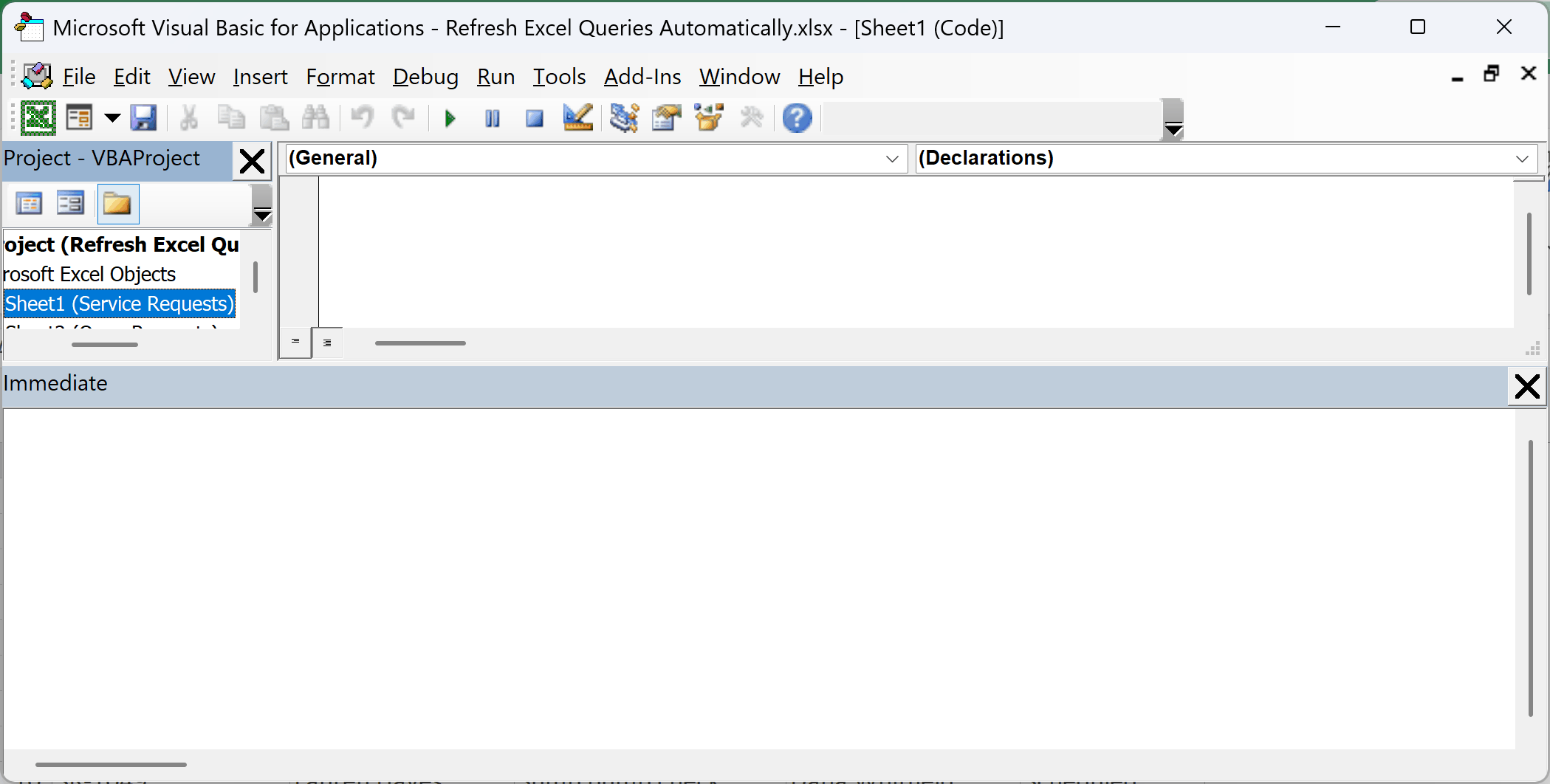
- Paste the code above into the code window, then close the Visual Basic Editor and save the workbook.
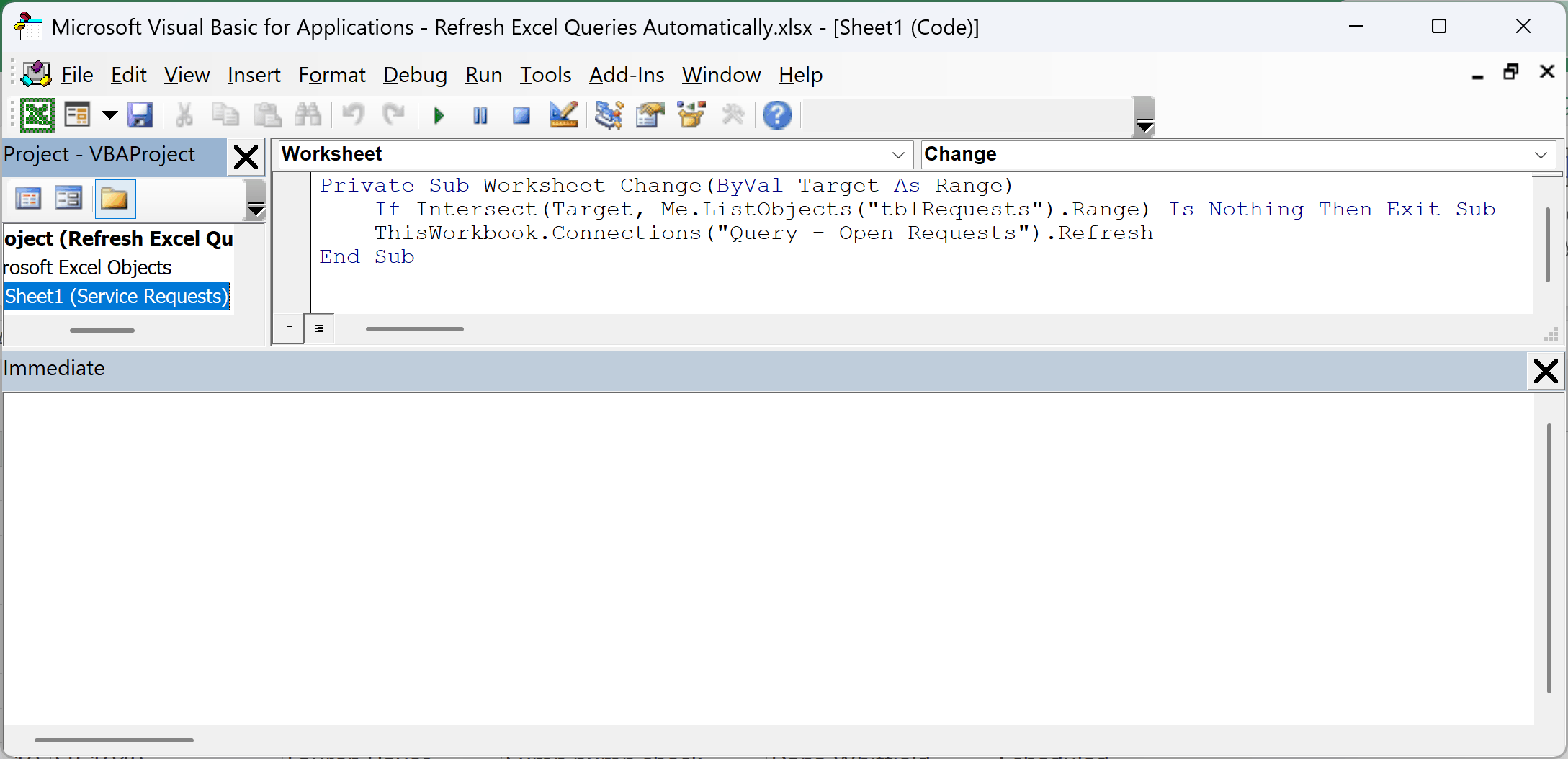
Now change the status of SR-1043 in cell E4 from Open to Completed. As soon as you press Enter, the Open Requests sheet refreshes and shows four requests.

How does this code work?
Excel runs Worksheet_Change every time a cell on the sheet changes, and Target is the cell (or range) that changed.
The Intersect line checks whether that change happened inside the tblRequests table. If it didn’t, the macro exits and nothing refreshes, so typing elsewhere on the sheet doesn’t trigger a refresh.
If the change is inside the table, the last line refreshes the query’s connection.
Excel names that connection “Query – ” followed by the query name, which is why it’s “Query – Open Requests” here. Change the table name and the query name to match your own workbook.
Note: Keep the query’s output on a different sheet from the source table, like in this example. This macro only watches the sheet it lives on, and it only helps when the source is a table in the same workbook. For an external file or database, use Method #1 or #5.
Method #5: Using Application.OnTime
Refresh every can’t go below one minute, and it can’t refresh at a set time of day. Application.OnTime can do both, because it runs a macro at whatever time you tell it.
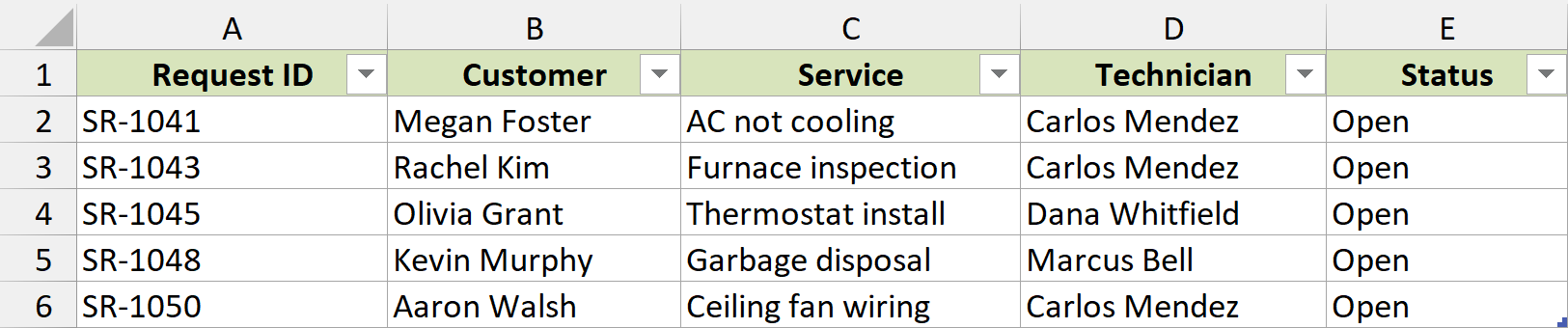
Below is the dataset. The Open Requests query reads the tblRequests table on the Service Requests sheet and loads the open requests to the Open Requests sheet.
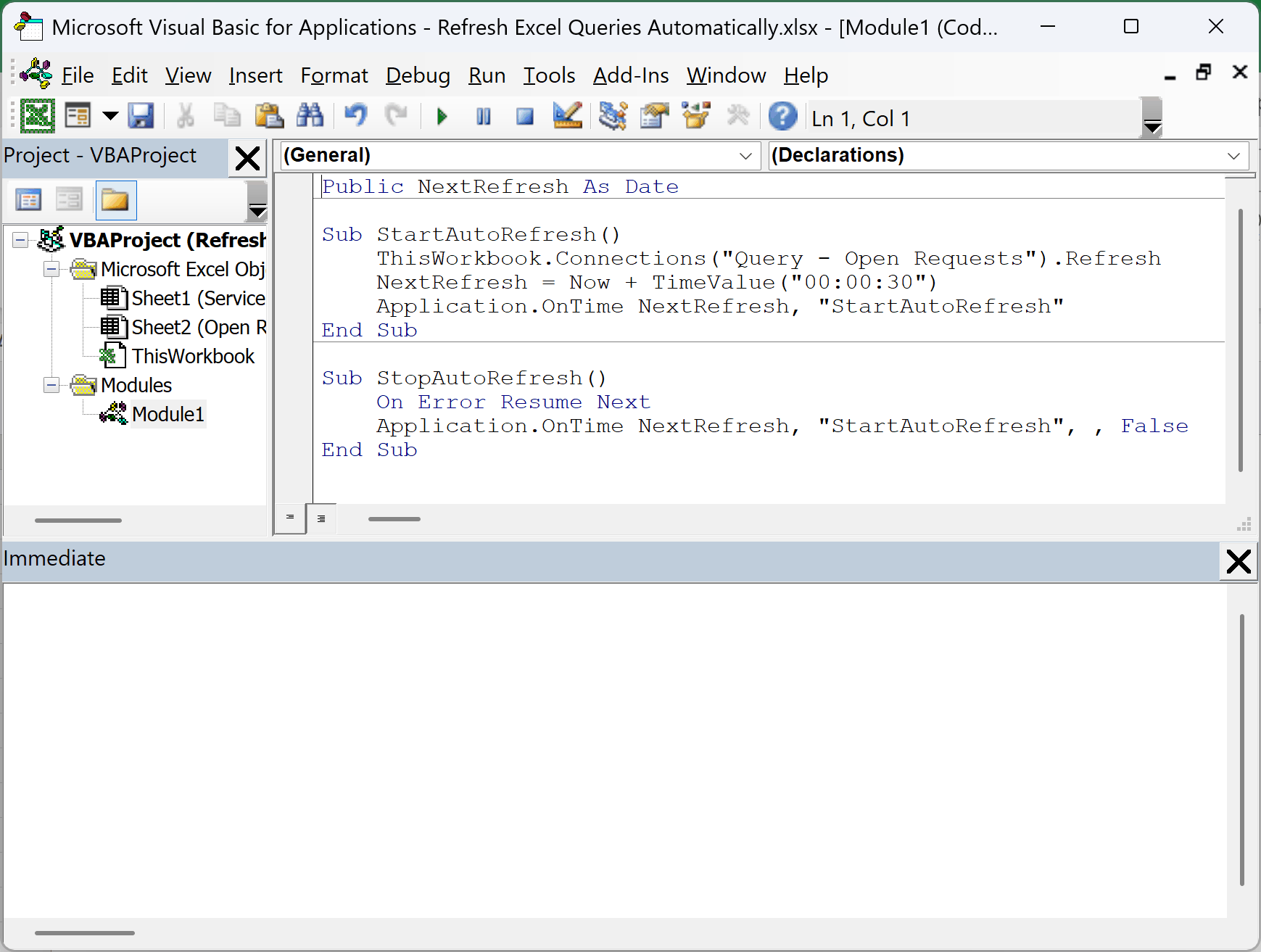
Here is the VBA code that refreshes the query every 30 seconds:
Public NextRefresh As Date

Sub StartAutoRefresh()
    ThisWorkbook.Connections("Query - Open Requests").Refresh
    NextRefresh = Now + TimeValue("00:00:30")
    Application.OnTime NextRefresh, "StartAutoRefresh"
End Sub

Sub StopAutoRefresh()
    On Error Resume Next
    Application.OnTime NextRefresh, "StartAutoRefresh", , False
End SubHere are the steps to use it:
- Open the downloaded file (click Enable Editing if Protected View shows) and save a copy as an Excel Macro-Enabled Workbook (*.xlsm).
- Press Alt + F11, then click Insert > Module.
- Paste the code above into the new module.
- Go back to Excel, press Alt + F8, select StartAutoRefresh, and click Run.
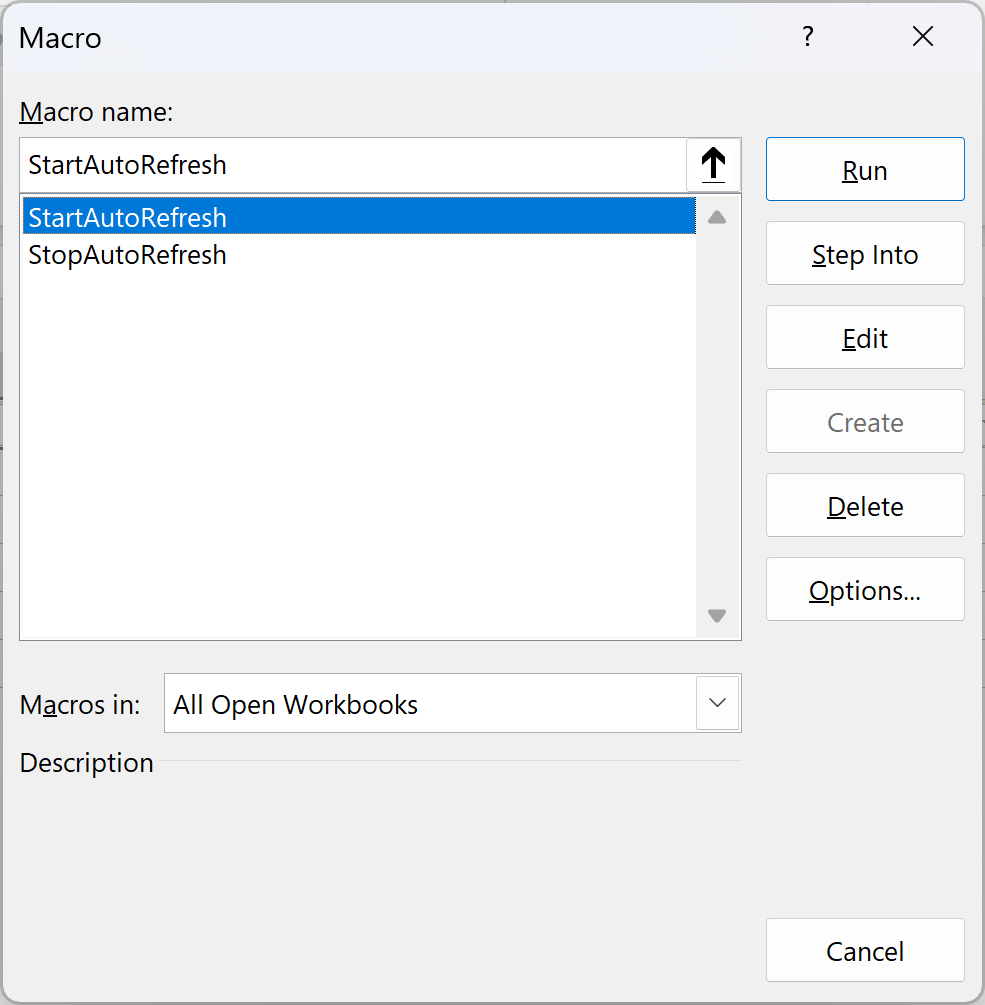
The query refreshes right away and then every 30 seconds after that. To stop it, run StopAutoRefresh the same way.
How does this code work?
StartAutoRefresh refreshes the query, works out a time 30 seconds from now, and then uses Application.OnTime to schedule itself to run again at that time. Each run books the next one, so it keeps going.
The time is stored in NextRefresh at the top of the module. StopAutoRefresh needs that exact time to cancel the pending run, which is what the False at the end of its OnTime line does.
To change the interval, edit TimeValue(“00:00:30”). It’s hours, minutes, and seconds, so “00:05:00” means every five minutes.
If you’d rather refresh once a day at a fixed time, schedule it with a clock time instead. For example, Application.OnTime TimeValue("09:00:00"), "StartAutoRefresh" runs it at 9:00 AM, as long as the workbook is open then.
If you close the workbook while a run is still scheduled, Excel reopens the file to run it. Run StopAutoRefresh before you close, or paste this into the ThisWorkbook module so it happens on its own:
Private Sub Workbook_BeforeClose(Cancel As Boolean)
    StopAutoRefresh
End SubAdditional Notes About Refreshing Excel Queries Automatically
Here’s a quick side-by-side of the five methods:
| Method | When It Refreshes | Needs VBA | Shortest Interval |
|---|---|---|---|
| Refresh every N minutes | On a timer while the file is open | No | 1 minute |
| Refresh data when opening the file | Each time the file opens | No | Not applicable |
| Workbook_Open macro | Each time the file opens (everything) | Yes | Not applicable |
| Worksheet_Change macro | When you edit the source table | Yes | Instant |
| Application.OnTime | On any interval or clock time you set | Yes | 1 second |
A few things worth knowing:
- Every method here runs inside Excel, so the workbook has to be open. None of them refresh a closed file.
- Refresh every and Refresh data when opening the file apply only to the query you set them on. Repeat the steps for each query, or use the Workbook_Open macro.
- A pivot table built on a query’s output has its own refresh setting, so it doesn’t refresh just because the query did. Use Refresh All, or turn on the pivot table’s own refresh-on-open option.
- You can still refresh by hand. Press Ctrl + Alt + F5 to refresh everything in the workbook, or select a cell in the query’s table and press Alt + F5 to refresh just that query.
- The steps here are for Excel for Microsoft 365 on Windows. The VBA methods need the desktop app, because Excel for the web doesn’t run VBA.
- Methods #3 to #5 only work if you save the workbook as a macro-enabled file and enable macros when you open it.
Frequently Asked Questions
Here are answers to a few questions that come up a lot.
Can Excel refresh a query when the workbook is closed?
No. Excel only refreshes a query while the workbook is open in Excel.
If you need a file refreshed on a schedule while nobody has it open, you’ll need a tool outside Excel that opens the workbook for you, so one of these methods can run.
What’s the shortest refresh interval I can set?
In Query Properties, it’s 1 minute, because the box only takes whole minutes. For anything faster, use the Application.OnTime macro in Method #5 and set a shorter TimeValue.
Why doesn’t my query update when I change the source data?
A query only reads its source when it refreshes, so edits to the source don’t show until the next refresh. For a table in the same workbook, the Worksheet_Change macro in Method #4 refreshes it the moment you edit.
Will automatic refresh slow down my workbook?
It can if the query is big or the source is slow. Keep background refresh on so you can keep working while it runs, and use a longer interval for heavy queries.
Conclusion
If you just want your query to stay current while the file is open, turn on Refresh every in the query’s properties. Add Refresh data when opening the file if you want it fresh the moment the workbook opens.
The VBA methods are there for the rest: refreshing everything on open, refreshing the moment the source changes, or refreshing faster than once a minute.
I hope you found this article helpful.
Other Excel articles you may also like: