
If you back up the same reports every week or send files from one folder to another, a short VBA macro can do the copying for you.
VBA has two main tools for this. The built-in FileCopy statement copies one file, and the FileSystemObject adds wildcards, whole folders, and control over overwriting.
Both of them overwrite an existing file by default, without asking. And one missing backslash in a folder path can send your copy somewhere you didn’t expect.
In this article, I’ll show you how to copy a single file, every PDF in a folder, an entire folder, and the open workbook itself. I’ll also show you how to copy a whole list of files from a worksheet.
Here’s how the four methods compare:
| Method | What It Copies | File Open in Excel? | Existing Copy |
|---|---|---|---|
| FileCopy | One file | Fails (error 70) | Replaced silently |
| FileSystemObject.CopyFile | One file, or several with a wildcard | Copies the last saved version | Replaced unless you pass False |
| FileSystemObject.CopyFolder | A folder and all its subfolders | Copies the last saved version | Replaced unless you pass False |
| Workbook.SaveCopyAs | The workbook running the macro | Yes, including unsaved changes | Replaced silently |
Method #1: Using the FileCopy Statement
FileCopy is built into VBA, so there’s nothing to set up. I recommend it when you need to copy one file that isn’t open.
Suppose you have a file called Sales Summary.xlsx in the C:\Reports folder, and you want a copy of it in C:\Backup.
Here is the VBA code:
Sub CopyOneFile()
    FileCopy "C:\Reports\Sales Summary.xlsx", "C:\Backup\Sales Summary.xlsx"
    MsgBox "File copied."
End SubHere are the steps to use this macro:
- Press Alt + F11 to open the VBA Editor.
- Click Insert, then Module.
- Paste the code into the module and change the two paths to match your own files.
- Click anywhere inside the code and press F5 to run it.
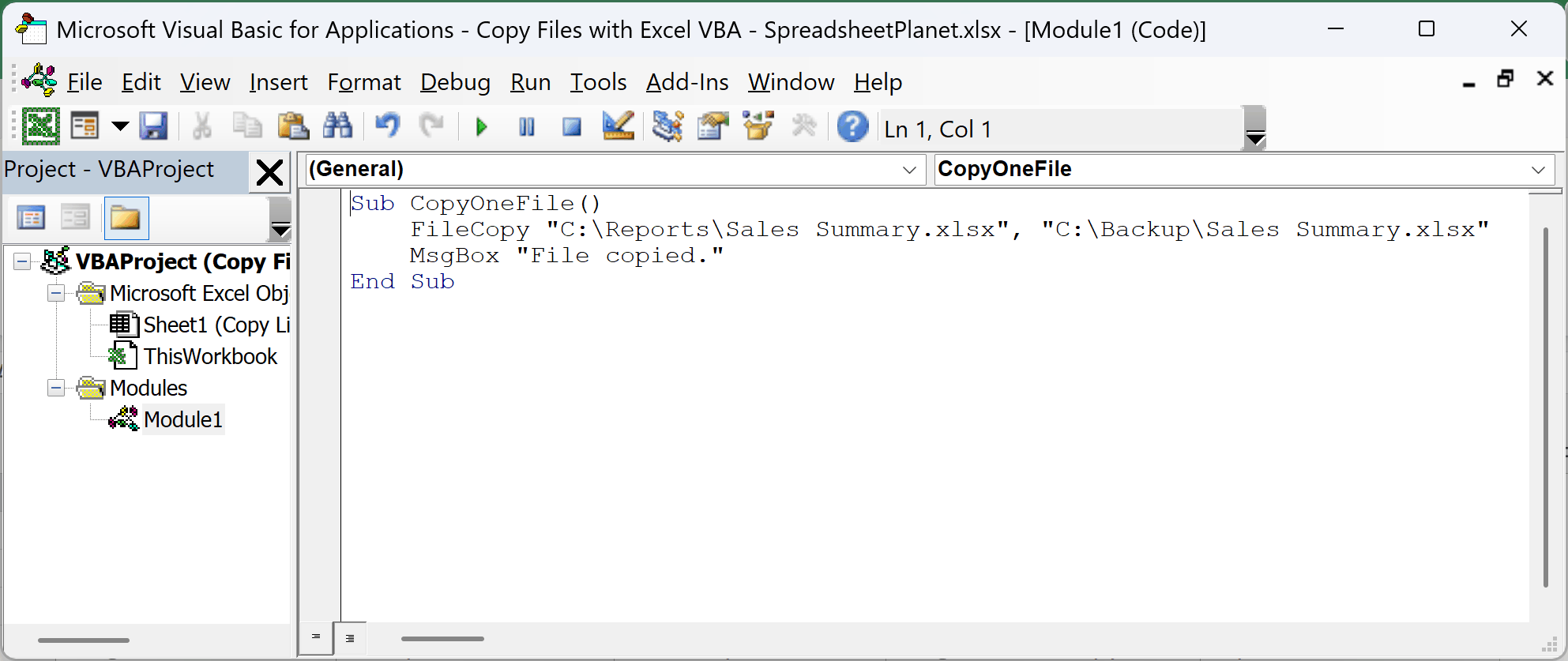
FileCopy takes the source file first and the destination second. The destination has to be a full file name, not just a folder. If you pass C:\Backup\ on its own, VBA returns error 76 (Path not found).
Because you name the destination file yourself, you can rename the copy at the same time. For example, ending the second path with Sales Summary – Copy.xlsx creates the copy under that name.
Note: FileCopy can’t copy a workbook that’s open in Excel. It returns error 70 (Permission denied). Close the file first, or use FileSystemObject.CopyFile from Method #2.
Checking the File and Folder Before You Copy
FileCopy stops with an error if the source file is missing or the destination folder doesn’t exist. This version checks both first, creates the folder if needed, and saves the copy under a new name.
Again, the file is Sales Summary.xlsx in C:\Reports, and the copy goes to C:\Backup:
Sub CopyFileSafely()
    Dim sourceFile As String
    Dim destFolder As String

    sourceFile = "C:\Reports\Sales Summary.xlsx"
    destFolder = "C:\Backup"

    If Dir(sourceFile) = "" Then
        MsgBox "Can't find " & sourceFile
        Exit Sub
    End If

    If Dir(destFolder, vbDirectory) = "" Then MkDir destFolder

    FileCopy sourceFile, destFolder & "\Sales Summary - Copy.xlsx"
    MsgBox "File copied."
End Sub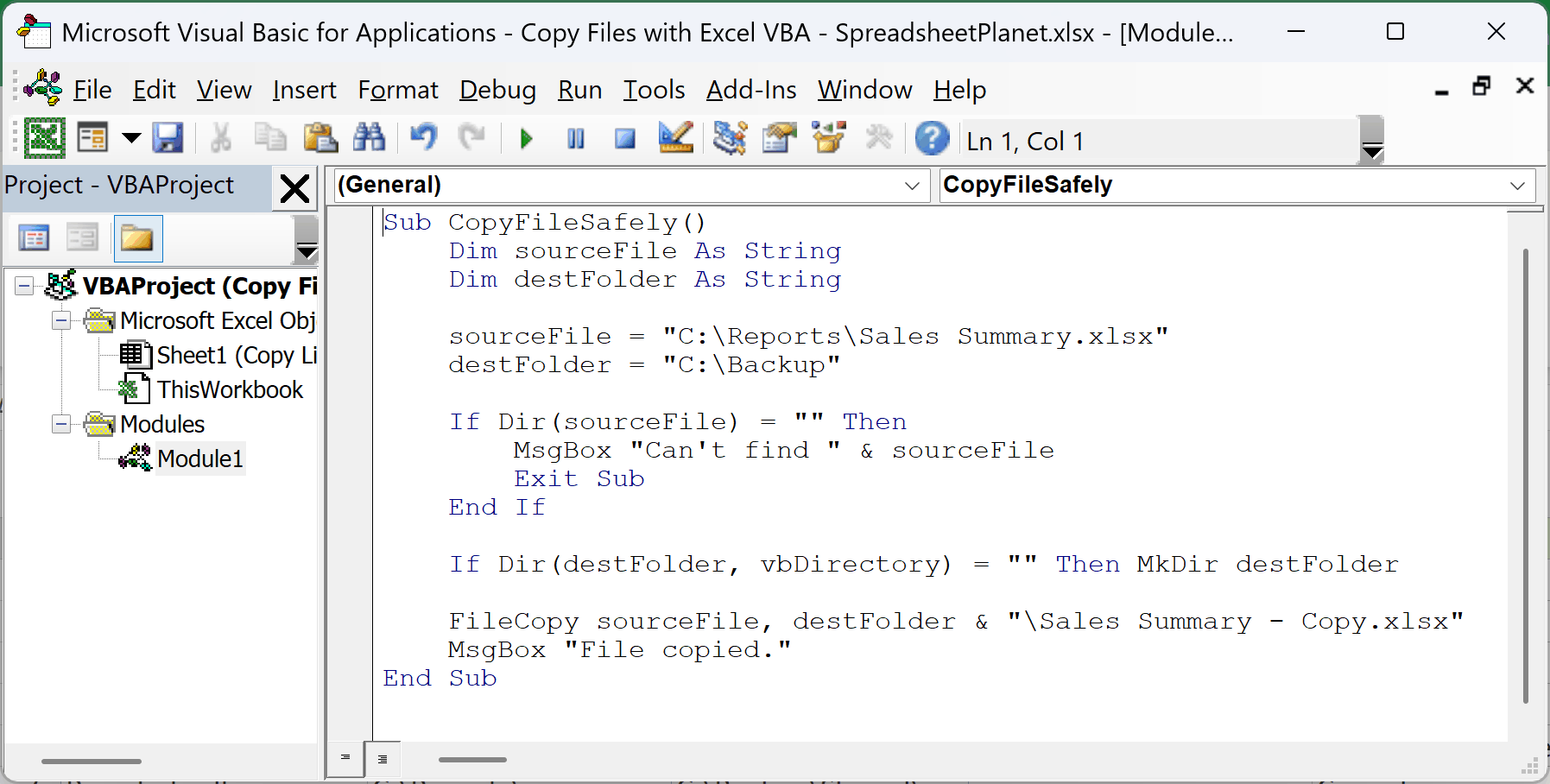
How does the code work?
Dir returns an empty string when a file doesn’t exist, so the first If stops the macro with a message instead of an error.
Adding vbDirectory lets Dir check if a folder exists as well. If C:\Backup isn’t there, MkDir creates it. MkDir only creates one folder level, so the parent folder (C:\ here) must already exist.
The last line copies the file and gives the copy a new name in the same step.
FileCopy replaces an existing file with the same name without any warning. If that matters, check for the copy with Dir before you run FileCopy, just like the source check above.
Method #2: Using FileSystemObject.CopyFile
If you’d rather not use FileCopy, the FileSystemObject is the more flexible option. Its CopyFile method can copy files that are open in Excel, copy several files at once with a wildcard, and skip files that already exist.
FileSystemObject comes from the Windows Scripting Runtime. The code below creates it with CreateObject, so you don’t need to add any reference in the VBA Editor.
Suppose you want to copy Sales Summary.xlsx from C:\Reports into C:\Backup, keeping its name.
Here is the VBA code:
Sub CopyFileWithFSO()
    Dim fso As Object
    Set fso = CreateObject("Scripting.FileSystemObject")

    fso.CopyFile "C:\Reports\Sales Summary.xlsx", "C:\Backup\"
    MsgBox "File copied."
End SubPaste it into a module and run it with F5, the same way as in Method #1.
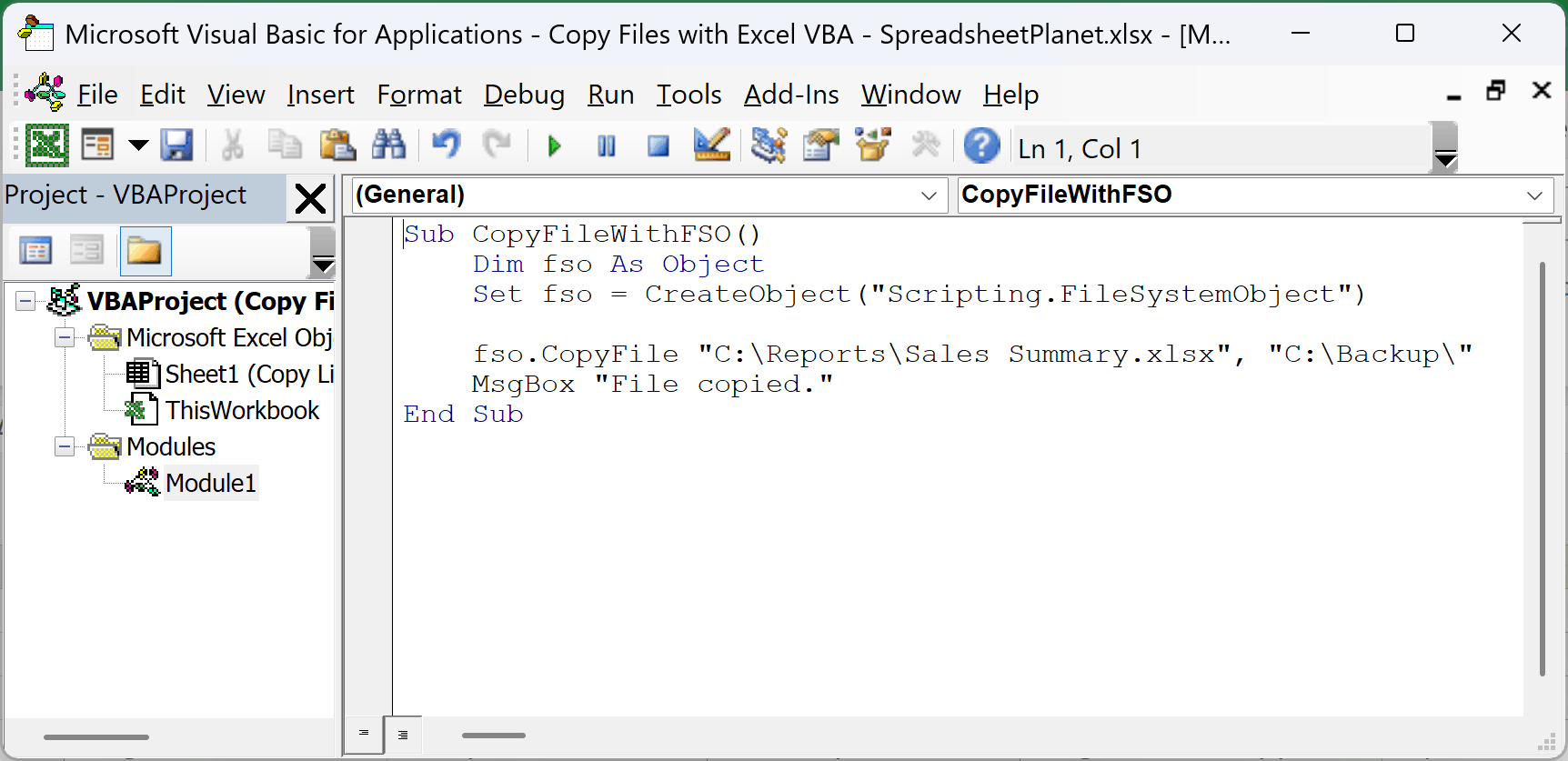
How does the code work?
CreateObject gives you a FileSystemObject, stored in the variable fso. CopyFile then copies the source file into the destination folder.
The destination here is just a folder, and the trailing backslash in C:\Backup\ is what tells CopyFile that. The copy keeps its original name. To rename it, put a full file name in the destination instead, such as C:\Backup\Sales Summary – Copy.xlsx.
Note: Don’t drop the trailing backslash. If C:\Backup exists, “C:\Backup” without it returns error 70. If the folder doesn’t exist, CopyFile creates a file called Backup with no extension and reports no error.
CopyFile also copies a workbook that’s open in Excel, which FileCopy can’t do. The copy contains the last saved version of the file, so any unsaved changes are left out.
Copying Without Overwriting an Existing File
CopyFile has a third argument called overwrite, and it’s True by default. That means running the macro again silently replaces the copy you already have.
Here, I want Sales Summary.xlsx copied into C:\Backup only if there isn’t a copy there already:
Sub CopyFileNoOverwrite()
    Dim fso As Object
    Set fso = CreateObject("Scripting.FileSystemObject")

    If fso.FileExists("C:\Backup\Sales Summary.xlsx") Then
        MsgBox "A copy already exists. Nothing was copied."
    Else
        fso.CopyFile "C:\Reports\Sales Summary.xlsx", "C:\Backup\", False
        MsgBox "File copied."
    End If
End Sub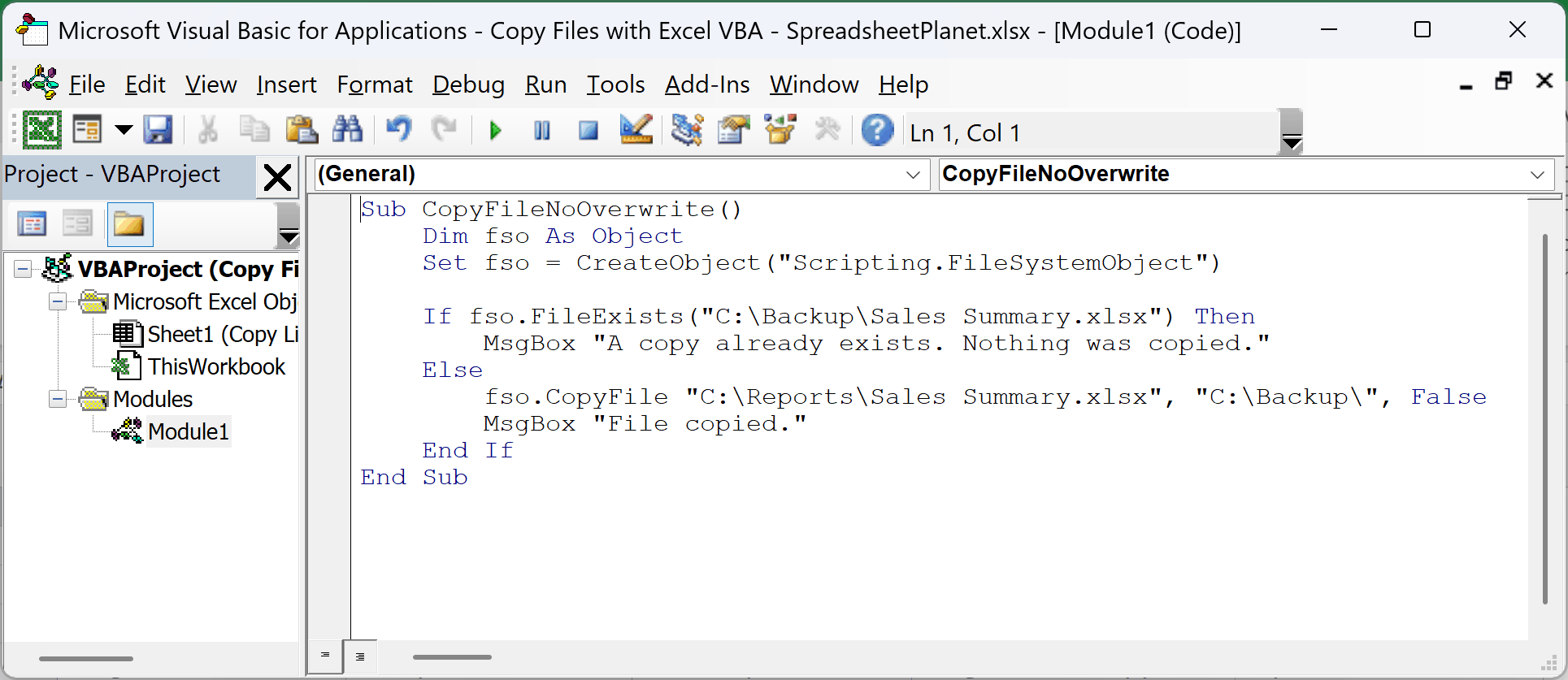
FileExists checks for the copy first. If it’s already there, the macro shows a message and copies nothing.
Passing False as the third argument backs that up. If the copy shows up between the check and the copy, CopyFile stops with error 58 (File already exists) instead of replacing it.
Copying All Files of One Type
A wildcard in the file name lets CopyFile copy many files in one line. The asterisk (*) matches any run of characters.
Suppose C:\Reports has several PDF files and you want all of them in a PDFs folder inside C:\Backup:
Sub CopyAllPDFs()
    Dim fso As Object
    Set fso = CreateObject("Scripting.FileSystemObject")

    If Not fso.FolderExists("C:\Backup\PDFs") Then fso.CreateFolder "C:\Backup\PDFs"
    fso.CopyFile "C:\Reports\*.pdf", "C:\Backup\PDFs\"
    MsgBox "PDF files copied."
End Sub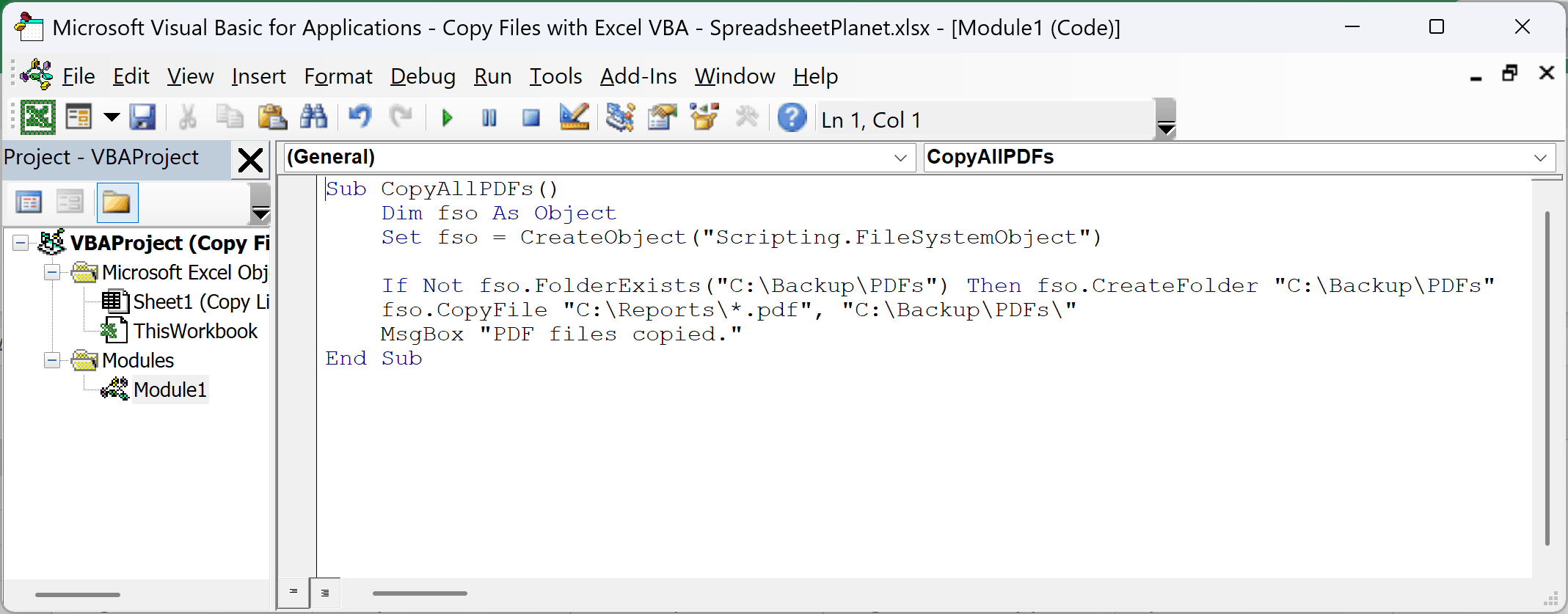
The first line inside the macro creates the PDFs folder if it isn’t there yet, because CopyFile won’t create it for you. Without the folder, you’d get error 76 (Path not found).
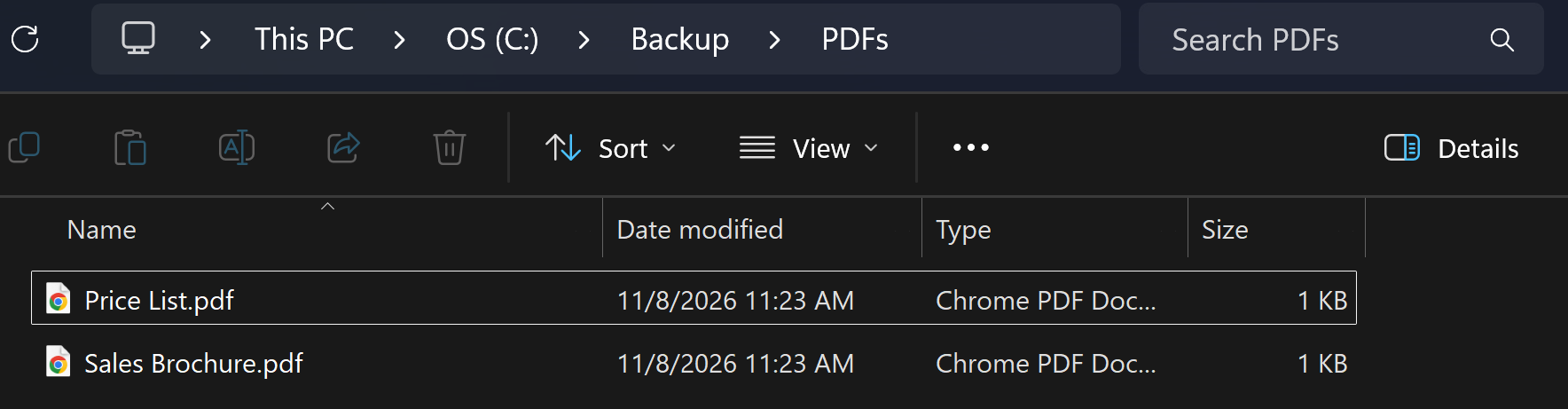
*.pdf matches every file ending in .pdf. You could use Sales*.xlsx to copy only the workbooks whose names start with Sales.
The wildcard only looks at files directly inside C:\Reports. PDFs in its subfolders aren’t copied. If no file matches, CopyFile returns error 53 (File not found).
Method #3: Using FileSystemObject.CopyFolder
When you want everything in a folder, including its subfolders, CopyFolder copies the whole thing in one go.
Suppose C:\Reports has your report files plus an Invoices subfolder, and you want a full copy of it called Reports Copy inside C:\Backup.
Here is the VBA code:
Sub CopyWholeFolder()
    Dim fso As Object
    Set fso = CreateObject("Scripting.FileSystemObject")

    fso.CopyFolder "C:\Reports", "C:\Backup\Reports Copy"
    MsgBox "Folder copied."
End Sub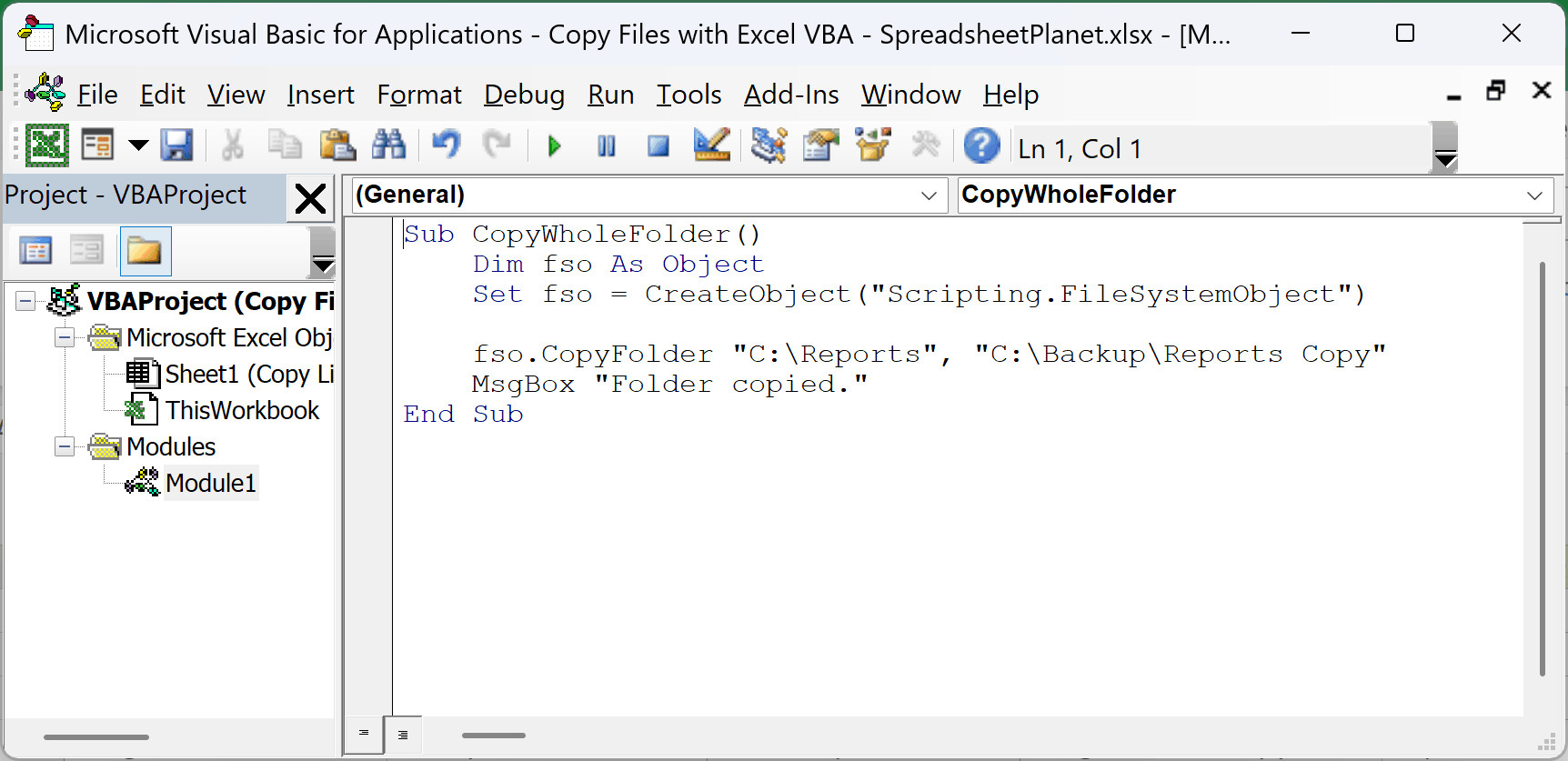
How does the code work?
The first argument is the folder you want to copy. The second is the name of the new folder. Since C:\Backup\Reports Copy doesn’t end with a backslash, CopyFolder creates a folder with that name and copies everything from C:\Reports into it, subfolders included.
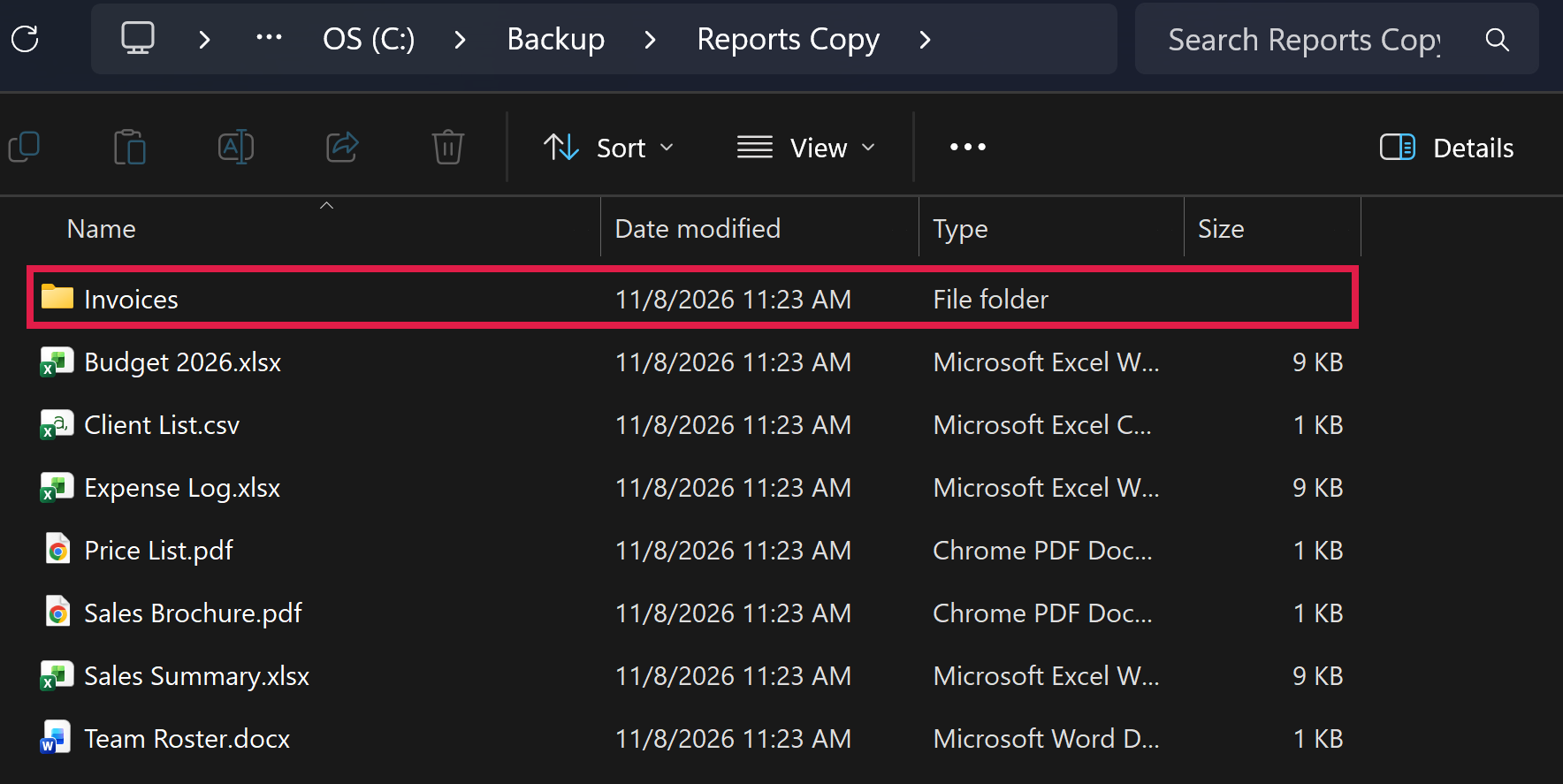
Run it again and CopyFolder replaces the files in Reports Copy, because overwrite is True by default here too. Pass False as a third argument if you’d rather it stop with error 58.
The trailing backslash changes what happens:
- “C:\Backup\” (with the backslash) copies the Reports folder itself into C:\Backup, so you end up with C:\Backup\Reports.
- “C:\Backup” (without it, when C:\Backup already exists) copies the contents of C:\Reports straight into C:\Backup, mixed in with whatever is already there.
Note: If a workbook inside the folder is open in Excel, CopyFolder also copies its hidden lock file, the one whose name starts with ~$. You can delete that file from the copy once Excel is closed.
Method #4: Using Workbook.SaveCopyAs
The methods above copy files that are saved on disk. To copy the workbook that’s running the macro, use SaveCopyAs instead.
It saves a copy of the workbook while it’s still open, including any changes you haven’t saved yet. The workbook you have open keeps its own name and stays unsaved, so you carry on working in the original.
Suppose you want a dated backup of the current workbook in C:\Backup every time you run the macro:
Sub BackupThisWorkbook()
    Dim stamp As String
    stamp = Format(Now, "yyyy-mm-dd hh-mm")

    ThisWorkbook.SaveCopyAs "C:\Backup\" & stamp & " " & ThisWorkbook.Name
    MsgBox "Backup saved."
End Sub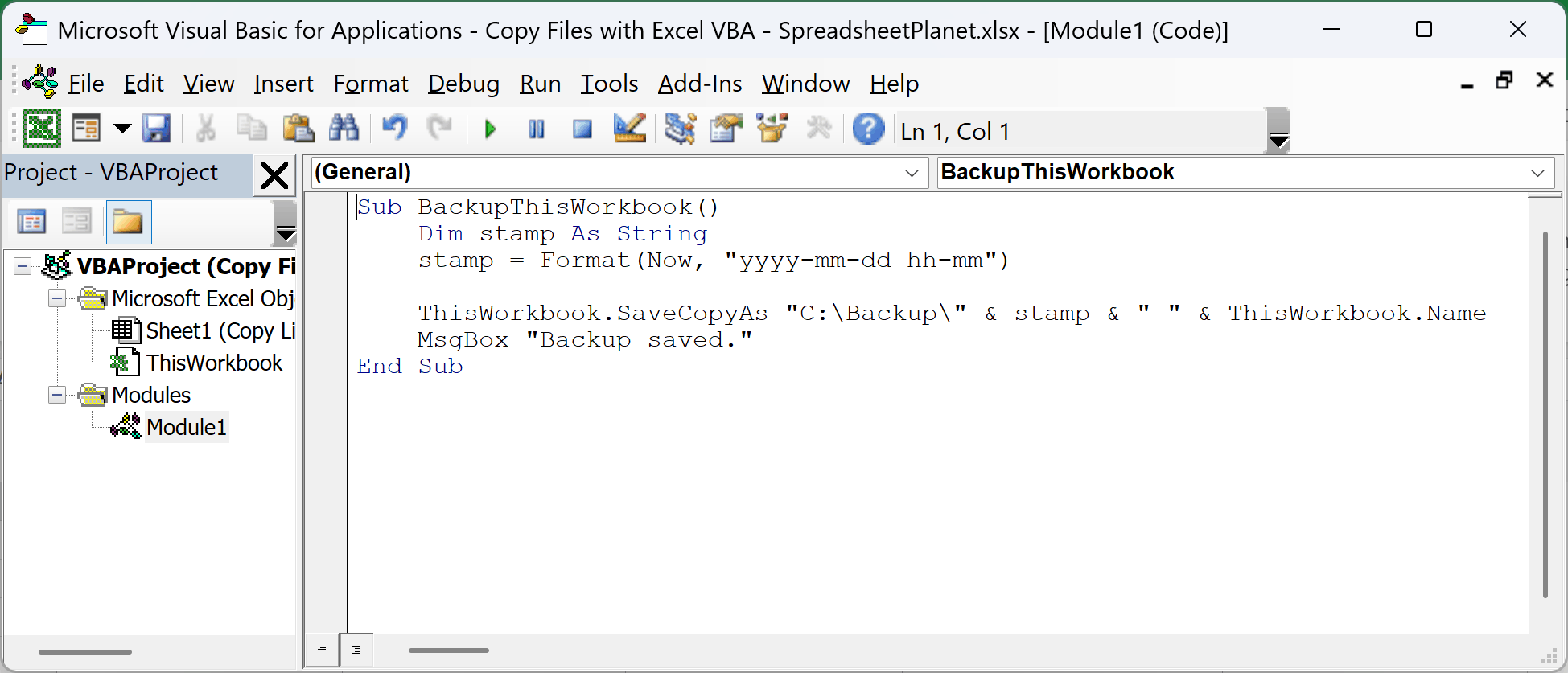
Put this code in the workbook you want to back up, and save that workbook as a .xlsm file so the macro stays with it.
Format turns the current date and time into text like 2026-11-08 14-30. Adding it in front of the workbook’s name gives each backup a unique name, such as 2026-11-08 14-30 Budget.xlsm. Dated names also sort in order in File Explorer.
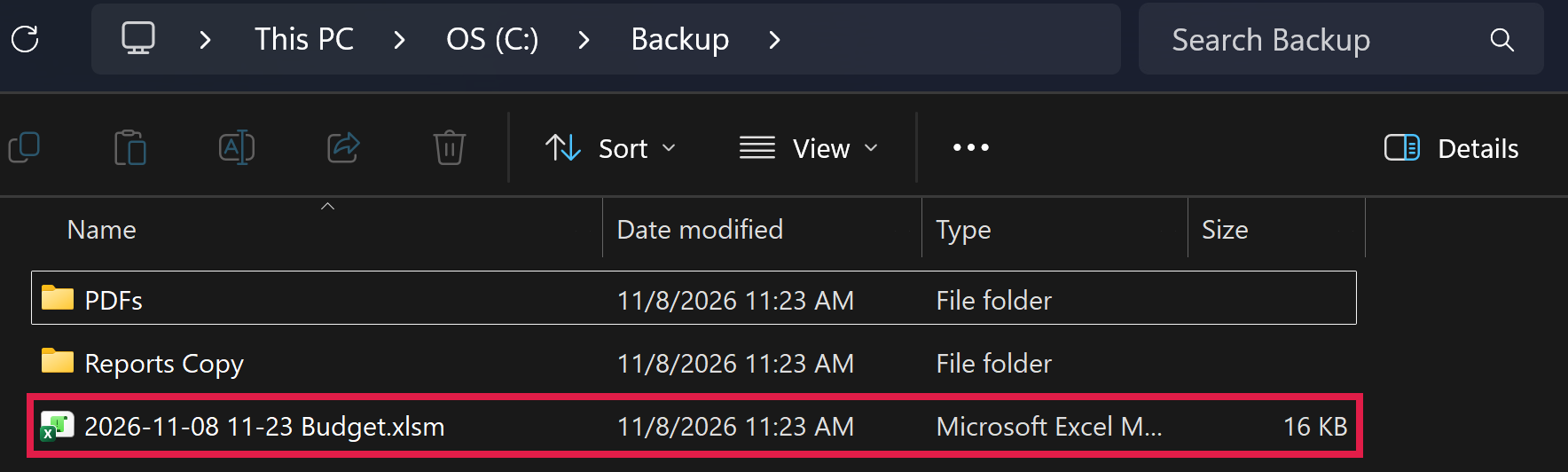
SaveCopyAs replaces an existing file with the same name without a prompt, which is another reason the time stamp helps. If you need other save options, like a different file format, see how to save a workbook using VBA.
Copy Multiple Files Listed in a Worksheet
When you have many files to copy, typing each path into the code gets old fast. A better way is to list the files on a worksheet and let one macro work through the list.
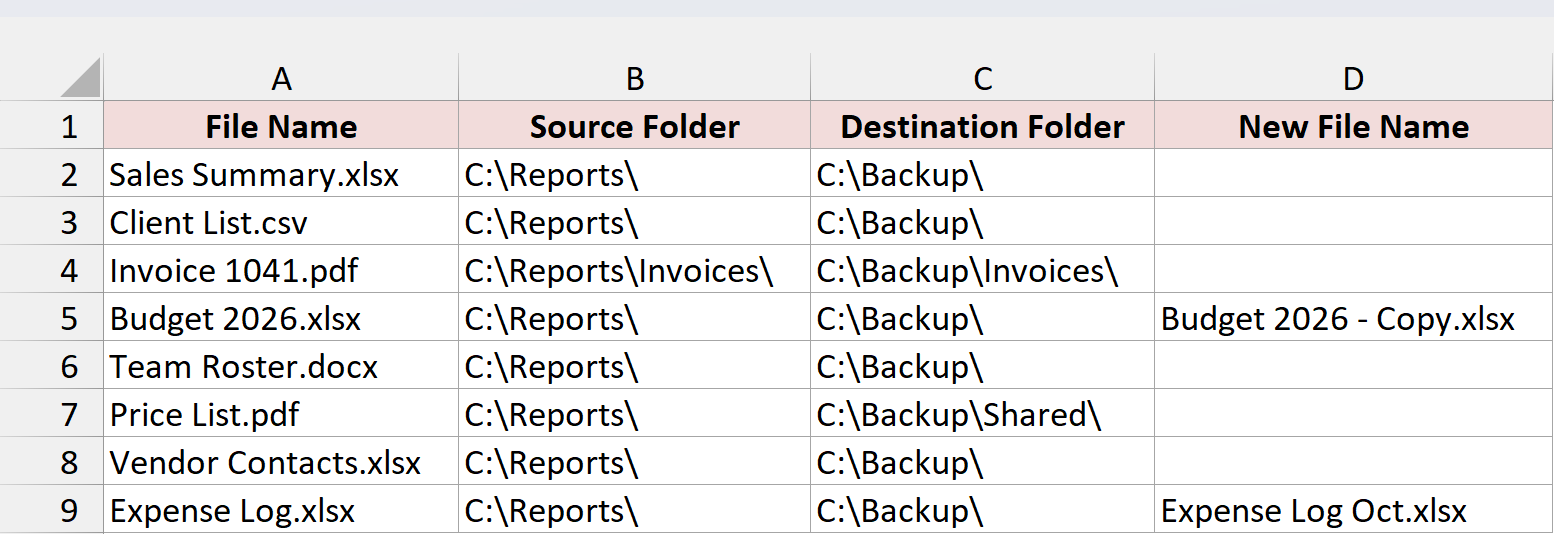
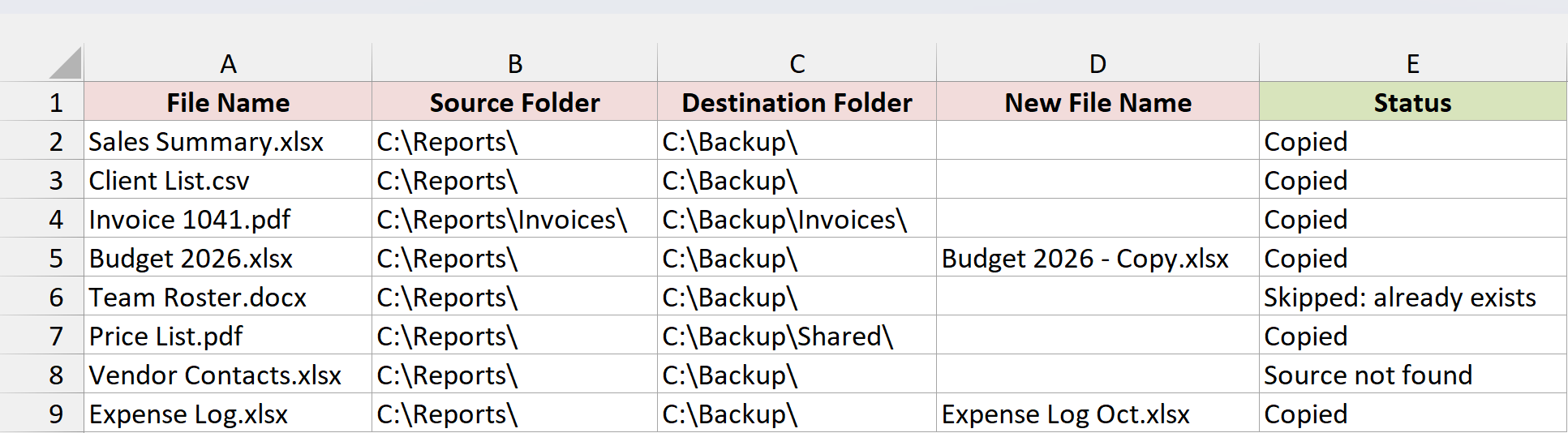
Below I have a Copy List sheet with eight files. Each row has the file name, the folder it’s in, the folder to copy it to, and an optional new name for the copy.
Here is the VBA code:
Sub CopyFilesFromList()
    Dim ws As Worksheet
    Dim fso As Object
    Dim lastRow As Long
    Dim r As Long
    Dim fileName As String
    Dim newName As String
    Dim sourcePath As String
    Dim destPath As String

    Set ws = ThisWorkbook.Worksheets("Copy List")
    Set fso = CreateObject("Scripting.FileSystemObject")

    lastRow = ws.Cells(ws.Rows.Count, "A").End(xlUp).Row
    If lastRow < 2 Then Exit Sub
    ws.Range("E2:E" & lastRow).ClearContents

    For r = 2 To lastRow
        fileName = Trim(ws.Cells(r, "A").Value)
        If fileName <> "" Then
            newName = Trim(ws.Cells(r, "D").Value)
            If newName = "" Then newName = fileName

            sourcePath = AddSlash(ws.Cells(r, "B").Value) & fileName
            destPath = AddSlash(ws.Cells(r, "C").Value) & newName

            If Not fso.FileExists(sourcePath) Then
                ws.Cells(r, "E").Value = "Source not found"
            ElseIf fso.FileExists(destPath) Then
                ws.Cells(r, "E").Value = "Skipped: already exists"
            Else
                On Error Resume Next
                MakeFolder fso, fso.GetParentFolderName(destPath)
                fso.CopyFile sourcePath, destPath, False
                If Err.Number = 0 Then
                    ws.Cells(r, "E").Value = "Copied"
                Else
                    ws.Cells(r, "E").Value = "Error: " & Err.Description
                End If
                On Error GoTo 0
            End If
        End If
    Next r

    MsgBox "Done. Check the Status column."
End Sub

Private Function AddSlash(ByVal folderPath As String) As String
    folderPath = Trim(folderPath)
    If Right(folderPath, 1) <> "\" Then folderPath = folderPath & "\"
    AddSlash = folderPath
End Function

Private Sub MakeFolder(ByVal fso As Object, ByVal folderPath As String)
    If folderPath = "" Then Exit Sub
    If fso.FolderExists(folderPath) Then Exit Sub
    MakeFolder fso, fso.GetParentFolderName(folderPath)
    fso.CreateFolder folderPath
End SubHere are the steps to use this macro:
- Open the downloaded example file in desktop Excel. If it opens in Protected View, click Enable Editing.
- Save a copy as an Excel Macro-Enabled Workbook (.xlsm).
- On the Copy List sheet, replace the file names and folders with your own.
- Press Alt + F11, then click Insert > Module.
- Paste all of the code above into that one module.
- Click inside CopyFilesFromList and press F5.
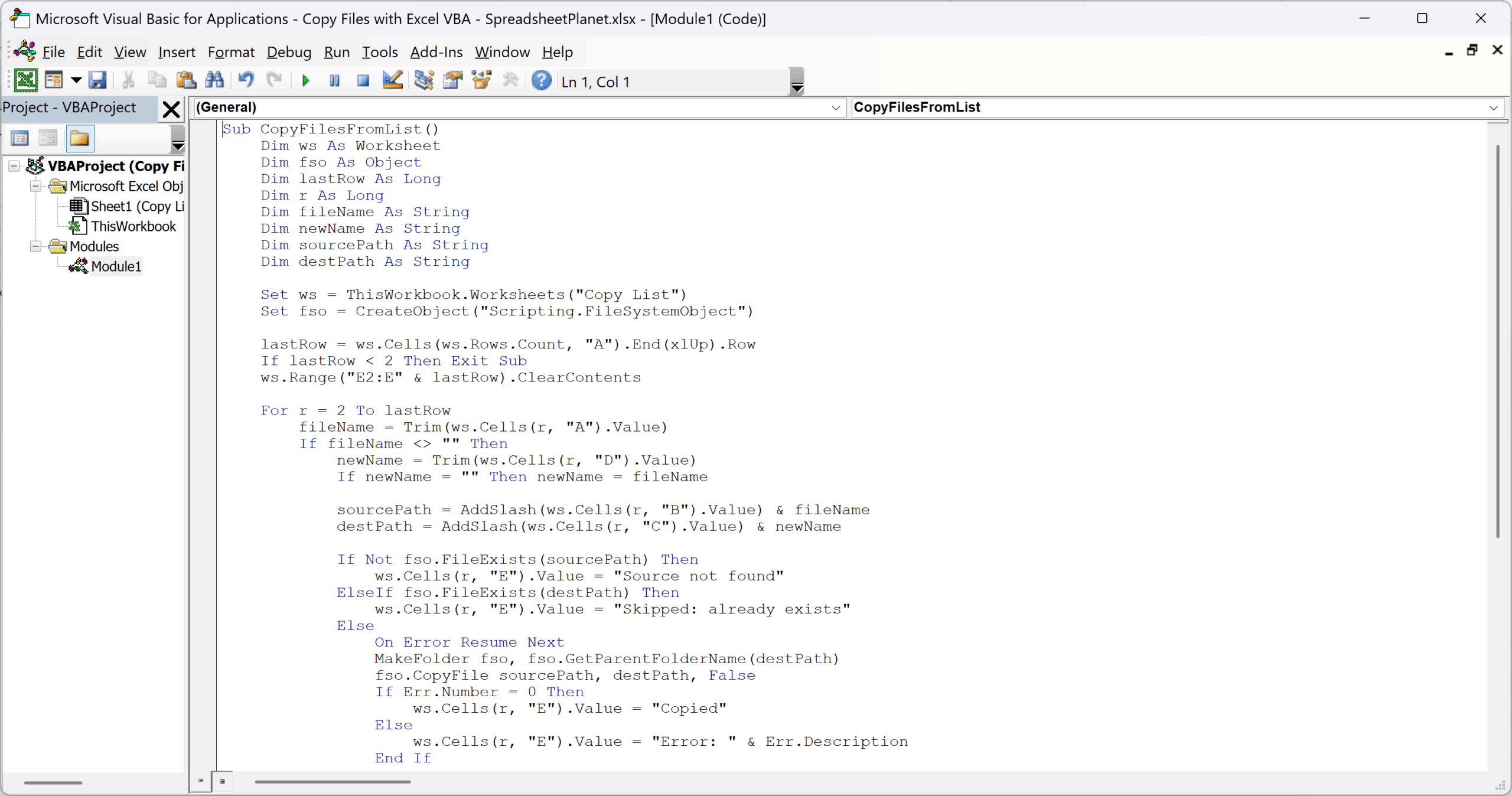
The macro writes a result for each row in the Status column. You don’t need to clear the old results first, because it does that before it starts.
How does the code work?
The loop goes down column A row by row and skips any row without a file name. If the New File Name cell is empty, the copy keeps the original name.
AddSlash adds a backslash to the end of a folder path when it’s missing. That way, a folder typed as C:\Backup works the same as C:\Backup\, and you avoid the trailing-backslash problem from Method #2.
Before copying, the macro checks two things. A missing source file gets Source not found. A copy that already exists gets Skipped: already exists, and the existing file isn’t touched.
MakeFolder creates the destination folder if it doesn’t exist, including any missing parent folders. That’s why the Invoices and Shared folders in rows 4 and 7 didn’t need to exist beforehand.
Any other problem, such as a drive that isn’t available, shows up as Error: followed by the reason, and the macro moves on to the next row.
If you have a lot of files to list, you can get the file names from a folder into Excel instead of typing them.
Why a VBA File Copy Fails
Most failed copies come down to one of a handful of errors. Here’s what each one usually means:
| Error | Message | Usual Cause |
|---|---|---|
| 53 | File not found | The source path is wrong, or a wildcard didn’t match any file. |
| 58 | File already exists | You passed False for overwrite and the copy is already there. |
| 70 | Permission denied | FileCopy hit a file that’s open, CopyFile tried to replace a read-only file, or a CopyFile destination folder is missing its trailing backslash. |
| 75 | Path/File access error | FileCopy tried to replace a read-only file. |
| 76 | Path not found | The destination folder doesn’t exist, or FileCopy was given a folder instead of a file name. |
One problem doesn’t raise an error at all. CopyFile with a destination like “C:\Backup” (no backslash) creates a file named Backup when that folder doesn’t exist. If a copy seems to vanish, check for a file with no extension.
Additional Notes About Copying Files with VBA in Excel
A few things are worth knowing before you run these macros on real files:
- A file replaced by a copy doesn’t go to the Recycle Bin, and Ctrl + Z won’t bring it back. Try new code on test folders first.
- CopyFile and CopyFolder stop at the first error. Files copied before the error stay copied, so a failed run can leave a partial copy behind.
- To share a macro, build paths from the workbook’s own folder. ThisWorkbook.Path returns the folder the workbook is saved in, so ThisWorkbook.Path & “\Backup\” points to a Backup folder next to the workbook on anyone’s computer.
Frequently Asked Questions
These questions cover a few situations the methods above don’t.
Can VBA Copy a File That’s Open?
Yes, but not with FileCopy, which returns error 70 for a workbook open in Excel. FileSystemObject.CopyFile copies the last saved version. For the workbook running the macro, SaveCopyAs includes unsaved changes too.
Does CopyFile Copy Files in Subfolders?
No. A wildcard such as C:\Reports\*.pdf only matches files directly inside that folder. To include everything in the subfolders as well, copy the whole folder with CopyFolder from Method #3.
How Do I Move a File Instead of Copying It?
Use FileSystemObject.MoveFile instead of CopyFile. It takes the same source and destination arguments, but leaves nothing behind in the original folder.
It has no overwrite option, so it stops with an error if the file is already in the destination. You can find examples in moving files using VBA.
Do These Macros Work on a Mac?
Not all of them. FileSystemObject is part of Windows, so Methods #2 and #3 and the list macro won’t run on a Mac. The paths in this article are also Windows paths, so you’d need to change them for a Mac.
Conclusion
In this article, I showed you four ways to copy files with Excel VBA, plus a macro that copies a whole list of files from a worksheet. For most single-file jobs, FileCopy is all you need.
I hope you found this article helpful.
Other Excel articles you may also like:
- How to Make a Copy of an Excel File
- Rename Files Using VBA
- VBA to Loop Through Files in a Folder
- VBA to Create Multiple Files in a Folder
- VBA to Copy Sheet to New Workbook
- How to Separate Excel Tabs Into Separate Files
- How to Copy Multiple Sheets to a New Workbook in Excel
- Useful Excel VBA Macro Codes Examples