
If you want to make a copy of an Excel file, you probably want to keep the original safe while you work on a duplicate.
Maybe you’re reusing last month’s report as a starting point, or you just want a backup before a big edit.
Excel gives you more than one way to do this, and none of them take more than a few clicks.
In this tutorial, I’ll show you four ways to copy an Excel file, using Save As, Save a Copy, File Explorer, and a short VBA macro.
Method #1: Using Save As
The most common way to copy an Excel file is to open it and save it under a new name.
This keeps your original exactly as it was and hands you a fresh duplicate to work on.
This is the method I reach for most, since it works on any file saved on your computer.
Here are the steps to make a copy of an Excel file using Save As:
- Open the file you want to copy in Excel.
- Click the File tab and then click Save As.
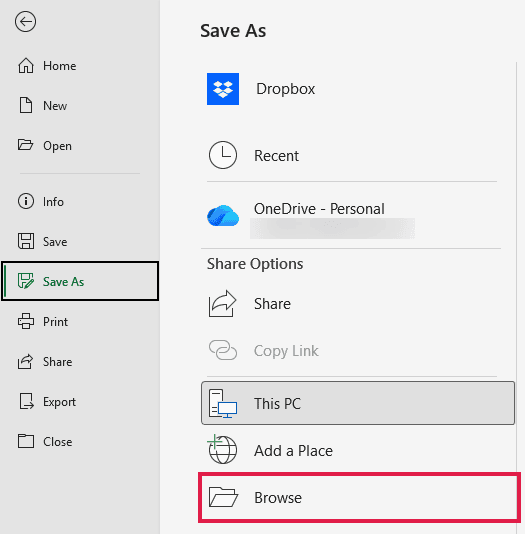
- Click Browse to open the Save As dialog box.
- Type a new name in the File name box, and pick a different folder if you want the copy stored somewhere else.
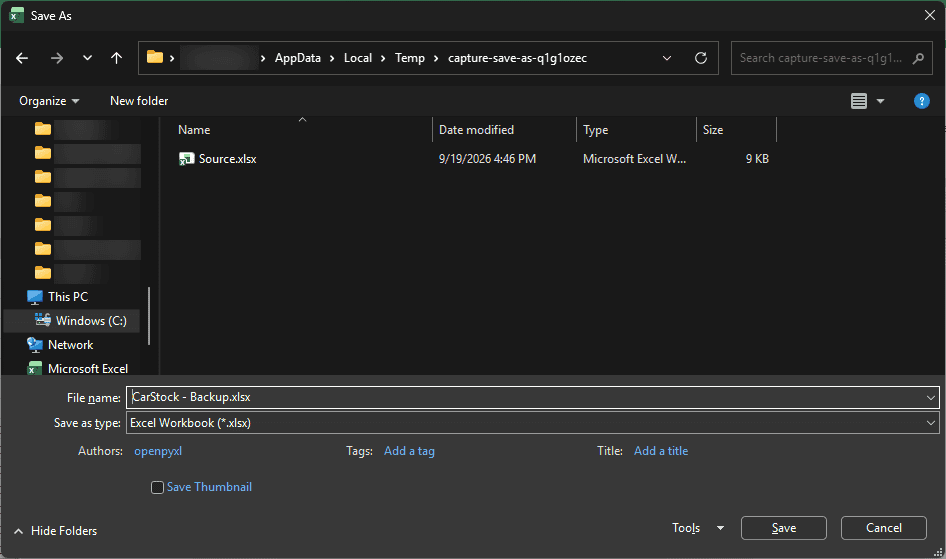
- Click Save.
Excel creates the copy with the new name and saves it wherever you chose. Your original stays untouched on disk.
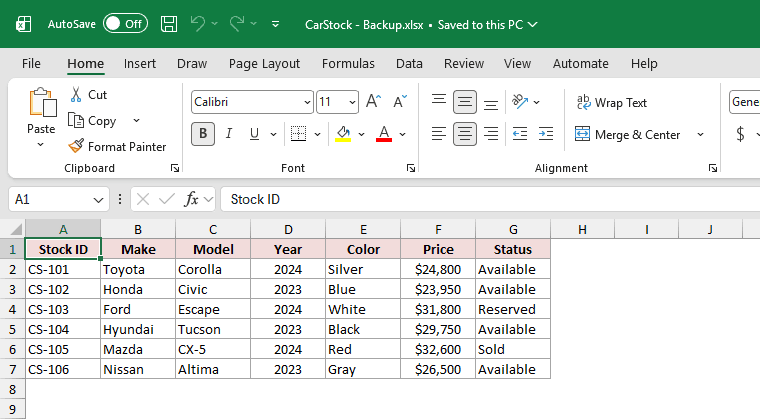
Note: After Save As, Excel switches you over to the new copy. If you keep typing, you’re editing the copy, not the original file.
Method #2: Using Save a Copy (Cloud Files)
In current Microsoft 365 desktop apps, files stored on OneDrive, OneDrive for Business, or SharePoint Online show Save a Copy instead of Save As. The commands serve the same purpose.
The command creates a separate file, just as Save As does.
Since AutoSave is usually on for these cloud files, run Save a Copy before you start editing. That way, your changes land in the copy instead of the original.
Here are the steps to make a copy of an Excel file using Save a Copy:
- Open the cloud-stored file in Excel.
- Click the File tab and then click Save a Copy.
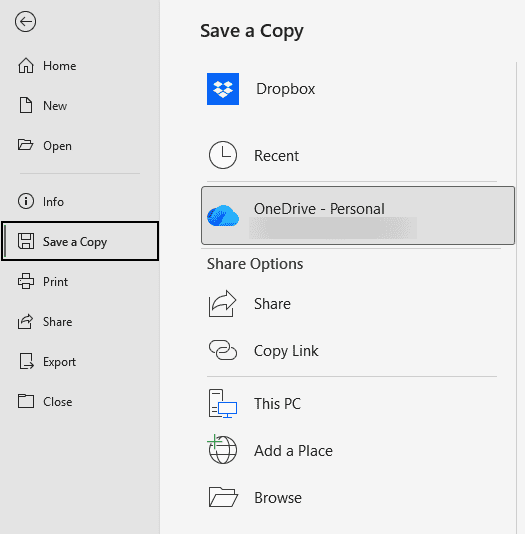
- Choose a location, then type a name for the copy in the box.
- Click Save.
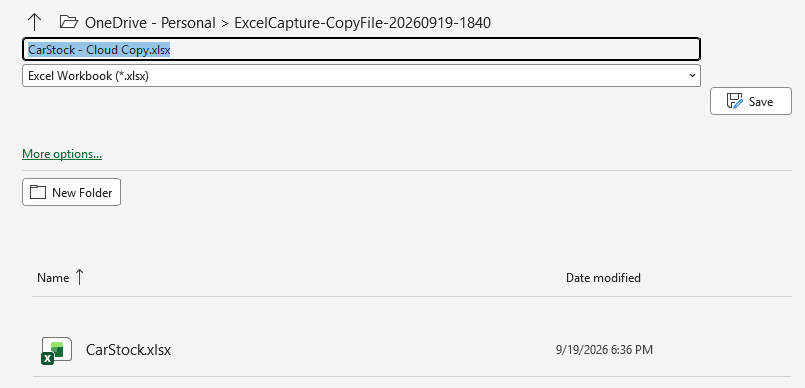
Excel saves the duplicate and switches you to it. Any edits you make from here go into the copy.
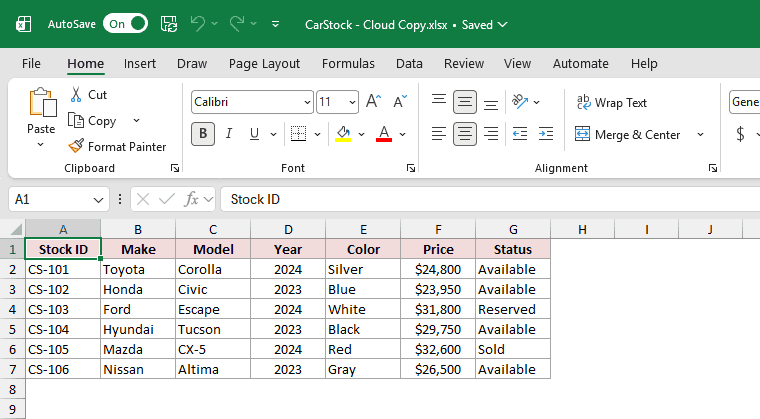
Note: Save a Copy is used for OneDrive, OneDrive for Business, and SharePoint Online files in current Microsoft 365 apps. A local file normally shows Save As instead.
Method #3: Using File Explorer (Windows)
You don’t even need to open Excel to copy a file. If you just want a quick backup, copy and paste the file straight in File Explorer.
This duplicates the entire .xlsx file, so all your formatting, formulas, and sheets come along.
File Explorer and the C:\ paths shown in the VBA example below are Windows-specific.
Here are the steps to make a copy of an Excel file using File Explorer:
- Open File Explorer and go to the folder that holds your Excel file.
- Click the file once to select it, then press Ctrl + C to copy it.

- Press Ctrl + V. Windows pastes a duplicate named “<filename> – Copy.xlsx” in the same folder.

- Rename the copy to something clearer if you like.

If you prefer the mouse, you can right-click the file, choose Copy, then right-click an empty spot in the folder and choose Paste. It does the same thing.
Note: Save your changes and close the workbook before copying it in File Explorer. The copy includes only what has been saved to disk.
Method #4: Using VBA (Windows Example)
If you copy the same file over and over, say a daily backup of your car dealership stock, a short macro can handle it for you.
This example uses Windows file paths.
The FileCopy statement duplicates a file without opening it.
Here is the VBA code:
Sub CopyExcelFile()
    FileCopy "C:\Reports\CarStock.xlsx", "C:\Reports\CarStock - Backup.xlsx"
End SubHere are the steps to run this macro:
- Press Alt + F11 to open the VBA editor.
- Click Insert and then click Module.
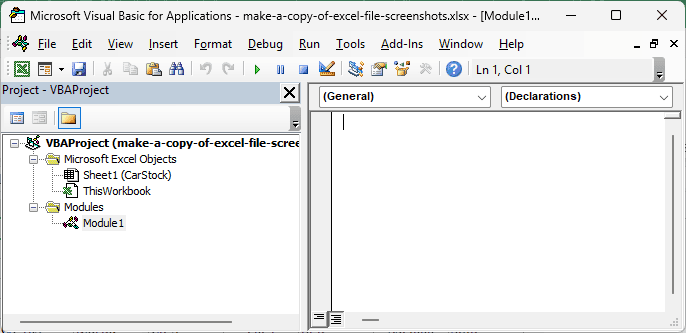
- Paste the code, changing the two file paths to match your own source and destination.
- Press F5 to run it.
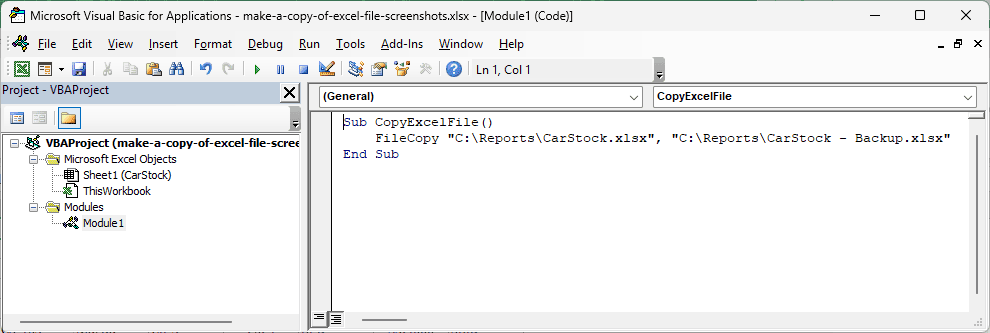
FileCopy takes two things: the source path and the destination path. Excel copies the file to the new location right away.
You’ll find the copy in the destination folder the moment the macro finishes.

Save the workbook that holds this macro as a .xlsm file so the code sticks around after you close Excel.
Note: FileCopy raises an error if either the source or destination file is open. It overwrites an existing destination file without prompting, so use a fresh name to avoid replacing a file. To copy the workbook that contains the macro while it is open, use ThisWorkbook.SaveCopyAs instead.
Additional Notes About Copying Excel Files
- A copy is a snapshot in time. Changes you make to the original afterward won’t show up in the copy, and edits to the copy won’t touch the original.
- Copying a workbook also copies its external links. If you put the copy in another folder, relative links can point somewhere different or break. Check the links afterward.
- Copying and moving are different. In Windows, dragging within the same drive moves a file by default, while dragging to another drive copies it. Ctrl + C followed by Ctrl + V always leaves the original in place.
- If you only need part of the workbook, right-click a sheet tab and use Move or Copy (with “Create a copy” ticked) to send just those sheets to a new workbook instead of duplicating the whole file.
Frequently Asked Questions
How do I copy an Excel file without breaking its links to the original?
Keep the copy in the same folder when possible, then check its workbook links. Copying to another folder can affect relative links.
To change a source, go to Data, then Workbook Links (Edit Links in older versions), and update the source.
What’s the difference between Save As and Save a Copy?
Both commands create a separate file.
In current Microsoft 365 apps, Save a Copy appears for files on OneDrive or SharePoint Online, where AutoSave may be active.
Use it before editing so the original does not receive your changes.
How do I make a copy of an Excel file stored on OneDrive?
Open it in Excel and use File, then Save a Copy.
You can also right-click the file in the OneDrive folder in File Explorer and choose Copy, or on the OneDrive website choose Copy to.
Either way the original stays in place.
Conclusion
I covered four simple ways to copy an Excel file, whether it is stored locally or in the cloud.
I hope you found this article helpful.
Other Excel articles you may also like:
