
Excel’s IMLOG2 function returns the base-2 logarithm of a complex number as text in complex-number format.
The real part is the base-2 logarithm of the number’s magnitude, while the imaginary part is its angle in radians divided by ln 2.
Plain real numbers also work, but the result remains text.
In this article, I’ll show you how to calculate octave ranges, find storage-bit requirements, handle negative numbers, and extract tidy numeric parts.
IMLOG2 Function Syntax in Excel
The IMLOG2 function has one required argument.
=IMLOG2(inumber)
- inumber (required) is the value whose base-2 logarithm you want. Enter complex-number text in x+yi or x+yj form, a plain real number, or a cell reference.
When to Use IMLOG2 Function
- Find the base-2 logarithm of a complex number.
- Calculate how many octaves separate two frequencies.
- Estimate the whole number of bits needed for a set of distinct values.
- Work with negative inputs that the LOG function rejects.
- Separate a complex logarithm into rounded real and imaginary parts.
Example 1: Calculate Complex Base-2 Logarithms
Let’s start with a list containing several forms of complex numbers.
Below is the dataset. Column A contains complex numbers, while the green header and empty cells in column B show where their base-2 logarithms will appear.
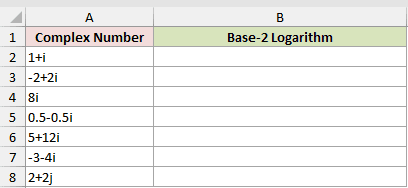
Column B should return the base-2 logarithm of each complex number.
Here is the formula entered in B2 and copied down:
=IMLOG2(A2)
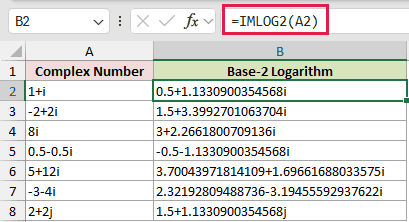
For 1+i, the text result has its own real part, 0.5, the base-2 logarithm of the input’s magnitude, and its own imaginary part, 1.1330900354568.
The final input uses j, so its result also uses j. IMLOG2 accepts either lowercase i or lowercase j as the imaginary-unit suffix.
Pro Tip: A plain range returns one #VALUE! error. In Excel 2021, Excel 2024, or Microsoft 365, =IMLOG2(A2:A8&"") coerces the range to text and spills the results.
Example 2: Calculate Speaker Octave Ranges
Here’s a practical way to measure the frequency span of speaker drivers.
Below is the dataset. It lists each driver and its low and high frequencies. Empty bordered cells sit under the green IMLOG2 Result and Octave Range headers.
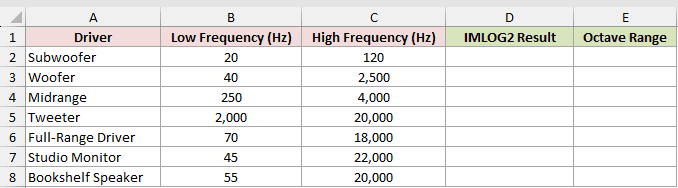
First, column D should calculate the base-2 logarithm of each high-to-low frequency ratio.
Here is the formula entered in D2 and copied down:
=IMLOG2(C2/B2)
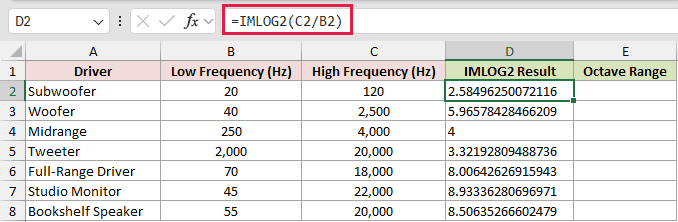
The result is text, so column E will extract its real part as a number.
Here is the formula entered in E2 and copied down:
=IMREAL(D2)
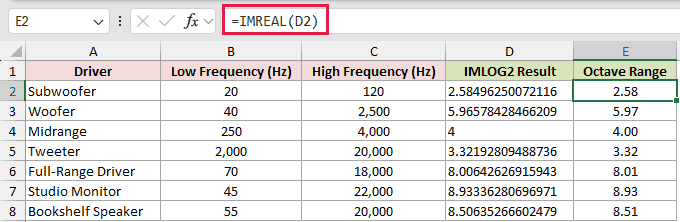
The subwoofer spans 2.58 octaves, while the midrange driver spans exactly 4.00 octaves. IMREAL returns a real number you can format and calculate with.
For positive real ratios, =LOG(C2/B2,2) is the simpler choice because it returns a number. IMLOG2 also handles negative or complex numbers, as Examples 4 and 5 show.
Example 3: Calculate Bits Needed for Values
Let’s use IMLOG2 to estimate storage requirements for several data fields.
Below is the dataset. Columns A and B list each field and its distinct-value count. Empty bordered cells sit under the green Bits Needed header.
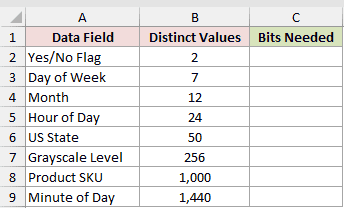
Column C should return the smallest whole number of bits that can represent every value.
Here is the formula entered in C2 and copied down:
=ROUNDUP(IMREAL(IMLOG2(B2)),0)
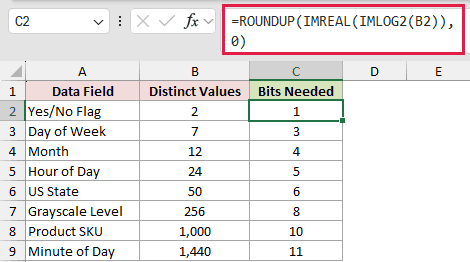
IMLOG2 returns the base-2 logarithm as text, and IMREAL turns it into a number. ROUNDUP then turns any fractional logarithm into the whole bit count.
A Yes/No flag needs 1 bit. Seven weekday values need 3 bits, while 256 grayscale levels need exactly 8 bits.
Example 4: Compare LOG and IMLOG2 Results
This comparison shows where IMLOG2 handles inputs that LOG cannot.
Below is the dataset. Column A contains positive, negative, fractional, and zero values. Empty bordered cells sit under the green LOG Result and IMLOG2 Result headers.
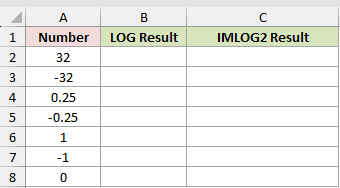
Column B should calculate each value’s ordinary base-2 logarithm with LOG.
Here is the formula entered in B2 and copied down:
=LOG(A2,2)
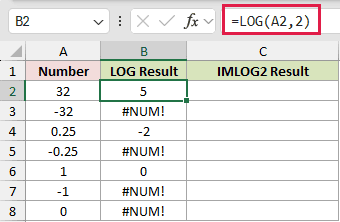
Column C should run the same inputs through IMLOG2.
Here is the formula entered in C2 and copied down:
=IMLOG2(A2)
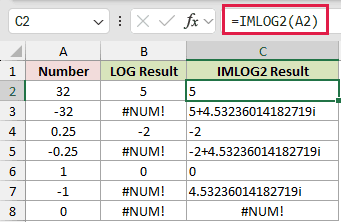
For 32, both functions return 5, although IMLOG2 returns that result as text. For -32, LOG returns #NUM!, while IMLOG2 returns 5+4.53236014182719i.
Every negative real input has an imaginary part of 4.53236014182719. Its real part is the base-2 logarithm of the input’s absolute value.
At zero, both formulas return #NUM! because the logarithm of zero is undefined.
Example 5: Extract Rounded Logarithm Parts
The last example starts with real and imaginary coefficients in separate columns.
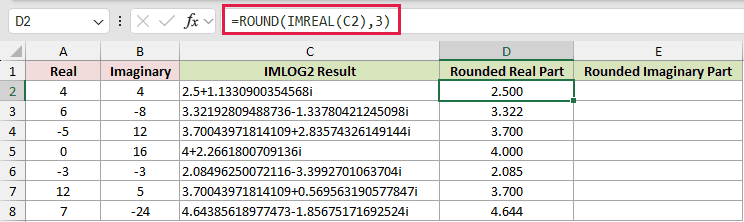
Below is the dataset. Columns A and B contain the coefficients. Empty bordered cells sit under the green IMLOG2 Result, Rounded Real Part, and Rounded Imaginary Part headers.
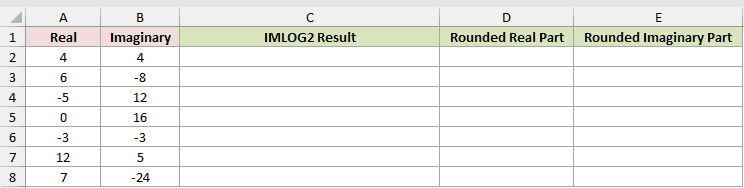
Column C should build each complex number and return its base-2 logarithm.
Here is the formula entered in C2 and copied down:
=IMLOG2(COMPLEX(A2,B2))
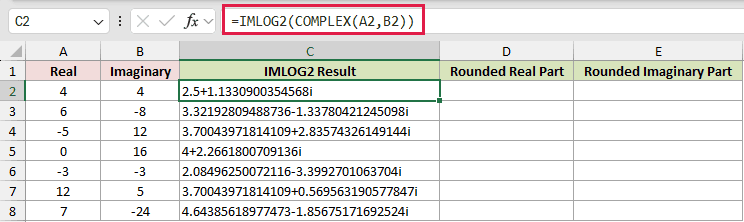
Column D should extract and round the real part.
Here is the formula entered in D2 and copied down:
=ROUND(IMREAL(C2),3)
Column E should extract and round the imaginary part.
Here is the formula entered in E2 and copied down:
=ROUND(IMAGINARY(C2),3)
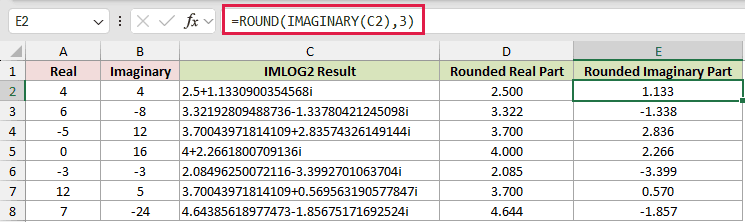
COMPLEX combines the two coefficients into the input IMLOG2 expects. IMREAL and IMAGINARY then turn each part of the text result into a usable number.
For 4+4i, IMLOG2 returns 2.5+1.1330900354568i. The two rounding formulas display its parts as 2.500 and 1.133.
The -5+12i and 12+5i inputs both have a rounded real part of 3.700 because both complex numbers have the same magnitude.
Tips & Common Mistakes
- IMLOG2 returns text, even when a result looks like an ordinary number. Use IMREAL or IMAGINARY before numeric formatting or arithmetic.
- Use lowercase i or j for complex-number text, and keep the real part before the imaginary part.
- IMLOG2 does not evaluate a plain multi-cell range. Fill the formula down, or use the text-coercion spill shown earlier in supported Excel versions.
- IMLOG2 returns #NUM! for zero.
- For positive real numbers, LOG with 2 as the base is simpler and returns a numeric result directly.
IMLOG2 handles base-2 logarithms when your inputs include complex or negative values.
Its text output becomes easier to use once you extract the real or imaginary part as a number.
Related Excel Functions / Articles:
