
Excel’s MDETERM function returns the determinant of a square numeric matrix.
The determinant tells you whether an inverse exists. It also forms part of Cramer’s rule and coordinate-area formulas.
A result that should be zero can appear as a tiny residue because Excel uses floating-point arithmetic.
In this article, I’ll show you how to handle tiny residues when checking an inverse, solve equations with Cramer’s rule, and fix #VALUE! errors from blank cells.
MDETERM Function Syntax in Excel
The MDETERM function has one required argument.
=MDETERM(array)
- array (required) is the square numeric array whose determinant you want. It can be a cell range, an array constant, or a defined name.
When to Use MDETERM Function
- Check whether a coefficient matrix has an inverse before using MINVERSE.
- Solve simultaneous equations with Cramer’s rule.
- Calculate the area of a triangle from its corner coordinates.
- Test whether three coordinate points lie on one straight line.
- Study how a matrix changes after scaling, transposing, or multiplication.
Example 1: Find a 3×3 Matrix Determinant
Let’s start with a basic 3×3 matrix.
Below is the dataset. Columns B to D contain the matrix, while the Determinant label and empty cell in row 6 show where the answer will appear.
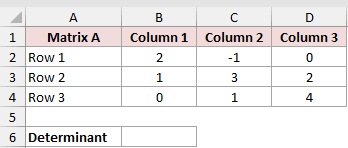
We want to calculate the determinant of the entire matrix.
Here is the formula:
=MDETERM(B2:D4)
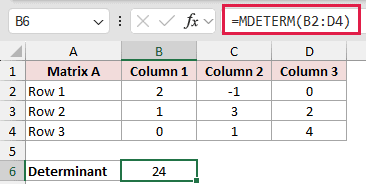
MDETERM evaluates all nine numbers and returns 24.
A nonzero determinant also tells you this matrix has an inverse.
Example 2: Check Whether a Matrix Has an Inverse
Now let’s use the determinant to test whether a matrix is invertible.
Below is the dataset. Columns B to D contain the numbers 1 through 9, with separate empty cells for the determinant and inverse check.
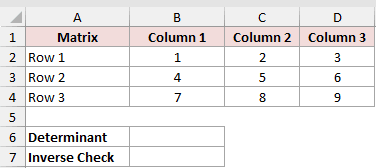
We want the raw determinant first, then a Has inverse or No inverse label.
Here is the determinant formula:
=MDETERM(B2:D4)
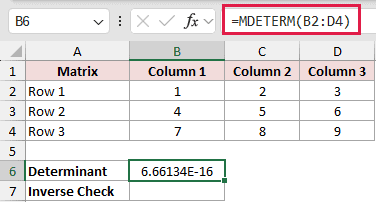
Excel returns 6.66134E-16, although the exact determinant is zero. This tiny residue comes from floating-point precision.
Next, we can round that residue before checking whether the matrix has an inverse.
Here is the formula:
=IF(ROUND(MDETERM(B2:D4),10)=0,"No inverse","Has inverse")
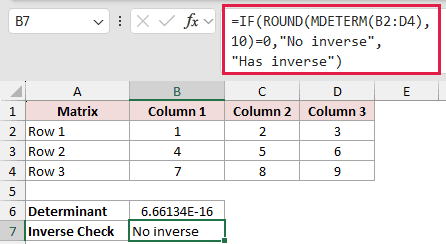
ROUND treats the residue as zero before IF checks it, so the formula returns No inverse.
Without the rounding step, comparing the raw result with zero could misclassify this matrix.
Pro Tip: Check the rounded determinant before calling MINVERSE: =IF(ROUND(MDETERM(B2:D4),10)=0,"No inverse",MINVERSE(B2:D4)). On an invertible matrix, the inverse spills in Microsoft 365, Excel 2024, and Excel 2021.
Example 3: Solve Equations With Cramer’s Rule
Here’s a practical system of three equations from ticket sales.
Below is the dataset showing performances, tickets sold by type, total revenue, and Ticket Type labels Adult, Student, and Senior beside the green Price column and its three empty cells.

We want to calculate the adult, student, and senior ticket prices.
Here is the formula for the adult ticket price:
=MDETERM(HSTACK(E2:E4,C2:D4))/MDETERM(B2:D4)

The formula replaces the adult coefficient column with revenue, then divides the new determinant by the original determinant. It returns $24.00.
Next, replace the student coefficient column with the revenue values.
Here is the formula for the student ticket price:
=MDETERM(HSTACK(B2:B4,E2:E4,D2:D4))/MDETERM(B2:D4)

The second formula returns $12.00 for a student ticket.
Finally, replace the senior coefficient column with revenue.
Here is the formula for the senior ticket price:
=MDETERM(HSTACK(B2:C4,E2:E4))/MDETERM(B2:D4)

The third formula returns $16.00 for a senior ticket. Together, the three prices reproduce each recorded revenue total.
Cramer’s rule needs a nonzero original determinant because a zero denominator means the system has no single solution.
These HSTACK formulas require Microsoft 365 or Excel 2024. Earlier versions need the replacement matrices laid out in worksheet ranges.
Example 4: Calculate Triangle Area From Coordinates
Let’s use MDETERM for a coordinate geometry calculation.
Below is the dataset. It lists three lot corners, their X and Y coordinates, a Helper column of ones, and an empty area result cell.
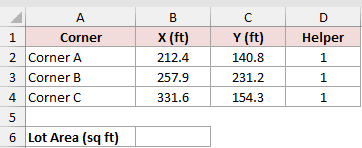
We want to calculate the triangular lot’s area in square feet.
Here is the formula:
=ABS(MDETERM(B2:D4))/2
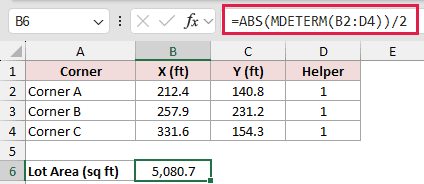
The raw determinant is -10,161.43 because the corners are listed clockwise. ABS drops the sign, and dividing by two returns 5,080.7 square feet.
Listing the corners in the opposite order would flip the determinant’s sign without changing the area.
Example 5: Check Whether Points Form a Straight Line
Here’s a list of fence runs that need an alignment check.
Below is the dataset. Each row has a fence run name and six values, the X and Y coordinates for three posts. The green Alignment column contains empty result cells.
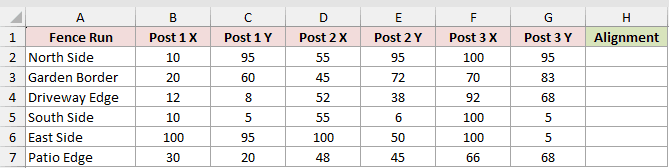
We want to label each group of three posts as Straight or Off line.
Here is the formula entered in H2 and copied down:
=IF(ROUND(MDETERM(HSTACK(WRAPROWS(B2:G2,2),{1;1;1})),6)=0,"Straight","Off line")
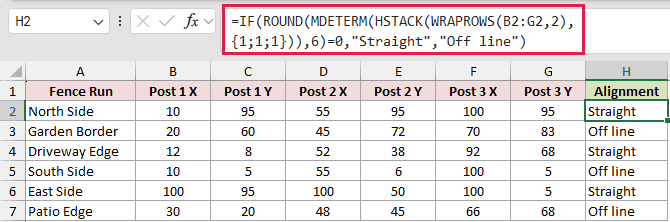
WRAPROWS turns the six coordinates from the current row into three two-value rows. HSTACK adds a final column of ones.
MDETERM returns a determinant that is zero when the three points lie on one straight line.
Garden Border returns -25, South Side returns -90, and Patio Edge returns -36.
After ROUND handles any floating-point residue, IF applies the Straight or Off line label.
North Side, Driveway Edge, and East Side return Straight. Garden Border, South Side, and Patio Edge return Off line.
Because MDETERM returns one result per matrix, each fence run is evaluated separately. WRAPROWS and HSTACK require Microsoft 365 or Excel 2024.
Example 6: Fix Blank Cell Errors in MDETERM
The last example shows why blank matrix cells need special attention.
Below is the dataset. It contains a coefficient matrix with missing terms left blank, plus two labeled empty cells for the comparison results.
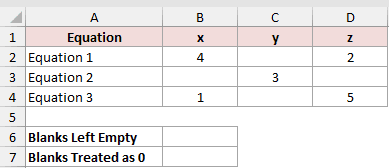
We want to see the blank-cell error first, then treat those missing coefficients as zeros.
Here is the formula using the range as it appears:
=MDETERM(B2:D4)
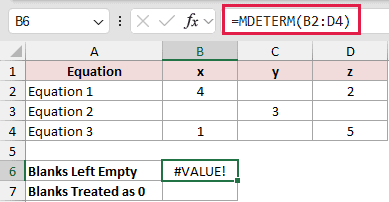
MDETERM returns #VALUE! because the matrix contains blank cells.
Next, add zero to the range inside MDETERM.
Here is the corrected formula:
=MDETERM(B2:D4+0)
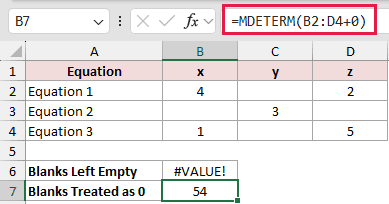
Adding zero creates a calculated array where the blanks behave as numeric zeros. The corrected formula returns 54.
Typing zeros is clearer when blank cells genuinely mean zero. The +0 approach helps when you need to preserve the source layout.
Tips & Common Mistakes
- MDETERM expects a square numeric array. A non-square range, a text value, or a blank cell inside the matrix returns #VALUE!.
- Round the determinant before comparing it with zero. Floating-point precision can leave a tiny residue for a singular matrix.
- You can type a small matrix directly into the formula. For example,
=MDETERM({3,6;1,1})returns -3. - Transposing a matrix does not change its determinant. Doubling every entry of a 3×3 matrix multiplies its determinant by eight.
- MDETERM returns one scalar result and does not spill. It can still accept a computed array created by functions such as HSTACK or MMULT.
- MDETERM works in every current Excel version (Microsoft 365, Excel 2024, Excel 2021, Excel 2019, and Excel 2016). HSTACK and WRAPROWS require Microsoft 365 or Excel 2024.
MDETERM turns a square matrix into one number that can reveal useful structure in your data.
For singularity tests, round the result before comparing it with zero.
Related Excel Functions / Articles:
