
The NETWORKDAYS.INTL function in Excel returns the number of working days between two dates, using the weekend pattern and holiday dates you specify.
Unlike NETWORKDAYS, it can handle schedules where the weekend is not Saturday and Sunday. The function counts both endpoints when they are working days.
In this article, I’ll show you how to use weekend codes and strings, exclude holidays from a custom schedule, and convert scheduled days into hours.
NETWORKDAYS.INTL Function Syntax in Excel
The function takes start and end dates, followed by optional weekend and holiday settings.
=NETWORKDAYS.INTL(start_date, end_date, [weekend], [holidays])
- start_date (required) is the first date in the period.
- end_date (required) is the last date in the period.
- weekend (optional) identifies non-working days through a built-in code or an exactly seven-character string of zeros and ones, one for each day, starting with Monday.
- holidays (optional) can be a range of dates or an array constant of dates. A holiday is excluded only when it falls on a scheduled working day.
In a weekend string, zero marks a working day, and one marks a non-working day. Format a cell containing a weekend string as text.
A weekend string typed inside a formula in quotes is already text.
These are the valid numeric weekend codes:
| Code | Non-working days |
|---|---|
| 1 or omitted | Saturday and Sunday |
| 2 | Sunday and Monday |
| 3 | Monday and Tuesday |
| 4 | Tuesday and Wednesday |
| 5 | Wednesday and Thursday |
| 6 | Thursday and Friday |
| 7 | Friday and Saturday |
| 11 | Sunday only |
| 12 | Monday only |
| 13 | Tuesday only |
| 14 | Wednesday only |
| 15 | Thursday only |
| 16 | Friday only |
| 17 | Saturday only |
Excel accepts no other numeric weekend codes.
When to Use NETWORKDAYS.INTL Function
- Count working days for teams that work Saturdays or Sundays.
- Handle rotating, part-time, or non-consecutive weekly schedules.
- Exclude holidays from a custom working calendar.
- Count occurrences of a particular weekday between two dates.
- Convert scheduled days into staffing hours.
Example 1: Count Days With Sundays Off
Let’s start with a remodeling crew that works from Monday through Saturday.
Below is the dataset. Columns B and C hold each job’s dates. The Crew Days column is ready for the result.
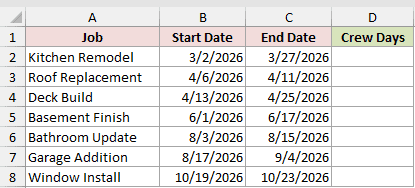
We want to count each job’s scheduled crew days while treating Sunday as the only non-working day.
Here is the formula:
=NETWORKDAYS.INTL(B2,C2,11)
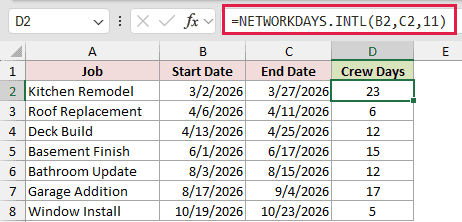
Weekend code 11 treats Sunday as the only weekend day. Enter the formula in D2, then copy it down through D8.
The formula returns 23 crew days for Kitchen Remodel. It counts 6 for Roof Replacement and 5 for Window Install.
Example 2: Use Custom Weekend Strings
Now let’s give each employee a different weekly schedule.
Below is the dataset. It lists each employee, work pattern, weekend string, and shared date range. Scheduled Days in column D will hold the results.
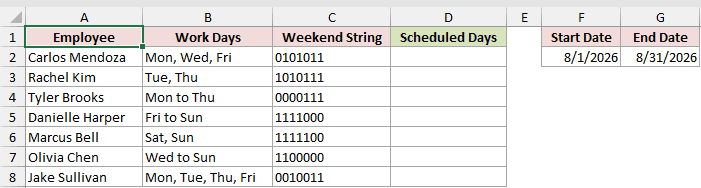
We want Excel to read each employee’s weekend string from column C and count their scheduled days for the period in F2:G2.
Here is the formula:
=NETWORKDAYS.INTL($F$2,$G$2,C2)
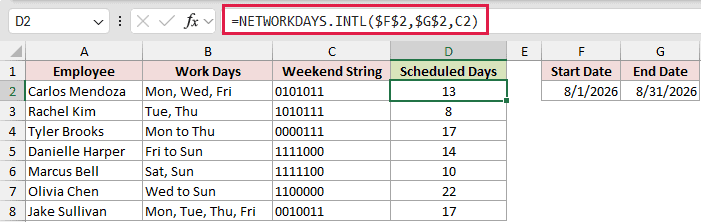
The positions in each string run from Monday through Sunday. A zero includes that day, and a one excludes it.
The absolute references keep the shared date range fixed as the formula is copied down. The formula returns 13 scheduled days for Carlos Mendoza and 8 for Rachel Kim.
The count is 22 for Olivia Chen’s Wednesday-through-Sunday pattern. Marcus Bell’s Saturday-and-Sunday schedule has 10 scheduled days.
Pro Tip: Store weekend strings as text. For Example 2’s August 2026 period in F2:G2, a General cell changed 0000011 to the number 11. Excel read it as weekend code 11, with Sunday as the only non-working day, and returned 26 days instead of the text string’s 21.
Example 3: Count Saturdays Between Dates
Here’s a useful twist. You can use the weekend string to count one particular day.
Below is the dataset. Columns B and C contain each program’s date range, and Saturday Sessions in column D will hold the count.
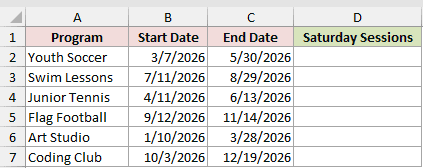
We want to count how many Saturdays fall within every program’s date range.
Here is the formula:
=NETWORKDAYS.INTL(B2,C2,"1111101")
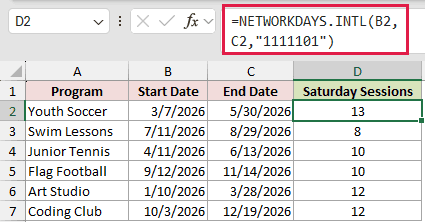
The string marks Saturday as the only working day. Every other day is treated as a weekend day, so the result becomes a Saturday count.
The formula returns 13 Saturday sessions for Youth Soccer and 8 for Swim Lessons. Art Studio and Coding Club each have 12.
Enter the formula in D2 and copy it down. This approach is shorter than generating every date and checking its weekday separately.
Example 4: Exclude Holidays From Open Days
Next, let’s count monthly open days for a salon that operates from Tuesday through Saturday.
Below is the dataset. Column A contains month starts, column B will hold open days, and columns D:E list holidays and their dates.
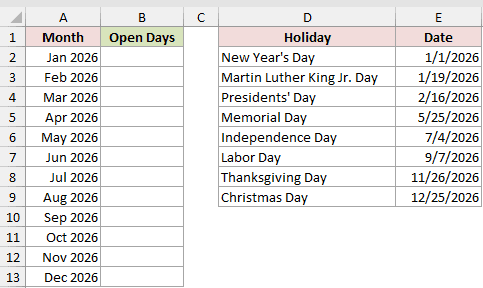
We want to count each month’s open days while excluding holidays that fall on the salon’s normal working days.
Here is the formula:
=NETWORKDAYS.INTL(A2,EOMONTH(A2,0),2,$E$2:$E$9)
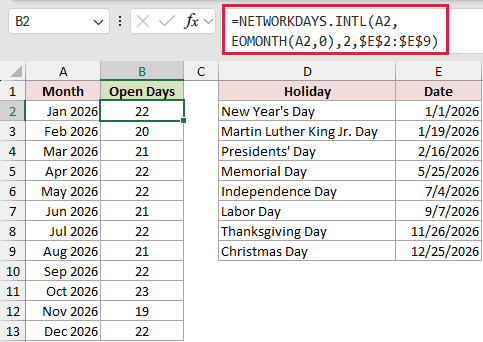
EOMONTH returns the last date of each month. Weekend code 2 excludes Sunday and Monday. The locked range in column E supplies the holidays.
The formula returns 22 open days for January and 20 for February. July also has 22. Across all the months shown, the salon has 257 open days.
A Monday holiday costs nothing because Monday is already closed. July 4, 2026 falls on Saturday, so it removes a day the salon would otherwise open.
Pro Tip: A holiday only reduces the count when it falls on a day your weekend setting treats as a working day.
Example 5: Convert Scheduled Days to Hours
Finally, let’s turn a custom workday count into scheduled hours.
Below is the dataset. It includes assignment dates and daily hours. The Scheduled Hours column is ready for the calculated result.
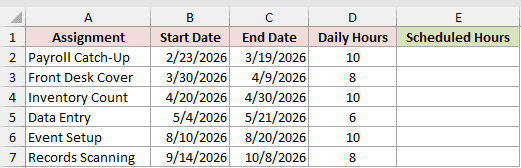
We want to count Monday-through-Thursday workdays for each assignment and multiply that count by the daily hours in column D.
Here is the formula:
=NETWORKDAYS.INTL(B2,C2,"0000111")*D2
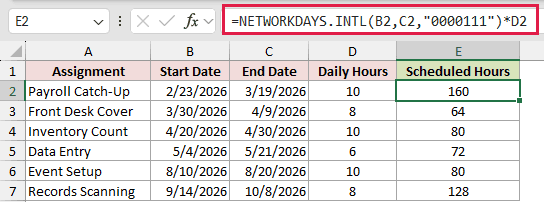
The weekend string excludes Friday through Sunday. NETWORKDAYS.INTL returns the scheduled days, and the multiplication converts them into hours.
The formula returns 160 scheduled hours for Payroll Catch-Up. Front Desk Cover has 64, and Records Scanning has 128.
Copy the formula from E2 through E7 so each row uses its own dates and daily-hours value.
Tips & Common Mistakes
=NETWORKDAYS.INTL(B2:B8,C2:C8,11)returns one #VALUE! instead of one result per row. In Excel 2021, Excel 2024, and Microsoft 365, adding+0to both ranges lets=NETWORKDAYS.INTL(B2:B8+0,C2:C8+0,11)spill the results.- Omitting the weekend argument matches NETWORKDAYS, which uses the standard Saturday-and-Sunday weekend.
- The string
"1111111"returns 0 because no day is marked as working. The string"0000000"counts every day in the period. - A weekend string with only six characters returns #VALUE!, while the unsupported numeric code 8 returns #NUM!.
- If the start date comes after the end date, the function returns a negative count. Reversing Kitchen Remodel’s Example 1 dates with code 11 returns -23, the mirror of 23.
- NETWORKDAYS.INTL does not choose holidays by country. Add the dates you need to the holidays range.
In this article, I covered weekend codes and strings, holiday exclusions on a custom schedule, and converting scheduled days into hours.
I also showed how to count one chosen weekday by marking every other day as non-working.
Related Excel Functions / Articles:
