
Calculating working days in Excel helps you plan payroll, billable hours, and project deadlines around the days your team actually works.
A 31-day month won’t give you 31 working days once you take out weekends and company holidays.
Your total also changes when Saturday is a working day or your weekend falls on different days.
I’ll show you monthly and yearly totals, custom weekends, and a month-by-month breakdown you can build with one formula.
How to Calculate Working Days in a Month
Start with the first day of each month, then count through its last day using the weekend pattern your team follows.
Method #1: Using NETWORKDAYS and EOMONTH
I recommend this method for most situations. You can count a standard Monday-to-Friday workweek, exclude holidays, and use it in every modern Excel version.
On the Working Days in a Month sheet, I have eight company holidays in A1:B9 and January through December 2026 in D2:D13.
The Month header is in D1, and each month cell holds its first-day date, displayed as Jan 2026 to Dec 2026.
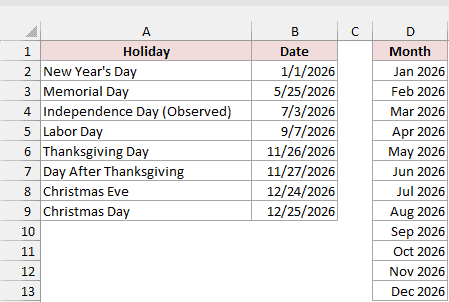
You see those month labels because D2:D13 use the mmm yyyy number format. Underneath, D2 holds 1/1/2026, a real start date for NETWORKDAYS.
Use real first-of-month dates rather than text such as “January” so Excel knows where each month’s count should start.
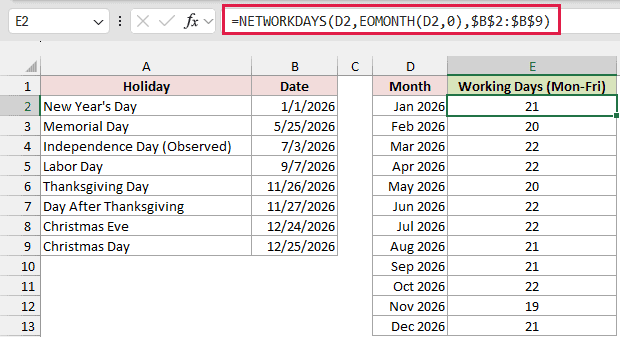
Type Working Days (Mon-Fri) in E1. Enter this formula in E2, then copy it down to E13:
=NETWORKDAYS(D2,EOMONTH(D2,0),$B$2:$B$9)
How does this formula work?
NETWORKDAYS counts between your start and end dates, including both dates. It skips Saturdays, Sundays, and any dates you supply in the holidays argument.
I use D2 as the start date. For the first row, that’s January 1, 2026.
EOMONTH(D2,0) returns January 31, 2026, the month’s last day. The 0 tells EOMONTH to stay in the same month.
$B$2:$B$9 supplies the company holidays. January has 22 weekdays, but New Year’s Day falls on a Thursday, so your result is 21.
The dollar signs keep the holiday range fixed when you copy down. D2 has no dollar signs, so it changes to D3, D4, and so on.
Without those dollar signs, your holiday range moves down too. You can miss holidays and end up with incorrect monthly totals.
You need one formula per row because NETWORKDAYS returns #VALUE! when you pass a cell range such as D2:D13 as its start date.
Note: The holidays argument is optional. Leave it out when you only want Monday-to-Friday weekdays, without excluding company holidays.
Method #2: Using NETWORKDAYS.INTL (Custom Weekends)
If your weekend isn’t Saturday and Sunday, use NETWORKDAYS.INTL. I’ll count a six-day working week where you work Monday through Saturday and take Sunday off.
On the Working Days in a Month sheet, I have eight company holidays in A1:B9 and first-of-month dates for January through December 2026 in D2:D13.
D1 has the Month header, and D2:D13 use mmm yyyy to display Jan 2026 through Dec 2026.
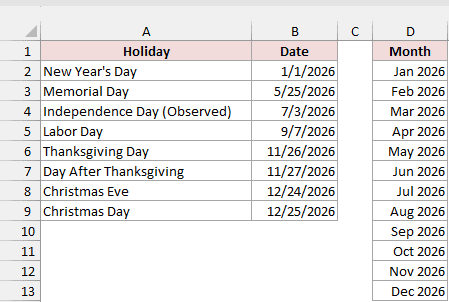
Keep those month cells as real dates rather than text like “January”. Your formula needs the first day of each month as its start date.
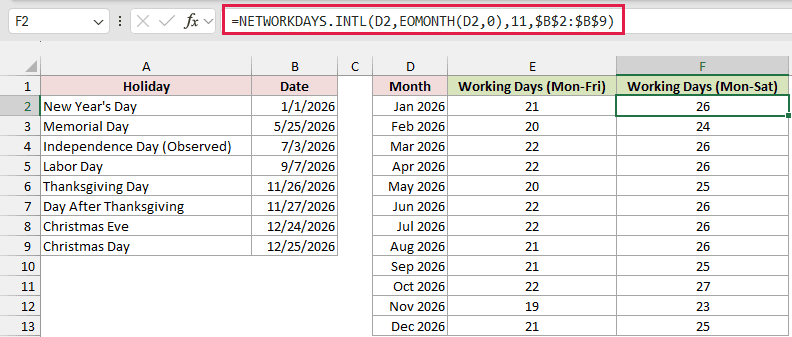
Column E shows the Monday-to-Friday counts. Type Working Days (Mon-Sat) in F1, then enter this formula in F2 and copy it down to F13:
=NETWORKDAYS.INTL(D2,EOMONTH(D2,0),11,$B$2:$B$9)
How does this formula work?
D2 supplies your month’s first day, and EOMONTH(D2,0) supplies its last day. The locked range $B$2:$B$9 excludes your company holidays.
The third argument, 11, sets your weekend pattern. It makes Sunday the only weekend day, so the formula counts Saturdays as working days.
January 2026 has 31 days and four Sundays. That leaves 27 possible working days, then New Year’s Day reduces your result to 26.
You can change the weekend code to match your schedule. Here are a few useful options:
- 1: Saturday and Sunday, the default.
- 2: Sunday and Monday.
- 7: Friday and Saturday.
- 11: Sunday only.
- 17: Saturday only.
You can also use a seven-character string instead of a code. Read it from Monday to Sunday, with 1 marking a non-working day and 0 a working day.
For example, "0000011" sets Saturday and Sunday as your weekend. "0000001" makes only Sunday a weekend day, just like code 11.
Like NETWORKDAYS, NETWORKDAYS.INTL returns #VALUE! if you use a range such as D2:D13 as the start date. Enter it in F2 and copy it down to F13.
How to Calculate Working Days in a Year
You can count the whole year in one cell or build a separate working-day total for each month.
Method #3: Using NETWORKDAYS With DATE
For an annual total, I use DATE to create the year’s first and last dates. You only need to enter the year once.
On the Working Days in a Year sheet, I have eight company holidays in A1:B9, with Year in D1 and the number 2026 in E1.
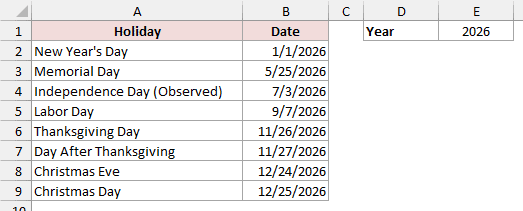
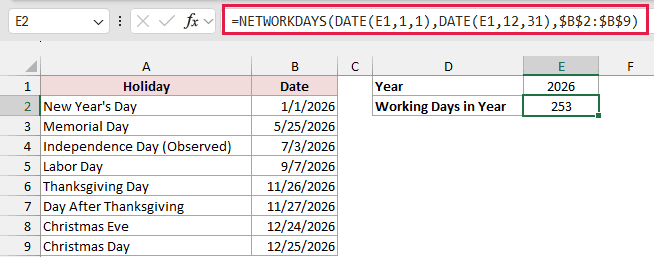
Keep E1 as a plain year number, not a date. Type Working Days in Year in D2, then enter this formula in E2:
=NETWORKDAYS(DATE(E1,1,1),DATE(E1,12,31),$B$2:$B$9)
How does this formula work?
DATE(E1,1,1) builds January 1 of your chosen year. With 2026 in E1, you get January 1, 2026.
DATE(E1,12,31) builds December 31 of that same year. NETWORKDAYS counts the Monday-to-Friday days between these two dates, then excludes your holidays in $B$2:$B$9.
You have 261 weekdays in 2026. All eight company holidays fall on weekdays, so your annual result is 253.
Change E1 to calculate another year, and update your holiday list to match that year.
For custom weekends, use NETWORKDAYS.INTL instead and add your weekend code as the third argument. For example, code 11 counts Saturdays and excludes Sundays.
Method #4: Using LET, SEQUENCE, and HSTACK (Month-by-Month)
When you want a full-year breakdown, this formula builds all twelve monthly totals at once. You need Microsoft 365 or Excel 2024 because it uses HSTACK.
On the Working Days in a Year sheet, I have eight company holidays in A1:B9, with Year in D1 and the number 2026 in E1.
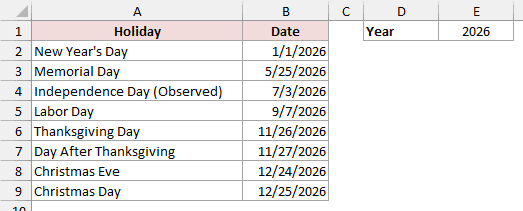
Type Month in D4 and Working Days in E4. Keep D5:E16 empty so the formula has room to return its results.
Enter this formula in D5:
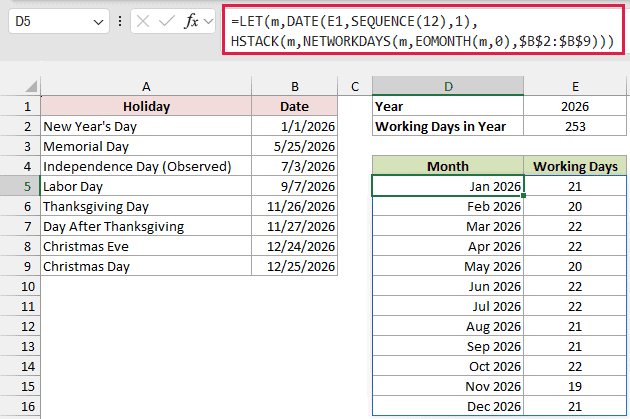
=LET(m,DATE(E1,SEQUENCE(12),1),HSTACK(m,NETWORKDAYS(m,EOMONTH(m,0),$B$2:$B$9)))
How does this formula work?
SEQUENCE(12) creates the numbers 1 through 12. I use those numbers as the months in DATE(E1,SEQUENCE(12),1).
That creates the first day of every month in the year you entered in E1. LET stores this list as m, so you don’t have to repeat it.
NETWORKDAYS(m,EOMONTH(m,0),$B$2:$B$9) calculates each month’s working days. It uses the first-day dates in m, their corresponding month-end dates, and your holiday list.
This works because m is a calculated list of dates created inside the formula. NETWORKDAYS accepts that list, but rejects a cell range such as D5:D16.
HSTACK places the month dates and their working-day counts side by side. Your formula spills into D5:E16 automatically, so you don’t copy it down.
If the month dates appear as serial numbers, format D5:D16 with mmm yyyy to show Jan 2026 through Dec 2026.
Your twelve monthly counts add up to 253, matching the annual total in E2. I use that agreement as a quick check.
Change E1 to update the entire table for another year. Remember to replace your holidays with the dates for that year too.
Additional Notes About Calculating Working Days in Excel
- Start on the first day of the month. With 3/15/2026 as your start date, you get 12 working days, not March’s full 22. Use
EOMONTH(date,-1)+1to get the first day. - Weekend holidays aren’t subtracted twice. If you replace the observed July 3 holiday with Saturday, July 4, 2026, your Monday-to-Friday total for July is 23.
- Keep one holiday list. Lock its references with dollar signs so your formulas keep using the same dates. An Excel Table or named range can also help you manage that list.
- Both boundary dates count. Your start and end dates are included when they’re working days, so you don’t need to add an extra day to the result.
Frequently Asked Questions
Here are a few questions you might have when adapting these working-day calculations to your own calendar.
How Do I Count the Working Days Left in the Current Month?
Use TODAY as your start date and EOMONTH to find the current month’s last day:
=NETWORKDAYS(TODAY(),EOMONTH(TODAY(),0),$B$2:$B$9)
Today counts if it’s a weekday and isn’t in your holiday list. Your result changes as TODAY returns a new date each day.
What If My Month Is Typed as Text, Like “March”?
If A2 contains March, DATEVALUE can turn the text "1 March 2026" into a date. Use this formula in English-language Excel:
=NETWORKDAYS(DATEVALUE("1 "&A2&" 2026"),EOMONTH(DATEVALUE("1 "&A2&" 2026"),0))
You get 22 working days for March 2026. This formula counts Monday through Friday without excluding holidays.
How Many Working Days Are in 2026?
You have 261 Monday-to-Friday days in 2026 before holidays. To get your own working-day total, subtract the holidays your workplace observes that fall on weekdays.
Why Does NETWORKDAYS Return #VALUE!?
Check whether Excel can read your start and end values as dates. Another common cause is passing a whole cell range, such as D2:D13, as the start date.
Use one formula per row for cell-based month lists. For a spilling result, use a calculated date list like the one I build in Method #4.
Conclusion
I’ve shown you how to count working days for each month and a whole year, while accounting for holidays and custom weekends.
You can also build a monthly table with one formula. I hope you found this article helpful.
Other Excel articles you may also like:
- Calculate Days Between Two Dates in Excel (Workdays/Weekends)
- WORKDAY Function in Excel
- WORKDAY.INTL Function in Excel
- How to Get Total Days in Month in Excel?
- Calculate Days Left in the Year (Formula)
- Count Days from a Date to Today in Excel (Formula)
- How to Create an Attendance Tracker in Excel
- WEEKDAY Function in Excel
