
Excel’s T function returns a value when it is text. It returns empty text for other value types, while errors pass through unchanged.
Microsoft says T is rarely needed because Excel usually converts values automatically. The function mainly exists for compatibility with other spreadsheet programs.
I’ll show you how T prevents stray zeros in badge labels, why plain ranges use the first cell, and how IF plus ISTEXT handles errors differently.
T Function Syntax in Excel
The T function accepts one value and checks whether that value is text.
=T(value)
- value (required) is the value or cell reference you want to test. T returns text unchanged, returns empty text for other value types, and passes errors through.
Text literals entered directly in a formula need quotation marks.
When to Use T Function
- Keep text from a column that mixes text with numbers, dates, logical values, or blanks.
- Prevent numeric placeholders from appearing inside a combined text label.
- Preserve numbers stored as text while excluding real numeric values.
- Maintain compatibility with formulas created in other spreadsheet programs.
- Return the original text instead of a TRUE or FALSE type check.
Example 1: Keep Only Text From Mixed Data
Let’s start with a delivery log that contains several kinds of driver notes.
Below is the dataset. It has delivery addresses and mixed driver notes, plus a green Note Text header and empty bordered result cells in column C.
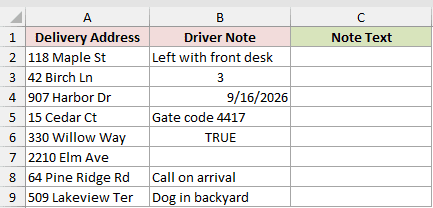
Column C should keep each text note and leave the other entries empty.
Here is the formula entered in C2 and copied down:
=T(B2)
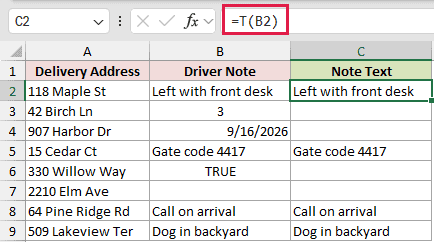
Text such as “Left with front desk” and “Gate code 4417” passes through unchanged. The package count, date, TRUE value, and blank cell return empty text.
Excel stores dates as numbers, so T doesn’t treat the date in B4 as text.
Example 2: Identify Numbers Stored as Text
Here’s a ZIP code list where similar-looking entries are stored differently.
Below is the dataset. It lists customers and ZIP codes, with a green T Result header and empty bordered result cells in column C.
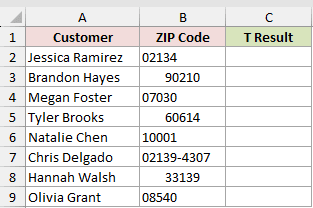
Column C should return ZIP codes stored as text and leave real numbers empty.
Here is the formula entered in C2 and copied down:
=T(B2)
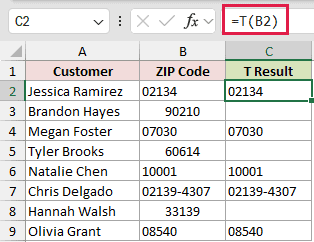
The text value 02134 remains 02134, and 02139-4307 also passes through. The numeric value 90210 returns empty text.
T checks how Excel stores the value, not whether its characters look like a number.
Example 3: Build Labels Without Stray Zeros
Now let’s build event badges from attendee and company fields.
Below is the dataset. It has attendee and company entries, plus green Badge Label and Without T headers with empty bordered result cells.
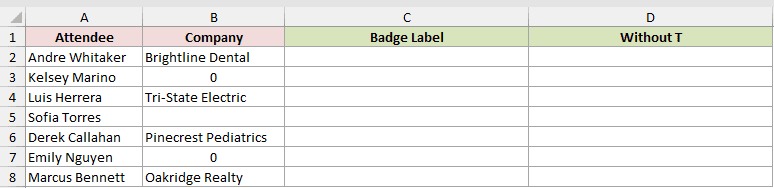
Column C should combine each attendee with a text company name while omitting zeros and blanks.
Here is the formula entered in C2 and copied down:
=TEXTJOIN(", ",TRUE,A2,T(B2))
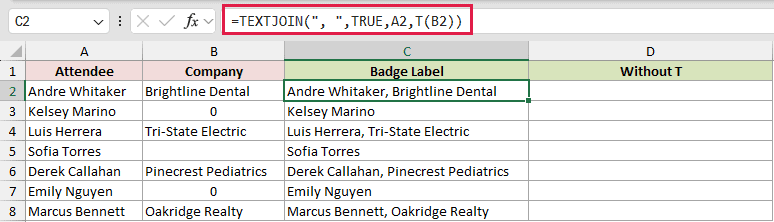
For comparison, column D combines the same fields without T.
Here is the formula entered in D2 and copied down:
=TEXTJOIN(", ",TRUE,A2,B2)
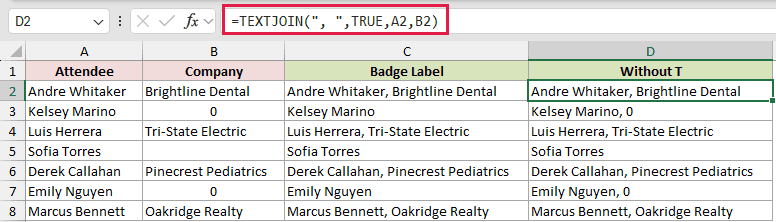
T changes a numeric zero to empty text. TEXTJOIN then ignores that empty value, so Kelsey Marino appears without a trailing zero or separator.
Without T, the comparison formula returns Kelsey Marino, 0. A truly blank company cell is skipped by both formulas because ignore_empty is TRUE.
Example 4: Spill T Down a Whole Column
This example shows the safe way to evaluate a mixed range with one formula.
Below is the dataset. It lists employees and mixed hours or leave codes, with a green Leave Code header and empty bordered cells in C2:C9.
The “Without the + Sign” card also has an empty result cell.
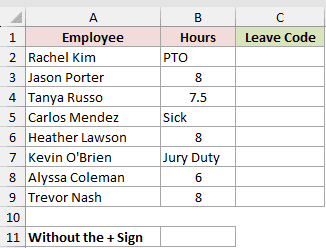
Column C should return every leave code and spill empty text beside numeric hours.
Here is the formula entered in C2:
=T(+B2:B9)
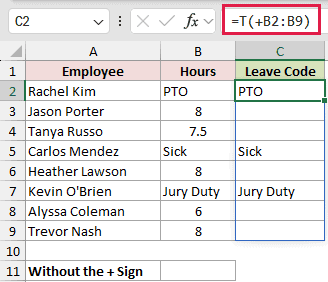
The formula spills PTO, Sick, and Jury Duty into the matching rows. Rows containing numeric hours return empty text.
The plus sign makes T evaluate the reference as an array. This spill works in Excel 2021, Excel 2024, and Microsoft 365.
The card below shows what happens when the plus sign is omitted.
Here is the formula in B11:
=T(B2:B9)
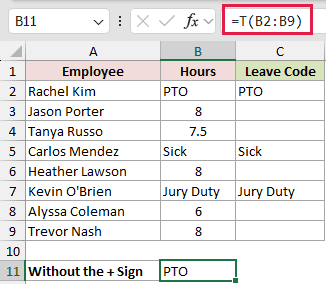
That formula returns only PTO, the first cell in B2:B9. A plain multi-cell reference doesn’t make T spill or move through the range row by row.
The more explicit =IF(ISTEXT(B2:B9),B2:B9,"") also spills in Excel 2021, Excel 2024, and Microsoft 365.
Pro Tip: Keep C2:C9 empty before entering the spill formula, or existing values will block its results.
Example 5: Compare T With IF and ISTEXT
Finally, let’s compare T with a more explicit text check.
Below is the dataset. It contains shipment statuses and a zero, plus empty bordered answer cells under two green result headers.
Cell B5 already holds =NA() as part of the data, standing in for a missing feed value.
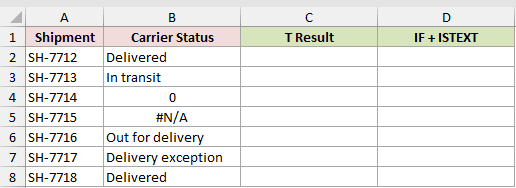
Columns C and D should show how the two approaches handle the same mixed status values.
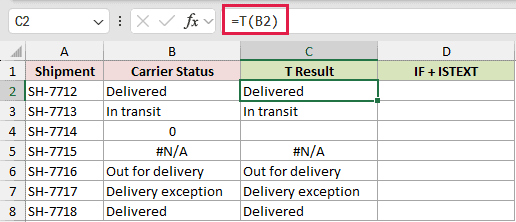
Here is the T formula entered in C2 and copied down:
=T(B2)
Column D uses IF and ISTEXT for the comparison.
Here is the formula entered in D2 and copied down:
=IF(ISTEXT(B2),B2,"")
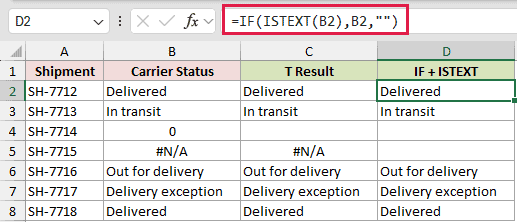
Both formulas keep the text statuses and return empty text for zero. They differ on the #N/A row.
T passes the #N/A error through, while IF and ISTEXT return empty text. The longer formula is clearer when you want errors to return empty text.
Tips & Common Mistakes
- T doesn’t trim spaces or clean text. It returns a text value exactly as stored.
- A plain multi-cell reference returns only its first cell. Use a per-row formula or
=T(+B2:B9)as the spill form. =MAP(B2:B9,LAMBDA(x,T(x)))is another spill option in Excel 2024 and Microsoft 365, but it is unavailable in Excel 2021.- Dates are numbers, logical values return empty text, and errors pass through unchanged.
T is best kept for compact text-only checks, especially inside another formula.
If errors should return empty text, use the longer IF and ISTEXT version.
Related Excel Functions / Articles:
