
The XNPV function in Excel returns the net present value of cash flows using their actual dates and an annual discount rate.
It is useful when payments do not occur at equal intervals. Each amount is discounted relative to the first date in the schedule.
Keep each cash flow paired with its date. NPV uses evenly spaced periods instead, so it answers a different timing question.
In this article, I’ll show you how to value irregular cash flows, compare XNPV with NPV, and test different discount rates or valuation dates.
XNPV Function Syntax in Excel
XNPV discounts each cash flow according to its actual date and returns the net present value of the full schedule.
=XNPV(rate,values,dates)
rateis the annual discount rate applied to the cash flows.valuescontains the cash flows. Use negative values for money paid and positive values for money received.datescontains one date for each cash flow. The first date sets the start of the schedule, and no other date can be earlier.
XNPV uses a 365-day year. If your cash flows occur at equal intervals, the NPV function is usually the simpler choice.
When to Use the XNPV Function
- Value a project with payments or receipts that occur on irregular dates.
- Include an initial investment and later returns in one dated cash-flow schedule.
- Compare the present value of the same schedule at several annual discount rates.
- Set a valuation date that falls before the first actual payment.
- Combine XNPV with FILTER to value only the cash flows through a selected date.
Example 1: Calculate XNPV for Irregular Payments
Let’s start with a project that has one initial cost and four receipts on uneven dates.
Below is the payment schedule, along with a 10.5% annual discount rate and an empty XNPV result cell.
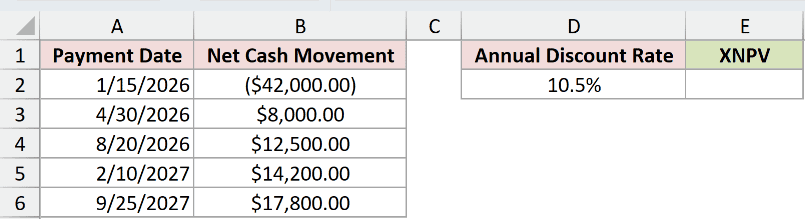
I want to find the value of the full schedule as of January 15, 2026.
Enter this formula in cell E2:
=XNPV(D2,B2:B6,A2:A6)
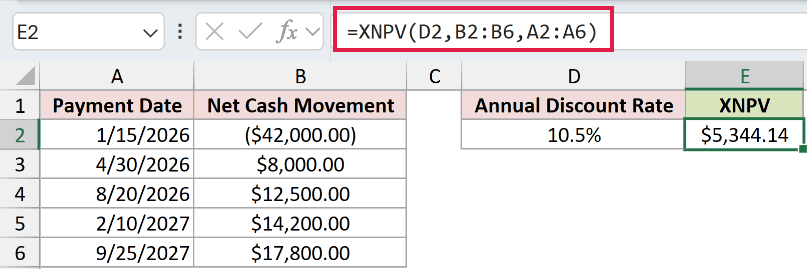
Cell D2 supplies the 10.5% annual rate. B2:B6 contains the cash flows, while A2:A6 contains their corresponding dates.
The formula returns $5,344.14. A positive XNPV means the discounted receipts exceed the $42,000 initial cost at the chosen rate.
Pro Tip: Enter an initial cost as a negative value and cash received as positive values. This sign convention keeps the result easy to interpret.
Example 2: Compare XNPV With NPV
The difference between XNPV and NPV becomes clear when the payment dates are uneven.
Below is an irregular cash-flow schedule, a 9% discount rate, and empty result cells for both functions.

I want to value the schedule once with its actual dates and once as if the later payments were equally spaced.
Enter this XNPV formula in cell E2:
=XNPV(D2,B2:B6,A2:A6)
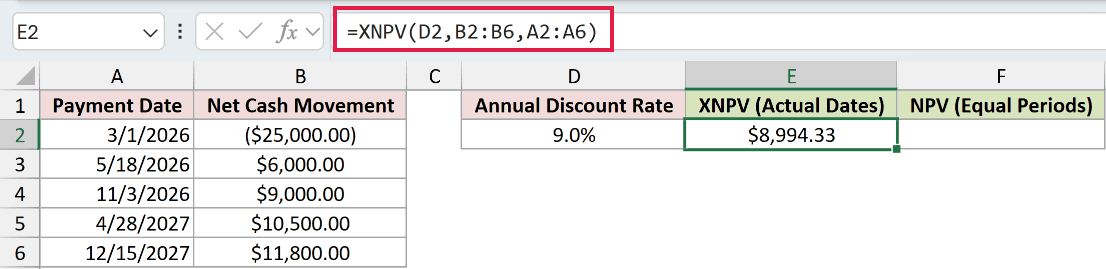
XNPV uses the exact dates in A2:A6 and returns $8,994.33.
Enter this NPV formula in cell F2 for comparison:
=B2+NPV(D2,B3:B6)
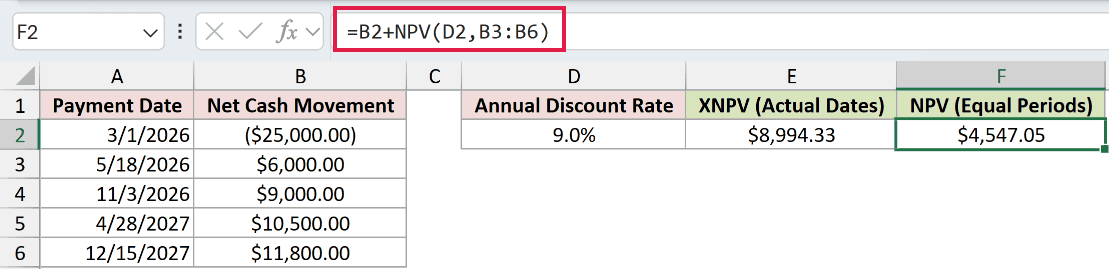
NPV assumes B3:B6 occur at equal period ends. The initial cash flow in B2 happens at the start, so the formula adds it separately.
That calculation returns $4,547.05. The large difference comes from the timing assumption, even though both formulas use the same cash flows and rate.
Example 3: Test Different Discount Rates
A higher discount rate reduces the present value of future receipts.
Below is the first payment schedule again, with rates of 8%, 10.5%, and 13% beside three empty XNPV cells.
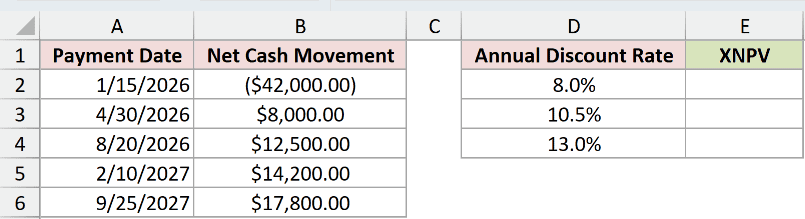
I want to calculate XNPV at each rate while keeping the cash-flow and date ranges fixed.
Enter this formula in cell E2:
=XNPV(D2,$B$2:$B$6,$A$2:$A$6)
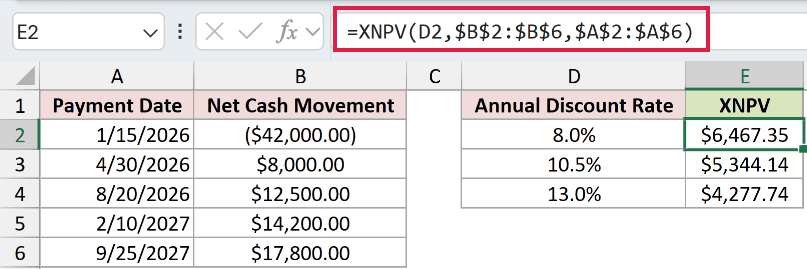
Fill the formula from E2 through E4. The relative rate reference changes by row, while the absolute references keep both source ranges fixed.
The results are $6,467.35 at 8%, $5,344.14 at 10.5%, and $4,277.74 at 13%. The present value falls as the discount rate rises.
Example 4: Set an Earlier Valuation Date
XNPV always discounts the schedule back to the first date in its dates range.
The schedule below begins with a zero cash flow on January 1, 2026. The first actual investment happens several months later.
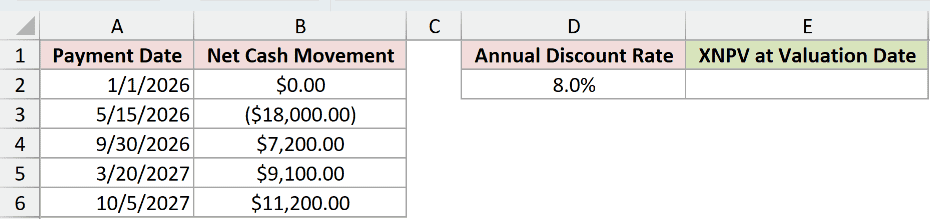
I want to value every later cash flow as of January 1, rather than as of the investment date.
Enter this formula in cell E2:
=XNPV(D2,B2:B6,A2:A6)
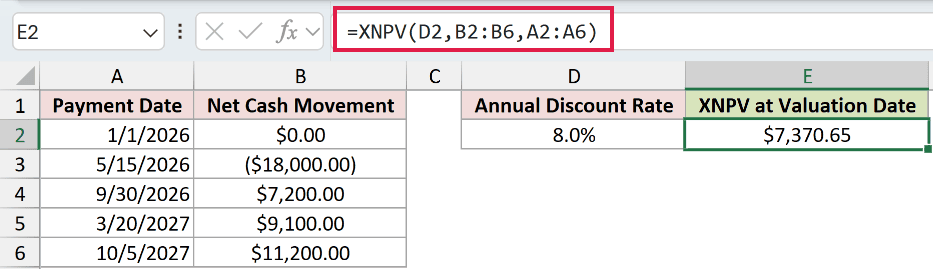
The zero in B2 adds nothing to the total. Its date in A2 still establishes the point to which XNPV discounts every later cash flow.
At the 8% annual rate, the schedule is worth $7,370.65 on January 1, 2026.
Pro Tip: Do not place any date before the first date in the supplied range. XNPV returns #NUM! if a later item has an earlier date.
Example 5: Use XNPV With FILTER
The FILTER function can pass a matching subset of values and dates directly into XNPV.
Below is a six-payment schedule and a cutoff date of October 14, 2026, with one empty result cell.
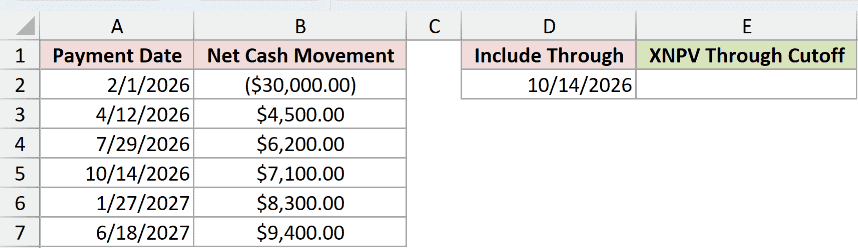
I want to calculate the schedule’s value using only payments on or before the cutoff date.
Enter this formula in cell E2:
=XNPV(0.1,FILTER(B2:B7,A2:A7<=$D$2),FILTER(A2:A7,A2:A7<=$D$2))
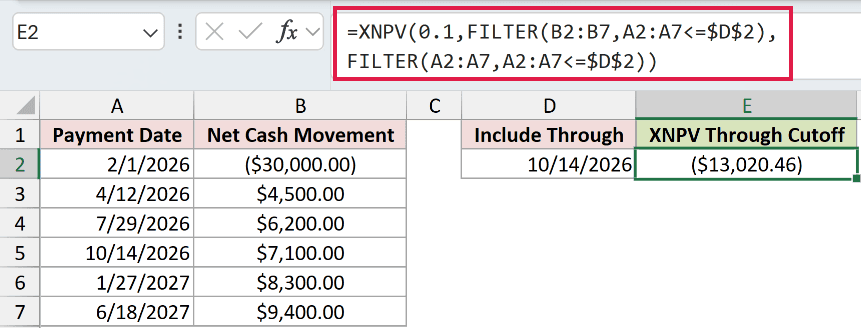
The first FILTER returns the qualifying cash flows. The second returns the matching dates, so XNPV receives two arrays with the same size.
The result is ($13,020.46). The parentheses show a negative value because the included receipts have not yet recovered the initial $30,000 outflow.
XNPV still returns one value, so it does not spill. FILTER works inside the formula and supplies the selected arrays.
Pro Tip: FILTER is available in Excel 2021 and later. In Excel 2019 or 2016, copy the matching rows to helper ranges before using XNPV.
Tips & Common Mistakes
- Match every cash flow with one date. If
valuesanddateshave different lengths, XNPV returns#NUM!. - Keep the first date as the earliest date in the schedule. Later entries can be unsorted, but none can precede that first date.
- Use real Excel dates. Invalid dates or nonnumeric arguments return
#VALUE!. - Remember that XNPV uses a 365-day year when discounting each payment.
- Use NPV for truly periodic cash flows. Use XNPV when the actual calendar dates matter.
- Use XIRR when you want the annual return that makes the dated schedule’s net present value equal zero.
- A positive XNPV at your required rate supports the investment financially, but the formula does not account for risk outside the cash-flow model.
I have shown you how to calculate XNPV for irregular cash flows, compare it with NPV, test several rates, and filter a schedule by date.
I hope you found this article helpful.
