
The VBA error “End If without block If” stops your macro when VBA finds an End If it can’t pair with a block If.
It’s a compile error, so nothing in your macro runs, even the lines before the problem.
I’ll show you how to fix a single-line If, remove an extra End If, and close nested blocks in the right order.
How to Find the End If Causing the Error
Here’s a macro that stops with this error when you try to run it:
Sub HighlightLowScores()
    Dim i As Long
    For i = 2 To 11
        If Cells(i, 2).Value < 50 Then Cells(i, 2).Interior.Color = vbYellow
        End If
    Next i
End SubThe message “Compile error: End If without block If” appears, and VBA highlights the End If it can’t match.
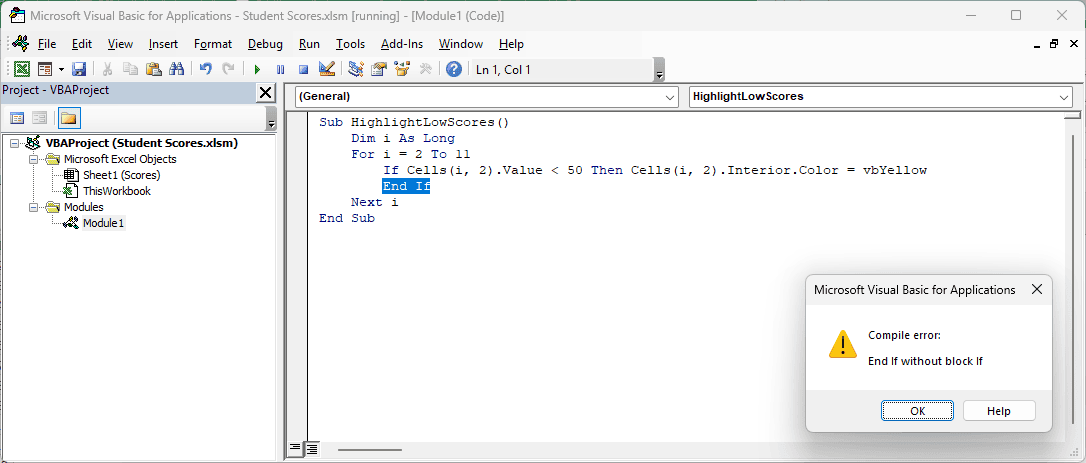
To check your code without running anything, click Debug > Compile VBAProject in the VB Editor.
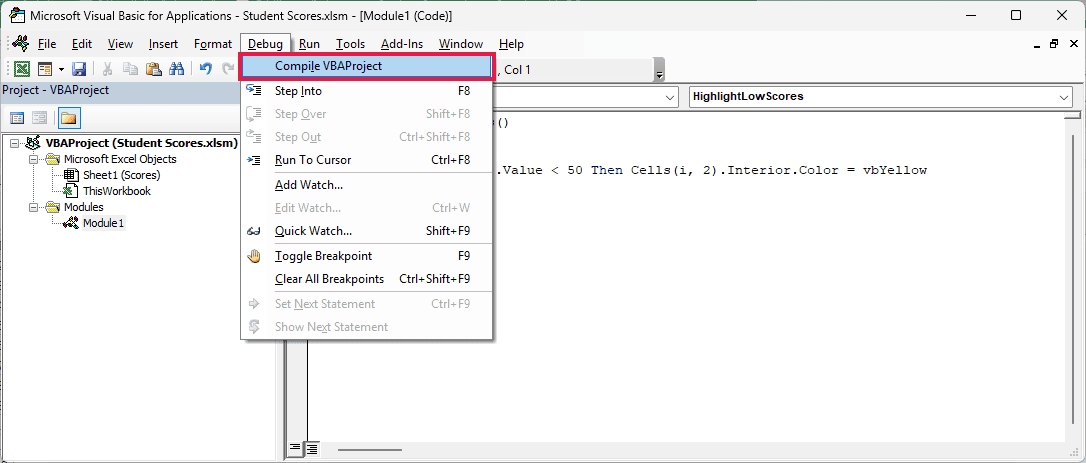
You’ll get the same error and the same highlighted End If.
Now look at the If that this End If should belong to. In this example, it’s the line above.
Method #1: Moving the Statement Below Then
Below I have a dataset of student names and scores in A1:B11 on the Scores sheet.
I want to change the cell color of every score below 50 to yellow, so it’s easy to spot the students who haven’t passed.
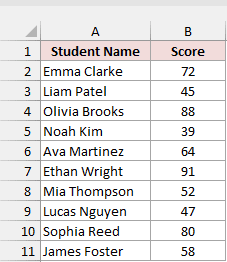
Here’s the macro with the error:
Sub HighlightLowScores()
    Dim i As Long
    For i = 2 To 11
        If Cells(i, 2).Value < 50 Then Cells(i, 2).Interior.Color = vbYellow
        End If
    Next i
End SubLook at the line starting with If. The instruction that colors the cell comes straight after Then, on the same line.
VBA treats that as a complete single-line If. The End If below it has no block left to close.
Microsoft’s rule is that anything other than a comment after Then on the same line makes it a single-line If.
I’d use the block form here. Move the coloring instruction onto its own line and keep the End If, like this:
Sub HighlightLowScores()
    Dim i As Long
    For i = 2 To 11
        If Cells(i, 2).Value < 50 Then Cells(i, 2).Interior.Color = vbYellow
        End If
    Next i
End SubNow End If has a block If to close.
Here are the steps to check and run the corrected macro:
- Make the Scores sheet active, then press Alt + F11 to open the VB Editor.
- Replace the original macro with the corrected code above.
- Click Debug > Compile VBAProject to check the code.
- Put your cursor inside the macro and press F5 to run it.
The macro highlights B3, B5, and B9 yellow. Those are Liam Patel’s 45, Noah Kim’s 39, and Lucas Nguyen’s 47.
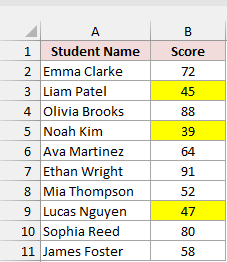
You can also keep the instruction on the same line as Then. In that case, delete the End If:
Sub HighlightLowScores()
Dim i As Long
For i = 2 To 11
If Cells(i, 2).Value < 50 Then Cells(i, 2).Interior.Color = vbYellow
Next i
End SubBoth versions highlight the same three scores. Choose the block form if you find separate lines easier to follow.
Note: A colon right after Then, or an Else on the same line, still makes it a single-line If. A comment after Then, such as ' low score, doesn’t, so you can keep the instruction on the next line and close the block with End If.
Method #2: Removing the Line Continuation After Then
Your instruction can look like it’s on a separate line and still be part of a single-line If.
I have student names and scores in A1:B11 on the Scores sheet.
This macro should highlight scores below 50 in B2:B11 on the Scores sheet:
Sub HighlightLowScores()
Dim i As Long
For i = 2 To 11
If Cells(i, 2).Value < 50 Then _
Cells(i, 2).Interior.Color = vbYellow
End If
Next i
End SubBut it stops with “End If without block If”, and VBA highlights the End If:
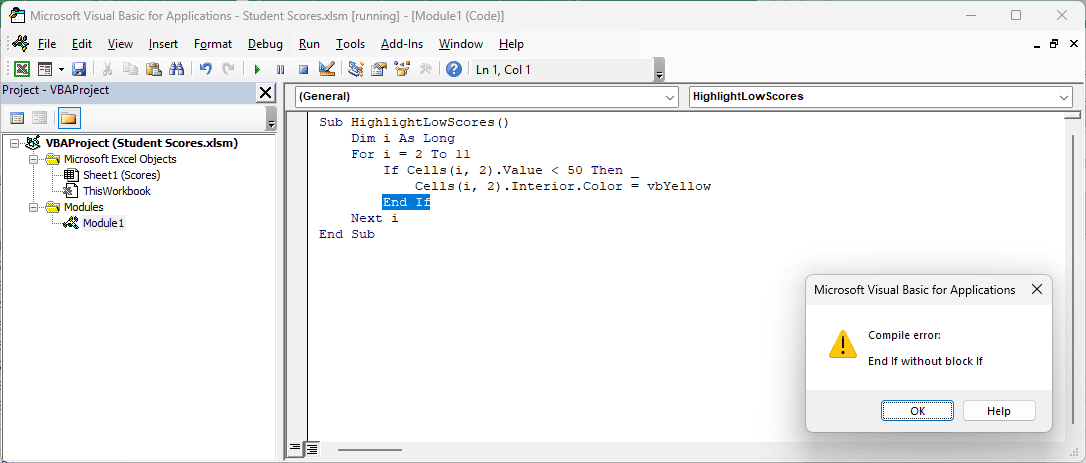
The space and underscore after Then join that line to the coloring instruction below it. This is a line continuation.
VBA reads those two physical lines as one logical line, making this a single-line If. The End If has nothing to close.
To fix it, delete the space and underscore after Then. Keep the coloring instruction below it and leave the End If in place:
Sub HighlightLowScores()
    Dim i As Long
    For i = 2 To 11
        If Cells(i, 2).Value < 50 Then Cells(i, 2).Interior.Color = vbYellow
        End If
    Next i
End SubRun the corrected macro with Scores active, and the scores 45, 39, and 47 turn yellow.
Alternatively, you can keep the line continuation and delete the End If. That keeps the condition and coloring instruction as a single-line If.
Method #3: Deleting the Extra End If
Sometimes your If is already written correctly, but you’ve closed it twice.
Below I have student names and scores in A1:B11 on the Scores sheet, with an empty Result column in C.
I want to label each score Distinction for 80 or more, Pass for 50 to 79, or Fail for anything below 50.
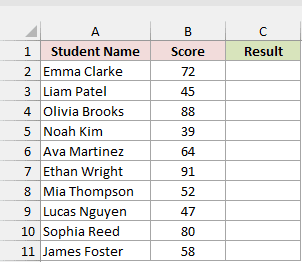
Here’s the macro with one End If too many:
Sub AssignResults()
Dim i As Long
For i = 2 To 11
If Cells(i, 2).Value >= 80 Then
Cells(i, 3).Value = "Distinction"
ElseIf Cells(i, 2).Value >= 50 Then
Cells(i, 3).Value = "Pass"
Else
Cells(i, 3).Value = "Fail"
End If
End If
Next i
End SubThe first End If closes the whole If...ElseIf...Else block. VBA highlights the second End If because there’s nothing left for it to close.
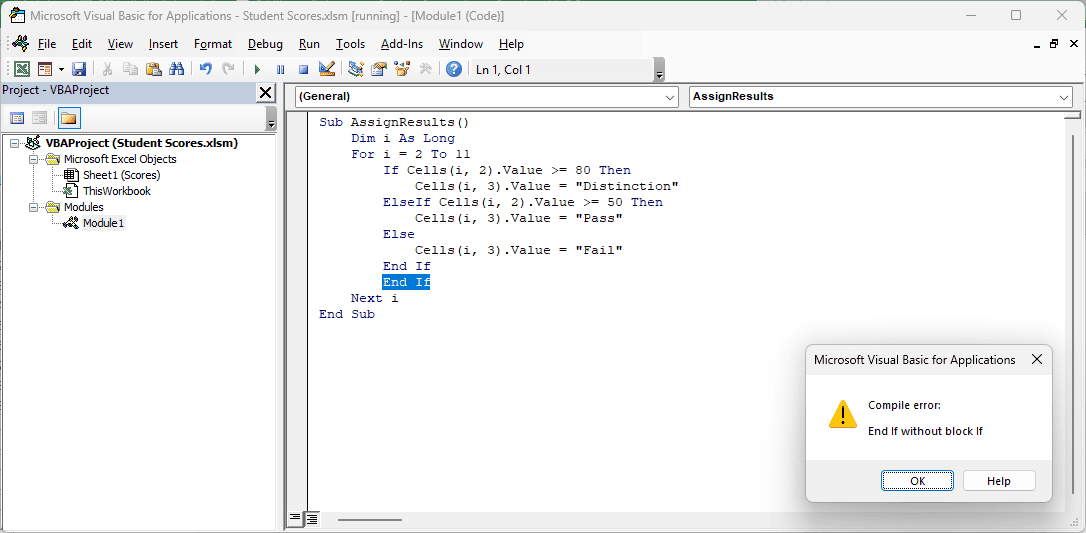
A common way to end up here is changing nested If blocks into an ElseIf chain and leaving an old End If behind.
Here are the steps to remove the extra closing line:
- Find the
Ifthat starts the conditions for Distinction, Pass, and Fail. - Keep the first
End If, which closes that whole block. - Delete the second
End If, immediately aboveNext i.
Your corrected macro should look like this:
Sub AssignResults()
Dim i As Long
For i = 2 To 11
If Cells(i, 2).Value >= 80 Then
Cells(i, 3).Value = "Distinction"
ElseIf Cells(i, 2).Value >= 50 Then
Cells(i, 3).Value = "Pass"
Else
Cells(i, 3).Value = "Fail"
End If
Next i
End SubRun it with Scores active, and C2:C11 fills with each student’s result:
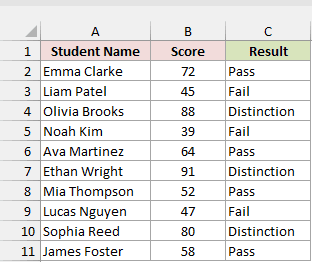
Emma’s 72 gets Pass, Olivia’s 88 gets Distinction, and Noah’s 39 gets Fail.
Method #4: Closing Blocks in the Right Order
You can also get this error when the If exists, but another block inside it hasn’t been closed yet.
I have student names and scores in A1:B11 on the Scores sheet.
In this example, I want to make B2:B11 on the Scores sheet bold and centered when A2 isn’t empty:
Sub FormatScores()
If Range("A2").Value <> "" Then
With Range("B2:B11")
.Font.Bold = True
.HorizontalAlignment = xlCenter
End If
End With
End SubVBA highlights the End If, even though you can see its opening If above:
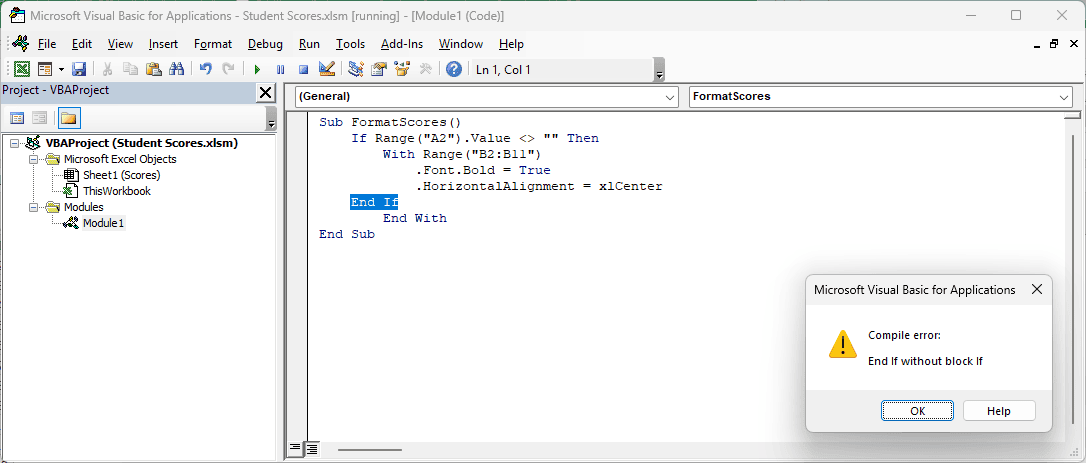
You opened the With block inside the If, so you need to close With first. Blocks close in the reverse order from how they opened.
Move End With above End If, so your code looks like this:
Sub FormatScores()
If Range("A2").Value <> "" Then
With Range("B2:B11")
.Font.Bold = True
.HorizontalAlignment = xlCenter
End With
End If
End SubWith Scores active, the corrected macro makes B2:B11 bold and centered because A2 contains Emma Clarke’s name.
If you put a For loop inside an If, placing End If before Next i gives the same “End If without block If” error.
If the If sits inside the For loop instead, putting Next i before End If gives “Next without For”.
Method #5: Uncommenting the If Line
Finally, check whether you’ve turned the opening If into a comment while leaving its End If active.
I have student names and scores in A1:B11 on the Scores sheet.
This macro is meant to highlight scores below 50 in B2:B11 on the Scores sheet:
Sub HighlightLowScores()
Dim i As Long
For i = 2 To 11
'If Cells(i, 2).Value < 50 Then
Cells(i, 2).Interior.Color = vbYellow
End If
Next i
End SubNotice the apostrophe before If. The VB Editor shows that line in green and highlights the End If when you try to run the macro.
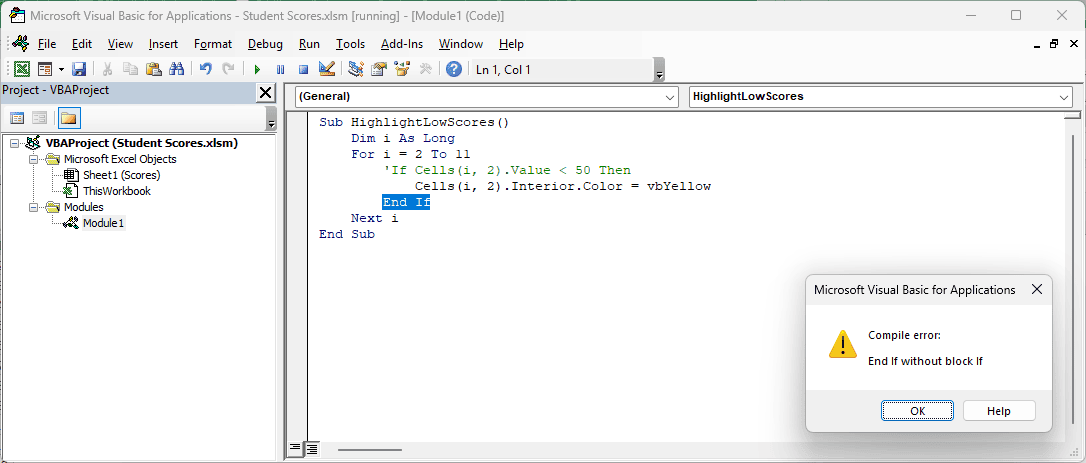
VBA ignores the commented line, so it never opens an If block. The active End If has nothing to close.
Remove the apostrophe before If to restore the condition:
Sub HighlightLowScores()
    Dim i As Long
    For i = 2 To 11
        If Cells(i, 2).Value < 50 Then
            Cells(i, 2).Interior.Color = vbYellow
        End If
    Next i
End SubNow the macro checks each score and highlights only 45, 39, and 47.
If you meant to switch off the condition, comment out the End If too. Leave the coloring instruction active, and the loop highlights every score in B2:B11.
Additional Notes About Fixing “End If Without Block If” in VBA
Keep these habits in mind when you’re editing longer macros:
- Indent each block so its
End Iflines up under its openingIf. Give blocks inside it another level of indentation. - Compile again after each fix. Compiling stops at the first error, so correcting one problem may reveal another.
- Save your workbook as .xlsm to keep the macros with the file.
Frequently Asked Questions
Here are a few related errors and fixes you might come across.
What is the difference between “End If without block If” and “Block If without End If”?
“End If without block If” means VBA can’t match a closing End If. “Block If without End If” means you’ve opened a block without closing it.
A missing End If in a simple macro can highlight End Sub.
If the End If is missing inside a For loop, you may get “Next without For” instead.
Does Else If with a space cause End If without block If?
No, Else If with a space gives a different error: “Compile error: Syntax error”, with the whole Else If line highlighted.
Use ElseIf as one word when you’re adding another condition to the same block.
Can On Error Resume Next ignore End If without block If?
No. On Error Resume Next can’t skip a compile error. You need to fix the code before any part of your macro can run.
Conclusion
I’d start with the line just above the highlighted End If. It’s usually a single-line If, so that’s the first thing I’d check.
I compile after each fix to confirm the problem is gone or find the next error.
Other Excel articles you may also like:
