
You might need to generate random dates between two dates in Excel, for example, when creating a sample set of transaction dates to test formulas.
I will show you how to generate random dates within a specified range in Excel.
Method #1: Using RANDARRAY Function
You can use the RANDARRAY function to return a spill range filled with random dates based on the size and the rules you specify. The function is only available in versions of Excel that support dynamic arrays.
The syntax of RANDARRAY:
=RANDARRAY([rows], [columns], [min], [max], [whole_number])
- [rows] – the number of rows to return.
- [columns] – the number of columns to return.
- [min] – smallest value.
- [max] – largest value.
- [whole_number] – specify TRUE for whole numbers. Omit or FALSE for decimals.
Suppose you want to generate 15 random dates between January 1, 2026, and December 31, 2026.
You can generate the dates using the steps below.
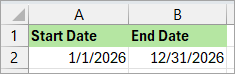
- Enter the start date and end date in cells (A2 and B2 in this case).
- Enter the formula below in a cell (D2 in this case).
=RANDARRAY(15,1,A2,B2,TRUE)
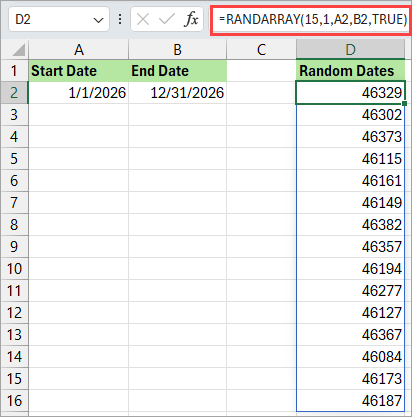
The function generates date serial numbers.
Format the Date Serial Numbers as Dates
You can apply a date format to the serial numbers using the steps below.
- Select the date serial numbers.
- Click the Home tab.
- Open the Number Format drop-down on the Number group and choose a date format.
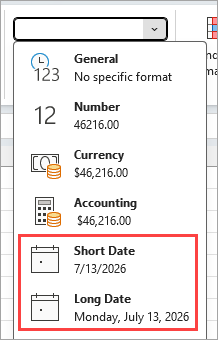
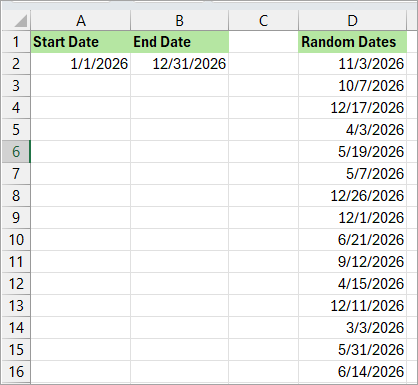
The above step applies the date format you chose to the date serial numbers.
Freeze the Dates
If you edit the worksheet or close and reopen the workbook, Excel recalculates the sheet, and the random dates will change because the RANDARRAY function is volatile.
To fix the dates so that they don’t change, do the following:
- Select the dates.
- Press CTRL+C to copy the dates.
- Press CTRL+ALT+V to open the Paste Special dialog box.
- Select the Values option and click OK.
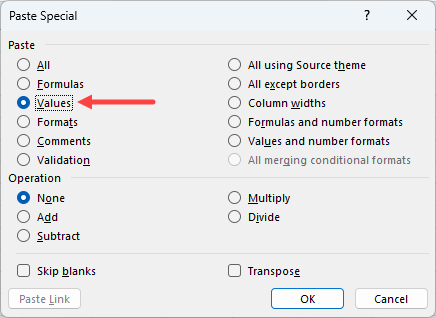
The above step converts the formula result to values so they won’t change after this.
Generate Random Weekdays
If you want to generate only random weekdays between two dates, you can use the RANDARRAY function together with the WORKDAY and NETWORKDAYS functions.
The WORKDAY function calculates a date that is a specific number of working days (weekdays) away from a start date, optionally skipping holidays.
The syntax of WORKDAY:
=WORKDAY(start_date, days, [holidays])
- start_date – the date you start from.
- days – the number of workdays to move forward (positive) or backward (negative).
- [holidays] – a range of dates to exclude from the calculation, for example, public holidays.
The NETWORKDAYS function returns the number of whole workdays between two dates.
Suppose you want to generate 15 random weekdays between January 1, 2026, and December 31, 2026.
Here’s how you can do it:
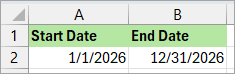
- Enter the start date and end date in cells (A2 and B2 in this case).
- Enter the formula below in a cell (D2 in this case).
=WORKDAY(A2-1, RANDARRAY(15,1,1, NETWORKDAYS(A2,B2), TRUE))
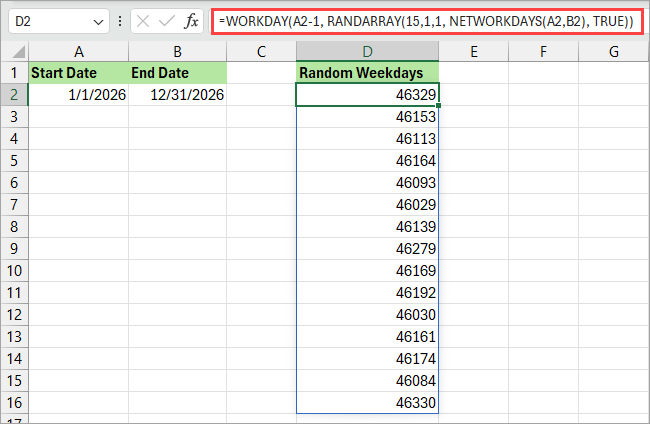
The date returns date serial numbers. You can format them as dates as described in the section above.
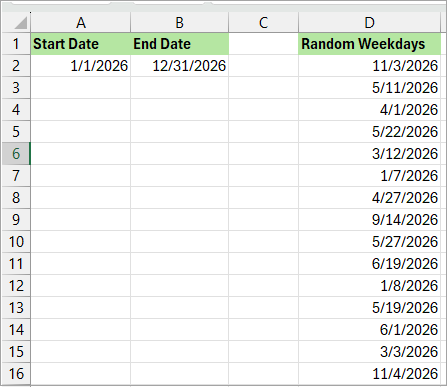
You can freeze the dates as described in the section above.
Generate Random Weekdays Excluding Holidays
Using the example above, you have a holiday list in, say, the cell range F2:F12. You can exclude the holidays from the results using the formula below.
=WORKDAY(A2-1, RANDARRAY(15,1,1, NETWORKDAYS(A2,B2), TRUE), F2:F12)
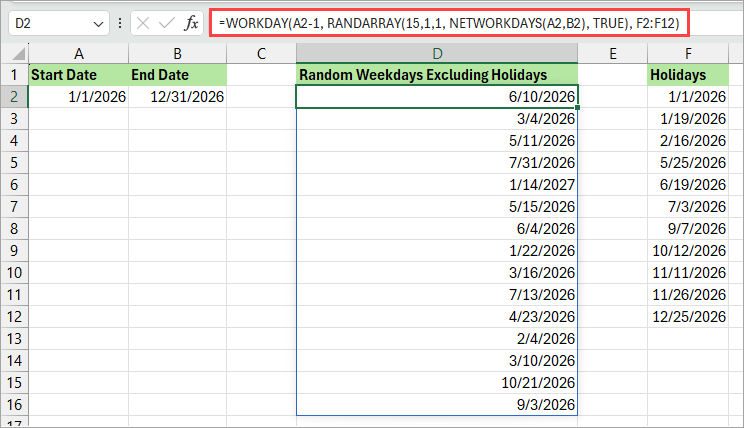
Note: The formula returns the dates as serial numbers. Format them as dates and freeze them as described earlier in this section.
Method #2: Using RANDBETWEEN Function
If you have an older version of Excel without dynamic array support, you can use the RANDBETWEEN function to generate random dates between any two dates you specify.
Suppose you want to generate 15 random dates between January 1, 2026, and December 31, 2026.
Here’s how you can do it:
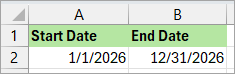
- Enter the start date and end date in cells (A2 and B2 in this case).
- Enter the formula below in a cell (D2 in this case).
=RANDBETWEEN($A$2,$B$2)
Note: Use absolute cell references to ensure they remain fixed when you copy the formula down.
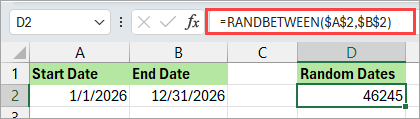
Note: The formula returns a date serial number.
- Drag the formula down as far as needed to generate the number of random dates you desire.
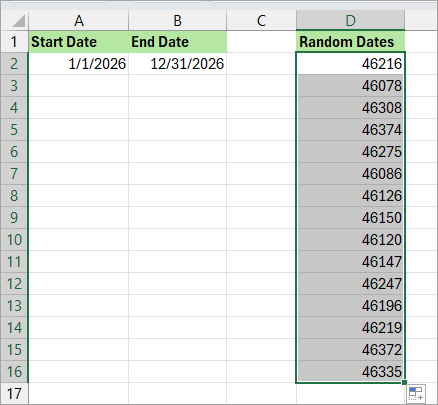
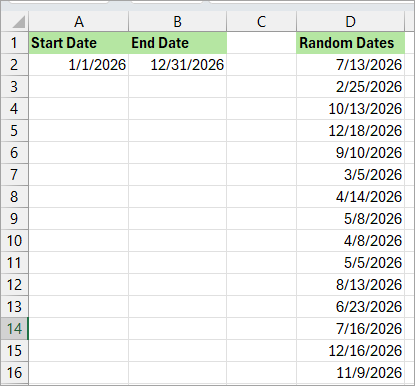
- Apply a date format to the date serial numbers as described in Method #1. The results will be as shown below.
- Freeze the dates so that they don’t change when the worksheet recalculates, using the steps outlined in Method #1.
Generate Random Weekdays
If you want to generate only random weekdays between two dates, you can use the RANDBETWEEN function together with the WORKDAY and NETWORKDAYS functions.
Suppose you want to generate 15 random weekdays between January 1, 2026, and December 31, 2026.
Here’s how you can do it:
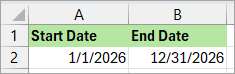
- Enter the start date and end date in cells (A2 and B2 in this case).
- Enter the formula below in a cell (D2 in this case).
=WORKDAY($A$2-1, RANDBETWEEN(1, NETWORKDAYS($A$2,$B$2)))

Note: The formula returns a date serial number.
- Copy the formula down as far as needed to produce the desired number of random dates

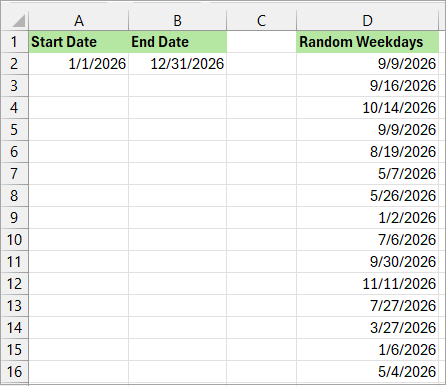
- Apply a date format to the date serial numbers as described in Method #1. The results will be as shown below.
- Freeze the dates so that they don’t change when the worksheet recalculates, using the steps outlined in Method #1.
Generate Random Weekdays Excluding Holidays
Using the example above, you have a holiday list in, say, the cell range F2:F12. You can exclude the holidays from the results using the formula below.
=WORKDAY($A$2-1, RANDBETWEEN(1, NETWORKDAYS($A$2,$B$2,$F$2:$F$12)), $F$2:$F$12)
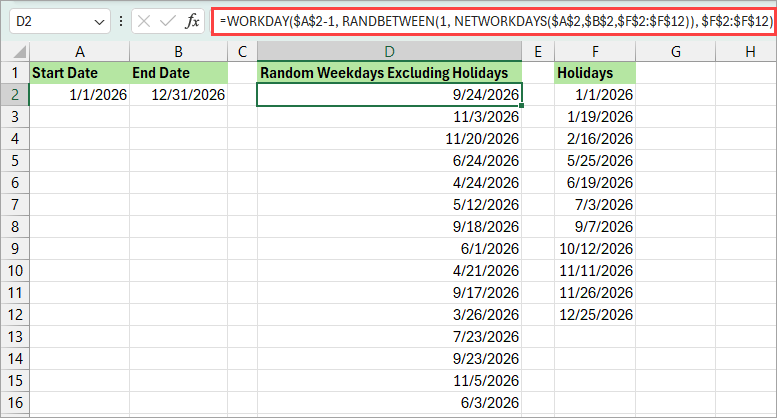
Drag the formula down to generate the required number of dates.
Note: The formula returns the dates as serial numbers. Format them as dates and freeze them as described in Method #1.
Method #3: Using Power Query
Suppose you want to generate 15 random weekdays between January 1, 2026, and December 31, 2026.
Here’s how you can do it using Power Query:
- Click the Data tab.
- Open the Get Data Drop-Down on the Get & Transform Data group.
- Hover the mouse pointer over the From Other Sources option.
- Choose the Blank Query option on the submenu.
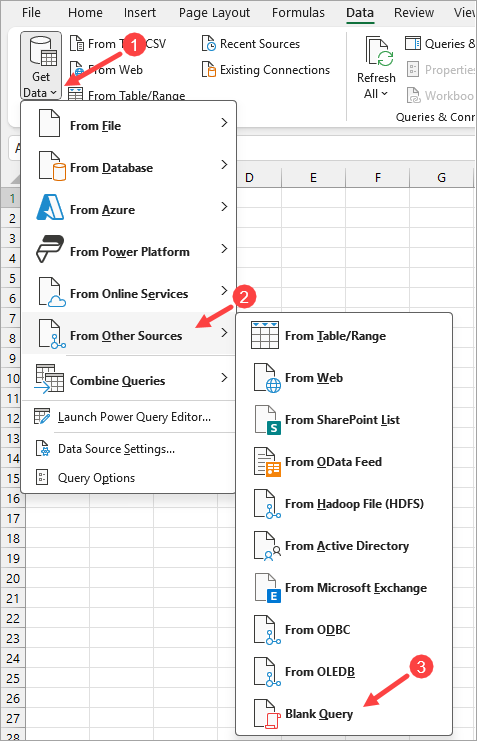
The above step opens a blank query in the Power Query Editor.
- On the Home tab, click the Advanced Editor option on the Query group.
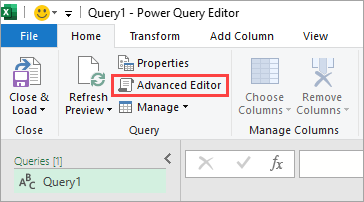
The above step opens the Advanced Editor window.
- Copy the code below to the Advanced Editor window.
let
    StartDate = #date(2026, 1, 1),
    EndDate = #date(2026, 12, 31),
    DaysDiff = Duration.Days(EndDate - StartDate),
    RandomDates = List.Transform({1..15}, each Date.AddDays(StartDate, Number.RoundDown(Number.RandomBetween(0, DaysDiff)))),
    Result = Table.FromList(RandomDates, Splitter.SplitByNothing(), {"RandomDate"})
in
    Result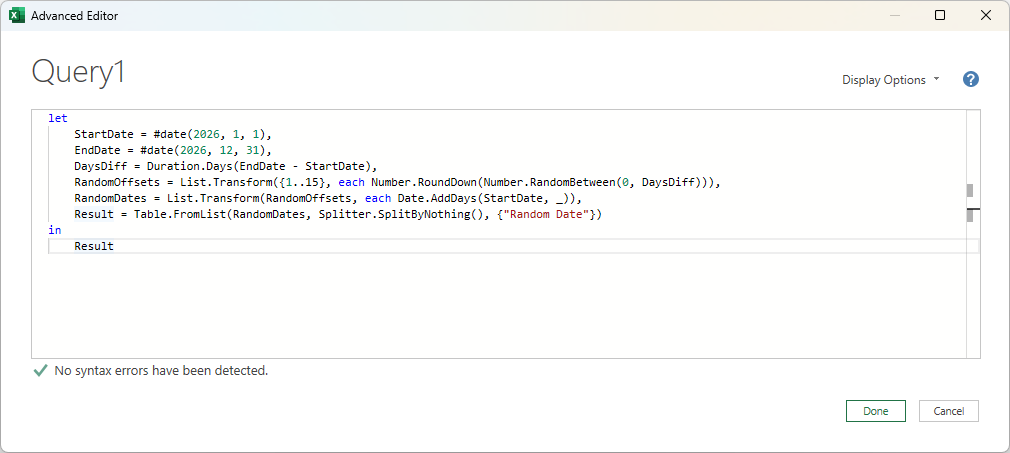
- Click Done.
Power Query generates random dates.
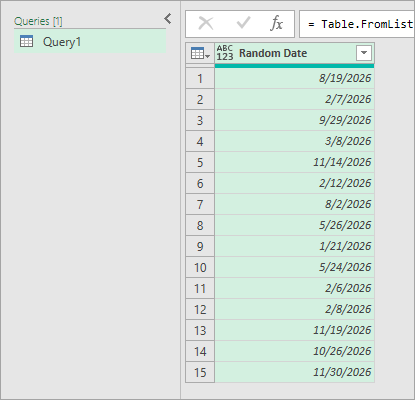
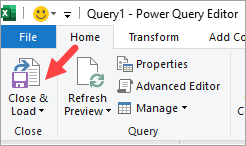
- On the Home tab, click Close & Load on the Close group.
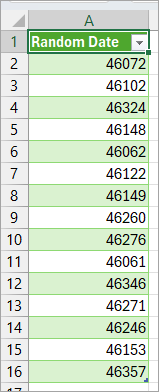
Power Query loads the random dates to a new worksheet as serial numbers.
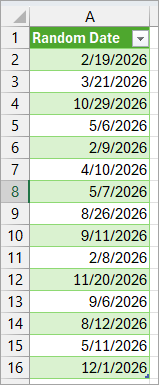
- Format the date serial numbers as dates as shown in Method #1.
The random dates update only when the query is refreshed, not when the worksheet recalculates.
I hope you found the tutorial helpful.
Other Excel articles you may also like:
