
If you want to use minutes data in Excel in arithmetic calculations, you need to first convert it into hundredths in Excel.
And this is because Excel stores dates and time values as numbers in the backend.
For example, 1 full day is stored as 1, 1 hour as 1/24, and 15 minutes is stored as 0.0104167, which is 15 divided by 1440 (the number of minutes in a day).
So if you work with time data in Excel, it would be useful to learn how to convert minutes into hundredths in Excel.
Scenario #1: Time in Hours and Minutes
If the time in Excel is displayed as hours and minutes, you can use the steps below to convert the minutes into hundredths.
Step #1: Multiply the Time Values by 24
Use the formula below to multiply the time values in column D in the example dataset below by 24.
=D2:D11*24
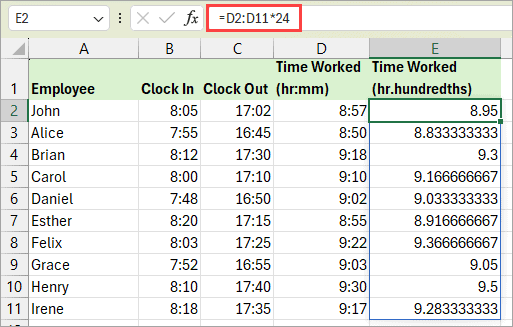
Since Excel stores time internally as a fraction of a 24-hour day, multiplying by 24 changes that fraction into the correct number of decimal hours.
Note: If you are using an older version of Excel that does not support dynamic arrays, you can use the formula =D2*24 and copy it down.
It’s very likely that you may not see the result as shown in the image above, and instead see the result as time in Excel. That is because Excel automatically formats the result, thinking that this is a time value that needs to be shown in the hh:mm format.
You can follow the steps mentioned below to get the result in the right format.
Step #2: Format the Results as Numbers
Use the steps below to format the results as numbers.
- Select the cell range with the results generated in Step #1.
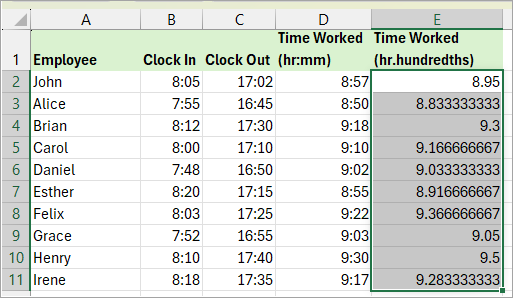
- Click the Home tab.
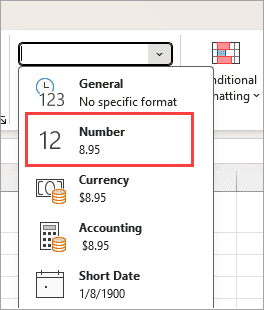
- Open the Number Format drop-down on the Number group and choose the Number format.
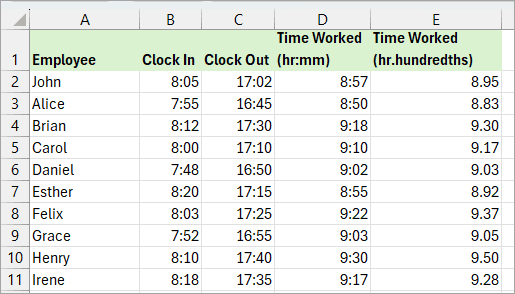
The minutes in the time values are converted to hundredths.
Scenario #2: Time in Minutes
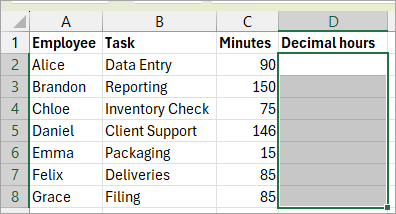
If the time values in Excel are in minutes, use the steps below to convert them into decimal hours with minutes in hundredths.
- Select the cell range where you want to do the conversion.
- Open the Number Format drop-down on the Number group and choose the Number format.
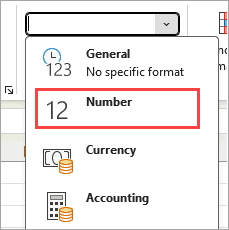
The above step applies the Number format to the cell range.
- Enter the formula below in the target column.
=C2:C8/60
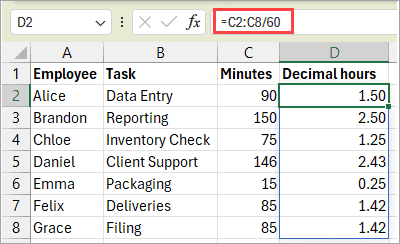
Note: If you are using an older version of Excel that does not support dynamic arrays, you can use the formula =C2/60 and copy it down.
I have shown you how to convert minutes to hundredths in Excel. I hope you found the tutorial helpful.
Other Excel articles you may also like:
