
Excel’s PROPER function capitalizes the first letter in text and letters following nonletters, while changing the remaining letters to lowercase.
It can standardize inconsistent text casing, but names and acronyms often need review. Apostrophes and other punctuation can create capitalization you did not intend.
In this article, I’ll show you how to standardize names and addresses, handle mid-word capitals, and compare PROPER with UPPER and LOWER.
PROPER Syntax
Here is the syntax of the PROPER function:
=PROPER(text)
- text – The text string you want to convert to proper case. This can be a direct string in quotes, a single cell reference, or a range. In Excel 365, passing a range spills the result into the cells below.
That’s it. PROPER takes one argument and gives you back the same text with the first letter of every word capitalized and the rest in lowercase.
When to Use PROPER
Use this function when you need to:
- Clean up a whole column of imported text where the casing is inconsistent (forms, scraped pages, exports from older systems).
- Standardize place names, route titles, or product labels before publishing or merging.
- Normalize text dumped from a database that comes through in ALL CAPS.
- Spill a cleaned column from one formula instead of filling down.
Let me show you a few practical examples of how PROPER works.
Example 1: Clean Up an Imported List of Trail Names
Let’s start with a simple example.
Below is a list of hiking trail names exported from a parks-database CSV. The casing is all over the place. I want one clean column where each name is in proper title case.
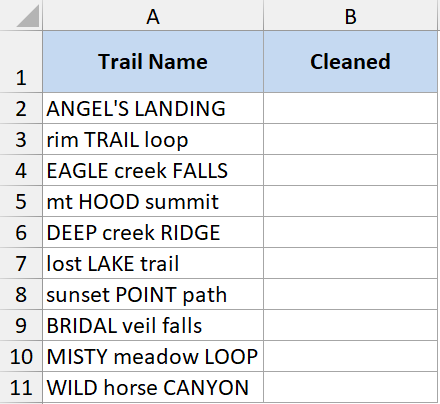
Here is the formula:
=PROPER(A2:A11)
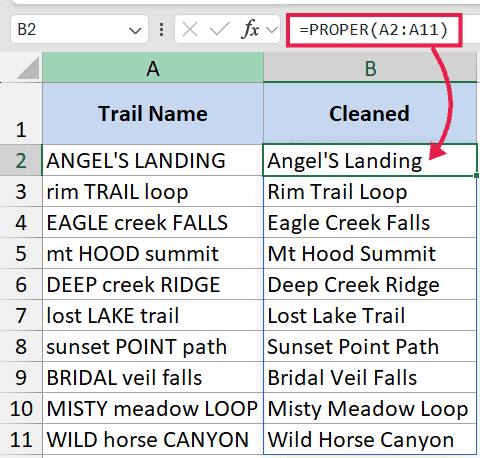
In Excel 365, that single formula spills a cleaned column from row 2 down. So “ANGEL’S LANDING” becomes “Angel’s Landing”, and “rim TRAIL loop” becomes “Rim Trail Loop”.
No drag, no fill handle.
If you want to replace the original column with cleaned values, copy the PROPER results, then paste them back as values over the original column.
Example 2: Standardize Imported Venue Addresses
Here’s another practical scenario.
You have a column of venue addresses that came in as ALL CAPS from a ticketing system. You want them in proper case so they don’t shout at the reader.
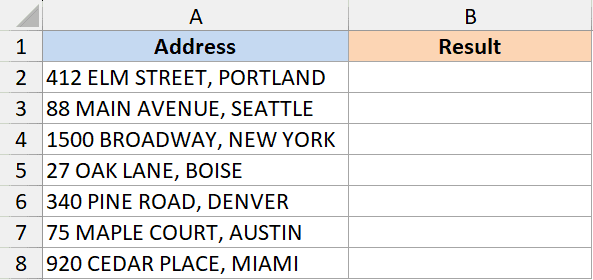
Here is the formula:
=PROPER(A2:A8)
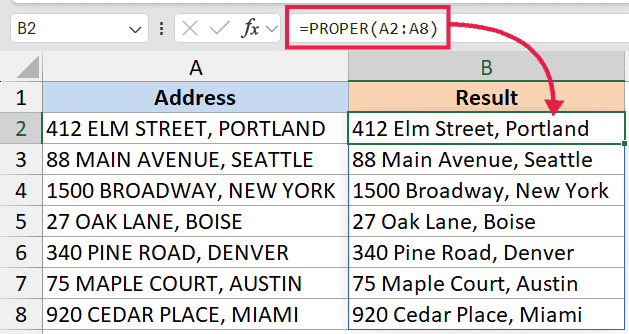
So “412 ELM STREET, PORTLAND” spills out as “412 Elm Street, Portland”, and the same one formula handles every row at once. Numbers are left untouched, and every word gets its first letter capitalized.
One thing to watch: state codes like “OR” or “WA” will become “Or” and “Wa”. I cover the fix for that in the next examples.
Example 3: The McKinley, O’Brien, and Acronym Gotcha
This is the part of PROPER that surprises people the first time it bites them.
PROPER capitalizes the first letter after any non-letter character, and lowercases everything else. That sounds reasonable until you run it on real names and acronyms.
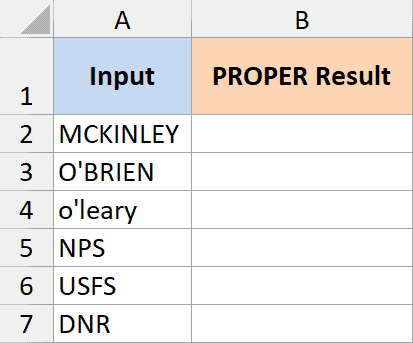
Use the formula below:
=PROPER(A2:A7)
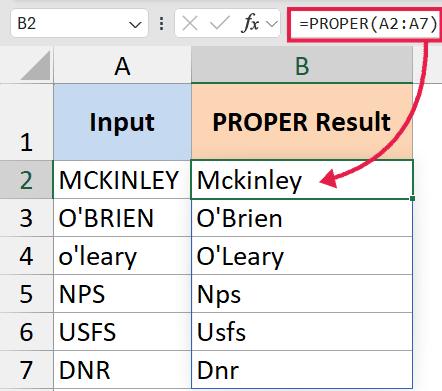
Here’s what’s happening:
- For “MCKINLEY”, PROPER sees one continuous word with no break, so it capitalizes only the first letter. You get “Mckinley” instead of “McKinley”.
- For names with an apostrophe like “O’Brien” or “O’Leary”, PROPER actually does the right thing. The apostrophe is a non-letter, so the letter after it gets capitalized.
- For agency acronyms like “NPS” (National Park Service), “USFS” (US Forest Service), or “DNR” (Department of Natural Resources), PROPER has no idea they’re acronyms. It treats them as regular words and gives you “Nps”, “Usfs”, “Dnr”.
So PROPER is great for plain words but it cannot read your mind about names with mid-word capitals or all-caps acronyms.
Example 4: PROPER + SUBSTITUTE Workaround for Mid-Word Capitals
Now let’s step it up with a fix.
If your data has names like McKinley, MacArthur, or DeSoto, you can wrap PROPER inside SUBSTITUTE to put the capital letter back where it belongs. The whole thing still spills.
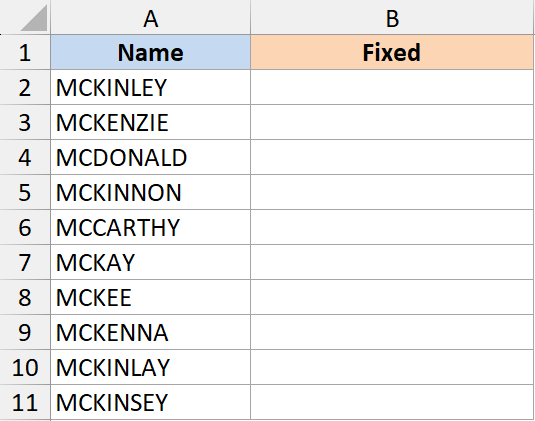
I want every Mc-name in column A to come back with the capital in the right place.
Here is the formula for fixing “Mc” names across a column:
=SUBSTITUTE(PROPER(A2:A11), "Mck", "McK")
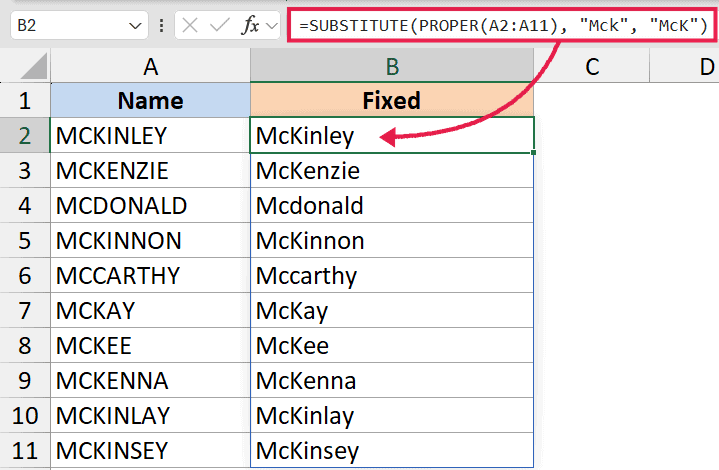
How this formula works:
PROPER(A2:A11)first converts every name in the column to proper case. So “MCKINLEY” becomes “Mckinley” and the result is a spilled array of cleaned names.- SUBSTITUTE then walks that spilled array and replaces every “Mck” with “McK”, giving you “McKinley” wherever it appears.
- Always run PROPER first and apply SUBSTITUTE to the PROPER output, not to the raw input. That way the rest of the casing is already cleaned up before you patch the prefix.
For acronyms, the same idea works. Say your column has the acronym “NPS” mixed into descriptions. You can do:
=SUBSTITUTE(PROPER(A2:A11), "Nps", "NPS")
You can chain multiple SUBSTITUTE calls if you have several acronyms or prefixes to fix:
=SUBSTITUTE(SUBSTITUTE(PROPER(A2:A11), "Mck", "McK"), "Nps", "NPS")
This is the no-VBA way to handle the gotcha. It works well when you know the specific patterns you need to restore.
Example 5: PROPER vs UPPER vs LOWER
Let’s compare PROPER with its two siblings, since these three functions are usually the ones you reach for when you want to clean up text casing.
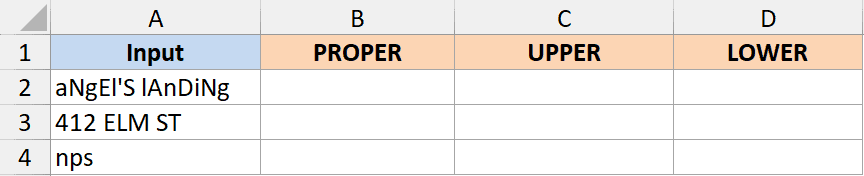
Here’s what each one does to the same input:
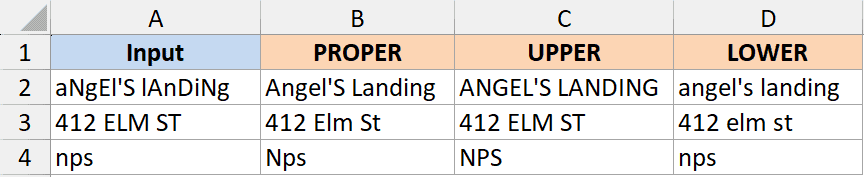
All three functions spill in Excel 365, so =PROPER(A2:A20), =UPPER(A2:A20), and =LOWER(A2:A20) each return a cleaned column from one formula.
Quick guide on when to use which:
- Use PROPER when you want title case. Place names, addresses, route titles, product names.
- Use UPPER function when everything should be in capital letters. Stock tickers, country codes, IDs.
- Use LOWER when everything should be lowercase. Email addresses, URLs, tags.
If your text has mixed needs (mostly title case but a few all-caps acronyms inside), PROPER alone won’t get you there. Combine it with SUBSTITUTE as shown in Example 4, or fall back to UPPER for the parts that need to stay capitalized.
For more on these, see how to change Uppercase to Lowercase in Excel and how to convert text to sentence case.
Tips & Common Mistakes
- The spilling form replaces drag-down. In Excel 365,
=PROPER(A2:A20)returns a cleaned column from one cell. The legacy single-cell=PROPER(A2)plus fill-handle still works, but there’s no reason to do that on a modern Excel. #SPILL!error. The spill needs empty cells below the formula. If something is in the way (data, a merged cell, a cell that’s part of an Excel Table), Excel returns#SPILL!. Clear the destination cells and the formula recalculates.- Watch for the
@implicit intersection symbol. Older Excel versions sometimes auto-insert@when they save a workbook (e.g.=@PROPER(A2:A20)). That collapses the spill to a single cell. Remove the@and the spill comes back. - PROPER returns text, not a formatted version of the original cell. It creates a new value in a new spill range. If you want to replace the original, copy the PROPER results and paste as values over the source column.
- Numbers and special characters are left alone. PROPER only touches letters. So “412 elm st” becomes “412 Elm St” and the numbers stay intact.
- Acronyms get destroyed. “NPS” becomes “Nps”, “USFS” becomes “Usfs”. If your data has acronyms you need to keep capitalized, use the SUBSTITUTE workaround from Example 4.
- Names with internal capitals get flattened. McKinley becomes Mckinley, MacArthur becomes Macarthur. SUBSTITUTE fixes this once you know the patterns.
- Apostrophes are handled correctly. O’Brien stays as O’Brien. Same for hyphens. So “anne-marie” becomes “Anne-Marie” without any extra work.
- PROPER doesn’t know language rules. Words like “of”, “and”, “the” all get capitalized too. So “the lord of the rings” becomes “The Lord Of The Rings”, which isn’t standard book-title case. If you need true title case with lowercase prepositions, you’ll need a more complex formula or VBA.
- Trailing or leading spaces stick around. PROPER doesn’t trim whitespace. If you also need to clean up extra spaces, wrap it with TRIM:
=PROPER(TRIM(A2:A20))and the whole spilled column comes back trimmed and title-cased in one formula.
That covers the PROPER function and the gotchas you’re most likely to hit. For most cleanup jobs, the spilling form on its own gets you 90% of the way there, and SUBSTITUTE handles the rest. Keep UPPER and LOWER in mind too, since picking the right one of the three depends on whether you want title case, all caps, or all lowercase.
Related Excel Functions / Articles:
