
If you want to show online pictures inside worksheet cells, the IMAGE function turns an HTTPS image URL into an in-cell image.
In Microsoft 365 and Excel 2024, you can feed IMAGE a whole column of URLs, and the pictures spill into the cells below.
In this article, I’ll show you how to use IMAGE with alt text, sizing controls, built URLs, lookups, and error handling.
IMAGE Function Syntax in Excel
The IMAGE function accepts an image source plus optional settings for accessibility and size.
=IMAGE(source, [alt_text], [sizing], [height], [width])
- source (required) is the image file’s HTTPS URL, entered as text or supplied through a cell reference.
- alt_text (optional) describes the image for accessibility tools such as screen readers.
- sizing (optional) controls how the image fits. Use 0 to fit and preserve proportions, 1 to fill, 2 for original size, or 3 for custom dimensions.
- height (optional) sets the image height in pixels when sizing is 3.
- width (optional) sets the image width in pixels when sizing is 3.
When to Use IMAGE Function
- Show product photos, logos, flags, or other online images inside worksheet cells.
- Keep pictures attached to records when you sort, filter, move, or resize a table.
- Add alt text through a formula instead of editing each picture separately.
- Build image URLs from worksheet codes.
- Return a picture selected through a lookup formula.
Example 1: Turn Image URLs Into Pictures
Let’s start by turning a column of flag URLs into pictures.
Below is the dataset. Column A lists six countries, and column B contains a direct PNG URL for each country’s flag.
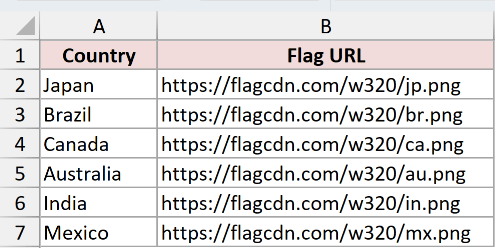
We want one formula in C2 to return all six flags down column C.
Here is the formula:
=IMAGE(B2:B7)
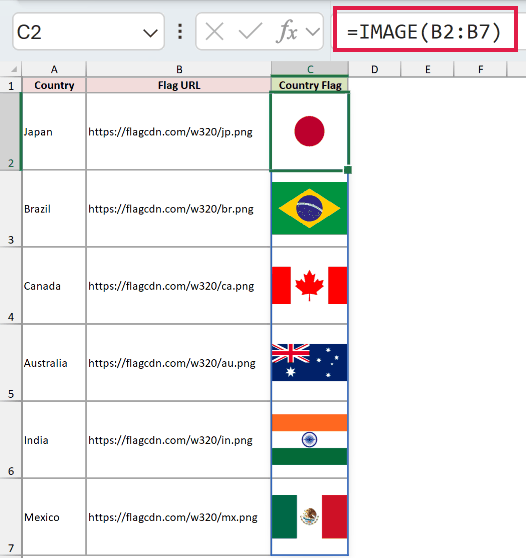
The formula spills flags for Japan, Brazil, Canada, Australia, India, and Mexico into C2:C7, in that order.
Each successful cell holds an image value, so its displayed text is empty even though you can see the flag.
flagcdn.com provides these URLs for free and does not require attribution.
Pro Tip: Leave C2:C7 clear before entering the formula. Any value blocking the output range causes a #SPILL! error.
Example 2: Add Alt Text to Images
Now let’s give each flag useful alt text for accessibility.
Below is the dataset. Columns A and B list countries and capitals, while column C contains each flag’s PNG URL.
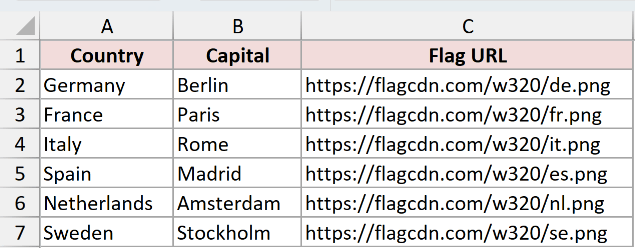
We want column D to show each flag and build its alt text from the country in column A.
Enter this formula in D2, then copy it down through D7:
=IMAGE(C2,"Flag of "&A2)
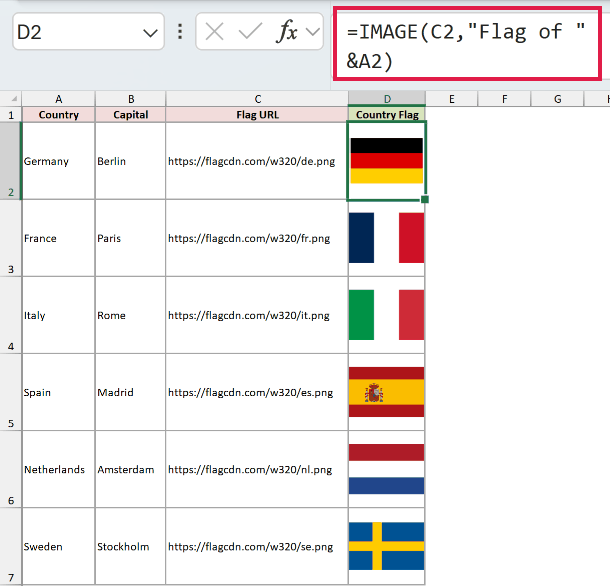
The copied formulas show flags for Germany, France, Italy, Spain, the Netherlands, and Sweden in D2:D7.
The second argument joins Flag of with each country name. If a country changes, its alt text updates with the formula.
Alt text gives a screen reader a description to announce.
Example 3: Control IMAGE Sizing
Here’s how the four sizing options change the same flag.
Below is the dataset. Column A contains sizing values 0 through 3, and column B explains the behavior assigned to each value.
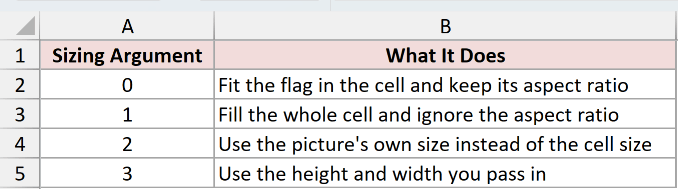
We want column C to render Brazil’s flag once with each sizing mode.
Sizing 0 fits the flag inside C2 while preserving its proportions:
=IMAGE("https://flagcdn.com/w320/br.png","Flag of Brazil",0)
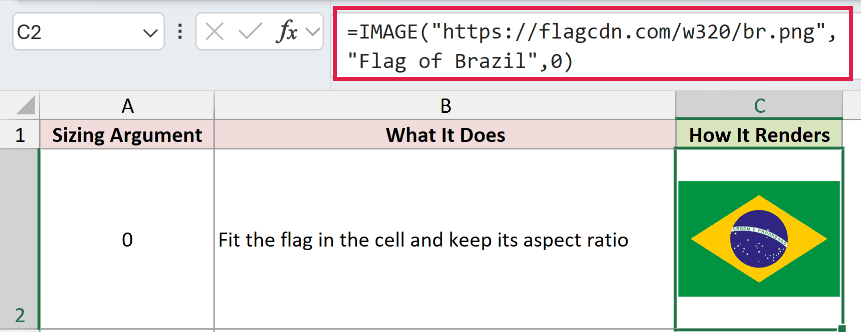
The result fits inside C2 without stretching the green field or yellow diamond.
Sizing 1 fills the whole cell and ignores the flag’s proportions:
=IMAGE("https://flagcdn.com/w320/br.png","Flag of Brazil",1)
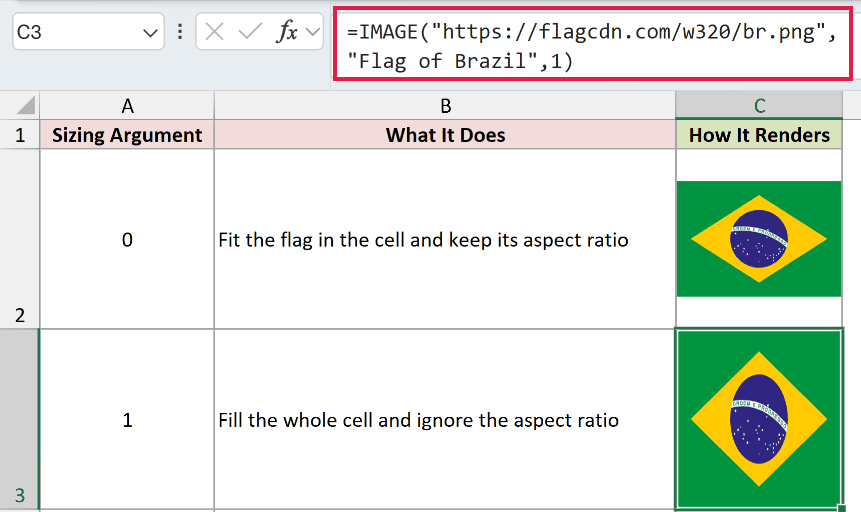
The near-square cell makes the 3:2 flag stretch visibly in C3. A cell already close to the flag’s 3:2 aspect ratio would show less stretching.
Sizing 2 tells Excel to use the picture’s own size instead of the cell size:
=IMAGE("https://flagcdn.com/w320/br.png","Flag of Brazil",2)
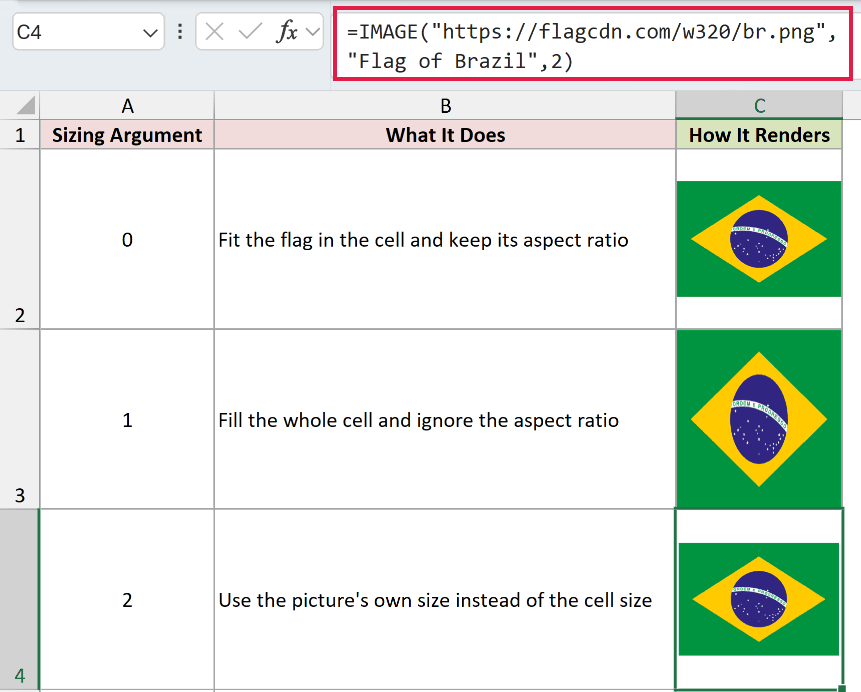
In C4, the flag looks close to sizing 0 in this captured view, with no visible overflow past the cell edge.
Sizing 3 lets us pass an exact height and width:
=IMAGE("https://flagcdn.com/w320/br.png","Flag of Brazil",3,60,90)
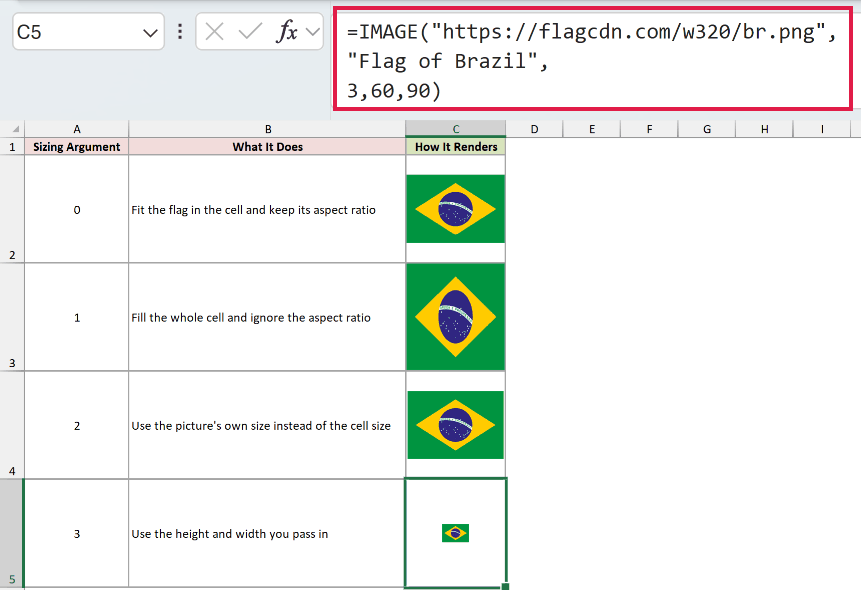
The result in C5 is 60 pixels high and 90 pixels wide. Height comes before width in the IMAGE syntax.
Pro Tip: With sizing 3, Excel returns a #VALUE! error when both height and width are missing, or when a supplied dimension is below 1. If you supply only one dimension, Excel scales the other to preserve the image’s aspect ratio.
Example 4: Build Image URLs From Codes
Let’s build each image URL instead of storing it in the worksheet.
Below is the dataset. Column A holds uppercase country codes, and column B gives the corresponding country names.
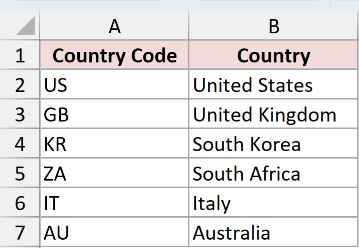
We want one formula in C2 to build six URLs and spill the matching flags into C2:C7.
Here is the formula:
=IMAGE("https://flagcdn.com/w320/"&LOWER(A2:A7)&".png","Flag of "&B2:B7)
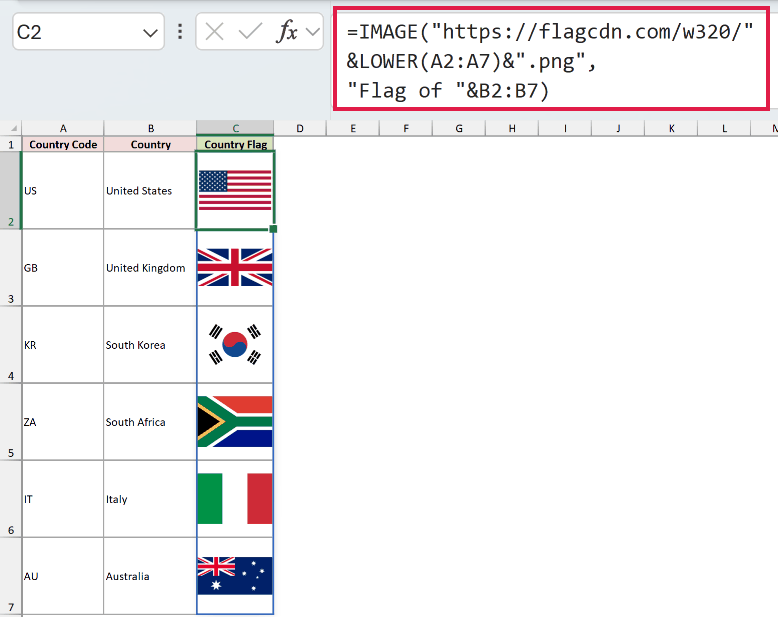
LOWER changes codes such as US to us, which matches the lowercase path required by the CDN.
The formula then joins each code to the fixed URL and .png ending. It also builds alt text from the country names.
The spilled results show flags matching US, GB, KR, ZA, IT, and AU in C2:C7.
This pattern works well when an image host uses predictable file names based on codes or IDs.
Example 5: Return an Image With XLOOKUP
Now let’s return one flag selected by a country name.
Below is the dataset. Columns A and B form a country and URL lookup table, while D2 contains the country we want to show.
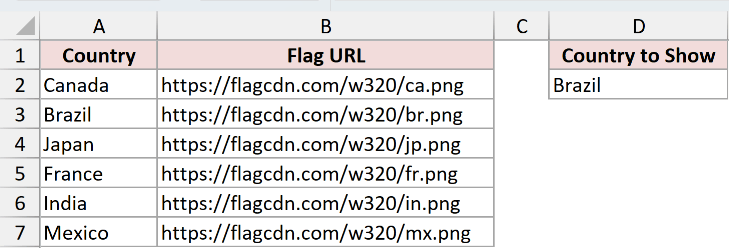
We want E2 to find the flag URL for Brazil and turn it into an in-cell flag.
Here is the formula:
=IMAGE(XLOOKUP(D2,A2:A7,B2:B7),"Flag of "&D2)
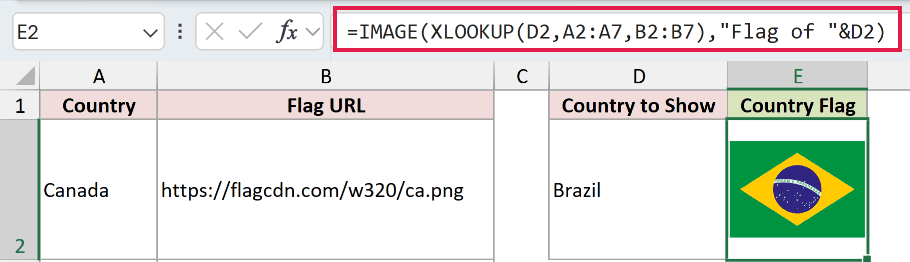
XLOOKUP finds Brazil in A2:A7 and returns https://flagcdn.com/w320/br.png from B2:B7. IMAGE displays the Brazilian flag in E2.
Changing D2 to another listed country makes XLOOKUP return a different URL, so IMAGE replaces the flag.
Example 6: Understand IMAGE Errors
Finally, let’s look at the errors you’re most likely to meet.
Below is the dataset. Column A names four cases, and column B supplies either a direct URL or a note identifying the referenced source.
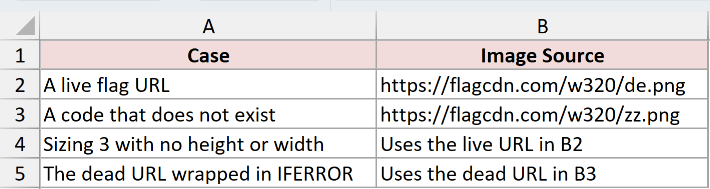
We want column C to show how IMAGE handles a live URL, a dead URL, invalid sizing, and an IFERROR fallback.
First, this formula uses the live German flag URL in B2:
=IMAGE(B2,"Flag of Germany")
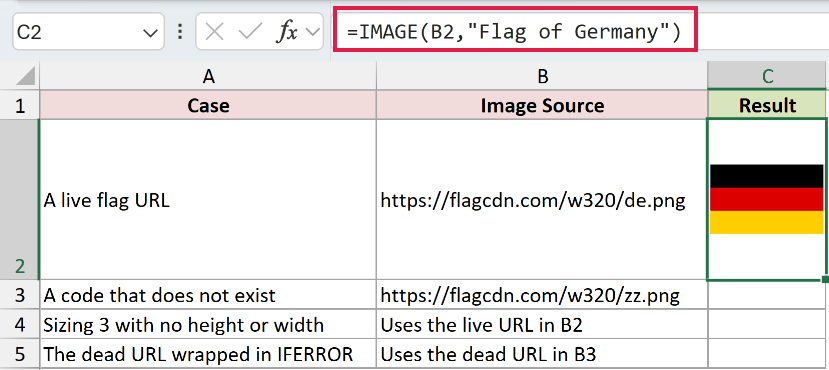
The result in C2 is the German flag, confirming that the live URL works before we test the error cases.
This formula uses a URL containing the nonexistent country code zz:
=IMAGE(B3,"Missing flag")
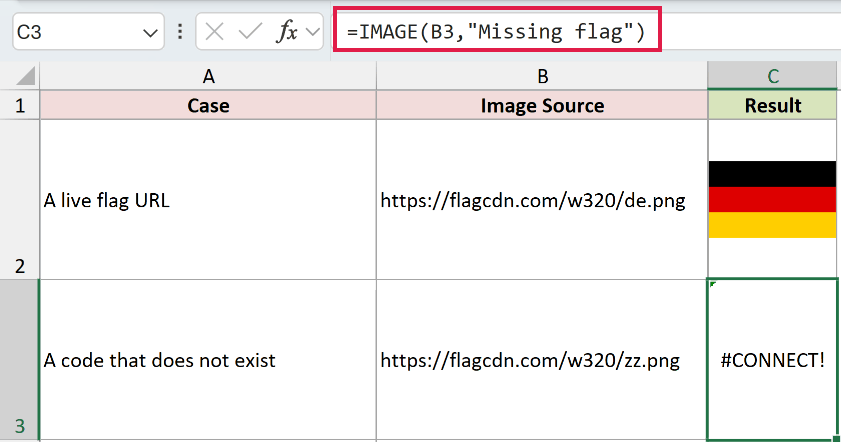
The dead URL returns #CONNECT! in C3 because Excel cannot retrieve the image file.
This formula selects sizing 3 but omits height and width:
=IMAGE($B$2,"Flag of Germany",3)
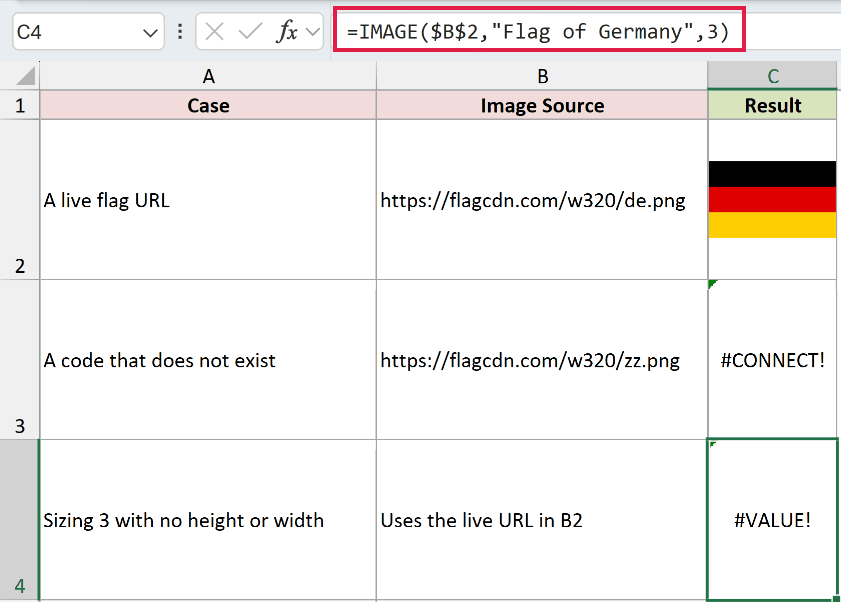
The incomplete sizing arguments return #VALUE! in C4.
We can wrap the dead URL formula in IFERROR to replace its error:
=IFERROR(IMAGE($B$3,"Missing flag"),"Flag not available")
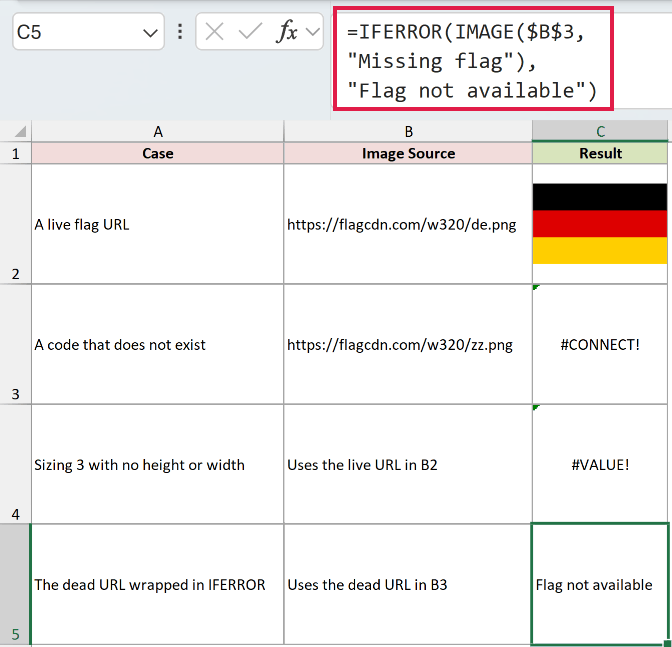
The result in C5 is Flag not available, confirming that IFERROR catches the #CONNECT! error.
#BUSY! can appear briefly while Excel downloads an image. It normally clears without any action once the request finishes.
#BLOCKED! means Excel’s security settings stopped the request. On Windows, review the Linked Data Types settings under File > Options > Trust Center > Trust Center Settings > External Content.
Tips & Common Mistakes
- IMAGE is available in Microsoft 365 and Excel 2024 on Windows and Mac, plus Excel for the web, iPhone, and Android phones. Excel 2021, Excel 2019, and earlier versions do not include it.
- Use a public HTTPS URL that points directly to the image file. HTTP links, files requiring authentication, and URLs that redirect will not render.
- The source text is limited to 255 characters. For a longer URL, place it in a worksheet cell and use that cell as the
sourceargument. - IMAGE supports BMP, JPG, JPEG, GIF, TIFF, PNG, ICO, and WEBP. WEBP is unavailable in Excel for the web and Android.
- If Excel keeps showing a cached picture after its URL changes, delete the formula, save the workbook, and enter the formula again.
- An
@before IMAGE forces one result instead of a spill. Remove it when you expect a range of URLs to return a column of pictures. - IMAGE cells move with their rows and work with sorting and filtering because the pictures live inside the cells, not above the grid.
IMAGE works best with a public HTTPS URL that points straight to the image file.
Start with the spilling pattern in Example 1, then add meaningful alt text before sharing the workbook.
Related Excel Functions / Articles:
